


There is nothing unusual about seeing Google Docs Offline in Chrome. That’s part of what makes this version easy to miss in a long list of extensions.
The name alone can’t tell you whether you found the genuine tool. The better question is what installed it and whether it can come back.
Overview
The real extension and the planted copy share a name
Google’s documentation explains how its genuine Docs Offline extension lets people work with files without an internet connection. Finding the name in Chrome does not make it malware.
In the GlassWorm investigation, researchers found a malicious extension using the same display name. It was put there by software already running on an affected computer.
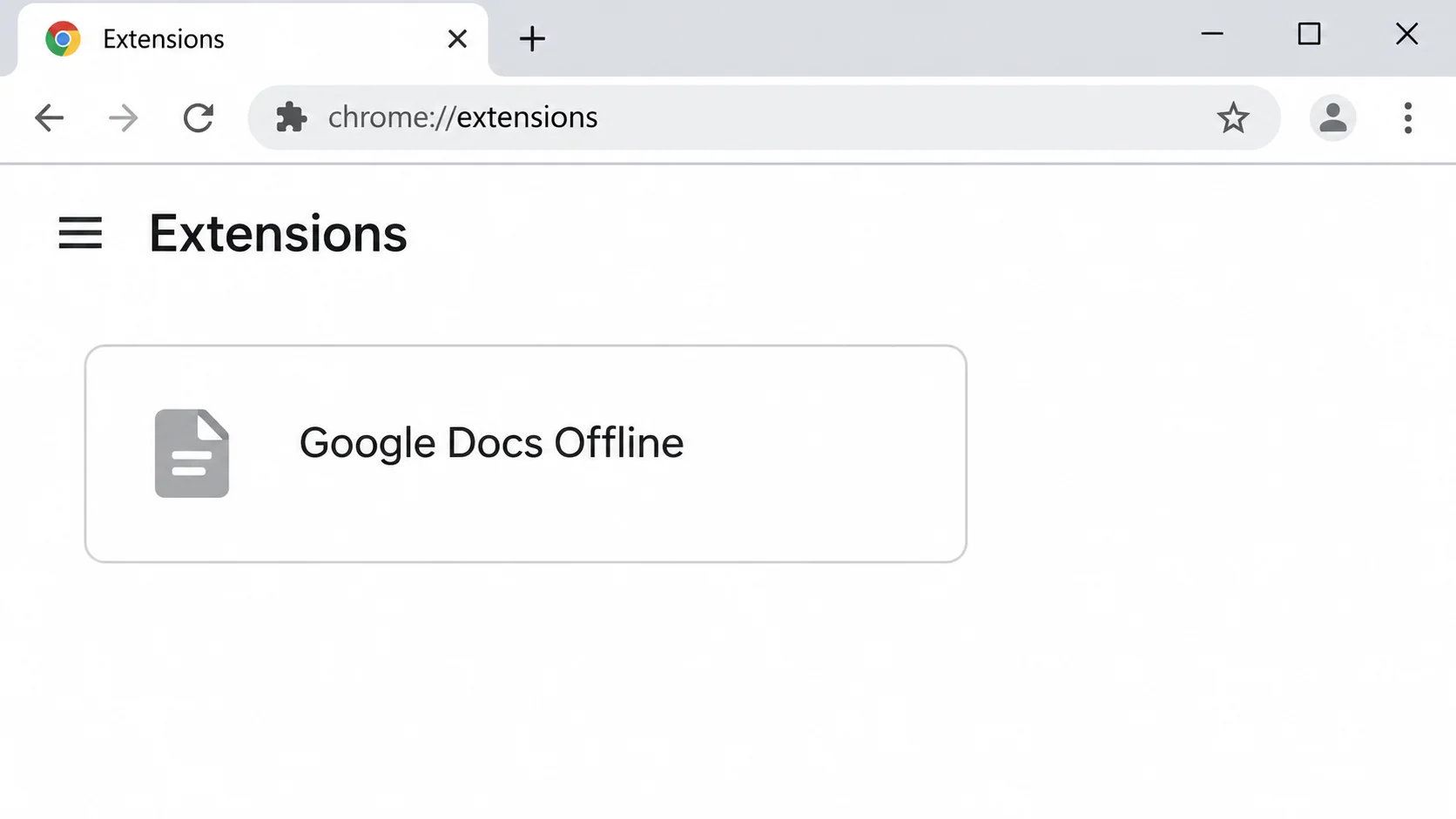
The lead shows the shared name in an invented extension card. It isn’t evidence that the genuine store listing or any specific extension on your machine was compromised.
Browser surveillance was one part of a larger incident
Malwarebytes’ analysis describes the copied extension on Windows and macOS. It could reach browser tabs, activity, cookies and information typed into pages.
The broader reports involve compromised developer tools and packages. That doesn’t mean a particular person had to work in software development to use an already affected computer.
An unexpected extension installed by another process is different from a malicious link that only opens a tab. The response has to include the computer, not just Chrome.
When it’s worth treating the computer as compromised
Three clues help determine where to start:
- A matching display name alone is not a match. Compare what the browser lists with Google’s genuine extension and your own installation history.
- An unfamiliar extension installed alongside a known compromised package, or one that returns after removal, deserves an endpoint investigation.
- If you used webmail, signing tools or developer accounts while the copy was present, secure those accounts from another device.
The words Managed by your organization are not a verdict. Chrome supports legitimate management, including on devices that use a work or school profile.
How the Fake Google Docs Offline Attack Works
Step 1: The first problem may be outside the browser
A developer tool can be useful and still arrive with an unsafe update or package. GlassWorm reporting describes infections that began through compromised parts of the software supply chain.
Start with what was installed, updated or run around the time the extension appeared. An open browser tab doesn’t explain software that was planted by another process.
If your team shares an affected project or build setup, send them the package name and dates through a trusted channel. Don’t reinstall anything to see whether the symptoms return.
Step 2: Chrome gains a familiar-looking extension
The impersonator was installed as another stage of the infection. It didn’t need to win a shopper’s attention in the Chrome Web Store to use a convincing store-style name.
An unfamiliar version number or location can help an investigator, but a name or number by itself isn’t conclusive. Compare the entry with the genuine distribution and its identifiers.
The official Chrome Web Store listing uses the ID ghbmnnjooekpmoecnnnilnnbdlolhkhi. Treat it as a reference for the genuine tool, not a rule for every browser or profile.
Step 3: Signed-in browser activity becomes part of the exposure
A browser loads more than public documents. It also holds sessions for services you’ve already signed into. A stolen session can sometimes outlast a password change.
The reported extension also had capabilities to observe what appeared in tabs. That makes the accounts you actually used more important than a list of sites you merely bookmarked.
Start with the browser profile present on the affected computer. Think about webmail, work consoles, code repositories and payment services in use at the relevant time.
Step 4: Another component may put the extension back
The extension was a component of the broader compromise. Removing it from Chrome is a useful action, but it doesn’t remove the program that installed it.
If Chrome says the add-on is managed, first establish whether that is expected on this device. Don’t remove policies indiscriminately to make a browser label disappear.
If the wrong extension returns after you removed it, record that outcome. It is a reason to stop using the computer for sensitive tasks and investigate the underlying install.
Follow where the browser and developer accounts overlap
Start with the Chrome profile that had the extension. A developer may also have personal email and financial accounts open in the same browser.
Write down which profile you used for each important account. If the computer held separate work and personal profiles, tell your responder about both without assuming both were equally affected.
Someone reviewing a company incident should compare the first extension observation with software changes and account activity. A shared package or project can require an organization-wide review.
If you published a build around that time, tell the project owner which releases came from the workstation. Don’t overwrite or republish them until the team has reviewed the incident.
After a credential change, look again at the active device or session list. Seeing a new password work doesn’t confirm the old session was closed.
Consider accounts where you may not have typed a password at all. A browser session can already have access to private documents, a cloud console or a repository.
If your organization uses keys or tokens inside those services, note which ones could approve a deploy or release. The owner can review those permissions and rotate credentials as needed.
Don’t send a credential to prove it was exposed. Use the account name, token label or incident time rather than pasting the secret into an email or chat.
What to Do if You Found the Fake Extension
-
Use a different device for sensitive work. If the extension matches the malicious incident, disconnect the affected computer from its network. Do not sign into any service to test it.
For a managed device, contact your security team from a separate channel before uninstalling or restarting. Explain what you observed and when.
-
Save identifying details without running anything again. Note the extension name, version, profile and whether it appeared as managed. Record any relevant software installs or updates.
If you maintain a package or repository, tell the team whether you published or deployed from the computer. Follow its incident procedure rather than deleting shared records.
-
Protect the accounts that matter most. From a clean device, start with primary email and work identity. Review active sessions and revoke unfamiliar access where the provider offers that control.
In your Google Account, open Security, then Your devices and Manage all devices. Select unrecognized sessions or devices and use Sign out as appropriate.
-
Flag access that passwords alone do not cover. Ask the administrator of any affected developer, workspace or cloud account to revoke credentials that were available on the machine.
That may include access tokens, deploy keys and active browser sessions. Create replacements and resume publishing only after you have a trusted environment.
-
Review financial activity only from a trusted device. Contact the bank or wallet provider through its legitimate channel if browser activity exposed payments or secrets.
If a wallet recovery phrase was available to the affected environment, ask the vendor about safe migration. Do not enter that phrase in a browser to test it.
How to Remove the Fake Google Docs Offline Extension
Step 1: Record Chrome’s state and remove only the identified copy
From Chrome’s three-dot menu, choose Extensions, then Manage extensions. Confirm which profile contains the suspect entry before you change anything.
Choose Details to compare the entry with the verified store listing and note its version. For the identified unwanted copy, select Remove, then confirm Chrome’s prompt.
If two entries have the same name, identify each one individually before removing anything. Choosing the first match can leave the planted copy where it was.
If removal is unavailable, check Google’s managed-browser guidance. Its read-only management and policy screens can show what governs the extension. Don’t erase company controls or random policy entries.
On a personal computer, if the unwanted app or setting has not been positively identified, stop and get help. An unfamiliar policy name is not enough to delete system files.
If you find an unexpected entry, use the legitimate management view to record it before resetting anything. A reset can change settings without touching the software that added a policy.
Review the publisher and extension ID from a different device if you’re unsure about the result. Don’t let the suspect browser supply the link you use for comparison.
Step 2: Check Windows for the software behind the extension
On a personal Windows PC, use the verified Malwarebytes Windows installer. Use a separate trusted device to get the installer if this one should stay offline.
Open the genuine MBSetup, confirm its publisher in the Windows prompt and proceed with setup. Decline optional offers you don’t want. Open the scanner once setup finishes.

On the Windows dashboard, go to the Scanner card and start Scan. Leave Chrome closed while the check runs. Don’t reinstall a compromised package to help it find it.
If you cannot install updates or the tool safely, stop rather than reconnecting solely to get a scan. Ask whether your case needs offline incident response or a rebuild.
Wait for the results screen and note the findings. The screenshots depict the Windows installer and dashboard controls, not findings taken from an affected computer.

Select confirmed threats in the result list and click Quarantine. If asked to restart, do so only when you don’t need to preserve the live environment.
Reopen Malwarebytes and check Detection History. Repeat the scan if requested and escalate findings that return. The optional Windows Premium link may earn MalwareTips a commission.
Step 3: Use the Mac installer and controls on macOS
On macOS, use the Malwarebytes Mac package, not the Windows download. Open the verified package from Finder. The Finder image shows an older version number.
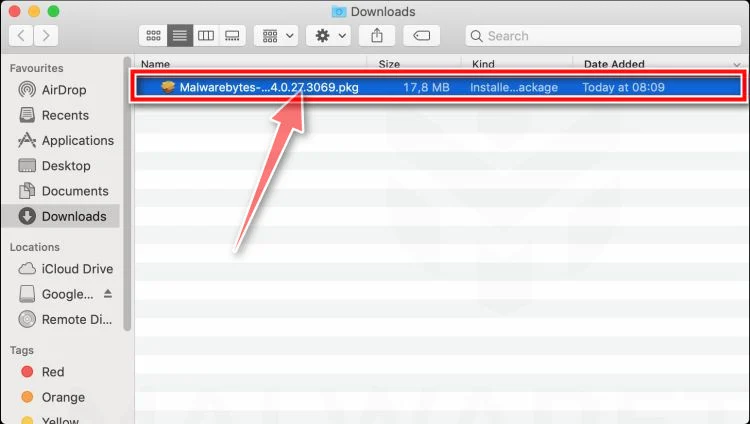
In Apple’s installer, choose Continue, review the agreement and select Agree if you accept. Choose Install and complete the genuine installer prompt, then open Malwarebytes.
On the dashboard, select the Scan control shown below in an older interface. For an identified threat, choose Quarantine when the results offer that action.
If a restart is requested, do it only if you don’t need to preserve evidence. Open Detection History afterward and check Quarantined items before you use Chrome again.
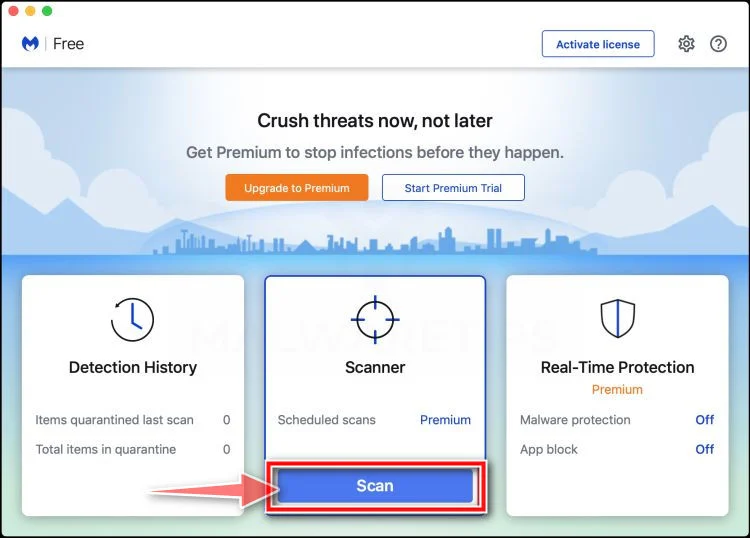
Manual scanning does not require buying a subscription. MalwareTips may earn a commission through its separate optional Mac Premium link.
Step 4: Confirm removal and rebuild when the computer cannot be trusted
When a personal device is ready to be checked, reopen Chrome without signing into sensitive accounts. Return to Manage extensions and confirm the unwanted copy did not reappear.
If an unauthorized policy remains or the extension returns, keep the computer out of sensitive use. A clean scan alone can’t verify which separate component is responsible.
Ask an incident responder about restoring the device from trusted installation media where compromise is confirmed. Plan backups first and don’t restore unreviewed browser profiles, editors or extension folders.
Start a rebuilt machine with only required applications and trusted settings. Review the extension list before enabling browser sync or connecting work accounts again.
Keep a record of what you chose not to bring back. If a particular browser add-on or editor profile was involved, don’t restore it wholesale to regain convenience.
If you can’t use either scanner safely, contact the MalwareTips support boards or your organization’s response team. Share the platform and observations, not private project files.
Frequently Asked Questions
Is the genuine Google Docs Offline extension dangerous?
Google’s own tool exists separately from the copy described here. Check the installation origin, not just the name. Don’t remove the genuine extension solely because it appears in Chrome.
Why did the extension show up without an installation click?
The reported GlassWorm stage put it there after other software had run on the machine. That’s why an ordinary web-store installation history may not explain the finding.
Does a managed-browser label prove an attack?
The label also appears under legitimate management. Check who owns or administers the browser and whether the specific extension or policy is one they deployed.
Can I just turn the extension off?
Turning off the verified malicious extension is useful, but the broader compromise needs investigation. Keep the device out of sensitive use until any software responsible is addressed.
Is version 1.95.1 the only detail I need to check?
It’s the version described for one reported malicious copy. Pair it with provenance, installation circumstances and supporting detections rather than treating a version string as a verdict.
Should I change passwords before cleaning Chrome?
Secure accounts from a different trusted device once you suspect exposure. End affected sessions and revoke relevant tokens separately. Don’t type new passwords into the same untrusted environment.
The Bottom Line
Don’t remove a legitimate tool solely because its name matches the warning. But if you find the planted copy, stop using the affected machine for browsing or development.
Investigate what put it there, clean or rebuild the affected computer and recheck Chrome. Use another device to protect passwords, sessions and any developer access that may have been exposed.

Join the discussion
0 commentsShare your experience or ask a question about this article.
Community experiences
Did this happen to you?
Your experience could help someone recognize the same scam. Submit a private report for our team to review.
I experienced this tooReports are reviewed before publication. Sharing publicly is always your choice.
Discussion
Start the conversation
Have a question or something useful to share? Add the first comment.