


A message about an emergency-alert app doesn’t invite much deliberation. If the phone helps tell you when to take shelter, an urgent update can feel like something to handle immediately.
That’s what makes this RedAlert message worth checking carefully. The warning you need and the link in the text are two different things.
Overview
An emergency update text can point to an impostor
Acronis researchers analyzed a modified Android version of Red Alert distributed in a campaign targeting Israeli users. The messages borrowed the apparent authority of Home Front Command.
The warning applies to that installer, not to genuine public alerts. Use official Home Front Command channels for current instructions, independently of the text.
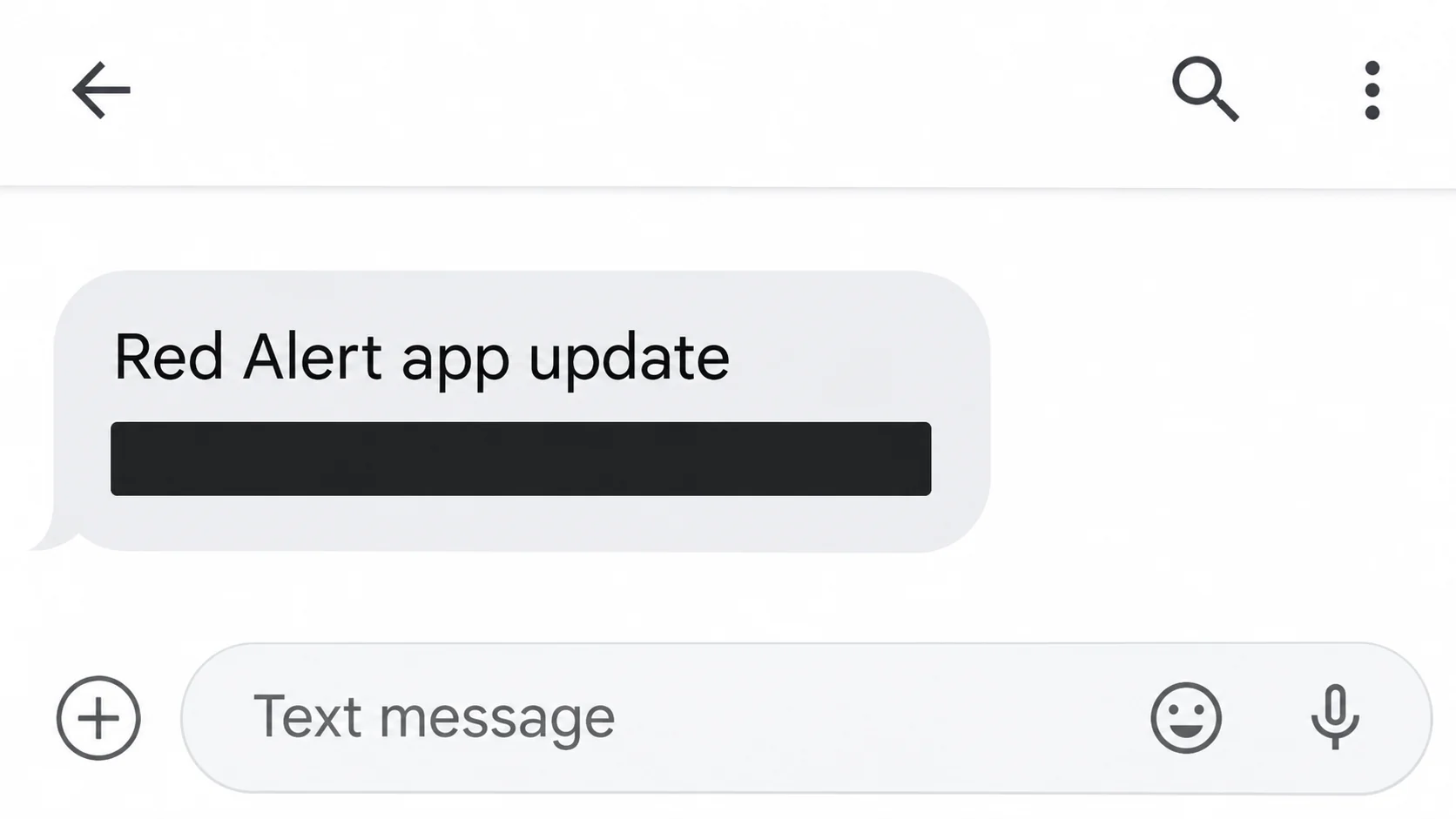
The image recreates the update pretext without a working destination. It is not an emergency message and should not be used for current safety information.
The modified app could still look useful
One unsettling finding is that the modified package retained legitimate-looking alert behavior. Receiving a notification after installation wasn’t reliable evidence that the app was the genuine copy.
The original purpose is easy to understand: notifying people. A package asking for unrelated access to messages or contacts needs a separate explanation that the link cannot supply.
Location can be relevant for legitimate area-based alerts. Don’t treat that permission alone as proof of infection. The combination of an unexpected package and its access requests matters more.
Restore a trusted alert channel before starting cleanup
The priority here is different from a routine bad download. Make sure you can still get official safety instructions while investigating the phone:
- If an actual emergency is underway, follow official instructions and use an alternate trusted channel. Troubleshooting is not the immediate priority.
- If the file downloaded but wasn’t installed, leave it unopened. Verify the correct app through an official route.
- If the suspect app was installed, keep an independent alert source ready before taking the affected phone offline.
The researchers reported access to categories that included contacts, messages and location. They didn’t show that every recipient of a text installed the app or exposed the same data.
How the Fake RedAlert Update Scam Works
Step 1: A message presents the update as part of emergency readiness
The sender tries to make an ordinary software decision feel urgent. It borrows the language of alerts so that the recipient is less likely to stop and verify the source.
The displayed sender may look familiar. That alone doesn’t authenticate a link or make an outside Android package official.
Take the warning channel seriously without accepting the download. Open the official emergency site from a bookmark or another trusted device, not through the message.
Step 2: The download supplies a modified app package
Instead of taking you through the verified app distribution channel, the message directs attention to an outside Android installer. That’s the point to walk away from the link.
Someone who only clicked may still have an unopened file in Downloads. If nothing installed, that is different from giving the modified app permission to run.
If you’re unsure what happened, write down the prompt you remember. Don’t repeat the download while you are trying to trace your steps.
Step 3: Real-looking alerts make the copy harder to question
An alert appearing on the screen can feel like proof that the app is working properly. In this case, researchers found the modified package retained functionality that supported the disguise.
Judge the source separately from the alert. You can receive legitimate information through a compromised channel without having a trustworthy application.
If the app asks for text messages or your address book, don’t approve the request just because another feature appears to work. Verify what the official app actually requires.
An app can display familiar alerts without being the only way to receive them. Identify another trusted channel before deciding when to disconnect or uninstall.
Step 4: Granted access can expose information beyond alerts
In the reported sample, the risk extended to messages, contacts and location information. The accessible data depends on the device and the permissions the app actually obtained.
Messages can also contain login notifications or verification codes. That makes a possible account incident worth checking from a safe device, even after the suspicious app is removed.
For a person with an elevated safety risk, location exposure is not just a technical issue. Seek qualified help without posting private details or a travel history publicly.
Set up a separate alert source before touching the suspect app
Use a device you trust and open the official Home Front Command information independently. Don’t use the link from a forwarded version of the same text.
Make sure the people relying on you know which channel to use while the phone is being checked. That matters if you normally relay warnings to family members.
If a caregiver or another person needs accessible alerts, keep their preferred official sound, visual or vibration setup available on the alternate device. Do not remove needed accessibility services.
If you usually contact your carrier or bank from the affected phone, copy their verified support routes to the clean device before you start.
Do not use the suspicious download as a replacement copy for someone else’s phone. An official link reached independently is different from forwarding an installer from your Downloads folder.
If you realign alert settings later, verify the official app’s permitted notifications before relying on it. A quiet device doesn’t tell you there are no warnings.
Review message and location exposure separately
Ask which categories the app already had access to. If it could read messages, identify services that send sign-in codes or transaction notices to that number.
From another device, check sessions and recovery numbers in the most important accounts first. Ask the provider about unexpected approvals or calls you can’t account for.
If location was accessible, avoid sharing a route or current whereabouts in a public support post. A qualified responder can discuss that risk in a more appropriate channel.
Don’t assume changing an account password deletes messages previously read by an app. It may still help protect future access, which is why both issues need attention.
What to Do if You Installed the Fake RedAlert App
-
Make sure you still receive trustworthy alerts. If local authorities are issuing an alert now, follow their safety instructions first. Use another trusted handset or the official public channel.
Do not rely on a suspicious app as your only warning source while you investigate. Switch to the official route before disconnecting the affected phone.
-
Work out whether the message became an installation. If you never installed the downloaded file, leave it unopened. If the modified app ran, note the time and access you granted.
On a work-managed device, contact your administrator using another device. Wait for their advice before removing evidence or restarting.
-
Protect accounts that use text messages for verification. If the app could see your messages, use a trusted device to check email, mobile carrier and financial account activity.
Ask providers to end unfamiliar sessions and review recovery settings. If a bank transaction or approval is unexpected, use its verified fraud channel instead of the suspect phone.
-
Report the suspicious text without forwarding its link. Preserve the sender label and arrival time. Don’t share the installer with friends to show them what to avoid.
If the carrier or your security team asks for the message, use their own reporting channel. Share only the details necessary to identify the incident.
-
Consider who else might be affected, privately. A contacts permission can concern people beyond the device owner. Warn relevant people through a trusted route if they receive unusual requests.
If you’re concerned about location exposure or targeted monitoring, get qualified support before posting information publicly or reconnecting the phone.
How to Remove the Modified RedAlert App From Android
Step 1: Separate the suspect copy from the real warning service
Verify an alternate way to receive official emergency alerts first. If you may need to retain the phone as evidence, ask for help before you change or erase it.
On your own device, open Settings, then Apps, and bring up the full list. Find the app you added through the text, not just the first matching name.
Use its installation history if you can. Don’t remove unrelated alert software or system components because their titles look similar.
Step 2: Record and revoke access for the identified copy
Open App info for the suspect application. Under Permissions, check whether Android allowed SMS, Contacts or Location. Note the granted categories if needed, then revoke them where available.
Use Install unknown apps in Settings to review the browser or file manager you used for this download. Turn off the permission for that source if it was enabled.
If an entry is part of employer management, don’t change it on your own. Contact the administrator and describe the installer rather than removing the whole profile.
Step 3: Uninstall through Settings and don’t run the download again
On the suspect application’s details page, tap Uninstall and confirm. Go back to the list and make sure the identified installed copy is no longer present.
If a package remains under Downloads, remove it without opening it unless support needs it. If uninstall is blocked, keep the device isolated and seek help.
One phone can have an old legitimate alert app and a separate suspect download. Preserve your verified warning route while you work out which installation is involved.
Step 4: Check the remaining apps with the real store and scanner
Once a reconnect is appropriate, launch the actual Google Play Store app. Choose the profile menu and Play Protect, then run its scan if you see the option.
For another check, open the official Malwarebytes Android listing. Verify the publisher, tap Install, and open the application when the store confirms it’s ready.
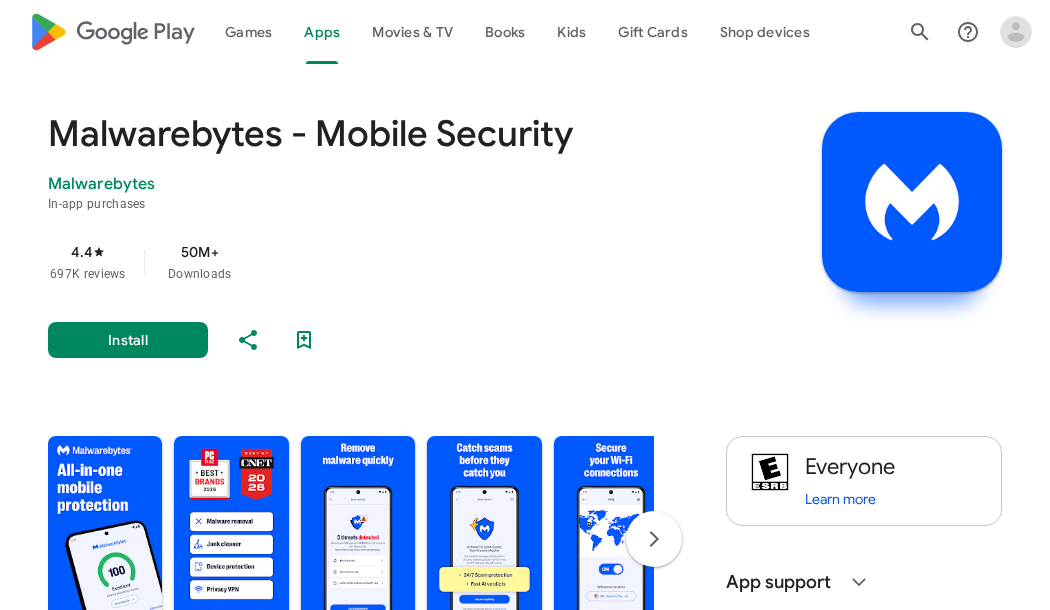
Find the Device section on its dashboard and select Scan now. Review a file access request if you want it to check downloaded files as well as installed apps.
The scan should run without an installer provided by the alert message. If active spyware may still be present and you can’t reconnect safely, get support from another device instead.
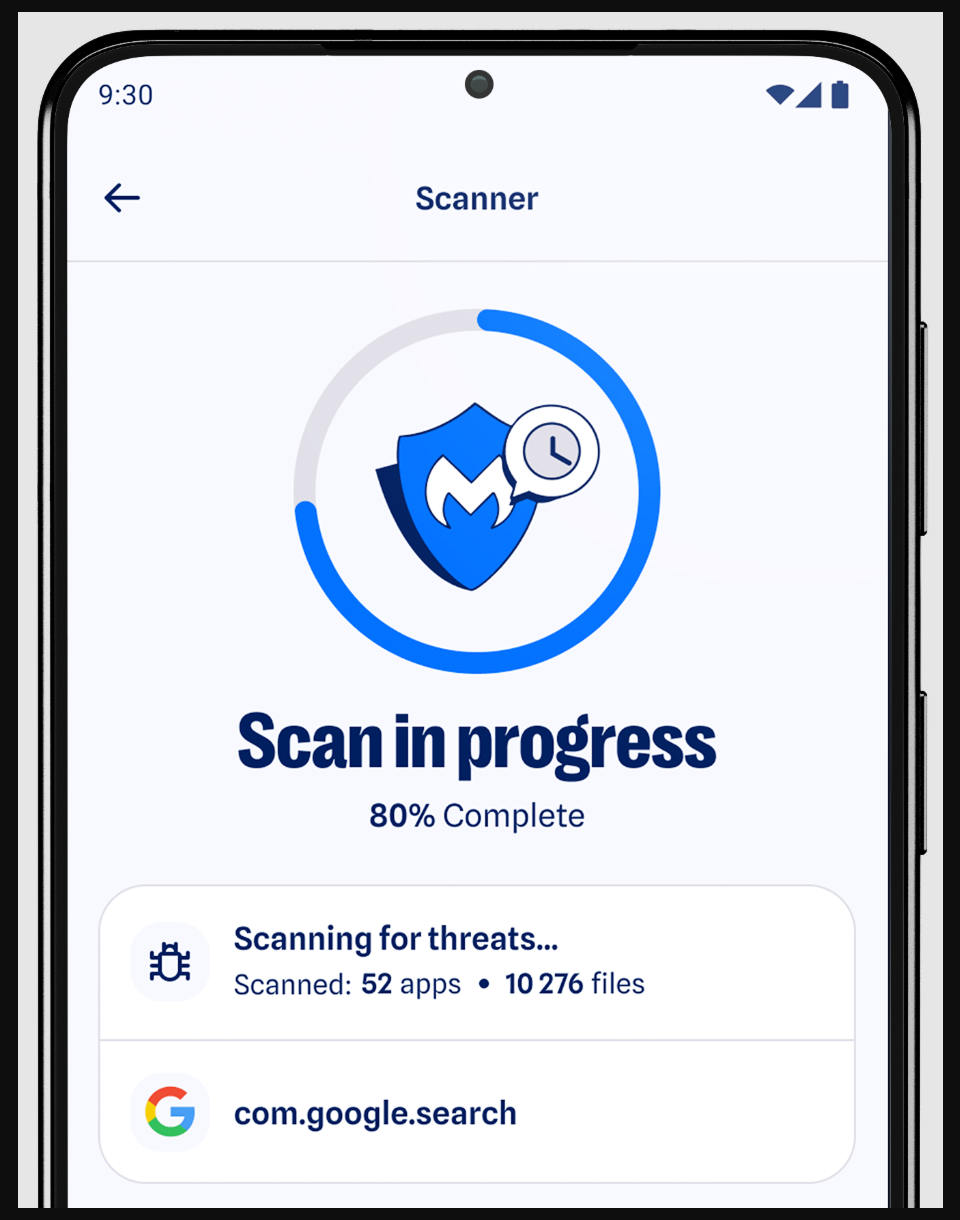
Wait for the progress view to finish. The image below is the vendor’s illustration of a scan, not a sign that RedAlert was detected.
Step 5: Finish removal and restore genuine alerts
In the results, open the menu next to a confirmed malicious app and choose Uninstall app. For files, follow the available removal action. Record anything the app cannot remove.
If a restart is needed, first check that you are safe to lose alerts briefly and don’t need to preserve evidence. Scan again and investigate recurring detections.
The optional Malwarebytes plan for Android may earn MalwareTips a commission. It is separate from the normal Android uninstall and Play Protect checks.
When the handset can be trusted, restore the official alerts through the verified route. Review its legitimate notification settings so you don’t confuse a quiet phone with a safe area.
If you can’t remove the suspect app or it returns, ask the manufacturer or the MalwareTips mobile help forum for assistance without sharing personal locations.
Keep a record of the scan findings and any service reports. If another suspicious message appears later, compare its timing and details rather than assuming it’s the original infection.
If you’re advised to reset, check backups and account access first. A reset removes local data, so keep a verified alert source available through the entire setup.
Frequently Asked Questions
Is every Red Alert notification a scam?
No such conclusion follows from this report. It concerns a modified copy distributed through a deceptive update route, not official alerts or every app with a similar name.
Can the fake app show a real alert?
The reported package retained legitimate-looking alert functions. A notice appearing on screen isn’t enough to establish the authenticity of the software that displayed it.
What if I opened the text but didn’t install anything?
Reading the text isn’t a completed installation. Leave an unexpected download unopened, report the message and independently check the emergency channel you normally use.
Does a location permission automatically mean spyware?
A genuine area-based alert app can have a reason to use location. Look at where the particular copy came from and what else it requested.
Should I use my infected phone to change banking passwords?
Use another trusted device if spyware may still be running. If messages or codes were accessible, ask the bank or other provider to review affected logins and verification methods.
Can a clean scan tell me where my location went?
Scanning can help find harmful software still installed. It doesn’t identify everything that previously left the device. If exposure could put you at risk, seek qualified support.
The Bottom Line
Keep following official emergency instructions, but don’t install an urgent update from a text. Verify the warning service independently and use a trusted source for the app.
If the copy ran, arrange another way to receive alerts, then isolate the handset and remove the identified app. Check any exposed account or personal information separately.

Join the discussion
0 commentsShare your experience or ask a question about this article.
Community experiences
Did this happen to you?
Your experience could help someone recognize the same scam. Submit a private report for our team to review.
I experienced this tooReports are reviewed before publication. Sharing publicly is always your choice.
Discussion
Start the conversation
Have a question or something useful to share? Add the first comment.