


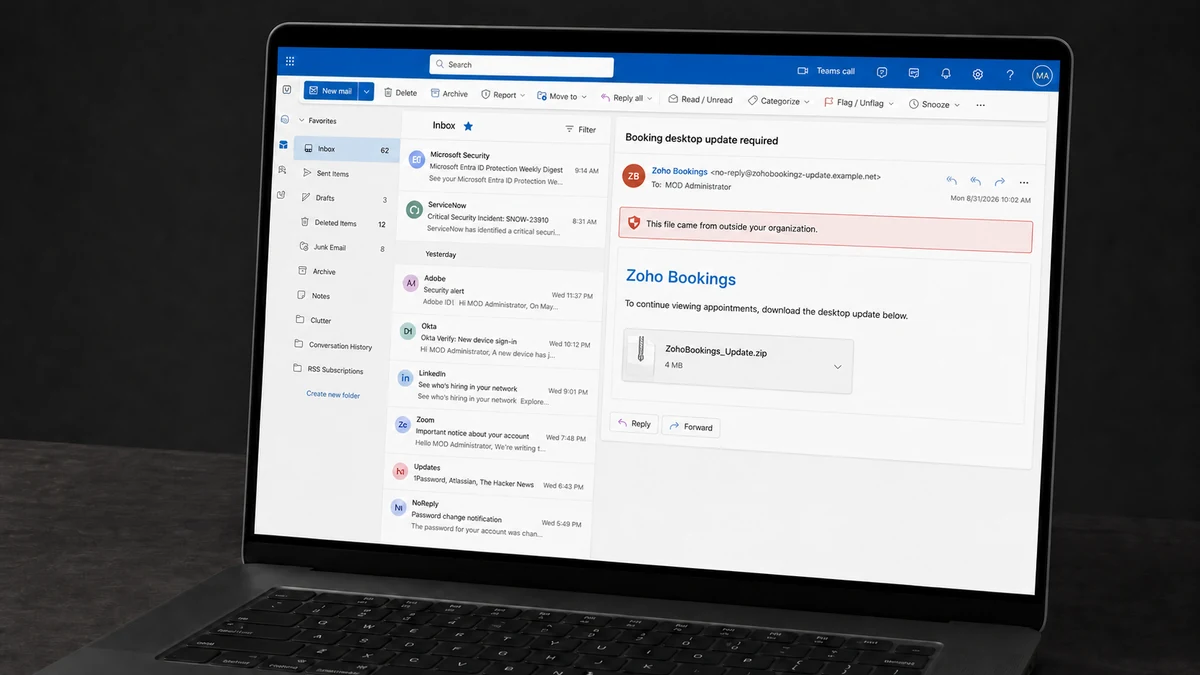
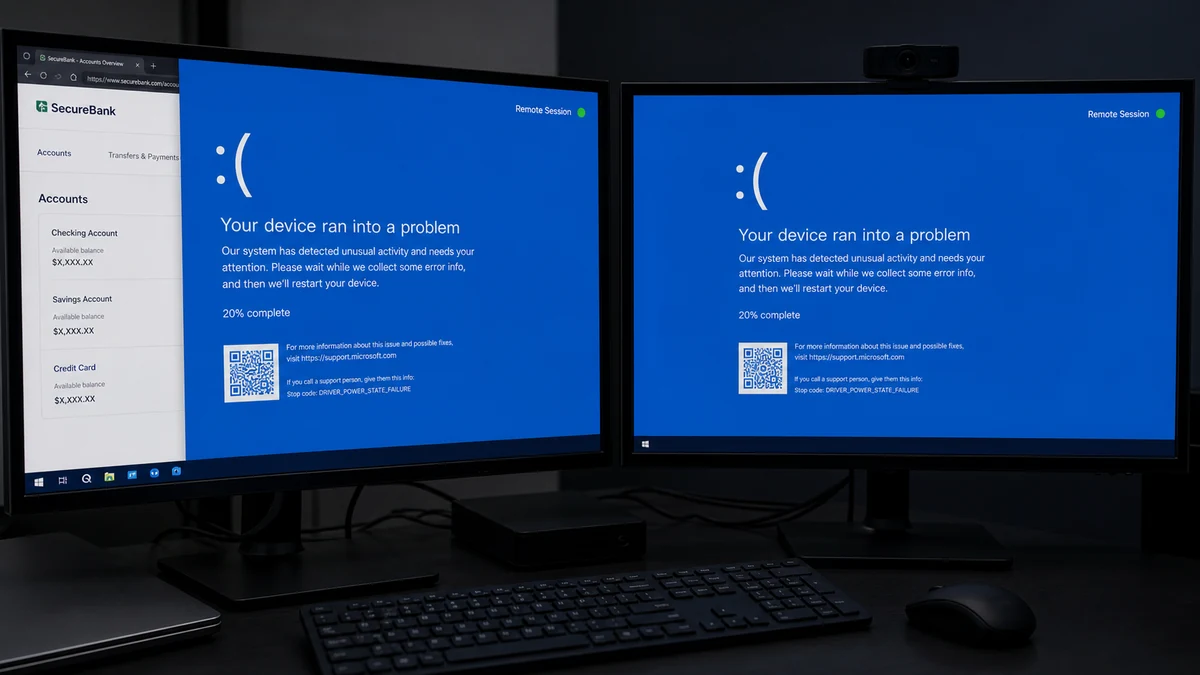
A customer emails what appears to be a routine booking file. The business opens it, and both monitors suddenly show a Windows crash screen.
The computer has not necessarily crashed. Behind that blue image, someone else may still be using it.
Overview
A familiar business task hides an unexpected installer
A reported incident began with an email presented as a Zoho Bookings request from someone the recipient recognized as a customer. Instead of leading to an ordinary web appointment, the message delivered a file that reportedly installed remote-access malware.
The familiar context matters. Businesses receive appointment links, invoices, shared documents, and customer attachments every day. A message that fits that routine can receive less scrutiny than a random download.
The real Zoho Bookings service is not the malware
Zoho Bookings is a legitimate scheduling product. Its name can be copied into an email, filename, icon, or fake update prompt just as criminals copy the names of banks and delivery companies.
The distinction is simple: a file claimed to be “Zoho Bookings” is not automatically from Zoho. The sender, download domain, digital signature, and reason for installing it all need to match the official service.
The fake blue screen gives the intruder privacy
After the file ran, the victim reportedly saw blue crash-style images across two monitors while the mouse pointer appeared to move by itself. A full-screen image can cover what the remote operator is doing underneath.
Warning signs in this type of incident include:
- A booking or scheduling email requires a Windows download.
- The file arrives in a ZIP archive or from an unrelated hosting domain.
- Windows asks for administrator permission to view an appointment.
- The customer pressures the business to install the file quickly.
- A crash screen appears but the pointer still moves.
- Multiple displays show identical static error images.
- Banking, email, accounting, or password-manager sessions were open at the time.
Do not wait for the screen to recover if remote control is suspected. Disconnect the computer from the network first, then investigate from a separate clean device.
How the Zoho Bookings Email Scam Works
Step 1: The email impersonates a real customer
The attacker may spoof a sender name, use a lookalike address, or send from a customer’s compromised mailbox. A hijacked account is particularly convincing because it contains genuine signatures, old conversations, and contacts.
The message is tailored to the business. A salon receives a booking request, an accountant receives a document, and a contractor receives plans or a quote.
Step 2: A legitimate software name lowers suspicion
“Zoho Bookings” sounds appropriate for an appointment. The operator may copy Zoho branding and claim that a desktop component, calendar plug-in, or viewer is required.
But viewing or confirming an ordinary booking should not require a customer-supplied Windows executable. That mismatch is the first reason to stop.
Step 3: The message delivers an unofficial program
The attachment may be a ZIP file containing an executable, or the link may open a fake download page. Filenames can hide the true extension, so something that looks like “Booking.pdf” may actually be a program.
A malicious file can also be signed. Code signing helps identify a publisher and detect file changes, but stolen or deceptively obtained certificates can be abused. A valid signature is one clue, not a safety verdict.
Step 4: Remote access is installed
The program may install a dedicated remote-access trojan or misuse a legitimate administration tool. Once active, it can view the screen, control the mouse and keyboard, copy files, capture passwords, and reconnect after a restart.
If administrator access was granted, the attacker may create services, scheduled tasks, new users, or security exclusions to remain on the machine.
Step 5: A fake crash screen covers the activity
The operator displays a blue screen image in full-screen mode or opens it on every monitor. The victim assumes Windows is frozen and stops touching the keyboard while the remote session continues.
During those minutes, the intruder can search email, open saved browser sessions, add payment recipients, or prepare a transfer. The screen is theater, not the main attack.
Step 6: Banking and business accounts are targeted
A business computer may already be signed in to online banking, payroll, cloud storage, accounting software, customer databases, and email. Session cookies can give access even when the attacker never learns the password.
The criminal may change contact details, create mailbox forwarding rules, download customer data, or send new malicious messages from the victim’s account.
Step 7: The visible program disappears but access may remain
Deleting the downloaded file does not necessarily remove installed services, added users, stolen tokens, or secondary malware. The attacker may also contact the victim as a fake technician and offer paid cleanup.
A computer used for banking deserves more than a quick uninstall. It needs containment, account review, and a decision about whether a trusted rebuild is required.
Why the Blue Screen Can Look So Convincing
Most people have seen Windows stop on a blue error screen. They expect the keyboard to become unresponsive and may wait several minutes before forcing a restart. The attacker uses that learned behavior.
A fake version requires no real system crash. It can be a borderless window, wallpaper, browser page, or image displayed by the remote tool. On two monitors, matching images make the failure feel even more complete.
Small inconsistencies may reveal it. The pointer moves when nobody local is touching the mouse. The same error details appear on both screens. A notification sound plays, or a second window briefly flashes above the image.
Do not spend time trying keyboard shortcuts while financial accounts may be exposed. Unplug Ethernet and disable Wi-Fi. If you cannot isolate the network quickly and the operator appears active, power the computer down.
An organization with an incident-response team may prefer network isolation because shutting down removes volatile evidence. A small business watching an unknown person operate its bank account should prioritize stopping the live connection.
How to Verify a Booking or Software Request
Ask what task requires installation. A customer choosing, confirming, or changing an appointment should normally use a web page. Zoho’s own documentation directs users to official app stores for its mobile application; an emailed Windows installer needs independent confirmation.
Contact the customer using a phone number or email thread your business already knows. Do not use a new number printed in the suspicious message. If their mailbox was compromised, they may not know messages are being sent in their name.
Hover over the link and inspect the full domain. A cloud-storage link or unrelated download host does not become official because the page displays a Zoho logo.
Check the full filename and extension. Windows may hide known extensions by default. Staff should never enable macros or grant administrator rights merely to view an appointment request.
If software is genuinely required, obtain it from the vendor’s manually typed official website or an approved app store. Have IT verify the hash, signer, reputation, and business need before it runs on a production machine.
Keep banking separate from ordinary email work where possible. A dedicated financial workstation with restricted software and no routine attachment handling greatly reduces what one convincing message can reach.
What an Intruder Can Do in a Few Minutes
Remote control becomes dangerous quickly when the browser is already signed in. The operator may not need to break a password or defeat multi-factor authentication because the victim completed those steps earlier.
Email is often the first target. The attacker can search for invoices, tax documents, bank alerts, password resets, and customer conversations. A hidden forwarding rule may continue sending new messages out after the visible incident ends.
In online banking, the operator can add a recipient, change an alert address, or prepare a transfer while the fake crash screen remains visible. Even if a final payment needs approval, the collected details support a convincing follow-up call.
Cloud storage and accounting systems reveal vendors, staff names, payment schedules, and invoice formats. That information can fuel business email compromise long after the original computer is rebuilt.
This is why recovery must cover accounts as well as the device. Removing one program does not revoke browser sessions, undo mailbox rules, or warn customers who received messages from the compromised account.
Review actions carefully by time and in detail, beginning several minutes before the fake crash screen appeared. Bank logs, email sign-ins, browser history, endpoint alerts, and cloud audit records can show what the attacker opened and changed.
Do not assume the incident ended when the pointer stopped moving. Remote tools can reconnect silently, and stolen session cookies may work from another computer. Resetting the affected device without revoking those sessions leaves part of the intrusion alive.
Company, Address, and Fulfillment Checks
Zoho is a borrowed brand, not a confirmed publisher
Record the download domain, filename, signer, hash, and installation prompts. Compare them with official Zoho information. Do not describe legitimate Zoho Bookings software as malware merely because an unrelated file used its name.
The sender may also be compromised
A familiar customer’s genuine mailbox can send malicious files after an account takeover. Call the customer through an established number and warn them so they can secure their email and notify other contacts.
The download path should match the claimed vendor
Official applications have documented distribution routes. A shortened link, temporary file host, newly registered domain, or private cloud folder needs a clear explanation that can be confirmed outside the email.
The file should be traceable by more than its name
Investigators need the SHA-256 hash, digital signer, timestamps, process activity, network connections, and security detections. Preserve the payload only if trained staff can isolate it safely. Ordinary users should not reopen it for testing.
What to Do if You Have Fallen Victim to This Scam
- Isolate the computer immediately. Disconnect Ethernet and Wi-Fi. If active remote control continues and network isolation is not available, shut the device down.
- Use a clean device for every recovery step. Do not change passwords or open banking on the suspected computer.
- Call the bank. Explain that remote access may have exposed an authenticated session. Review transfers, beneficiaries, contact changes, new devices, and scheduled payments.
- Secure email and cloud accounts. Revoke active sessions, remove unknown forwarding rules, check recovery details, change passwords, and enable strong multi-factor authentication.
- Preserve evidence. Save the original email and headers, URL, filename, timestamps, screenshots, security alerts, and bank activity. Let trained staff collect technical evidence from the machine.
- Scan and assess the system. Malwarebytes can detect many remote tools and secondary threats, but one clean scan does not prove that persistence and stolen sessions are gone.
- Rebuild when confidence is low. For a sensitive business computer, wiping it and reinstalling the operating system from trusted media may be safer than trying to identify every change.
- Review connected services. Check payroll, accounting, customer records, payment processors, password managers, browser-saved accounts, and cloud storage.
- Notify the real customer and Zoho. Use independently verified contacts. Share the malicious domain and file details without sending the executable to unprepared recipients.
- Report the attack. In the United States, use ReportFraud.ftc.gov and IC3.gov. The FTC also explains how to recognize follow-up tech support scams.
- Block malicious follow-up. AdGuard can help stop connections to many known malicious and advertising domains, but it cannot make an unexpected executable safe or undo stolen access.
Frequently Asked Questions
Is the real Zoho Bookings application malware?
No evidence here supports that claim. The reported danger was an unofficial file presented through email as Zoho Bookings. Obtain legitimate software through Zoho’s documented channels.
Can a genuine customer email account send malware?
Yes. A compromised mailbox can send convincing messages using real signatures and conversation history. Verify unexpected software requests through another established contact method.
Does a valid digital signature make an installer safe?
No. Certificates can be stolen, abused, or issued to deceptive entities. Confirm that the signer matches the expected vendor and assess the file’s source and behavior.
Why would malware show a fake blue screen?
It keeps the victim from interfering while a remote operator accesses email, banking, files, or other open applications beneath the image.
Should I unplug the computer?
Disconnecting the network is the immediate goal. If that cannot be done quickly and someone appears to be controlling the machine, powering it down can stop the live session.
Is an antivirus scan enough after remote banking access?
Not always. The attacker may have stolen sessions, changed accounts, or installed persistence that one scan misses. Sensitive systems often require credential revocation, professional review, and a trusted rebuild.
The Bottom Line
The email works because booking requests are ordinary and Zoho is a familiar business name. The dangerous leap is an unexpected download that asks for the power to run on the computer.
A customer should not need you to install a private Windows program to confirm an appointment. Verify the sender, obtain software from the vendor, and involve IT before running it. If a blue screen appears while the pointer moves on its own, disconnect first and investigate from a clean device.

Join the discussion
0 commentsShare your experience or ask a question about this article.
Discussion
Start the conversation
Have a question or something useful to share? Add the first comment.