

A security alert names Penumbra Stealer, but your documents still open and the browser looks normal. It is hard to judge what needs attention first.
Before signing back into everything, pause. The most important part of the response may be outside the computer showing the alert.
Overview
Penumbra targets information rather than locking your files
Penumbra Stealer is reported Windows malware that collects account information and sensitive local data. Its purpose is theft, not presenting a legitimate account-management service.
Reported targets include browser passwords and cookies, messaging and gaming sessions, wallet files, SSH keys, and Windows credential information. The exact exposure depends on the affected computer.
A machine can remain usable while information leaves it. That is why an absence of crashes, pop-ups, or renamed documents does not settle a stealer incident.
A detection name is the beginning of an investigation
Keep the security product’s complete alert, file location, detection time, and action taken. A blocked download is different from a program that already ran.
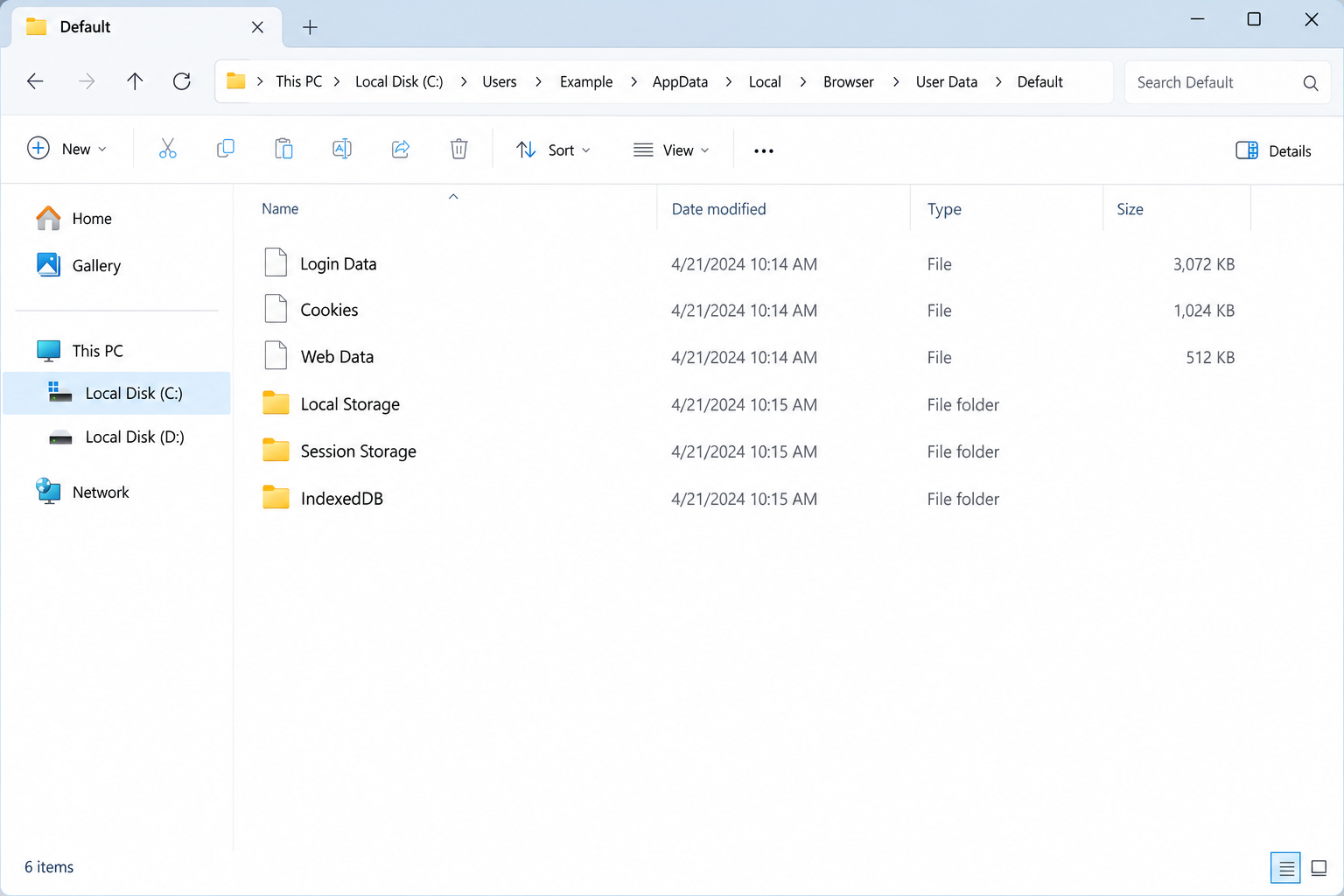
The illustration above shows example browser-profile files. It is not a Penumbra detection, a recovered victim directory, or proof that those ordinary files are malicious.
No sample was executed for this guide. A particular delivery campaign, successful theft, and the affected accounts must be established from the actual incident.
Cleanup and account protection need separate attention
- Isolate a computer when a stealer may have executed, especially before using more sensitive accounts.
- Use another trusted device to protect exposed logins and terminate suspicious sessions.
- Preserve the detection details before making changes that remove useful evidence.
- Review developer keys and workplace access when those secrets were available locally.
- Do not treat a completed scan as proof that previously copied information has disappeared.
Why Your Browser Can Look Fine After Information Theft
Browsers keep information that makes everyday life easier. Saved passwords avoid repeated typing, and session data lets a service recognize a previously authenticated user.
Those conveniences become relevant after malicious code runs under your Windows account. The incident is not limited to whatever website happened to be open.
A saved password and a session cookie are different objects. Replacing one does not necessarily invalidate every other route through which an account can be accessed.
For example, a service may offer controls for signing out other devices, removing connected applications, and reviewing recovery settings. Use the controls appropriate to that service.
Two-factor authentication remains valuable. However, protecting a fresh sign-in is not the same as investigating an already authenticated session or an exposed authenticator backup.
Reports also describe Penumbra attempting to reach protected browser data. That is not a reason to assume every current browser protection has failed on every computer.
Keep the browser and operating system updated. Security improvements still reduce risk, even when a malware report describes a technique aimed at working around them.
Do not search for unfamiliar profile files and delete them as a home-made removal method. Legitimate browsing creates files with ordinary names such as Cookies and Login Data.
The question is which program accessed the information and what it did with it. A familiar filename alone cannot provide that answer.
How Penumbra Stealer Works
Step 1: A program obtains an opportunity to run
A stealer needs an execution opportunity before it can collect local information. An alert about a saved file does not automatically establish that execution occurred.
Review the event that preceded the warning. Was there an installer, a downloaded archive, a fake update, or a request to disable protection?
Those are investigation questions, not a verified universal Penumbra delivery route. Avoid filling a gap in the timeline with whichever scam happens to sound familiar.
Someone who downloaded a file but never opened it may face a different situation from someone who approved administrator access and used online banking afterward.
Write down what happened while it is fresh. Include failed installation attempts and any warnings you dismissed, without reopening the suspect program to refresh your memory.
At work, give that account to the security team. Honest detail helps them contain the incident; concealing an embarrassing download makes the investigation harder.
Step 2: Available local account material becomes a target
Penumbra’s reported collection scope reaches beyond one browser. That makes the computer’s role important when deciding what information may need protection.
A family computer, a developer workstation, and a business laptop hold different secrets. Start with the applications and accounts actually used on the affected system.
Do not assume an account is safe because you never typed its password during the suspicious session. Previously stored credentials can matter too.
Conversely, an account that was never used or stored there is not automatically exposed merely because you own it. Prioritize a realistic inventory.
Check whether sensitive documents or configuration files were accessible. An account password can be replaced; a copied document may create a separate confidentiality problem.
Step 3: Collected information can support account access elsewhere
Stolen information becomes useful when someone attempts to reuse it. That could involve a password, an existing session, a copied key, or details supporting impersonation.
An unauthorized sign-in might occur from another computer after the original infection has been removed. Device cleanup cannot reach across the internet and erase an attacker’s copies.
This explains why a new warning after cleanup is not automatically a failed antivirus removal. Investigate the account event as well as the endpoint.
Tell the provider which activity you did not authorize. Preserve its time, device description, and any relevant transaction reference before removing unfamiliar access.
Do not approve a surprise authentication prompt to see what happens. An unsolicited approval request should be declined and investigated through the real account.
Step 4: Different stolen secrets require different repairs
A browser password, an SSH private key, and a cryptocurrency recovery phrase cannot all be repaired with the same password-reset button.
Passwords need replacement where exposed or reused. Sessions may need termination, while access keys require revocation or rotation at the service accepting them.
A wallet with exposed signing secrets needs a different assessment from a wallet that merely connected to a website. Do not confuse those incidents.
Workplace access may involve administrators, service accounts, or several systems. Coordinate that response instead of deleting keys that other people depend on without a replacement plan.
The aim is to close usable access, not simply collect reassuring green checks. Each protected service should have a clear owner and a documented next action.
Build an Exposure List Without Copying More Secrets
Start with accounts that control other accounts
Email often receives recovery messages for other services. Protecting it early helps prevent a series of password resets from undoing the rest of your work.
Also consider the password manager, cloud storage, financial services, and workplace identity system. The right order depends on what the device held and what activity is occurring.
Make your checklist with account names and status, not passwords or recovery codes. An incident notebook should not become another portable collection of secrets.
Mark each item as checked, changed, escalated, or still unknown. Those labels are more useful than assuming everything was fixed because one password reset succeeded.
Give development credentials their own review
People who build websites or software may store keys for repositories, hosting accounts, deployment services, or cloud platforms. A personal laptop can therefore expose business systems.
GitHub’s SSH-key review guidance explains why potentially compromised credentials need attention at the account, not just removal from a local folder.
Ask the administrator to review where an exposed key was authorized and what actions it permitted. Replacing the file on your laptop does not revoke the old copy.
Keep the response proportional. A stolen development key is a reason to examine its reach, not proof that every repository or server has been altered.
Separate payment exposure from an actual transaction
Saved payment information deserves review, but it does not establish that money was taken. Check real statements and provider activity rather than a warning inside a suspicious page.
If a charge or transfer is unauthorized, contact the relevant provider promptly. Give concrete references and ask which protective steps and dispute options apply.
Do not pay a stranger who promises to delete leaked information. They may have no control over the data and can use the payment as another opening.
What to Do if Penumbra Stealer Is Detected
Stop sensitive use of the affected computer. Disconnect its network access if the program may have run. Keep external backups separate and notify your workplace administrator where relevant.
Do not keep signing into accounts while deciding whether the warning matters. Use another trusted device for urgent recovery, and avoid transferring unknown programs to it.
Retain the alert and timeline. Record the exact detection, file path, time, and whether the security tool blocked, quarantined, or merely reported the file.
Save relevant receipts or download-page details without reopening the executable. A business responder may need more evidence before scans, reboots, or reinstallations change the system.
Address the software infection. Malwarebytes can help find and quarantine malicious software. Use its genuine distribution route and the contextual removal block below.
Microsoft’s Windows Security scan guidance describes additional scan options. An offline scan restarts the computer, so preserve needed evidence and save work first.
Do not disable protection or add exclusions because the suspect installer says a detection is normal. A tool claiming to remove stealers should not require trusting the original payload.
Secure the most important accounts independently. Replace exposed or reused passwords from a known-clean device. Inspect recovery methods, sign-in history, connected applications, and session controls.
Follow each provider’s recovery process when access is lost. Do not hand verification codes to someone who offers to bypass that process for a fee.
Escalate keys, wallets, and business access. List affected services for the authorized administrator. Revoke usable exposed credentials through their providers and plan replacements carefully.
If private wallet material may have been copied, obtain trusted wallet-specific guidance. A browser disconnect or token-approval change does not replace an exposed recovery phrase.
Review financial and identity consequences. Report unauthorized activity immediately and retain case numbers. If documents were exposed, ask the appropriate provider or authority about protective steps.
Separate what is confirmed from what remains possible. That helps an institution respond to an actual transaction or identity concern without relying on vague claims.
Reduce the chance of repeating the exposure. After cleanup, update software and review the download source. AdGuard can reduce some malicious advertising and unwanted redirects.
It cannot remove Penumbra or retrieve stolen credentials. Keep monitoring protected accounts and investigate any new unauthorized activity instead of assuming a scanner handled the entire incident.
Is Your Device Infected? Run a Free Malware Scan
Slow performance, constant pop-ups, or strange behavior? These are classic signs of a malware infection. The fastest way to find out is to scan your device with Malwarebytes Free — one of the most trusted malware removal tools available.
The free version detects and removes the most common threats, including:
- Adware — the cause of those annoying pop-ups
- Browser hijackers — unwanted redirects and changed homepages
- Trojans and spyware — hidden programs stealing your data
- Potentially unwanted programs (PUPs) — software you never asked for
👉 Select your device below — Windows, Mac, or Android — then follow the simple steps to download Malwarebytes, scan your system, and remove any threats it finds. The scan usually takes 5 to 20 minutes.
Run a Malware Scan with Malwarebytes for Windows
Malwarebytes is one of the most popular and trusted anti-malware tools for Windows — and it’s completely free for removing infections. It catches threats that many antivirus programs miss, including adware, browser hijackers, and trojans. Follow the steps below to scan and clean your PC in just a few minutes.
Download Malwarebytes
Click the button below to download the latest version of Malwarebytes for Windows from the official source. The free version is all you need — it will scan your computer and remove adware, browser hijackers, and other malicious software at no cost.
Download MalwarebytesOfficial installer for Windows 11 and 10. Your download starts right away.Want real-time protection? See Malwarebytes Premium Malwarebytes Free for WindowsScans and removes malware at no cost
-
Install Malwarebytes
When the download finishes, open your Downloads folder and double-click the MBSetup file. If Windows shows a User Account Control pop-up, click “Yes” to allow the installation.

Follow the On-Screen Prompts to Install Malwarebytes
The setup wizard will walk you through a few quick screens:
-
Choose where you’re installing the program — “Personal Computer” or “Work Computer” — then click Next.

-
Malwarebytes will now install on your device. This usually takes under a minute.

-
When installation is complete, the “Welcome to Malwarebytes” screen will open automatically.

-
On the final screen, click Open Malwarebytes to launch the program.

-
Enable “Scan for Rootkits”
Before scanning, turn on rootkit detection so Malwarebytes can find even the most hidden threats. Click the Settings gear icon on the left side of the screen.

In the settings menu, find “Scan for rootkits” and click the toggle so it turns blue.

Done? Click “Dashboard” in the left pane to return to the main screen.
Start the Scan
Click the blue Scan button. Malwarebytes will automatically update its virus database and start checking your computer for malware.

-
Wait for the Scan to Finish
The scan checks your entire system for browser hijackers and other malicious programs, so it can take 5 to 20 minutes depending on your computer. Feel free to do something else — just check back occasionally to see the progress.

-
Quarantine the Detected Threats
When the scan is done, you’ll see a list of everything Malwarebytes found — malware, adware, and potentially unwanted programs. Click the “Quarantine” button to remove all of them at once.

Malwarebytes will now remove the malicious files and registry entries and move them safely into quarantine.

-
Restart Your Computer
Some threats can only be fully removed after a reboot. If Malwarebytes asks you to restart, click Yes. Once you’re logged back in, Malwarebytes has finished removing the threats it found.

That’s it — your Windows PC is now clean of trojans, adware, and other malware, and should be back to running smoothly.
If you are still having problems with your computer after completing these instructions, then please follow one of the steps:
- Run a computer scan with ESET Online Scanner
- Ask for help in our Windows Malware Removal Help & Support forum.
Run a Malware Scan with Malwarebytes for Mac
Malwarebytes for Mac is a free on-demand scanner that removes the malware other security software tends to miss — adware, browser hijackers, and unwanted programs included. Cleaning an infected Mac with Malwarebytes has always been completely free, and it’s our go-to recommendation. Follow the steps below to scan and clean your Mac in just a few minutes.
-
Download Malwarebytes for Mac
Click the button below to download the latest version of Malwarebytes for Mac.
Download MalwarebytesOfficial installer for macOS. Your download starts right away.Want real-time protection? See Malwarebytes PremiumMalwarebytes Free for MacScans and removes malware at no cost -
Open the Malwarebytes setup file
When the download finishes, open your Downloads folder and double-click the setup file to begin the installation.

-
Follow the On-Screen Prompts to Install Malwarebytes
The Malwarebytes for Mac Installer will guide you through a few quick screens. Click “Continue” and keep following the prompts until the installation completes.



When the installation is complete, Malwarebytes opens to the Welcome to Malwarebytes screen. Click “Get started“.
-
Select “Personal Computer” or “Work Computer”
Malwarebytes will ask what type of computer you’re installing it on. Click either Personal Computer or Work Computer, whichever applies.

-
Start the Scan
Click the “Scan” button. Malwarebytes will automatically update its detection database and begin checking your Mac for malware.

-
Wait for the Scan to Finish
Malwarebytes will scan your Mac for adware, browser hijackers, and other malicious programs. This can take a few minutes, so feel free to do something else — just check back occasionally to see the progress.

-
Quarantine the Detected Threats
When the scan is done, you’ll see a list of everything Malwarebytes found. Click the “Quarantine” button to remove all the threats at once.

-
Restart Your Mac
Malwarebytes will now remove all the malicious files it found. Some threats can only be fully removed after a reboot — if Malwarebytes asks you to restart, allow it. Once you’re logged back in, your Mac is clean.

That’s it — your Mac is now free of adware, rogue browser extensions, and other potentially harmful software.
If you are still experiencing problems while trying to remove a malicious program from your computer, please ask for help in our Mac Malware Removal Help & Support forum.
Run a Malware Scan with Malwarebytes for Android
Malwarebytes for Android automatically detects and removes dangerous threats like malware and ransomware so you don’t have to worry about your most-used device being compromised. Aggressive detection of adware and potentially unwanted programs keeps your Android phone or tablet running smooth.
-
Download Malwarebytes for Android.
You can download Malwarebytes for Android by clicking the link below.
Get Malwarebytes for AndroidOpens Google Play in a new tab.Want real-time protection? See Malwarebytes Premium for AndroidMalwarebytes for AndroidScans your phone and removes malware at no cost -
Install Malwarebytes for Android on your phone.
In the Google Play Store, tap “Install” to install Malwarebytes for Android on your device.

When the installation process has finished, tap “Open” to begin using Malwarebytes for Android. You can also open Malwarebytes by tapping on its icon in your phone menu or home screen.

-
Follow the on-screen prompts to complete the setup process
When Malwarebytes will open, you will see the Malwarebytes Setup Wizard which will guide you through a series of permissions and other setup options.
This is the first of two screens that explain the difference between the Premium and Free versions. Swipe this screen to continue.
Tap on “Got it” to proceed to the next step.
Malwarebytes for Android will now ask for a set of permissions that are required to scan your device and protect it from malware. Tap on “Give permission” to continue.
Tap on “Allow” to permit Malwarebytes to access the files on your phone.
-
Update database and run a scan with Malwarebytes for Android
You will now be prompted to update the Malwarebytes database and run a full system scan.

Click on “Update database” to update the Malwarebytes for Android definitions to the latest version, then click on “Run full scan” to perform a system scan.

-
Wait for the Malwarebytes scan to complete.
Malwarebytes will now start scanning your phone for adware and other malicious apps. This process can take a few minutes, so we suggest you do something else and periodically check on the status of the scan to see when it is finished.

-
Click on “Remove Selected”.
When the scan has been completed, you will be presented with a screen showing the malware infections that Malwarebytes for Android has detected. To remove the malicious apps that Malwarebytes has found, tap on the “Remove Selected” button.

-
Restart your phone.
Malwarebytes for Android will now remove all the malicious apps that it has found. To complete the malware removal process, Malwarebytes may ask you to restart your device.
That’s it — your Android phone is now clean — no more malicious apps, adware, or browser redirects.
If you are still having problems with your phone after completing these instructions, then please follow one of the steps:
- Restore your phone to factory settings by going to Settings > General management > Reset > Factory data reset.
- Ask for help in our Mobile Malware Removal Help & Support forum.
Stay Protected: Block Ads and Malicious Sites
Now that your device is clean, keep it that way. Most infections start with a malicious ad or a fake download button — so blocking them at the source is your best defense.
We recommend AdGuard, which blocks malicious ads, phishing pages, and dangerous redirects before they can reach you.
👉 Download AdGuard and browse safely
Before You Trust the Computer Again
A useful cleanup record states which threat was found, what was quarantined, and whether a reboot or follow-up scan is still required. Keep that record.
If detections return, protection will not stay enabled, or unexplained remote access remains, stop using the device for sensitive tasks and seek qualified help.
A trusted reinstall can be appropriate when integrity remains uncertain. Back up necessary personal data carefully, then reinstall applications from authentic sources rather than copying the old program collection.
Do not restore the suspect installer, an unknown browser extension, or a whole browser profile simply because it was convenient before the incident.
Rebuilding the device and recovering accounts can proceed as coordinated tasks. Neither should be treated as evidence that the other has already been completed.
For shared computers, explain the incident to other users. Their saved accounts may need attention even if they were not present when the download ran.
Keep the conversation factual and calm. Knowing which profiles were used is more useful than assigning blame or asking everyone to perform unrelated resets.
Different antivirus engines may give the same file different detection names. Preserve the original alert rather than searching for one perfectly matching label before taking action.
If support asks for a sample, clarify its secure submission process. A malware file should not be attached casually to a family or workplace conversation.
Frequently Asked Questions
Is Penumbra Stealer ransomware?
It is reported as information-stealing malware. Its central risk is exposed account material and data, not a ransom note that must appear before you act.
Does finding a Cookies file mean I am infected?
No. Browsers create legitimate profile files. Investigate the security alert and suspicious program rather than treating ordinary data-store names as malware evidence.
Will changing my Windows password fix every account?
No. Online accounts, active sessions, authorized keys, and wallet secrets have separate controls. Address the access that was actually available on the affected device.
Can two-factor authentication still help?
Yes. Keep it enabled, but also examine existing sessions and recovery settings. A stolen session or authenticator secret needs attention beyond enabling a new sign-in check.
What if antivirus blocked the file before it ran?
Preserve that result and verify what was blocked. A prevented attempt is not the same as confirmed execution or proof that every saved account was stolen.
Should I delete suspicious system files manually?
Do not guess. Use reputable scanning and qualified assistance. Removing legitimate Windows components or browser databases can cause damage without closing the attacker’s access.
The Bottom Line
Treat a credible Penumbra Stealer alert as both a device problem and a potential account incident. Stop sensitive use, preserve the facts, and arrange trustworthy cleanup.
If it ran, protect the accounts and secrets it could reach. A clean scan matters, but it cannot revoke information that was already copied.

Join the discussion
0 commentsShare your experience or ask a question about this article.
Your progress
Did these steps help?
Let us know how the guide worked for you.
Describe what you see and the step you reached. Keep passwords and other private information out.
Discussion
Start the conversation
Have a question or something useful to share? Add the first comment.