

An abuse notice in your inbox says your email account has been restricted. Suddenly, ordinary messages seem to need your attention.
The words “Repair and protection” make the request sound reassuring. Before dealing with it, take a moment to understand what is being offered.
Overview
The notice says mail is waiting behind an account restriction
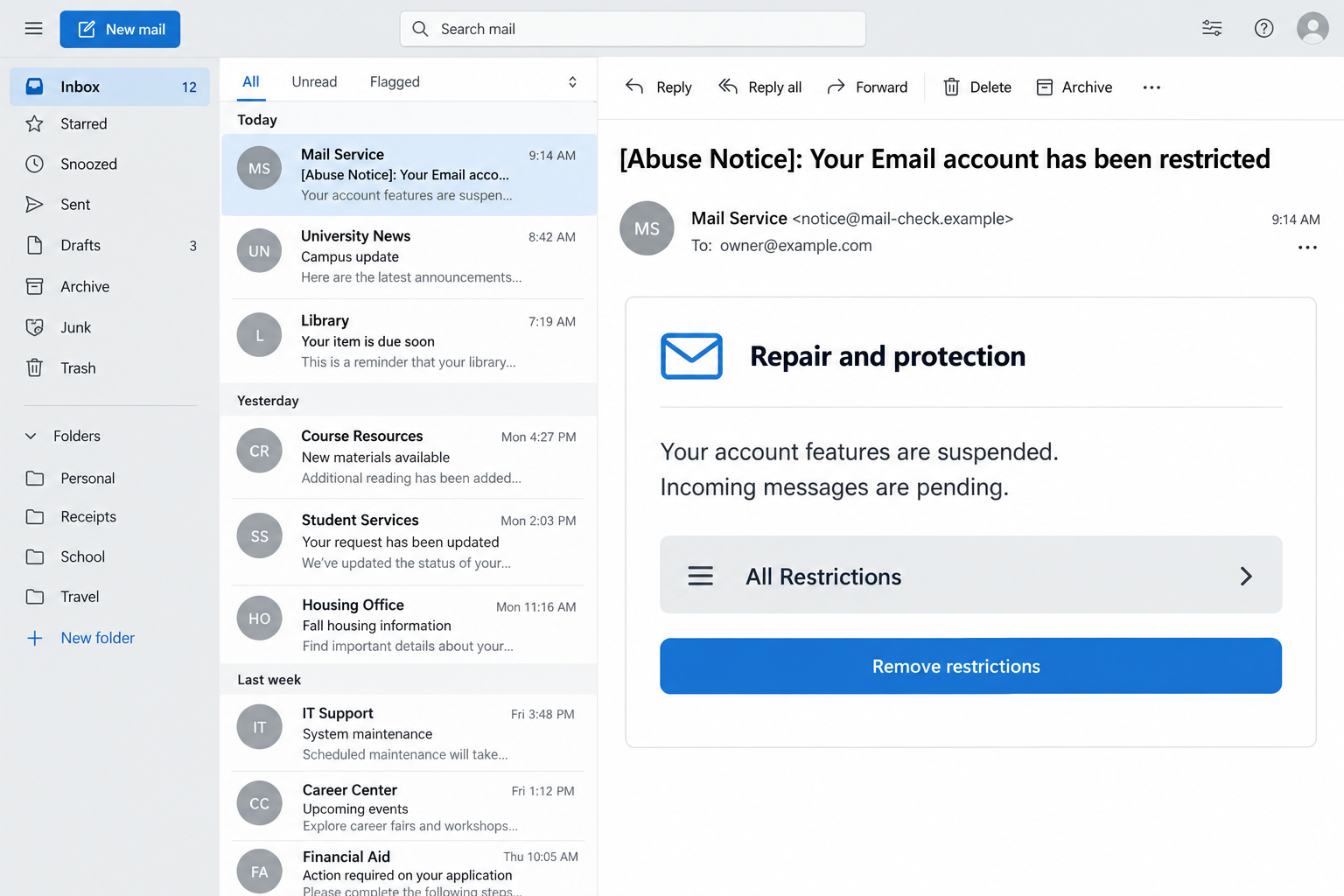
The Repair and Protection email scam claims account features have been suspended and incoming messages are pending. A button offers to remove the restrictions.
The reported subject starts with an abuse notice and says the email account has been restricted. That framing turns an unfamiliar message into an apparent service problem.
You may wonder whether you missed a warning, broke a rule, or are losing customer replies. The email encourages you to resolve that uncertainty through its button.
Those claims are the lure, not a diagnosis of your mailbox. Check actual account status through the service you already use.
The illustration above uses fictional addresses. It shows the restriction pretext without pretending to be an original email delivered to a particular person.
The supposed ownership check asks for the current email password
The reported destination asks the visitor to verify account ownership by entering the current password. That is where the request becomes a credential-theft problem.
Knowing an email address and proving ownership of its account are different things. An unsolicited website should not receive the secret used to sign in.
The reported campaign used xezur[.]life. That address is an indicator of the historical lure, not a recommended place to investigate or test a password.
The page could not be captured during the fresh availability check. No password was submitted, and no particular reader’s account was tested.
You do not need a working copy of the trap to respond safely. The right route is the genuine provider’s established account controls.
A real mailbox problem can be checked without trusting the email
Open your mail service separately. If it is a work account, use the usual application or ask the team responsible for it.
Look for a real service notice or account warning there. A button in an unsolicited email should not be the only source explaining the problem.
- Do not enter a password into the restriction-removal page.
- Do not approve an unexpected sign-in request to complete the repair.
- Keep the message if you already clicked or submitted information.
- Use account recovery and device cleanup for their separate purposes.
If you simply received the notice, report it as phishing. The warning does not establish that your account was accessed or your device infected.
Why “Repair and Protection” Can Lower Your Guard
It sounds like the solution rather than the threat
The subject raises an uncomfortable problem, while the heading offers reassurance. You are invited to see the message as help arriving at the right time.
A busy person may focus on getting mail moving again, especially when expecting an invoice, application update, or reply from a client.
The language does not have to explain the supposed restriction well. A short, technical-sounding interruption can be enough to make clicking feel efficient.
But a useful service notice should make sense outside its own link. Your established provider should be able to explain an actual account action.
Missing messages are difficult to disprove
When a notice says incoming mail is pending, you cannot immediately know what supposedly failed to arrive. That uncertainty gives the story room to work.
You might remember a quiet morning and treat it as confirmation. A gap in ordinary correspondence is not evidence that this sender controls your mail delivery.
If a specific message matters, contact its expected sender through a known route. Ask whether it was sent and whether they received an actual delivery error.
Do not change passwords, mail servers, or account settings merely to match instructions from an unverified restriction notice.
Mailbox access can affect more than one conversation
An inbox often contains reset links, invoices, receipts, and correspondence that helps someone impersonate its owner. That makes the password valuable beyond reading messages.
An attacker with access might try resetting another service or sending convincing requests to contacts. Whether that happened requires an account review.
Do not assume all linked accounts are automatically taken over. Prioritize the mailbox, then inspect specific recovery messages and activity connected to the exposure.
A clear sequence keeps the response manageable. You do not have to solve every possible problem at once to take the first useful step.
How the Repair and Protection Email Scam Works
Step 1: An abuse-themed notice makes you question the account
The email presents itself as a service alert rather than an ordinary request from another person. Its subject says the account has been restricted.
The word “abuse” can make the recipient worry about an accusation. That emotional reaction can happen before the sender or link receives any scrutiny.
A generic label does not prove the provider investigated anything. The sender can place it in a subject line without accessing account records.
Start by asking which service supposedly issued the restriction and whether you recognize its normal communication route.
If the answer is unclear, do not guess by selecting the button. Go to the account through a route you already know.
Step 2: Suspended features create a reason to continue
The body connects the alleged restriction with interrupted account features and waiting mail. It offers removal as the way back to normal.
The message is asking you to accept both a problem and a remedy from the same unverified source.
That is particularly persuasive when the supposed loss is small but inconvenient. You may think you are finishing routine maintenance rather than making a security decision.
Check the actual mailbox before treating the claims as real. A normal login through the genuine application should not require the suspicious page.
If the service itself reports a problem, follow its own account process. The email does not gain authority just because an unrelated issue also exists.
Step 3: The removal button opens a separate ownership check
The action changes from reading a notice to giving information to another website. The page’s design may make that transition feel seamless.
A recognizable mail logo, a prefilled address, or a blurred message preview would not authenticate the operator. Those are things a webpage can display.
In the reported case, the requested information is the current email password. That secret is not a disposable repair code.
Read the actual address if you already opened the page, then leave. Do not enter dummy passwords to see how many times it asks.
Testing the form is unnecessary and can complicate your understanding of what was submitted. Preserve the address for the provider instead.
Step 4: A password submission exposes the account credential
Once you send the password to an untrusted form, the page may have received it even if it displays an error afterward.
Do not wait for an obvious account takeover before acting. A failed-looking verification screen is not evidence that the information stayed private.
If a second prompt requests a code or sign-in approval, refuse it. The first submission does not oblige you to finish the process.
Use another trusted route to secure the mailbox. Tell support whether you entered a password, supplied a code, or approved an account request.
Do not include the exposed password in your support message. Identify the account and describe the action without reproducing the secret.
Step 5: Account activity determines what needs repairing
An exposed password creates a risk of unauthorized access. It does not tell you which messages were read or what settings were changed.
Review sessions, recovery details, forwarding, and filters. These checks help identify access that might remain after a password change.
For a managed work mailbox, IT may be able to inspect logs and revoke sessions more comprehensively than the account owner can.
If an attacker sent requests from the mailbox, warn affected contacts through a reliable channel. Be specific about which message or payment instruction to ignore.
The repair belongs in the real account, not in a return visit to the phishing page.
Checking the Notice Without Helping the Sender
Expand sender details and preserve the original
The display name is only a label. Expand the address and compare it with the organization that actually hosts your mailbox.
A screenshot is useful for appearance, but the original message can preserve delivery headers and link information. Keep it for the approved reporting channel.
Do not circulate the live link in a group chat with a request for others to try it. Report it without recruiting more visitors.
Private message links can contain recipient identifiers. Avoid posting them publicly when a provider or IT team can investigate through a confidential report.
If the email reached several people in your organization, report that fact. A security team can check related deliveries without asking everyone to open the link.
Tell them whether you used a personal or shared account. The response may involve other authorized users who would otherwise keep the same sessions active.
After recovery, test ordinary mail delivery with a harmless message. Do not send customer information or passwords simply to find out whether a mailbox works.
Verify delivery issues from both sides
If you were waiting for a particular email, ask its sender to check their sent folder and any delivery report.
Compare that with your own mailbox and spam folder. This is more useful than assuming every missing reply is trapped behind the fake restriction.
Never pay an unsolicited account-repair agent to release mail. A stranger cannot establish authority by repeating information from the same warning.
Keep recovery steps tied to your provider
Google’s compromised-account guidance covers activity checks, unfamiliar devices, recovery information, and security settings for Google accounts.
Other providers have their own controls. Use the instructions for the service holding your mailbox instead of copying menu names that do not match.
If you no longer have access, start the genuine recovery process. Do not hand a private-message helper your verification codes or recovery information.
Keep the provider’s recovery conversation on a contact route you control. If the mailbox is inaccessible, do not assume a reply sent there will reach you privately.
Prepare the details the real provider requests, such as the account name and relevant history. Supply them only through its established recovery process.
A recovery delay is frustrating, but paying an outsider does not give them authority over the account. Avoid anyone claiming a guaranteed shortcut around verification.
What to Do if You Have Fallen Victim to This Scam
End the restriction-removal interaction. Close the form, decline pending approvals, and save the message. Note the account involved and the approximate submission time.
If you only read it, reporting and deleting the notice may be sufficient. Reading the warning is not the same as giving it a password.
Secure the exposed login. Visit the genuine provider from a trusted device and replace the password. Use a distinct replacement rather than a variation used elsewhere.
If the password was reused, change it on those other services too. Prioritize accounts that can reset other logins or access sensitive business information.
Review active access. Inspect signed-in devices, sessions, recovery methods, and unfamiliar app permissions. Remove unauthorized access through the provider’s established controls.
For business mail, tell IT what happened promptly. Do not assume a password change ended every existing session.
Check mail settings and recent correspondence. Look for forwarding, hidden-message rules, and unexpected sent items. Preserve relevant evidence before correcting unauthorized changes.
Warn contacts if a fraudulent request went out. If money was transferred because of it, contact the payment provider urgently with the transaction details.
Handle suspicious software as a separate exposure. If you installed anything, allowed remote access, or ran a file, stop sensitive activity and seek trusted technical help.
Malwarebytes can help identify device threats. It does not retrieve mailbox contents or terminate an attacker’s online session by itself.
Reduce repeat lures. Remove unwanted browser notifications, update your browser, and consider AdGuard for harmful advertising. Keep provider account alerts enabled.
Do not trust a later “all restrictions cleared” email merely because it arrives after your cleanup. Verify meaningful account changes inside the actual service.
Is Your Device Infected? Run a Free Malware Scan
Slow performance, constant pop-ups, or strange behavior? These are classic signs of a malware infection. The fastest way to find out is to scan your device with Malwarebytes Free — one of the most trusted malware removal tools available.
The free version detects and removes the most common threats, including:
- Adware — the cause of those annoying pop-ups
- Browser hijackers — unwanted redirects and changed homepages
- Trojans and spyware — hidden programs stealing your data
- Potentially unwanted programs (PUPs) — software you never asked for
👉 Select your device below — Windows, Mac, or Android — then follow the simple steps to download Malwarebytes, scan your system, and remove any threats it finds. The scan usually takes 5 to 20 minutes.
Run a Malware Scan with Malwarebytes for Windows
Malwarebytes is one of the most popular and trusted anti-malware tools for Windows — and it’s completely free for removing infections. It catches threats that many antivirus programs miss, including adware, browser hijackers, and trojans. Follow the steps below to scan and clean your PC in just a few minutes.
Download Malwarebytes
Click the button below to download the latest version of Malwarebytes for Windows from the official source. The free version is all you need — it will scan your computer and remove adware, browser hijackers, and other malicious software at no cost.
Download MalwarebytesOfficial installer for Windows 11 and 10. Your download starts right away.Want real-time protection? See Malwarebytes Premium Malwarebytes Free for WindowsScans and removes malware at no cost
-
Install Malwarebytes
When the download finishes, open your Downloads folder and double-click the MBSetup file. If Windows shows a User Account Control pop-up, click “Yes” to allow the installation.

Follow the On-Screen Prompts to Install Malwarebytes
The setup wizard will walk you through a few quick screens:
-
Choose where you’re installing the program — “Personal Computer” or “Work Computer” — then click Next.

-
Malwarebytes will now install on your device. This usually takes under a minute.

-
When installation is complete, the “Welcome to Malwarebytes” screen will open automatically.

-
On the final screen, click Open Malwarebytes to launch the program.

-
Enable “Scan for Rootkits”
Before scanning, turn on rootkit detection so Malwarebytes can find even the most hidden threats. Click the Settings gear icon on the left side of the screen.

In the settings menu, find “Scan for rootkits” and click the toggle so it turns blue.

Done? Click “Dashboard” in the left pane to return to the main screen.
Start the Scan
Click the blue Scan button. Malwarebytes will automatically update its virus database and start checking your computer for malware.

-
Wait for the Scan to Finish
The scan checks your entire system for browser hijackers and other malicious programs, so it can take 5 to 20 minutes depending on your computer. Feel free to do something else — just check back occasionally to see the progress.

-
Quarantine the Detected Threats
When the scan is done, you’ll see a list of everything Malwarebytes found — malware, adware, and potentially unwanted programs. Click the “Quarantine” button to remove all of them at once.

Malwarebytes will now remove the malicious files and registry entries and move them safely into quarantine.

-
Restart Your Computer
Some threats can only be fully removed after a reboot. If Malwarebytes asks you to restart, click Yes. Once you’re logged back in, Malwarebytes has finished removing the threats it found.

That’s it — your Windows PC is now clean of trojans, adware, and other malware, and should be back to running smoothly.
If you are still having problems with your computer after completing these instructions, then please follow one of the steps:
- Run a computer scan with ESET Online Scanner
- Ask for help in our Windows Malware Removal Help & Support forum.
Run a Malware Scan with Malwarebytes for Mac
Malwarebytes for Mac is a free on-demand scanner that removes the malware other security software tends to miss — adware, browser hijackers, and unwanted programs included. Cleaning an infected Mac with Malwarebytes has always been completely free, and it’s our go-to recommendation. Follow the steps below to scan and clean your Mac in just a few minutes.
-
Download Malwarebytes for Mac
Click the button below to download the latest version of Malwarebytes for Mac.
Download MalwarebytesOfficial installer for macOS. Your download starts right away.Want real-time protection? See Malwarebytes PremiumMalwarebytes Free for MacScans and removes malware at no cost -
Open the Malwarebytes setup file
When the download finishes, open your Downloads folder and double-click the setup file to begin the installation.

-
Follow the On-Screen Prompts to Install Malwarebytes
The Malwarebytes for Mac Installer will guide you through a few quick screens. Click “Continue” and keep following the prompts until the installation completes.



When the installation is complete, Malwarebytes opens to the Welcome to Malwarebytes screen. Click “Get started“.
-
Select “Personal Computer” or “Work Computer”
Malwarebytes will ask what type of computer you’re installing it on. Click either Personal Computer or Work Computer, whichever applies.

-
Start the Scan
Click the “Scan” button. Malwarebytes will automatically update its detection database and begin checking your Mac for malware.

-
Wait for the Scan to Finish
Malwarebytes will scan your Mac for adware, browser hijackers, and other malicious programs. This can take a few minutes, so feel free to do something else — just check back occasionally to see the progress.

-
Quarantine the Detected Threats
When the scan is done, you’ll see a list of everything Malwarebytes found. Click the “Quarantine” button to remove all the threats at once.

-
Restart Your Mac
Malwarebytes will now remove all the malicious files it found. Some threats can only be fully removed after a reboot — if Malwarebytes asks you to restart, allow it. Once you’re logged back in, your Mac is clean.

That’s it — your Mac is now free of adware, rogue browser extensions, and other potentially harmful software.
If you are still experiencing problems while trying to remove a malicious program from your computer, please ask for help in our Mac Malware Removal Help & Support forum.
Run a Malware Scan with Malwarebytes for Android
Malwarebytes for Android automatically detects and removes dangerous threats like malware and ransomware so you don’t have to worry about your most-used device being compromised. Aggressive detection of adware and potentially unwanted programs keeps your Android phone or tablet running smooth.
-
Download Malwarebytes for Android.
You can download Malwarebytes for Android by clicking the link below.
Get Malwarebytes for AndroidOpens Google Play in a new tab.Want real-time protection? See Malwarebytes Premium for AndroidMalwarebytes for AndroidScans your phone and removes malware at no cost -
Install Malwarebytes for Android on your phone.
In the Google Play Store, tap “Install” to install Malwarebytes for Android on your device.

When the installation process has finished, tap “Open” to begin using Malwarebytes for Android. You can also open Malwarebytes by tapping on its icon in your phone menu or home screen.

-
Follow the on-screen prompts to complete the setup process
When Malwarebytes will open, you will see the Malwarebytes Setup Wizard which will guide you through a series of permissions and other setup options.
This is the first of two screens that explain the difference between the Premium and Free versions. Swipe this screen to continue.
Tap on “Got it” to proceed to the next step.
Malwarebytes for Android will now ask for a set of permissions that are required to scan your device and protect it from malware. Tap on “Give permission” to continue.
Tap on “Allow” to permit Malwarebytes to access the files on your phone.
-
Update database and run a scan with Malwarebytes for Android
You will now be prompted to update the Malwarebytes database and run a full system scan.

Click on “Update database” to update the Malwarebytes for Android definitions to the latest version, then click on “Run full scan” to perform a system scan.

-
Wait for the Malwarebytes scan to complete.
Malwarebytes will now start scanning your phone for adware and other malicious apps. This process can take a few minutes, so we suggest you do something else and periodically check on the status of the scan to see when it is finished.

-
Click on “Remove Selected”.
When the scan has been completed, you will be presented with a screen showing the malware infections that Malwarebytes for Android has detected. To remove the malicious apps that Malwarebytes has found, tap on the “Remove Selected” button.

-
Restart your phone.
Malwarebytes for Android will now remove all the malicious apps that it has found. To complete the malware removal process, Malwarebytes may ask you to restart your device.
That’s it — your Android phone is now clean — no more malicious apps, adware, or browser redirects.
If you are still having problems with your phone after completing these instructions, then please follow one of the steps:
- Restore your phone to factory settings by going to Settings > General management > Reset > Factory data reset.
- Ask for help in our Mobile Malware Removal Help & Support forum.
Stay Protected: Block Ads and Malicious Sites
Now that your device is clean, keep it that way. Most infections start with a malicious ad or a fake download button — so blocking them at the source is your best defense.
We recommend AdGuard, which blocks malicious ads, phishing pages, and dangerous redirects before they can reach you.
👉 Download AdGuard and browse safely
Frequently Asked Questions
Is the Repair and Protection email a real service notice?
The campaign described here is a phishing lure. Its account-restriction claim should be checked independently through your genuine email provider.
Does it mean my incoming mail is actually blocked?
No. The message does not establish a real delivery problem. Check your account and contact the expected sender if a specific message is missing.
Why does the page ask for my current password?
The ownership-check story gives the password request an apparent purpose. Sending that credential to the untrusted page can expose the mailbox login.
What if the form rejected my password?
Treat the submitted password as exposed regardless of the displayed error. Change it through the genuine provider and review account access.
Do I need a malware scan after opening the email?
Receiving or reading alone does not prove infection. Scanning becomes relevant where you ran software, installed something, or have other device-exposure concerns.
Can support remove the restriction through a private message?
Use the provider’s official support route. Do not give an unsolicited helper passwords, approval codes, or payment to fix a restriction it cannot independently verify.
The Bottom Line
Ignore the Repair and Protection email scam’s removal button. A false restriction notice is not a reason to disclose your mailbox password.
If you submitted it, secure the real account, review sessions and mail settings, and alert affected contacts. Address software exposure separately if it occurred.

Join the discussion
0 commentsShare your experience or ask a question about this article.
Discussion
Start the conversation
Have a question or something useful to share? Add the first comment.