

A page offers rewards for putting Bitcoin to work, with Stacks branding and a familiar-looking sBTC name. The offer sounds straightforward.
Before treating its “Earn rewards” button as an ordinary next step, look at the information the page expects you to provide.
Overview
The counterfeit borrows a real name and a plausible financial theme
The fake Stacks sBTC rewards scam promotes a supposed Bitcoin reward program. The reported impersonation used buttholewinn.pages[.]dev rather than an established Stacks destination.
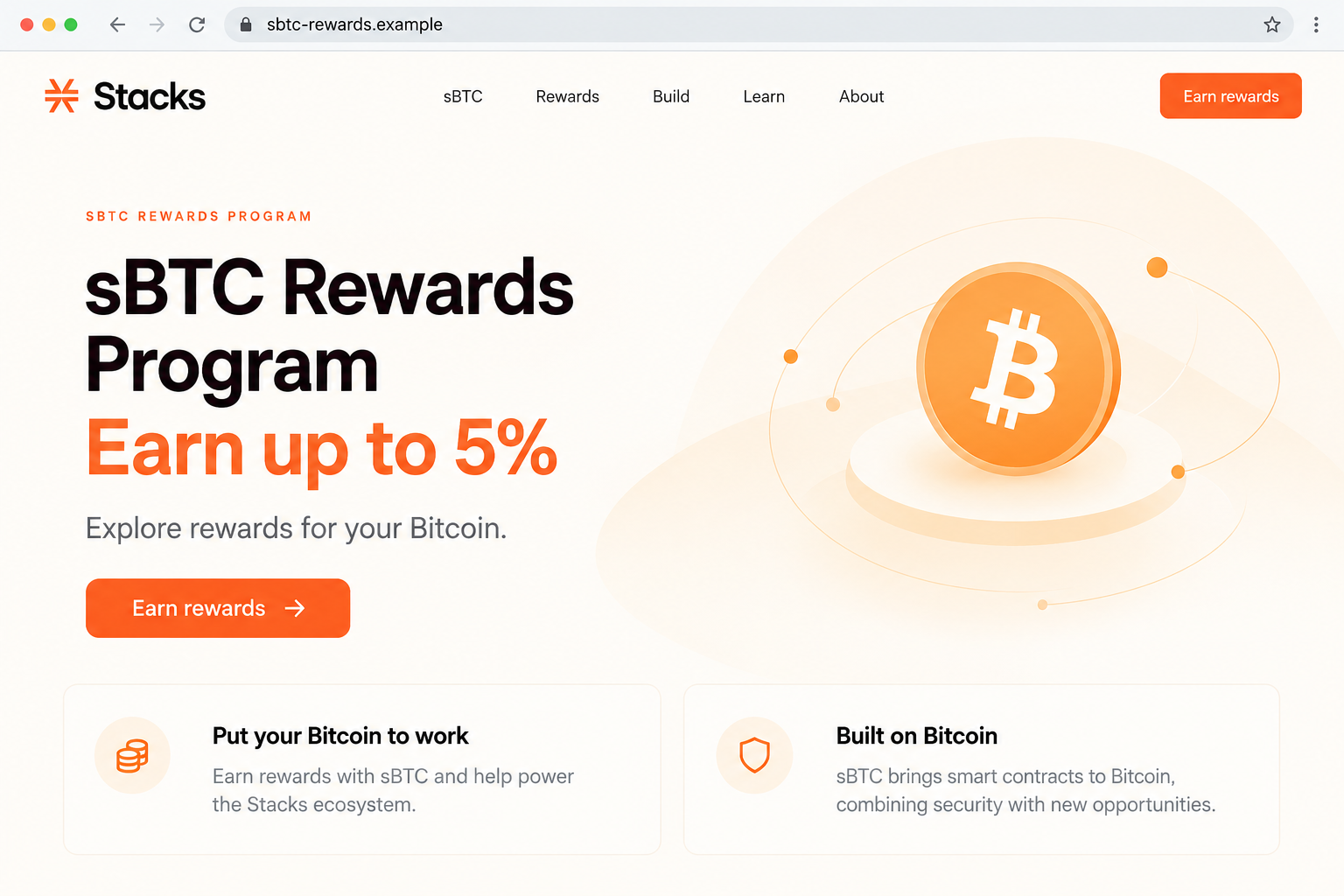
Its pitch advertised returns up to 5% and invited visitors to earn rewards. The name and percentage provide the setting, not the decisive evidence.
Stacks and sBTC are real. The official sBTC information page describes a Bitcoin-backed asset and links to its own ecosystem resources.
That does not authenticate a separate rewards page. A real technology can supply convincing vocabulary for an impersonator.
The image is an original landing-page illustration using a reserved example domain. It is not a captured offer, proof of yield, or investment recommendation.
The critical request is for the wallet’s secret recovery phrase
The reported fake site’s instructions lead to a request for a recovery phrase. That is not a normal wallet-connection permission.
A recovery phrase can restore control of a self-custody wallet. Giving it to the website can let another person use the same wallet independently.
You are no longer merely showing an address or reviewing a transaction. You may be disclosing the secret that gives access to existing assets.
No recovery phrase was entered and no transaction was performed for this article. The reported page could not be captured during the availability check.
The warning concerns the counterfeit phrase request, not a claim that every sBTC reward arrangement or the legitimate Stacks project is fraudulent.
Respond to secret exposure differently from a simple connection
If you only viewed the page, leave it. If you connected, examine what else you accepted before assuming the secret was disclosed.
If you typed the recovery phrase into the form, treat that wallet as compromised. Changing an app password does not replace the underlying phrase.
- Never enter recovery words to join a reward program.
- Verify project links independently of the offer.
- Do not reuse a disclosed phrase when setting up a replacement wallet.
- Do not pay an unsolicited helper to recover the promised yield.
The immediate priority is protecting what you already own, not completing a reward application whose authenticity has not been established.
The Important Difference Between Connecting and Restoring a Wallet
A connection should not hand the website your backup
Wallet connections commonly share selected public information and allow a website to request actions. The wallet can then present those actions for confirmation.
Restoring a wallet with recovery words is a different operation. It recreates access using the secret associated with that wallet.
A fake page may call this “connect,” “synchronize,” or “verify.” The label does not reduce the significance of the information being requested.
If an enrollment form asks you to reveal your backup, stop. You do not need to complete it to find out whether the reward exists.
A local password protects the app, not a leaked phrase
Your wallet’s local password or PIN typically controls access within that installation. Another person with the recovery phrase may not need that local password.
Resetting it can therefore leave the central problem unchanged. The old phrase still represents the same wallet.
Creating a new account under the same exposed recovery phrase may also leave it within reach. A replacement needs a genuinely new secret.
This is why phrase exposure deserves a more urgent response than removing an unwanted website connection.
The percentage is not the right authentication test
A fraud warning should not rest on whether 5% sounds high or low. Scammers can copy an ordinary-looking percentage just as easily as an extravagant one.
A project can also change genuine program terms over time. An old advertisement is not reliable evidence of today’s eligibility or rates.
Verify the organizer, address, current terms, and required wallet action. None of those checks is replaced by a realistic-looking number.
For this case, the request for recovery words is the clear reason to refuse the route.
How the Fake Stacks sBTC Rewards Scam Works
Step 1: A familiar Bitcoin ecosystem name attracts interest
The lure presents itself as a Stacks-related sBTC opportunity. Someone who has heard of the technology may recognize the name before inspecting the destination.
Recognition supplies borrowed credibility. It does not establish a relationship between the project and the page displaying its branding.
Start from a known project resource rather than the invitation. Check whether that resource actually identifies this reward route.
A hosting platform’s presence in the address does not make the platform the scam operator. The relevant question is who controls the specific hosted page.
Step 2: The rewards pitch makes entering the process seem worthwhile
The reported page offers up to 5% and directs visitors toward an earning button. The financial promise gives the next click an apparent benefit.
At that point, curiosity can turn into a task: qualify, connect, and finish the setup. That momentum can make a strange request seem merely procedural.
Pause before the process moves into wallet access. You should know what asset is involved, what action is intended, and which organization authorized the page.
Do not use a second reward page found in the same comment thread as independent confirmation. Both can repeat the same borrowed claim.
Step 3: The page describes secret disclosure as wallet connection
The harmful turn is the recovery-phrase request. Instead of remaining inside the wallet’s normal interaction controls, the visitor is asked to provide its backup words.
The page may appear ready to support the wallet you already use. A logo or matching form does not make it an authorized wallet application.
Do not paste the phrase even if the page says it is encrypted, private, or necessary only once. Its wording cannot establish safe handling.
If you are already looking at the form, leave it unfinished. No genuine reward is worth handing an unknown operator control of existing holdings.
Step 4: The disclosed secret can be used outside the original page
Someone with the phrase can attempt to restore the wallet elsewhere. That access does not need the suspicious page to remain online.
This is why a disappearing website is not a reassuring sign after submission. The secret may already have left your control.
It also explains why disconnecting the site is insufficient. That changes a connection setting, not the information another person now knows.
Do not assume a particular asset moved without checking records. But do not wait for a visible loss before securing a wallet whose phrase was exposed.
Step 5: Recovery pressure can create another opportunity for fraud
After an alarming discovery, private messages offering help can feel welcome. Some are another attempt to get money or the same secret.
A person claiming special access to the rewards system may promise to reverse the problem for a fee. That promise does not establish any capability.
Use the wallet provider’s established support resources. Explain the exposure without sending the phrase, private keys, or a screen recording revealing them.
Preserve any actual transaction references for reports. A calm record of events is more useful than paying for a supposed emergency unlock.
What to Verify About the Site and the Wallet
Use the exact project route, not a nearby-looking name
The reported hosted address is included here as a historical warning indicator. It should not be treated as a live place to explore with your wallet.
A page on a familiar hosting provider can be created by someone unrelated to the brand it imitates. Infrastructure alone does not authenticate content.
Use official resources to find any relevant application. Do not follow a private-message “replacement link” because the first site has stopped working.
If you cannot confirm the offer without the promoter’s own material, leave it. You do not owe a website your participation.
Check the origin of any wallet download as carefully as the reward page. A counterfeit extension can create a separate software problem during the supposed rescue.
Do not expose a backup belonging to a different wallet just because the first one appears empty. The form’s request remains unsafe regardless of balance.
Keep devices and physical backups under your control. A person offering support does not need you to mail them a wallet or reveal its backup sheet.
Use advice that matches Bitcoin and Stacks, not a generic fix
Wallet ecosystems have different authorization models. A generic instruction to revoke every token approval is not a remedy for disclosure of recovery words.
Xverse’s compromised-wallet guidance distinguishes a harmful transaction from seed exposure and recommends a new wallet when the seed is compromised.
Leather’s recovery-phrase guidance likewise explains why a stolen phrase puts assets at risk and why a newly generated wallet may be necessary.
These are security explanations, not endorsements of the fake rewards page. Use the provider appropriate to the wallet you actually hold.
Document the incident without copying the secret again
Record the destination, approximate time, account addresses, and any outgoing transactions. Do not include the recovery phrase in an incident note shared with support.
If you took a screenshot of the filled form, do not post it. That image may reproduce the very information you are trying to protect.
Keep public transaction references separate from private backup information. Only share what the legitimate recipient needs for the specific investigation.
Check whether the exposed phrase backs up more than the first visible account. Related addresses may need attention even if the app initially shows only one balance.
Use the wallet’s trusted documentation to understand that scope. Do not import the old phrase into random tools to discover what else it controls.
For a shared treasury, notify the other authorized decision-makers before moving assets. Coordinate the response so legitimate signers do not mistake protective transfers for more theft.
Verify a replacement address through the clean wallet itself. Copying an address from a helper’s chat would substitute another custody risk for the first.
What to Do if You Have Fallen Victim to This Scam
Stop the reward enrollment. Close the site and reject unfinished requests. Do not retry through another link supplied by the same promoter.
Note whether you viewed, connected, signed, transferred, or entered recovery words. Those actions need different responses, even if the page called them all verification.
Treat a submitted phrase as exposed. Do not rely on a form error, an empty balance display, or a vanished website to make it private again.
Changing the wallet’s PIN is not enough. Seek qualified help if you are uncertain how to protect assets without reusing the compromised secret.
Create a genuinely new wallet through a trusted route. Use an unaffected device and a newly generated recovery phrase. Keep the replacement backup private.
Where possible, move remaining assets carefully to verified new addresses. An active attacker may complicate the process, so do not repeatedly fund the exposed wallet blindly.
Review actual activity. Check the relevant chains, account addresses, and transaction history. Record unauthorized transfers with their hashes, assets, amounts, and destinations.
If you connected without disclosing a phrase, assess the individual requests accepted instead. Do not conclude that the entire wallet secret escaped without evidence.
Report recorded losses promptly. Contact appropriate service providers and your jurisdiction’s fraud-reporting authority. Give transaction references and communications, not secret recovery material.
Confirmed blockchain transfers generally cannot be canceled by the wallet provider. Investigation or recovery may be possible in some circumstances, but nobody should guarantee it.
Check software exposure separately. If the lure involved an installed wallet extension, download, or remote tool, avoid sensitive use of that device until assessed.
Malwarebytes can help with malicious-software detection. AdGuard may limit malicious ads. Neither replaces a compromised seed nor reverses transactions.
Reject recovery fees and unsolicited support. Do not provide the phrase to someone claiming they need it to verify the loss or rescue rewards.
A trustworthy support interaction should leave you in control. Keep the case inside the provider’s established process rather than a stranger’s private chat.
Is Your Device Infected? Run a Free Malware Scan
Slow performance, constant pop-ups, or strange behavior? These are classic signs of a malware infection. The fastest way to find out is to scan your device with Malwarebytes Free — one of the most trusted malware removal tools available.
The free version detects and removes the most common threats, including:
- Adware — the cause of those annoying pop-ups
- Browser hijackers — unwanted redirects and changed homepages
- Trojans and spyware — hidden programs stealing your data
- Potentially unwanted programs (PUPs) — software you never asked for
👉 Select your device below — Windows, Mac, or Android — then follow the simple steps to download Malwarebytes, scan your system, and remove any threats it finds. The scan usually takes 5 to 20 minutes.
Run a Malware Scan with Malwarebytes for Windows
Malwarebytes is one of the most popular and trusted anti-malware tools for Windows — and it’s completely free for removing infections. It catches threats that many antivirus programs miss, including adware, browser hijackers, and trojans. Follow the steps below to scan and clean your PC in just a few minutes.
Download Malwarebytes
Click the button below to download the latest version of Malwarebytes for Windows from the official source. The free version is all you need — it will scan your computer and remove adware, browser hijackers, and other malicious software at no cost.
Download MalwarebytesOfficial installer for Windows 11 and 10. Your download starts right away.Want real-time protection? See Malwarebytes Premium Malwarebytes Free for WindowsScans and removes malware at no cost
-
Install Malwarebytes
When the download finishes, open your Downloads folder and double-click the MBSetup file. If Windows shows a User Account Control pop-up, click “Yes” to allow the installation.

Follow the On-Screen Prompts to Install Malwarebytes
The setup wizard will walk you through a few quick screens:
-
Choose where you’re installing the program — “Personal Computer” or “Work Computer” — then click Next.

-
Malwarebytes will now install on your device. This usually takes under a minute.

-
When installation is complete, the “Welcome to Malwarebytes” screen will open automatically.

-
On the final screen, click Open Malwarebytes to launch the program.

-
Enable “Scan for Rootkits”
Before scanning, turn on rootkit detection so Malwarebytes can find even the most hidden threats. Click the Settings gear icon on the left side of the screen.

In the settings menu, find “Scan for rootkits” and click the toggle so it turns blue.

Done? Click “Dashboard” in the left pane to return to the main screen.
Start the Scan
Click the blue Scan button. Malwarebytes will automatically update its virus database and start checking your computer for malware.

-
Wait for the Scan to Finish
The scan checks your entire system for browser hijackers and other malicious programs, so it can take 5 to 20 minutes depending on your computer. Feel free to do something else — just check back occasionally to see the progress.

-
Quarantine the Detected Threats
When the scan is done, you’ll see a list of everything Malwarebytes found — malware, adware, and potentially unwanted programs. Click the “Quarantine” button to remove all of them at once.

Malwarebytes will now remove the malicious files and registry entries and move them safely into quarantine.

-
Restart Your Computer
Some threats can only be fully removed after a reboot. If Malwarebytes asks you to restart, click Yes. Once you’re logged back in, Malwarebytes has finished removing the threats it found.

That’s it — your Windows PC is now clean of trojans, adware, and other malware, and should be back to running smoothly.
If you are still having problems with your computer after completing these instructions, then please follow one of the steps:
- Run a computer scan with ESET Online Scanner
- Ask for help in our Windows Malware Removal Help & Support forum.
Run a Malware Scan with Malwarebytes for Mac
Malwarebytes for Mac is a free on-demand scanner that removes the malware other security software tends to miss — adware, browser hijackers, and unwanted programs included. Cleaning an infected Mac with Malwarebytes has always been completely free, and it’s our go-to recommendation. Follow the steps below to scan and clean your Mac in just a few minutes.
-
Download Malwarebytes for Mac
Click the button below to download the latest version of Malwarebytes for Mac.
Download MalwarebytesOfficial installer for macOS. Your download starts right away.Want real-time protection? See Malwarebytes PremiumMalwarebytes Free for MacScans and removes malware at no cost -
Open the Malwarebytes setup file
When the download finishes, open your Downloads folder and double-click the setup file to begin the installation.

-
Follow the On-Screen Prompts to Install Malwarebytes
The Malwarebytes for Mac Installer will guide you through a few quick screens. Click “Continue” and keep following the prompts until the installation completes.



When the installation is complete, Malwarebytes opens to the Welcome to Malwarebytes screen. Click “Get started“.
-
Select “Personal Computer” or “Work Computer”
Malwarebytes will ask what type of computer you’re installing it on. Click either Personal Computer or Work Computer, whichever applies.

-
Start the Scan
Click the “Scan” button. Malwarebytes will automatically update its detection database and begin checking your Mac for malware.

-
Wait for the Scan to Finish
Malwarebytes will scan your Mac for adware, browser hijackers, and other malicious programs. This can take a few minutes, so feel free to do something else — just check back occasionally to see the progress.

-
Quarantine the Detected Threats
When the scan is done, you’ll see a list of everything Malwarebytes found. Click the “Quarantine” button to remove all the threats at once.

-
Restart Your Mac
Malwarebytes will now remove all the malicious files it found. Some threats can only be fully removed after a reboot — if Malwarebytes asks you to restart, allow it. Once you’re logged back in, your Mac is clean.

That’s it — your Mac is now free of adware, rogue browser extensions, and other potentially harmful software.
If you are still experiencing problems while trying to remove a malicious program from your computer, please ask for help in our Mac Malware Removal Help & Support forum.
Run a Malware Scan with Malwarebytes for Android
Malwarebytes for Android automatically detects and removes dangerous threats like malware and ransomware so you don’t have to worry about your most-used device being compromised. Aggressive detection of adware and potentially unwanted programs keeps your Android phone or tablet running smooth.
-
Download Malwarebytes for Android.
You can download Malwarebytes for Android by clicking the link below.
Get Malwarebytes for AndroidOpens Google Play in a new tab.Want real-time protection? See Malwarebytes Premium for AndroidMalwarebytes for AndroidScans your phone and removes malware at no cost -
Install Malwarebytes for Android on your phone.
In the Google Play Store, tap “Install” to install Malwarebytes for Android on your device.

When the installation process has finished, tap “Open” to begin using Malwarebytes for Android. You can also open Malwarebytes by tapping on its icon in your phone menu or home screen.

-
Follow the on-screen prompts to complete the setup process
When Malwarebytes will open, you will see the Malwarebytes Setup Wizard which will guide you through a series of permissions and other setup options.
This is the first of two screens that explain the difference between the Premium and Free versions. Swipe this screen to continue.
Tap on “Got it” to proceed to the next step.
Malwarebytes for Android will now ask for a set of permissions that are required to scan your device and protect it from malware. Tap on “Give permission” to continue.
Tap on “Allow” to permit Malwarebytes to access the files on your phone.
-
Update database and run a scan with Malwarebytes for Android
You will now be prompted to update the Malwarebytes database and run a full system scan.

Click on “Update database” to update the Malwarebytes for Android definitions to the latest version, then click on “Run full scan” to perform a system scan.

-
Wait for the Malwarebytes scan to complete.
Malwarebytes will now start scanning your phone for adware and other malicious apps. This process can take a few minutes, so we suggest you do something else and periodically check on the status of the scan to see when it is finished.

-
Click on “Remove Selected”.
When the scan has been completed, you will be presented with a screen showing the malware infections that Malwarebytes for Android has detected. To remove the malicious apps that Malwarebytes has found, tap on the “Remove Selected” button.

-
Restart your phone.
Malwarebytes for Android will now remove all the malicious apps that it has found. To complete the malware removal process, Malwarebytes may ask you to restart your device.
That’s it — your Android phone is now clean — no more malicious apps, adware, or browser redirects.
If you are still having problems with your phone after completing these instructions, then please follow one of the steps:
- Restore your phone to factory settings by going to Settings > General management > Reset > Factory data reset.
- Ask for help in our Mobile Malware Removal Help & Support forum.
Stay Protected: Block Ads and Malicious Sites
Now that your device is clean, keep it that way. Most infections start with a malicious ad or a fake download button — so blocking them at the source is your best defense.
We recommend AdGuard, which blocks malicious ads, phishing pages, and dangerous redirects before they can reach you.
👉 Download AdGuard and browse safely
Frequently Asked Questions
Are Stacks and sBTC themselves fake?
No. The warning concerns a counterfeit rewards route borrowing their names. A legitimate project and a fraudulent impersonation should not be treated as the same entity.
Does a 5% offer prove a scam?
No. The rate alone is not the verdict. The unverified site and its recovery-phrase request are the relevant problems in this case.
Is typing recovery words a normal way to connect?
No. A rewards website should not receive your wallet backup. Connection and restoration using a secret phrase are different operations.
Can I fix an exposed phrase by changing my wallet password?
Not reliably. The local password does not replace the underlying wallet secret. A new wallet needs a newly generated phrase.
Do I need to revoke ERC-20 approvals after this lure?
Do not apply that as a universal fix. Follow the actual wallet and network involved; phrase disclosure requires more than changing approval settings.
Should I pay someone who promises to recover the Bitcoin?
Reject unsolicited recovery guarantees and advance-fee demands. Preserve records and use verified support and reporting channels without revealing wallet secrets.
The Bottom Line
Do not enter recovery words into the fake Stacks sBTC rewards page. A familiar name and a plausible return cannot justify disclosing control of your wallet.
If the phrase was submitted, protect remaining assets through a new secret and trusted assistance. Report real losses, and refuse further payments to rescue promised rewards.

Join the discussion
0 commentsShare your experience or ask a question about this article.
Discussion
Start the conversation
Have a question or something useful to share? Add the first comment.