

It starts the way these things always start.
A quick TikTok clip. A comment under a Roblox post. A link that promises something small enough to feel believable, but big enough to make you click: 400 Robux, 1,000 Robux, even 1,200 Robux and a “rare emote” if you move fast.
Ororoyalefires is one of those names that suddenly seems to be everywhere at once.
And the website does a good job of feeling like a real “event” you might have missed.
But when you slow down and look closely, the whole thing reads like a trap built from familiar parts. Flashy reward images, “Claim” buttons, a ticking countdown timer, and a path that leads away from Roblox and into external steps Roblox does not control.
If you are searching for an honest Ororoyalefires Robux review, this breakdown will help you understand what the site is doing, why it is trending, and how to protect your account before curiosity turns into damage.
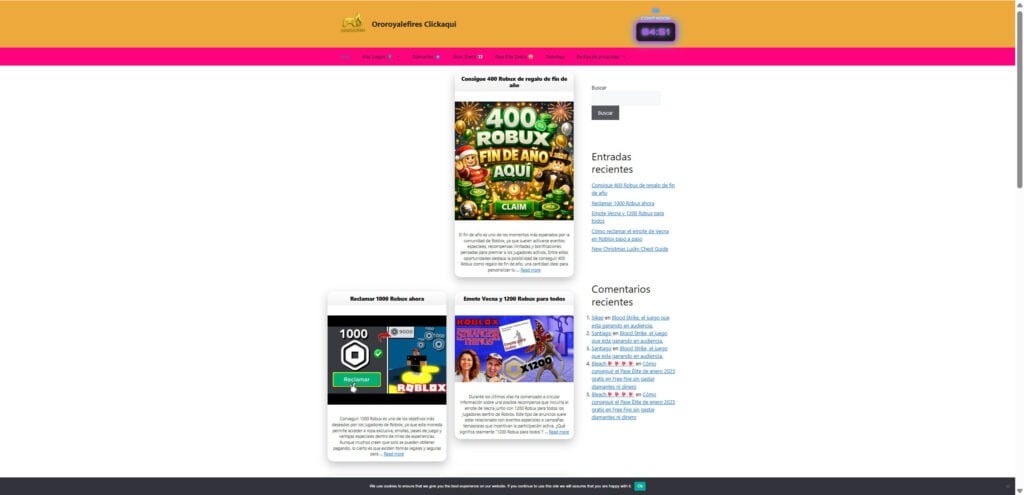
Scam Overview
Ororoyalefires appears as a Spanish-language clickbait rewards site hosted on a subdomain under tecnologiaempresarial.top, branded as “Ororoyalefires Clickaqui.”
The site’s posts and visuals revolve around Roblox currency and rewards, including titles like:
- “Consigue 400 Robux de regalo de fin de año”
- “Reclamar 1000 Robux ahora”
- “Emote Vecna y 1200 Robux para todos”
At a glance, it looks like a blog that “explains” how to get rewards. In practice, it functions like a traffic funnel. It pulls in excited players through viral sharing and then pushes them toward “claim” actions that often lead off-site.
Why Ororoyalefires is suddenly trending
Sites like this do not usually grow through Google alone.
They spread through fast channels where people react first and verify later:
- TikTok short videos that imply instant Robux
- Roblox comments that drop a link with urgency
- Group chats and Discord servers where kids share “working methods”
- Reposts that copy the same script, word for word
That matches what your transcript describes: Ororoyalefires being pushed across TikTok, Roblox comments, and short clips, all repeating the same promise of free Robux instantly, sometimes 400, sometimes 1,000, sometimes paired with “rare emotes.” (Your provided transcript)
The marketing is built on FOMO.
It makes the offer feel time-limited, secret, and easy.
The core problem: Roblox does not work that way
Roblox is extremely clear about this category of offer.
Roblox states that any offer of “free Robux, memberships, or valuable items” is a scam, and that these offers are meant to trick users into giving out passwords or personal information or clicking bad links.
They also explain where legitimate promotions actually appear: the Roblox blog, the Notifications tab in Messages, or a banner at the top of the Roblox site.
That one detail is the fastest way to cut through the noise.
If the “promotion” is not being announced through those official channels, it should be treated as untrusted by default.
What Ororoyalefires promises
Ororoyalefires uses a rotating set of reward hooks. The site is not built around one promise, it is built around whatever promise is converting best right now.
From the pages indexed on the domain, the most visible hooks include:
- 400 Robux “end of year” gift
- 1,000 Robux “claim now”
- “Vecna” emote plus 1,200 Robux
Your screenshots add something important: the site also mixes in unrelated “claim” content, including “Lucky Chest” style posts that look like they target other games. That matters because it suggests the site is not a real Roblox resource, it is a generic clickbait rewards machine that swaps themes and games to capture more search traffic.
That is a common footprint of multi-offer networks.
If a site is truly about Roblox safety or Roblox news, it usually stays on Roblox.
If it is an affiliate funnel, it tends to jump between anything that can generate clicks.
The design tricks that make it feel real
Ororoyalefires does not need to look perfect.
It only needs to look “good enough” for a 10-second decision.
Here are the most common credibility tricks, many of which appear in your screenshots:
1) Big reward art and a single action button
The site uses large, celebratory images like “400 ROBUX FIN DE AÑO AQUI 2026” paired with a prominent “Claim” button.
That format is intentional.
It reduces thinking and increases tapping.
2) A countdown timer that creates pressure
Your screenshot shows a visible countdown labeled “CONTADOR.”
Countdowns are not proof of legitimacy.
They are a pressure tactic: “act now, verify later.”
3) A “blog post” wrapper that hides the real intent
A lot of these pages look like informational posts.
They talk about “legal and safe methods” and “events,” then push you toward a claim action.
This helps the site appear harmless and searchable, while still steering traffic toward conversions.
4) A temporary-looking, unbranded domain structure
The site is hosted as a subdomain under tecnologiaempresarial.top, not under an official Roblox domain, and not under a recognizable brand.
Even if a site looks clean, the domain is often where the truth shows up.
A legitimate Roblox promotion will not live on a random third-party subdomain.
Roblox specifically warns that “free Robux” offers are often used to steal account details or lure users into bad links.
What this type of site is usually doing behind the scenes
Ororoyalefires fits a pattern that shows up again and again in “free Robux” schemes.
The site generally makes money through one or more of these mechanisms:
- Affiliate offers and lead generation (paid per signup, install, or survey completion)
- Subscription traps disguised as “verification”
- Data harvesting (emails, phone numbers, demographic info)
- Phishing flows (fake login prompts or fake “connect account” steps)
- Malware or unwanted software distribution (more common on desktop flows)
Not every victim sees the exact same path.
Many of these systems are dynamic. They show different offers depending on your country, device type, browser, and referral source.
That is why one person says, “It just asked for my username,” while another says, “It made me install apps,” and someone else says, “It sent me to surveys.”
It is still the same machine.
The “proof” problem: lots of hype, very little verification
One of the strongest warning signs in your transcript is this: despite “massive popularity,” there is no real, trusted feedback.
That is typical.
Scam funnels often rely on:
- Comments that look copied and pasted
- “It worked” replies from brand-new accounts
- Screenshots that can be edited in seconds
- Short clips that cut away before any real proof is shown
Meanwhile, what you do not see is more important:
- No verified announcement on Roblox official channels
- No official Roblox page explaining the promotion
- No legitimate redemption method inside Roblox
- No credible third-party security validation
Robux is not something a random external website can generate and “send” into accounts.
That is why Roblox calls these “generators” scams, because the only realistic outcomes are theft, tracking, or wasted time.
Why these scams target younger players so effectively
This is the part many adults miss.
Kids do not click because they are careless.
They click because the offer is tailored to their world:
- Rewards are part of Roblox culture
- Limited-time events feel normal
- Social proof is powerful (“everyone is doing it”)
- The steps feel like a game (progress, tasks, completion)
Then the scam adds urgency and social pressure.
If a friend shares it, it feels safer.
If TikTok shows it, it feels real.
If a countdown timer is ticking, it feels like you will miss out.
That is why “free Robux” scams are one of the most consistent threats in Roblox communities.
Roblox itself highlights “free Robux” as a common trick used to steal accounts.
What Ororoyalefires looks like in practice
From the pages visible on the domain, Ororoyalefires is structured like a content hub:
- A homepage listing recent posts focused on Robux and emotes
- Individual posts with reward claims and “how to get” framing
- Visual “Claim” elements that encourage clicking, not reading (your screenshots)
Even when an article’s text includes safe-sounding language about “legal methods,” the overall funnel is still risky because it normalizes the idea that Robux can be obtained through external claim flows.
Roblox’s official stance does not leave room for that.
If the offer is “free Robux” from outside official channels, it is a scam category.
The most likely outcomes if someone follows the steps
If a person clicks through and follows prompts, the outcomes tend to fall into a few buckets.
1) Endless tasks with no reward
This is the most common experience.
Users complete one offer, then another, then get told the “verification did not register.”
The goalpost moves forever.
2) Data collection and spam
Email entered for “verification” becomes spam fuel.
Phone numbers can be used for marketing lists.
Personal details from surveys can be resold.
3) Subscription charges
The most damaging “soft” outcome is recurring billing.
This can happen through:
- free trial signups that convert into paid plans
- SMS subscription services
- app subscriptions that keep charging monthly
4) Account compromise attempts
Some flows push users toward fake login pages or “connect account” steps.
Roblox warns that free Robux scams often aim to steal account information and Robux/items. (Roblox Support)
5) Malware or unwanted installs
Not every user gets malware, but downloads and extensions are always a high-risk instruction when the source is an untrusted reward site.
The simplest way to judge Ororoyalefires
You do not have to be a cybersecurity expert.
Use a rule that is easy enough for a child to remember:
If you have to leave Roblox to “claim Robux,” it is not real.
Roblox promotions do not require random external tasks.
And they do not require you to trust a countdown timer on a third-party domain.
How The Scam Works
Ororoyalefires can present itself in slightly different ways depending on the page you land on.
But the underlying flow is consistent: hook, click, steps, external actions, and no real reward.
Here is the step-by-step pattern, with the variations you should expect.
Step 1: You discover the offer through a fast social channel
Most people do not “research” Ororoyalefires first.
They see it mid-scroll.
Common discovery routes include:
- TikTok videos that say “working method”
- Roblox comment chains full of links
- Shorts that show a big reward image and a quick cut
- Reposts with copied captions
This matters because the platform shape affects behavior.
TikTok trains people to decide in seconds.
Scams love that.
Step 2: The landing page sells a story, not a system
Ororoyalefires pages typically open with a strong promise.
For example, the “400 Robux end of year” page frames the reward like a seasonal opportunity.
The details are less important than the feeling:
- “This is real”
- “This is happening now”
- “You can get it if you act fast”
Then the page offers a call to action, often a “Claim” button.
Your screenshots show exactly that style: large reward art, then an obvious click target.
Step 3: The countdown timer turns curiosity into urgency
The countdown timer is a psychological lever.
It changes the question from:
“Is this legit?”
to:
“Should I hurry before time runs out?”
That is the whole point.
If a person feels rushed, they are less likely to check:
- Roblox official announcements
- the domain name
- whether any reputable source confirms it
- whether Roblox even allows it
Step 4: The site pushes you toward a “claim” path
Once you click “Claim,” most versions of this funnel will do one of these things:
- Ask for your Roblox username
- Ask you to pick a device type (Android, iPhone, PC)
- Send you to another page that looks like a verification step
- Redirect you to external offers
In your transcript, the flow described is: click claim, enter Roblox username, then follow external actions that supposedly unlock the reward. (Your provided transcript)
That is a classic setup.
The username step feels harmless, which keeps people moving.
Step 5: External actions begin
This is where the funnel reveals its real purpose.
Instead of any real Roblox redemption, users get sent into unrelated tasks.
These tasks can include:
- Surveys (“complete to verify you are human”)
- App installs (“install and open for 30 seconds”)
- Account signups (“create an account to unlock reward”)
- Email submission (“we will send your code”)
- SMS confirmation (“verify your phone”)
The tasks are not there to “verify” you.
They are there to generate revenue or collect data.
Step 6: The reward becomes “almost unlocked,” then moves again
A common trick is the progress illusion.
You may see:
- “90% complete”
- “1 step left”
- “verification pending”
- “processing, wait 24 to 72 hours”
Then nothing arrives.
Or you get told your completion was not detected.
So you do another task.
This loop is not a bug.
It is the business model.
Step 7: Some flows escalate into riskier requests
Not every user sees this, but it is common enough to mention.
After a few tasks, the funnel may escalate to something more dangerous:
- “Log in to verify your Roblox account”
- “Connect your account to receive Robux”
- “Join a Discord server for verification”
- “Install a browser extension to complete verification”
Roblox specifically warns that free Robux scams are meant to trick you into giving out your password or personal information, or to make you click bad links.
Step 8: If Discord gets involved, the risk multiplies
Even when Ororoyalefires itself is not “a Discord scam,” these ecosystems overlap.
Reward scams often redirect into Discord servers where bots run the next stage.
Discord’s own safety guidance is blunt:
- Do not click suspicious links
- Do not download programs you do not recognize
- Do not share passwords
- Do not scan QR codes you cannot verify
The combination of Roblox hype and Discord bots is especially dangerous for younger users, because it feels like a community, not a trap.
Step 9: The funnel spreads itself
Many of these campaigns include a referral angle.
You might see:
- “Invite 3 friends to unlock”
- “Share to claim faster”
- “Post this in comments”
That turns victims into advertisers.
And it is why these links flood Roblox comment sections so quickly.
Even without explicit referrals, the viral nature of “free Robux” does the job.
Kids share it because they want it to be real.
Step 10: The domain rotates, the pattern stays
One of the reasons this category never disappears is that domains are disposable.
If a name gets flagged, they move to another.
The branding changes slightly.
The reward numbers change.
The mechanics stay the same.
That is why the best defense is pattern recognition, not memorizing one URL.
What to do if you have fallen victim to this scam
If you clicked Ororoyalefires, entered details, installed anything, or completed tasks, do not panic.
Most damage can be limited if you act quickly and methodically.
Follow this checklist.
- Stop immediately and close every related tab
Do not “finish the last step.”
Do not click more claim buttons.
Do not trust any message that says the reward is “almost ready.” - Change your Roblox password now
Use a strong, unique password you do not reuse elsewhere.
If you reused that password on email or other accounts, change those too.
- Enable Roblox 2-Step Verification
Roblox provides official instructions for enabling 2-Step Verification in the Security settings.
This is one of the best ways to block account takeovers even if someone learned your password. - Secure the email linked to your Roblox account
Your email is the real key to your account.
- Change your email password if you are unsure
- Enable 2-factor authentication on your email
- Check recent login activity if your provider offers it
- Check your Roblox security signals
Look for signs that someone else touched your account:
- new email address added or changed
- new devices logged in
- unusual password reset emails
- missing items or Robux
If Roblox shows a security notification, follow official recovery steps.
- If you entered any payment info, check for subscriptions immediately
Even if it said “free,” treat it as a billing risk.
- Review bank/card transactions for small test charges
- Look for recurring charges starting in a few days
- Cancel trials through the service directly
- If needed, contact your bank to block future billing
- If you installed anything, uninstall and scan your device
Remove anything downloaded as part of the “verification.”
Then:
- run a full malware scan with a reputable security tool
- remove suspicious browser extensions
- restart your device after cleanup
If the flow asked you to install a browser extension, remove it even if it looks harmless.
- If Discord was involved, secure Discord too
Even if Ororoyalefires started as a Roblox lure, Discord often becomes the spread channel.
- Change your Discord password
- Enable multi-factor authentication
- Review Authorized Apps and remove anything you do not recognize
- Be cautious of QR code logins and “verify” bots
- Save evidence
Take screenshots of:
- the page you landed on
- the claim button and countdown timer
- any offer pages you were redirected to
- confirmation emails from signups or trials
- any Discord server or bot instructions
This helps with charge disputes and reports.
- Report the content where you saw it
Reporting helps slow the spread.
- Report TikTok videos pushing the link
- Report Roblox accounts spamming it in comments
- Report Discord servers or bots if they were involved
- If a child clicked it, keep the conversation calm
Kids fall for these because the scam is built for them.
Focus on two outcomes:
- they tell you quickly next time
- they learn one simple safety rule
A strong rule is:
If it promises Robux for clicking links or doing tasks outside Roblox, do not touch it.
Roblox itself warns that “free Robux” tricks are used to steal accounts.
Is Your Device Infected? Run a Free Malware Scan
Slow performance, constant pop-ups, or strange behavior? These are classic signs of a malware infection. The fastest way to find out is to scan your device with Malwarebytes Free — one of the most trusted malware removal tools available.
The free version detects and removes the most common threats, including:
- Adware — the cause of those annoying pop-ups
- Browser hijackers — unwanted redirects and changed homepages
- Trojans and spyware — hidden programs stealing your data
- Potentially unwanted programs (PUPs) — software you never asked for
👉 Select your device below — Windows, Mac, or Android — then follow the simple steps to download Malwarebytes, scan your system, and remove any threats it finds. The scan usually takes 5 to 20 minutes.
Run a Malware Scan with Malwarebytes for Windows
Malwarebytes is one of the most popular and trusted anti-malware tools for Windows — and it’s completely free for removing infections. It catches threats that many antivirus programs miss, including adware, browser hijackers, and trojans. Follow the steps below to scan and clean your PC in just a few minutes.
Download Malwarebytes
Click the button below to download the latest version of Malwarebytes for Windows from the official source. The free version is all you need — it will scan your computer and remove adware, browser hijackers, and other malicious software at no cost.
Download MalwarebytesOfficial installer for Windows 11 and 10. Your download starts right away.Want real-time protection? See Malwarebytes Premium Malwarebytes Free for WindowsScans and removes malware at no cost
-
Install Malwarebytes
When the download finishes, open your Downloads folder and double-click the MBSetup file. If Windows shows a User Account Control pop-up, click “Yes” to allow the installation.

Follow the On-Screen Prompts to Install Malwarebytes
The setup wizard will walk you through a few quick screens:
-
Choose where you’re installing the program — “Personal Computer” or “Work Computer” — then click Next.

-
Malwarebytes will now install on your device. This usually takes under a minute.

-
When installation is complete, the “Welcome to Malwarebytes” screen will open automatically.

-
On the final screen, click Open Malwarebytes to launch the program.

-
Enable “Scan for Rootkits”
Before scanning, turn on rootkit detection so Malwarebytes can find even the most hidden threats. Click the Settings gear icon on the left side of the screen.

In the settings menu, find “Scan for rootkits” and click the toggle so it turns blue.

Done? Click “Dashboard” in the left pane to return to the main screen.
Start the Scan
Click the blue Scan button. Malwarebytes will automatically update its virus database and start checking your computer for malware.

-
Wait for the Scan to Finish
The scan checks your entire system for browser hijackers and other malicious programs, so it can take 5 to 20 minutes depending on your computer. Feel free to do something else — just check back occasionally to see the progress.

-
Quarantine the Detected Threats
When the scan is done, you’ll see a list of everything Malwarebytes found — malware, adware, and potentially unwanted programs. Click the “Quarantine” button to remove all of them at once.

Malwarebytes will now remove the malicious files and registry entries and move them safely into quarantine.

-
Restart Your Computer
Some threats can only be fully removed after a reboot. If Malwarebytes asks you to restart, click Yes. Once you’re logged back in, Malwarebytes has finished removing the threats it found.

That’s it — your Windows PC is now clean of trojans, adware, and other malware, and should be back to running smoothly.
If you are still having problems with your computer after completing these instructions, then please follow one of the steps:
- Run a computer scan with ESET Online Scanner
- Ask for help in our Windows Malware Removal Help & Support forum.
Run a Malware Scan with Malwarebytes for Mac
Malwarebytes for Mac is a free on-demand scanner that removes the malware other security software tends to miss — adware, browser hijackers, and unwanted programs included. Cleaning an infected Mac with Malwarebytes has always been completely free, and it’s our go-to recommendation. Follow the steps below to scan and clean your Mac in just a few minutes.
-
Download Malwarebytes for Mac
Click the button below to download the latest version of Malwarebytes for Mac.
Download MalwarebytesOfficial installer for macOS. Your download starts right away.Want real-time protection? See Malwarebytes PremiumMalwarebytes Free for MacScans and removes malware at no cost -
Open the Malwarebytes setup file
When the download finishes, open your Downloads folder and double-click the setup file to begin the installation.

-
Follow the On-Screen Prompts to Install Malwarebytes
The Malwarebytes for Mac Installer will guide you through a few quick screens. Click “Continue” and keep following the prompts until the installation completes.



When the installation is complete, Malwarebytes opens to the Welcome to Malwarebytes screen. Click “Get started“.
-
Select “Personal Computer” or “Work Computer”
Malwarebytes will ask what type of computer you’re installing it on. Click either Personal Computer or Work Computer, whichever applies.

-
Start the Scan
Click the “Scan” button. Malwarebytes will automatically update its detection database and begin checking your Mac for malware.

-
Wait for the Scan to Finish
Malwarebytes will scan your Mac for adware, browser hijackers, and other malicious programs. This can take a few minutes, so feel free to do something else — just check back occasionally to see the progress.

-
Quarantine the Detected Threats
When the scan is done, you’ll see a list of everything Malwarebytes found. Click the “Quarantine” button to remove all the threats at once.

-
Restart Your Mac
Malwarebytes will now remove all the malicious files it found. Some threats can only be fully removed after a reboot — if Malwarebytes asks you to restart, allow it. Once you’re logged back in, your Mac is clean.

That’s it — your Mac is now free of adware, rogue browser extensions, and other potentially harmful software.
If you are still experiencing problems while trying to remove a malicious program from your computer, please ask for help in our Mac Malware Removal Help & Support forum.
Run a Malware Scan with Malwarebytes for Android
Malwarebytes for Android automatically detects and removes dangerous threats like malware and ransomware so you don’t have to worry about your most-used device being compromised. Aggressive detection of adware and potentially unwanted programs keeps your Android phone or tablet running smooth.
-
Download Malwarebytes for Android.
You can download Malwarebytes for Android by clicking the link below.
Get Malwarebytes for AndroidOpens Google Play in a new tab.Want real-time protection? See Malwarebytes Premium for AndroidMalwarebytes for AndroidScans your phone and removes malware at no cost -
Install Malwarebytes for Android on your phone.
In the Google Play Store, tap “Install” to install Malwarebytes for Android on your device.

When the installation process has finished, tap “Open” to begin using Malwarebytes for Android. You can also open Malwarebytes by tapping on its icon in your phone menu or home screen.

-
Follow the on-screen prompts to complete the setup process
When Malwarebytes will open, you will see the Malwarebytes Setup Wizard which will guide you through a series of permissions and other setup options.
This is the first of two screens that explain the difference between the Premium and Free versions. Swipe this screen to continue.
Tap on “Got it” to proceed to the next step.
Malwarebytes for Android will now ask for a set of permissions that are required to scan your device and protect it from malware. Tap on “Give permission” to continue.
Tap on “Allow” to permit Malwarebytes to access the files on your phone.
-
Update database and run a scan with Malwarebytes for Android
You will now be prompted to update the Malwarebytes database and run a full system scan.

Click on “Update database” to update the Malwarebytes for Android definitions to the latest version, then click on “Run full scan” to perform a system scan.

-
Wait for the Malwarebytes scan to complete.
Malwarebytes will now start scanning your phone for adware and other malicious apps. This process can take a few minutes, so we suggest you do something else and periodically check on the status of the scan to see when it is finished.

-
Click on “Remove Selected”.
When the scan has been completed, you will be presented with a screen showing the malware infections that Malwarebytes for Android has detected. To remove the malicious apps that Malwarebytes has found, tap on the “Remove Selected” button.

-
Restart your phone.
Malwarebytes for Android will now remove all the malicious apps that it has found. To complete the malware removal process, Malwarebytes may ask you to restart your device.
That’s it — your Android phone is now clean — no more malicious apps, adware, or browser redirects.
If you are still having problems with your phone after completing these instructions, then please follow one of the steps:
- Restore your phone to factory settings by going to Settings > General management > Reset > Factory data reset.
- Ask for help in our Mobile Malware Removal Help & Support forum.
Stay Protected: Block Ads and Malicious Sites
Now that your device is clean, keep it that way. Most infections start with a malicious ad or a fake download button — so blocking them at the source is your best defense.
We recommend AdGuard, which blocks malicious ads, phishing pages, and dangerous redirects before they can reach you.
👉 Download AdGuard and browse safely
The Bottom Line
Ororoyalefires is not a legitimate Roblox rewards program.
It is a viral “free Robux” lure that uses reward art, claim buttons, and urgency tactics like countdown timers to push users into off-platform actions.
Roblox’s guidance is clear: offers of free Robux from outside official channels are scams, and legitimate promotions appear only through official Roblox announcements like the blog, Notifications tab, or site banners.
If you already clicked, the best move is not to feel embarrassed.
The best move is to secure your Roblox account, review subscriptions, remove anything you installed, and treat any off-site “verification” as untrusted.
And if you want to protect yourself long-term, remember the pattern.
Real Robux does not come from random claim pages.
It comes from Roblox.








