

A bank email says a transfer to your account is being processed. For someone waiting on payment, it is easy to open.
The CIMB-themed notice offers payment advice to explain the transfer. Before following that invitation, check what the message actually delivers.
Overview
A transfer notification becomes a request to view payment advice
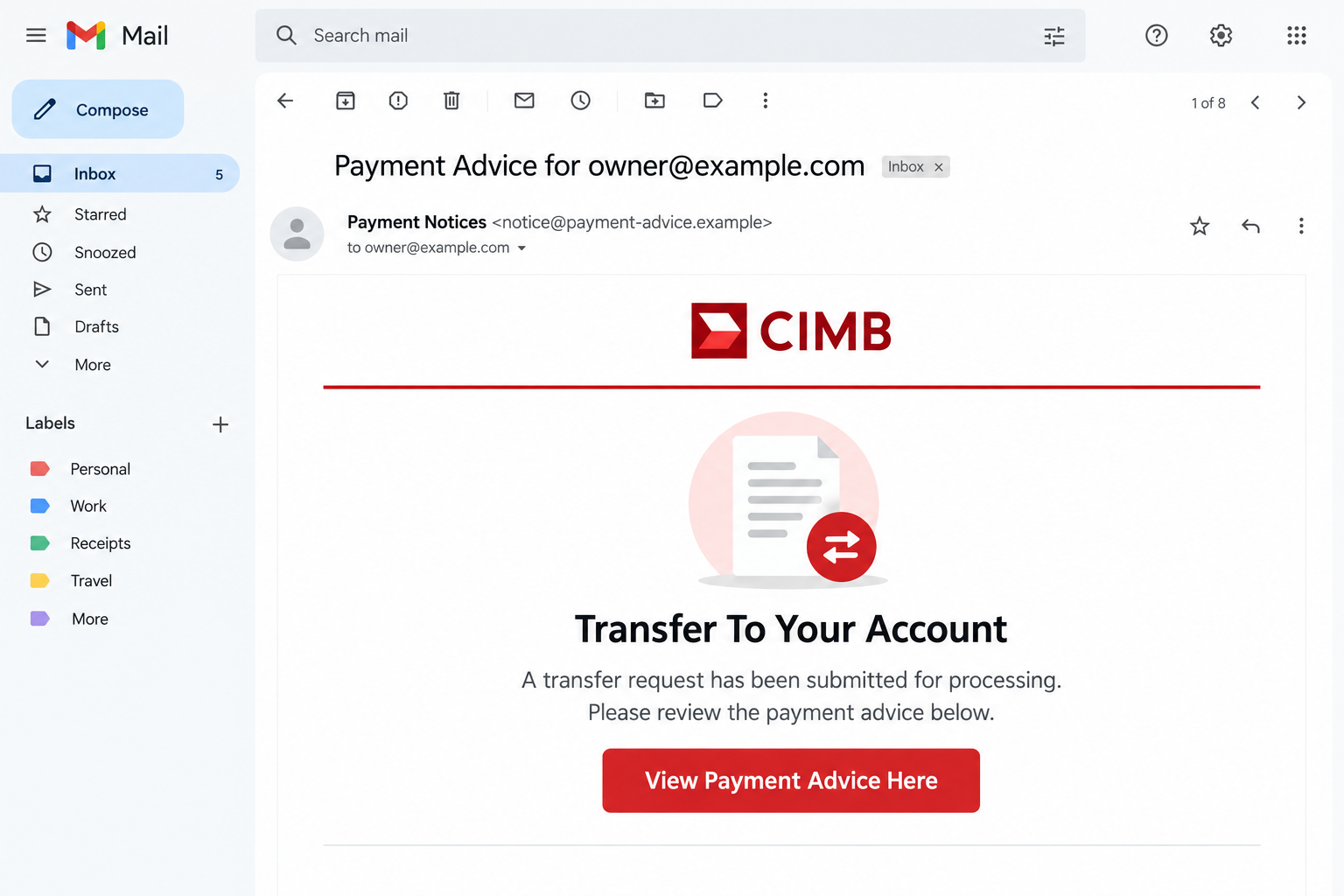
The CIMB Transfer To Your Account email scam impersonates the bank and says a transfer request has been submitted for processing.
A reported subject reads “Payment Advice for” followed by the recipient’s address. The body points the reader toward details of the supposed transaction.
That is an effective business pretext. A recipient may be expecting money without knowing which bank the sender uses.
The message is not a verified bank notification. Its claim does not establish that money was sent, received, or even scheduled.
The image above is an original email illustration with example addresses. It does not show a real customer, bank balance, or completed transfer.
The promised attachment is actually a link to an email-password prompt
The reported email refers to attached payment advice, yet supplies a button rather than the claimed attachment. That mismatch is worth noticing.
The button opens a page presenting a protected online PDF over a blurred background. Access supposedly requires verification with the recipient’s email password.
This is the central trick: a bank-transfer story is used to ask for a mailbox credential. The two are not the same authorization.
The specific form targets email access, not merely a payment reference. A document-themed screen does not become your email provider.
No genuine incoming transfer, live password submission, or account compromise was tested here. The report concerns the described impersonation and its credential request.
CIMB’s real services are separate from the impersonation
CIMB is a legitimate banking group. Its name in the email does not mean the bank sent the message or operates the password page.
The bank’s own phishing guidance recommends independent verification and warns against using contact details supplied by suspicious messages.
- Check the transfer through your existing banking route.
- Ask the expected payer about the payment using verified contact information.
- Never supply a mailbox password to unlock a bank-themed PDF page.
- Separate an exposed email login from any actual bank transaction.
If you did not expect a payment, there is no need to investigate by signing in through the message. Report it and leave the link alone.
Why a Bank Transfer Is a Useful Disguise
The recipient may not know which bank the payer uses
A customer can pay from a bank you do not use yourself. That makes an unfamiliar banking name less surprising than an unfamiliar account provider.
A freelancer awaiting a deposit or a supplier awaiting an invoice payment may therefore treat the notification as plausible.
But plausibility is not confirmation. The actual payer should be able to discuss the invoice or transfer through the communication route you already share.
Do not reply to the suspicious email to establish that connection. The sender can answer questions about its invented transfer just as easily as sending the first message.
Payment advice is not the same thing as cleared money
A payment notice, even a genuine one, is not a substitute for checking whether funds reached the correct account.
That distinction is especially important before releasing goods, issuing a refund, or accepting a supposed overpayment explanation.
This campaign’s documented aim is password capture. Do not assume those additional payment frauds occurred, but keep normal payment checks in place.
If a customer asks you to act on the email, confirm the payment independently with the relevant institution or your accounting team.
A protected-document screen explains away the obstacle
A blurred preview makes the information feel close but unavailable. The page offers one small action that supposedly unlocks what you came to see.
People are accustomed to document passwords, but an attachment password and your mailbox password are different secrets with different purposes.
The appearance of a PDF does not explain why an unrelated website should receive the credential used for your entire inbox.
If the request cannot be justified without the page’s own story, stop there. You can verify a payment without giving that page another chance.
How the CIMB Transfer To Your Account Email Scam Works
Step 1: A personalized payment subject attracts attention
The email places the recipient’s address in a payment-advice subject. This makes the notice seem addressed to the person who should receive the funds.
An address in the subject is not confidential bank knowledge. The sender already needs it to deliver the email.
Check whether the message fits a real expected transaction. Does the known payer, invoice, timing, and recipient account match your records?
Do not fill missing details with assumptions. If the email is vague, ask the payer separately instead of treating the link as the answer.
Step 2: The body claims the bank is processing a transfer
The notice says a transfer request has been submitted and directs the reader to payment advice for details.
That wording sounds informational rather than demanding. It suggests you only need to review something already underway.
The reader may lower their guard because the first message is not asking them to send money. Credential theft does not need an immediate payment request.
Pay attention to the attachment claim. In the reported message, the supposed advice is reached through a button, not the attachment described in the text.
A mismatch like that is a reason to verify elsewhere, not a reason to keep clicking until the expected document appears.
Step 3: The button leads to a protected-PDF story
The reported “View Payment Advice Here” button opens a website showing a blurred document and a foreground verification prompt.
The page claims the document is protected. This provides an explanation for why the transaction details are not immediately visible.
Do not confuse that explanation with real access control. A webpage can blur any background and place a password field over it.
Branding, a document icon, and a padlock do not connect the form to the bank or your mail provider.
If you already arrived there, leave without submitting. Save the destination privately for a security report if your organization requests it.
Step 4: The document request becomes a mailbox-password request
The verification asks for the email password. That credential can unlock far more than the supposed payment advice.
A form may prefill your email address to make the request feel specific. Prefilled text can come from a link parameter or other ordinary page data.
Entering an incorrect-looking password result does not undo submission. The operator may receive what you typed before showing an error or another prompt.
Do not supply an additional code to finish the process. Refuse any unexpected authentication approval and secure the mailbox through its genuine service.
Tell support which account was exposed, but do not send the password itself. The relevant facts are the action, time, destination, and any code approved.
Step 5: A compromised mailbox can support later deception
Mail access can reveal invoices and existing conversations. That context may make later messages from an attacker seem more believable.
An attacker might also attempt password resets elsewhere or change forwarding. These are consequences to investigate, not automatic findings in every case.
Check the actual account records and affected conversations. Do not assume a bank account was accessed just because the original lure displayed a bank logo.
If banking information or approvals were also exposed, involve the bank immediately. Otherwise, start with the email provider and the specific credential submitted.
The objective is to regain control of the right account and stop further misuse, rather than chasing a nonexistent transfer document.
Bank, Sender, and Document Checks
Use contact details from your existing bank relationship
A telephone number printed in the suspect message is part of the suspect message. It cannot independently confirm the rest of its contents.
Use the bank’s official application, your card, or a previously verified statement to find the appropriate support route.
If you are not a CIMB customer, contact your own bank or the expected payer as appropriate. You do not need to create an account to investigate.
Keep the original message available for the relevant fraud team, but do not send sensitive banking records to an address taken from the email.
Do not approve a transaction to receive information
A verification prompt on another device may look like a continuation of the document request. Read its actual purpose before responding.
CIMB’s transaction-approval warning says customers should reject approvals for transactions they did not initiate.
That guidance is a separate safeguard, not evidence that this particular email always produces a banking approval prompt.
Never accept an unexplained approval because someone says it is needed to cancel a transfer, confirm identity, or let an incoming payment arrive.
Ask accounting what matters before releasing anything
A supposed payment confirmation should be matched with the actual invoice, expected payer, correct destination, and received funds.
If the email arrived at a shared mailbox, tell the other authorized users not to open the advice link. One report can prevent multiple exposures.
Preserve relevant headers and timestamps through your approved process. A screenshot alone may omit the route investigators need.
When reporting, describe the email-password prompt explicitly. Calling it only a bank scam can obscure which credential needs immediate replacement.
If you entered more than one password after repeated errors, list the affected account names for support. Do not include the actual passwords.
Record whether a banking app displayed any approval request and whether you accepted it. A genuine-looking notification still needs to match an action you initiated.
Do not let the fraud review interrupt genuine payment controls. Verification is especially important when another person is pressuring you to release an order quickly.
Ask the known payer which invoice the transfer covers and when it was initiated. Compare that answer with your accounting records rather than the emailed button.
Keep any reference they provide, but let your bank explain whether funds are actually available. A reference copied into an email is not independent confirmation.
Use the currency and amount shown in authentic records. Do not accept a request to refund a supposed excess based only on a payment notice.
If the payer’s usual email account may be affected, verify by an established second channel. Replying in the same conversation may reach the wrong person.
What to Do if You Have Fallen Victim to This Scam
Stop trying to unlock the PDF. Close the page and refuse further requests. Keep the email and any destination address already available.
If the supposed payment relates to a real invoice, verify it through the payer’s established contact route. Do not treat the emailed advice as received funds.
Recover the mailbox if its password was entered. Change that credential using the real provider, preferably from an unaffected device.
Review recovery methods and end suspicious sessions. Replace the password on other services where it was reused, without sending anyone a copy of it.
Inspect mail-based access. Check rules, forwarding, unfamiliar connected applications, and sent messages. Ask workplace IT to review relevant account logs.
Tell colleagues if the address handles invoices or customer requests. A shared inbox may need coordinated session and permission changes.
Contact the bank for actual financial exposure. If you supplied banking credentials, approved an unwanted transaction, or sent money, report it promptly through verified support.
Provide references and times. Ask what protective action is available, but do not assume a refund or reversal is guaranteed.
Contain any software-related incident. If the page made you install a viewer or run a file, stop using that device for banking and involve trusted support.
Malwarebytes may assist with detecting malicious software. A scan does not secure an already exposed online mailbox or dispute a bank transfer.
Report and prevent repeat contact. Use the mail application’s phishing-report feature. Remove unwanted notification permissions and consider AdGuard against malicious advertisements.
Ignore anyone offering to release the transfer for a fee. Your recovery should not depend on another payment to the original sender.
Is Your Device Infected? Run a Free Malware Scan
Slow performance, constant pop-ups, or strange behavior? These are classic signs of a malware infection. The fastest way to find out is to scan your device with Malwarebytes Free — one of the most trusted malware removal tools available.
The free version detects and removes the most common threats, including:
- Adware — the cause of those annoying pop-ups
- Browser hijackers — unwanted redirects and changed homepages
- Trojans and spyware — hidden programs stealing your data
- Potentially unwanted programs (PUPs) — software you never asked for
👉 Select your device below — Windows, Mac, or Android — then follow the simple steps to download Malwarebytes, scan your system, and remove any threats it finds. The scan usually takes 5 to 20 minutes.
Run a Malware Scan with Malwarebytes for Windows
Malwarebytes is one of the most popular and trusted anti-malware tools for Windows — and it’s completely free for removing infections. It catches threats that many antivirus programs miss, including adware, browser hijackers, and trojans. Follow the steps below to scan and clean your PC in just a few minutes.
Download Malwarebytes
Click the button below to download the latest version of Malwarebytes for Windows from the official source. The free version is all you need — it will scan your computer and remove adware, browser hijackers, and other malicious software at no cost.
Download MalwarebytesOfficial installer for Windows 11 and 10. Your download starts right away.Want real-time protection? See Malwarebytes Premium Malwarebytes Free for WindowsScans and removes malware at no cost
-
Install Malwarebytes
When the download finishes, open your Downloads folder and double-click the MBSetup file. If Windows shows a User Account Control pop-up, click “Yes” to allow the installation.

Follow the On-Screen Prompts to Install Malwarebytes
The setup wizard will walk you through a few quick screens:
-
Choose where you’re installing the program — “Personal Computer” or “Work Computer” — then click Next.

-
Malwarebytes will now install on your device. This usually takes under a minute.

-
When installation is complete, the “Welcome to Malwarebytes” screen will open automatically.

-
On the final screen, click Open Malwarebytes to launch the program.

-
Enable “Scan for Rootkits”
Before scanning, turn on rootkit detection so Malwarebytes can find even the most hidden threats. Click the Settings gear icon on the left side of the screen.

In the settings menu, find “Scan for rootkits” and click the toggle so it turns blue.

Done? Click “Dashboard” in the left pane to return to the main screen.
Start the Scan
Click the blue Scan button. Malwarebytes will automatically update its virus database and start checking your computer for malware.

-
Wait for the Scan to Finish
The scan checks your entire system for browser hijackers and other malicious programs, so it can take 5 to 20 minutes depending on your computer. Feel free to do something else — just check back occasionally to see the progress.

-
Quarantine the Detected Threats
When the scan is done, you’ll see a list of everything Malwarebytes found — malware, adware, and potentially unwanted programs. Click the “Quarantine” button to remove all of them at once.

Malwarebytes will now remove the malicious files and registry entries and move them safely into quarantine.

-
Restart Your Computer
Some threats can only be fully removed after a reboot. If Malwarebytes asks you to restart, click Yes. Once you’re logged back in, Malwarebytes has finished removing the threats it found.

That’s it — your Windows PC is now clean of trojans, adware, and other malware, and should be back to running smoothly.
If you are still having problems with your computer after completing these instructions, then please follow one of the steps:
- Run a computer scan with ESET Online Scanner
- Ask for help in our Windows Malware Removal Help & Support forum.
Run a Malware Scan with Malwarebytes for Mac
Malwarebytes for Mac is a free on-demand scanner that removes the malware other security software tends to miss — adware, browser hijackers, and unwanted programs included. Cleaning an infected Mac with Malwarebytes has always been completely free, and it’s our go-to recommendation. Follow the steps below to scan and clean your Mac in just a few minutes.
-
Download Malwarebytes for Mac
Click the button below to download the latest version of Malwarebytes for Mac.
Download MalwarebytesOfficial installer for macOS. Your download starts right away.Want real-time protection? See Malwarebytes PremiumMalwarebytes Free for MacScans and removes malware at no cost -
Open the Malwarebytes setup file
When the download finishes, open your Downloads folder and double-click the setup file to begin the installation.

-
Follow the On-Screen Prompts to Install Malwarebytes
The Malwarebytes for Mac Installer will guide you through a few quick screens. Click “Continue” and keep following the prompts until the installation completes.



When the installation is complete, Malwarebytes opens to the Welcome to Malwarebytes screen. Click “Get started“.
-
Select “Personal Computer” or “Work Computer”
Malwarebytes will ask what type of computer you’re installing it on. Click either Personal Computer or Work Computer, whichever applies.

-
Start the Scan
Click the “Scan” button. Malwarebytes will automatically update its detection database and begin checking your Mac for malware.

-
Wait for the Scan to Finish
Malwarebytes will scan your Mac for adware, browser hijackers, and other malicious programs. This can take a few minutes, so feel free to do something else — just check back occasionally to see the progress.

-
Quarantine the Detected Threats
When the scan is done, you’ll see a list of everything Malwarebytes found. Click the “Quarantine” button to remove all the threats at once.

-
Restart Your Mac
Malwarebytes will now remove all the malicious files it found. Some threats can only be fully removed after a reboot — if Malwarebytes asks you to restart, allow it. Once you’re logged back in, your Mac is clean.

That’s it — your Mac is now free of adware, rogue browser extensions, and other potentially harmful software.
If you are still experiencing problems while trying to remove a malicious program from your computer, please ask for help in our Mac Malware Removal Help & Support forum.
Run a Malware Scan with Malwarebytes for Android
Malwarebytes for Android automatically detects and removes dangerous threats like malware and ransomware so you don’t have to worry about your most-used device being compromised. Aggressive detection of adware and potentially unwanted programs keeps your Android phone or tablet running smooth.
-
Download Malwarebytes for Android.
You can download Malwarebytes for Android by clicking the link below.
Get Malwarebytes for AndroidOpens Google Play in a new tab.Want real-time protection? See Malwarebytes Premium for AndroidMalwarebytes for AndroidScans your phone and removes malware at no cost -
Install Malwarebytes for Android on your phone.
In the Google Play Store, tap “Install” to install Malwarebytes for Android on your device.

When the installation process has finished, tap “Open” to begin using Malwarebytes for Android. You can also open Malwarebytes by tapping on its icon in your phone menu or home screen.

-
Follow the on-screen prompts to complete the setup process
When Malwarebytes will open, you will see the Malwarebytes Setup Wizard which will guide you through a series of permissions and other setup options.
This is the first of two screens that explain the difference between the Premium and Free versions. Swipe this screen to continue.
Tap on “Got it” to proceed to the next step.
Malwarebytes for Android will now ask for a set of permissions that are required to scan your device and protect it from malware. Tap on “Give permission” to continue.
Tap on “Allow” to permit Malwarebytes to access the files on your phone.
-
Update database and run a scan with Malwarebytes for Android
You will now be prompted to update the Malwarebytes database and run a full system scan.

Click on “Update database” to update the Malwarebytes for Android definitions to the latest version, then click on “Run full scan” to perform a system scan.

-
Wait for the Malwarebytes scan to complete.
Malwarebytes will now start scanning your phone for adware and other malicious apps. This process can take a few minutes, so we suggest you do something else and periodically check on the status of the scan to see when it is finished.

-
Click on “Remove Selected”.
When the scan has been completed, you will be presented with a screen showing the malware infections that Malwarebytes for Android has detected. To remove the malicious apps that Malwarebytes has found, tap on the “Remove Selected” button.

-
Restart your phone.
Malwarebytes for Android will now remove all the malicious apps that it has found. To complete the malware removal process, Malwarebytes may ask you to restart your device.
That’s it — your Android phone is now clean — no more malicious apps, adware, or browser redirects.
If you are still having problems with your phone after completing these instructions, then please follow one of the steps:
- Restore your phone to factory settings by going to Settings > General management > Reset > Factory data reset.
- Ask for help in our Mobile Malware Removal Help & Support forum.
Stay Protected: Block Ads and Malicious Sites
Now that your device is clean, keep it that way. Most infections start with a malicious ad or a fake download button — so blocking them at the source is your best defense.
We recommend AdGuard, which blocks malicious ads, phishing pages, and dangerous redirects before they can reach you.
👉 Download AdGuard and browse safely
Frequently Asked Questions
Did CIMB send the transfer email described here?
No. This campaign impersonates the bank. Verify any real payment through established banking or payer contacts instead of the message’s document link.
Why is there no payment-advice attachment?
The reported email describes an attachment but supplies a button leading elsewhere. That inconsistency helps reveal the handoff to the phishing page.
Does a protected PDF need my email password?
Do not give a document-themed website your mailbox credential. A document password is not the same thing as the password for your email account.
Was my bank account hacked if I entered only my email password?
That is not established by the submission alone. Secure the mailbox first, inspect related activity, and contact the bank if financial access or transactions were exposed.
What if I was genuinely expecting payment?
The timing does not authenticate the notice. Confirm with the real payer and check received funds before releasing goods or taking instructions based on the email.
Should I call the support number inside the notice?
No. Find contact details independently from the bank relationship you already have. A number inside the suspicious message cannot verify that message.
The Bottom Line
Do not unlock the CIMB payment-advice lure with your email password. The bank-transfer story does not justify handing a webpage access to your inbox.
If you entered credentials, recover the affected account and inspect its use. Contact your bank promptly if money, banking details, or transaction approvals were involved.

Join the discussion
0 commentsShare your experience or ask a question about this article.
Discussion
Start the conversation
Have a question or something useful to share? Add the first comment.