

A Tether-branded page invites active users to vote on future rewards. Choosing a distribution date sounds like participation, not a decision about control of your wallet.
Before casting that vote, look at the website and the request it sends. The familiar name doesn’t answer either question.
Overview
The offer presents a vote as the route to a reward
The Tether Wallet voting rewards scam borrows a recognized cryptocurrency identity for an unrelated promotion. A reported example operates at register-tether[.]xyz.
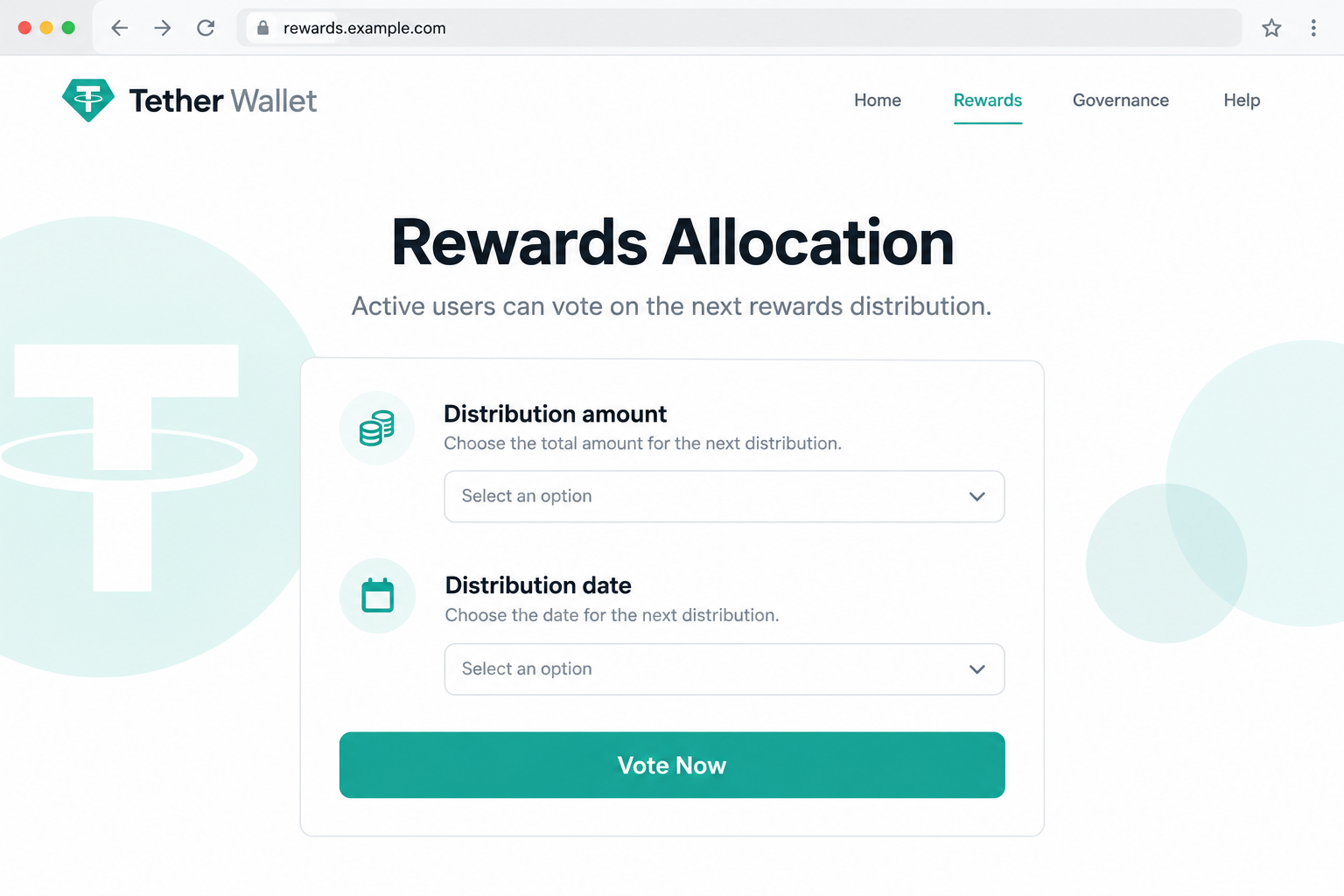
The page describes rewards allocation for active users and offers a vote about future distributions. Its invitation leads toward a wallet-connection process.
The supposed entitlement is part of the promotion. Neither the reference to active users nor a voting interface establishes that a genuine reward is available.
Borrowed branding does not identify the operator
Tether’s established corporate website is tether.io. A different domain carrying its name is not automatically an official wallet, governance portal, or rewards program.
The reported site has been identified as a drainer lure. A current original capture could not be obtained, and no wallet or signed request was tested.
The generated image shows the type of invitation being discussed. It does not establish current availability, an actual allocation, or a transaction observed in a wallet.
The important risk is what the vote asks you to authorize
Connecting, signing a message, granting an allowance, and sending tokens are different actions. A page can describe any of them as a vote without changing their effect.
You should not continue through this unverified promotion. If you already interacted, examine the actual request rather than assuming the word voting describes what happened.
- Verify the exact domain through established project channels before considering any offer.
- Do not supply private keys or recovery words to qualify for a reward.
- Read wallet prompts separately from the promotional text surrounding them.
- Match recovery to connections, permissions, signed operations, or key exposure actually involved.
Why a Reward Vote Can Look Less Risky Than a Claim
A giveaway asks you to believe that something valuable is free. A vote adds a different explanation: the community supposedly needs your input before rewards are distributed.
That small role can make the offer feel earned. The reader appears to be helping choose a schedule rather than simply chasing an unexplained payout.
The name of an established project can further reduce scrutiny. Someone familiar with stablecoins may assume a polished reward dashboard is another ordinary service from the same organization.
But using a token doesn’t automatically create membership in every promotion naming it. A public wallet balance also does not establish who controls the website displaying the offer.
Do not confuse a product’s intended function with a promise made by an outside page. A stablecoin’s existence doesn’t make a voting reward genuine.
Nor is this an assessment of whether a particular cryptocurrency is suitable for an investment. The issue is the identity and authority of the promotion asking for access.
You can reject a fraudulent reward page without deciding every question about the legitimate brand. Keeping that distinction clear helps avoid both misplaced trust and unsupported accusations.
How the Tether Wallet Voting Rewards Scam Works
Step 1: Recognition makes the invitation worth opening
The promotion begins with a name the visitor may already know. A recognizable identity gives the page a head start before its specific claims are examined.
A forwarded post or shared link can add social reassurance. The person passing it on may be acting in good faith without having authenticated the campaign.
Don’t rely on where you first encountered the link. Search visibility, advertising placement, or a familiar profile are not substitutes for checking the project source.
Locate the established website independently and inspect its own announcements. Avoid a verification chain consisting entirely of accounts that repeat the same outside address.
Step 2: The allocation screen turns curiosity into participation
A choice about amounts or dates gives the visitor something simple to do. That interaction can make the opportunity feel more concrete than a vague giveaway.
The page may seem to know that visitors are eligible because it addresses active users. That label does not establish an account review or a real distribution list.
Before taking part, ask what determines eligibility and where the authoritative terms are published. An explanation on the questionable page is not independent confirmation.
Do not invent urgency when evaluating it. Even without a countdown, an unexplained request for wallet authority is enough reason to stop.
Step 3: Wallet access is presented as part of recording the vote
A cryptocurrency wallet can be used legitimately to identify an address or authorize an operation. The same familiar workflow can also be used by an impostor.
A connection dialog is not a project endorsement. The wallet software is presenting a website’s request, not certifying that the surrounding reward story is true.
If you do connect somewhere, evaluate every later prompt on its own. Permission to display a public address doesn’t imply permission to spend its assets.
Here, no exact postconnection payload has been confirmed. Don’t turn a general drainer warning into a claim that connection alone necessarily transfers every token.
Step 4: The operation may grant more than the visitor intended
Token allowances, direct transfers, and other signed authorizations can have consequences unrelated to choosing a reward date. The wallet’s actual request takes precedence over the webpage’s label.
A broad spending allowance can remain useful to a malicious contract after you leave the page. Closing the browser does not rewrite that blockchain permission.
Other signatures can authorize actions that don’t resemble a conventional payment. A prompt without an obvious transfer amount is not automatically harmless.
If the operation cannot be explained, reject it. You don’t owe a website a signature merely because you already selected an option or began a connection.
Be especially wary of instructions to ignore a simulation or warning. A promise of incoming rewards doesn’t justify unexplained outgoing assets or new authority over them.
Step 5: The visitor must identify the exposure before attempting recovery
A missing balance can create panic, while an unchanged balance can create false reassurance. Start with the recorded operations and permissions, not the page’s success message.
Identify the network, address, asset, and action involved. A permission change on one chain doesn’t necessarily describe what happened on another chain using the same wallet address.
Do not reconnect to the reward page for an explanation. Consult the wallet’s trusted history view, a known blockchain explorer, or independently reached support.
If someone promises to unlock the payout for another transfer, refuse. Sending more cryptocurrency does not provide a normal reversal mechanism for an earlier transaction.
The Project Name, the Token, and the Wallet Are Different Things
Owning a token doesn’t authenticate a website
A token name can appear on a balance screen, in a genuine wallet, and on a deceptive promotion. Those appearances do not establish common ownership or authorization.
Likewise, a website can display public blockchain information without controlling the address it describes. A personalized-looking display need not come from an official account relationship.
Check the party requesting the action. The brand’s reputation cannot fill gaps in the identity of an unrelated domain or explain an unsafe authorization.
Wallet protection isn’t the same as promotion verification
Keeping keys on a hardware device can reduce some exposure, but it doesn’t make every operation approved on that device safe or aligned with your intent.
Read the relevant asset changes and permissions. If a vote requires authority you don’t understand, refuse the request rather than relying solely on the signing device.
Do not import an existing wallet into software recommended by the promotion. That can turn a questionable reward into a more serious key-exposure incident.
A displayed allocation isn’t money you can withdraw
A webpage can print any balance it chooses. Treat an allocation claim as an advertisement until a legitimate, independently verified process establishes what it represents.
Never pay a deposit simply to make that displayed amount withdrawable. A request to fund validation, taxes, or synchronization needs scrutiny, not another automatic transfer.
Keep any quoted costs separate from actual blockchain fees. A legitimate network fee is not the same as sending funds to an unknown support representative.
What to Do If You Tried the Tether Vote
Reject remaining requests and leave the page. If no wallet was connected and nothing was signed or installed, don’t assume your assets were affected.
Do not complete the process just to reach a withdrawal screen. You can stop at any stage without needing permission from the promoter.
Review the wallet’s record of your actions. Save transaction identifiers, relevant contract addresses, timestamps, and the network used.
Distinguish a site connection from a confirmed transaction or signature. If you aren’t sure, seek help using public records without sending anyone private recovery information.
Remove unsafe permissions where applicable. Disconnect the site, then inspect allowances and other authorizations separately through verified wallet controls or an established review tool.
The Revoke.cash FAQ explains that disconnecting isn’t approval revocation and that removing a permission cannot recover assets already transferred.
Change the wallet strategy if keys were disclosed. A recovery phrase entered into a website is no longer a private foundation for that wallet.
Use a trustworthy environment to arrange migration to a newly generated wallet. Do not simply import the exposed phrase elsewhere and call the result secure.
Examine software exposure if the promotion requested an installation. A signed crypto operation and a malicious application are separate problems, even if they occurred together.
Malwarebytes can help check a personal computer after unsafe software ran. It cannot cancel blockchain transactions or determine whether every signed permission has been removed.
AdGuard may limit encounters with malicious advertisements. It doesn’t evaluate the legitimacy of a governance proposal or make an approval safe.
Preserve evidence and report any loss. Provide authorities or a relevant exchange with public destination addresses and transaction details through their genuine reporting channels.
Avoid unsolicited recovery specialists. No person needs your seed phrase to explain a public transaction, and a guaranteed return for an upfront fee deserves rejection.
Is Your Device Infected? Run a Free Malware Scan
Slow performance, constant pop-ups, or strange behavior? These are classic signs of a malware infection. The fastest way to find out is to scan your device with Malwarebytes Free — one of the most trusted malware removal tools available.
The free version detects and removes the most common threats, including:
- Adware — the cause of those annoying pop-ups
- Browser hijackers — unwanted redirects and changed homepages
- Trojans and spyware — hidden programs stealing your data
- Potentially unwanted programs (PUPs) — software you never asked for
👉 Select your device below — Windows, Mac, or Android — then follow the simple steps to download Malwarebytes, scan your system, and remove any threats it finds. The scan usually takes 5 to 20 minutes.
Run a Malware Scan with Malwarebytes for Windows
Malwarebytes is one of the most popular and trusted anti-malware tools for Windows — and it’s completely free for removing infections. It catches threats that many antivirus programs miss, including adware, browser hijackers, and trojans. Follow the steps below to scan and clean your PC in just a few minutes.
Download Malwarebytes
Click the button below to download the latest version of Malwarebytes for Windows from the official source. The free version is all you need — it will scan your computer and remove adware, browser hijackers, and other malicious software at no cost.
Download MalwarebytesOfficial installer for Windows 11 and 10. Your download starts right away.Want real-time protection? See Malwarebytes Premium Malwarebytes Free for WindowsScans and removes malware at no cost
-
Install Malwarebytes
When the download finishes, open your Downloads folder and double-click the MBSetup file. If Windows shows a User Account Control pop-up, click “Yes” to allow the installation.

Follow the On-Screen Prompts to Install Malwarebytes
The setup wizard will walk you through a few quick screens:
-
Choose where you’re installing the program — “Personal Computer” or “Work Computer” — then click Next.

-
Malwarebytes will now install on your device. This usually takes under a minute.

-
When installation is complete, the “Welcome to Malwarebytes” screen will open automatically.

-
On the final screen, click Open Malwarebytes to launch the program.

-
Enable “Scan for Rootkits”
Before scanning, turn on rootkit detection so Malwarebytes can find even the most hidden threats. Click the Settings gear icon on the left side of the screen.

In the settings menu, find “Scan for rootkits” and click the toggle so it turns blue.

Done? Click “Dashboard” in the left pane to return to the main screen.
Start the Scan
Click the blue Scan button. Malwarebytes will automatically update its virus database and start checking your computer for malware.

-
Wait for the Scan to Finish
The scan checks your entire system for browser hijackers and other malicious programs, so it can take 5 to 20 minutes depending on your computer. Feel free to do something else — just check back occasionally to see the progress.

-
Quarantine the Detected Threats
When the scan is done, you’ll see a list of everything Malwarebytes found — malware, adware, and potentially unwanted programs. Click the “Quarantine” button to remove all of them at once.

Malwarebytes will now remove the malicious files and registry entries and move them safely into quarantine.

-
Restart Your Computer
Some threats can only be fully removed after a reboot. If Malwarebytes asks you to restart, click Yes. Once you’re logged back in, Malwarebytes has finished removing the threats it found.

That’s it — your Windows PC is now clean of trojans, adware, and other malware, and should be back to running smoothly.
If you are still having problems with your computer after completing these instructions, then please follow one of the steps:
- Run a computer scan with ESET Online Scanner
- Ask for help in our Windows Malware Removal Help & Support forum.
Run a Malware Scan with Malwarebytes for Mac
Malwarebytes for Mac is a free on-demand scanner that removes the malware other security software tends to miss — adware, browser hijackers, and unwanted programs included. Cleaning an infected Mac with Malwarebytes has always been completely free, and it’s our go-to recommendation. Follow the steps below to scan and clean your Mac in just a few minutes.
-
Download Malwarebytes for Mac
Click the button below to download the latest version of Malwarebytes for Mac.
Download MalwarebytesOfficial installer for macOS. Your download starts right away.Want real-time protection? See Malwarebytes PremiumMalwarebytes Free for MacScans and removes malware at no cost -
Open the Malwarebytes setup file
When the download finishes, open your Downloads folder and double-click the setup file to begin the installation.

-
Follow the On-Screen Prompts to Install Malwarebytes
The Malwarebytes for Mac Installer will guide you through a few quick screens. Click “Continue” and keep following the prompts until the installation completes.



When the installation is complete, Malwarebytes opens to the Welcome to Malwarebytes screen. Click “Get started“.
-
Select “Personal Computer” or “Work Computer”
Malwarebytes will ask what type of computer you’re installing it on. Click either Personal Computer or Work Computer, whichever applies.

-
Start the Scan
Click the “Scan” button. Malwarebytes will automatically update its detection database and begin checking your Mac for malware.

-
Wait for the Scan to Finish
Malwarebytes will scan your Mac for adware, browser hijackers, and other malicious programs. This can take a few minutes, so feel free to do something else — just check back occasionally to see the progress.

-
Quarantine the Detected Threats
When the scan is done, you’ll see a list of everything Malwarebytes found. Click the “Quarantine” button to remove all the threats at once.

-
Restart Your Mac
Malwarebytes will now remove all the malicious files it found. Some threats can only be fully removed after a reboot — if Malwarebytes asks you to restart, allow it. Once you’re logged back in, your Mac is clean.

That’s it — your Mac is now free of adware, rogue browser extensions, and other potentially harmful software.
If you are still experiencing problems while trying to remove a malicious program from your computer, please ask for help in our Mac Malware Removal Help & Support forum.
Run a Malware Scan with Malwarebytes for Android
Malwarebytes for Android automatically detects and removes dangerous threats like malware and ransomware so you don’t have to worry about your most-used device being compromised. Aggressive detection of adware and potentially unwanted programs keeps your Android phone or tablet running smooth.
-
Download Malwarebytes for Android.
You can download Malwarebytes for Android by clicking the link below.
Get Malwarebytes for AndroidOpens Google Play in a new tab.Want real-time protection? See Malwarebytes Premium for AndroidMalwarebytes for AndroidScans your phone and removes malware at no cost -
Install Malwarebytes for Android on your phone.
In the Google Play Store, tap “Install” to install Malwarebytes for Android on your device.

When the installation process has finished, tap “Open” to begin using Malwarebytes for Android. You can also open Malwarebytes by tapping on its icon in your phone menu or home screen.

-
Follow the on-screen prompts to complete the setup process
When Malwarebytes will open, you will see the Malwarebytes Setup Wizard which will guide you through a series of permissions and other setup options.
This is the first of two screens that explain the difference between the Premium and Free versions. Swipe this screen to continue.
Tap on “Got it” to proceed to the next step.
Malwarebytes for Android will now ask for a set of permissions that are required to scan your device and protect it from malware. Tap on “Give permission” to continue.
Tap on “Allow” to permit Malwarebytes to access the files on your phone.
-
Update database and run a scan with Malwarebytes for Android
You will now be prompted to update the Malwarebytes database and run a full system scan.

Click on “Update database” to update the Malwarebytes for Android definitions to the latest version, then click on “Run full scan” to perform a system scan.

-
Wait for the Malwarebytes scan to complete.
Malwarebytes will now start scanning your phone for adware and other malicious apps. This process can take a few minutes, so we suggest you do something else and periodically check on the status of the scan to see when it is finished.

-
Click on “Remove Selected”.
When the scan has been completed, you will be presented with a screen showing the malware infections that Malwarebytes for Android has detected. To remove the malicious apps that Malwarebytes has found, tap on the “Remove Selected” button.

-
Restart your phone.
Malwarebytes for Android will now remove all the malicious apps that it has found. To complete the malware removal process, Malwarebytes may ask you to restart your device.
That’s it — your Android phone is now clean — no more malicious apps, adware, or browser redirects.
If you are still having problems with your phone after completing these instructions, then please follow one of the steps:
- Restore your phone to factory settings by going to Settings > General management > Reset > Factory data reset.
- Ask for help in our Mobile Malware Removal Help & Support forum.
Stay Protected: Block Ads and Malicious Sites
Now that your device is clean, keep it that way. Most infections start with a malicious ad or a fake download button — so blocking them at the source is your best defense.
We recommend AdGuard, which blocks malicious ads, phishing pages, and dangerous redirects before they can reach you.
👉 Download AdGuard and browse safely
Before Reusing an Affected Wallet
Decide whether the incident involved a limited authorization or a secret controlling the whole account. The answer changes what safe reuse could mean.
The ENS approval guide distinguishes permission revocation from seed-phrase compromise and explains that authorizations are network-specific.
If an address immediately loses incoming funds, don’t repeatedly top it up to experiment. Seek competent help before trying to fund another cleanup operation.
Keep a record of which revocations actually confirmed. A pending or failed transaction does not establish that the requested permission change took effect.
If assets are held by a custodial exchange, use that provider’s account-security process. A self-custody wallet guide may not apply to the way your assets are held.
After containing the incident, replace bookmarks or notification routes that led to the offer. Otherwise, the same link can appear again when the immediate alarm has faded.
When discussing the case publicly, redact private information and keep allegations tied to the deceptive domain. Don’t publish secrets in an attempt to prove the loss.
The useful lesson is about verified authority. A reward, a vote, and a familiar token name still leave you responsible for deciding what the wallet is permitted to do.
Keep a clear record of what remains
Separate assets still held from an amount displayed only on the promotional site. A recovery decision should be based on actual holdings, not the unverified reward counter.
Record remaining authorizations as well as balances. Seeing a token in the account does not establish that an unwanted allowance has already been removed.
If a permission review covers only selected networks or asset types, note that limit. One clean-looking result should not become a claim about everything the wallet controls.
Ask a helper to explain the public record before proposing another signed action. You should understand the purpose of the next operation, not merely trust its label.
Finally, save the relevant report privately. A precise account of the incident is useful if an exchange or investigator later asks how the destination received the assets.
Frequently Asked Questions
Is register-tether.xyz an official Tether voting website?
Treat the reported rewards page as an impersonation, not an official participation route. Tether’s recognized website does not make an outside domain genuine simply through shared branding.
Does a wallet connection mean my funds are already gone?
No. Examine the permissions and operations actually approved. A connection alone is different from a transaction, spending allowance, or exposed recovery phrase.
Can a vote require a token-spending approval?
Never accept that premise without understanding the specific request and verifying the proposal. Calling an operation a vote doesn’t change the authority it grants.
Will disconnecting remove all access?
Not necessarily. An onchain allowance can remain after the website is disconnected. Inspect the relevant network and use verified controls to remove unsafe permissions.
Can I pay a fee to reverse a completed transfer?
There is no ordinary blockchain chargeback purchased from a private helper. Report the loss, but reject guarantees that another payment will reverse it.
Should I tell support my recovery words?
No. Keep them private. Support can discuss public addresses and transactions without taking control of the wallet. Disclosed words require a different recovery plan.
The Bottom Line
Do not authorize the register-tether[.]xyz voting offer. A familiar brand and a reward-allocation screen are not a sound basis for giving an outside page wallet authority.
If you participated, inspect what you signed and contain the specific exposure. Remove unsafe permissions where appropriate, protect compromised keys, and refuse requests to pay for guaranteed recovery.

Join the discussion
0 commentsShare your experience or ask a question about this article.
Discussion
Start the conversation
Have a question or something useful to share? Add the first comment.