

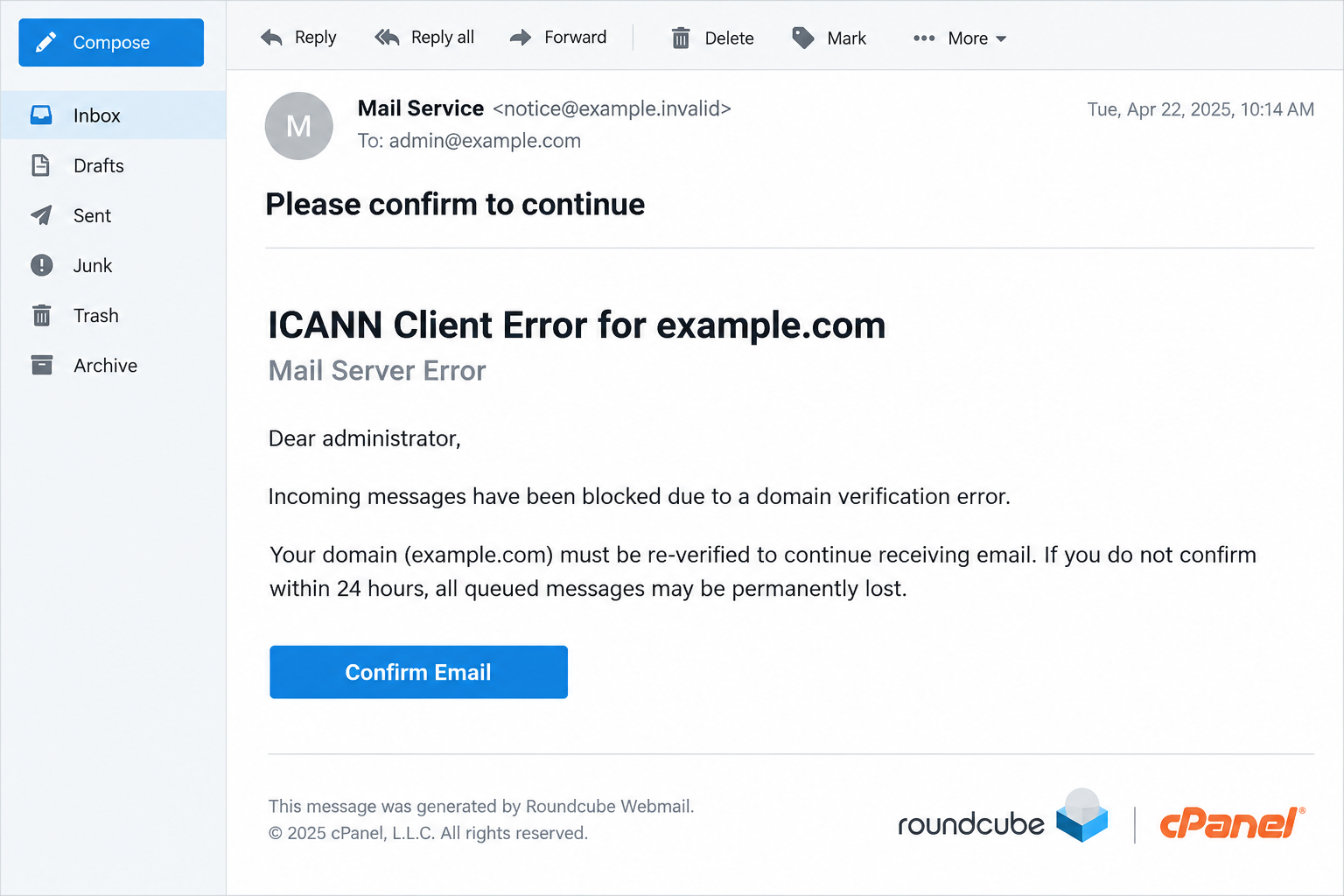
An email says a domain-verification error has blocked incoming messages. It warns that queued mail could disappear and offers a Confirm Email button to put things right.
For anyone relying on business email, that sounds urgent. Before trying the fix, check who actually manages the domain and whether they sent this request.
Overview
The notice links a mail problem to domain compliance
The ICANN Client Error email scam claims that domain verification has failed and incoming messages are blocked. It asks the recipient to confirm an email address.
The reported template adds a 24-hour threat of permanent loss for queued messages. That turns a technical-sounding error into a reason to act quickly.
The problem described is an assertion in the email. It is not a diagnostic result obtained from the recipient’s actual domain or mailbox.
Technical names are used to lend authority
The message mixes ICANN terminology with mail-server language and references to familiar hosting or webmail products. Those names make the proposed task appear administrative.
But copied product names do not authenticate the sender. The reported Confirm Email route leads to a counterfeit login intended to collect email credentials.
ICANN and the named software services are not being identified as the operators. Their identities are borrowed for the invitation.
Verify the issue through your provider, not the supplied button
Contact the domain owner, administrator, registrar, or mail provider through an established route. Which one is relevant depends on the problem actually found.
No original message file or exact phishing destination is available for a fresh capture. The illustration shows the premise, not a live account error.
- The email claims a domain issue has affected incoming mail.
- A short deadline threatens loss of messages.
- A verification button leads toward a credential request.
- Independent provider records, not the message itself, should establish any real fault.
Domain Verification Is Real, but This Isn’t How to Authenticate It
Domain owners do receive legitimate administrative notices. Registrars may need to verify contact information, and ignoring a real request can affect a domain.
That is why the right advice isn’t to discard every message mentioning verification. It is to confirm the exact request with the provider responsible for it.
ICANN’s contact-verification explanation describes reasons a registrar or reseller may contact a registrant.
A real obligation doesn’t authenticate an unrelated email. A scam can borrow the vocabulary of a genuine process while directing you to the wrong destination.
The account involved also matters. Proving access to a domain contact address is different from giving a stranger your webmail password.
If a notice mentions your own domain, don’t assume it has privileged knowledge. The address receiving the message may already reveal the domain name.
A successful personal greeting or a correctly spelled domain can make a template feel targeted. Neither establishes authority over its mail service.
When uncertain, open the registrar’s account from your usual bookmark or contact the administrator you already know. Don’t let the email supply both the diagnosis and its verifier.
An ordinary employee may use a custom-domain mailbox without owning the domain registration. Receiving the notice does not suddenly make that employee responsible for registration compliance.
If that is your situation, send the concern to the established administrator. You do not need to obtain new administrative privileges to investigate an unsolicited message.
How the ICANN Client Error Email Scam Works
Step 1: A broad delivery problem makes the message feel important
The notice claims incoming mail has been blocked, potentially for all users. That raises the stakes beyond a single message or an ordinary password reminder.
A reader may imagine missed orders, customer complaints, or an office-wide outage. The email doesn’t need to demonstrate any of those consequences to create concern.
Before assuming a delivery failure, check the service through its genuine interface. An email reporting a fault isn’t the same as an authenticated service-status record.
If messages really are missing, investigate that independently. A real problem can coincide with a fraudulent email without making the email’s solution legitimate.
Step 2: Borrowed technical language makes the explanation sound complete
The template refers to a domain-verification error and data compliance. Additional webmail terminology can make the claimed cause seem more specific than it is.
This can discourage questions. Someone unfamiliar with domain administration may assume the words name a process they should simply follow.
Printed diagnostics are easy to reproduce. They don’t prove that an administrator inspected the server or that the organization named in the message issued it.
A footer mentioning Roundcube or cPanel is not proof that either product sent the notice. Familiar software names can be placed in ordinary email text.
Step 3: A deadline moves verification behind action
The threat of losing queued mail within 24 hours encourages speed. The reader is asked to fix the problem before checking whether the sender has any authority.
An urgent deadline can exist in a genuine incident, so urgency alone isn’t the verdict. The unsafe combination is pressure and an unverified credential route.
Do not try to satisfy the deadline by entering a password just in case. That would create a concrete exposure in response to an unsupported claim.
An established administrator can inspect the real service and tell you whether there is an actual queue, restriction, or domain problem.
Step 4: Confirm Email becomes a login request
The button sounds like acknowledgment, not disclosure. The reported destination instead imitates a sign-in page and seeks the recipient’s email account credentials.
That is the critical switch. The reader arrives expecting to preserve messages but is asked to hand over the secret used to access them.
Compare the destination with the service you normally use. A familiar logo on a different site doesn’t make the password request legitimate.
Don’t submit an old password to test the page. It may still work elsewhere, and the form can collect information without ever completing a successful login.
Step 5: A stolen mailbox can become the next attack route
If an attacker obtains usable access, private mail and recovery messages may be exposed. They may also attempt to send messages from the account.
The exact result depends on protections and what was disclosed. Receiving the notice doesn’t establish that any such account access occurred.
Recovery must therefore follow the actual exposure. A password submitted to the fake form needs attention even if the mailbox still appears to work normally.
Don’t rely solely on deleting the original notice. Removing the message doesn’t revoke access or correct account settings changed after a compromise.
Who Should Handle a Genuine Domain or Mail Problem?
The registrar manages the registration relationship
Your registrar or reseller handles the domain registration and its contact-information process. That account is distinct from a generic email-login page.
If a verification notice is genuine, the provider should be able to explain it through its established support or account interface.
Keep records of which company supplied the domain and who controls the registration account. Website hosting, email hosting, and registration may appear on separate invoices.
A genuine request should be matched to the relevant relationship. Seeing a familiar hosting brand in an email doesn’t identify which of those accounts it concerns.
ICANN’s registrant-information FAQ directs registrants to their registrar for updates and questions about notices.
The mail provider handles mailbox access and delivery
The service hosting your mailbox can check authentication, delivery restrictions, and relevant account events. It may be a different company from the registrar.
Use its known support process. Do not replace an account password, change forwarding, or install a diagnostic application on an unexpected sender’s instruction.
A personal mailbox user may not have permission to inspect organization-wide settings. Escalating to the right administrator is safer than improvising a server repair.
Your administrator connects the separate services
In a business, an administrator may manage the registrar, DNS hosting, and email platform. Tell that person which notice arrived and what you already did.
Do not make speculative DNS or mail-routing changes to clear a claimed error. Incorrect changes could interrupt working services without addressing the phishing attempt.
A small business using an outside technician should contact the person through previously established details. The name in the new message is not enough.
If that contact also received the notice, ask them to check the underlying service. Two copies of the same email are not two independent technical findings.
Do not forward a password to help them investigate. A responsible administrator can explain a secure process without asking for secrets in an ordinary email reply.
What to Do If You Entered Information or Tried the Fix
Leave the verification page and stop following its instructions. Reject any additional login, download, or approval request.
Keep the original email for your administrator. If you only read it, report it without assuming the workstation or domain has been compromised.
Tell the actual account administrator what was exposed. Identify whether you entered an email password, registrar credential, one-time code, or something else.
A precise account name and approximate submission time are useful. Don’t paste the exposed password into a support ticket or public discussion.
Replace credentials through the legitimate service. Use a trustworthy device and the service’s established account or recovery process.
If the password was reused, replace it at those other accounts too. Don’t send the new password as a reply to the original notice.
Review sessions and recovery settings. Remove unfamiliar access where the service permits it, and confirm that recovery contacts still belong to you.
For managed Microsoft mail, an administrator can follow the compromised-account response guidance. Password replacement isn’t the only containment check.
Inspect mailbox behavior after actual credential exposure. Check unfamiliar forwarding, inbox rules, sent messages, and app permissions with the responsible provider.
If contacts received messages you didn’t send, warn them through a separate trusted route. Don’t circulate the phishing link while explaining the incident.
Check the domain account only if it was implicated. If registrar access was exposed, contact the registrar about unfamiliar contact details or configuration changes.
Do not assume a webmail-password theft proves domain transfer or DNS tampering. Ask the relevant provider to verify its own records.
Investigate any software installation separately. A fake verification message does not itself prove malware execution. A downloaded tool or browser extension may need device cleanup.
Malwarebytes can check unwanted software. AdGuard can help reduce malicious advertising, but neither repairs domain registration or revokes a stolen email session.
Report the impersonation with the right evidence. Save the sender details, original headers, destination URL, and a brief timeline of your actions.
Use the mailbox’s phishing report and your provider’s security contact. ICANN also explains where to report misuse of its identity.
Is Your Device Infected? Run a Free Malware Scan
Slow performance, constant pop-ups, or strange behavior? These are classic signs of a malware infection. The fastest way to find out is to scan your device with Malwarebytes Free — one of the most trusted malware removal tools available.
The free version detects and removes the most common threats, including:
- Adware — the cause of those annoying pop-ups
- Browser hijackers — unwanted redirects and changed homepages
- Trojans and spyware — hidden programs stealing your data
- Potentially unwanted programs (PUPs) — software you never asked for
👉 Select your device below — Windows, Mac, or Android — then follow the simple steps to download Malwarebytes, scan your system, and remove any threats it finds. The scan usually takes 5 to 20 minutes.
Run a Malware Scan with Malwarebytes for Windows
Malwarebytes is one of the most popular and trusted anti-malware tools for Windows — and it’s completely free for removing infections. It catches threats that many antivirus programs miss, including adware, browser hijackers, and trojans. Follow the steps below to scan and clean your PC in just a few minutes.
Download Malwarebytes
Click the button below to download the latest version of Malwarebytes for Windows from the official source. The free version is all you need — it will scan your computer and remove adware, browser hijackers, and other malicious software at no cost.
Download MalwarebytesOfficial installer for Windows 11 and 10. Your download starts right away.Want real-time protection? See Malwarebytes Premium Malwarebytes Free for WindowsScans and removes malware at no cost
-
Install Malwarebytes
When the download finishes, open your Downloads folder and double-click the MBSetup file. If Windows shows a User Account Control pop-up, click “Yes” to allow the installation.

Follow the On-Screen Prompts to Install Malwarebytes
The setup wizard will walk you through a few quick screens:
-
Choose where you’re installing the program — “Personal Computer” or “Work Computer” — then click Next.

-
Malwarebytes will now install on your device. This usually takes under a minute.

-
When installation is complete, the “Welcome to Malwarebytes” screen will open automatically.

-
On the final screen, click Open Malwarebytes to launch the program.

-
Enable “Scan for Rootkits”
Before scanning, turn on rootkit detection so Malwarebytes can find even the most hidden threats. Click the Settings gear icon on the left side of the screen.

In the settings menu, find “Scan for rootkits” and click the toggle so it turns blue.

Done? Click “Dashboard” in the left pane to return to the main screen.
Start the Scan
Click the blue Scan button. Malwarebytes will automatically update its virus database and start checking your computer for malware.

-
Wait for the Scan to Finish
The scan checks your entire system for browser hijackers and other malicious programs, so it can take 5 to 20 minutes depending on your computer. Feel free to do something else — just check back occasionally to see the progress.

-
Quarantine the Detected Threats
When the scan is done, you’ll see a list of everything Malwarebytes found — malware, adware, and potentially unwanted programs. Click the “Quarantine” button to remove all of them at once.

Malwarebytes will now remove the malicious files and registry entries and move them safely into quarantine.

-
Restart Your Computer
Some threats can only be fully removed after a reboot. If Malwarebytes asks you to restart, click Yes. Once you’re logged back in, Malwarebytes has finished removing the threats it found.

That’s it — your Windows PC is now clean of trojans, adware, and other malware, and should be back to running smoothly.
If you are still having problems with your computer after completing these instructions, then please follow one of the steps:
- Run a computer scan with ESET Online Scanner
- Ask for help in our Windows Malware Removal Help & Support forum.
Run a Malware Scan with Malwarebytes for Mac
Malwarebytes for Mac is a free on-demand scanner that removes the malware other security software tends to miss — adware, browser hijackers, and unwanted programs included. Cleaning an infected Mac with Malwarebytes has always been completely free, and it’s our go-to recommendation. Follow the steps below to scan and clean your Mac in just a few minutes.
-
Download Malwarebytes for Mac
Click the button below to download the latest version of Malwarebytes for Mac.
Download MalwarebytesOfficial installer for macOS. Your download starts right away.Want real-time protection? See Malwarebytes PremiumMalwarebytes Free for MacScans and removes malware at no cost -
Open the Malwarebytes setup file
When the download finishes, open your Downloads folder and double-click the setup file to begin the installation.

-
Follow the On-Screen Prompts to Install Malwarebytes
The Malwarebytes for Mac Installer will guide you through a few quick screens. Click “Continue” and keep following the prompts until the installation completes.



When the installation is complete, Malwarebytes opens to the Welcome to Malwarebytes screen. Click “Get started“.
-
Select “Personal Computer” or “Work Computer”
Malwarebytes will ask what type of computer you’re installing it on. Click either Personal Computer or Work Computer, whichever applies.

-
Start the Scan
Click the “Scan” button. Malwarebytes will automatically update its detection database and begin checking your Mac for malware.

-
Wait for the Scan to Finish
Malwarebytes will scan your Mac for adware, browser hijackers, and other malicious programs. This can take a few minutes, so feel free to do something else — just check back occasionally to see the progress.

-
Quarantine the Detected Threats
When the scan is done, you’ll see a list of everything Malwarebytes found. Click the “Quarantine” button to remove all the threats at once.

-
Restart Your Mac
Malwarebytes will now remove all the malicious files it found. Some threats can only be fully removed after a reboot — if Malwarebytes asks you to restart, allow it. Once you’re logged back in, your Mac is clean.

That’s it — your Mac is now free of adware, rogue browser extensions, and other potentially harmful software.
If you are still experiencing problems while trying to remove a malicious program from your computer, please ask for help in our Mac Malware Removal Help & Support forum.
Run a Malware Scan with Malwarebytes for Android
Malwarebytes for Android automatically detects and removes dangerous threats like malware and ransomware so you don’t have to worry about your most-used device being compromised. Aggressive detection of adware and potentially unwanted programs keeps your Android phone or tablet running smooth.
-
Download Malwarebytes for Android.
You can download Malwarebytes for Android by clicking the link below.
Get Malwarebytes for AndroidOpens Google Play in a new tab.Want real-time protection? See Malwarebytes Premium for AndroidMalwarebytes for AndroidScans your phone and removes malware at no cost -
Install Malwarebytes for Android on your phone.
In the Google Play Store, tap “Install” to install Malwarebytes for Android on your device.

When the installation process has finished, tap “Open” to begin using Malwarebytes for Android. You can also open Malwarebytes by tapping on its icon in your phone menu or home screen.

-
Follow the on-screen prompts to complete the setup process
When Malwarebytes will open, you will see the Malwarebytes Setup Wizard which will guide you through a series of permissions and other setup options.
This is the first of two screens that explain the difference between the Premium and Free versions. Swipe this screen to continue.
Tap on “Got it” to proceed to the next step.
Malwarebytes for Android will now ask for a set of permissions that are required to scan your device and protect it from malware. Tap on “Give permission” to continue.
Tap on “Allow” to permit Malwarebytes to access the files on your phone.
-
Update database and run a scan with Malwarebytes for Android
You will now be prompted to update the Malwarebytes database and run a full system scan.

Click on “Update database” to update the Malwarebytes for Android definitions to the latest version, then click on “Run full scan” to perform a system scan.

-
Wait for the Malwarebytes scan to complete.
Malwarebytes will now start scanning your phone for adware and other malicious apps. This process can take a few minutes, so we suggest you do something else and periodically check on the status of the scan to see when it is finished.

-
Click on “Remove Selected”.
When the scan has been completed, you will be presented with a screen showing the malware infections that Malwarebytes for Android has detected. To remove the malicious apps that Malwarebytes has found, tap on the “Remove Selected” button.

-
Restart your phone.
Malwarebytes for Android will now remove all the malicious apps that it has found. To complete the malware removal process, Malwarebytes may ask you to restart your device.
That’s it — your Android phone is now clean — no more malicious apps, adware, or browser redirects.
If you are still having problems with your phone after completing these instructions, then please follow one of the steps:
- Restore your phone to factory settings by going to Settings > General management > Reset > Factory data reset.
- Ask for help in our Mobile Malware Removal Help & Support forum.
Stay Protected: Block Ads and Malicious Sites
Now that your device is clean, keep it that way. Most infections start with a malicious ad or a fake download button — so blocking them at the source is your best defense.
We recommend AdGuard, which blocks malicious ads, phishing pages, and dangerous redirects before they can reach you.
👉 Download AdGuard and browse safely
If Email Is Actually Missing, Keep the Two Problems Separate
A delayed message is frustrating, but it doesn’t validate an unrelated verification notice. Investigate delivery through a provider you already know.
Record which messages are missing, when they were sent, and whether the sender received a genuine failure report. Remove sensitive content before sharing diagnostic details.
A useful report distinguishes one missing message from a complete inability to receive mail. Those situations may need different troubleshooting.
Ask the administrator to verify service status and account restrictions rather than guessing from the email’s technical labels. Preserve any real delivery error separately.
If access has been stolen, containment may temporarily interrupt work. Coordinate an alternative contact method so genuine recovery instructions don’t pass through an exposed mailbox.
Don’t approve broad account permissions merely to restore convenience. Authentication should happen through the provider’s real process, with the purpose of each request clear.
Once service is restored, finish checking the exposed account. Successful delivery doesn’t prove that an unfamiliar session, forwarding rule, or recovery contact has been removed.
Keep a short incident timeline with the administrator’s case reference and the changes actually made. That helps distinguish later routine maintenance from another impersonating follow-up.
If an instruction arrives during recovery, verify it through the established support conversation. Attackers can imitate a repair message just as easily as the original error notice.
Frequently Asked Questions
Is ICANN Client Error an authenticated diagnosis of my mailbox?
No. In this scam it is text inside an email. Check any actual delivery issue through your mail provider or administrator.
Are all domain-verification emails fraudulent?
No. Registrars can send legitimate verification requests. Confirm the specific notice through your known registrar rather than trusting an unexpected sign-in button.
Can my domain name in the subject prove the sender is legitimate?
No. A recipient address can reveal the domain, and public information can personalize a template. Correct details do not authenticate the requested login.
Will waiting 24 hours automatically delete my queued messages?
The notice’s deadline does not establish any real deletion process. Ask the genuine provider about actual restrictions or delivery records instead of acting on the threat.
What should I do if I gave the page a work password?
Notify your administrator promptly, replace the credential through the real service, and have sessions, recovery settings, and mailbox changes reviewed.
Does a cPanel or Roundcube footer make the request official?
No. Software names and logos can be copied into a message. They don’t establish that the named service sent it or operates the linked form.
The Bottom Line
Do not use the ICANN Client Error email’s confirmation route. Verify any domain or mail problem through the provider actually responsible for it.
If you entered a credential, report that exposure and secure the affected account now. Repairing an alleged delivery issue is not a substitute for containing a real password disclosure.

Join the discussion
0 commentsShare your experience or ask a question about this article.
Discussion
Start the conversation
Have a question or something useful to share? Add the first comment.