

A message about a federal deposit lands in your inbox. The Canada Revenue Agency name is familiar, and the email says there’s protected information waiting for you.
If you’re expecting a refund or benefit, leaving it unopened can feel like delaying something important. The next screen deserves a careful look.
Overview
A tax-related message that asks for an email password
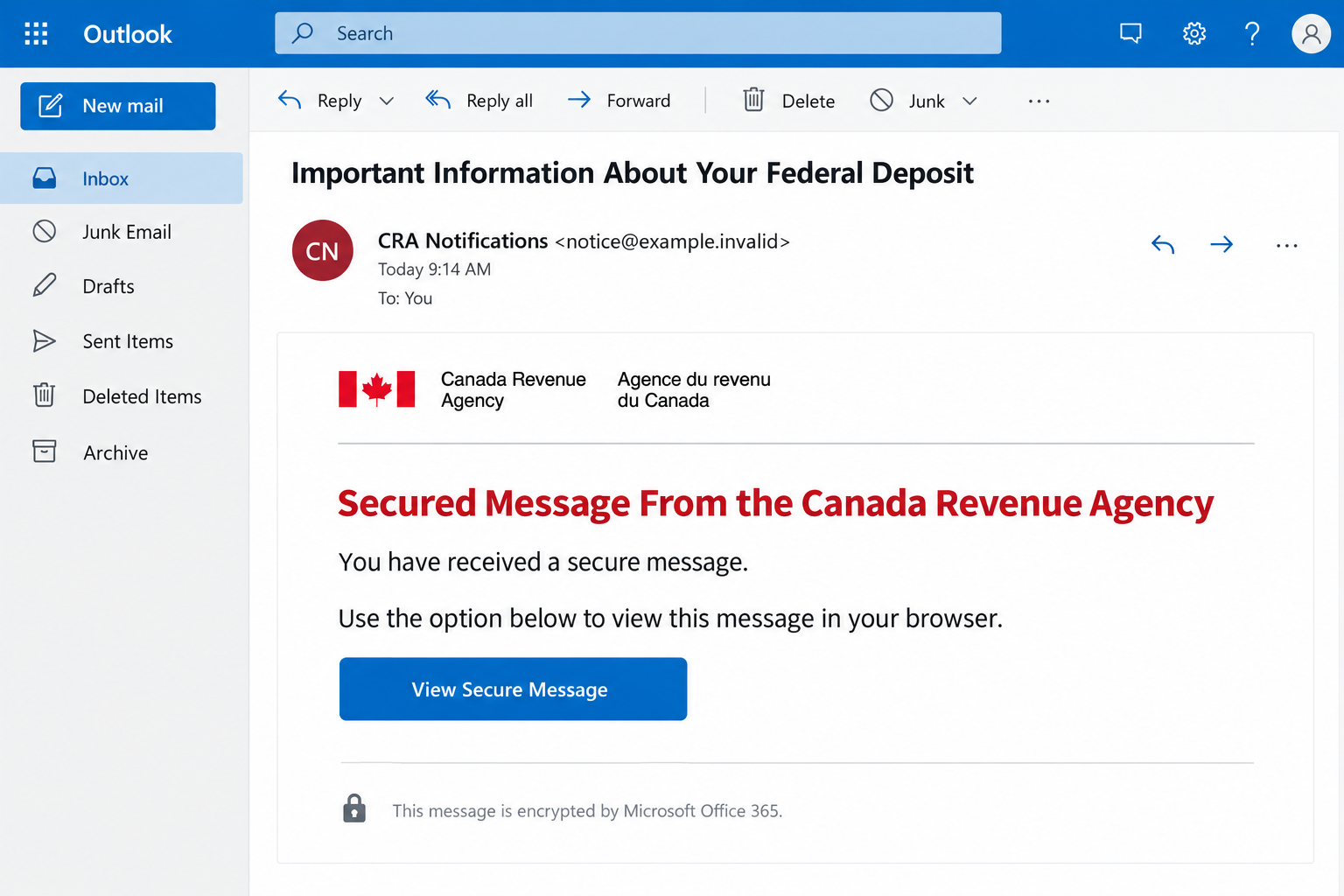
The CRA secured message email scam presents a federal-deposit notice as protected correspondence from the Canada Revenue Agency.
The subject is “Important Information About Your Federal Deposit.” Its message-viewing button leads to a fake OneDrive sign-in asking for email credentials.
The apparent task is reading tax information. The sensitive action is giving another website the password to your mailbox.
CRA, Microsoft, and OneDrive are legitimate organizations and services. Their names are being combined to make this particular request feel routine.
The encrypted-message explanation lowers suspicion
Office 365 styling and a protected-message explanation suggest that an extra sign-in is necessary for privacy. That can make scrutiny feel like an inconvenience.
But a claim of encryption doesn’t identify the sender or justify the credentials requested. A copied security notice is still just content inside an email.
The first thing to establish is whether the agency actually has a message for you. Do that through a CRA account opened independently.
- An email notification is not evidence that a deposit has been approved.
- A Microsoft-looking form doesn’t establish a government document’s authenticity.
- Your mailbox password is different from a tax-account credential.
- A legitimate notice can be checked without using its embedded button.
What this campaign shows, and where the evidence stops
The reported destination is a credential-collection page. No original message headers, working final address, or executable payload were available for direct testing.
The message’s reference to an extension below doesn’t establish that a browser extension was installed. Don’t confuse awkward wording with a verified software infection.
The immediate concern is mailbox exposure. Whether a tax account, bank account, or identity was affected depends on what you entered and what happened afterward.
CRA Emails Can Be Real, but That Doesn’t Validate This One
Saying that CRA never emails would be misleading. People who registered for notifications can receive an email telling them a message is available in their account.
The agency also describes sending requested links or resources during contact with an agent. Those situations differ from an unsolicited password request.
Its official scam guidance says CRA emails won’t include a link asking recipients to enter personal or financial information.
That distinction is more useful than judging whether the email looks governmental. Open the genuine CRA service and look for the underlying correspondence there.
If you’re expecting a payment, check its status through that account. The suspicious notice shouldn’t become your source for the amount, timing, or entitlement.
There may be an entirely legitimate reason for a deposit to be delayed. You can investigate that without supplying a mailbox password to an unexpected form.
How the CRA Secured Message Email Scam Works
Step 1: A deposit reference gives the notice personal relevance
Tax refunds and benefits matter to household budgets. A subject suggesting information about one can attract attention even without promising a specific amount.
The sender leaves room for your own expectations. You might connect it with a recently filed return, a benefit application, or an unresolved account question.
None of that context has to come from the sender. A broad message can feel individualized when it arrives at a believable moment.
A familiar agency name reinforces the connection. It doesn’t establish that the sender has access to your tax record or knows a payment is due.
Don’t reply with your Social Insurance Number to help locate the deposit. First establish who you’re dealing with through an independent channel.
Step 2: The email makes the missing information seem protected
Instead of explaining the supposed issue in the message, the email directs you to a protected viewing process. The missing detail becomes a reason to click.
This borrows the logic of legitimate confidential correspondence. If you’re used to opening protected workplace documents, another sign-in can seem unremarkable.
The security language also gives the sender an answer to a reasonable objection: why can’t I simply read the notice here?
But confidentiality and authenticity aren’t interchangeable. A document can claim to be private without coming from the organization named on it.
The safe check is whether the corresponding message exists in your actual CRA account. You don’t need the email’s viewer to answer that question.
Step 3: The viewing route changes into a cloud-service login
The reported page imitates OneDrive. The transition moves the reader from a government-payment question into a familiar document-sharing interface.
That change can pass unnoticed because cloud storage is common. A recognizable file-service logo appears to explain why an email address is needed.
Ask a more specific question: why should this website receive the password for the mailbox that received the notification?
A form may display your email address automatically because it was included in a link. That isn’t proof the service authenticated you or knows your account.
Likewise, a working background image or footer doesn’t demonstrate government ownership. What matters is the actual service receiving the credential.
Step 4: The password can become a route into the inbox
If submitted credentials are valid, an attacker may try them at the genuine email provider. Additional authentication can block access, but it shouldn’t be assumed.
Mailboxes are valuable because they contain far more than ordinary messages. Receipts, personal documents, account-reset links, and ongoing conversations can all become useful to an intruder.
For a business address, the consequences may involve colleagues or customers. An attacker could use an existing conversation to make another request sound credible.
Those are possible consequences of mailbox access, not proof that every recipient suffered them. Start with the credential exposed and check for actual unauthorized activity.
If the page asks you to retry, don’t assume the first submission was lost. Stop using it and recover through the provider’s genuine service.
Step 5: A quiet inbox can hide the need for action
An account may still work after a password is exposed. Continued access doesn’t tell you whether someone else also signed in.
Look beyond whether messages arrive. Unfamiliar forwarding settings, recovery details, or signed-in sessions can matter even if the inbox appears normal.
If a work mailbox is involved, notify the security team promptly. It may have access to sign-in information and controls unavailable to an individual user.
Don’t delete everything before reporting. The original message, timing, and destination can help distinguish a fake login from other account problems.
Once the mailbox is protected, assess any connected tax or financial exposure. A frightening subject line alone doesn’t prove those separate accounts were entered.
Check the Right Account for the Right Problem
For the deposit, start with CRA
Type a known government address or use a bookmark you established earlier. Navigate to the account from there rather than following the disputed message.
Look for correspondence matching the issue, not just a payment that happens to exist. Scammers can exploit real events without knowing their details.
If something is unclear, contact CRA through details found on its official website. Don’t trust a support number supplied only by the notice.
For the password, start with the email provider
The credential you entered determines the first recovery task. A work Microsoft 365 password, a personal Outlook password, and a Gmail password belong to different account systems.
Changing your CRA password won’t replace an exposed inbox password. Equally, changing email credentials doesn’t automatically inspect your tax account for unauthorized changes.
Use the provider’s recovery process and review the affected account’s settings. If you no longer have access, don’t create a replacement identity through the suspicious page.
Pay attention to messages moved out of the inbox automatically. An unfamiliar rule could hide security notices even while ordinary correspondence keeps arriving.
If an attacker sent messages from your account, tell affected contacts through a separate trusted conversation. Ask them not to use the links or payment instructions.
For sensitive documents stored in that mailbox, make an inventory of what may have been accessible. Share relevant details privately with the organization helping you recover.
Don’t immediately assume every document was copied. The inventory helps you choose proportionate protection while the provider examines actual account activity.
If another person helps manage your taxes, notify them using their established contact details. They should know not to trust sudden instructions arriving from a compromised inbox.
For unexpected software, investigate the device
A fake login doesn’t necessarily install anything. Ask whether a file was opened, an extension added, a permission granted, or a remote-access session started.
That timeline prevents two mistakes: ignoring an actual software exposure or assuming a device scan repairs a stolen password.
Don’t upload confidential tax documents to a public scanner to test the attachment. Ask your provider or workplace security team for a safe handling route.
What to Do if You Have Fallen Victim to This Scam
- Close the viewing page and stop replying.
Don’t supply another password, identity document, or verification code. Save the original email and note the time you used its link.
If you only read the message, you haven’t necessarily exposed an account. Record what actually happened before deciding which recovery steps apply.
- Secure the email account you disclosed.
From a device you trust, change that account’s password using the real provider. Replace the password anywhere else it was reused.
For a workplace account, report the incident immediately. Your administrator may need to review sessions and access beyond what your password settings show.
- Inspect account access and settings.
Check recovery contacts, recent sign-ins, forwarding, and mail rules for unauthorized changes. Use the provider’s controls to end unfamiliar access.
Microsoft’s compromised-account guidance covers password recovery and settings checks for personal Microsoft accounts. Work and school accounts should also involve their administrator.
- Verify any actual CRA problem independently.
Check for unexplained changes to banking information, contact details, or benefit activity in the real account. Don’t infer them simply from the phishing email.
The CRA scam-reporting page gives options for suspicious account activity and identity exposure. Use those verified channels if something is wrong.
- Contain any financial or identity exposure.
If you also gave banking details or money, contact the financial institution involved. Explain what was disclosed and preserve transaction references.
For misuse of identity information, follow the official Canadian reporting guidance appropriate to the details lost. Avoid sending additional documents to an unsolicited helper.
- Review downloads and unfamiliar permissions.
If the incident involved software installation or suspicious downloads, scan with Malwarebytes and check recently added browser extensions. A scan doesn’t recover account access.
AdGuard may reduce some harmful advertising encounters. It can’t validate tax correspondence or remove an attacker’s mailbox session by itself.
- Report the email and watch for follow-ups.
Use your mailbox’s phishing-report feature. CRA also directs people to the Canadian Anti-Fraud Centre, including for attempted scams where no information was shared.
Be wary of anyone offering to release the deposit for a fee. Continue questions about real benefits through the agency, not the original sender.
Is Your Device Infected? Run a Free Malware Scan
Slow performance, constant pop-ups, or strange behavior? These are classic signs of a malware infection. The fastest way to find out is to scan your device with Malwarebytes Free — one of the most trusted malware removal tools available.
The free version detects and removes the most common threats, including:
- Adware — the cause of those annoying pop-ups
- Browser hijackers — unwanted redirects and changed homepages
- Trojans and spyware — hidden programs stealing your data
- Potentially unwanted programs (PUPs) — software you never asked for
👉 Select your device below — Windows, Mac, or Android — then follow the simple steps to download Malwarebytes, scan your system, and remove any threats it finds. The scan usually takes 5 to 20 minutes.
Run a Malware Scan with Malwarebytes for Windows
Malwarebytes is one of the most popular and trusted anti-malware tools for Windows — and it’s completely free for removing infections. It catches threats that many antivirus programs miss, including adware, browser hijackers, and trojans. Follow the steps below to scan and clean your PC in just a few minutes.
Download Malwarebytes
Click the button below to download the latest version of Malwarebytes for Windows from the official source. The free version is all you need — it will scan your computer and remove adware, browser hijackers, and other malicious software at no cost.
Download MalwarebytesOfficial installer for Windows 11 and 10. Your download starts right away.Want real-time protection? See Malwarebytes Premium Malwarebytes Free for WindowsScans and removes malware at no cost
-
Install Malwarebytes
When the download finishes, open your Downloads folder and double-click the MBSetup file. If Windows shows a User Account Control pop-up, click “Yes” to allow the installation.

Follow the On-Screen Prompts to Install Malwarebytes
The setup wizard will walk you through a few quick screens:
-
Choose where you’re installing the program — “Personal Computer” or “Work Computer” — then click Next.

-
Malwarebytes will now install on your device. This usually takes under a minute.

-
When installation is complete, the “Welcome to Malwarebytes” screen will open automatically.

-
On the final screen, click Open Malwarebytes to launch the program.

-
Enable “Scan for Rootkits”
Before scanning, turn on rootkit detection so Malwarebytes can find even the most hidden threats. Click the Settings gear icon on the left side of the screen.

In the settings menu, find “Scan for rootkits” and click the toggle so it turns blue.

Done? Click “Dashboard” in the left pane to return to the main screen.
Start the Scan
Click the blue Scan button. Malwarebytes will automatically update its virus database and start checking your computer for malware.

-
Wait for the Scan to Finish
The scan checks your entire system for browser hijackers and other malicious programs, so it can take 5 to 20 minutes depending on your computer. Feel free to do something else — just check back occasionally to see the progress.

-
Quarantine the Detected Threats
When the scan is done, you’ll see a list of everything Malwarebytes found — malware, adware, and potentially unwanted programs. Click the “Quarantine” button to remove all of them at once.

Malwarebytes will now remove the malicious files and registry entries and move them safely into quarantine.

-
Restart Your Computer
Some threats can only be fully removed after a reboot. If Malwarebytes asks you to restart, click Yes. Once you’re logged back in, Malwarebytes has finished removing the threats it found.

That’s it — your Windows PC is now clean of trojans, adware, and other malware, and should be back to running smoothly.
If you are still having problems with your computer after completing these instructions, then please follow one of the steps:
- Run a computer scan with ESET Online Scanner
- Ask for help in our Windows Malware Removal Help & Support forum.
Run a Malware Scan with Malwarebytes for Mac
Malwarebytes for Mac is a free on-demand scanner that removes the malware other security software tends to miss — adware, browser hijackers, and unwanted programs included. Cleaning an infected Mac with Malwarebytes has always been completely free, and it’s our go-to recommendation. Follow the steps below to scan and clean your Mac in just a few minutes.
-
Download Malwarebytes for Mac
Click the button below to download the latest version of Malwarebytes for Mac.
Download MalwarebytesOfficial installer for macOS. Your download starts right away.Want real-time protection? See Malwarebytes PremiumMalwarebytes Free for MacScans and removes malware at no cost -
Open the Malwarebytes setup file
When the download finishes, open your Downloads folder and double-click the setup file to begin the installation.

-
Follow the On-Screen Prompts to Install Malwarebytes
The Malwarebytes for Mac Installer will guide you through a few quick screens. Click “Continue” and keep following the prompts until the installation completes.



When the installation is complete, Malwarebytes opens to the Welcome to Malwarebytes screen. Click “Get started“.
-
Select “Personal Computer” or “Work Computer”
Malwarebytes will ask what type of computer you’re installing it on. Click either Personal Computer or Work Computer, whichever applies.

-
Start the Scan
Click the “Scan” button. Malwarebytes will automatically update its detection database and begin checking your Mac for malware.

-
Wait for the Scan to Finish
Malwarebytes will scan your Mac for adware, browser hijackers, and other malicious programs. This can take a few minutes, so feel free to do something else — just check back occasionally to see the progress.

-
Quarantine the Detected Threats
When the scan is done, you’ll see a list of everything Malwarebytes found. Click the “Quarantine” button to remove all the threats at once.

-
Restart Your Mac
Malwarebytes will now remove all the malicious files it found. Some threats can only be fully removed after a reboot — if Malwarebytes asks you to restart, allow it. Once you’re logged back in, your Mac is clean.

That’s it — your Mac is now free of adware, rogue browser extensions, and other potentially harmful software.
If you are still experiencing problems while trying to remove a malicious program from your computer, please ask for help in our Mac Malware Removal Help & Support forum.
Run a Malware Scan with Malwarebytes for Android
Malwarebytes for Android automatically detects and removes dangerous threats like malware and ransomware so you don’t have to worry about your most-used device being compromised. Aggressive detection of adware and potentially unwanted programs keeps your Android phone or tablet running smooth.
-
Download Malwarebytes for Android.
You can download Malwarebytes for Android by clicking the link below.
Get Malwarebytes for AndroidOpens Google Play in a new tab.Want real-time protection? See Malwarebytes Premium for AndroidMalwarebytes for AndroidScans your phone and removes malware at no cost -
Install Malwarebytes for Android on your phone.
In the Google Play Store, tap “Install” to install Malwarebytes for Android on your device.

When the installation process has finished, tap “Open” to begin using Malwarebytes for Android. You can also open Malwarebytes by tapping on its icon in your phone menu or home screen.

-
Follow the on-screen prompts to complete the setup process
When Malwarebytes will open, you will see the Malwarebytes Setup Wizard which will guide you through a series of permissions and other setup options.
This is the first of two screens that explain the difference between the Premium and Free versions. Swipe this screen to continue.
Tap on “Got it” to proceed to the next step.
Malwarebytes for Android will now ask for a set of permissions that are required to scan your device and protect it from malware. Tap on “Give permission” to continue.
Tap on “Allow” to permit Malwarebytes to access the files on your phone.
-
Update database and run a scan with Malwarebytes for Android
You will now be prompted to update the Malwarebytes database and run a full system scan.

Click on “Update database” to update the Malwarebytes for Android definitions to the latest version, then click on “Run full scan” to perform a system scan.

-
Wait for the Malwarebytes scan to complete.
Malwarebytes will now start scanning your phone for adware and other malicious apps. This process can take a few minutes, so we suggest you do something else and periodically check on the status of the scan to see when it is finished.

-
Click on “Remove Selected”.
When the scan has been completed, you will be presented with a screen showing the malware infections that Malwarebytes for Android has detected. To remove the malicious apps that Malwarebytes has found, tap on the “Remove Selected” button.

-
Restart your phone.
Malwarebytes for Android will now remove all the malicious apps that it has found. To complete the malware removal process, Malwarebytes may ask you to restart your device.
That’s it — your Android phone is now clean — no more malicious apps, adware, or browser redirects.
If you are still having problems with your phone after completing these instructions, then please follow one of the steps:
- Restore your phone to factory settings by going to Settings > General management > Reset > Factory data reset.
- Ask for help in our Mobile Malware Removal Help & Support forum.
Stay Protected: Block Ads and Malicious Sites
Now that your device is clean, keep it that way. Most infections start with a malicious ad or a fake download button — so blocking them at the source is your best defense.
We recommend AdGuard, which blocks malicious ads, phishing pages, and dangerous redirects before they can reach you.
👉 Download AdGuard and browse safely
Helping Someone Who Already Entered a Password
Start with a calm question: which password did you type? People often say they logged into the government when the form actually requested an email account.
Have them identify the provider without reading the password aloud. Then help them reach its genuine recovery page on a trusted device.
Don’t turn the conversation into a test of whether they should have recognized the logo. The useful facts are the action, timing, and information disclosed.
If they depend on a real benefit payment, help verify that separately. Otherwise, financial worry may keep pulling them back toward the original promise.
Keep a short record of reports and case references. It makes later support conversations easier and reduces the temptation to trust a stranger offering instant answers.
Frequently Asked Questions
Does CRA ever send email notifications?
Yes. Registered notifications and requested resources are legitimate possibilities. Verify correspondence through your independently opened CRA account instead of assuming every agency email is fake.
Why would the message lead to OneDrive?
The reported imitation uses a familiar document-service appearance to support its viewing story. That doesn’t establish that Microsoft or CRA authorized the request.
Did the email install a browser extension?
Its wording alone doesn’t show that. Check whether you actually installed an extension or granted a permission. Credential collection and software installation are different events.
Should I change my CRA password or my email password?
Start with the credential you submitted. If the form received your mailbox password, secure that mailbox. Check CRA separately if its credentials or records were affected.
What if a federal deposit really is due?
Verify its status through CRA’s genuine service. A real expected payment doesn’t make an unrelated password-collection page trustworthy.
Can the stolen password be a problem without missing money?
Yes. Unauthorized mailbox access can affect documents and other accounts before financial loss appears. Replace exposed credentials and inspect access without waiting for a charge.
The Bottom Line
Don’t enter your email password through this supposed CRA federal-deposit notice. The protected-message story leads to a reported counterfeit login, not verified tax information.
Open CRA independently to check correspondence. If you submitted credentials, protect the affected mailbox first and then investigate any related account or financial exposure.

Join the discussion
0 commentsShare your experience or ask a question about this article.
Discussion
Start the conversation
Have a question or something useful to share? Add the first comment.