

An email says you’ve been served with a court letter. There’s a formal-looking notice, a short deadline, and a link to the details you’re supposed to read.
Even if you know nothing about the alleged case, the possibility of missing something important is unsettling. Here’s how to approach that uncertainty safely.
Overview
An intimidating notice with an unverified case-file route
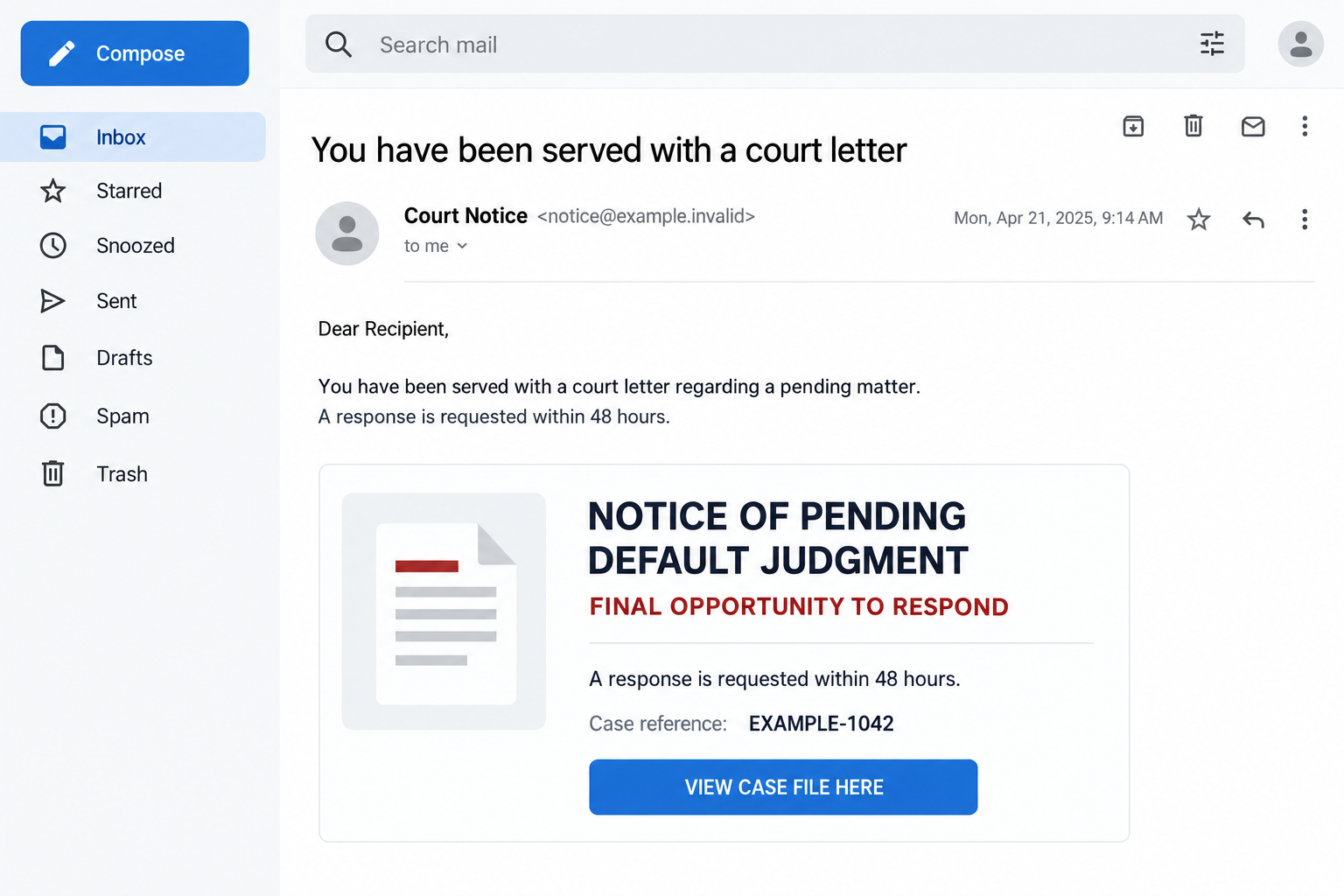
The You Have Been Served With a Court Letter email scam uses the appearance of legal correspondence to push recipients toward an external document link.
The attachment is headed Notice of Pending Default Judgment and demands a response within 48 hours. Its central instruction is to view a case file elsewhere.
A rushed reader may treat the link as the only way to discover what’s wrong. That gives the sender control over the investigation.
Don’t confuse the email’s legal language with an independently verified case. A printed deadline doesn’t establish either the sender’s authority or a real obligation.
Real institutions are mixed into a misleading identity
The reported correspondence combines the Cliffe Dekker Hofmeyr law-firm name with the authority of South Africa’s National Director of Public Prosecutions.
Those identities should not be treated as interchangeable. A private firm’s name in a signature doesn’t make a message an official prosecutorial notice.
People and organizations named in a forged message aren’t thereby identified as its operators. Impersonation works by borrowing somebody else’s credibility.
- Verify the named court rather than relying on a document’s appearance.
- Locate the firm or authority independently before making contact.
- Don’t provide login credentials simply to learn an alleged case number.
- Don’t pay a supposed settlement through an unverified message.
Why the warning must remain specific
South Africa’s Department of Justice separately warns about bogus court emails, including messages directing recipients to online case files.
The final destination in this reported campaign was inaccessible, so a particular credential form, payment demand, or malware payload couldn’t be confirmed.
The appropriate response is not to ignore every legal communication. Reject this message’s route while checking any concrete allegation through trustworthy contacts.
Why a Court Notice Can Override Your Usual Caution
Most people don’t receive court documents regularly. That unfamiliarity makes it harder to know what an ordinary notice should contain.
A phrase suggesting that judgment is imminent can make hesitation feel dangerous. The reader worries that checking authenticity might itself count as failing to respond.
The message also creates an information imbalance. It claims to know about a case while offering you only one convenient route to its details.
Perhaps you recently disputed a bill or dealt with an unresolved account. That memory can make an otherwise vague notice feel connected to your life.
Don’t fill the gaps for the sender. A real dispute elsewhere doesn’t validate this email, its attachment, or a person answering through its contact details.
You can take a possible legal matter seriously without following the link. Independent verification is a way to respond carefully, not a decision to ignore it.
How the Court Letter Email Scam Works
Step 1: The subject line announces a legal event as settled fact
The opening doesn’t ask whether you recognize a dispute. It tells you that a formal step has already happened.
That framing puts you on the defensive. Instead of asking who sent the message, you begin wondering how to avoid consequences.
Formal names, case-style references, and a professional signature make the event appear administratively complete. Yet those details can be typed into any document.
A case reference is useful for checking a record, not proof that the record exists. A real person’s name can also be copied from public information.
Pause before responding with your own identity details. You don’t need to complete the sender’s profile of you to establish whether an alleged case is genuine.
Step 2: The attachment adds weight without resolving the identity problem
A document can look more serious than an email because it resembles something that might arrive through an official process.
Its headings and threatening language encourage you to read it as a legal instrument rather than as another unverified communication.
But a second layer of formatting doesn’t independently corroborate the first. The email and attachment may both come from the same unknown source.
Look for information that can be checked outside the document: a specific court, identifiable parties, a coherent jurisdiction, and an independently contactable issuing office.
Don’t open additional files, enable active content, or install a special reader because an unknown sender says the legal notice requires it.
Step 3: A short deadline discourages independent questions
The alleged response window makes the next click feel urgent. There’s supposedly little time to call the real firm or seek advice.
A claim that earlier notices were ignored can add guilt. You may worry about an old address or something missed in the mail.
That worry is not confirmation. Ask for independent verification of the actual matter rather than accepting the sender’s account of prior events.
Don’t let the deadline force you into sending money or documents before establishing who is requesting them.
If there is a genuine proceeding, prompt local legal advice matters. Whether service was valid and which deadline applies are jurisdiction-specific questions, not email-template assumptions.
Step 4: The case-file link becomes the required gateway
The document tells you to follow an external route to learn more. This transfers attention from the dubious message to whatever interface appears next.
A page might ask for a password, identity details, a payment, or a download. In this case, the actual final request wasn’t available to verify.
That uncertainty doesn’t make testing it with real credentials worthwhile. You can investigate the claimed authority without completing the sender’s process.
Don’t assume a normal cloud-service address guarantees a genuine legal document. Hosting and authorship are separate questions.
Likewise, a login page shouldn’t become evidence that a case exists. It may only demonstrate that someone has placed a form in front of the details.
Step 5: Any response can create a more personal pressure point
If you reply, the sender learns that the legal threat reached someone willing to engage. The conversation may become more tailored.
A person who receives identity details or account information can use them in later approaches. Specific knowledge doesn’t automatically establish an official role.
Follow-on demands are possible risks, not verified outcomes for every recipient of this message. Keep your response tied to what you actually disclosed.
If a supposed official calls, don’t use that call to authenticate the email that caused it. Return through independently located contact details.
Don’t pay a small verification or clearance charge to make the problem disappear. Establish the real recipient and legal basis before considering any payment.
How to Verify a Possible Court Matter Without Following the Email
Find the institution independently
Start from the relevant government’s established court or justice website. Use its directory to identify the office named in the communication.
If a law firm is named, use the firm’s own website and its published contact route. Don’t rely on the disputed attachment’s number or reply address.
Cliffe Dekker Hofmeyr has an established website. Its existence confirms a real firm, not the authenticity of a message borrowing its name.
Explain that you received a suspicious communication and want to verify whether the institution sent it. Ask how to submit evidence securely if needed.
Ask concrete questions, without volunteering everything
Give the independently verified office the reference printed in the message and ask whether it corresponds to a matter involving you.
Ask what official process applies and where genuine documents can be obtained. Don’t let an unknown caller answer by sending another unverified link.
Share sensitive information only after establishing the recipient and a suitable channel. A public social-media comment is not a place for identity documents or private allegations.
If the email lacks enough information to identify a court, tell the relevant authority that. Don’t invent a jurisdiction based on your own recent disputes.
Make a note of the office you contacted, the date, and any reference it supplied. Keep that verification record alongside, rather than inside, the suspicious conversation.
Don’t send the sender a list of your real disputes to ask which one it means. That could supply the missing context for a more convincing threat.
If you’re assisting someone else, let them describe the allegation in their own words. Avoid prompting them to fill gaps with private information the email never contained.
Get local advice if the allegation has substance
A real case can require prompt action even when a message about it is suspicious. An impersonator might also borrow details from a genuine dispute.
Ask a qualified legal professional in the relevant jurisdiction about any verified proceeding and response deadline. This article cannot determine whether service was legally effective.
Keep copies of genuine documents and the suspicious communication separate. That helps an adviser distinguish the actual matter from the attempted deception.
What to Do if You Have Fallen Victim to This Scam
- Stop using the email’s route.
Close the linked page, don’t reply further, and cancel outstanding download or permission requests. Don’t send identity documents to prove you aren’t involved.
Write down whether you merely viewed the message, opened a document, supplied information, or made a payment. Each calls for a different response.
- Preserve the notice without circulating it casually.
Keep the original email, any safely available attachment details, the displayed address, and the arrival time. Don’t reopen an unknown file to improve a screenshot.
Avoid forwarding active links to friends as a warning. Share evidence with the appropriate institution or your security team through its approved process.
- Check the claimed case through verified contacts.
Use an official directory or the named firm’s independently located website. Ask whether the communication and reference are genuine.
If a real proceeding is identified, obtain qualified local advice promptly. Don’t rely on either the sender’s deadline or an online article to determine your obligations.
- Secure any account whose credentials you entered.
Change the exposed password using the real provider on a trusted device. Review recovery details and account access, including any reused credentials elsewhere.
For workplace information or a work login, contact the organization’s security team. It may need to investigate access and warn others about related messages.
- Contact the payment provider if money moved.
Use your bank’s established contact details, explain the deception, and ask whether the transfer can be stopped, recalled, or disputed.
Keep receipts and beneficiary information. Recovery depends on the transaction and circumstances; don’t pay another party that guarantees a refund.
- Address document and software exposure.
If a file ran, active content was enabled, or an unfamiliar application appeared, use Malwarebytes and obtain trusted technical help when needed.
AdGuard can help reduce some malicious advertising. Neither product decides a legal question, repairs a disclosed password, or reverses a payment.
- Report the impersonation to the appropriate organization.
The South African Department of Justice’s email-alert page lists ICTsecurity@justice.gov.za for suspicious messages claiming to come from the department or a court.
Also notify an impersonated firm through its real contact details. If you suffered loss or identity misuse, ask the relevant local authority about reporting.
Is Your Device Infected? Run a Free Malware Scan
Slow performance, constant pop-ups, or strange behavior? These are classic signs of a malware infection. The fastest way to find out is to scan your device with Malwarebytes Free — one of the most trusted malware removal tools available.
The free version detects and removes the most common threats, including:
- Adware — the cause of those annoying pop-ups
- Browser hijackers — unwanted redirects and changed homepages
- Trojans and spyware — hidden programs stealing your data
- Potentially unwanted programs (PUPs) — software you never asked for
👉 Select your device below — Windows, Mac, or Android — then follow the simple steps to download Malwarebytes, scan your system, and remove any threats it finds. The scan usually takes 5 to 20 minutes.
Run a Malware Scan with Malwarebytes for Windows
Malwarebytes is one of the most popular and trusted anti-malware tools for Windows — and it’s completely free for removing infections. It catches threats that many antivirus programs miss, including adware, browser hijackers, and trojans. Follow the steps below to scan and clean your PC in just a few minutes.
Download Malwarebytes
Click the button below to download the latest version of Malwarebytes for Windows from the official source. The free version is all you need — it will scan your computer and remove adware, browser hijackers, and other malicious software at no cost.
Download MalwarebytesOfficial installer for Windows 11 and 10. Your download starts right away.Want real-time protection? See Malwarebytes Premium Malwarebytes Free for WindowsScans and removes malware at no cost
-
Install Malwarebytes
When the download finishes, open your Downloads folder and double-click the MBSetup file. If Windows shows a User Account Control pop-up, click “Yes” to allow the installation.

Follow the On-Screen Prompts to Install Malwarebytes
The setup wizard will walk you through a few quick screens:
-
Choose where you’re installing the program — “Personal Computer” or “Work Computer” — then click Next.

-
Malwarebytes will now install on your device. This usually takes under a minute.

-
When installation is complete, the “Welcome to Malwarebytes” screen will open automatically.

-
On the final screen, click Open Malwarebytes to launch the program.

-
Enable “Scan for Rootkits”
Before scanning, turn on rootkit detection so Malwarebytes can find even the most hidden threats. Click the Settings gear icon on the left side of the screen.

In the settings menu, find “Scan for rootkits” and click the toggle so it turns blue.

Done? Click “Dashboard” in the left pane to return to the main screen.
Start the Scan
Click the blue Scan button. Malwarebytes will automatically update its virus database and start checking your computer for malware.

-
Wait for the Scan to Finish
The scan checks your entire system for browser hijackers and other malicious programs, so it can take 5 to 20 minutes depending on your computer. Feel free to do something else — just check back occasionally to see the progress.

-
Quarantine the Detected Threats
When the scan is done, you’ll see a list of everything Malwarebytes found — malware, adware, and potentially unwanted programs. Click the “Quarantine” button to remove all of them at once.

Malwarebytes will now remove the malicious files and registry entries and move them safely into quarantine.

-
Restart Your Computer
Some threats can only be fully removed after a reboot. If Malwarebytes asks you to restart, click Yes. Once you’re logged back in, Malwarebytes has finished removing the threats it found.

That’s it — your Windows PC is now clean of trojans, adware, and other malware, and should be back to running smoothly.
If you are still having problems with your computer after completing these instructions, then please follow one of the steps:
- Run a computer scan with ESET Online Scanner
- Ask for help in our Windows Malware Removal Help & Support forum.
Run a Malware Scan with Malwarebytes for Mac
Malwarebytes for Mac is a free on-demand scanner that removes the malware other security software tends to miss — adware, browser hijackers, and unwanted programs included. Cleaning an infected Mac with Malwarebytes has always been completely free, and it’s our go-to recommendation. Follow the steps below to scan and clean your Mac in just a few minutes.
-
Download Malwarebytes for Mac
Click the button below to download the latest version of Malwarebytes for Mac.
Download MalwarebytesOfficial installer for macOS. Your download starts right away.Want real-time protection? See Malwarebytes PremiumMalwarebytes Free for MacScans and removes malware at no cost -
Open the Malwarebytes setup file
When the download finishes, open your Downloads folder and double-click the setup file to begin the installation.

-
Follow the On-Screen Prompts to Install Malwarebytes
The Malwarebytes for Mac Installer will guide you through a few quick screens. Click “Continue” and keep following the prompts until the installation completes.



When the installation is complete, Malwarebytes opens to the Welcome to Malwarebytes screen. Click “Get started“.
-
Select “Personal Computer” or “Work Computer”
Malwarebytes will ask what type of computer you’re installing it on. Click either Personal Computer or Work Computer, whichever applies.

-
Start the Scan
Click the “Scan” button. Malwarebytes will automatically update its detection database and begin checking your Mac for malware.

-
Wait for the Scan to Finish
Malwarebytes will scan your Mac for adware, browser hijackers, and other malicious programs. This can take a few minutes, so feel free to do something else — just check back occasionally to see the progress.

-
Quarantine the Detected Threats
When the scan is done, you’ll see a list of everything Malwarebytes found. Click the “Quarantine” button to remove all the threats at once.

-
Restart Your Mac
Malwarebytes will now remove all the malicious files it found. Some threats can only be fully removed after a reboot — if Malwarebytes asks you to restart, allow it. Once you’re logged back in, your Mac is clean.

That’s it — your Mac is now free of adware, rogue browser extensions, and other potentially harmful software.
If you are still experiencing problems while trying to remove a malicious program from your computer, please ask for help in our Mac Malware Removal Help & Support forum.
Run a Malware Scan with Malwarebytes for Android
Malwarebytes for Android automatically detects and removes dangerous threats like malware and ransomware so you don’t have to worry about your most-used device being compromised. Aggressive detection of adware and potentially unwanted programs keeps your Android phone or tablet running smooth.
-
Download Malwarebytes for Android.
You can download Malwarebytes for Android by clicking the link below.
Get Malwarebytes for AndroidOpens Google Play in a new tab.Want real-time protection? See Malwarebytes Premium for AndroidMalwarebytes for AndroidScans your phone and removes malware at no cost -
Install Malwarebytes for Android on your phone.
In the Google Play Store, tap “Install” to install Malwarebytes for Android on your device.

When the installation process has finished, tap “Open” to begin using Malwarebytes for Android. You can also open Malwarebytes by tapping on its icon in your phone menu or home screen.

-
Follow the on-screen prompts to complete the setup process
When Malwarebytes will open, you will see the Malwarebytes Setup Wizard which will guide you through a series of permissions and other setup options.
This is the first of two screens that explain the difference between the Premium and Free versions. Swipe this screen to continue.
Tap on “Got it” to proceed to the next step.
Malwarebytes for Android will now ask for a set of permissions that are required to scan your device and protect it from malware. Tap on “Give permission” to continue.
Tap on “Allow” to permit Malwarebytes to access the files on your phone.
-
Update database and run a scan with Malwarebytes for Android
You will now be prompted to update the Malwarebytes database and run a full system scan.

Click on “Update database” to update the Malwarebytes for Android definitions to the latest version, then click on “Run full scan” to perform a system scan.

-
Wait for the Malwarebytes scan to complete.
Malwarebytes will now start scanning your phone for adware and other malicious apps. This process can take a few minutes, so we suggest you do something else and periodically check on the status of the scan to see when it is finished.

-
Click on “Remove Selected”.
When the scan has been completed, you will be presented with a screen showing the malware infections that Malwarebytes for Android has detected. To remove the malicious apps that Malwarebytes has found, tap on the “Remove Selected” button.

-
Restart your phone.
Malwarebytes for Android will now remove all the malicious apps that it has found. To complete the malware removal process, Malwarebytes may ask you to restart your device.
That’s it — your Android phone is now clean — no more malicious apps, adware, or browser redirects.
If you are still having problems with your phone after completing these instructions, then please follow one of the steps:
- Restore your phone to factory settings by going to Settings > General management > Reset > Factory data reset.
- Ask for help in our Mobile Malware Removal Help & Support forum.
Stay Protected: Block Ads and Malicious Sites
Now that your device is clean, keep it that way. Most infections start with a malicious ad or a fake download button — so blocking them at the source is your best defense.
We recommend AdGuard, which blocks malicious ads, phishing pages, and dangerous redirects before they can reach you.
👉 Download AdGuard and browse safely
Warnings That Matter More Than a Fancy Letterhead
Pay attention when the message won’t identify a checkable court but demands that you act immediately. A formal heading isn’t a substitute for a verifiable matter.
Be suspicious when different institutions are blended into one authority. Don’t accept a signature simply because every name in it exists somewhere in real life.
A request for an unrelated email password deserves its own explanation. Learning about a legal allegation shouldn’t require surrendering control of your personal inbox.
Payment instructions need independent confirmation too. A convincing document doesn’t validate bank details printed inside it.
Not every suspicious feature proves fraud on its own. The practical decision is to leave the unverified route and check the claim somewhere the sender doesn’t control.
If someone is helping you, ask them to remain calm and factual. Fear and embarrassment can make an urgent private conversation with the sender feel easier than verification.
Frequently Asked Questions
Can I ignore every court-related email?
No. Verify any concrete allegation independently. Communication and service rules vary, and a genuine matter may need prompt advice even when a particular email is suspicious.
Does the 48-hour demand create a legal deadline?
The sender’s wording doesn’t establish that. Check the actual case and applicable procedure with the court or a qualified local professional.
Is the named law firm part of the scam?
A copied firm name doesn’t identify its sender. The warning concerns impersonation, not an allegation that the legitimate firm operates the deceptive message.
Was the attachment definitely malware?
No executable payload was established here. The reported document directs readers to a link. Investigate actual downloads or execution rather than assuming every attachment behaves identically.
What if I entered a password to view the case?
Treat that credential as exposed and recover through its real provider. Verify the alleged legal matter separately; a password reset doesn’t answer whether proceedings exist.
Should I pay to stop the threatened judgment?
Don’t pay through the unverified notice. Establish the real matter, recipient, and instructions independently, and seek local legal advice about any genuine obligation.
The Bottom Line
Don’t follow this court-letter email’s case-file route or send its sender money and documents. Borrowed legal identities and threatening wording don’t establish an authentic notice.
Verify any alleged case through independently located contacts. If you already responded, contain the actual account, payment, or device exposure while obtaining advice on any real proceedings.

Join the discussion
0 commentsShare your experience or ask a question about this article.
Discussion
Start the conversation
Have a question or something useful to share? Add the first comment.