

Imagine opening your inbox one day to find an email from an unknown sender claiming to have compromising videos or information about you. The email threatens to share this damaging material unless you pay a ransom demand in bitcoin.
This is the essence of the “I Have Been Watching You” extortion email scam that has recently proliferated globally. The alarming messages are specifically designed to scare recipients into paying hush money to keep their secrets safe.
But what exactly is this scam? How does it work? And most importantly, what should you do if you receive one of these disturbing emails? This comprehensive guide will provide an in-depth look at the “I Have Been Watching You” extortion scam, unpacking how cybercriminals exploit fear to profit off innocent victims.
Scam Overview: Dissecting the “I Have Been Watching You” Extortion Emails
The “I Have Been Watching You” scam comprises ominous emails threatening recipients to expose embarrassing or damaging videos, photos, or information about them unless a bitcoin ransom is paid.
The emails are personalized with the recipient’s name and sent from spoofed email addresses to appear legitimate. They leverage fear and intimidation to extort money, pressuring victims to comply rather than risk exposure.
Common Subject Lines Used
The scam emails feature alarming subject lines intended to immediately startle recipients such as:
- “You Must Read This!”
- “Your Reputation is on the Line”
- “Better Listen to What I Have to Say”
- “Hidden Camera Footage”
- “You are My Victim”
- “I Know What You Did”
The Anatomy of the Emails
While the specific wording varies, the emails generally follow this basic template:
- Greeting: Opens with the recipient’s first name to establish familiarity.
- Hook: Vague claim of having embarrassing or damaging information, photos, or videos of the recipient.
- Demand: Threat to send the info to the recipient’s contacts unless a bitcoin ransom is paid within a short timeframe, usually 24-48 hours.
- Details: Bitcoin wallet address provided for payment along with instructions for buying bitcoin if needed.
- Consequences: Emphasizes irreversible consequences like ruined reputation or relationships if payment isn’t made.
- Intimidation: Adds fake details like spyware attached to recipient’s device to heighten fear.
- Anonymity: Notes that the message and bitcoin wallet can’t be traced back to the sender.
- Secrecy: Warns recipient not to share the email with anyone or consequences will unfold immediately.
This formula combines personalized details, threats, urgency, intimidation, secrecy and unpredictability to scare recipients into complying with the demands rather than risking the threatened actions.
Email Styles and Approaches
While the scam’s basic blueprint is consistent, specific messaging details vary. Some common email styles include:
- Spying: Claims to have used the recipient’s webcam to record inappropriate footage of them.
- Cheating: Alleges to have evidence of the recipient cheating and threatens to send it to their spouse or partner.
- Vulnerabilities: Mentions passwords or credit card numbers to claim identity theft.
- Guilt: References search history or sites visited to imply embarrassing habits.
Regardless of the hook used, the emails leverage fear, uncertainty, doubt, and implied repercussions to compel ransom payment.
Bitcoin Extortion Amounts
The ransom demands typically range from $200 to $1000 worth of bitcoin, likely calibrated to extort funds without the amount seeming implausible. The lower figures aim to appear potentially believable for an embarrassed recipient wanting to resolve the supposed threats discreetly.
Spoofed Identities
While some scam emails come from nonsensical email addresses, others spoof legitimate identities. The senders may pose as the recipient’s email provider, local police department, or government tax authority.
This lends a veneer of credibility to scare victims into taking the threats seriously rather than dismissing them as fake.
Here are a few variants of the “I Have Been Watching You” extortion scam:
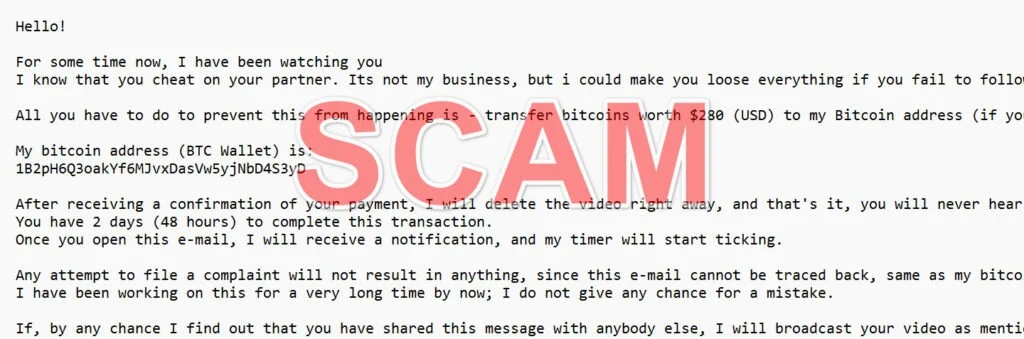
Hello!
For some time now, I have been watching you
I know that you cheat on your partner. Its not my business, but i could make you loose everything if you fail to follow my instructionsAll you have to do to prevent this from happening is – transfer bitcoins worth $280 (USD) to my Bitcoin address (if you have no idea how to do this, you can open your browser and simply search: “Buy Bitcoin”).
My bitcoin address (BTC Wallet) is:
1B2pH6Q3oakYf6MJvxDasVw5yjNbD4S3yDAfter receiving a confirmation of your payment, I will delete the video right away, and that’s it, you will never hear from me again.
You have 2 days (48 hours) to complete this transaction.
Once you open this e-mail, I will receive a notification, and my timer will start ticking.Any attempt to file a complaint will not result in anything, since this e-mail cannot be traced back, same as my bitcoin id.
I have been working on this for a very long time by now; I do not give any chance for a mistake.If, by any chance I find out that you have shared this message with anybody else, I will broadcast your video as mentioned above.
Hey!
Have you recently noticed that I have e-mailed you from your account, meaning I have total access to your device.
For the last couple of months, I have been watching you and have complete access to your device. You may not be familiar with this, with help of the Ransomeware and Trojan Virus infected in your device originating from a website that you had visited.
This simply means I have access to your camera, microphone, keylogs, passwords, remote control, admin privilege, and all your files without you even noticing it. This malwares undergoes a signature update every 30seconds, so your antivirus can not detect it.I saw videos of your extramarital sexploitations, evidences on your misconducts and mischievous deals you do in your company.
With just a single click, this informations can be sent to all your social networks, phone and e-mail contacts. I can also share access to any of your contacts who responds for further information on you.
All you have to do to prevent this from happening is to transfer $2500 (USD) worth of cryptocurrency to any wallet address below(if you have no idea how to do this, you can open your browser and simply search: “Buy Cryptocurrency”) and use your head to do the rest.
My wallet payment addresses:
You have 24 hours to complete this transaction starting from 8/6/2024 4:58:55 a.m. which is the time you received this message. Once you open this e-mail, I will receive a notification, and my timer will start ticking.
Any attempt to file a complaint will not result in anything, since my cryptocurrency wallet and this message cannot be traced.
After receiving a confirmation of your payment, I will delete the videos right away, and that’s it, you will never hear from me again.If, by any chance you have share this message with anybody else, I will broadcast everything as earlier mentioned above. Be Warned not to go against the instructions as advised!
How the “I Have Been Watching You” Scam Works
The “I Have Been Watching You” extortion scam exploits human emotions like fear, shame, embarrassment and panic to deceive recipients. Understanding the psychological triggers built into the scam emails can help arm you against being manipulated.
1. Recipients Receive Personalized Email
The journey starts when an unsuspecting recipient opens their inbox to find an email addressing them by name and making intrusive claims about having access to embarrassing or damaging material about them.
2. Shock and Fear Response
The alarming subject line and eerie specificity immediately triggers a visceral shock and fear response. The personalized content makes the supposed threat seem credible.
3. Action Demanded Under Threat
The email demands a ransom payment of bitcoin within a short time frame or the sender threatens to expose the recipient by sending the content to contacts. The stakes feel high.
4. False Urgency Instilled
The tight deadline pressures the recipient to act fast, limiting time to think clearly. This false urgency is calculated to capitalize on impulsive fear-based reactions.
5. Intimidation Triggers Compliance
The sender intimates unpredictability, danger and irreversible consequences if demands aren’t met, scaring the recipient into complying rather than risking exposure.
6. Difficulty Verifying Threats
The difficulty of proving whether the sender’s claims are real compounds the scare tactics. The possibility can’t be ruled out entirely.
7. Ransom Paid
Victims pay the ransom to purportedly stop the threats, hoping compliance ends the nightmare. The bitcoin payments are irreversible.
8. Scammers Disappear
After receiving the bitcoin, the scammers disappear without releasing any content. Their threats were pure fabrication to extort money. The victim is left violated, embarrassed and financially defrauded.
This sequence demonstrates how the scam capitalizes on human psychology. Shock, uncertainty, urgency and fear of consequences bypass critical thinking, leading victims to feed the very scams they should avoid.
What to Do If You’ve Fallen Victim to This Scam
Despite its chilling psychological tactics, the “I Have Been Watching You” scam relies entirely on empty threats and deception. However, if you’ve unfortunately already fallen victim, here are tips on what to do next:
Don’t Panic
Take a deep breath and collect yourself. The threats were a calculated bluff to scare you. Don’t let the scammers win by allowing embarrassment or shame to take over. You are the victim here.
Don’t Pay Any Further
If you paid once, don’t pay again. It will only lead to more demands and zero closure. Cease all communication.
Secure Accounts
Change passwords and enable two-factor authentication on all accounts. Check for any signs of identity theft.
Watch for Suspicious Activity
Monitor financial accounts closely for fraudulent charges. Place a fraud alert on your credit.
Report the Incident
Notify your local police department and the FBI via the IC3 complaint site. This helps authorities track scams.
Seek Emotional Support
Talk to trusted friends or professionals. Don’t blame yourself. Scammers are experts in emotional manipulation. You did nothing wrong.
The most important step is breaking off all communication with the scammers. Don’t let them continue preying on you. Remember, you have nothing to be ashamed about—you are the target of criminal deception.
Is Your Device Infected? Run a Free Malware Scan
Slow performance, constant pop-ups, or strange behavior? These are classic signs of a malware infection. The fastest way to find out is to scan your device with Malwarebytes Free — one of the most trusted malware removal tools available.
The free version detects and removes the most common threats, including:
- Adware — the cause of those annoying pop-ups
- Browser hijackers — unwanted redirects and changed homepages
- Trojans and spyware — hidden programs stealing your data
- Potentially unwanted programs (PUPs) — software you never asked for
👉 Select your device below — Windows, Mac, or Android — then follow the simple steps to download Malwarebytes, scan your system, and remove any threats it finds. The scan usually takes 5 to 20 minutes.
Run a Malware Scan with Malwarebytes for Windows
Malwarebytes is one of the most popular and trusted anti-malware tools for Windows — and it’s completely free for removing infections. It catches threats that many antivirus programs miss, including adware, browser hijackers, and trojans. Follow the steps below to scan and clean your PC in just a few minutes.
Download Malwarebytes
Click the button below to download the latest version of Malwarebytes for Windows from the official source. The free version is all you need — it will scan your computer and remove adware, browser hijackers, and other malicious software at no cost.
Download MalwarebytesOfficial installer for Windows 11 and 10. Your download starts right away.Want real-time protection? See Malwarebytes Premium Malwarebytes Free for WindowsScans and removes malware at no cost
-
Install Malwarebytes
When the download finishes, open your Downloads folder and double-click the MBSetup file. If Windows shows a User Account Control pop-up, click “Yes” to allow the installation.

Follow the On-Screen Prompts to Install Malwarebytes
The setup wizard will walk you through a few quick screens:
-
Choose where you’re installing the program — “Personal Computer” or “Work Computer” — then click Next.

-
Malwarebytes will now install on your device. This usually takes under a minute.

-
When installation is complete, the “Welcome to Malwarebytes” screen will open automatically.

-
On the final screen, click Open Malwarebytes to launch the program.

-
Enable “Scan for Rootkits”
Before scanning, turn on rootkit detection so Malwarebytes can find even the most hidden threats. Click the Settings gear icon on the left side of the screen.

In the settings menu, find “Scan for rootkits” and click the toggle so it turns blue.

Done? Click “Dashboard” in the left pane to return to the main screen.
Start the Scan
Click the blue Scan button. Malwarebytes will automatically update its virus database and start checking your computer for malware.

-
Wait for the Scan to Finish
The scan checks your entire system for browser hijackers and other malicious programs, so it can take 5 to 20 minutes depending on your computer. Feel free to do something else — just check back occasionally to see the progress.

-
Quarantine the Detected Threats
When the scan is done, you’ll see a list of everything Malwarebytes found — malware, adware, and potentially unwanted programs. Click the “Quarantine” button to remove all of them at once.

Malwarebytes will now remove the malicious files and registry entries and move them safely into quarantine.

-
Restart Your Computer
Some threats can only be fully removed after a reboot. If Malwarebytes asks you to restart, click Yes. Once you’re logged back in, Malwarebytes has finished removing the threats it found.

That’s it — your Windows PC is now clean of trojans, adware, and other malware, and should be back to running smoothly.
If you are still having problems with your computer after completing these instructions, then please follow one of the steps:
- Run a computer scan with ESET Online Scanner
- Ask for help in our Windows Malware Removal Help & Support forum.
Run a Malware Scan with Malwarebytes for Mac
Malwarebytes for Mac is a free on-demand scanner that removes the malware other security software tends to miss — adware, browser hijackers, and unwanted programs included. Cleaning an infected Mac with Malwarebytes has always been completely free, and it’s our go-to recommendation. Follow the steps below to scan and clean your Mac in just a few minutes.
-
Download Malwarebytes for Mac
Click the button below to download the latest version of Malwarebytes for Mac.
Download MalwarebytesOfficial installer for macOS. Your download starts right away.Want real-time protection? See Malwarebytes PremiumMalwarebytes Free for MacScans and removes malware at no cost -
Open the Malwarebytes setup file
When the download finishes, open your Downloads folder and double-click the setup file to begin the installation.

-
Follow the On-Screen Prompts to Install Malwarebytes
The Malwarebytes for Mac Installer will guide you through a few quick screens. Click “Continue” and keep following the prompts until the installation completes.



When the installation is complete, Malwarebytes opens to the Welcome to Malwarebytes screen. Click “Get started“.
-
Select “Personal Computer” or “Work Computer”
Malwarebytes will ask what type of computer you’re installing it on. Click either Personal Computer or Work Computer, whichever applies.

-
Start the Scan
Click the “Scan” button. Malwarebytes will automatically update its detection database and begin checking your Mac for malware.

-
Wait for the Scan to Finish
Malwarebytes will scan your Mac for adware, browser hijackers, and other malicious programs. This can take a few minutes, so feel free to do something else — just check back occasionally to see the progress.

-
Quarantine the Detected Threats
When the scan is done, you’ll see a list of everything Malwarebytes found. Click the “Quarantine” button to remove all the threats at once.

-
Restart Your Mac
Malwarebytes will now remove all the malicious files it found. Some threats can only be fully removed after a reboot — if Malwarebytes asks you to restart, allow it. Once you’re logged back in, your Mac is clean.

That’s it — your Mac is now free of adware, rogue browser extensions, and other potentially harmful software.
If you are still experiencing problems while trying to remove a malicious program from your computer, please ask for help in our Mac Malware Removal Help & Support forum.
Run a Malware Scan with Malwarebytes for Android
Malwarebytes for Android automatically detects and removes dangerous threats like malware and ransomware so you don’t have to worry about your most-used device being compromised. Aggressive detection of adware and potentially unwanted programs keeps your Android phone or tablet running smooth.
-
Download Malwarebytes for Android.
You can download Malwarebytes for Android by clicking the link below.
Get Malwarebytes for AndroidOpens Google Play in a new tab.Want real-time protection? See Malwarebytes Premium for AndroidMalwarebytes for AndroidScans your phone and removes malware at no cost -
Install Malwarebytes for Android on your phone.
In the Google Play Store, tap “Install” to install Malwarebytes for Android on your device.

When the installation process has finished, tap “Open” to begin using Malwarebytes for Android. You can also open Malwarebytes by tapping on its icon in your phone menu or home screen.

-
Follow the on-screen prompts to complete the setup process
When Malwarebytes will open, you will see the Malwarebytes Setup Wizard which will guide you through a series of permissions and other setup options.
This is the first of two screens that explain the difference between the Premium and Free versions. Swipe this screen to continue.
Tap on “Got it” to proceed to the next step.
Malwarebytes for Android will now ask for a set of permissions that are required to scan your device and protect it from malware. Tap on “Give permission” to continue.
Tap on “Allow” to permit Malwarebytes to access the files on your phone.
-
Update database and run a scan with Malwarebytes for Android
You will now be prompted to update the Malwarebytes database and run a full system scan.

Click on “Update database” to update the Malwarebytes for Android definitions to the latest version, then click on “Run full scan” to perform a system scan.

-
Wait for the Malwarebytes scan to complete.
Malwarebytes will now start scanning your phone for adware and other malicious apps. This process can take a few minutes, so we suggest you do something else and periodically check on the status of the scan to see when it is finished.

-
Click on “Remove Selected”.
When the scan has been completed, you will be presented with a screen showing the malware infections that Malwarebytes for Android has detected. To remove the malicious apps that Malwarebytes has found, tap on the “Remove Selected” button.

-
Restart your phone.
Malwarebytes for Android will now remove all the malicious apps that it has found. To complete the malware removal process, Malwarebytes may ask you to restart your device.
That’s it — your Android phone is now clean — no more malicious apps, adware, or browser redirects.
If you are still having problems with your phone after completing these instructions, then please follow one of the steps:
- Restore your phone to factory settings by going to Settings > General management > Reset > Factory data reset.
- Ask for help in our Mobile Malware Removal Help & Support forum.
Stay Protected: Block Ads and Malicious Sites
Now that your device is clean, keep it that way. Most infections start with a malicious ad or a fake download button — so blocking them at the source is your best defense.
We recommend AdGuard, which blocks malicious ads, phishing pages, and dangerous redirects before they can reach you.
👉 Download AdGuard and browse safely
Frequently Asked Questions About the “I Have Been Watching You” Extortion Scam
1. What is the “I Have Been Watching You” email scam?
The “I Have Been Watching You” scam is a type of extortion fraud that involves receiving an email claiming to have compromising or embarrassing information about you. The email threatens to send the supposed videos, pictures, or information to your contacts unless you pay a ransom in bitcoin within 24-48 hours. The emails are intended to scare recipients into paying up by leveraging fear, uncertainty, and intimidation.
2. What are some typical subject lines used in these scam emails?
Common alarming subject lines include:
- You Must Read This!
- Your Reputation is on the Line
- Better Listen to What I Have to Say
- Hidden Camera Footage
- You are My Victim
- I Know What You Did
These dramatic subject lines are meant to startle recipients and get them to urgently open the email.
3. What kind of information do the scam emails threaten to expose?
The emails may threaten to reveal allegedly compromising videos recorded through your webcam, evidence of cheating, personal account passwords or credit card details, search history or website visits, or other embarrassing or damaging information. The content is fabricated but personalized to spur maximum fear.
4. How much money do the scammers demand for ransom?
Typical ransom demands range from $200 to $1000 worth of bitcoin. The amounts are high enough to turn a profit, but not so high that the victim finds them implausible.
5. How do the scammers pressure victims into paying?
Scare tactics used include:
- Short payment deadlines (24-48 hours) to incite urgency
- Threats of sending content to your contacts if you don’t comply
- Fake details about having access to your accounts or device
- Emphasizing irreversible consequences like ruining your reputation
These tactics bypass critical thinking and aim for knee-jerk reactions driven by fear.
6. Are the emails really from the person or entity they claim to be?
No, the return addresses are typically spoofed. The scammers may pose as your email provider, local police, or government agency to appear more credible. But it’s just a ruse.
7. What should you do if you receive one of these extortion emails?
Do not reply or pay the ransom. Report the email as phishing to your email provider. Contact your local authorities to report the fraud. And never communicate further with the scammers. The threats aren’t real – it’s a complete scam.
8. What if you already paid the ransom?
Don’t pay again or communicate further. Secure your accounts by changing passwords and enabling multi-factor authentication. Monitor your financial accounts closely for any fraudulent activity. And report the incident to local police and the FBI via IC3.
9. How can you protect yourself from this scam?
Be wary of any emails demanding payment and making threats. Look for spoofing and grammatical errors. Never act solely on emotion – slow down and think critically. And educate yourself on the hallmarks of extortion scams to avoid being victimized.
10. Why might someone fall for this scam?
The emails spark feelings of fear, uncertainty, embarrassment and urgency, bypassing logical thinking. The personalized content makes the threats seem credible. Scammers exploit human psychology, but with awareness, you can identify the deception tactics.
The Bottom Line
The “I Have Been Watching You” extortion scam is a predatory threat that weaponizes fear to intimidate recipients into paying ransoms, often with irreversible bitcoin.
Despite personalized details creating an illusion of credibility, the disturbing emails are complete hoaxes designed to monetize human uncertainty. No content exists, so cease paying or communicating with scammers if ensnared.
Safeguard yourself by recognizing the hallmarks of this scam and responding calmly with logic, not emotion. Report the fraud, monitor accounts, and don’t blame yourself. Public awareness is the best remedy against this insidious deception.
By understanding the psychological traps and resisting knee-jerk reactions, you can protect yourself and others from this scam’s financial and emotional harms. Knowledge and vigilance are your strongest defenses.

Join the discussion
0 commentsShare your experience or ask a question about this article.
Discussion
Start the conversation
Have a question or something useful to share? Add the first comment.