Don’t Fall for the “You Have Been Under Surveillance” Email Scam
Written by: Thomas Orsolya
Published on:
Your heart drops reading the subject line:
“You have been under surveillance.”
With apprehension, you open the email. Immediately, a sinister unseen force seems to be tightening its grip around your throat.
The anonymous sender claims to have infected your computer with malware and secretly spied on your private activities through your webcam. They say they’ve recorded you in compromising situations – footage that could upend your life.
Now they’re demanding a hefty ransom in untraceable Bitcoin to destroy the videos. You have less than 3 days to comply or the incriminating content gets blasted across the internet and into the hands of authorities.
Feeling violated and terrified, paying the money seems like your only option for escaping total ruin. But is this faceless extortionist telling the truth? Can you trust them to actually delete the data if you give in to their demands?
This insidious email scam has been terrorizing countless recipients by weaponizing fear, uncertainty, and intimidation for profit. In this comprehensive guide, we’ll reveal the inner workings of the “You Have Been Under Surveillance” phishing scheme and equip you to protect yourself.
Here’s everything you need to know about spotting the warning signs, guarding against manipulation, and fighting back against this brazen extortion tactic trying to scare you into submission.
Anatomy of The “You Have Been Under Surveillance” Scam Email
The “You Have Been Under Surveillance” scam message is carefully engineered to shock, unnerve, and ultimately extract money from recipients by holding their privacy and reputations for ransom. This is what makes it such an effective phishing tactic.
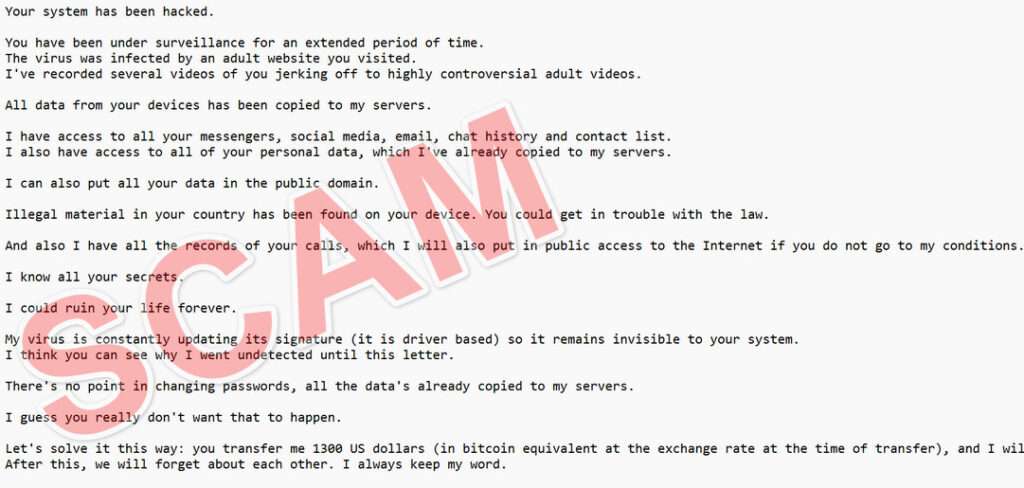
Here is how the “You Have Been Under Surveillance” email scam looks:
Subject: Re:
Your system has been hacked.
You have been under surveillance for an extended period of time. The virus was infected by an adult website you visited. I’ve recorded several videos of you jerking off to highly controversial adult videos.
All data from your devices has been copied to my servers.
I have access to all your messengers, social media, email, chat history and contact list. I also have access to all of your personal data, which I’ve already copied to my servers.
I can also put all your data in the public domain.
Illegal material in your country has been found on your device. You could get in trouble with the law.
And also I have all the records of your calls, which I will also put in public access to the Internet if you do not go to my conditions.
I know all your secrets.
I could ruin your life forever.
My virus is constantly updating its signature (it is driver based) so it remains invisible to your system. I think you can see why I went undetected until this letter.
There’s no point in changing passwords, all the data’s already copied to my servers.
I guess you really don’t want that to happen.
Let’s solve it this way: you transfer me 1300 US dollars (in bitcoin equivalent at the exchange rate at the time of transfer), and I will immediately remove all this dirt from my servers. After this, we will forget about each other. I always keep my word.
My bitcoin wallet for payment: 116A33YsSrr8xCccVYkHnzmAdpK2Q3qVFk If you don’t know how to transfer money and what Bitcoin is. Use Google.
I give you 50 hours (a little over 2 days) to complete the payment. I get an automatic notification when I read this email. Similarly, the timer will automatically start after you read the current email.
If payment is not confirmed after the given time, all data will be published on the public internet, sent to law enforcement agencies and sent to all your contacts.
Don’t waste your time sending me a reply because it won’t work (the sender address is automatically created). Furthermore, do not try to complain anywhere because this text and my bitcoin address cannot be traced anyway.
Do not try to complain anywhere, as the wallet is untraceable, the mail from where the letter came from is also untraceable and created automatically, so there is no point in writing to me. Do not attempt to contact the police or other security services, otherwise your data will be published.
Let’s examine the key elements that make up this social engineering and fear-based scam:
Malware Infection Claims
The email claims that clicking on a malicious link or visiting an adult website led to sophisticated malware being downloaded onto the recipient’s computer. This malware supposedly gave the attacker remote access, control over the webcam, and ability to monitor all activity without detection.
Compromising Video Threats
The sender threatens that through the secret malware infection, they’ve recorded videos of the recipient in compromising sexual situations as blackmail material. This creates feelings of violation, shame, and urgency to comply with demands.
Data Breach Assertions
The email claims that the malware has copied over sensitive personal information from the recipient’s devices and online accounts, including contact lists, messages, and browsing history.
Reputational Ruin Warnings
The sender threatens to not just leak the adult videos, but also expose personal secrets and data to the public internet as well as send it all to the recipient’s friends, family, coworkers, and authorities.
Untraceable Bitcoin Ransom Demand
The extortionist demands payment equivalent to $1,300 or more in untraceable Bitcoin within 50 hours. This limited window adds pressure and limits careful thinking.
Anonymity and Encryption Techno-Babble
The email warns that contacting authorities is futile since the sender address, malware, and Bitcoin wallet can’t be traced. This is further intimidation to deter reporting.
By combining intrusion, surveillance, blackmail, extortion, and public shaming, this scam is fine-tuned to overwhelm critical thinking and compel victims to pay the ransom out of desperation. But understanding the various psychologically manipulative elements at play is key to defusing their power.
Spotting Red Flags in “You Have Been Under Surveillance” Scam Emails
Now that you know the blueprint of this phishing scam, here are key warning signs to help detect “You Have Been Under Surveillance” extortion attempts:
Generic greetings like “Your system has been hacked” rather than your name. Scammers blast out emails en masse.
Claims of adult site usage and video recording that can’t be substantiated. Sensational threats devoid of proof.
Contradictory claims of total device access yet limited to just webcam spying and data copying. Why not more if fully hacked?
Broken English or awkward phrasing. Many scammers operate internationally.
Demand for payment via untraceable cryptocurrency only. Real hackers would hesitate to reveal their wallets.
Threats of public shaming and leak promises that can’t be fulfilled. Bluffs with no intent or ability to actually post data.
Countdown timers and high-pressure threats designed to overload critical thinking with haste and panic.
Claims that contacting police is futile. Scammers don’t want victims talking to authorities.
Assertions of total technical prowess yet amateur mistakes like sender email addresses that can indeed be traced.
No actual evidence provided of videos, access to accounts, or breached data. Lots of bark with no bite.
Seeing through the gaping holes in this shoddily constructed deception helps dispel the smokescreens of technobabble designed to bewilder recipients and short circuit logic.
How The “You Have Been Under Surveillance” Email Scam Works
The “You Have Been Under Surveillance” scam is carefully orchestrated to manipulate emotions in order to override reason and obtain ransom payments. Here is an in-depth look at what’s happening behind the scenes:
1. Scammers Purchase Stolen Email Credentials
Criminals acquire massive databases of usernames and passwords from the dark web and leaked data breaches. This gives them a fertile starting point to target potential victims.
2. Malware Infection Story Fabricated
A fictional narrative is crafted involving the recipient’s device being infected with sophisticated malware providing secret surveillance access via the webcam.
3. Adult Videos Falsehood Spun
Imaginary illicit videos recorded through the fictional malware are described in graphic detail, intended to disgust and mortify the recipient.
4. Data Breach Embellished
For extra intimidation, the email claims that personal files, browsing history, and contact info have also been stolen, even without any hacking actually occurring.
5. Extortion Amount Calculated
A ransom amount is chosen, often between $500-$1500 worth of Bitcoin. Not so large as to seem implausible, but substantial enough to turn a profit.
6. Threats Tailored to Recipient
The scammer personalizes threats for maximum impact based on demographic data associated with the recipient’s stolen credentials.
7. Deadline Timer Initiated
A roughly 2-3 day deadline elevates urgency and limits objective scrutiny. Psychological pressure overtakes reasoned discernment.
8. Bitcoin Payment Directions Provided
Demand for anonymous, irreversible cryptocurrency payment locks in funds for the scammers and hides their trail once paid.
9. Intimidation to Deter Reporting
The email discourages contacting police and claims they won’t identify the criminals anyway. This is reverse psychology to protect the scam.
10. Emails Sent En Masse
Spoofed emails are spammed out to stolen email lists by the thousands, using botnets and malware to scale up the number of potential victims targeted.
11. Criminals Collect Ransoms
Once scared recipients pay up, the scammers withdraw and launder the Bitcoin payments, disappearing without releasing anything.
Understanding how calculated psychological manipulation, deception, and intimidation fuel this scam makes it less frightening. Knowledge dispels the technobabble smoke and mirrors.
Protecting Yourself From “You Have Been Under Surveillance” Extortion Threats
If you receive a suspicious email claiming you are being watched or monitored, here are tips to protect yourself from being deceived, panicked, and exploited:
1. Don’t Open Unsolicited Attachments or Links
Opening unfamiliar email attachments or links risks malware infection. Be extra cautious of anything unprompted.
2. Scan Devices for Malware
Run comprehensive antivirus scans to check for any signs of actual malware or breaches. But don’t expect anything real to be found.
3. Change Passwords and Enable Two-Factor Authentication
Reset account passwords as a precaution. Enable 2FA for added login security on sensitive accounts. This further safeguards you.
4. Don’t Reply to the Email
Replying could confirm your email as active. Instead, report the message as spam/phishing to your email provider.
5. Watch for Further Suspicious Activity
Monitor financial statements and account activity closely for any signs of fraud. But chances are criminals don’t have anything real.
6. Never Pay Extortion Demands
Paying ransoms encourages further extortion attempts and funds criminal enterprises. Stand your ground.
7. Contact Authorities If Truly Concerned
The email tries to deter police involvement, which is a red flag. Law enforcement can provide guidance dealing with cyber threats.
Remaining calm and avoiding overreaction is key to logically recognizing the manipulative scare tactics in phishing scams like this. Don’t let brazen claims of surveillance bully you into hasty compliance.
What To Do If You Already Paid The You Have Been Under Surveillance” Email Scam
If you already fell victim and paid the ransom demanded in the “You Have Been Under Surveillance” email scam, here are steps to take:
1. Contact Your Bank
If you paid the ransom recently via bank account, contact your bank immediately to try stopping or reversing the transaction before the funds are withdrawn. Act quickly, as time is critical.
2. Report Fraud to Cryptocurrency Exchange
If you paid in Bitcoin, report the scam to the cryptocurrency exchange you used so they can attempt tracking the wallet address and potentially freeze the funds. The sooner the better.
3. Monitor Accounts Closely
Carefully monitor bank and credit card statements for any further suspicious charges. Scammers may attempt more fraud once they have secured an initial payment.
4. Reset All Account Passwords
Change passwords on all email, social media and financial accounts as a precautionary measure. Use unique complex passwords for each account. Enable two-factor authentication anywhere possible for added security.
5. Run Antivirus Scans
Conduct comprehensive malware scans on all computers and devices used to make the payment. Quarantine or delete anything suspicious found. Scammers may have accessed more than they claimed.
6. Place Fraud Alerts and Credit Freezes
Put a fraud alert on your credit reports and consider freezing credit reports to protect your identity and prevent fraudulent accounts from being opened.
7. Avoid Further Extortion Payouts
Disconnect from the email account used and do not respond to any further demands for money. The scammers won’t actually release anything since they don’t have anything real to begin with.
8. Report the Scam to Authorities
File a complaint with the FBI’s Internet Crime Complaint Center at www.ic3.gov and notify local law enforcement. This helps authorities track and prosecute cyber extortion scams.
9. Seek Legal Counsel if Needed
For serious extortion threats, consider consulting an attorney experienced in cybercrime matters for guidance on handling threats and minimizing potential damages.
10. Learn from This Experience
Reflect on missteps that allowed you to be deceived. Implement stronger security habits going forward and share your experience to help others avoid the same pitfalls.
Stay vigilant following any cyber extortion incident and take proactive measures to protect your identity, accounts, and data from further misuse. With caution and wisdom, you can recover both financial and peace of mind.
Is Your Device Infected? Run a Free Malware Scan
Slow performance, constant pop-ups, or strange behavior? These are classic signs of a malware infection. The fastest way to find out is to scan your device with Malwarebytes Anti-Malware Free — one of the most trusted malware removal tools available.
The free version detects and removes the most common threats, including:
Adware — the cause of those annoying pop-ups
Browser hijackers — unwanted redirects and changed homepages
Trojans and spyware — hidden programs stealing your data
Potentially unwanted programs (PUPs) — software you never asked for
👉 Select your device below — Windows, Mac, or Android — then follow the simple steps to download Malwarebytes, scan your system, and remove any threats it finds. The whole process takes about 5 minutes.
Malwarebytes for WindowsMalwarebytes for MacMalwarebytes for Android
Run a Malware Scan with Malwarebytes for Windows
Malwarebytes is one of the most popular and trusted anti-malware tools for Windows — and it’s completely free for removing infections. It catches threats that many antivirus programs miss, including adware, browser hijackers, and trojans. Follow the steps below to scan and clean your PC in just a few minutes.
Download Malwarebytes
Click the button below to download the latest version of Malwarebytes for Windows from the official source. The free version is all you need — it will scan your computer and remove adware, browser hijackers, and other malicious software at no cost.
(The link opens in a new page where your download will start)
Install Malwarebytes
When the download finishes, open your Downloads folder and double-click the MBSetup file. If Windows shows a User Account Control pop-up, click “Yes” to allow the installation.
Follow the On-Screen Prompts to Install Malwarebytes
The setup wizard will walk you through a few quick screens:
Choose where you’re installing the program — “Personal Computer” or “Work Computer” — then click Next.
Malwarebytes will now install on your device. This usually takes under a minute.
When installation is complete, the “Welcome to Malwarebytes” screen will open automatically.
On the final screen, click Open Malwarebytes to launch the program.
Enable “Scan for Rootkits”
Before scanning, turn on rootkit detection so Malwarebytes can find even the most hidden threats. Click the Settings gear icon on the left side of the screen.
In the settings menu, find “Scan for rootkits” and click the toggle so it turns blue.
Done? Click “Dashboard” in the left pane to return to the main screen.
Start the Scan
Click the blue Scan button. Malwarebytes will automatically update its virus database and start checking your computer for malware.
Wait for the Scan to Finish
The scan checks your entire system for browser hijackers and other malicious programs, so it can take several minutes. Feel free to do something else — just check back occasionally to see the progress.
Quarantine the Detected Threats
When the scan is done, you’ll see a list of everything Malwarebytes found — malware, adware, and potentially unwanted programs. Click the “Quarantine” button to remove all of them at once.
Malwarebytes will now remove the malicious files and registry entries and move them safely into quarantine.
Restart Your Computer
Some threats can only be fully removed after a reboot. If Malwarebytes asks you to restart, click Yes. Once you’re logged back in, your PC is clean and you can continue with the next steps in this guide.
When the scan finishes, click Quarantine to remove everything Malwarebytes found. That’s it — your Windows PC is now clean of trojans, adware, and other malware, and should be back to running smoothly.
If your current antivirus allowed this malicious program on your computer, you may want to consider purchasing Malwarebytes Premium to protect against these types of threats in the future. If you are still having problems with your computer after completing these instructions, then please follow one of the steps:
Malwarebytes for Mac is a free on-demand scanner that removes the malware other security software tends to miss — adware, browser hijackers, and unwanted programs included. Cleaning an infected Mac with Malwarebytes has always been completely free, and it’s our go-to recommendation. Follow the steps below to scan and clean your Mac in just a few minutes.
Download Malwarebytes for Mac
Click the button below to download the latest version of Malwarebytes for Mac.
When the download finishes, open your Downloads folder and double-click the setup file to begin the installation.
Follow the On-Screen Prompts to Install Malwarebytes
The Malwarebytes for Mac Installer will guide you through a few quick screens. Click “Continue” and keep following the prompts until the installation completes.
When the installation is complete, Malwarebytes opens to the Welcome to Malwarebytes screen. Click “Get started“.
Select “Personal Computer” or “Work Computer”
Malwarebytes will ask what type of computer you’re installing it on. Click either Personal Computer or Work Computer, whichever applies.
Start the Scan
Click the “Scan” button. Malwarebytes will automatically update its detection database and begin checking your Mac for malware.
Wait for the Scan to Finish
Malwarebytes will scan your Mac for adware, browser hijackers, and other malicious programs. This can take a few minutes, so feel free to do something else — just check back occasionally to see the progress.
Quarantine the Detected Threats
When the scan is done, you’ll see a list of everything Malwarebytes found. Click the “Quarantine” button to remove all the threats at once.
Restart Your Mac
Malwarebytes will now remove all the malicious files it found. Some threats can only be fully removed after a reboot — if Malwarebytes asks you to restart, allow it. Once you’re logged back in, your Mac is clean.
Once the scan is done, remove every threat it detected. Your Mac is now free of adware, rogue browser extensions, and other potentially harmful software.
If your current antivirus allowed a malicious program on your computer, you might want to consider purchasing the full-featured version of Malwarebytes Anti-Malware to protect against these types of threats in the future. If you are still experiencing problems while trying to remove a malicious program from your computer, please ask for help in our Mac Malware Removal Help & Support forum.
Run a Malware Scan with Malwarebytes for Android
Malwarebytes for Android automatically detects and removes dangerous threats like malware and ransomware so you don’t have to worry about your most-used device being compromised. Aggressive detection of adware and potentially unwanted programs keeps your Android phone or tablet running smooth.
Download Malwarebytes for Android.
You can download Malwarebytes for Android by clicking the link below.
In the Google Play Store, tap “Install” to install Malwarebytes for Android on your device.
When the installation process has finished, tap “Open” to begin using Malwarebytes for Android. You can also open Malwarebytes by tapping on its icon in your phone menu or home screen.
Follow the on-screen prompts to complete the setup process
When Malwarebytes will open, you will see the Malwarebytes Setup Wizard which will guide you through a series of permissions and other setup options. This is the first of two screens that explain the difference between the Premium and Free versions. Swipe this screen to continue. Tap on “Got it” to proceed to the next step. Malwarebytes for Android will now ask for a set of permissions that are required to scan your device and protect it from malware. Tap on “Give permission” to continue. Tap on “Allow” to permit Malwarebytes to access the files on your phone.
Update database and run a scan with Malwarebytes for Android
You will now be prompted to update the Malwarebytes database and run a full system scan.
Click on “Update database” to update the Malwarebytes for Android definitions to the latest version, then click on “Run full scan” to perform a system scan.
Wait for the Malwarebytes scan to complete.
Malwarebytes will now start scanning your phone for adware and other malicious apps. This process can take a few minutes, so we suggest you do something else and periodically check on the status of the scan to see when it is finished.
Click on “Remove Selected”.
When the scan has been completed, you will be presented with a screen showing the malware infections that Malwarebytes for Android has detected. To remove the malicious apps that Malwarebytes has found, tap on the “Remove Selected” button.
Restart your phone.
Malwarebytes for Android will now remove all the malicious apps that it has found. To complete the malware removal process, Malwarebytes may ask you to restart your device.
After the scan, tap Remove Selected to delete all detected threats. Your Android phone is now clean — no more malicious apps, adware, or browser redirects.
If your current antivirus allowed a malicious app on your phone, you may want to consider purchasing the full-featured version of Malwarebytes to protect against these types of threats in the future. If you are still having problems with your phone after completing these instructions, then please follow one of the steps:
Restore your phone to factory settings by going to Settings > General management > Reset > Factory data reset.
Now that your device is clean, keep it that way. Most infections start with a malicious ad or a fake download button — so blocking them at the source is your best defense.
We recommend AdGuard, which blocks malicious ads, phishing pages, and dangerous redirects before they can reach you.
Frequently Asked Questions About the “You Have Been Under Surveillance” Email Scam
1. What is the “You Have Been Under Surveillance” email scam?
The “You Have Been Under Surveillance” scam is a type of sextortion phishing attack where cybercriminals send an email claiming to have infected your device with malware that gave them access to spy on you through your webcam. They threaten to release adult videos and personal data unless a ransom is paid.
2. What are the key characteristics of the scam email?
Claims of secret surveillance through malware and webcam access
Threats to release recordings and personal information
Demand for ransom payment in Bitcoin within a short deadline
Warnings not to contact law enforcement
Intimidation tactics implying complete monitoring
3. What is the typical ransom amount demanded?
The ransom demands are often around $1,000 to $2,000 worth of Bitcoin. The extortionists want to maximize profit while still making the amount seem plausibly affordable.
4. How do criminals carry out this scam?
They send mass emails to stolen credential lists purchased on the dark web. Deception and fear-mongering tricks victims into paying the ransom, when no actual hacking takes place.
5. What persuasive tactics does the email use?
Claims of compromised personal privacy to create feelings of violation
Graphic descriptions of adult videos tailored to shock and shame
Threats to send data to friends/family for maximum embarrassment
Short deadline to eliminate careful deliberation
Demands for untraceable crypto payment
6. Why Bitcoin ransom payment?
Bitcoin enables fast, anonymous payments perfect for quickly collecting ransoms without being tracked or identified. Fiat currency is more traceable and reversible.
7. Are the threats in the email real?
No, the threats of having intimate videos and data are a complete bluff. The scammers do not actually have anything to release about the recipient. Their goal is to fabricate threats that spark panic.
8. Should I pay the ransom?
No, you should never pay the ransom demands. This will likely result in more extortion attempts in the future. Without anything real to release, paying only enables further predatory scamming.
9. What should I do if I get the scam email?
Do not respond to the email. Report it as phishing/spam. Run malware scans as a precaution. Change account passwords and enable two-factor authentication where possible. Watch for further scam attempts.
10. What if I already paid the ransom?
If you fell victim, contact authorities to report it. Enhance account security, monitor statements closely for further fraud, and avoid any additional extortion payouts demanded.
Staying vigilant against phishing and protecting your data makes you a much harder target for “You Have Been Under Surveillance” extortion scammers seeking easy paydays through deception.
The Bottom Line on Defeating “You Have Been Under Surveillance” Scams
Being targeted by a ominous “You Have Been Under Surveillance” email can certainly be jarring and distressing. But reacting with undue haste or gullibility only feeds the scammer’s intentions.
When faced with such brazen scams built on manipulation, the most powerful weapon is a level head. Logic dispels the fiction woven to exploit fears. Scrutiny unravels the web of deception. Patience defuses the pressure tactics pushing rashness. And courage steadies the nerves rattled by imagined threats of ruin.
While the email’s sinister development and looming deadline are crafted to seize control of your thinking, you maintain command of your mind, values and actions. Take a breath. Step back. Give the content and demands thoughtful analysis rather than a panicked response.
Talk to trusted confidants to restore perspective. Let rationality intervene against mind games seeking to obscure truth with chaos. Keep your wits and don’t relinquish them cheaply.
The sensational claims of surveillance dissolve under the light of honest scrutiny. The posturing giants of tech prowess shrink when boldly challenged for proof. Even Goliath can be felled by a steady hand and a few smooth stones of reason.
Stay vigilant, but fear not.
10 Rules to Avoid Online Scams
Here are 10 practical safety rules to help you avoid malware, online shopping scams, crypto scams, and other online fraud. Each tip includes a quick “if you already got hit” action.
Stop and verify before you click, log in, download, or pay.
Most scams win by creating urgency. Verify using a trusted method: type the website address yourself, use the official app, or call a known number (not the one in the message).
If you already clicked: close the page, do not enter passwords, and run a malware scan.
Keep your operating system, browser, and apps updated.
Updates patch security holes used by malware and malicious ads. Turn on automatic updates where possible.
If you saw a scary “update now” pop-up: close it and update only through your device settings or the official app store.
Use layered protection: antivirus plus an ad blocker.
Antivirus helps block malware. An ad blocker reduces scam redirects, phishing pages, and malvertising.
If your browser is acting weird: remove unknown extensions, reset the browser, then run a full scan.
Install apps, software, and extensions only from official sources.
Avoid cracked software, “keygens,” and random downloads. During installs, choose Custom/Advanced and decline bundled offers you do not recognize.
If you already installed something suspicious: uninstall it, restart, and scan again.
Treat links and attachments as untrusted by default.
Phishing often impersonates delivery services, banks, and popular brands. If it is unexpected, do not open attachments or log in through the message.
If you entered credentials: change the password immediately and enable 2FA.
Shop safely: research the store, then pay with protection.
Be cautious with brand-new stores, “closing sale” stories, and prices that make no sense. Prefer credit cards or PayPal for dispute options. Avoid wire transfers, gift cards, and crypto payments.
If you already paid: contact your card issuer or PayPal quickly to dispute the transaction.
Crypto rule: never pay a “fee” to withdraw or recover money.
Common patterns include fake profits, then “tax,” “gas,” or “verification” fees. Another is a “recovery agent” who demands upfront crypto.
If you already sent crypto: stop paying, save evidence (wallet addresses, TXIDs, chats), and report the scam to the platform used.
Secure your accounts with unique passwords and 2FA (start with email).
Use a password manager and unique passwords for every account. Enable 2FA using an authenticator app when possible.
If you suspect an account takeover: change passwords, sign out of all devices, and review recent logins and recovery settings.
Back up important files and keep one backup offline.
Backups protect you from ransomware and device failure. Keep at least one backup on an external drive that is not always connected.
If you suspect infection: do not connect backup drives until the system is clean.
If you think you are a victim: stop losses, document evidence, and escalate fast.
Move quickly. Speed matters for disputes, account recovery, and limiting damage.
Stop payments and contact: do not send more money or respond to the scammer.
Call your bank or card issuer: block transactions, replace the card if needed, and start a dispute or chargeback.
Secure your email first: change the email password, enable 2FA, and remove unfamiliar recovery options.
Secure other accounts: change passwords, enable 2FA, and log out of all sessions.
Scan your device: remove suspicious apps or extensions, then run a full malware scan.
Save evidence: screenshots, emails, order pages, tracking pages, wallet addresses, TXIDs, and chat logs.
Report it: to the payment provider, marketplace, social platform, exchange, or wallet service involved.
These rules are intentionally simple. Most online losses happen when decisions are rushed. Slow down, verify independently, and use payment methods and account controls that give you recourse.
Thomas is an expert at uncovering scams and providing in-depth reporting on cyber threats and online fraud. As an editor, he is dedicated to keeping readers informed on the latest developments in cybersecurity and tech.