


An Android update should make your device safer, not leave you wondering why another app suddenly wants to read messages and control the screen.
If the name RedWing appeared in a security alert, take a moment before tapping through anything else. The next few decisions matter more than another hurried download.
Overview
What RedWing Android spyware is
RedWing is an Android spyware service offered to other attackers. Researchers described customizable malicious apps, deceptive installation pages, and remote-control features rather than one fixed consumer application.
That distinction matters when checking a device. The same underlying threat may arrive under a different label, so searching only for an app named RedWing is insufficient.
Zimperium analyzed a distributed sample, not just sales messages. Its findings included fake banking screens, message theft, screen interaction, and an installation stage imitating the RuStore marketplace.
The permissions deserve close attention
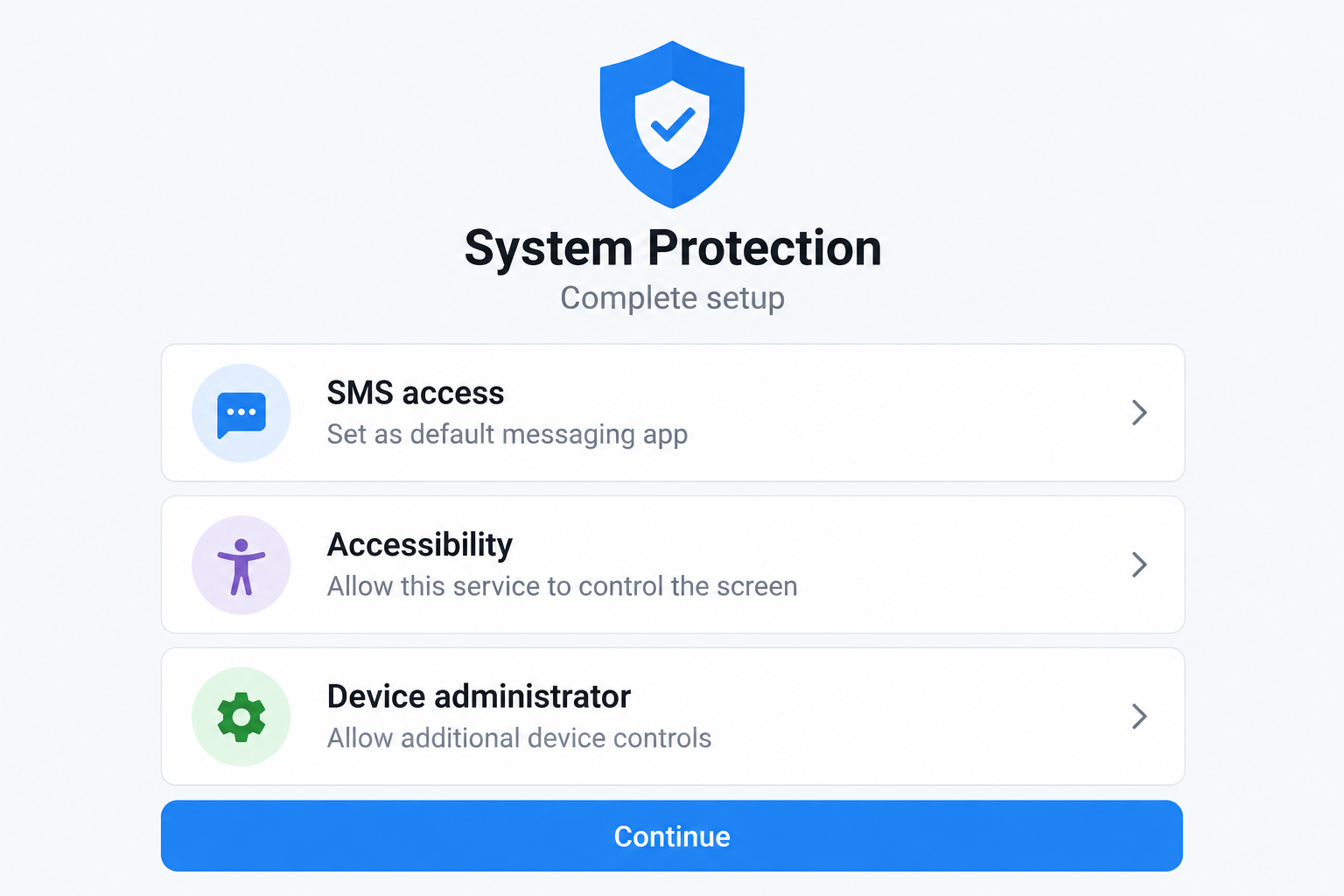
The reported setup sought powerful access, including Accessibility, notifications, and the default SMS role. These requests can look like routine onboarding when presented as required protection.
The opening illustration shows that kind of permission pressure. It is not a capture of an infected device, a real package name, or proof of detection.
- Accessibility can let an enabled service observe or interact with parts of the interface, depending on Android restrictions and the access granted.
- Notification and message access may expose information that would otherwise remain inside a trusted conversation or account alert.
- A familiar icon or update banner does not establish who published an app or why it needs elevated privileges.
What this means for an affected owner
A credible spyware alert calls for both device cleanup and account protection. Those jobs overlap, but removing an app cannot recall information already taken.
Start with what actually happened: a page opened, an APK downloaded, an app installed, permissions approved, or money moved. Each situation requires a different response.
How a Familiar Update Becomes a Risky Installation
A browser can display a convincing app-store design without being an app store. Ratings, download totals, and developer names are page content, not independent verification.
RedWing’s reported distribution tooling allowed operators to customize those details. The important warning is the transition from reading a webpage to installing software supplied through it.
For example, a page might describe an update as essential before a banking service will work. That explanation does not give the page authority over Android settings.
If the official app works when opened independently, do not follow the page’s alternative installation instructions. Contact the service through its established app or published support channel.
Downloading an APK is not the same as installing and running it. Preserve that distinction when explaining the incident to a bank, technician, or workplace administrator.
It helps narrow the possible exposure. Someone who closed the page without installing anything should not automatically be told that every account has been compromised.
Why Banking Screens and Verification Codes Need Separate Attention
A familiar login box can be the wrong place to sign in
The reported banking overlays were designed to collect credentials. A screen appearing over an app can resemble that app closely enough to make the request feel expected.
Think about the circumstances, not just the logo. Did a password prompt appear directly after installing an unrelated update? Did it request details the normal app never asks for?
Do not repeatedly enter credentials to make a suspicious prompt disappear. Move to another trusted device and contact the bank using details from your card or established records.
If credentials were entered, report that fact even when no transaction is visible. The bank can assess account sessions and available protective measures before a loss appears.
An SMS code is not a complete safety barrier
A code delivered to a device under someone else’s control may not stay private. Changing a password on that same device can expose the replacement too.
Use a separate, trusted device for recovery where possible. Ask the provider which authentication methods and session controls are appropriate for the account.
Also check recovery contacts. A correct new password is less useful if an unfamiliar email address or phone number can still reset it.
Never share a verification code with someone claiming they need it to remove spyware. Genuine recovery should happen through the provider’s own process.
A quiet device is not necessarily a cleared device
Researchers reported icon hiding among RedWing’s features. Looking through the home screen alone therefore gives an incomplete picture of installed software.
Battery drain, warmth, or slow performance are not reliable family identifiers. Ordinary apps and aging hardware can cause similar symptoms without any spyware.
A meaningful assessment combines the security detection, installation history, granted access, and account activity. Avoid websites that diagnose a specific infection merely because you opened them.
What to Do if You Suspect RedWing Spyware
You do not need to solve the whole incident at once. Secure a safe way to communicate, then work through the device and account risks.
- Pause sensitive activity on the Android device.
Do not sign into banking, approve transfers, or reveal new passwords there while a credible spyware concern remains unresolved.
For a personal device, temporarily disconnect its network access when practical. Use another trusted device for urgent communication and account recovery.
- Contact your bank if financial access may be exposed.
Use the number printed on your card or an independently opened official website. Explain whether you installed an app, granted access, or entered credentials.
Ask about suspicious sessions, pending payments, and appropriate account restrictions. Do not rely on a caller who appeared immediately after the original alert.
- Save a useful record without reopening the lure.
Write down the app label, download source, approximate installation time, security warning, and any permissions you remember accepting.
Keep existing screenshots or receipts safely. Do not publish account identifiers, private conversations, verification codes, or a complete device backup in a help forum.
- Check whether the device belongs to an organization.
If it is work-managed, contact the administrator through a known route before removing management software, resetting profiles, or wiping the device.
An organization may need logs or containment steps that a quick personal cleanup would destroy. Describe the suspected installation accurately, without hiding an accidental approval.
- Recover important accounts from a trusted device.
Prioritize primary email, banking, and accounts used for password resets. Replace exposed passwords and review active sessions, recovery details, and connected applications.
Tell each provider what you know. A device alert alone does not prove every password was stolen, but entered credentials deserve prompt attention.
- Review permissions and remove confirmed malicious software.
Use the Android-specific steps below. Malwarebytes can help identify suspect apps, but neither an app label nor one scan settles the whole incident.
Do not buy an unsolicited remote cleanup service or install another APK from the person who supplied the first one.
- Watch for follow-up pressure.
Expect that exposed contact details could attract messages offering refunds, technical help, or guaranteed recovery. Verify each approach separately.
AdGuard may reduce some unwanted advertising during future browsing. It cannot undo a bank transfer, revoke Android permissions, or remove an installed spyware application.
Is Your Device Infected? Run a Free Malware Scan
Slow performance, constant pop-ups, or strange behavior? These are classic signs of a malware infection. A quick way to check is to scan your device with Malwarebytes Free, one of the most trusted malware removal tools available. If you only visited a scam page and didn’t download or install anything, this scan is optional.
The free version detects and removes the most common threats, including:
- Adware — the cause of those annoying pop-ups
- Browser hijackers — unwanted redirects and changed homepages
- Trojans and spyware — hidden programs stealing your data
- Potentially unwanted programs (PUPs) — software you never asked for
👉 Select your device below — Windows, Mac, or Android — then follow the simple steps to download Malwarebytes, scan your system, and remove any threats it finds. The scan usually takes 5 to 20 minutes.
Run a Malware Scan with Malwarebytes for Windows
Malwarebytes is one of the most popular and trusted anti-malware tools for Windows — and it’s completely free for removing infections. It catches threats that many antivirus programs miss, including adware, browser hijackers, and trojans. Follow the steps below to scan your PC and remove what Malwarebytes finds.
Download Malwarebytes
Click the button below to download the latest version of Malwarebytes for Windows from the official source. The free version is all you need — it will scan your computer and remove adware, browser hijackers, and other malicious software at no cost.
Download MalwarebytesOfficial installer for Windows 11 and 10. Your download starts right away.Want real-time protection? See Malwarebytes Premium Malwarebytes Free for WindowsScans and removes malware at no cost
-
Install Malwarebytes
When the download finishes, open your Downloads folder and double-click the MBSetup file. If Windows shows a User Account Control pop-up, click “Yes” to allow the installation.

Follow the On-Screen Prompts to Install Malwarebytes
The setup wizard will walk you through a few quick screens:
-
Choose where you’re installing the program — “Personal Computer” or “Work Computer” — then click Next.

-
Malwarebytes will now install on your device. This usually takes under a minute.

-
When installation is complete, the “Welcome to Malwarebytes” screen will open automatically.

-
On the final screen, click Open Malwarebytes to launch the program.

-
Optional: Check for rootkits with a Custom Scan
You don’t need to change any settings for a normal scan. The standard Threat Scan in the next step is enough for most problems, so you can go straight to it.
If you also want to check for rootkits, use a Custom Scan. In current versions of Malwarebytes, rootkit scanning is only available there:
- On the Scanner tile, click the three-dot menu and select Advanced Scan.
- Choose Custom Scan. In its options, check Scan for rootkits.
- Select your system drive (usually C:\) as the location to scan, then start the scan. It takes longer than a Threat Scan.
- When it finishes, review and quarantine the results as described in the steps below.
Rootkit scanning isn’t available on Windows devices with ARM processors.
Start the Scan
Click the blue Scan button. Malwarebytes will automatically update its virus database and start checking your computer for malware.

-
Wait for the Scan to Finish
The scan checks your entire system for browser hijackers and other malicious programs, so it can take 5 to 20 minutes depending on your computer. Feel free to do something else — just check back occasionally to see the progress.

-
Quarantine the Detected Threats
When the scan is done, you’ll see a list of everything Malwarebytes found — malware, adware, and potentially unwanted programs. Click the “Quarantine” button to remove all of them at once.

Malwarebytes will now remove the malicious files and registry entries and move them safely into quarantine.

-
Restart Your Computer
Some threats can only be fully removed after a reboot. If Malwarebytes asks you to restart, click Yes. Once you’re logged back in, Malwarebytes has finished removing the threats it found.

When the scan is done, check whether the problems you noticed have stopped. If they continue, see the options below.
If you are still having problems with your computer after completing these instructions, then please follow one of the steps:
- Run a computer scan with ESET Online Scanner
- Ask for help in our Windows Malware Removal Help & Support forum.
Run a Malware Scan with Malwarebytes for Mac
Malwarebytes for Mac is a free on-demand scanner that removes the malware other security software tends to miss — adware, browser hijackers, and unwanted programs included. Cleaning an infected Mac with Malwarebytes has always been completely free, and it’s our go-to recommendation. Follow the steps below to scan your Mac and remove what Malwarebytes finds.
-
Download Malwarebytes for Mac
Click the button below to download the latest version of Malwarebytes for Mac.
Download MalwarebytesOfficial installer for macOS. Your download starts right away.Want real-time protection? See Malwarebytes PremiumMalwarebytes Free for MacScans and removes malware at no cost -
Open the Malwarebytes setup file
When the download finishes, open your Downloads folder and double-click the setup file to begin the installation.

-
Follow the On-Screen Prompts to Install Malwarebytes
The Malwarebytes for Mac Installer will guide you through a few quick screens. Click “Continue” and keep following the prompts until the installation completes.



When the installation is complete, Malwarebytes opens to the Welcome to Malwarebytes screen. Click “Get started“.
Malwarebytes needs Full Disk Access to check your whole Mac. When it asks, open System Settings > Privacy & Security > Full Disk Access, turn on Malwarebytes (it may be listed as Malwarebytes Protection), and confirm with your password or Touch ID. Then return to Malwarebytes. On macOS Monterey and earlier, this setting is in System Preferences > Security & Privacy > Privacy.
-
Select “Personal Computer” or “Work Computer”
Malwarebytes will ask what type of computer you’re installing it on. Click either Personal Computer or Work Computer, whichever applies.

-
Start the Scan
Click the “Scan” button. Malwarebytes will automatically update its detection database and begin checking your Mac for malware.

-
Wait for the Scan to Finish
Malwarebytes will scan your Mac for adware, browser hijackers, and other malicious programs. This can take a few minutes, so feel free to do something else — just check back occasionally to see the progress.

-
Quarantine the Detected Threats
When the scan is done, you’ll see a list of everything Malwarebytes found. Click the “Quarantine” button to remove all the threats at once.

-
Restart Your Mac
Malwarebytes will now remove all the malicious files it found. Some threats can only be fully removed after a reboot — if Malwarebytes asks you to restart, allow it. Once you’re logged back in, check whether the problems you noticed have stopped. If they come back, save the scan report and ask for help in our forum.

If the problems you noticed continue after the scan, see the options below.
If you are still experiencing problems while trying to remove a malicious program from your computer, please ask for help in our Mac Malware Removal Help & Support forum.
Run a Malware Scan with Malwarebytes for Android
Malwarebytes for Android scans your phone or tablet for malware, adware, and potentially unwanted apps. The free version scans only when you start a scan. Real-time protection, which checks apps automatically, is part of the paid Premium version.
-
Download Malwarebytes for Android.
You can download Malwarebytes for Android by clicking the link below.
Get Malwarebytes for AndroidOpens Google Play in a new tab.Want real-time protection? See Malwarebytes Premium for AndroidMalwarebytes for AndroidScans your phone and removes malware at no cost -
Install Malwarebytes for Android on your phone.
In the Google Play Store, tap “Install” to install Malwarebytes for Android on your device.

When the installation process has finished, tap “Open” to begin using Malwarebytes for Android. You can also open Malwarebytes by tapping on its icon in your phone menu or home screen.

-
Follow the on-screen prompts to complete the setup process
When Malwarebytes opens, it walks you through a short setup. Tap Get started and follow the prompts. If you see an offer for a trial or a paid plan, read it before you accept. You can skip it and keep using the free scanner.
Malwarebytes will ask for permission to access the files on your phone so it can scan them. Tap Allow, or turn on the permission in the Android screen that opens, then return to Malwarebytes.
-
Run a scan with Malwarebytes for Android
On the main screen, tap Scan now. In some versions, you open the menu, tap Scanner, and then tap Run a scan.
-
Wait for the Malwarebytes scan to complete.
Malwarebytes will now start scanning your phone for adware and other malicious apps. This process can take a few minutes, so we suggest you do something else and periodically check on the status of the scan to see when it is finished.

-
Remove the detected apps.
When the scan has been completed, you will see a list of the threats that Malwarebytes for Android has detected. Next to each detected item, tap the menu icon (three dots), then choose to uninstall the app or delete the file. Android then asks you to confirm. Tap OK or Uninstall to remove the app.
-
Restart your phone.
When the detected apps are removed, restart your phone if Malwarebytes asks you to. Then check whether the problems you noticed have stopped.
If the problems you noticed continue after the scan, see the options below.
If you are still having problems with your phone after completing these instructions, then please follow one of the steps:
- Ask for help in our Mobile Malware Removal Help & Support forum.
- Only as a last resort, reset your phone to factory settings. Read the warning below first.
- Back up your photos, videos, files, and messages, for example to your Google account or a computer.
- Make sure you know your Google account email and password. The phone asks for them after the reset. If you changed the password recently, Google recommends waiting 24 hours before you reset.
- On a Samsung phone, also make sure you know your Samsung account password.
- If you use an authenticator app for two-step verification, move your accounts to another device or save your backup codes first.
Stay Protected: Block Ads and Malicious Sites
No scan can prove a device is completely clean, so it helps to block threats before they reach you. Most infections start with a malicious ad or a fake download button — so blocking them at the source is your best defense.
We recommend AdGuard, which blocks malicious ads, phishing pages, and dangerous redirects before they can reach you.
👉 Download AdGuard and browse safely
How to Remove RedWing Spyware From Android
Step 1: Identify the suspect installation before changing settings
Open Android’s app settings and review recently installed applications. Names and menu locations differ between manufacturers, so use the device’s settings search where necessary.
Compare the installation time with the incident. An unfamiliar name is a lead to investigate, not automatic permission to delete an employer’s tool or essential system component.
The sample name shown in the article’s illustration is fictional. Do not treat it as a package identifier or search your device for that exact label.
When available, record the actual package name and detection before uninstalling. A technician can use those details to distinguish unrelated applications with similar display names.
Step 2: Review special access that could obstruct removal
Check Accessibility services, device administrator apps, notification access, and the default SMS application. Review battery exemptions and other special access granted during the suspicious setup.
Turn off permissions belonging to the confirmed malicious app. If the application became the default SMS handler, restore your intended messaging app through Android’s normal settings.
Do not disable every Accessibility service indiscriminately. A reader may rely on an assistive tool, and a work profile may have legitimate administrator requirements.
If screens keep closing, taps are intercepted, or removal is blocked, stop entering sensitive information. Seek manufacturer guidance for Safe Mode or assistance from a trusted technician.
Safe Mode procedures vary by model. Use the manufacturer’s instructions rather than an unknown page offering a universal button sequence or downloadable repair package.
Step 3: Install a scanner from its verified distribution channel
Get Malwarebytes for Android through its official Google Play listing, not a replacement APK advertised by the suspicious update page.
The free Android edition supports manual scanning. Paid protection is optional; the MalwareTips Malwarebytes Android offer is a commercial route, not the free installer.
In Malwarebytes, open the Device area from the dashboard and select Scan now. Allow the scan to complete and inspect each result before confirming removal.
For a detected malicious app, follow the Uninstall app action and Android’s confirmation. Resolve blocked permissions with trusted assistance rather than granting the app additional control.
Keep the detection record. A result naming another threat may still matter, but do not relabel it RedWing without evidence connecting the two.
If Google Play is unavailable, use the vendor’s own supported distribution guidance or trusted technical help. Do not substitute an unofficial mirror just to continue the checklist.
Also avoid installing a scanner through a link sent by an unexpected helper. Independently reach the listing and check the publisher before accepting installation.
Step 4: Check communication settings and account access
After removal, review default applications and special permissions again. Confirm that settings changed during the installation have not simply been left behind.
Ask your mobile carrier to review unexpected forwarding, account changes, or service interruptions when those occurred. Do not dial unfamiliar cancellation codes copied from random comments.
Use trusted account-security pages to review sessions and recovery methods. A scanner cannot inspect every provider’s records or close every stolen online session for you.
Reconnect cautiously for updates and follow-up checks. If suspicious behavior returns, preserve the new evidence instead of repeating the same removal indefinitely.
Step 5: Consider a reset when trust cannot be restored
A factory reset may be appropriate when removal fails or the device remains unreliable. Discuss that decision with the owner or administrator before proceeding.
Back up necessary personal data first and confirm access to your account recovery information. A reset erases local data and can trigger account-verification requirements during setup.
Do not blindly restore the suspect APK or every old application. Reinstall necessary software from trusted sources and update Android before resuming sensitive activity.
A reset is not a refund mechanism and cannot erase copies already stolen. Continue the bank and account recovery work even after the device is rebuilt.
Prevent the Same Permission Trap From Returning
Check updates through Android settings or the application’s established store page. A sponsored result or urgent message should not become your software supply chain.
Read permission requests in relation to the task. An update checker that demands control over messages and screen interaction needs a much better explanation than “required for security.”
Keep installation from unknown sources restricted unless you have a specific, verified reason to allow it. Turn temporary installation permission off when that legitimate task ends.
AdGuard can be an additional browsing precaution, not a substitute for these decisions. Blocking some advertising does not make every download or permission prompt trustworthy.
Frequently Asked Questions
Does opening a RedWing-related page mean my device is infected?
Not by itself. Establish whether software was installed or executed and whether permissions were granted. A webpage’s own warning is not a reliable Android diagnosis.
Will the spyware always be called RedWing in Android settings?
No. Customizable distribution means the visible label can vary. Use the actual package, detection, installation source, and timing rather than relying on one display name.
Should I change passwords before removing the app?
Protect urgent accounts promptly, but use another trusted device. Entering replacement credentials on a potentially controlled screen may expose them again.
Can I remove every app with Accessibility access?
No. Legitimate assistive and managed applications may need that access. Identify the suspicious installation and get help if you cannot distinguish it safely.
Does an empty scan prove that no messages were taken?
No. A scan assesses what it can detect at that time. It cannot reconstruct every earlier action or recall information already copied elsewhere.
Is a paid cleanup service required to remove RedWing?
Not automatically. Manual scanning and normal uninstall tools may help. Persistent compromise, managed devices, or financial theft can justify qualified assistance, not an unsolicited caller’s demands.
The Bottom Line
A credible RedWing Android spyware alert deserves action after an unfamiliar installation gained sensitive permissions. Stop using the device for banking and other sensitive tasks until it is assessed.
Secure exposed accounts from somewhere trusted, remove the identified threat, and follow up with affected providers. Do not mistake a quiet screen or one clean scan for complete recovery.

Join the discussion
0 commentsShare your experience or ask a question about this article.
Discussion
Start the conversation
Have a question or something useful to share? Add the first comment.