


Firefox keeps switching your search engine to Yahoo on your Windows PC. You pick Google again, and a restart or a new tab brings Yahoo right back.
This guide shows how to get rid of the Yahoo search engine on Firefox in Windows 11 and 10: reset your search, remove what changed it, and keep it fixed.
Overview
Why does Firefox keep switching to Yahoo?
Yahoo is a real search engine, not a virus. Mozilla made it Firefox’s US default in 2014, but Firefox switched back to Google in late 2017.
When Yahoo shows up without your say-so, something on your PC picked it. These are the usual suspects:
- A Yahoo add-on. Yahoo’s own Firefox add-ons, such as Search and New Tab or Search and Wider Mail, make Yahoo your default search.
- A free tool with search attached. Some “Custom Web Search” add-ons on Mozilla’s add-on site, such as file converters and package trackers, use Yahoo search.
- A bundled download. Mozilla warns that free software, installers and fake antivirus tools can change your search settings.
- A Firefox policy. A program can lock some settings, and Firefox then says “Your browser is being managed by your organization” at the top of Settings.
Firefox asks before an add-on becomes your default search engine. Clicking yes during a rushed install is enough to make the switch.
How do I change Firefox from Yahoo back to Google?
Work through these in order, and run a test search after each one. Stop as soon as Google, or your chosen engine, answers.
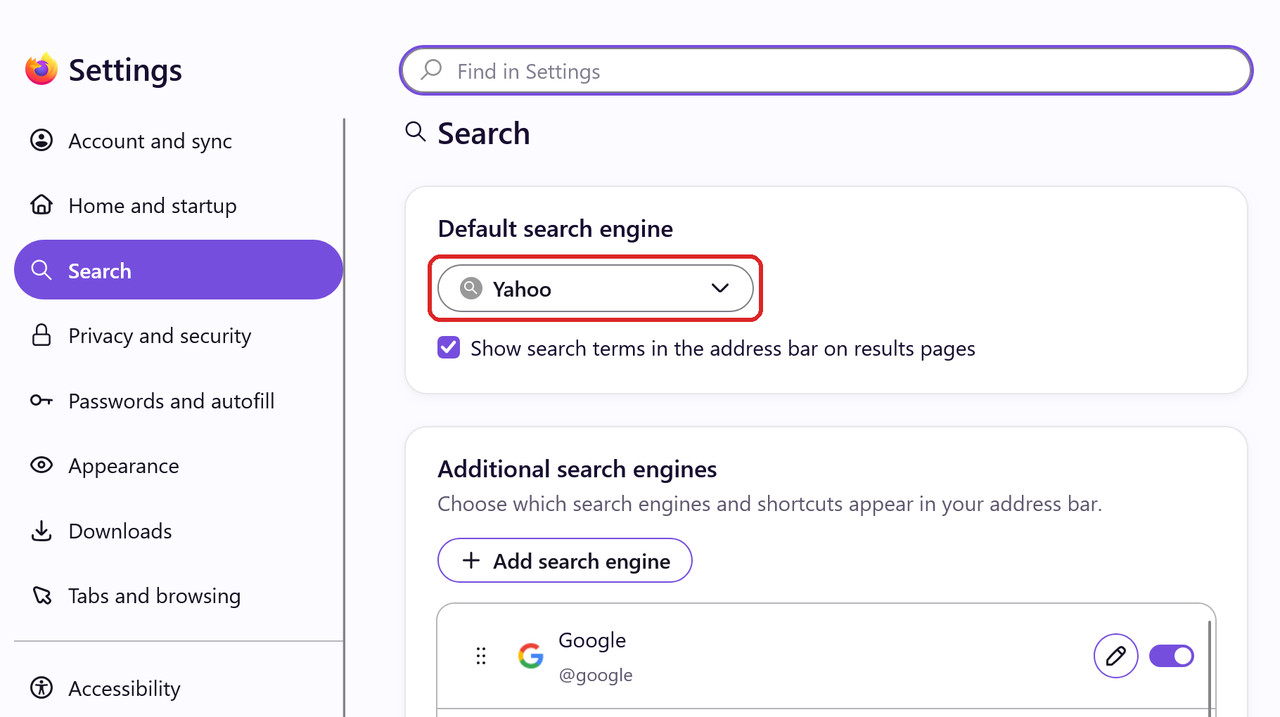
- Click the three-line menu, then Settings, then Search. Under Default search engine, pick Google or another engine you trust.
- On the same page, scroll to Additional search engines. Turn off Yahoo’s toggle or click its trash can icon, whichever one Firefox shows.
- Type about:addons in the address bar and click Extensions. Remove any Yahoo, search, new tab or “Custom Web Search” add-on you don’t use.
- Open Settings, then Home and startup. If Yahoo opens at startup or in new tabs, set New windows and New tabs to Firefox Home (Default).
- In Windows, open Settings, Apps, Installed apps (Apps & features on Windows 10). Remove unwanted programs installed around when Yahoo appeared, after checking each publisher.
If Firefox shows its own offer to reset your search engine, click Change Search Engine. Mozilla added that prompt to undo suspected hijacks.
What if Yahoo comes back after the fix?
Something is putting it back. Run the scan in Step 3, then Refresh Firefox in Step 4 to clear the add-on or program responsible.
If Settings says your browser is managed by your organization, click that line to see the active rules. The advanced section explains what to do next.
This guide covers unwanted search changes, browser hijackers, add-ons and adware. It can’t recover encrypted files or secure an account someone has already stolen.
How to Remove the Yahoo Search Engine From Firefox on Windows
Do the steps in order. As soon as your searches go to the right place, skip to the final check and stop there.
Step 1: Choose the search engine you want
Pick a new default search engine in Firefox
-
Open Firefox Settings
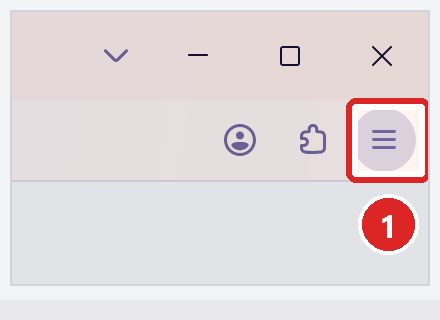
Click the menu button with three lines in the top-right corner of Firefox. Then click Settings.
-
Select Search and choose the engine
In the left column, click Search. Open the drop-down under Default search engine and pick the one you want, such as Google.
Shortcut: type about:preferences#search in the address bar to jump straight there. Firefox saves your choice instantly, with no reinstall needed.
-
Try a fresh address-bar search
Open a new tab and search from the address bar. If your chosen engine answers, skip ahead to the final check.
Still landing on Yahoo, or does Firefox name an add-on in charge of search? Go to Step 2. If the drop-down is locked, see the advanced fixes.
Step 2: Remove the add-on that switched you to Yahoo
Find and remove the add-on in Firefox
-
Open Add-ons Manager, then Extensions
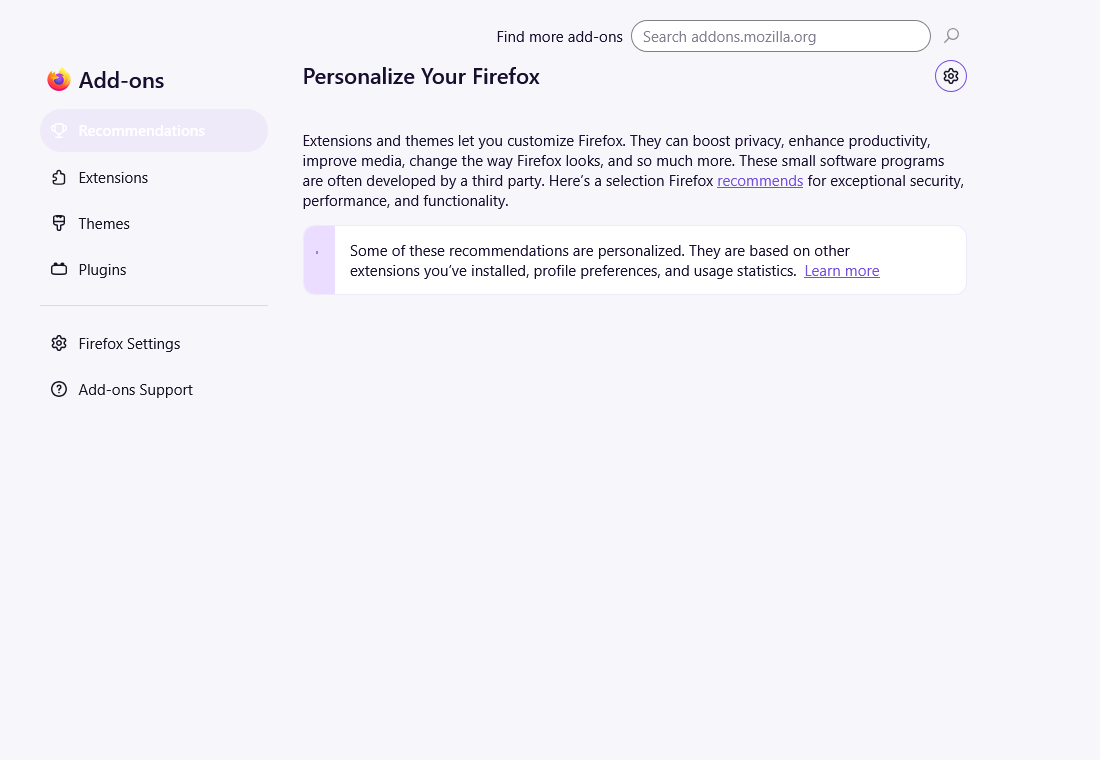
Type about:addons in the address bar and press Enter. Click Extensions on the left to see what’s installed, not Firefox’s recommendations.
-
Turn off a suspect add-on and test
Look for anything mentioning Yahoo, search, new tabs or a free tool. Turn one off with its toggle, open a new tab, and search again.
When Yahoo stops, click that add-on’s three-dot menu, choose Remove, and confirm. Then reset your search engine in Settings if it didn’t switch back.
No extensions listed? Skip ahead. If an add-on won’t remove or reappears, use the advanced fixes instead.
-
Restart Firefox before doing more
Close and reopen Firefox, then search again. If it’s still right, go to the final check and skip the bigger repairs.
If pop-up alerts open Yahoo or other pages
Only use this if alerts or pages appear when you aren’t searching. That usually means a site has permission to send notifications, a separate problem from an add-on.
-
In Firefox, open Settings, then Permissions and data (Privacy & Security in older versions). Under Permissions, click Notifications. Set the unwanted site to Block, then click Save Changes.
Never click buttons inside the alert itself. If the alerts stop and your searches look right, you can skip the scan and the reset.
Step 3: Scan your PC for the program behind Yahoo
Skip this if Steps 1 and 2 fixed things. Run it when an add-on returns, an unknown program appears, or Yahoo comes back after a restart.
Scan Windows for a program that restores Yahoo
Use this scan when an unwanted app or add-on keeps coming back. If a settings change already fixed Firefox, you can skip it.
These installer screenshots are examples from our Windows guide. Some editions use different scan options.
Optional purchases may earn MalwareTips a commission. Paid protection is not required for the manual repairs.
-
Download the Windows installer
Use the Windows download below, not a cleaner promoted by a redirect or warning page.
Malwarebytes for WindowsOn-demand scan and threat review -
Open the setup file and check the publisher
Open Downloads and double-click the MBSetup file you downloaded.

If Windows requests permission, verify the publisher before approving. Don’t override an unexplained security warning simply to continue.
-
Complete setup without accepting unwanted extras
Choose Personal for your own PC, then click Next. Work computers belong with their administrator.

Read trial, subscription, and optional extension offers. Decline extras you don’t want and open Malwarebytes when installation finishes.
Let the installer finish copying its files. Keep it open while the progress bar is moving.

At the welcome screen, click Get started. Read optional offers before proceeding.

When setup confirms completion, click Open Malwarebytes. This opens the application rather than starting a website search.

-
Update and start an available manual scan
In Malwarebytes for Windows, click the three dots on the Scanner tile. Choose Advanced Scan, then Custom Scan.
Quick and Custom scans are free options. The Threat Scan shown in older examples may require a trial or paid plan.
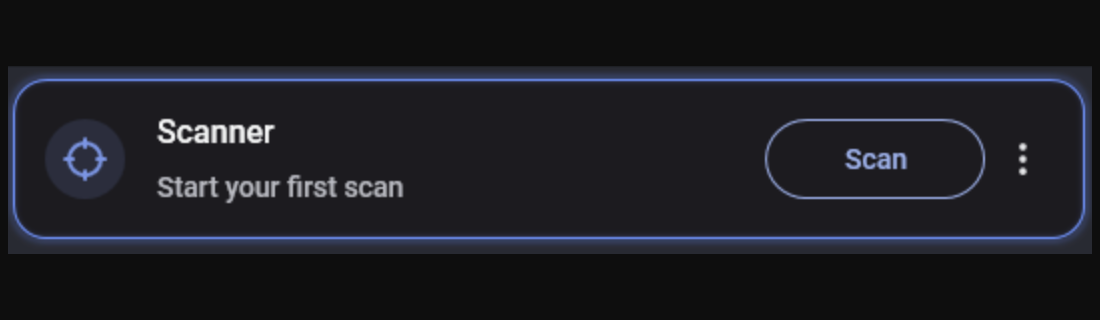
Select the folders or drives you intend to check. Review the treatment of potentially unwanted programs and modifications, then click Start Custom Scan.
A narrowly selected folder scan does not check the entire device. For a broader built-in Windows check, use the Defender Full scan described below.
This older progress example shows a Threat Scan. Your selected free Quick or Custom scan can have different labels; wait for its result summary.

-
Review detections and quarantine identified threats
Read the detection names and locations. Select the threats to quarantine, and save the report if a finding needs expert review.

These are example detections. Review the actual findings on your own PC.
Choose Quarantine to isolate selected threats. Keep the report, since it can show which program changed your search engine.
Allow quarantine to finish. A progress screen is not yet the final restart or result confirmation.

-
Restart if requested, then repeat the browser test
Save open work before approving a requested restart. Don’t interrupt the cleanup simply because the browser appears usable.

After signing back in, inspect the affected search setting, extension, and policy. A completed scan isn’t a guarantee that every browser configuration issue is resolved.
If the same detection or Yahoo comes back, keep the report and note exactly when it returns. Ask for help instead of running deletion scripts.
Microsoft Defender provides a built-in alternative: open Windows Security, Virus & threat protection, Scan options, choose Full scan, then click Scan now. Review its results and requested actions.
Optional second opinion for persistent Windows adware
AdwCleaner is a separate Windows adware tool. Use it when you suspect unwanted software, not just because a Yahoo results page appeared.
-
Download and open AdwCleaner
Malwarebytes AdwCleanerOptional Windows adware checkOpen the downloaded Windows executable, verify its source and publisher, and review the license prompt. AdwCleaner doesn’t require a normal installation.
Find the downloaded AdwCleaner file in Downloads. Open that file, rather than a similarly named search advertisement.
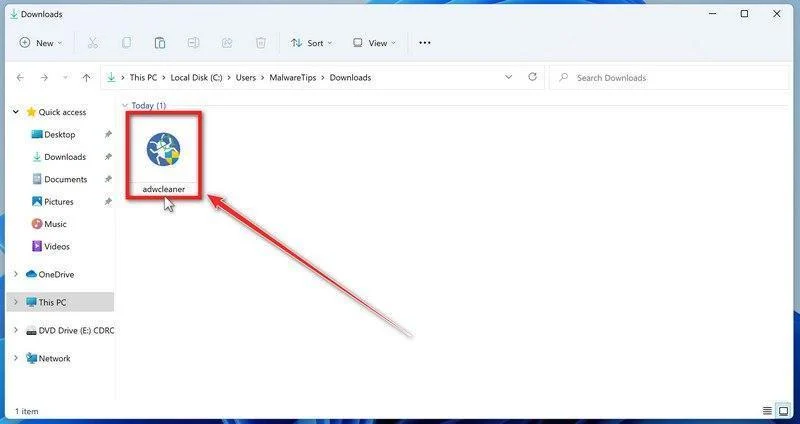
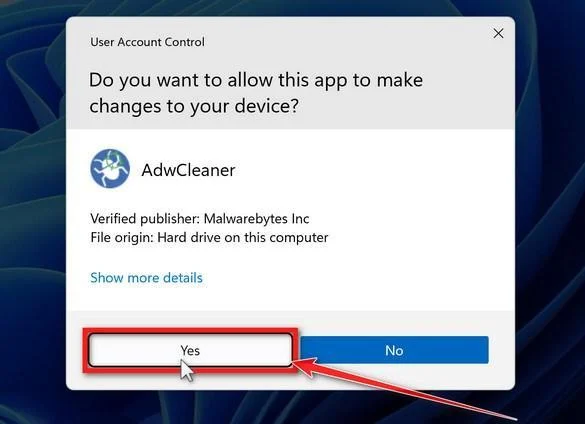
If Windows asks permission, check the file identity and publisher before choosing Run or Yes for the intended executable.
-
Leave broad repair switches off and start the scan
Leave Reset Chrome Policies off. It’s meant for Chrome and clears every Chrome policy, including ones you may need.
Don’t reset networks, firewall rules, or unrelated browser configuration. Return to Dashboard and choose Scan Now.
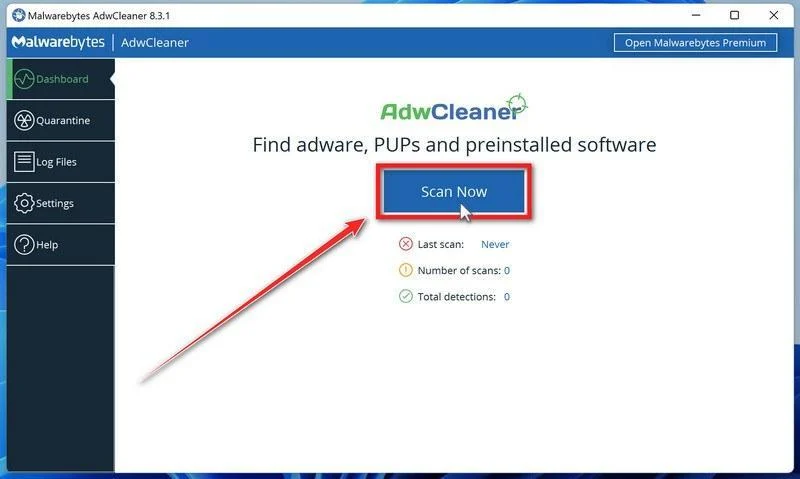
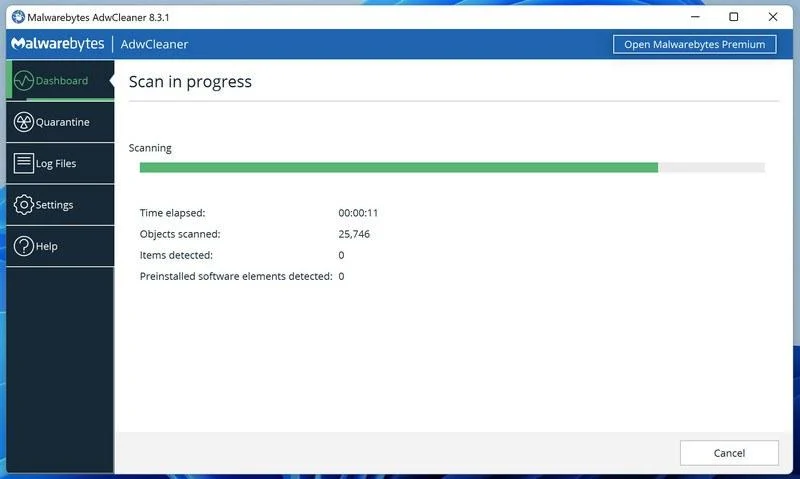
Allow the scan to finish. This checks for adware and potentially unwanted software without requiring you to approve every optional system repair.
Wait while the scan progress runs. Review the completed findings before approving cleanup.
-
Review the results before cleanup
Inspect the detected items. Current releases may use Next and then Quarantine; the older example below shows a direct Quarantine control.
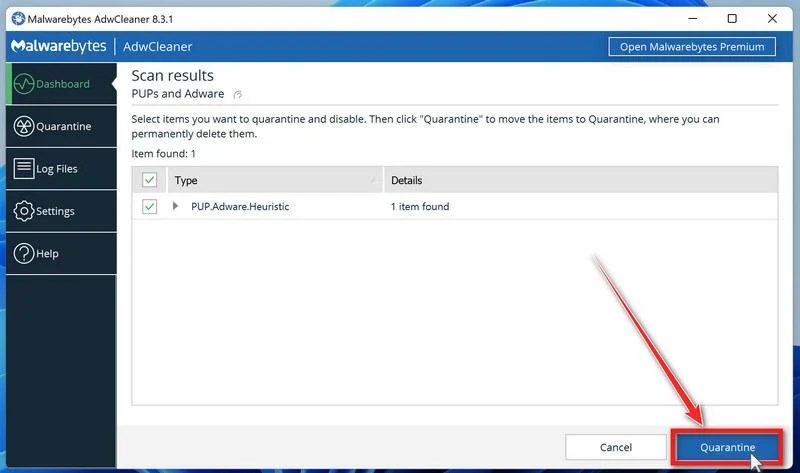
If a separate preinstalled-software list appears, review it too. Leave software you intentionally use unselected unless its removal is justified.
-
Save your work and approve relevant cleanup
AdwCleaner may close applications to quarantine selected items. Save documents and browser work before choosing Continue in that prompt.
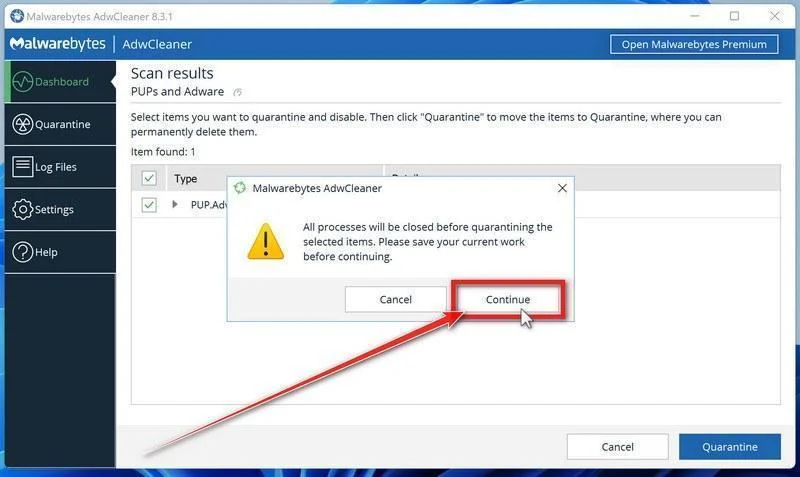
Restart when requested, then review the cleanup log. Skip broad Basic Repair unless trusted support has identified a specific need for it.
-
Return to the exact search that failed
Repeat the original address-bar, new-tab, and startup tests. Check whether the unwanted add-on or policy came back along with Yahoo.
Save anything it couldn’t fix for the removal forum. A clean scan doesn’t reset your search engine or remove a policy, so recheck Firefox yourself.
Step 4: Refresh Firefox if Yahoo still won’t leave
If your searches work now, skip to Step 5. Refresh Firefox only when the earlier steps didn’t hold.
Refresh Firefox to wipe the add-ons and settings behind Yahoo
Refresh Firefox builds a fresh profile and carries over your bookmarks, passwords and history. Back up important bookmarks first, just in case.
It also deletes search engines that were added to Firefox, so a Yahoo entry left behind by an add-on goes too.
The screenshots below were taken on Windows. Button positions can shift a little between Firefox versions.
-
Open Troubleshooting Information
Type about:support in the address bar and press Enter. Look for the Refresh Firefox button on that page.
Check that the page heading says Troubleshooting Information. The Refresh option sits in a box on the right.
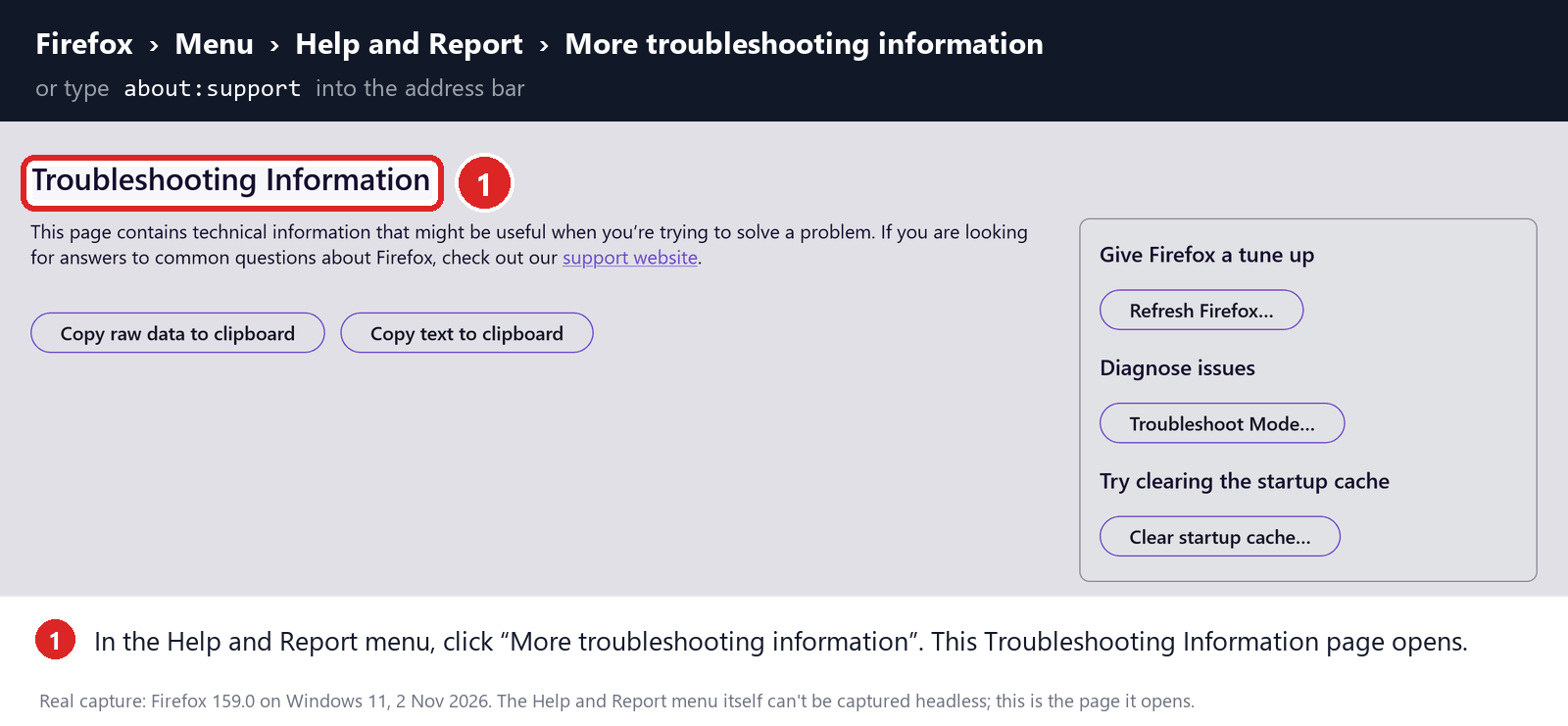
Click the Refresh Firefox button in that box.
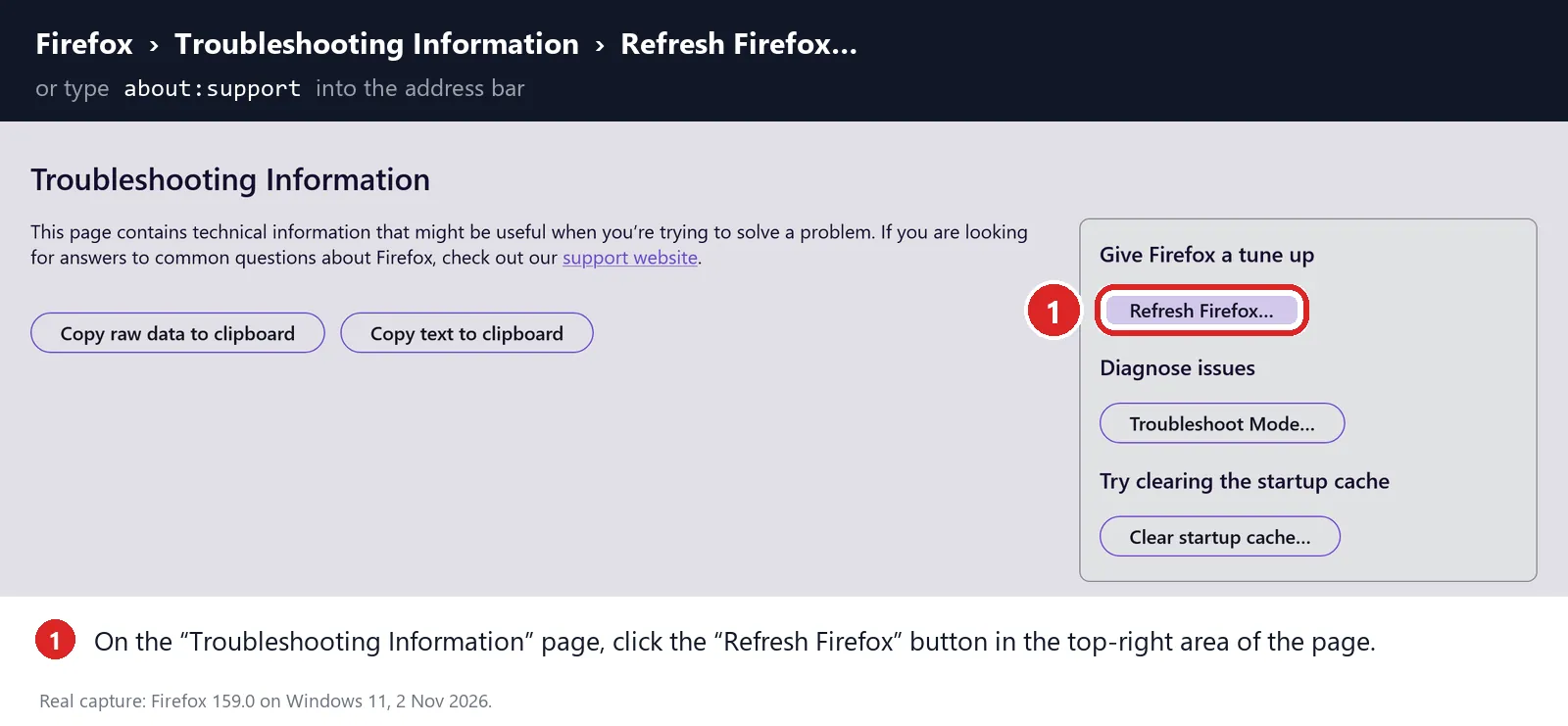
No Refresh button? Don’t delete your profile folder by hand to copy the effect. Ask for help in our forum instead.
-
Review what Refresh removes and confirm
Read the confirmation box. Bookmarks and passwords stay, while extensions, themes and changed settings are removed or reset.
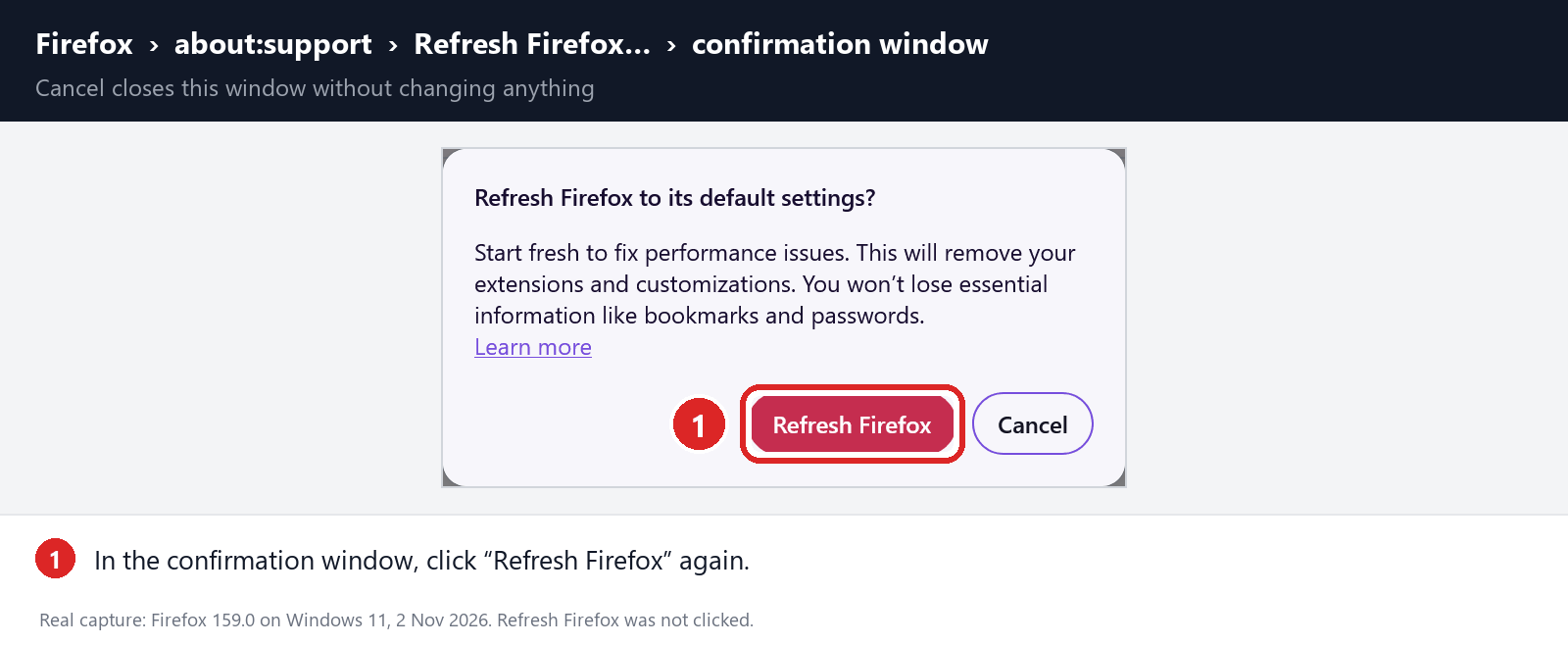
Save any open work, then click Refresh Firefox. Firefox closes, rebuilds itself and shows what it imported. Click Finish, then Let’s go!
Set your search engine again and test it before re-adding add-ons. If Yahoo stays locked, check the advanced fixes for a policy outside Firefox.
-
Keep the Old Firefox Data folder for now
Firefox saves your previous profile on the desktop as Old Firefox Data. Keep it private until you’ve recovered what you need and the fix has held.
Don’t copy the whole folder back, or the old Yahoo setting may return with it. Once everything works, Mozilla recommends deleting the folder.
Step 5: Check that Yahoo is gone for good
Search for something from the address bar, the new tab page and anything else you normally use. Each one should reach your chosen engine.
-
Close Firefox completely, open it again, and confirm Yahoo hasn’t returned.
-
If Yahoo used to come back after a Windows restart, save your work, restart the PC, and test once more.
-
If you paused Firefox sync, turn it back on and test again. You’re done when searches stay put through whatever used to bring Yahoo back.
If everything holds, you’re finished. The advanced section below is only for a Yahoo search that returns, a locked setting, or an add-on you can’t remove.
Advanced Fixes if Yahoo Keeps Coming Back
Show fixes for locked settings and a Yahoo search that returns after restarting
Skip this if the earlier steps worked. On a work or school computer, ask your IT team before changing policies, system files or startup items.
Check if a policy is locking Yahoo in place
Type about:policies in the address bar. On the Active tab, note anything that mentions a search engine, an extension or a locked setting, plus any errors.
A policy isn’t malware by itself. Mozilla says antivirus, parental control and other security software can set them, so think about what you installed recently.
If that software is the source, Mozilla’s advice for personal PCs is to uninstall it or change its settings. Then open about:policies again.
Policies can also sit in the Windows registry or in a policies.json file inside Firefox’s distribution folder. Never delete either one wholesale.
On your own PC, someone comfortable with the registry can check Software\Policies\Mozilla\Firefox under HKEY_CURRENT_USER and HKEY_LOCAL_MACHINE.
Export that key as a backup first. Then remove only the entry that sets Yahoo or forces the unwanted add-on, and leave the rest alone.
For policies.json, save a copy before you edit it, then delete only the Yahoo-related lines. Either change may need administrator rights.
Find the Windows program that brings Yahoo back
Open Settings, Apps, Installed apps (Apps & features on Windows 10), or Control Panel, Programs and Features. Look for anything installed around when Yahoo appeared.
Check each publisher before uninstalling. Be most suspicious of programs that arrived bundled with a free download.
Try opening Firefox from the Start menu instead of your usual shortcut. If only the shortcut opens Yahoo, the shortcut itself has been changed.
Right-click that shortcut, choose Properties, and copy the Target text somewhere safe. Then delete only a Yahoo web address tacked on after firefox.exe.
Leave any other extras in the Target, such as a profile name, in place. They can explain why the Start menu and the shortcut behave differently.
If Yahoo returns after you sign in to Windows, check Settings, Apps, Startup, or Task Manager’s Startup apps tab (Startup on Windows 10). Then look in Task Scheduler.
Judge each entry by the program it runs, not by its name. Export a task before disabling it, and leave Windows’ own tasks and services alone.
A file called user.js in your Firefox profile can reapply settings every time Firefox starts. Having one isn’t proof of trouble, so check what it sets.
Copy user.js before changing it, and change only the Yahoo setting. Don’t delete all your settings files, and don’t move an unchecked copy into a new profile.
Use Troubleshoot Mode to test, not to remove anything
Click the menu button, then Help and Report, and choose Troubleshoot Mode. Save your work first, because Firefox restarts.
You can also hold Shift while opening Firefox. Run the same search there, since Troubleshoot Mode switches off add-ons and some custom settings.
It won’t uninstall Windows programs or lift a policy. If Yahoo disappears here, an add-on is the likely cause. If it stays, look at policies and programs.
Test a second profile without deleting the first
Type about:profiles, if your version has it, and create a test profile with a name you’ll recognize. Leave sync off and don’t import add-ons yet.
Search from the new profile and check about:policies there too. A policy set in Windows applies to every profile, while add-ons and settings stay with one.
If the new profile works, the problem lives in your old one. If both fail, look for a program or policy outside Firefox.
Never click Delete Files on your original profile during this test. Keep its data until you’re sure you don’t need it.
The about:support page shows where your profile folder is if a helper asks. Close Firefox fully before copying or changing anything inside it.
Bring back trusted add-ons and synced data a little at a time. If Yahoo returns, the last thing you added is the one to remove.
Check Whether Firefox Is Really Redirecting to Yahoo
Press Ctrl+L, type a plain word or two, and press Enter without choosing an old suggestion. Watch the address bar while the page loads.
If a strange site flashes up before Yahoo, something is passing your search along. That’s usually an add-on or program, which Steps 2 and 3 handle.
Firefox search keywords can send a search to one particular engine. If only searches that start with a keyword reach Yahoo, check that shortcut in Settings, Search.
Yahoo opening by itself at startup is a different problem. Your homepage, restored tabs or a changed shortcut can cause it, even when your search engine is fine.
Jot down exactly when Yahoo appears before you change anything. It makes a returning add-on or program much easier to spot later.
If you typed a password into a strange page
Change that password on the real website and sign out of other sessions there. Cleaning Firefox doesn’t protect an account you already exposed.
Handle payment or account problems separately from the browser cleanup. Your bank or the service’s own support team deals with those.
If a scheduled task brings Yahoo back at sign-in
Press Windows+R, type taskschd.msc, and press Enter. Click Task Scheduler Library, then open the suspect task’s Actions and Triggers tabs.
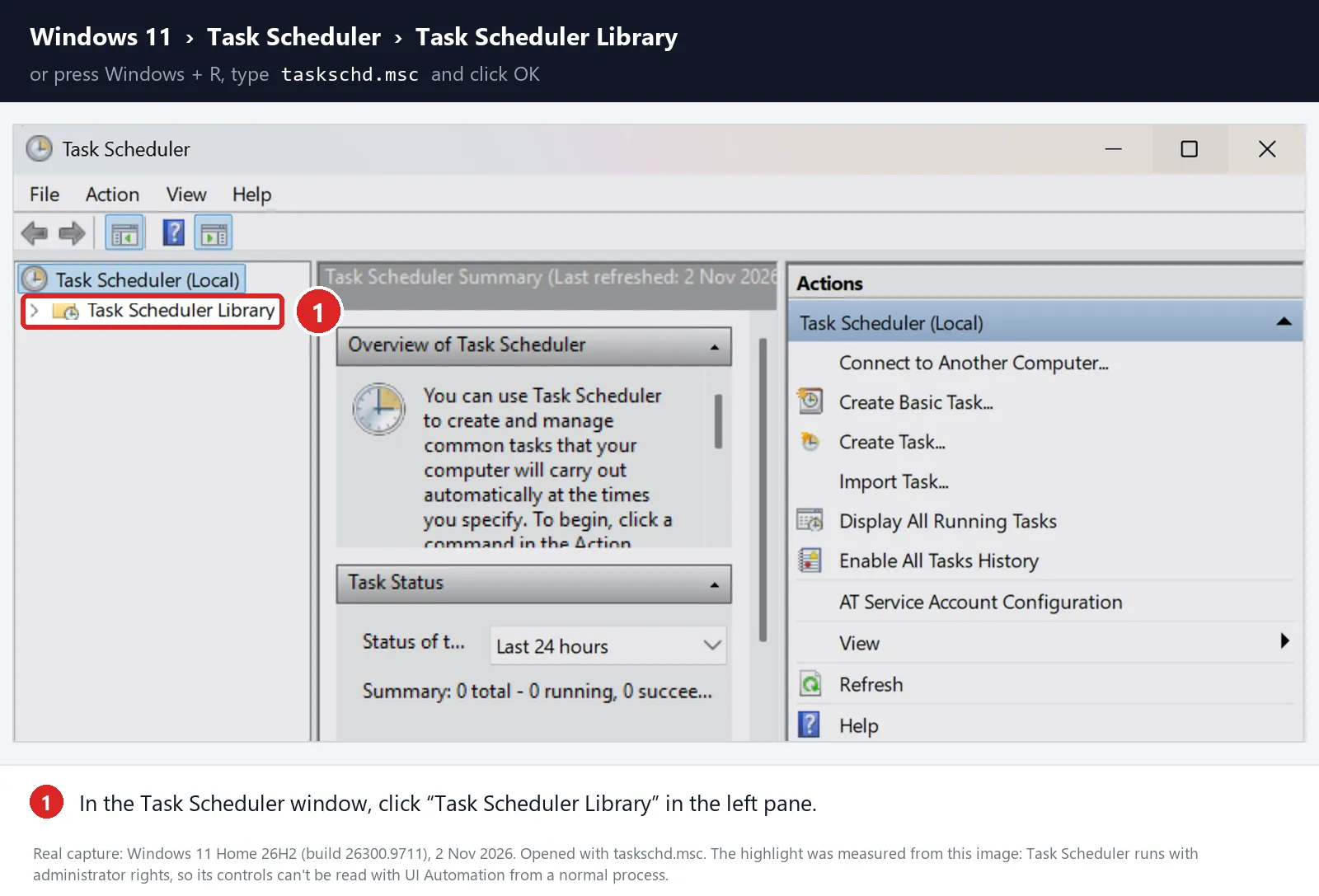
Only act on a task whose program matches what your scan found or what changed Firefox. An odd name or AppData folder alone isn’t enough.
Right-click the task, choose Export to save a backup, then choose Disable. Test Firefox before deleting anything, and leave other tasks alone.
What to Do If Nothing Here Removes Yahoo
-
Write down the first strange website you see, which Firefox profile is affected, what about:policies shows, and your add-on list.
-
Save your scan reports and any backups you made. Remove your name, file paths and account details before posting them.
-
Ask the MalwareTips Windows removal-help community to review them before you delete policies or profile files.
If Chrome and Edge switch to Yahoo too, look for a Windows program rather than a Firefox add-on. Check proxy or DNS settings only after that.
Don’t reset your whole network or turn off a VPN your employer set up. That can create new problems and leave the real cause in place.
Using more than one browser? Our complete Yahoo redirect guide covers Chrome, Edge, Firefox and Safari on Windows and Mac.
Related: Bing redirects in Firefox on Windows and Yahoo in Firefox on Mac.
Frequently Asked Questions
How do I get rid of Yahoo search engine on Firefox?
Click the menu button, then Settings, then Search, and pick another default. Turn Yahoo off under Additional search engines, then remove Yahoo add-ons in about:addons.
If it returns after a restart, follow Steps 3 and 4 above.
Why does Firefox keep changing my default search engine to Yahoo?
Something keeps setting it back. The usual culprits are an add-on, a Windows program that reinstalls one, or a Firefox policy.
Timing is your best clue. A switch at every Firefox start suggests an add-on or user.js file; one after a Windows restart suggests a program or task.
Is the Yahoo search engine a virus?
No. Yahoo Search is a legitimate search engine. The problem is the add-on or program that moved you there without a clear choice.
Microsoft classes software that redirects your browsing or stops you changing browser settings without consent as unwanted software. That’s why the scanners in Step 3 can help.
Why can’t I remove Yahoo as my search engine?
Look at the top of Firefox Settings. If it says your browser is being managed by your organization, a policy is locking the choice.
If an add-on’s Remove option is grayed out, another program or a policy probably installed it. Uninstall that program in Windows, or remove the add-on from Troubleshoot Mode.
How do I block Yahoo search permanently in Firefox?
Firefox’s normal settings don’t include a block list for search engines. The lasting fix is removing whatever keeps adding Yahoo, then switching Yahoo off under Additional search engines.
After that, read every install screen carefully. When a new add-on asks to change your default search engine, say no.
Will Refresh Firefox get rid of Yahoo?
It will if an add-on or changed setting caused it. Refresh removes extensions, added search engines and changed preferences while keeping bookmarks, passwords and history.
It can’t remove a Windows program or a policy stored outside Firefox. If Yahoo comes back after a refresh, look for that program.
The Bottom Line
To get rid of the Yahoo search engine on Firefox, set a new default in Settings, Search, then remove the add-on or program that chose Yahoo for you.
If Yahoo comes back, run the scan in Step 3, refresh Firefox, and check about:policies for a rule that locks your search engine.
Still stuck? Share your scan reports and about:policies results in the MalwareTips removal forum, and get help with your exact PC.

Join the discussion
0 commentsShare your experience or ask a question about this article.
Discussion
Start the conversation
Have a question or something useful to share? Add the first comment.