

The West Yorkshire Police Ukash Ransom is a computer virus, which will display a bogus notification, that pretends to be from the West Yorkshire police department and states that your computer has been blocked due to it being involved with the distribution of pornographic material, SPAM and copyrighted content.
The West Yorkshire Police virus will lock you out of your computer and applications, so whenever you’ll try to log on into your Windows operating system or Safe Mode with Networking, it will display instead a lock screen asking you to pay a non-existing fine of 100 Euro in the form of a Ukash or PaySafeCard code.
Furthermore, to make its alert seem more authentic, this virus also has the ability to access your installed webcam ,so that the bogus West Yorkshire Police notification shows what is happening in the room.
If your computer is infected with West Yorkshire Police virus,then you are seeing any of the below notifications:
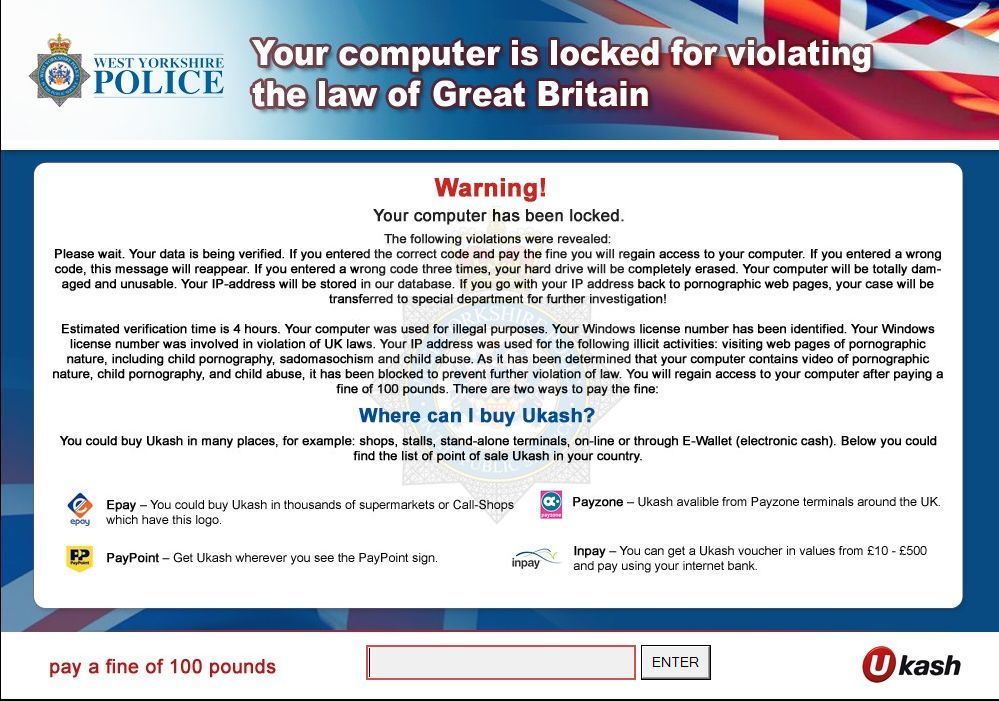
The bogus alert from the West Yorkshire Police Ransom will display the following message:
WARNING! Your computer has been blocked!
Please wait, your data is being verified!
If you enter the correct code and pay the fine, you will regain access to your computer.
If you enter a wrong code, this message will reappear.
If you enter a wrong code three times, your hard drive will be completely wiped, your computer will be damaged and unusable.You IP-address will be stored in our database. (If you go with your IP address back to pornographic web pages) and your case will be transferred to special task force to further investigation! Estimated verification time is 4 hours… Your computer was used for illegal purposes. Your Windows licence number has been identified. You Windows licence number was involved in violation of the UK laws. Your IP address was used for the following illicit activities: visiting web pages of pornographic nature, including child pornography, sadomasochism and child abuse.
As it has been determined that your comuter contains videos of pornographic nature, child pornography, and child abuse, it is being blocked to prevent furhter violation of law. You will regain access to your computer after paying a fine of 100 pounds. There are two ways to pay the fine:
1. Pay Ukash:
Enter the purchased payment code in the payment field and press OK (in case of several codes, enter them as one line, one after the other, in the payment field and press OK).
2. Pay paysafecard:
Enter the purchased payment code in the payment field and press OK (in case of several codes, enter them as one line, one after the other, in the payment field and press OK).Where can I buy a Ukash?
There are many ways to buy Ukash, for example.
1. Inpay – You can get a Ukash voucher in values from 10 – 500 pounds and pay using your Internet bank.
2. Epay – get Ukash from up to 6,000 stores nationwide displaying the epay sign.
3. Pay point – Get Ukash wherever you see the PayPoint sign.West Yorkshire Police.
The West Yorkshire Police Ransom is a scam and you should ignore any alert that this malicious software might generate and remove this trojan ransomware from your computer.
Under no circumstance should you send any money to this cyber criminals,as this could lead to identity theft,and if you have, you should contact your credit card company and dispute the charge stating that the program is a scam and a computer virus.
West Yorkshire Police Ukash Ransomware – Virus Removal Guide
STEP 1: Remove West Yorkshire Police lock screen from your computer
West Yorkshire Police Ukash Ransom has modified your Windows registry and added its malicious files to run at start-up, so whenever you’re trying to boot your computer it will launch instead its bogus notification.To remove these malicious changes,we can use any of the below methods :
Method 1: Start your computer in Safe Mode with Networking and scan for malware
Some variants of West Yorkshire Police virus will allow the users to start the infected computer in Safe Mode with Networking without displaying the bogus lock screen. In this first method, we will try to start the computer in Safe Mode with Networking and then scan for malware to remove the malicious files.
- Remove all floppy disks, CDs, and DVDs from your computer, and then restart your computer.
- Press and hold the F8 key as your computer restarts.Please keep in mind that you need to press the F8 key before the Windows start-up logo appears.
Note: With some computers, if you press and hold a key as the computer is booting you will get a stuck key message. If this occurs, instead of pressing and holding the “F8 key”, tap the “F8 key” continuously until you get the Advanced Boot Options screen. - On the Advanced Boot Options screen, use the arrow keys to highlight Safe Mode with Networking , and then press ENTER.
![[Image: Safe Mode with Networking]](data:image/gif;base64,R0lGODlhAQABAAAAACH5BAEKAAEALAAAAAABAAEAAAICTAEAOw== "Safe Mode with Networking screen")
- If your computer has started in Safe Mode with Networking, you’ll need to perform a system scan (as seen on STEP 2) with Malwarebytes Anti-Malware and HitmanPro to remove the malicious files from your machine.
![[Image: Safe Mode with Networking]](http://malwaretips.com/images/removalguide/safemode.jpg "Safe Mode with Networking screen")
IF the West Yorkshire Police virus didn’t allow you to start the computer in Safe Mode with Networking,you’ll need to follow Method 2 to get rid its lock screen.
Method 2: Restore Windows to a previous state using System Restore
System Restore can return your computer system files and programs to a time when everything was working fine, so we will try to use this Windows feature to get rid of West Yorkshire Police lock screen.
- Restart your computer, and then press and hold F8 during the initial startup to start your computer in safe mode with a Command prompt.
Note: With some computers, if you press and hold a key as the computer is booting you will get a stuck key message. If this occurs, instead of pressing and holding the “F8 key”, tap the “F8 key” continuously until you get the Advanced Boot Options screen. - Use the arrow keys to select the Safe mode with a Command prompt option.
- At the command prompt, type cd restore, and then press ENTER.
Next,we will type rstrui.exe , and then press ENTER
- The System Restore window will start and you’ll need to select a restore point previous to this infection.
- After System Restore has completed its task,you should be able to boot in Windows normal mode,from there you’ll need to perform a system scan (as seen on STEP 2) with Malwarebytes Anti-Malware and HitmanPro to remove the malicious files from your machine.
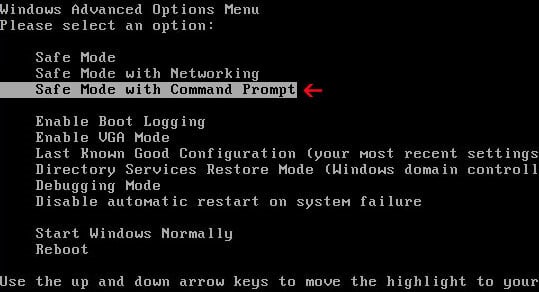

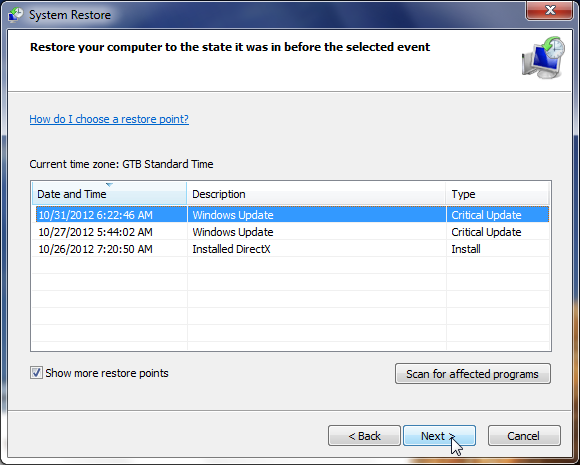
IF the West Yorkshire Police virus didn’t allow you to start the computer in Safe Mode with Command Prompt you’ll need to follow Method 3, to get rid of its screen lock.
Method 3: Remove West Yorkshire Police virus with HitmanPro Kickstart
IF you couldn’t boot into Safe Mode with Command Prompt or didn’t have a System Restore point on your machine, we can use HitmanPro Kickstart to bypass this infection and access your computer to scan it for malware.
- We will need to create a HitmanPro Kickstart USB flash drive,so while you are using a “clean” (non-infected) computer, download HitmanPro from the below link.
HITMANPRO DOWNLOAD LINK (This link will open a download page in a new window from where you can download HitmanPro) - Insert your USB flash drive into your computer and follow the instructions from the below video:
- After you have create the HitmanPro Kickstart USB flash drive, you can insert this USB drive into the infected machine and start your computer.
- Once the computer starts, repeatedly tap the F11 key (on some machines its F10 or F2),which should bring up the Boot Menu, from there you can select to boot from your USB.
Next,you’ll need to perform a system scan with HitmanPro as see in the below video:
- After HitmanPro Kickstart has completed its task,you should be able to boot in Windows normal mode,from there you’ll need to perform a system scan (as seen on STEP 2) with Malwarebytes Anti-Malware and HitmanPro to remove the malicious files from your machine.
STEP 2: Remove West Yorkshire Police malicious files from your computer
No matter what method you used to get rid of West Yorkshire Police lock screen, we will need to remove its malicious files from your computer.
Please download and run a scan with the following scan to completely remove West Yorkshire Police virus from your computer.
Run a computer scan with Malwarebytes Anti-Malware Free
- You can download Malwarebytes Anti-Malware Free from the below link,then double click on it to install this program.
MALWAREBYTES ANTI-MALWARE DOWNLOAD LINK(This link will open a download page in a new window from where you can download Malwarebytes Anti-Malware Free) - When the installation begins, keep following the prompts in order to continue with the setup process.
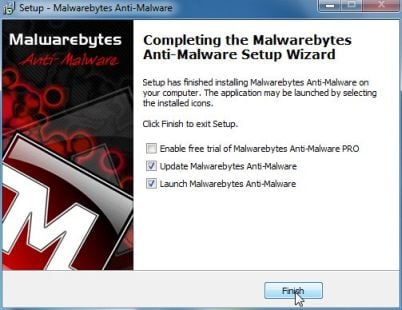
DO NOT make any changes to default settings and when the program has finished installing, make sure you leave both the Update Malwarebytes’ Anti-Malware and Launch Malwarebytes’ Anti-Malware checked,then click on the Finish button.
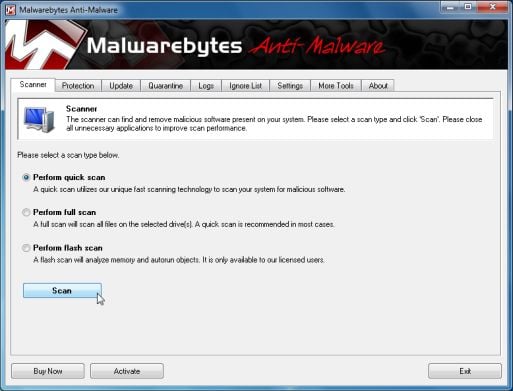
- On the Scanner tab,select Perform quick scan and then click on the Scan button to start scanning your computer.
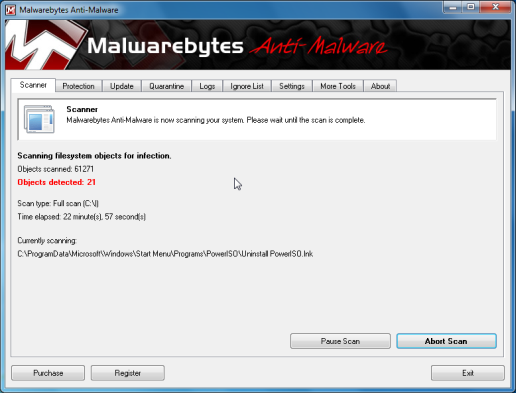
- Malwarebytes’ Anti-Malware will now start scanning your computer for West Yorkshire Police malicious files as shown below.
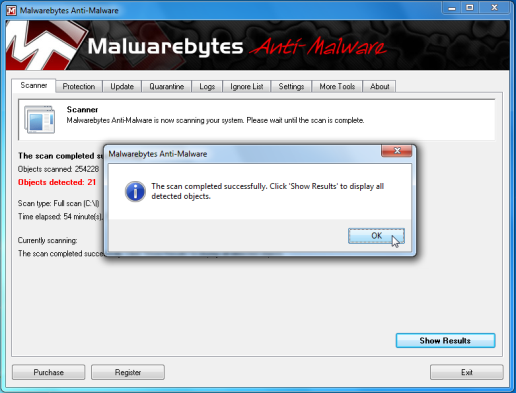
- When the Malwarebytes scan will be completed,click on Show Result.
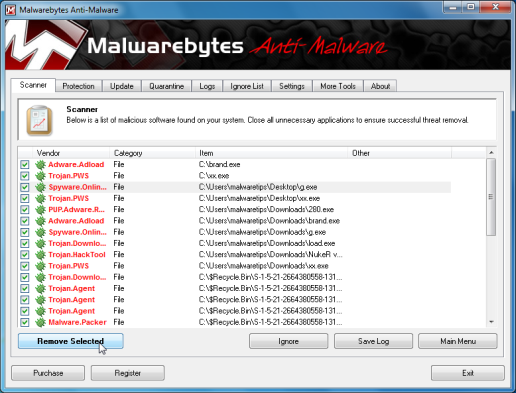
- You will now be presented with a screen showing you the malware infections that Malwarebytes’ Anti-Malware has detected.Please note that the infections found may be different than what is shown in the image.Make sure that everything is Checked (ticked) and click on the Remove Selected button.
- After your computer will restart, open Malwarebytes Anti-Malware and perform a Full System scan to verify that there are no remaining threats
Run a computer scan with HitmanPro
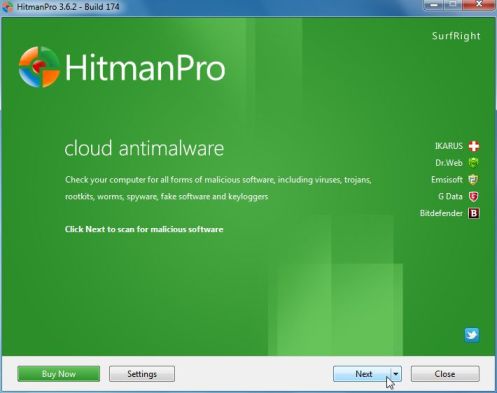
- Download HitmanPro from the below link,then double click on it to start this program.
HITMANPRO DOWNLOAD LINK (This link will open a new web page from where you can download HitmanPro)
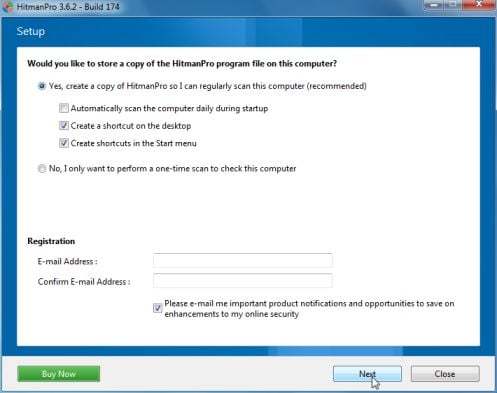
IF you are experiencing problems while trying to start HitmanPro, you can use the Force Breach mode.To start HitmanPro in Force Breach mode, hold down the left CTRL-key when you start HitmanPro and all non-essential processes are terminated, including the malware process. (How to start HitmanPro in Force Breach mode – Video) - HitmanPro will start and you’ll need to follow the prompts (by clicking on the Next button) to start a system scan with this program.
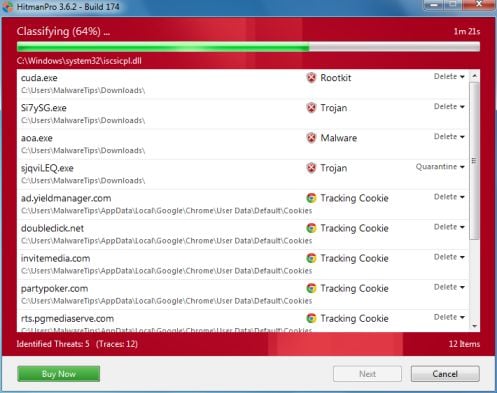
- HitmanPro will start scanning your computer for West Yorkshire Police malicious files as seen in the image below.
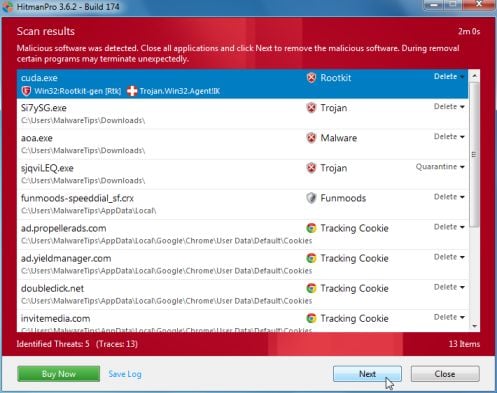
- Once the scan is complete,you’ll see a screen which will display all the infected files that this utility has detected, and you’ll need to click on Next to remove these malicious files.
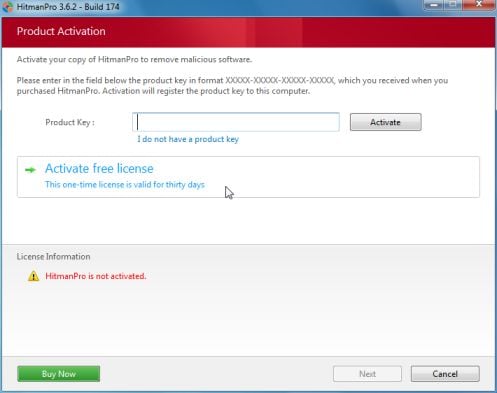
- Click Activate free license to start the free 30 days trial and remove all the malicious files from your computer.









Thanks, it worked your doing a great job. All the best.
I did all this and it didn’t come up with any malware, I took the system restore route. Does this sound odd for it not to come up with anything? Everything seems to be working now though :)
Thanks for the thread, super helpful!
Thank you sooooooooo much! Heart attack averted :))
hey stelian i got the virus aswel there was only 3 files on anti malware but nothing came up on hitman pro i got the virus at 3:30am and have done all this now and its 7am am i safe to use my bank card online?
Hello shewy,
Yes,you should be fine.If you want to do a triple check,you can run a scan with this tools:
STEP 1: Run a scan with Eset Online Scanner.
ESET Online Scanner Download Link (This link will automatically download ESET Online Scanner on your computer.)
STEP 2: Run a scan with Emsisoft Emergency Kit.
EMSISOFT EMERGENCY KIT DOWNLOAD LINK (This link will open a download page in a new window from where you can download Emsisoft Emergency Kit)
Massive thanks, this was very helpful, you saved me £50 and i got this fixed, really appreciate people like you!!!!
Huge thanks for this very helpfull guide, has allowed me to get rid of this from my parents PC.
hi, this virus is doing my head in its locked my keyboard out as soon as i boot up after bios please help?
Hello Ryan,
You’ll need to create and run a scan with the Kaspersky bootable disk as seen on the guide!.
Good luck!