

Facebook connects billions worldwide, unfortunately also providing a vast platform for scammers. One prevalent con is the phishing message about account restrictions due to violations. This is how the elaborate scam works and why you must avoid falling into this trap.
Overview of the “Account Restricted” Facebook Scam
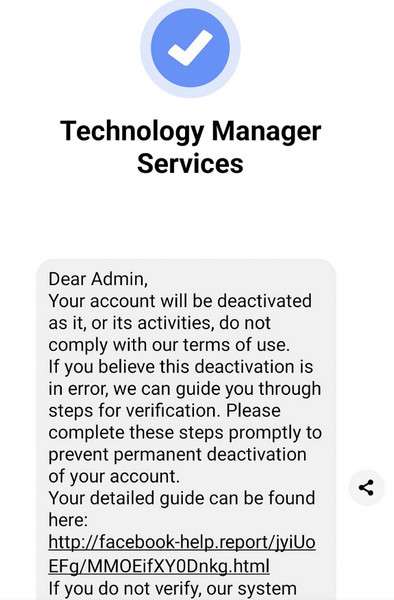
This scam starts with an inbox alert claiming your Facebook account has been reported and will soon face restrictions per community standards violations.
You’ll be instructed to click a link to verify your identity and avoid an impending 48-hour account lockout. However, this actually sends you to a fake Facebook login page designed to steal your credentials.
The scammers then leverage your hijacked account for financial fraud, identity theft, spreading malware, and executing additional scams targeting your network.
This type of phishing attack exploits fear of losing access to trick you into handing over account control yourself. But in reality, there are no violations or restrictions on your real profile.
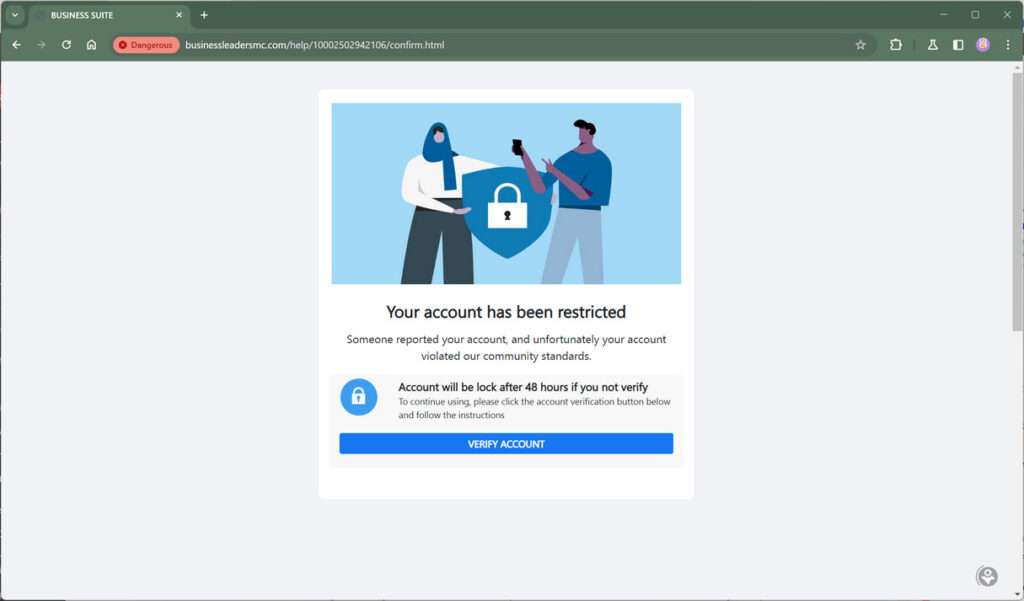
Here is how the “Account Restricted” Facebook scam message may look:
Your account has been restricted
Someone reported your account, and unfortunately your account violated our community standards.Account will be lock after 48 hours if you not verify
To continue using, please click the account verification button below and follow the instructions
Who is Behind The “Account Restricted” Facebook Scam?
This scam stems from individual cybercriminals and hacking groups who mass distribute phishing messages by the thousands. They obtain inboxes through data breaches, social engineering, and bot networks scraping contact info online.
Even at extremely low success rates, the sheer volume of messages they send lets them consistently reel in victims. Your stolen account then becomes a tool for building their networks and executing more lucrative attacks.
What’s Their End Goal?
Their primary aim is gaining access to your account by fooling you into providing your login credentials yourself.
Once inside, they can steal personal info, impersonate you, access connected apps or sites, spread malware, coordinate misinformation campaigns, and target your friends with additional scams.
With access to your profile, the possibilities for exploitation are endless. This makes your account an extremely valuable asset.
How the “Account Restricted” Facebook Scam Works
This is the general structure used to execute this phishing attack:
1. You Receive a Message About Account Restrictions
The first point of contact is an unsolicited message sent to your Facebook inbox by the scammer.
It will claim something like “Your account has been reported for violations. Verify your identity within 48 hours or your account will be locked.”
The urgent call to action is intended to startle you into reacting without thinking critically. But there are no actual restrictions or impending deactivations on your real profile.
2. The Message Includes a Link to Verify Your Identity
A key characteristic is that the message includes an external link you must click to avoid the supposed restrictions.
The link may appear similar to a Facebook domain, but on closer inspection redirects elsewhere. Examples include:
- account-verification.facebook.support
- facebook-reportedviolation.accountvalidate.com
- communitystandards-appeal.facebooksafety.co
Despite appearances, these lead to entirely separate phishing sites.
3. You Land on a Fake Facebook Login Page
Clicking the link brings you to a website made to mimic Facebook’s login page. However, the URL clearly shows you are no longer on Facebook.com.
You’ll be prompted to enter your username and password to verify your identity. But in reality, this just captures your credentials for criminal purposes.
4. Scammers Use Your Details to Access Your Account
Once you input your login info, the scammers can access your actual Facebook account. They can now fully impersonate you, post content, message friends, access data, and even disable your profile.
You may be locked out entirely if they change your password, contact information, and security settings. Without access, your personal data and connections are at their mercy.
5. Scammers Leverage Your Account to Target Connections
With control of your profile, scammers can exploit your friend list and network to spread additional scams or malware.
They may pose as you and send messages asking to “verify accounts” or “claim prizes” with phishing links. Friends are more likely to click suspicious links from trusted accounts.
6. You’ve Lost Control Over Your Online Identity
Meanwhile, you’ll be unable to manage your account while the hackers maintain access. They can post dangerous misinformation, spam, fraudulent fundraisers, and more in your name.
Your reputation and relationships are at risk until you can regain access and delete the unauthorized content. But the damage may already be done.
This illustrates why it’s critical to avoid this scam at all costs. Clicking that one phishing link hands the keys to your online presence to criminals.
How to Identify This Scam on Facebook
It takes savvy to recognize phishing attempts on Facebook. When it comes to the “Account Restriction” scam, there are distinct indicators to watch for that reveal it as an attempt to steal your login credentials.
Sender Profile Appears Suspicious
Scrutinize who the message is coming from. Scam warnings typically come from random accounts not known to you personally. For example, the sender may have a generic name like “FB User” or strings of numbers.
Legitimate notifications from Facebook only come directly through their official channels and verified profiles.
Links Go to Outside Websites
One of the biggest giveaways is if the message includes an external link you’re instructed to click. Scammers use misleading URLs that appear to be Facebook domains.
However, on closer look they actually direct to different sites entirely. Examples include “account-confirmation.fblogin.co” or “facebookverificationprocess.com.”
Aggressive Threats and Urgency
Watch for urgent threats of immediate account restriction if you don’t act quickly. Phrases like “Click below within 48 hours” or “Your access will be revoked” aim to startle you into reacting without thinking first.
Facebook’s official warnings about policy violations have a more informative tone without aggressive threats or ultimatums.
Strange Grammar, Spelling Errors
Many phishing messages contain awkward grammar, typos and misspellings. If a notification looks unprofessionally written, it likely didn’t come from Facebook’s team.
Facebook’s legitimate notifications have proper spelling and writing conventions since they are meticulously translated.
Requests Login Credentials
Any message asking you to provide your Facebook password or login details is a huge red flag. Facebook will never direct you to input security credentials on random third-party websites.
Beware messages claiming you must “Validate” or “Verify” your account immediately to avoid restriction. This signals a phishing attempt seeking your login info.
Staying vigilant for these warning signs helps avoid compromising your account credentials through deception. Scrutinize every notification about your account status to filter out scams.
What to do if You Fall Victim to The “Account Restricted” Facebook Scam
If you mistakenly provided your login information, take these steps immediately:
Step 1: Reset Your Facebook Password
First and foremost, change your password at Facebook.com. Creating a new, complex password revokes access for the scammers.
Be sure to use a unique password not used on any other sites. Enable two-factor authentication as well for extra security.
Step 2: Remove Suspicious Content
Check your profile feed and posts for any unauthorized content, spam links, fake fundraisers, or scam giveaways added by the hacker. Deleting these helps limit the damage.
You may also want to post an apology explaining your account was compromised. This helps undo harm to your reputation.
Step 3: Alert Your Contacts
Message your friends list warning them about the account restriction phishing scam. Explain your profile was compromised but you have regained control.
Recommend they be on high alert for suspicious messages and avoid clicking unverified links, even if seemingly from your account.
Step 4: Contact Facebook Support
Report the unauthorized access and scam content to Facebook. Provide details like suspicious posts or messages indicating phishing.
Facebook can help remove fraudulent content and assess any linked domains spreading this or similar scams.
Step 5: Enable Login Approvals
Strengthen account security by turning on login approvals under Facebook Settings. This requires entering a special code to access your account from new devices.
Login approvals thwart repeated unauthorized access even if your password gets compromised again in the future.
Step 6: Review Login Activity
Routinely check Settings > Security > Login Activity moving forward. Watch for unfamiliar locations or devices accessing your profile as warning signs of unauthorized access.
Staying vigilant protects your account from future intrusions.
How to Avoid This Scam Entirely
While you can recover from this scam, it’s best not to fall for it in the first place. Here are some tips to avoid becoming a victim:
- Avoid unsolicited messages – Legitimate notifications come through official Facebook channels, not random messages.
- Verify senders – Messages come from fake accounts, not directly from Facebook’s verified profile.
- Don’t click suspicious links – Any external link should be considered untrustworthy. Inspect URLs for spoofing.
- Watch for poor grammar/urgency – Official notices have proper writing. Scams have typos, awkward phrasing and forceful calls to action.
- Protect login details – Never provide your password on third-party sites, regardless of how official they look. Only enter credentials at Facebook.com.
- Use strong unique passwords – Having different complex passwords on each site prevents one breach from impacting all your accounts.
- Enable two-factor authentication – Adding login approvals protects your account even if passwords get phished.
- Beware fear tricks – Facebook won’t suddenly restrict your account without prior notice.
Staying vigilant against phishing is your best defense. Verify claims in messages rather than reacting hastily when your account seems at risk.
Is Your Device Infected? Run a Free Malware Scan
Slow performance, constant pop-ups, or strange behavior? These are classic signs of a malware infection. The fastest way to find out is to scan your device with Malwarebytes Free — one of the most trusted malware removal tools available.
The free version detects and removes the most common threats, including:
- Adware — the cause of those annoying pop-ups
- Browser hijackers — unwanted redirects and changed homepages
- Trojans and spyware — hidden programs stealing your data
- Potentially unwanted programs (PUPs) — software you never asked for
👉 Select your device below — Windows, Mac, or Android — then follow the simple steps to download Malwarebytes, scan your system, and remove any threats it finds. The scan usually takes 5 to 20 minutes.
Run a Malware Scan with Malwarebytes for Windows
Malwarebytes is one of the most popular and trusted anti-malware tools for Windows — and it’s completely free for removing infections. It catches threats that many antivirus programs miss, including adware, browser hijackers, and trojans. Follow the steps below to scan and clean your PC in just a few minutes.
Download Malwarebytes
Click the button below to download the latest version of Malwarebytes for Windows from the official source. The free version is all you need — it will scan your computer and remove adware, browser hijackers, and other malicious software at no cost.
Download MalwarebytesOfficial installer for Windows 11 and 10. Your download starts right away.Want real-time protection? See Malwarebytes Premium Malwarebytes Free for WindowsScans and removes malware at no cost
-
Install Malwarebytes
When the download finishes, open your Downloads folder and double-click the MBSetup file. If Windows shows a User Account Control pop-up, click “Yes” to allow the installation.

Follow the On-Screen Prompts to Install Malwarebytes
The setup wizard will walk you through a few quick screens:
-
Choose where you’re installing the program — “Personal Computer” or “Work Computer” — then click Next.

-
Malwarebytes will now install on your device. This usually takes under a minute.

-
When installation is complete, the “Welcome to Malwarebytes” screen will open automatically.

-
On the final screen, click Open Malwarebytes to launch the program.

-
Enable “Scan for Rootkits”
Before scanning, turn on rootkit detection so Malwarebytes can find even the most hidden threats. Click the Settings gear icon on the left side of the screen.

In the settings menu, find “Scan for rootkits” and click the toggle so it turns blue.

Done? Click “Dashboard” in the left pane to return to the main screen.
Start the Scan
Click the blue Scan button. Malwarebytes will automatically update its virus database and start checking your computer for malware.

-
Wait for the Scan to Finish
The scan checks your entire system for browser hijackers and other malicious programs, so it can take 5 to 20 minutes depending on your computer. Feel free to do something else — just check back occasionally to see the progress.

-
Quarantine the Detected Threats
When the scan is done, you’ll see a list of everything Malwarebytes found — malware, adware, and potentially unwanted programs. Click the “Quarantine” button to remove all of them at once.

Malwarebytes will now remove the malicious files and registry entries and move them safely into quarantine.

-
Restart Your Computer
Some threats can only be fully removed after a reboot. If Malwarebytes asks you to restart, click Yes. Once you’re logged back in, Malwarebytes has finished removing the threats it found.

That’s it — your Windows PC is now clean of trojans, adware, and other malware, and should be back to running smoothly.
If you are still having problems with your computer after completing these instructions, then please follow one of the steps:
- Run a computer scan with ESET Online Scanner
- Ask for help in our Windows Malware Removal Help & Support forum.
Run a Malware Scan with Malwarebytes for Mac
Malwarebytes for Mac is a free on-demand scanner that removes the malware other security software tends to miss — adware, browser hijackers, and unwanted programs included. Cleaning an infected Mac with Malwarebytes has always been completely free, and it’s our go-to recommendation. Follow the steps below to scan and clean your Mac in just a few minutes.
-
Download Malwarebytes for Mac
Click the button below to download the latest version of Malwarebytes for Mac.
Download MalwarebytesOfficial installer for macOS. Your download starts right away.Want real-time protection? See Malwarebytes PremiumMalwarebytes Free for MacScans and removes malware at no cost -
Open the Malwarebytes setup file
When the download finishes, open your Downloads folder and double-click the setup file to begin the installation.

-
Follow the On-Screen Prompts to Install Malwarebytes
The Malwarebytes for Mac Installer will guide you through a few quick screens. Click “Continue” and keep following the prompts until the installation completes.



When the installation is complete, Malwarebytes opens to the Welcome to Malwarebytes screen. Click “Get started“.
-
Select “Personal Computer” or “Work Computer”
Malwarebytes will ask what type of computer you’re installing it on. Click either Personal Computer or Work Computer, whichever applies.

-
Start the Scan
Click the “Scan” button. Malwarebytes will automatically update its detection database and begin checking your Mac for malware.

-
Wait for the Scan to Finish
Malwarebytes will scan your Mac for adware, browser hijackers, and other malicious programs. This can take a few minutes, so feel free to do something else — just check back occasionally to see the progress.

-
Quarantine the Detected Threats
When the scan is done, you’ll see a list of everything Malwarebytes found. Click the “Quarantine” button to remove all the threats at once.

-
Restart Your Mac
Malwarebytes will now remove all the malicious files it found. Some threats can only be fully removed after a reboot — if Malwarebytes asks you to restart, allow it. Once you’re logged back in, your Mac is clean.

That’s it — your Mac is now free of adware, rogue browser extensions, and other potentially harmful software.
If you are still experiencing problems while trying to remove a malicious program from your computer, please ask for help in our Mac Malware Removal Help & Support forum.
Run a Malware Scan with Malwarebytes for Android
Malwarebytes for Android automatically detects and removes dangerous threats like malware and ransomware so you don’t have to worry about your most-used device being compromised. Aggressive detection of adware and potentially unwanted programs keeps your Android phone or tablet running smooth.
-
Download Malwarebytes for Android.
You can download Malwarebytes for Android by clicking the link below.
Get Malwarebytes for AndroidOpens Google Play in a new tab.Want real-time protection? See Malwarebytes Premium for AndroidMalwarebytes for AndroidScans your phone and removes malware at no cost -
Install Malwarebytes for Android on your phone.
In the Google Play Store, tap “Install” to install Malwarebytes for Android on your device.

When the installation process has finished, tap “Open” to begin using Malwarebytes for Android. You can also open Malwarebytes by tapping on its icon in your phone menu or home screen.

-
Follow the on-screen prompts to complete the setup process
When Malwarebytes will open, you will see the Malwarebytes Setup Wizard which will guide you through a series of permissions and other setup options.
This is the first of two screens that explain the difference between the Premium and Free versions. Swipe this screen to continue.
Tap on “Got it” to proceed to the next step.
Malwarebytes for Android will now ask for a set of permissions that are required to scan your device and protect it from malware. Tap on “Give permission” to continue.
Tap on “Allow” to permit Malwarebytes to access the files on your phone.
-
Update database and run a scan with Malwarebytes for Android
You will now be prompted to update the Malwarebytes database and run a full system scan.

Click on “Update database” to update the Malwarebytes for Android definitions to the latest version, then click on “Run full scan” to perform a system scan.

-
Wait for the Malwarebytes scan to complete.
Malwarebytes will now start scanning your phone for adware and other malicious apps. This process can take a few minutes, so we suggest you do something else and periodically check on the status of the scan to see when it is finished.

-
Click on “Remove Selected”.
When the scan has been completed, you will be presented with a screen showing the malware infections that Malwarebytes for Android has detected. To remove the malicious apps that Malwarebytes has found, tap on the “Remove Selected” button.

-
Restart your phone.
Malwarebytes for Android will now remove all the malicious apps that it has found. To complete the malware removal process, Malwarebytes may ask you to restart your device.
That’s it — your Android phone is now clean — no more malicious apps, adware, or browser redirects.
If you are still having problems with your phone after completing these instructions, then please follow one of the steps:
- Restore your phone to factory settings by going to Settings > General management > Reset > Factory data reset.
- Ask for help in our Mobile Malware Removal Help & Support forum.
Stay Protected: Block Ads and Malicious Sites
Now that your device is clean, keep it that way. Most infections start with a malicious ad or a fake download button — so blocking them at the source is your best defense.
We recommend AdGuard, which blocks malicious ads, phishing pages, and dangerous redirects before they can reach you.
👉 Download AdGuard and browse safely
Frequently Asked Questions About the “Account Restriction” Facebook Scam
This deceptive phishing tactic tricks countless Facebook users. Here are answers to some key questions about how it works and how to stay secure:
What exactly is the “Account Restriction” Facebook scam?
This scam sends users a phishing message claiming their account will be restricted soon due to policy violations. It includes a link to “appeal” the restriction by entering your Facebook login credentials on an external site. In reality, it’s a ploy to steal your account access.
Who is sending these scam messages?
Individual cybercriminals and hacking groups send these phishing attempts randomly en masse. They obtain target inboxes through malware attacks, data leaks, bot networks and the dark web. The goal is compromising accounts for identity theft, spreading malware, and executing additional scams.
How does the phishing message get delivered to my Facebook inbox?
Scammers use bots and hacked databases to harvest user inboxes and phone numbers. They craft fake restriction warnings and mass distribute them hoping recipients will panic and fall for the deception. Only a small percentage of targets need to take the bait to give them a trove of hijacked accounts.
Why do scammers want access to my Facebook account?
Your account provides personal data, connected apps, and a network of friends ripe for targeting. Scammers can impersonate you, spread malware, hijack traffic, steal info and scam your connections once inside your profile. High value accounts like business pages also provide tools for spreading misinformation and harvesting user data.
What should I do if I clicked the link and entered my password?
If you were tricked into providing your login credentials, take immediate steps like resetting your Facebook password, removing suspicious posts or friends, and contacting Facebook Support about unauthorized access. Also secure any other accounts linked to your compromised Facebook by changing those passwords as well and turning on two-factor authentication.
How can I better spot and avoid this scam?
Look for suspicious senders, poor grammar/spelling, threats of immediate restriction, links redirecting outside Facebook, and requests for login information. Avoid acting hastily if your account appears at risk. Log in only through Facebook.com. Enabling two-factor authentication also adds a layer of security.
Can I block these messages or report them?
Definitely report any phishing attempts to Facebook as spam/fraud. You can also adjust your account privacy settings to filter messages to friends only. Turn on login approvals as another barrier to account takeover even if your password gets compromised in the future.
Am I at risk of my account being restricted if I ignore the message?
No, there is no actual risk of account restriction from ignoring these scam messages. Facebook sends advance warnings well before applying restrictions or disabling accounts. The urgent threats of immediate deactivation are a manipulation tactic.
What should I do going forward to better protect my account?
Be vigilant against phishing attempts, use unique strong passwords, enable login approvals, avoid unsolicited links, check sender profiles, use updated antivirus software, and educate your friends list on the scam to prevent them from becoming victims.
The Bottom Line
The supposed Facebook notification about violating policies and account restrictions is a common phishing tactic to lower your defenses.
But understanding this scam makes it easy to spot the warning signs and avoid being manipulated into handing over your login details.
Scrutinize any unsolicited messages, check URLs, and never provide your password outside Facebook.com. With proper precautions, you can confidently ignore these scammers and keep full control of your online presence.

Join the discussion
0 commentsShare your experience or ask a question about this article.
Discussion
Start the conversation
Have a question or something useful to share? Add the first comment.