

Acer eRecovery Management is a software program developed by Acer that allows users to create backup copies of their system, restore their computer to factory settings, and recover their system in case of a system failure. It is a useful tool that comes pre-installed on Acer computers and provides users with a convenient way to manage their system’s recovery options.
What Does Acer eRecovery Management Offer?
Acer eRecovery Management offers several key features that can be beneficial to users:
- System Backup: Users can create a backup of their entire system, including the operating system, applications, and personal files. This ensures that in case of a system failure or data loss, users can easily restore their system to a previous state.
- Factory Reset: Acer eRecovery Management allows users to restore their computer to its original factory settings. This can be useful if the system is experiencing performance issues or if the user wants to start fresh with a clean installation of the operating system.
- System Recovery: In case of a system failure, Acer eRecovery Management provides users with the ability to recover their system using the backup created with the software. This can save users from the hassle of reinstalling the operating system and all their applications manually.
Should I Remove Acer eRecovery Management?
While Acer eRecovery Management offers useful features, there are a few reasons why you might consider removing it:
- Storage Space: Acer eRecovery Management requires a significant amount of storage space to create and store system backups. If you are running low on storage space, removing the software can free up valuable disk space.
- Alternative Solutions: There are several third-party backup and recovery software options available that offer more advanced features and customization options compared to Acer eRecovery Management. If you prefer using a different software solution, you may choose to remove Acer eRecovery Management.
- Performance Impact: Some users have reported that Acer eRecovery Management can have a negative impact on system performance, especially during the backup and recovery processes. If you notice a significant slowdown in your system while using the software, removing it may improve performance.
How to Remove Acer eRecovery Management?
If you have decided to remove Acer eRecovery Management from your computer, there are a few methods you can use:
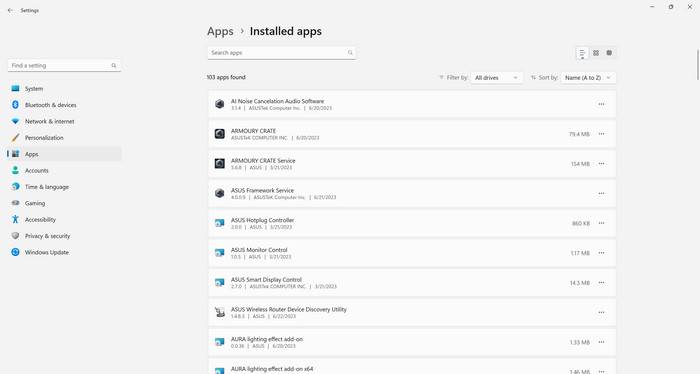
- Uninstall via Control Panel: The most common method to remove software from your computer is through the Control Panel. To uninstall Acer eRecovery Management, follow these steps:
- Open the Control Panel on your computer.
- Click on “Programs” or “Programs and Features.”
- Locate Acer eRecovery Management in the list of installed programs.
- Click on it and select “Uninstall.”
- Follow the on-screen instructions to complete the uninstallation process.
- Using a Third-Party Uninstaller: If you prefer a more thorough uninstallation process, you can use a third-party uninstaller tool like Revo Uninstaller Free. These tools can help remove any leftover files and registry entries associated with the software, ensuring a clean removal.
Conclusion
Acer eRecovery Management is a useful software program that provides users with backup, restore, and recovery options for their Acer computers. However, there are instances where removing the software may be beneficial, such as when you need to free up storage space, prefer alternative solutions, or experience performance issues.
If you decide to remove Acer eRecovery Management, you can use the Control Panel uninstallation method or a third-party uninstaller tool like Revo Uninstaller Free for a more thorough removal. Consider your specific needs and preferences before making a decision, and always ensure you have an alternative backup and recovery solution in place to protect your data.

Join the discussion
0 commentsShare your experience or ask a question about this article.
Discussion
Start the conversation
Have a question or something useful to share? Add the first comment.