

Adobe Shockwave Player is a multimedia platform that allows users to view interactive web content such as games, presentations, and simulations. It was developed by Macromedia and later acquired by Adobe Systems. While it was once a popular plugin for web browsers, its usage has declined in recent years due to the rise of alternative technologies such as HTML5. In this article, we will explore what Adobe Shockwave Player is, its current relevance, and whether you should consider removing it from your system.
Understanding Adobe Shockwave Player
Adobe Shockwave Player is a browser plugin that enables the playback of multimedia content created using Adobe Director. It was initially released in 1995 and gained popularity as a platform for delivering interactive content on the web. Shockwave content is typically created using Adobe Director, a multimedia authoring tool that allows developers to create rich media applications.
Shockwave Player supports a wide range of multimedia formats, including 3D graphics, audio, and video. It provides a powerful runtime environment that allows developers to create immersive and interactive experiences. However, as web technologies have evolved, the need for a separate plugin like Shockwave Player has diminished.
The Decline of Adobe Shockwave Player
In recent years, the usage of Adobe Shockwave Player has declined significantly. There are several reasons for this decline:
- Compatibility: Shockwave Player is not supported on many modern web browsers, including Google Chrome and Microsoft Edge. This lack of support has made it less attractive for developers and users alike.
- Security Concerns: Shockwave Player has been plagued by security vulnerabilities in the past. These vulnerabilities have made it a target for attackers, leading to frequent updates and patches. As a result, many users have chosen to disable or uninstall the plugin to reduce their exposure to potential security risks.
- Alternative Technologies: The rise of HTML5, a web standard that supports multimedia content natively, has made the need for a separate plugin like Shockwave Player obsolete. HTML5 provides a more secure and efficient way to deliver multimedia content, eliminating the need for additional plugins.
Should You Remove Adobe Shockwave Player?
Whether or not you should remove Adobe Shockwave Player depends on your specific needs and usage patterns. Here are a few factors to consider:
- Compatibility: If you primarily use web browsers that do not support Shockwave Player, such as Google Chrome or Microsoft Edge, there is little benefit in keeping the plugin installed. Removing it can help reduce clutter and potential security risks.
- Usage: If you rarely encounter websites or applications that require Shockwave Player, it may be unnecessary to keep it installed. However, if you frequently visit websites that rely on Shockwave content, you may need to keep the plugin installed to ensure proper functionality.
- Security: If you are concerned about the security risks associated with Shockwave Player, it is advisable to remove the plugin. Keeping it installed increases your exposure to potential vulnerabilities and attacks.
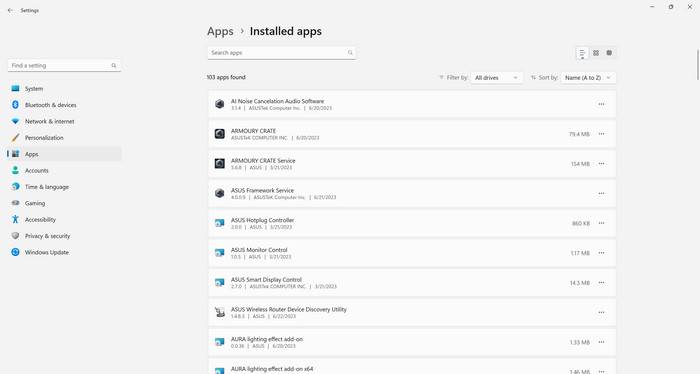
If you decide to remove Adobe Shockwave Player from your system, it is important to do so properly. Simply disabling the plugin in your web browser may not be sufficient, as the plugin may still be present on your system and pose a security risk. It is recommended to use a reputable uninstaller or follow the official Adobe instructions to remove the plugin completely.
Additionally, it is always a good idea to scan your system for malware after removing any software. Malwarebytes Free is a popular and effective tool for detecting and removing malware. You can download and run a scan with Malwarebytes Free from their official website: Malwarebytes Free.
Conclusion
Adobe Shockwave Player, once a popular plugin for viewing interactive web content, has seen a decline in usage in recent years. The lack of compatibility with modern web browsers, security concerns, and the emergence of alternative technologies like HTML5 have contributed to its diminishing relevance. Whether or not you should remove Shockwave Player depends on your specific needs and usage patterns. If you rarely encounter Shockwave content or use browsers that do not support the plugin, removing it can help reduce clutter and potential security risks. However, if you frequently rely on Shockwave content, you may need to keep the plugin installed for proper functionality. Regardless of your decision, it is important to follow proper uninstallation procedures and consider scanning your system for malware to ensure a clean and secure environment.

Join the discussion
0 commentsShare your experience or ask a question about this article.
Discussion
Start the conversation
Have a question or something useful to share? Add the first comment.