

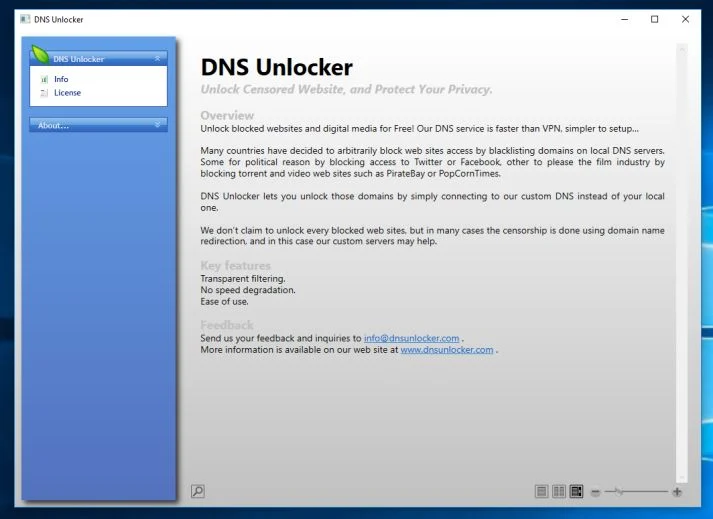
DNS Unlocker is an adware program that displays pop-up ads and unwanted advertisements on web pages that you visit. These advertisements will be shown as boxes containing coupons, as underlined keywords (in-text ads), pop-up ads or advertising banners.
What is DNS Unlocker?
DNS Unlocker is advertised as a “DNS service you can easily access Geo restricted content you like from around the world and unblock websites and Streaming services like Netflix, Hulu, BBC iPlayer or Pandora“. Though this may sound like a useful service, the DNS Unlocker program can be intrusive and will display advertisements whether you want them to or not.
The DNS Unlocker advertisements may have a different text under the pop-up: “Powered by DNS Unlocker“, “Brought to you by DNS Unlocker“, “RocketTab powered by DNS Unlocker“, “Ads by DNS Unlocker” or “Ads powered by DNS Unlocker“.
These ads are aimed to promote the installation of additional questionable content including web browser toolbars, optimization utilities and other products, all so the DNS Unlocker publisher can generate pay-per-click revenue.
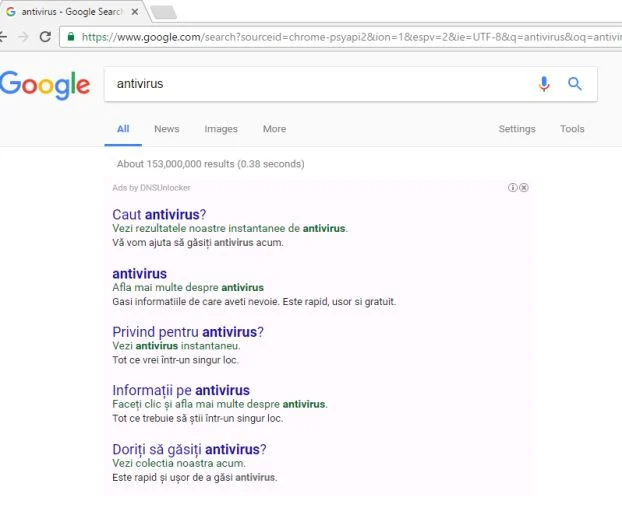
DNS Unlocker changes your computer’s DNS servers to ones under their own control. This allows them to not only monitor what sites you are visiting, but to also replace requests from legitimate ad servers with their own ad servers.
These DNS servers are one of the main reasons that people find it difficult to disable DNS Unlocker ads from displaying on their browser. This is because if you uninstall the DNS Unlocker program, but do not disable their DNS servers, they will continue to hijack ads and display ones of their own choosing.
When your machine is infected with the DNS Unlocker adware, other common symptoms include:
- Advertising banners are injected with the web pages that you are visiting.
- Random web page text is turned into hyperlinks.
- Browser popups appear which recommend fake updates or other software.
- Other unwanted adware programs might get installed without the user’s knowledge.
To make matters worse, you will also find that DNS Unlocker will cause your computer to act more sluggish or for your web browser to freeze.
How did DNS Unlocker get on my computer?
DNS Unlocker is commonly bundled with other free programs that you download off of the Internet. Unfortunately, some free downloads do not adequately disclose that other software will also be installed and you may find that you have installed DNS Unlocker without your knowledge.
Always opt for the custom installation and deselect anything that is not familiar, especially optional software that you never wanted to download and install in the first place. It goes without saying that you should not install software that you don’t trust.
How to remove “Ads by DNS Unlocker” adware (Virus Removal Guide)
Please perform all the steps in the correct order. If you have any questions or doubt at any point, STOP and ask for our assistance.
- STEP 1: Uninstall DNS Unlocker version 1.4 from Windows
- STEP 2: Use AdwCleaner to remove “Ads by DNS Unlocker” adware
- STEP 3: Use Malwarebytes to scan for Malware and Unwanted Programs
- STEP 4: Double-check for malicious programs with HitmanPro
- STEP 5: Reset the web browser to its default settings
STEP 1 : Uninstall DNS Unlocker version 1.4 from Windows
In this first step, we will try to identify and remove any malicious program that might be installed on your computer.
- Go to the uninstall menu.
Windows 10 or Windows 8.1
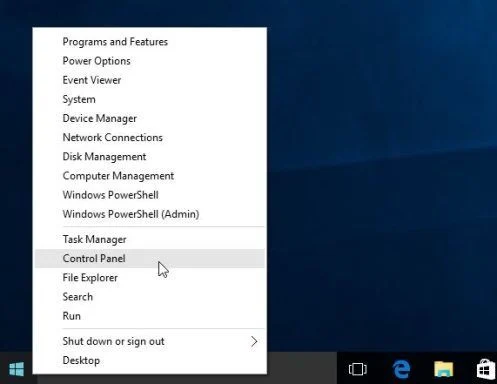
- To uninstall a program on Windows 10 or Windows 8, right-click on the Windows Start button and choose “Control Panel” from the pop-up menu.
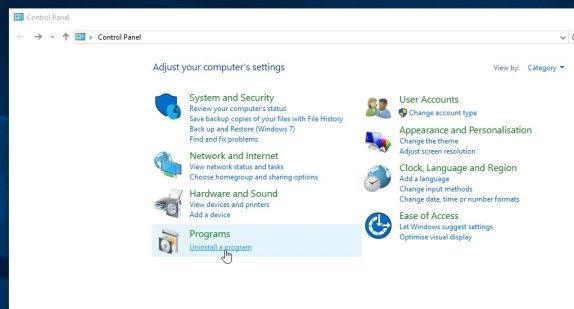
- When the “Control Panel” window opens click on the “Uninstall a program” option under “Programs” category.
Windows 7
- If you are using Windows XP, Windows Vista or Windows 7, click the “Start” button, then click on the “Control Panel” menu option.
![[Image: Control Panel in Windows Start Menu]](https://malwaretips.com/blogs/wp-content/uploads/mwt-media/56/56ac005bf149366d33075df70182d7933c19b066be2e500869e031cc9cac279b/273fcfd76a87bfc0fcd3b6b019be9066a9342174ed0b81f9002efcb804ca5be8-346.webp "Control Panel in Windows Start Menu")
- When the “Control Panel” window opens click on the “Uninstall a program” option under “Programs” category.
![[Image: Uninstall a program]](https://malwaretips.com/blogs/wp-content/uploads/mwt-media/2a/2a46a9e643eeeb764fb164177551c571817a8b4d4fe8141504dca801f8abc8cc/f2a64da5c9bbae588b1c04059e9f6a1e9a413554048666c6db3aa65196a7b99a-557.webp "Click on Uninstall a program")
- To uninstall a program on Windows 10 or Windows 8, right-click on the Windows Start button and choose “Control Panel” from the pop-up menu.
- When the “Programs and Features” screen is displayed, scroll through the list of currently installed programs and uninstall “DNS Unlocker version 1.4” by www.dnsunlocker.com
The malicious program may have a different name on your computer. To view the most recently installed programs, you can click on the “Installed On” column to sort your program by the installation date. Scroll through the list, and uninstall any unwanted or unknown programs.
If you cannot find any unwanted programs on your computer, you can proceed with the next step.
If you are having issues while trying to uninstall a program, you can use Revo Uninstaller to completely remove this unwanted program from your machine.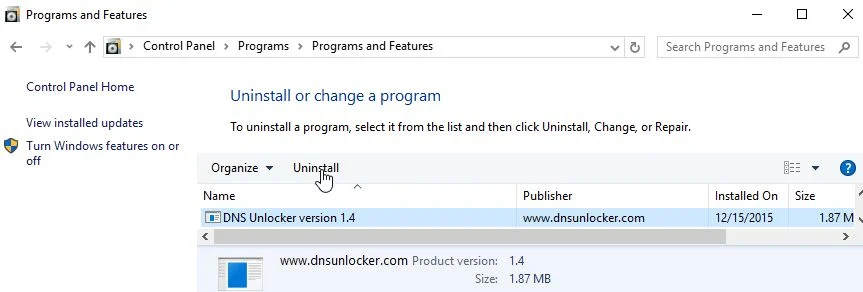
STEP 2: Use AdwCleaner remove to “Ads by DNS Unlocker” adware
AdwCleaner is a free utility that will remove the DNS Unlocker adware and other malicious programs that may be installed on your PC.
- You can download Malwarebytes AdwCleaner from the below link.
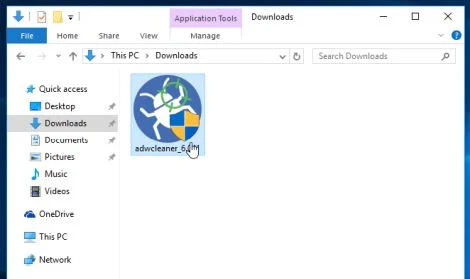
Download AdwCleanerFree official download. Nothing to install. - When Malwarebytes AdwCleaner has finished downloading, please double-click on the AdwCleaner icon to perform a system scan with this program.
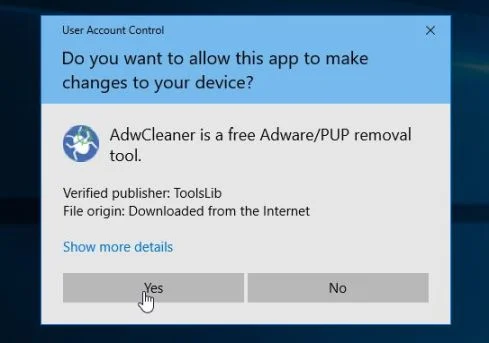
If Windows prompts you as to whether or not you wish to run AdwCleaner, please allow it to run.
- When the Malwarebytes AdwCleaner program will open, click on the “Scan” button as shown below.
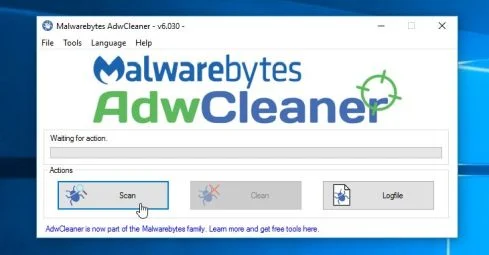
AdwCleaner will now start to search for the DNS Unlocker adware and other malicious programs. - To remove the malicious files that were detected in the previous step, please click on the “Clean” button.
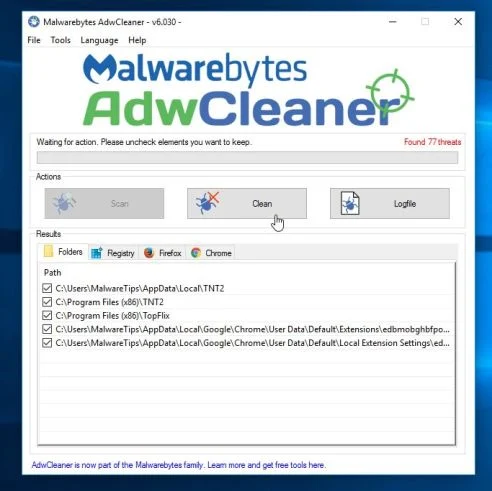
- Malwarebytes AdwCleaner will prompt you to save any open files or documents, as the program will need to reboot the computer to complete the cleaning process. Please do so, and then click on the “OK” button.
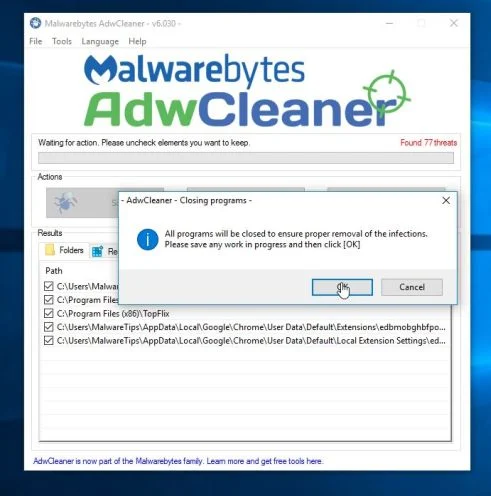
When your computer reboots and you are logged in, Malwarebytes AdwCleaner will automatically open a log file that contains the files, registry keys, and programs that were removed from your computer. Please review this log file and then close the notepad window. You can now continue with the rest of the instructions.
STEP 3: Use Malwarebytes to scan for Malware and Unwanted Programs
Malwarebytes Anti-Malware is a powerful on-demand scanner which will scan your PC for adware, browser hijackers, Trojans and other types of malware. It is important to note that Malwarebytes Anti-Malware will run alongside antivirus software without conflicts.
- You can download download Malwarebytes Anti-Malware from the below link.
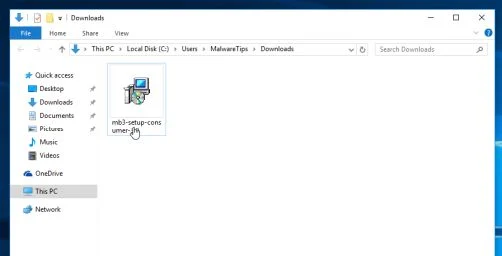
Download MalwarebytesFree official installer. Your download starts right away. - When Malwarebytes has finished downloading, double-click on the “mb3-setup-consumer” file to install Malwarebytes Anti-Malware on your computer.
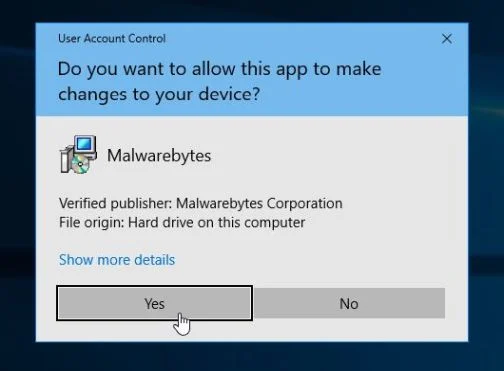
You may be presented with an User Account Control pop-up asking if you want to allow Malwarebytes to make changes to your device. If this happens, you should click “Yes” to continue with the installation.
- When the Malwarebytes installation begins, you will see the Malwarebytes Setup Wizard which will guide you through the installation process.
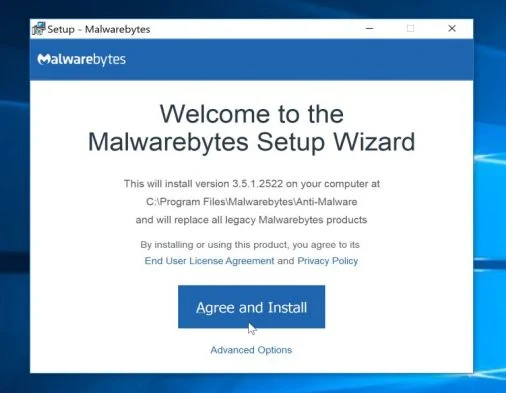
To install Malwarebytes Anti-Malware on your machine, keep following the prompts by clicking the “Next” button.
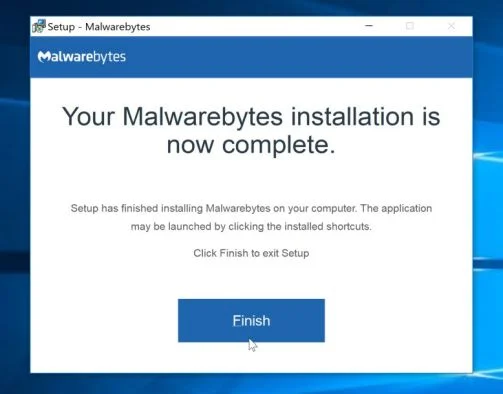
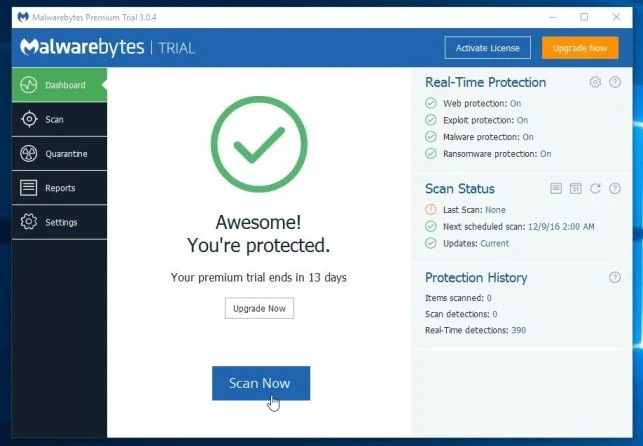
- Once installed, Malwarebytes will automatically start and update the antivirus database. To start a system scan you can click on the “Scan Now” button.
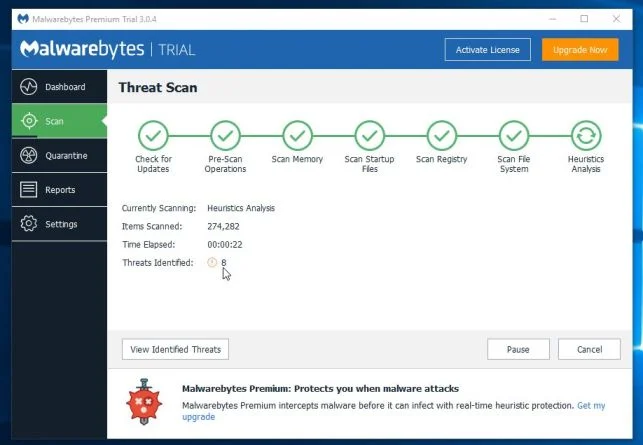
- Malwarebytes Anti-Malware will now start scanning your computer for malicious programs.
This process can take a few minutes, so we suggest you do something else and periodically check on the status of the scan to see when it is finished.
- When the scan has completed, you will be presented with a screen showing the malware infections that Malwarebytes Anti-Malware has detected.
To remove the malicious programs that Malwarebytes has found, click on the “Quarantine Selected” button.
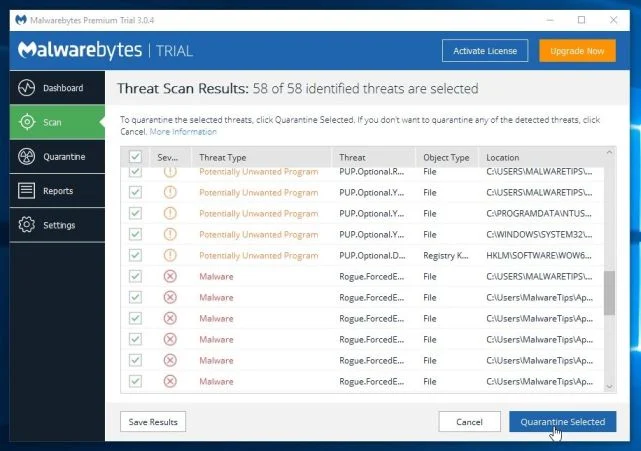
- Malwarebytes Anti-Malware will now quarantine all the malicious files and registry keys that it has found.
To complete the malware removal process, Malwarebytes may ask you to restart your computer.
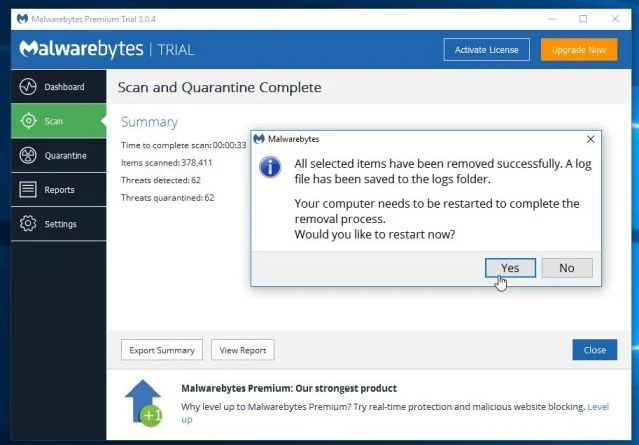
When the malware removal process is complete, you can close Malwarebytes Anti-Malware and continue with the rest of the instructions.
STEP 4: Double-check for malicious programs with HitmanPro
HitmanPro can find and remove malware, adware, bots, and other threats that even the best antivirus suite can oftentimes miss. HitmanPro is designed to run alongside your antivirus suite, firewall, and other security tools.
- You can download HitmanPro from the below link:
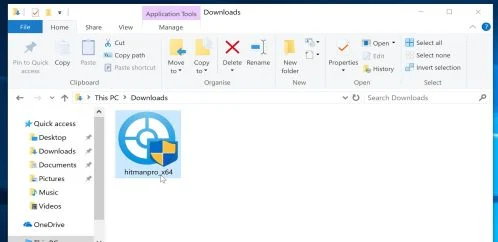
Download HitmanProOfficial Sophos download. Free scan, free 30-day trial to remove threats. - When HitmanPro has finished downloading, double-click on the “hitmanpro” file to install this program on your computer.
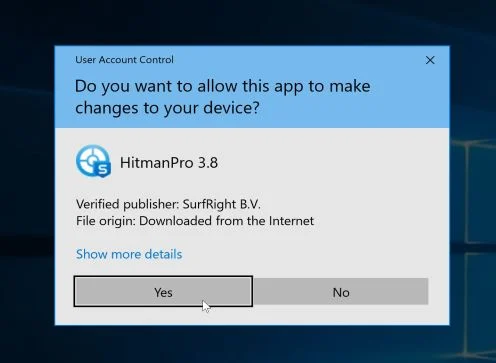
You may be presented with an User Account Control pop-up asking if you want to allow HitmanPro to make changes to your device. If this happens, you should click “Yes” to continue with the installation.
- When the program starts you will be presented with the start screen as shown below. Now click on the Next button to continue with the scan process.
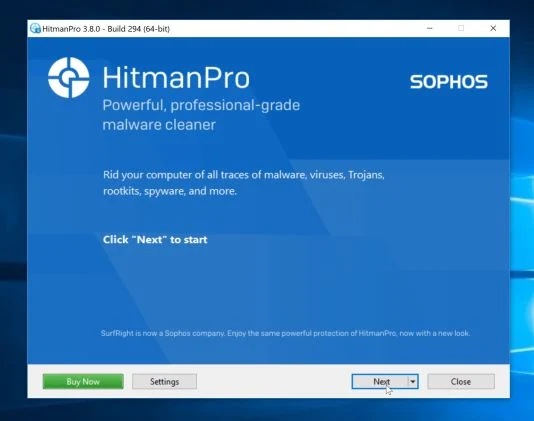
- HitmanPro will now begin to scan your computer for malware.
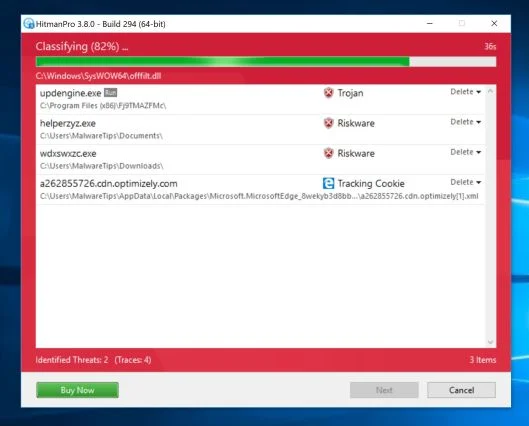
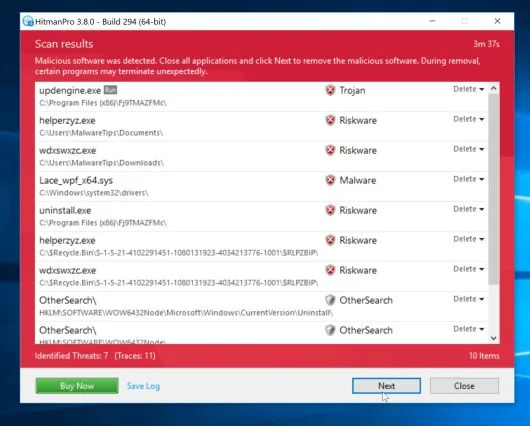
- When it has finished it will display a list of all the malware that the program found as shown in the image below. Click on the “Next” button, to remove malware.
- Click on the “Activate free license” button to begin the free 30 days trial, and remove all the malicious files from your computer.
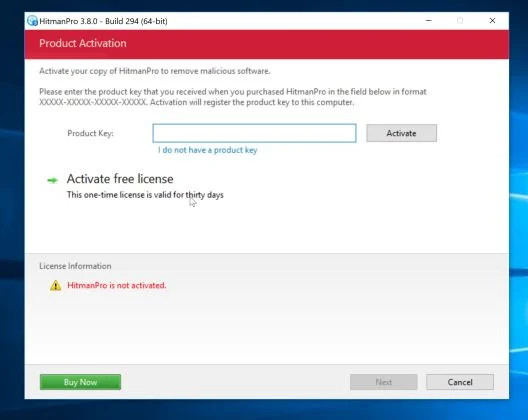
When the process is complete, you can close HitmanPro and continue with the rest of the instructions.
STEP 5: Reset the web browser to its default settings
In this last step, we will need to reset your browser to its default settings to remove the DNS Unlocker browser hijacker.
Google Chrome
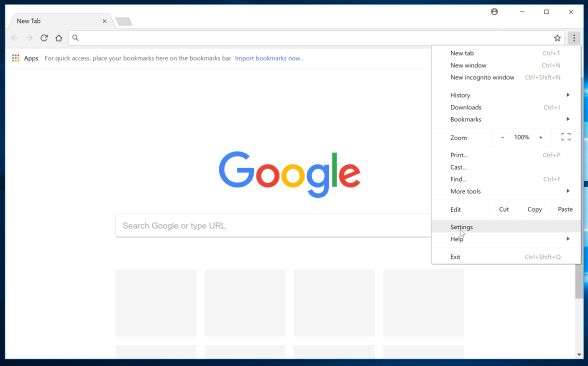
- Click on Chrome’s main menu button, represented by three horizontal lines. When the drop-down menu appears, select the option labeled Settings.
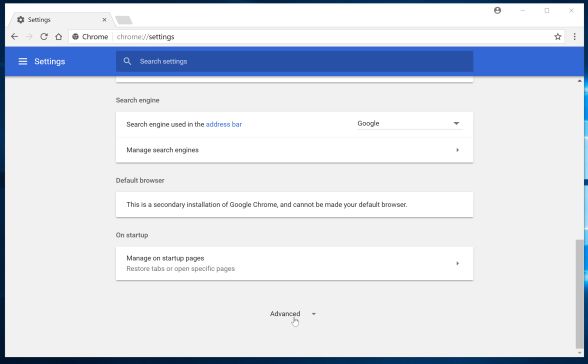
- Chrome’s Settings should now be displayed in a new tab or window, depending on your configuration. Next, scroll to the bottom of the page and click on the Advanced link (as seen in the below example).
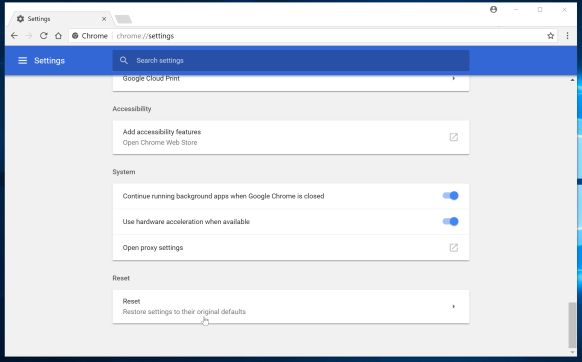
- Chrome’s advanced Settings should now be displayed. Scroll down until the Reset browser settings section is visible, as shown in the example below. Next, click on the Reset settings button.
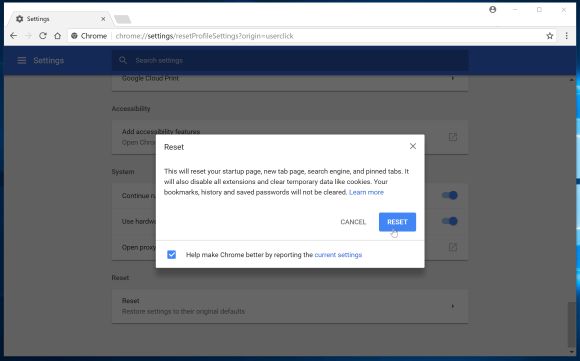
- A confirmation dialog should now be displayed, detailing the components that will be restored to their default state should you continue on with the reset process. To complete the restoration process, click on the Reset button.
Internet Explorer
- Open Internet Explorer, click on the “gear icon” in the upper right part of your browser, then click again on Internet Options.
![[Image: Internet Options in Internet Explorer]](https://malwaretips.com/blogs/wp-content/uploads/mwt-media/52/522e9c30de2b8b1009dec93b1735a5e5ec22f4d7d2e025c30c251ca96799dec2/45442bf30d44812b12c1d4152796bddfd0d05542d55e7c907b8edde3ac50c4d7-625.webp "Click on the Gear Icon then on Internet Options")
- In the “Internet Options” dialog box, click on the “Advanced” tab, then click on the “Reset” button.
![[Image: Reset Internet Explorer]](https://malwaretips.com/blogs/wp-content/uploads/mwt-media/89/89e96623f76134cd3bfd7a5579d40fefa7118a81811be6e9888bb8b92ac84adf/ca946d49c693e69239029b3c145713bf590c959486dc4af7bbae81db5ec5a627-613.webp "In the Advanced tab click on the Reset button")
- In the “Reset Internet Explorer settings” section, select the “Delete personal settings” check box, then click on “Reset” button.
![[Image: Reset Internet Explorer to its default settings]](https://malwaretips.com/blogs/wp-content/uploads/mwt-media/f2/f240d9aad8df73300edecc78c67f33cd5fccb1f5732245b8d5990b4524313abb/c2ef750ff5d9642431fc10968d9e8699c75c0b149affcf506387fa0c948e4874-626.webp "Click on the Reset button to revert IE to its default settings")
- When Internet Explorer has completed its task, click on the “Close” button in the confirmation dialogue box. You will now need to close your browser, and then you can open Internet Explorer again.
![[Image Reset Internet Explorer settings]](https://malwaretips.com/blogs/wp-content/uploads/mwt-media/22/22bcd4ddf7b1a0aac3fcb25d72a4d24b8d1748a2ee365e4f52181e6d57a4ef94/7d992d833ea0dbef9fbfdfbe664c145a6a794975aa5980dfbdde3369647953b4-621.webp "Click on the Close button")
Mozilla Firefox
- In the upper-right corner of the Firefox window, click the Firefox menu button, then click on the “Help”
![[Image: Firefox Help button]](https://malwaretips.com/blogs/wp-content/uploads/mwt-media/da/dad9a8056176398d90be70e0b13e0181d2f95a3cd817a0f9bd296d3e00b47109/feab1435cad07dba7dbf1e08f210872708ea08865694c59cfbac294ba8583f2a-16.webp "Firefox Help button") button.
button.
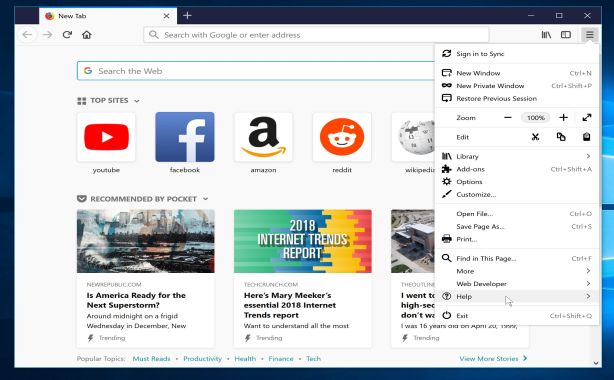
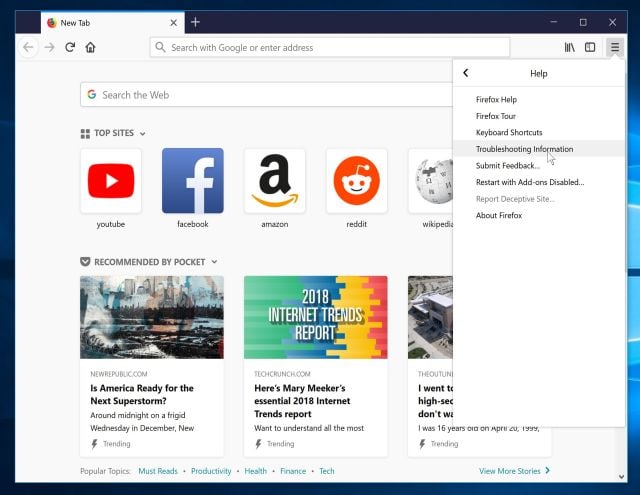
- From the Help menu, choose Troubleshooting Information.
If you’re unable to access the Help menu, type about:support in your address bar to bring up the Troubleshooting information page.
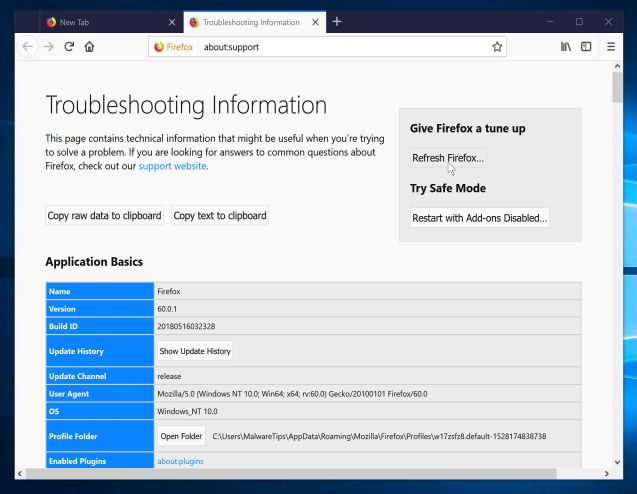
- Click the “Refresh Firefox” button in the upper-right corner of the “Troubleshooting Information” page.
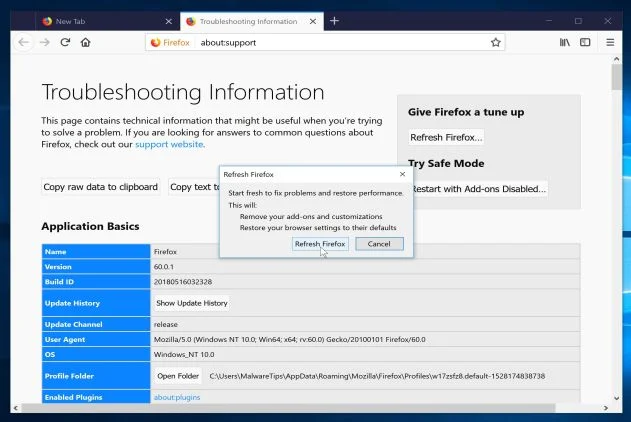
- To continue, click on the “Refresh Firefox” button in the new confirmation window that opens.
- Firefox will close itself and will revert to its default settings. When it’s done, a window will list the information that was imported. Click on the “Finish“.
If you are still experiencing problems while trying to remove Ads by DNS Unlocker adware from your computer, please do one of the following:
- Run a system scan with Zemana AntiMalware
- Ask for help in our Malware Removal Assistance forum.

Join the discussion
90 commentsShare your experience or ask a question about this article.
Your progress
Did these steps help?
Let us know how the guide worked for you.
Describe what you see and the step you reached. Keep passwords and other private information out.
Discussion
Thank you for these detailed instructions. My laptop is finally rid of that nasty virus!
can i uninstall adw cleaner, hitmanpro, malwarebytes after i have removed dns unlocker
In reply to Anonymous
Hello,
Yes, you can remove all the tools that we have used. Have a good day!
Another thing that can help a lot if you do all of this and the problem remains is to copy and paste ” chrome://net-internals/#dns” (without the quotation marks) into your web address bar and then click on the “clear host cache” button. This will clear any remnants of the adware. This will only work for Chrome users though, as I’m not sure how to do it elsewhere.
Stelian, I want to THANK YOU for helping me. I followed all your steps and it worked great. Thanks so much.
It’s Really Helpful Thank You So Much
Thank you so much for this very helpful information. I managed to get rid of the malware at step 3. I’m really grateful for people like you who are willing to spare your time, energy and expertise to help others without asking anything in return. You are a gem! God bless you. Xxx
Thank you soooo much! You really saved my laptop…because i wanted to throw it out the window..big thanks from Czech republic
I went through and did all the five things above on my daughter’s computer, to no avail. In desperation, and as a last possible step, I downloaded Zemana Anti Malware-and it worked!!! It only found one malicious thing-a fake internet explorer link! So, every time I clicked on the big “e”, it started the dns unlocker [I don’t know how exactly]. Everything is fine now. My question is, why did none of the previous antivirus apps detect this???
Thank you, Stelian for your work and dedication. I learned a lot about malware and adware, and not to trust ANY third party site, as legit as they might seem. If you want the information on the result of the deep scan I did with Zemana, showing the malware, let me know and I’ll send it.
On ya mate a massive help thanks very much, its great you have such dedication to helping people who have there whole work life crippled by these nasty viruses.
Thanks god!! Finally kill the bloody DNS UNLOCKER with your solution!!YOU really help me a lot!!!
Thank you! You’re such a great help.
Avast used to be #1 with all things…DNS unlocker slipped by them and I’m sadly disappointed…
Thank you! I don `t know what I would do without this guide
Many thanks man for suggesting ADWCLEANER!
Hello,
Yes, I would recommend that you scan your computer with these on-demand scanners to double-check for any left over files. Usually DNS Unlocker is installed with other types of adware and browser hijackers, so multiple scans won’t hurt!
Stay safe!
In reply to Stelian Pilici
Oh sure. Thank you.. ???
In reply to Stelian Pilici
Stelian, can you help me unlock my phone. Has ransom virus called cyber.police and it overrides everything and won’t let me power down to try and get into safe mode to try and discover what fake app it is etc. I downloaded many malware cleaning apps but I cannot access them to be able to open and clean phone. it wants 100 itune gift card for ransom if that helps you. The screen is red with clock timing down in middle but won’t let me open screenshots.
In reply to Stelian Pilici
I followed what you said about turning off and on and holding down volume button and working like a charm. It was system update (which I am glad you listed that it could be that or I would have never guessed to remove that). tyvm. You are the man!
thank you man!!! dude if my dad would have found out then i would have this laptop smashed!!!
Well adwcleaner worked and it also removed itself! Did i miss something?
I will send a token of appreciation in next few days if all stays good. Thanks DNSunlocker seems to be gone.
Thank you!!! The Adw Cleaner removed it completely! I no longer have to worry about stupid popups. I have visited many websites for help but this has been the only one that has actually helped me.
Zemana Antimalware free removed it completely!
Thanks Dude it really helps me alot. I was just fed up with this virus and was searching how to remove this virus your strategy help alot.