


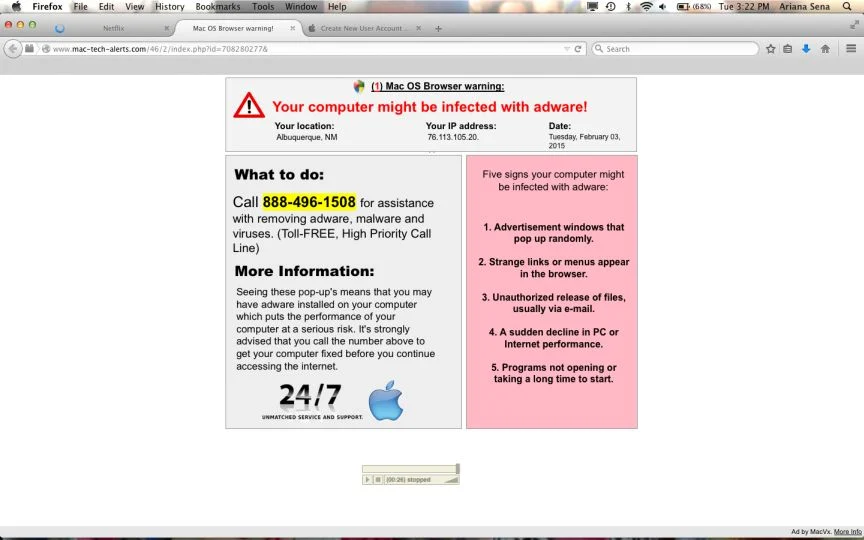
MacItNow is an adware application, that displays pop-up ads and advertisements on web pages that you visit. These advertisements will be shown as boxes containing various coupons that are available, as underlined keywords, pop-up ads or advertising banners.
What is MacItNow?
MacItNow is advertised as a application that displays coupons for sites you are visiting and competitive prices when you are viewing product pages at sites like Amazon.Though this may sound like a useful service, the MacItNow application can be intrusive and will display ads whether you want them to or not.
When installed, the MacItNow browser extension will display advertising banners, pop-up advertisements and in-text ads, stating that they are brought to you by “MacItNow”. The MacItNow Ads will have different text under the pop-up: “Powered by MacItNow”, “Brought to you by MacItNow”, “You’ve received a premium offer from MacItNow” or “Ads by MacItNow”.
These ads are aimed to promote the installation of additional questionable content including web browser toolbars, optimization utilities and other products, all so the MacItNow publisher can generate pay-per-click revenue.
When infected with MacItNow the common symptoms include:
- Advertising banners are injected with the web pages that you are visiting.
- Random web page text is turned into hyperlinks.
- Browser popups appear which recommend fake updates or other software.
- Other unwanted adware applications might get installed without the user’s knowledge.
How did got MacItNow on my computer?
MacItNow is an adware application that is commonly bundled with other free applications that you download off of the Internet.
Unfortunately, some free downloads do not adequately disclose that other software will also be installed and you may find that you have installed MacItNow without your knowledge. Most commonly MacItNow is bundled within the installers from Cnet, Softonic or other similar custom third-party installers.
You should always pay attention when installing software because often, a software installer includes optional installs, such as this MacItNow adware. Be very careful what you agree to install.
Always opt for the custom installation and deselect anything that is not familiar, especially optional software that you never wanted to download and install in the first place.
It goes without saying that you should not install software that you don’t trust.
How to remove “MacItNow” (Virus Removal Guide)
This page is a comprehensive guide, which will remove “MacItNow” virus from your computer, and any other adware application that may have been installed during the setup process.
Please perform all the steps in the correct order. If you have any questions or doubt at any point, STOP and ask for our assistance.
- STEP 1: Uninstall MacItNow application from your MAC OS X
- STEP 3: Remove “Ads by MacItNow” from Safari, Google Chrome and Firefox
- (Optional) STEP 4: Remove “Ads by MacItNow” virus with AdwareMedic
Remove “Ads by MacItNow” from MAC OS X
STEP 1: Uninstall MacItNow application from your MAC OS X
In this first step, we will search and remove all the MacItNow files from your machine.
- Click on the “Go” button, then select “Applications”.
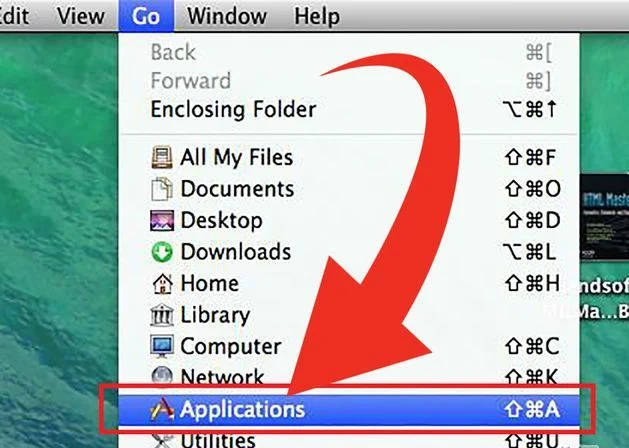
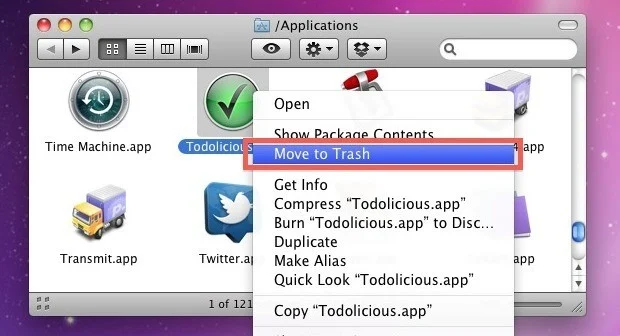
- When the Application folder will open, search for the MacItNow application. Either drag the application icon to the Trash, or right-click and select “Move to Trash”.
STEP 2: Remove “Ads by MacItNow” from Safari, Google Chrome and Firefox
If you are still experiencing issues with “Ads by MacItNow” virus within Safari, Firefox or Chrome, we will need to remove the MacItNow browser extension. This step needs to be performed only if your issues have not been solved by the previous steps.
Remove “Ads by MacItNow” from Safari
- From the Safari menu, select “Preferences”.
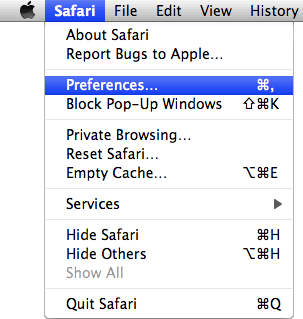
- In the Safari Preferences window, click the “Extensions” tab. Find the “MacItNow” plugin, then click on the “Uninstall” button.
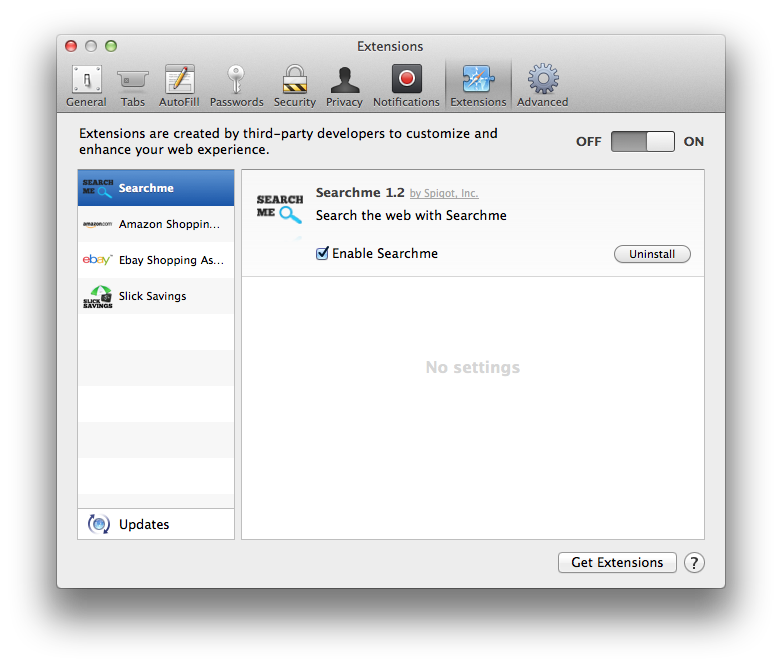
STEP 3: Remove “Ads by MacItNow” from Safari, Google Chrome and Firefox
If you are still experiencing issues with the “Ads by MacItNow” in Safari, Firefox or Chrome, we will need to manually check for malware. This step needs to be performed only if your issues have not been solved by the previous steps.
Remove from Safari (Mac OS X)
- From the Safari menu, select “Preferences“.
In the Safari Preferences window, click the “Extensions” tab. Find the “MacItNow” plugin, then click on the “Uninstall” button. This infection can add more than one extension, it is recommended that you remove all unknown extensions from Safari.
- Next, select “Preferences“, go to the “General” tab and change the “Default Search Engine” to Google. Then, in the “General” tab, find the “Home Page” and change it to “google.com”.
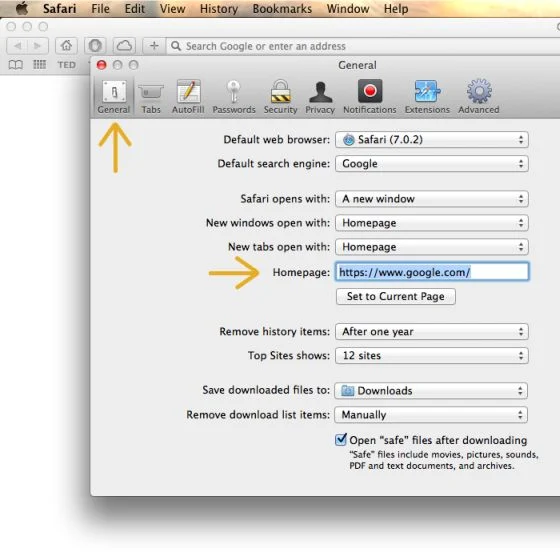
Remove from Chrome (Mac OS X)
- Click on Chrome’s main menu button, represented by three horizontal lines (
![[Image: Chrome's main menu button]](https://malwaretips.com/blogs/wp-content/uploads/mwt-media/c9/c964c619bc5156a269efadd7f08e8f02f7238a9b5062d5d27881889bd94b5755/889f99da68d5e9ef76c7db38ab873d8a2cf3843d646d3f5254663ded586b8dbc-29.webp "Google Chrome's main menu button") ) .When the drop-down menu appears, select the option labeled Settings.
) .When the drop-down menu appears, select the option labeled Settings.
![[Image: Click on Settings button]](https://malwaretips.com/blogs/wp-content/uploads/mwt-media/5e/5ea2f1059be6ed3e11ee9cf08dc94713740dc26bfcd11789733094e25c90e743/254f3b1ecb384cf22ce749a4f33efba0dce5ca8cba853f203a5a7f7bcd77f28b-276.webp "Click on Settings button")
- Chrome’s Settings should now be displayed in a new tab or window, depending on your configuration. Next, scroll to the bottom of the page and click on the Show advanced settings link (as seen in the below example).
![[Image: Click on Show advanced settings link]](https://malwaretips.com/blogs/wp-content/uploads/mwt-media/68/681f26c5c653c4d7087e7cf1600104a7d5e001d7b34c12e0a375806a8d4b35e8/2067845a65f5a3661693478d046067debe5fd33fcb8b1c025d26469ecd2331a4-448.webp "Click on Show advanced settings link")
- Chrome’s advanced Settings should now be displayed. Scroll down until the Reset browser settings section is visible, as shown in the example below. Next, click on the Reset browser settings button.
![[Image: Click on Reset browser button]](https://malwaretips.com/blogs/wp-content/uploads/mwt-media/15/15ef3fb571705e57b5f7dff0a3153b144f8d683478ad0223b548b07555b95497/6d77f46e648414bd0b55d22938b9194aa2a42e3717275959746fee7b6830550c-472.webp "Click on Reset browser button")
- A confirmation dialog should now be displayed, detailing the components that will be restored to their default state should you continue on with the reset process. To complete the restoration process, click on the Reset button.
![[Image: Click on Reset button to restore Chrome to default settings]](https://malwaretips.com/blogs/wp-content/uploads/mwt-media/22/22d431cf86304871f975fe19d630c15c27739e9e08353d44cc8403c0573f2a88/49d11797ef1fd3e76e367ae85bed895954c33a5e59e1046e9d847374ea3f7b05-487.webp "Click on Reset button to restore Chrome to default settings")
Remove from Firefox (Mac OS X)
- In the Firefox’s address bar type: about:support, then click on Enter.
- Click the “Reset Firefox” button in the upper-right corner of the “Troubleshooting Information” page.
![[Image: Reset Firefox to its default settings]](https://malwaretips.com/blogs/wp-content/uploads/mwt-media/7d/7d883ce34b7764cda37ce1caaebdc073fad6c3fc52adaab0f1fab956db3e5ea5/e938c9827fe07f63510e50f578c2e8036a3b007863a6218e7d81d54118999f86-641.webp "Reset Firefox to its default settings")
- To continue, click on the “Reset Firefox” button in the new confirmation window that opens.
![[Image: Click on the Reset Firefox button]](https://malwaretips.com/blogs/wp-content/uploads/mwt-media/b8/b81be351ca30b4f1bcfa5ee64d9190ff5ee41299f4a0507e1f8a2f9df73bd8df/9a5295f266ea438527893d22e732f6b42004850b1681e5cb08cd93585a2d44b8-365.webp "'Click")
- Firefox will close itself and will revert to its default settings. When it’s done, a window will list the information that was imported. Click on the “Finish“.
(Optional) STEP 4: Remove “Ads by MacItNow” virus with AdwareMedic
If you are still experiencing issues with the MacItNow ads in Safari, Firefox or Chrome, we will need to perform a scan with AdwareMedic. This step needs to be performed only if your issues have not been solved by the previous steps.
Adware Medic is a powerful tool which is designed to remove adware and browser hijackers from Apple Mac OS X.
- You can download AdwareMedic from the below link:
Download AdwareMedicOpens the download page in a new tab. - One you have downloaded AdwareMedic, please perform a scan as see in the below video:

Join the discussion
0 commentsShare your experience or ask a question about this article.
Your progress
Did these steps help?
Let us know how the guide worked for you.
Describe what you see and the step you reached. Keep passwords and other private information out.
Discussion
Start the conversation
Have a question or something useful to share? Add the first comment.