

Antivirus Security Pro is a computer virus, which masquerades as genuine security software, while actually reporting non-existent malware threats in order to scare the user into paying for this rogue security software.
![[Image: Antivirus Security Pro]](https://malwaretips.com/blogs/wp-content/uploads/mwt-media/eb/eb9d64262e0650d080c500fa253c2d0449a3c8a9239a826cc668248dd917ac08/321785dc95eab61c6563da5c7b5052c0371905472831ea1cd7fc2d9dc1289115-802.webp "Antivirus Security Pro")
What is Antivirus Security Pro?
Antivirus Security Pro is a rogue anti-virus program from the Rogue.WinWebSec family of computer infections. This program is classified as a rogue because it pretends to be an anti-virus program, but will instead displays bogus scan results, report non-existing computer infections, and does not allow you to run your normal applications.
In this case, not only is Antivirus Security Pro going to disrupt your system, it’s going to try and trick you into making a purchase using your credit card.
Antivirus Security Pro appears in the form of a fake Windows warning on your computer system that reads you have a specific number of viruses on your computer (usually in the hundreds) and that this software has detected those viruses. To get rid of them you must purchase the full-version of Antivirus Security Pro. It’s important to remember that by purchasing the “claimed full version to remove the viruses” you will be submitting your personal information to unscrupulous persons and may also end up being a victim of credit card or identity fraud or theft.
How did Antivirus Security Pro got on my computer?
Antivirus Security Pro is distributed through several means. Malicious websites, or legitimate websites that have been hacked, can infect your machine through exploit kits that use vulnerabilities on your computer to install this rogue antivirus without your permission.
Another method used to propagate Antivirus Security Pro is spam email containing infected attachments or links to malicious websites. Cyber-criminals spam out an email, with forged header information, tricking you into believing that it is from a shipping company like DHL or FedEx. The email tells you that they tried to deliver a package to you, but failed for some reason. Sometimes the emails claim to be notifications of a shipment you have made. Either way, you can’t resist being curious as to what the email is referring to – and open the attached file (or click on a link embedded inside the email). And with that, your computer is infected with the Antivirus Security Pro virus.
The threat may also be downloaded manually by tricking the user into thinking they are installing a useful piece of software, for instance a bogus update for Adobe Flash Player or another piece of software.
The Antivirus Security Pro infection is also prevalent on peer-to-peer file sharing websites and is often packaged with pirated or illegally acquired software.
Am I infected with Antivirus Security Pro virus?
Some examples of the interface, fake alerts, fake scanning results, and pop-ups displayed by Antivirus Security Pro are shown below:
![[Image: Antivirus Security Pro virus]](https://malwaretips.com/blogs/wp-content/uploads/mwt-media/75/75ff2c610a07f76099d9e1c2208b46ece1a838de19c36cb9533e76a1615ec4b2/2c33f15c51a73a2fb6513bbebdedd95c189cd2bbb2ac3f44adac798e2b774d3b-802.webp "Antivirus Security Pro virus")
![[Image: Antivirus Security Pro Alert]](https://malwaretips.com/blogs/wp-content/uploads/mwt-media/fe/feb8cc769e630985a1c4a50fe329e58aeb87731664b81a740d268afbd2b9a934/e252ddc0030a86f5f1d4760c432269b976f811d639d886573edccf047de736dc-455.webp "Antivirus Security Pro virus")
Activation codes for Antivirus Security Pro
As an optional step,you can use any of the following license keys to register Antivirus Security Pro and stop the fake alerts.
Antivirus Security Pro Activation code: AA39754E-715219CE
Please keep in mind that entering the above registration code will NOT remove Antivirus Security Pro from your computer , instead it will just stop the fake alerts so that you’ll be able to complete our removal guide more easily.
How to remove Antivirus Security Pro virus (Removal Guide)
This page is a comprehensive guide, which will remove the Antivirus Security Pro infection from your your computer. Please perform all the steps in the correct order. If you have any questions or doubt at any point, STOP and ask for our assistance.
STEP 1: Start your computer in Safe Mode with Networking
STEP 2: Run RKill to terminate Antivirus Security Pro malicious processes
STEP 3: Remove Antivirus Security Pro virus with Malwarebytes Anti-Malware Free
STEP 4: Remove Antivirus Security Pro rootkit with RogueKiller
STEP 5: Remove Antivirus Security Pro infection with HitmanPro
STEP 1 : Start your computer in Safe Mode with Networking
- Remove all floppy disks, CDs, and DVDs from your computer, and then restart your computer.
- When the computer starts you will see your computer’s hardware being listed. When you see this information start to gently tap the F8 key repeatedly until you are presented with the Windows XP, Vista or 7 Advanced Boot Options.
![[Image: F8 key]](https://malwaretips.com/blogs/wp-content/uploads/mwt-media/7b/7bfe81c611d48e45998c85234b21a111c419d163368a8828a4042c2c1d3cb431/7ca9c0c8c1c47c23e9c1581974ebb6a803ce5e47d7a875a2822fb33bd1da0e34-410.webp "Windows F8 key")
If you are using Windows 8, press the Windows key + C, and then click Settings. Click Power, hold down Shift on your keyboard and click Restart, then click on Troubleshoot and select Advanced options. In the Advanced Options screen, select Startup Settings, then click on Restart. - If you are using Windows XP, Vista or 7 in the Advanced Boot Options screen, use the arrow keys to highlight Safe Mode with Networking , and then press ENTER.
![[Image: Safemode.jpg]](//malwaretips.com/images/removalguide/safemode.jpg "Safe Mode with Networking screen") \
\
If you are using Windows 8, press 5 on your keyboard to Enable Safe Mode with Networking.
Windows will start in Safe Mode with Networking.
![[Image: Safemode.jpg]](http://malwaretips.com/images/removalguide/safemode.jpg "Safe Mode with Networking screen") \
\STEP 2: Run RKill to terminate the malicious processes associated with Antivirus Security Pro
RKill is a program that will attempt to terminate all malicious processes associated with Antivirus Security Pro, so that we will be able to perform the next step without being interrupted by this malicious software.
Because this utility will only stop Antivirus Security Pro running process, and does not delete any files, after running it you should not reboot your computer as any malware processes that are configured to start automatically will just be started again.
- While your computer is in Safe Mode with Networking ,please download the latest official version of RKill.Please note that we will use a renamed version of RKILL so that Antivirus Security Pro won’t block this utility from running.
Download RKillOpens the download page in a new tab. - Double click on iExplore.exe to start RKill and stop any processes associated with Antivirus Security Pro.
![[Image: RKILL Program]](https://malwaretips.com/blogs/wp-content/uploads/mwt-media/9b/9bd1fbac76989b7f148eb40e991e002b0e4887b26e25c458d390ab4705d3dc8b/39d41c22e798310d31436d68661c8f617309a8cb3c05d88f181e3f751d1c2fbc-260.webp "Rkill renamed to iExplore.exe")
- RKill will now start working in the background, please be patient while the program looks for Antivirus Security Pro malicious process and tries to end them.
![[Image: RKILL stoping malware]](https://malwaretips.com/blogs/wp-content/uploads/mwt-media/ca/ca979c74dbe6bff4faf33e0c5053349a5d4975896374c2d0c17c530336b9ea7f/0eabeb4c9ce2a6868b13b70aad28caf43ef2ca647622ccd001ea17152f36d7fc-406.webp "RKill while killing Antivirus Security Pro malicious process")
If you get a message from Antivirus Security Pro stating that RKill is an infection, and then closes this utility, leave the warning on the screen and then run RKill again.
By not closing the warning, this typically will allow you to bypass the malware trying to protect itself so that RKill can terminate Antivirus Security Pro. - When the Rkill utility has completed its task, it will generate a log. Do not reboot your computer after running RKill as the malware programs will start again.
![[Image: RKill Report]](https://malwaretips.com/blogs/wp-content/uploads/mwt-media/80/80e68df66d7ad779151bb33dd0e1c8fb998dbe6c5f00c0fc9cb6af739548ec11/623ae30acb0f9aec36353929a96de806d7837397885fe8de2814711833c65269-414.webp "RKill Log")
STEP 3: Remove Antivirus Security Pro virus with Malwarebytes Anti-Malware FREE
Malwarebytes Anti-Malware Free is a powerful on-demand scanner which will remove Antivirus Security Pro malicious files from your computer.
- You can download Malwarebytes Anti-Malware Free from the below link, then double-click on the icon named mbam-setup.exe to install this program.
Download MalwarebytesFree official installer. Your download starts right away. - When the installation begins, keep following the prompts in order to continue with the setup process, then at the last screen click on the Finish button.
![[Image: Malwarebytes Anti-Malware final installation screen]](https://malwaretips.com/blogs/wp-content/uploads/mwt-media/47/471448d4dd5aa1d55ea545effccf0ac9c8ccb5a29622da4e38ac677b5d8c37b5/9f473303c15a00262451cc5a56b904de929157b59e19e3cfb2c03ec88f643390-402.webp "Malwarebytes Anti-Malware installation screen")
- On the Scanner tab, select Perform quick scan, and then click on the Scan button to start searching for the Antivirus Security Pro malicious files.
![[Image: Malwarebytes Anti-Malware Quick Scan]](https://malwaretips.com/blogs/wp-content/uploads/mwt-media/1e/1eb209597ca2f06e596fd060345ac7e3100355f1ec8fc8ea2d9dec7abbb05ea0/3afba9b0b97b56945ffc33817ac48f7433c799241a22e422966180b76473a906-521.webp "Run a Quick Scan with Malwarebytes Anti-Malware")
- Malwarebytes’ Anti-Malware will now start scanning your computer for Antivirus Security Pro virus as shown below.
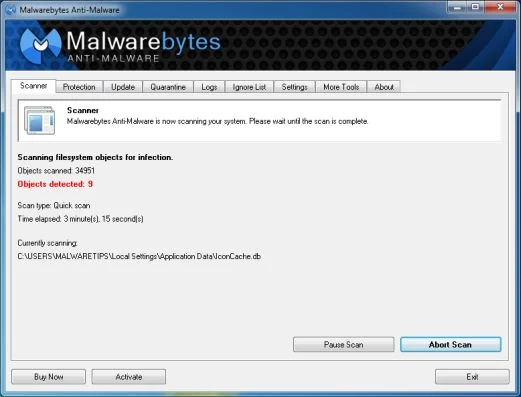
- When the Malwarebytes Anti-Malware scan has finished, click on the Show Results button.
![[Image: Malwarebytes Anti-Malware scan results]](https://malwaretips.com/blogs/wp-content/uploads/mwt-media/84/84c62dd46289424dbc686abc53672cb0810111920c8c0bbd69e973844d0a9ab0/a4c04aa700e641f47afec9965f79ff346740668e5952955ccbe5b4c3658b5897-521.webp "Malwarebytes when the system scan has completed")
- You will now be presented with a screen showing you the computer infections that Malwarebytes Anti-Malware has detected. Make sure that everything is Checked (ticked), then click on the Remove Selected button.
![[Image: Malwarebytes Anti-Malwar removing Antivirus Security Pro virus]](https://malwaretips.com/blogs/wp-content/uploads/mwt-media/d8/d86b6a8bac0e4ece9fd2d259a83db71487943f6b04b567edb0e9adcc3200f492/4eb94651b0e34cc99689c56dc71cd0a49444498ed05c5803ea55fda1cfee1b1f-521.webp "Malwarebytes Anti-Malwar removing Antivirus Security Pro virus")
- Once your computer will restart in Windows regular mode, open Malwarebytes Anti-Malware and perform a Full System scan to verify that there are no remaining threats.
STEP 4: Remove Antivirus Security Pro rootkit with RogueKiller
RogueKiller is a utility that will scan for the Antivirus Security Pro rootkit, registry keys and any other malicious files on your computer.
- You can download the latest official version of RogueKiller from the below link.
Download RogueKillerOpens the download page in a new tab. - Double click on RogueKiller.exe to start this utility and then wait for the Prescan to complete.This should take only a few seconds, then click on the Scan button to perform a system scan.
![[Image: RogueKiller scaning for Antivirus Security Pro virus]](https://malwaretips.com/blogs/wp-content/uploads/mwt-media/69/69de1b02b1c29079c5f595c43ff489e90b26b2021baa2b0d1704b93ddd414395/e5bb79ff72ced202bac24c8b349e54b71c007e432c6cdd5b25b9315274047978-520.webp "Click on the Start button to perform a system scan")
- After the scan has completed, press the Delete button to remove Antivirus Security Pro malicious registry keys or files.
![[Image: RogueKiller Detele button]](https://malwaretips.com/blogs/wp-content/uploads/mwt-media/d0/d04ee432a91f8fcebf27c33388f7cbe82e8cd52c8bb9358affcda3179330c5f0/1902ad30fc60dfe4b2093826d636e475e58aa31f41a53715fd38f49578e69bb4-520.webp "Press Delete to remove Antivirus Security Pro")
STEP 5: Remove Antivirus Security Pro infection with HitmanPro
HitmanPro is a second opinion scanner, designed to rescue your computer from malware (viruses, trojans, rootkits, etc.) that have infected your computer despite all the security measures you have taken (such as anti virus software, firewalls, etc.).
- You can download HitmanPro from the below link:
Download HitmanProOfficial Sophos download. Free scan, free 30-day trial to remove threats. - Double-click on the file named HitmanPro.exe (for 32-bit versions of Windows) or HitmanPro_x64.exe (for 64-bit versions of Windows). When the program starts you will be presented with the start screen as shown below.
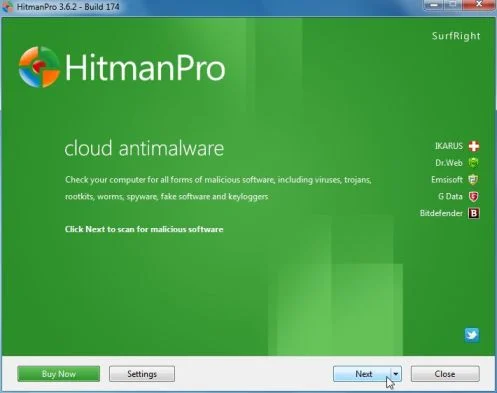
Click on the Next button, to install HitmanPro on your computer.
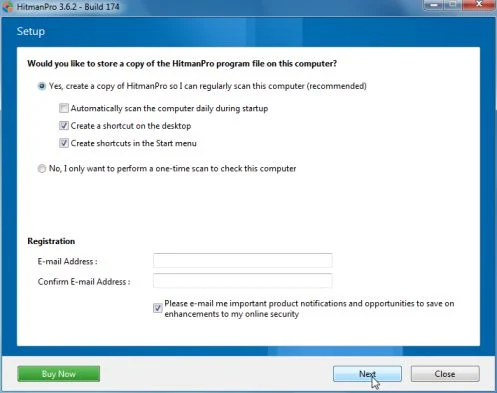
- HitmanPro will now begin to scan your computer for Antivirus Security Pro trojan.
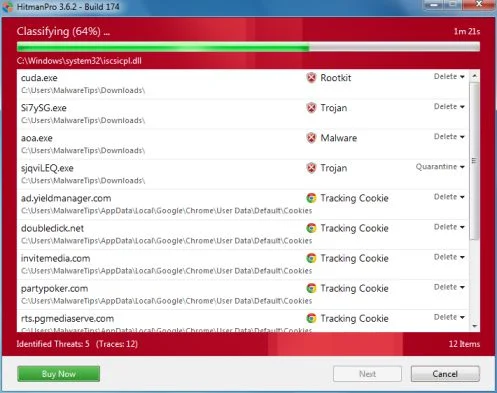
- When it has finished it will display a list of all the malware that the program found as shown in the image below. Click on the Next button, to remove Antivirus Security Pro virus.
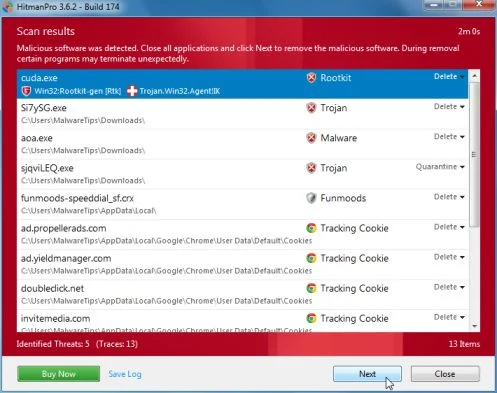
- Click on the Activate free license button to begin the free 30 days trial, and remove all the malicious files from your computer.
![[Image: HitmanPro 30 days activation button]](https://malwaretips.com/blogs/wp-content/uploads/mwt-media/7f/7f063c87fa029d8cd40df3f7faf43765ba1bb9e82c8d5a64c8a49de788018196/2a8400863f3c81fd7d6411e20166dfacdf0bc73e14522edea93a637003240dc1-497.webp "HitmanPro free 30 days trial")
Your computer should now be free of the Antivirus Security Pro infection. If your current anti-virus solution let this infection through, you may want to consider purchasing the PRO version of Malwarebytes Anti-Malware to protect against these types of threats in the future, and perform regular computer scans with HitmanPro.
If you are still experiencing problems while trying to remove Antivirus Security Pro from your machine, please start a new thread in our Malware Removal Assistance forum.

Join the discussion
42 commentsShare your experience or ask a question about this article.
Discussion
Thanks for your help and advice. The virus seemed to have been through WhatApp which showed a voicemail from my husband. It was not from him but the virus took over. I found your tutorial after tremendous frustration and followed the steps. So now I can use my computer again with one change which is that I had to download a different browser to access my email. Again, thank you very much!
You are an absolute legend! Thanks
Hello,
Got as far as step 2 from the instructions above and double-clicked on iExplorer.exe but getting an error msg as follows: “error opening file for writing” and cannot go any further. Can you please assist?
In reply to Jean
Hello,
Can you please try to run Malwarebytes Chameleon, here is how to do it: http://malwaretips.com/blogs/antivirus-security-pro-removal/#scans
Thank you so much!!! This is a nasty piece of software and I would have been a blubbering wreck if I hadn’t quickly seen this removal guide.
I saw another version of your advice before you had put up steps 1 and 2, so I actually just went in at step 3 – had an uninfected laptop and downloaded malwarebytes onto a USB and got it onto the infected machine that way, as antivirus sec pro would not let me get access to your website…probably because:
1) I couldn’t remember my administrator password – the PC is about 9 years old and still running XP
2) I was using IE8 – I know, I know…I’ve switched over to Chrome now :-)
So thankfully Malwarebytes stopped it dead and I was able to delete everything. The run with HitmanPro did not pick up anything. I have also being ultra paranoid spent this morning changing all my online passwords in the uninfected machine.
A couple of questions, if it’s not too much of a problem.
– I didn’t see the Roguekiller step either – should I go ahead and do that too? To be safe?
– I’m currently running my Microsoft Security Essentials software as well and it appears to have picked up some trojans and rogues that clearly arrived with the antivirus sec pro package, but both Malwarebytes and HitmanPro didn’t pick them up. However, it states that they are in Quarantine – so they may have been placed there and can be forgotten. Is that wise?
Again many, many thanks for the guide.
Thank you for all the help My wife made a one click mistake and this piece of garbage got ahold of her laptop. It was locked up until I used your activation number. Now, I” go follow the rest of your clear and concise instructions.
Thank you very very much for your help. Very well explained with all links needed. You made my day :)
Thanks for all yoru help! It worked and my boss was so impressed with how i handled this all by myself xoxoxox
I did it! Thanks so much for posting this information. I stumbled a few times. However, I kept with it and, after 4 hours, I am FREE! :-)))))
This is a great process to use!
Thanks for the help!
Stelian, Super thanks for the fabulous help! I got infected yesterday by an email from “WhatsApp” which said it contained a voice mail… Since I have relatives in other countries who use this app, I thought it might be from them! OMG! Horrible experience… I just spent 9hours dealing with this (lots of data and external drives, etc). Since I work at home your procedures were truly a life saver! Just doing my last (I hope) HitmanPro scan right now…
thx so much! it worked!
Seriously cannot thank you enough for saving my new laptop!!! :D thank you so much!!! Your guide is simple to follow and your images definitely made my life a lot easier!!! YOU’RE A HERO!!!
Cannot enter into safe mode. All safe modes will reboot instantly.
In reply to Sean
Hello Sean,
Follow one of these 3 options, which do no require Safe Mode: http://malwaretips.com/blogs/antivirus-security-pro-removal/
Hello,
Can you please run a scan with these tools:
STEP 1: Run a scan with RogueKiller
1. Please download the latest official version of RogueKiller.
RogueKiller Download Link : http://tigzy.geekstogo.com/roguekiller.php
2. Double click on RogueKiller.exe to start this utility and then wait for the Prescan to complete.This should take only a few seconds and then you can click the Scan button to perform a system scan.
3. After the scan has completed, press the Delete button to remove any malicious registry keys.
STEP 2: Run a scan with ESET Online Scanner
1.Download ESET Online Scanner utility.
ESET Online Scanner Download Link : http://download.eset.com/special/eos/esetsmartinstaller_enu.exe
2. Double click on the Eset installer program (esetsmartinstaller_enu.exe).
3.Check Yes, I accept the Terms of Use, then click the Start button.
4.Check Scan archives and push the Start button.
5. ESET will then download updates for itself, install itself, and begin scanning your computer. Please be patient as this can take some time.
6. When the scan completes, click on the Finish button.
Next, please perfom a new scan with HitmanPro, and if it will find any malware, please post the log in your next reply.
Stay safe!
Thank you. Worked like a charm. You are a champion! Bless you.
Hello,
Can you please run a scan with these tools:
STEP 1: Run a scan with RogueKiller
1. Please download the latest official version of RogueKiller.
RogueKiller Download Link : http://tigzy.geekstogo.com/roguekiller.php
2. Double click on RogueKiller.exe to start this utility and then wait for the Prescan to complete.This should take only a few seconds and then you can click the Scan button to perform a system scan.
3. After the scan has completed, press the Delete button to remove any malicious registry keys.
STEP 2: Run a scan with ESET Online Scanner
1.Download ESET Online Scanner utility.
ESET Online Scanner Download Link : http://download.eset.com/special/eos/esetsmartinstaller_enu.exe
2. Double click on the Eset installer program (esetsmartinstaller_enu.exe).
3.Check Yes, I accept the Terms of Use, then click the Start button.
4.Check Scan archives and push the Start button.
5. ESET will then download updates for itself, install itself, and begin scanning your computer. Please be patient as this can take some time.
6. When the scan completes, click on the Finish button.
Next, please perfom a new scan with HitmanPro, and if it will find any malware, please post the log in your next reply.
Stay safe!
Oh, thanks! You were the first, who could help me with this problem. Thank you very much!!!
THANK YOU!!! The first part worked for us! Thank you so much!
Hello,
Can you please run a scan with Combofix and post the logs here so that I can get an idea on what’s going on:
You can download ComboFix from here: http://download.bleepingcomputer.com/sUBs/ComboFix.exe
VERY IMPORTANT !!! Save as Combo-Fix.exe during the download.ComboFix must be renamed before you download to your Desktop
Close any open browsers.
Very Important!!!> Temporarily disable your anti-virus, script blocking and any anti-malware real-time protection before performing a scan. They can interfere with ComboFix or remove some of its embedded files which may cause “unpredictable results”.
WARNING: Combofix will disconnect your machine from the Internet as soon as it starts
Please do not attempt to re-connect your machine back to the Internet until Combofix has completely finished.
If there is no internet connection after running Combofix, then restart your computer to restore back your connection.
1. Double click on ComboFix.exe & follow the prompts.
2. Accept the disclaimer and allow to update if it asks
3. When finished, it shall produce a log for you.
Notes:
Do not mouse-click Combofix’s window while it is running. That may cause it to stall.
Do not “re-run” Combofix. If you have a problem, reply back for further instructions.
If after the reboot you get errors about programs being marked for deletion then reboot, that will cure it.
Please post the Combofix, so that I can get an idea on what’s going on.
Next, please run a scan with HitmanPro and Malwarebytes, then let me know how is your computer running.