

Balbums.st is a searchable directory connected to Bunkr-style albums and file listings. While the site may look simple and functional, users should understand how these types of directories operate and what safety issues can appear once they start clicking through external links.
What Is Balbums.st?
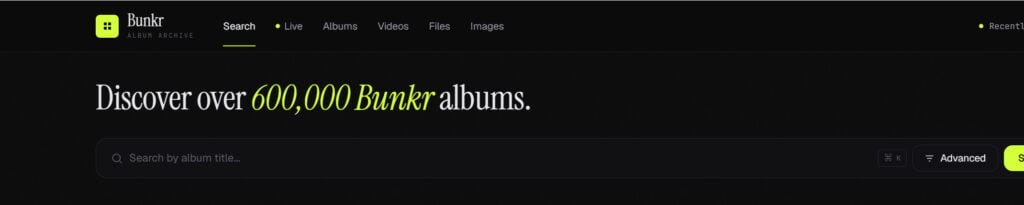
Balbums.st appears to be an archive-style website for browsing Bunkr albums. Users can search albums, sort results, and open listed items on external Bunkr-related domains. The site is built around discovery, not around hosting everything directly on its own homepage.
That makes Balbums.st different from a classic scam page. It is not obviously pretending to be a bank, a delivery company, a fake antivirus provider, or a fake prize giveaway. It is a directory.
However, directories like this can still be risky because they send users into a third-party environment where ads, pop-ups, adult content, file downloads, and redirects may appear.
The main question is not only “Does Balbums.st work?” The more important question is “What happens after users start clicking?”
Is Balbums.st Legit?
Balbums.st appears to work as an album directory. In that limited sense, it does what it claims: it lists Bunkr albums and sends users to external album pages.
But that does not automatically make it safe.
A safe and trustworthy website normally has clear ownership, transparent policies, limited advertising, strong user protections, and a clean browsing experience. Balbums.st operates in a much riskier space: file indexes, adult-style album listings, third-party hosting links, and ad-supported traffic.
Even if the directory itself loads normally, users can still be exposed to unsafe behavior through external links and aggressive ad systems.
So the most accurate verdict is this: Balbums.st may be a working directory, but users should approach it with caution.
Is Balbums.st a Scam?
Balbums.st is not best described as a traditional scam where the entire site is designed only to steal money or infect devices. The more realistic concern is indirect risk.
The site itself may not be malicious. The danger usually comes from the pages, ads, and redirect chains around it. Sites connected to free file-hosting or adult-content traffic often rely on lower-quality advertising networks because mainstream advertisers avoid that space.
These ad networks may show intrusive or misleading content, including:
- Pop-up ads
- Pop-under windows
- New tabs opening automatically
- Fake download buttons
- Fake “continue” buttons
- Browser notification prompts
- Adult ads
- Gambling ads
- Fake antivirus alerts
- Suspicious VPN offers
- Scam subscription pages
- Redirects through multiple unrelated domains
- Pages asking users to install extensions, apps, or APK files
That is the real risk. Users may arrive expecting to browse an album, but one wrong click can send them to a completely different page.
The Real Danger: Pop-Ups, Redirects, and Shady Ads
The biggest danger with Balbums.st is not necessarily the search page itself. The real problem is the advertising and redirect behavior users may encounter while navigating the site or clicking through to external pages.
A user may click an album and see a new tab open. Another click may trigger a pop-up. A button may look like a normal download or view option, but it may actually be an advertisement. A redirect may lead to an adult site, gambling page, fake software update, or suspicious offer.
This type of behavior is common in the file-hosting and adult-content ecosystem.
The problem is that many of these ads are designed to look like real site functions. Users may see buttons such as:
- Download Now
- Continue
- Open File
- View Album
- Watch Video
- Unlock Content
- Install Player
- Update Browser
Some of these may be legitimate page controls, but others may be ads designed to trick users into clicking. That confusion is exactly what makes these sites risky.
Why Sites Like This Use Aggressive Ads
Directories and file-hosting sites often make money from advertising traffic. Since users are not paying directly, the site or connected pages may rely on ad impressions, pop-ups, redirects, and sponsored landing pages.
The more aggressive the ads, the more profitable the traffic can become.
This is why users may see several pop-ups before reaching the content. Every new tab, redirect, or click can generate revenue. Unfortunately, the ad networks used in this space are often less strict than mainstream ad platforms.
That means users may be exposed to misleading or unsafe promotions, including fake virus alerts, questionable browser extensions, scam offers, or pages that try to push unwanted software.
Browser Notification Prompts Are a Red Flag
One of the most common tricks used by shady ad networks is the browser notification prompt.
A page may ask users to click “Allow” to:
- Continue to the album
- Start a video
- Confirm they are not a robot
- Verify age
- Open a file
- Download content
- Pass a fake CAPTCHA
Do not click “Allow” on these prompts.
If you allow notifications from a suspicious domain, it may start sending spam alerts directly to your browser. These notifications can appear even after you leave the original site. They may promote fake virus warnings, adult content, gambling offers, crypto scams, fake giveaways, or phishing pages.
Many users mistake these alerts for real system warnings, but they are often just browser notifications from a site they accidentally allowed.
Fake Downloads and Misleading Buttons
Another major risk is fake downloads.
Because Balbums.st is connected to album and file discovery, users may be more likely to click buttons that appear to open or download files. That makes this environment especially vulnerable to misleading ads.
A fake button may claim that users need to install a player, update a browser, download a codec, or open a special viewer. These prompts should not be trusted.
You should never install software, extensions, APK files, or “video players” from pop-ups or redirect pages. If a page claims you must install something to view an album or file, close it.
Can Balbums.st Infect Your Device?
Simply opening Balbums.st does not automatically mean your device is infected. The site itself should not be automatically labeled as malware.
However, the ad networks, redirects, and third-party pages connected to this type of browsing can expose users to malicious or misleading content. That is where the danger usually appears.
Your risk is higher if you:
- Clicked pop-ups
- Allowed browser notifications
- Downloaded a file
- Installed an extension
- Installed an app or APK
- Entered personal information
- Entered payment details
- Followed a fake virus warning
- Reused a password on a suspicious page
If you only opened the site and closed it, the risk is likely lower. If you interacted with ads, downloads, or permission prompts, you should take precautions.
What Not To Do on Balbums.st
If you visit Balbums.st or similar album-directory sites, follow these rules:
- Do not click random pop-ups.
- Do not allow browser notifications.
- Do not install browser extensions.
- Do not download unknown software.
- Do not install APK files from unknown sources.
- Do not trust fake virus warnings.
- Do not enter payment details.
- Do not reuse passwords.
- Do not click suspicious “Download,” “Continue,” or “Open File” buttons.
- Do not assume every new tab is safe.
The safest approach is to avoid interacting with anything that looks like an ad, warning, or installation prompt.
What To Do If You Already Used Balbums.st
If you only visited Balbums.st and did not click anything unusual, your risk is probably low. But if you clicked pop-ups, allowed notifications, downloaded files, or installed anything, you should clean up your browser and scan your device.
First, close all suspicious tabs and windows. Then clear your browser cookies and site data.
Next, check your browser notification permissions. Remove Balbums.st and any unfamiliar domains from the allowed list. This is especially important if you are now seeing fake virus alerts, adult notifications, gambling ads, or strange pop-ups.
Then review your browser extensions. Remove anything you do not recognize, especially if it appeared recently.
After that, scan your device with Malwarebytes. Malwarebytes can help detect adware, browser hijackers, potentially unwanted programs, suspicious installers, and other threats that may come from misleading ads or unsafe downloads.
It is also smart to use AdGuard or another trusted ad blocker. AdGuard can reduce intrusive ads, pop-ups, redirect chains, and tracking scripts. It will not make every risky site safe, but it can reduce exposure to the aggressive ad behavior often seen around file-hosting and adult-content directories.
Is Your Device Infected? Run a Free Malware Scan
Slow performance, constant pop-ups, or strange behavior? These are classic signs of a malware infection. The fastest way to find out is to scan your device with Malwarebytes Free — one of the most trusted malware removal tools available.
The free version detects and removes the most common threats, including:
- Adware — the cause of those annoying pop-ups
- Browser hijackers — unwanted redirects and changed homepages
- Trojans and spyware — hidden programs stealing your data
- Potentially unwanted programs (PUPs) — software you never asked for
👉 Select your device below — Windows, Mac, or Android — then follow the simple steps to download Malwarebytes, scan your system, and remove any threats it finds. The scan usually takes 5 to 20 minutes.
Run a Malware Scan with Malwarebytes for Windows
Malwarebytes is one of the most popular and trusted anti-malware tools for Windows — and it’s completely free for removing infections. It catches threats that many antivirus programs miss, including adware, browser hijackers, and trojans. Follow the steps below to scan and clean your PC in just a few minutes.
Download Malwarebytes
Click the button below to download the latest version of Malwarebytes for Windows from the official source. The free version is all you need — it will scan your computer and remove adware, browser hijackers, and other malicious software at no cost.
Download MalwarebytesOfficial installer for Windows 11 and 10. Your download starts right away.Want real-time protection? See Malwarebytes Premium Malwarebytes Free for WindowsScans and removes malware at no cost
-
Install Malwarebytes
When the download finishes, open your Downloads folder and double-click the MBSetup file. If Windows shows a User Account Control pop-up, click “Yes” to allow the installation.

Follow the On-Screen Prompts to Install Malwarebytes
The setup wizard will walk you through a few quick screens:
-
Choose where you’re installing the program — “Personal Computer” or “Work Computer” — then click Next.

-
Malwarebytes will now install on your device. This usually takes under a minute.

-
When installation is complete, the “Welcome to Malwarebytes” screen will open automatically.

-
On the final screen, click Open Malwarebytes to launch the program.

-
Enable “Scan for Rootkits”
Before scanning, turn on rootkit detection so Malwarebytes can find even the most hidden threats. Click the Settings gear icon on the left side of the screen.

In the settings menu, find “Scan for rootkits” and click the toggle so it turns blue.

Done? Click “Dashboard” in the left pane to return to the main screen.
Start the Scan
Click the blue Scan button. Malwarebytes will automatically update its virus database and start checking your computer for malware.

-
Wait for the Scan to Finish
The scan checks your entire system for browser hijackers and other malicious programs, so it can take 5 to 20 minutes depending on your computer. Feel free to do something else — just check back occasionally to see the progress.

-
Quarantine the Detected Threats
When the scan is done, you’ll see a list of everything Malwarebytes found — malware, adware, and potentially unwanted programs. Click the “Quarantine” button to remove all of them at once.

Malwarebytes will now remove the malicious files and registry entries and move them safely into quarantine.

-
Restart Your Computer
Some threats can only be fully removed after a reboot. If Malwarebytes asks you to restart, click Yes. Once you’re logged back in, Malwarebytes has finished removing the threats it found.

That’s it — your Windows PC is now clean of trojans, adware, and other malware, and should be back to running smoothly.
If you are still having problems with your computer after completing these instructions, then please follow one of the steps:
- Run a computer scan with ESET Online Scanner
- Ask for help in our Windows Malware Removal Help & Support forum.
Run a Malware Scan with Malwarebytes for Mac
Malwarebytes for Mac is a free on-demand scanner that removes the malware other security software tends to miss — adware, browser hijackers, and unwanted programs included. Cleaning an infected Mac with Malwarebytes has always been completely free, and it’s our go-to recommendation. Follow the steps below to scan and clean your Mac in just a few minutes.
-
Download Malwarebytes for Mac
Click the button below to download the latest version of Malwarebytes for Mac.
Download MalwarebytesOfficial installer for macOS. Your download starts right away.Want real-time protection? See Malwarebytes PremiumMalwarebytes Free for MacScans and removes malware at no cost -
Open the Malwarebytes setup file
When the download finishes, open your Downloads folder and double-click the setup file to begin the installation.

-
Follow the On-Screen Prompts to Install Malwarebytes
The Malwarebytes for Mac Installer will guide you through a few quick screens. Click “Continue” and keep following the prompts until the installation completes.



When the installation is complete, Malwarebytes opens to the Welcome to Malwarebytes screen. Click “Get started“.
-
Select “Personal Computer” or “Work Computer”
Malwarebytes will ask what type of computer you’re installing it on. Click either Personal Computer or Work Computer, whichever applies.

-
Start the Scan
Click the “Scan” button. Malwarebytes will automatically update its detection database and begin checking your Mac for malware.

-
Wait for the Scan to Finish
Malwarebytes will scan your Mac for adware, browser hijackers, and other malicious programs. This can take a few minutes, so feel free to do something else — just check back occasionally to see the progress.

-
Quarantine the Detected Threats
When the scan is done, you’ll see a list of everything Malwarebytes found. Click the “Quarantine” button to remove all the threats at once.

-
Restart Your Mac
Malwarebytes will now remove all the malicious files it found. Some threats can only be fully removed after a reboot — if Malwarebytes asks you to restart, allow it. Once you’re logged back in, your Mac is clean.

That’s it — your Mac is now free of adware, rogue browser extensions, and other potentially harmful software.
If you are still experiencing problems while trying to remove a malicious program from your computer, please ask for help in our Mac Malware Removal Help & Support forum.
Run a Malware Scan with Malwarebytes for Android
Malwarebytes for Android automatically detects and removes dangerous threats like malware and ransomware so you don’t have to worry about your most-used device being compromised. Aggressive detection of adware and potentially unwanted programs keeps your Android phone or tablet running smooth.
-
Download Malwarebytes for Android.
You can download Malwarebytes for Android by clicking the link below.
Get Malwarebytes for AndroidOpens Google Play in a new tab.Want real-time protection? See Malwarebytes Premium for AndroidMalwarebytes for AndroidScans your phone and removes malware at no cost -
Install Malwarebytes for Android on your phone.
In the Google Play Store, tap “Install” to install Malwarebytes for Android on your device.

When the installation process has finished, tap “Open” to begin using Malwarebytes for Android. You can also open Malwarebytes by tapping on its icon in your phone menu or home screen.

-
Follow the on-screen prompts to complete the setup process
When Malwarebytes will open, you will see the Malwarebytes Setup Wizard which will guide you through a series of permissions and other setup options.
This is the first of two screens that explain the difference between the Premium and Free versions. Swipe this screen to continue.
Tap on “Got it” to proceed to the next step.
Malwarebytes for Android will now ask for a set of permissions that are required to scan your device and protect it from malware. Tap on “Give permission” to continue.
Tap on “Allow” to permit Malwarebytes to access the files on your phone.
-
Update database and run a scan with Malwarebytes for Android
You will now be prompted to update the Malwarebytes database and run a full system scan.

Click on “Update database” to update the Malwarebytes for Android definitions to the latest version, then click on “Run full scan” to perform a system scan.

-
Wait for the Malwarebytes scan to complete.
Malwarebytes will now start scanning your phone for adware and other malicious apps. This process can take a few minutes, so we suggest you do something else and periodically check on the status of the scan to see when it is finished.

-
Click on “Remove Selected”.
When the scan has been completed, you will be presented with a screen showing the malware infections that Malwarebytes for Android has detected. To remove the malicious apps that Malwarebytes has found, tap on the “Remove Selected” button.

-
Restart your phone.
Malwarebytes for Android will now remove all the malicious apps that it has found. To complete the malware removal process, Malwarebytes may ask you to restart your device.
That’s it — your Android phone is now clean — no more malicious apps, adware, or browser redirects.
If you are still having problems with your phone after completing these instructions, then please follow one of the steps:
- Restore your phone to factory settings by going to Settings > General management > Reset > Factory data reset.
- Ask for help in our Mobile Malware Removal Help & Support forum.
Stay Protected: Block Ads and Malicious Sites
Now that your device is clean, keep it that way. Most infections start with a malicious ad or a fake download button — so blocking them at the source is your best defense.
We recommend AdGuard, which blocks malicious ads, phishing pages, and dangerous redirects before they can reach you.
👉 Download AdGuard and browse safely
Final Verdict: Is Balbums.st Scam or Legit?
Balbums.st is best described as a Bunkr album directory. It appears to function as an index that helps users find and open albums hosted elsewhere.
However, users should be careful. The real risk is not necessarily that Balbums.st itself is malicious. The bigger concern is the ecosystem around it: pop-ups, redirects, shady ad networks, fake buttons, misleading download prompts, browser notification traps, and unsafe third-party pages.
Balbums.st may work as a directory, but the ads and external pages around it can be risky. Avoid clicking pop-ups, do not allow notifications, do not download unknown files, and do not enter personal or payment information on suspicious pages. If you already interacted with ads or downloads, scan your device with Malwarebytes and consider using AdGuard to block intrusive ads and redirects in the future.

Reviews & discussion
0 commentsShare a firsthand experience, or ask a question.
Community reviews
balbums.st
Moderated reader experiences, not an editorial verdict.
Reviews
Be the first to review
Approved reviews for this site or product will appear here.