

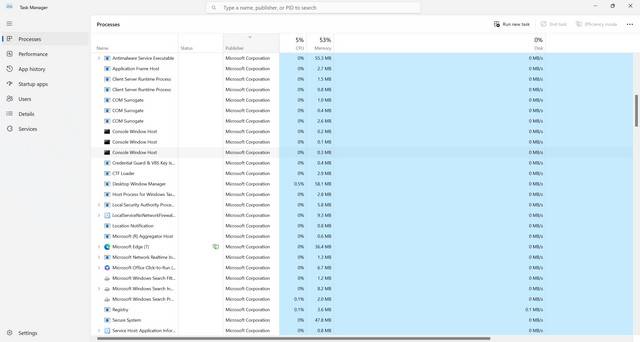
You are checking Task Manager and you spot conhost.exe. Sometimes there is one copy. Sometimes there are several. Sometimes it spikes CPU for a moment and disappears. It looks technical enough to be important, and vague enough to feel suspicious.
In most cases, conhost.exe is legitimate. It is a normal Windows component that helps console-based programs run smoothly. But because it is a common background process, malware occasionally tries to blend in by using the same name.
This guide explains what conhost.exe does, how to confirm it is the real Windows file, the warning signs of fakes, and exactly what to do if it turns out to be malicious.
What is conhost.exe?
conhost.exe stands for Console Window Host. It is a Windows process that sits between classic console applications (like Command Prompt tools) and the Windows graphical interface, helping console windows display correctly and interact better with the desktop.
In plain terms: when a console-based program runs, conhost.exe helps Windows handle the window, fonts, copy/paste, and the way the console integrates with the rest of the system.
You will often see conhost.exe appear when you run things like:
- Command Prompt commands
- PowerShell commands
- Terminal-based utilities
- Installers and updaters that use background console tasks
- Some device tools and driver installers
This is why conhost.exe can show up even when you did not open Command Prompt yourself.
Why does conhost.exe run? And why can there be multiple copies?
It is normal to see more than one conhost.exe process because Windows can create a separate instance for different console sessions or different programs.
A good rule:
- If you are running apps that use command-line helpers (even silently), you may see multiple conhost.exe processes.
- If you close the parent program, the associated conhost.exe should usually disappear shortly after.
If conhost.exe stays running permanently or multiplies rapidly, you should verify what is launching it.
Is conhost.exe a virus or legitimate?
Usually legitimate. The key is verifying identity.
What legitimate conhost.exe should look like
A genuine conhost.exe typically has:
- A normal Windows file path (most important)
- A Microsoft digital signature
- A clear parent process (often
cmd.exe,powershell.exe,WindowsTerminal.exe, an installer, or a known application)
The big reason people suspect it
Malware authors love trusted names. conhost.exe is perfect because:
- Many users do not know what it is
- It appears and disappears
- It can have multiple instances, which looks “malware-like”
So conhost.exe itself is not suspicious. A conhost.exe in the wrong place is.
How to tell if conhost.exe is real (fast checks)
1) Check the file location (the quickest and most reliable test)
A legitimate conhost.exe is normally located in:
C:\Windows\System32\conhost.exe
How to check:
- Press Ctrl + Shift + Esc to open Task Manager
- Find conhost.exe
- Right-click it → Open file location
What it means:
- If it opens in
C:\Windows\System32\, that is a strong sign it is legitimate. - If it opens in AppData, Temp, Downloads, ProgramData, or any random folder, treat it as suspicious.
Impostors commonly hide in user-writeable locations because malware can easily drop files there without admin privileges.
2) Check the digital signature
- In the file’s folder, right-click conhost.exe → Properties
- Go to Digital Signatures
- Confirm it is signed by Microsoft and the signature is valid
No signature or an invalid signature is a major warning sign for something claiming to be a core Windows component.
3) Check the parent process (useful context)
If you see conhost.exe and want to know what spawned it:
- In Task Manager, you can sort by name and watch what appears when you launch an app.
- Advanced users can use Process Explorer to see the process tree clearly.
A common normal pattern is:
cmd.exeorpowershell.exe→conhost.exe
A suspicious pattern is:
- A random executable from AppData or Temp →
conhost.exe
Why is conhost.exe using high CPU or memory?
In most legitimate cases, conhost.exe itself is not the true “problem.” It is just hosting a console session for something else.
Common legitimate reasons:
- A command-line task is doing heavy work (compression, scanning, converting files, compiling)
- An installer is running background scripts
- A security product is running a console helper
- A Windows maintenance task is running briefly
The key is whether it returns to normal once the underlying task finishes.
When high usage is a red flag
- conhost.exe is high CPU for long periods with no clear parent process you recognize
- It keeps reappearing after you end it
- It is running from a non-system folder
- You see unusual network activity tied to whatever spawned it
Common “fake conhost.exe” tricks
Malware rarely needs to replace the real conhost.exe. It usually just drops a file named conhost.exe in a different folder and tries to run it at startup.
Watch for:
- Wrong location (top red flag)
- Look-alike names like
conhost32.exe,conhost1.exe, or subtle spelling changes - Multiple copies in strange locations
- A conhost.exe that launches even in Safe Mode (often indicates persistence)
If it is malware: how to remove fake conhost.exe safely
If your checks show conhost.exe is not in System32 or it is not signed properly, treat it as malicious and do this.
- STEP 1: Use Rkill to terminate malicious processes
- STEP 2: Uninstall malicious programs from Windows
- STEP 3: Reset browsers back to default settings
- STEP 4: Use Malwarebytes to remove Trojans and Unwanted Programs
- STEP 5: Use HitmanPro to remove Rootkits and other Malware
- STEP 6: Use AdwCleaner to remove Malicious Browser Policies and Adware
- STEP 7: Perform a final check with ESET Online Scanner
- STEP 8: Run the System File Checker (SFC) tool
- STEP 9: Run the Disk Check tool
STEP 1: Use Rkill to terminate malicious processes
In this first step, we will download and run Rkill to terminate malicious processes that may be running on your computer.
RKill is a program that was developed at BleepingComputer.com that attempts to terminate known malware processes so that your normal security software can then run and clean your computer of infections. When RKill runs it will kill malware processes and then removes incorrect executable associations and fixes policies that stop us from using certain tools.
-
Download Rkill.
You can download RKill to your computer from the below link. When at the download page, click on the Download Now button labeled iExplore.exe. We are downloading a renamed version of Rkill (iExplore.exe) because some malware will not allow processes to run unless they have a certain filename.
Download RKillOpens the BleepingComputer download page in a new tab. RKillStops malware processes so other tools can run
 -
Run RKill.
After downloading, double-click the iExplore.exe icon to kill malicious processes. In most cases, downloaded files are saved to the Downloads folder.
The program may take some time to search for and end various malware programs.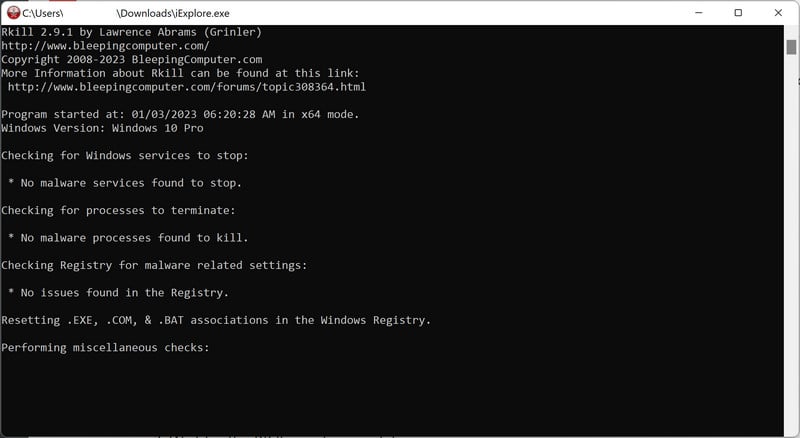
When it is finished, the black window will close automatically and a log file will open. Do not restart your computer. Proceed to the next step in this guide.
STEP 2: Uninstall malicious programs from Windows
In this second step, we will manually check if any unknown or malicious programs are installed on the computer. Sometimes adware and browser hijackers can have a usable Uninstall entry that can be used to remove them.
-
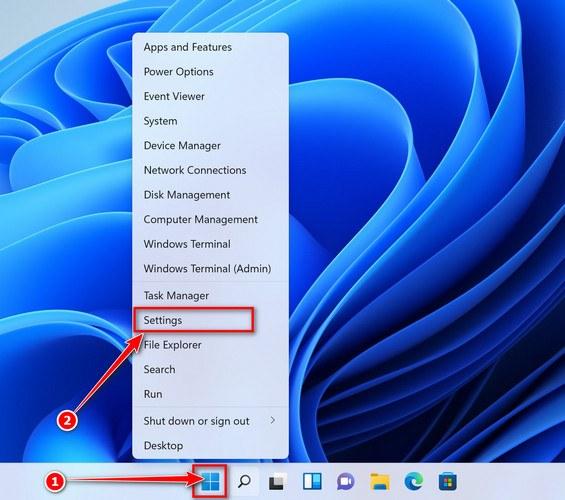
Open the Settings app
Press Windows + I on your keyboard to open Settings. Alternatively, right-click the Start button and select “Settings” from the menu.
-
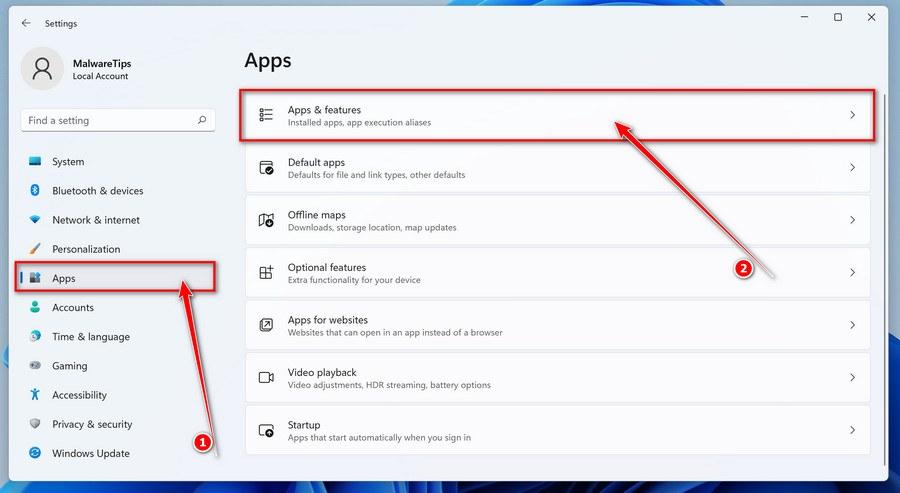
Go to “Apps & Features”
In the Settings window, click “Apps” in the sidebar, then select “Apps & Features“.
-
Find and uninstall the malicious program
Scroll through the list of installed apps and look for anything suspicious — a program you don’t remember installing, or one with a strange or generic name.
Quick tip: click “Sort by” and choose “Install date“. Malware is usually one of the most recently installed programs, so it will appear near the top.
When you find the malicious program, click the three dots next to it and select “Uninstall“.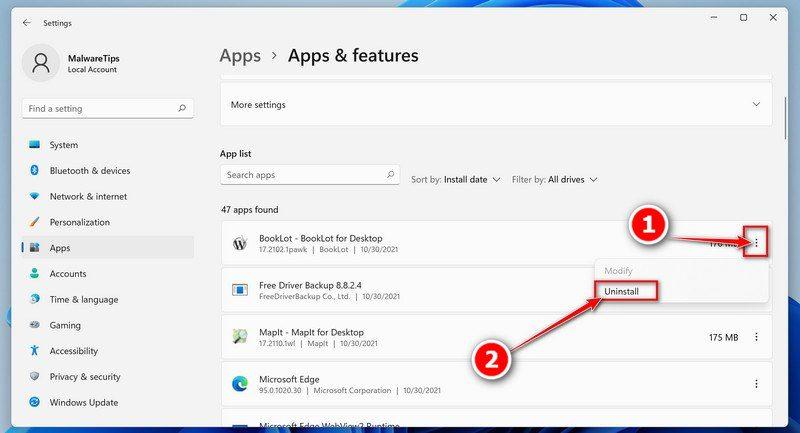 Didn’t find any suspicious programs? That’s fine — not all infections install visible apps. Just continue with the next step in this guide.
 -
Complete the uninstall
Confirm by clicking Uninstall in the message box, then follow the remaining prompts.
Read each prompt carefully — some malicious programs use confusing wording or pre-ticked boxes hoping you’ll click through without looking.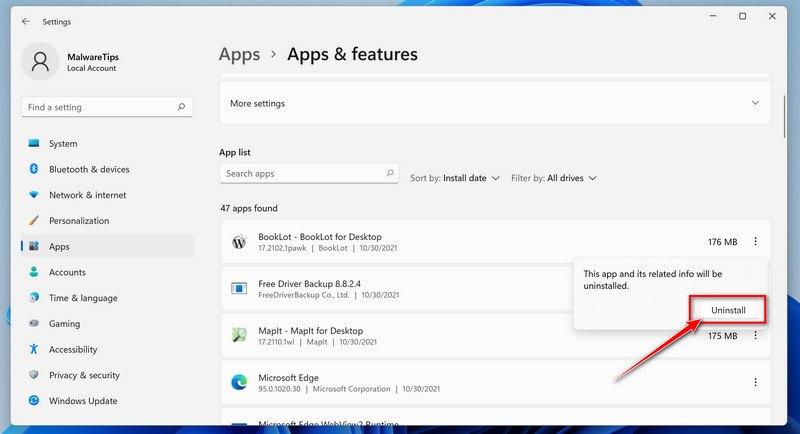
-
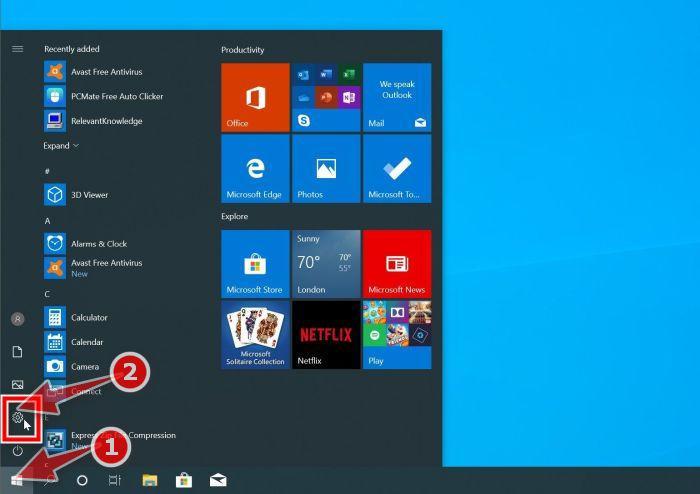
Open the Settings app
Press Windows + I on your keyboard to open Settings. Alternatively, click the Start button on the taskbar and select “Settings” (the gear icon).
-
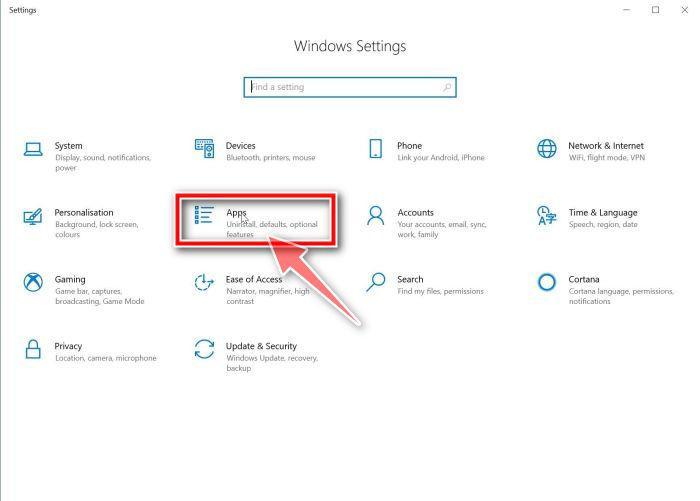
Click on “Apps”
In the “Windows Settings” window, click “Apps“. The “Apps & Features” section should open by default — if it doesn’t, select it from the list on the left.
-
Find and uninstall the malicious program
Scroll through the list of installed apps and look for anything suspicious — a program you don’t remember installing, or one with a strange or generic name.
Quick tip: click “Sort by” and choose “Install date“. Malware is usually one of the most recently installed programs, so it will appear near the top.
When you find the malicious program, click on it and select “Uninstall“.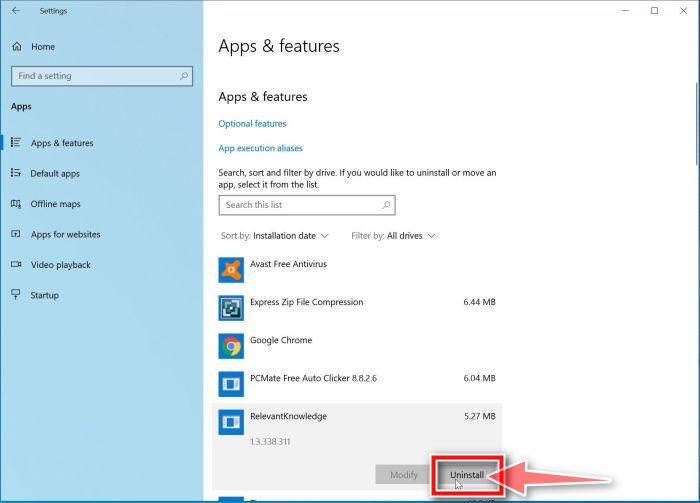 Didn’t find any suspicious programs? That’s fine — not all infections install visible apps. Just continue with the next step in this guide.
 -
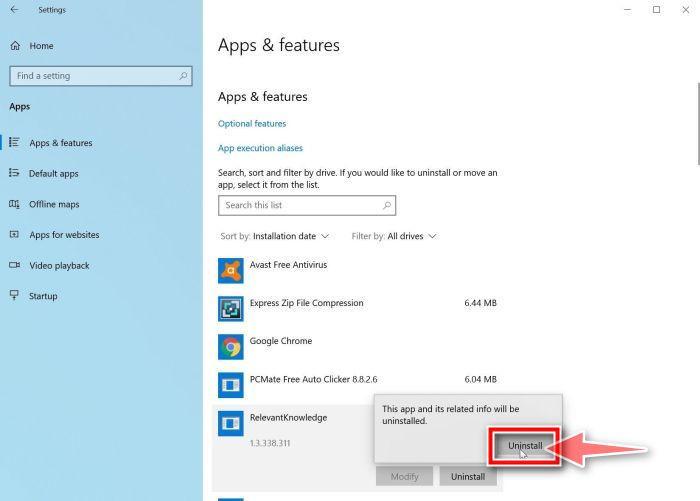
Complete the uninstall
Confirm by clicking Uninstall in the message box, then follow the remaining prompts.
Read each prompt carefully — some malicious programs use confusing wording or pre-ticked boxes hoping you’ll click through without looking.
-
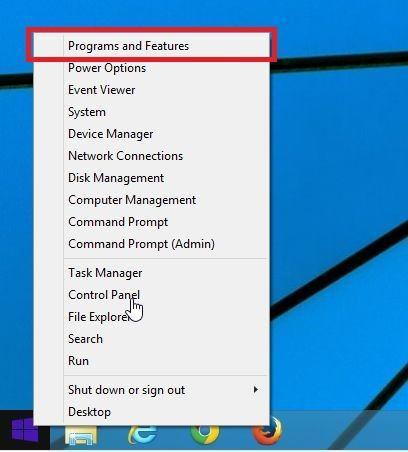
Open “Programs and Features”
Right-click the Start button in the taskbar, then select “Programs and Features“. This takes you straight to the list of installed programs.
-
Find and uninstall the malicious program
Scroll through the list of installed programs and look for anything suspicious — a program you don’t remember installing, or one with a strange or generic name. Click to highlight it, then click the “Uninstall” button.
Didn’t find any suspicious programs? That’s fine — not all infections install visible apps. Just continue with the next step in this guide.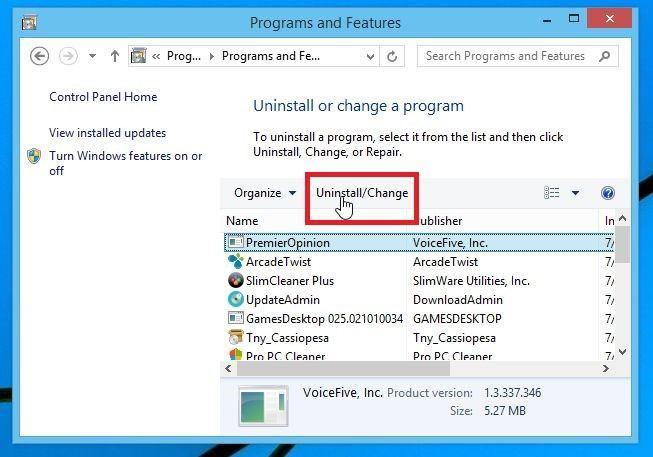
-
Complete the uninstall
Confirm by clicking Yes in the message box, then follow the remaining prompts. Read each prompt carefully — some malicious programs use confusing wording or pre-ticked boxes hoping you’ll click through without looking.
-
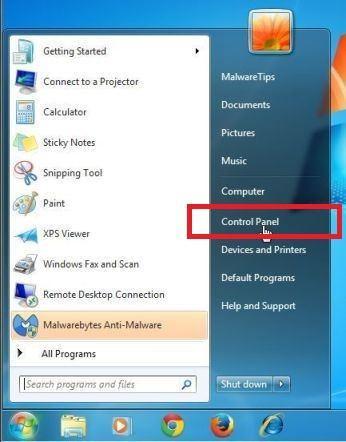
Open the Control Panel
Click the “Start” button, then click “Control Panel“.
-
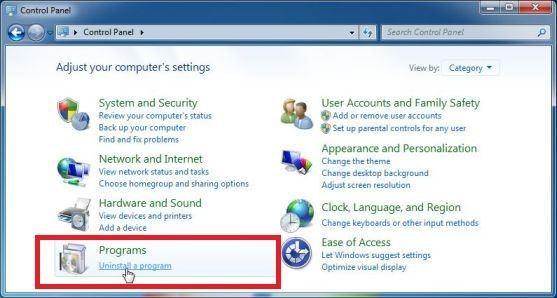
Click on “Uninstall a Program”
In the Control Panel, click “Uninstall a Program” under the Programs category.
-
Find and uninstall the malicious program
Scroll through the list of installed programs and look for anything suspicious — a program you don’t remember installing, or one with a strange or generic name. Click to highlight it, then click the “Uninstall” button.
Didn’t find any suspicious programs? That’s fine — not all infections install visible apps. Just continue with the next step in this guide.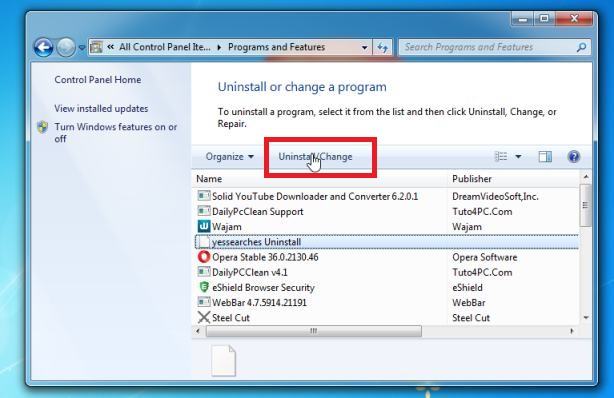
-
Complete the uninstall
Confirm by clicking Yes in the message box, then follow the remaining prompts. Read each prompt carefully — some malicious programs use confusing wording or pre-ticked boxes hoping you’ll click through without looking.
With the malicious programs removed, you’re ready for the next step in this guide.
STEP 3: Reset browsers back to default settings
In this step, we will remove spam notifications, malicious extensions, and change to default any settings that might have been changed by malware.
Please note that this method will remove all extensions, toolbars, and other customizations but will leave your bookmarks and favorites intact. For each browser that you have installed on your computer, please click on the browsers tab below and follow the displayed steps to reset that browser.
Reset Chrome for Windows to default settings
We will now reset your Chrome browser settings to their original defaults. This will reset your startup page, new tab page, search engine, and pinned tabs. It will also disable all extensions and clear temporary data like cookies. Your favorites, history, and saved passwords will not be cleared.
Open the Chrome menu
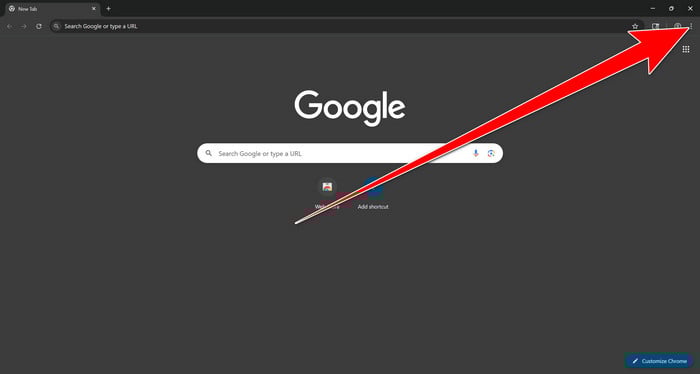
Open Google Chrome and click the three-dot (⋮) icon in the top-right corner.
Open Chrome Settings
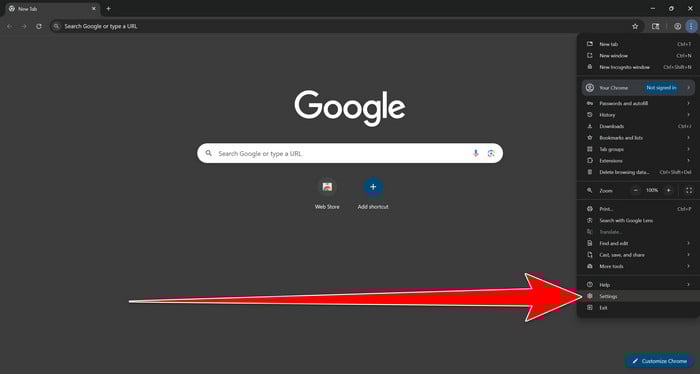
Select Settings from the Chrome menu.
Select “Reset settings”
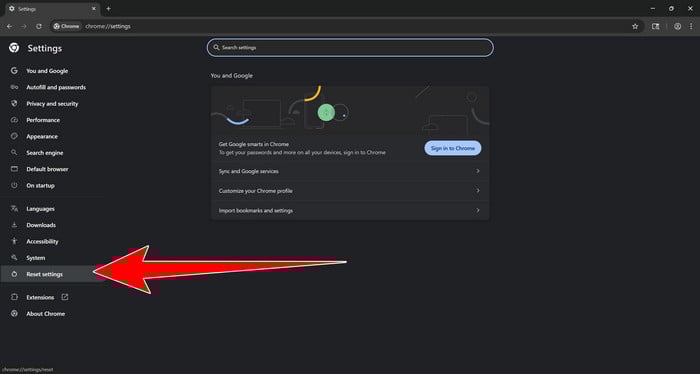
Look at the menu on the left side of the Settings page. Scroll down and click Reset settings.
Restore Chrome’s original settings
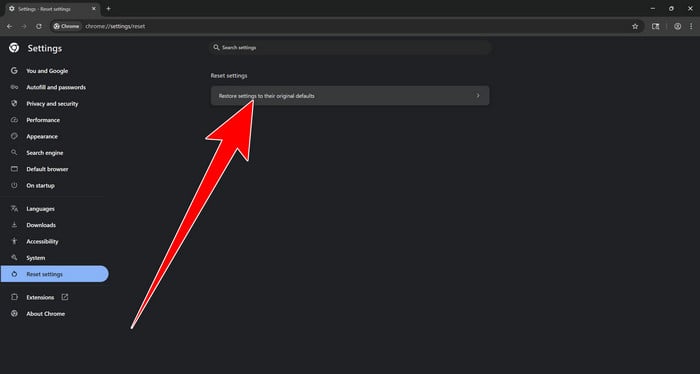
Click Restore settings to their original defaults.
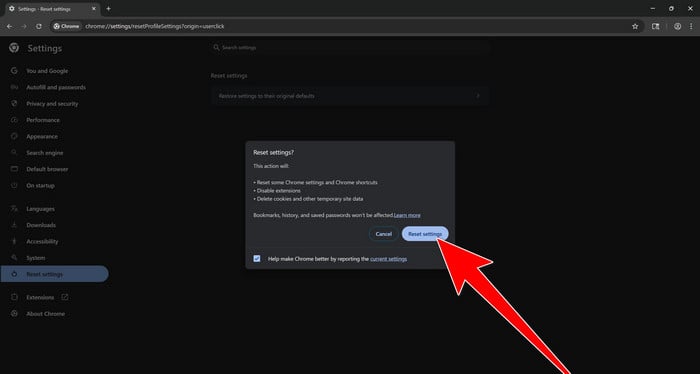
Confirm the Chrome reset
A confirmation window will appear. Click Reset settings.
This will:
- Restore the default search engine, homepage, and new tab page
- Reset startup pages and pinned tabs
- Disable installed extensions
- Clear temporary cookies and website data
Don’t worry: Chrome will not delete your bookmarks, browsing history, or saved passwords.
Restart Chrome and perform a test search. If your searches now open normally in Google, you can stop here.
If searches are still redirected through shady domains complete the additional step below.
Remove persistent search hijacker data
Only complete this step if the redirect continues after resetting Chrome.
Some browser hijackers hide inside Chrome’s local search-engine database. A standard Chrome reset may not remove this database, which is why searches can continue to pass through shady sites.
The following procedure creates a backup of the affected database and allows Chrome to build a new, clean version. This is safer and less disruptive than deleting the entire Chrome profile.
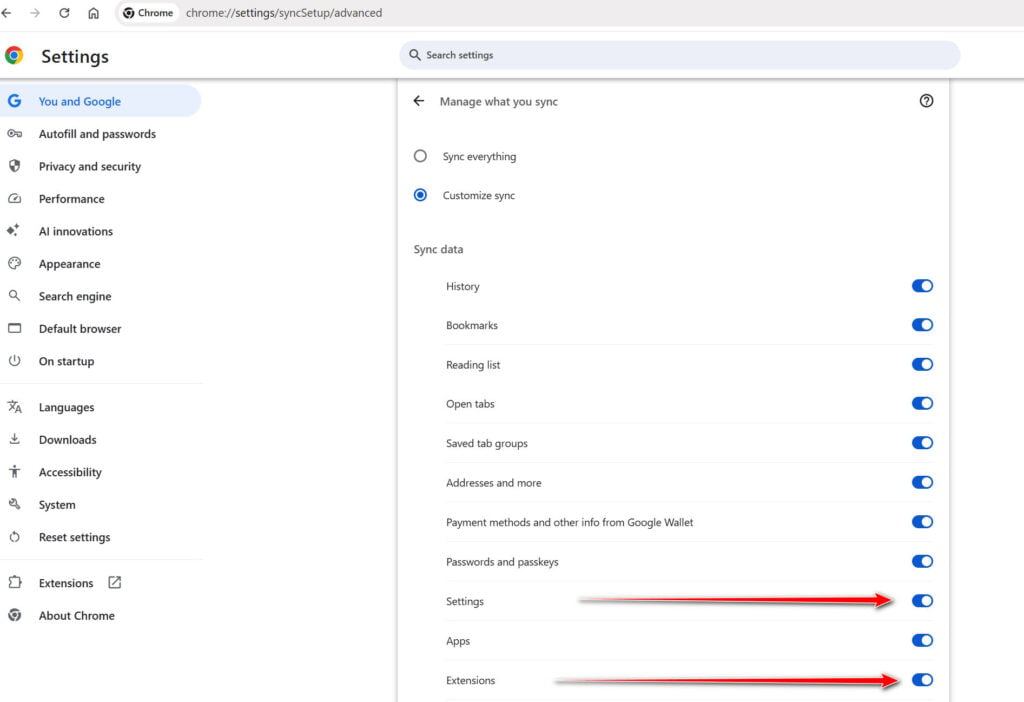
First, prevent Chrome Sync from restoring the hijacked settings:
- Open a new Chrome tab.
- Copy the following address, paste it into Chrome’s address bar, and press Enter:
chrome://settings/syncSetup/advanced - Under Manage what you sync, select Customize sync.
- Turn off Settings and Extensions.
- You can leave Bookmarks and Passwords enabled so your important data remains synchronized.
Note: Some newer Chrome versions may automatically redirect this address to the Google Account settings page. If that happens, locate the list of synchronized Chrome data and turn off Settings and Extensions there.
Now save anything you are working on and close every Chrome window.
Run the cleanup command:
- Press the Windows key on your keyboard.
- Type PowerShell.
- Open Windows PowerShell. Administrator access is not required.
- Copy the entire command shown below.
- Right-click inside the PowerShell window to paste the command, then press Enter.
- If Windows warns you about pasting multiple lines, select the option to continue.
$stamp = Get-Date -Format "yyyyMMdd-HHmmss"

Get-Process chrome -ErrorAction SilentlyContinue |
 Stop-Process -Force

$root = "$env:LOCALAPPDATA\Google\Chrome\User Data"

if (Test-Path $root) {
 $profiles = Get-ChildItem $root -Directory |
 Where-Object {
 $_.Name -eq "Default" -or
 $_.Name -match "^Profile \d+$"
 }

 foreach ($profile in $profiles) {
 foreach ($name in @(
 "Web Data",
 "Web Data-journal",
 "Web Data-wal",
 "Web Data-shm"
 )) {
 $file = Join-Path $profile.FullName $name

 if (Test-Path $file) {
 $backup = "$file.search-hijacker-backup-$stamp"
 Move-Item -LiteralPath $file -Destination $backup
 Write-Host "Backup created: $backup"
 }
 }
 }
}

Write-Host ""
Write-Host "Chrome search data has been cleaned."
Write-Host "You can now reopen Chrome."
Wait until PowerShell displays the following message:
Chrome search data has been cleaned.
You can now reopen Chrome.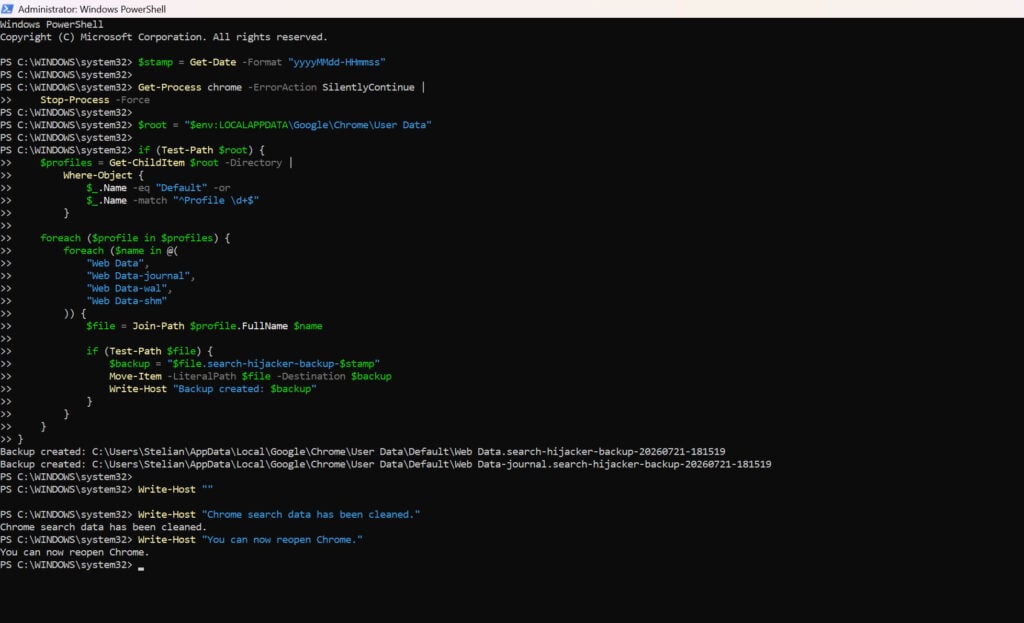
Close PowerShell and reopen Google Chrome. Chrome will automatically create a clean search database for every local profile.
Next, copy the following address, paste it into Chrome’s address bar, and press Enter:
chrome://settings/searchEnginesMake sure Google is selected as the default search engine. Test several searches from the address bar and confirm that they no longer pass through shady search engines.
Your important Chrome data is protected: the PowerShell cleanup does not remove bookmarks, saved passwords, browsing history, cookies, or installed extensions. However, it may reset locally stored Autofill addresses and form suggestions.
The original search database is not deleted. PowerShell renames it and adds
search-hijacker-backupto its filename so it can be recovered if necessary.Keep Settings and Extensions synchronization disabled while testing Chrome. Do not enable every extension at once. Enable only the extensions you recognize, one at a time, and test Chrome after each one.
If the redirect returns after enabling a particular extension, remove that extension immediately.
Reset Firefox for Windows to default settings
We will now reset your Firefox browser settings to their default. The reset feature fixes many issues by restoring Firefox to its factory default state while saving your essential information like bookmarks, passwords, web form auto-fill information, browsing history, and open tabs.
-
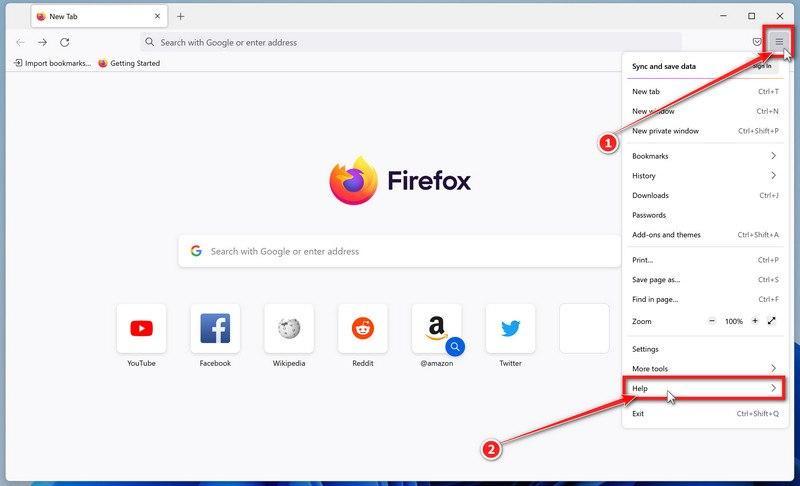
Open the Firefox menu and click “Help”
Click the three horizontal lines in the top-right corner of Firefox to open the main menu, then select “Help“.
-
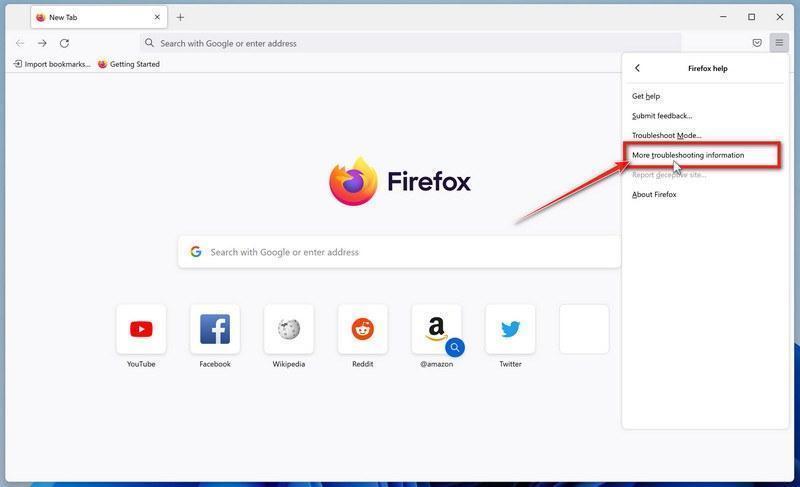
Click “More troubleshooting information”
In the Help menu, click “More troubleshooting information“.
-
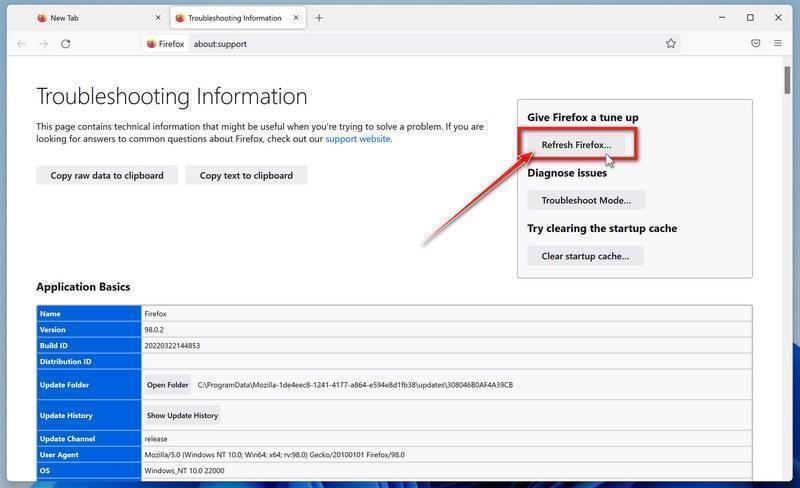
Click “Refresh Firefox”
On the “Troubleshooting Information” page, click the “Refresh Firefox” button in the top-right area of the page.
-
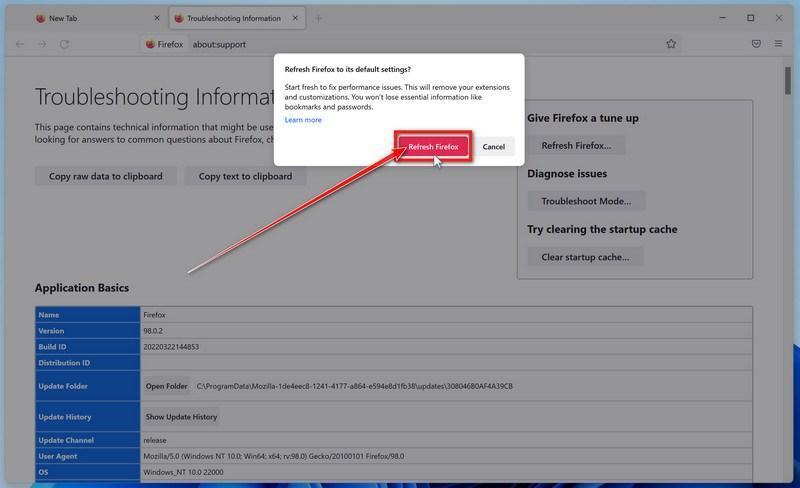
Confirm the refresh
In the confirmation window, click “Refresh Firefox” again. This removes extensions, themes, and customized settings — the usual hiding places for browser hijackers — while keeping your bookmarks, history, and saved passwords safe.
-
Click “Finish”
Firefox will close, reset itself to default settings, and reopen with a window listing the information that was restored. Click “Finish” — your Firefox is now clean.
About the “Old Firefox Data” folder: Firefox saves a copy of your old profile on your desktop. If something you need is missing after the reset, you can recover it from this folder. Otherwise, delete the folder — it contains sensitive data like passwords and cookies, and may also still hold the malicious files you just removed.
Reset Microsoft Edge to default settings
We will now reset your Microsoft Edge browser settings to their default. This will reset your startup page, new tab page, search engine, and pinned tabs. It will also disable all extensions and clear temporary data like cookies. Your favorites, history, and saved passwords will not be cleared.
Updated for Microsoft Edge on Windows 10 and Windows 11 — July 2026.
-
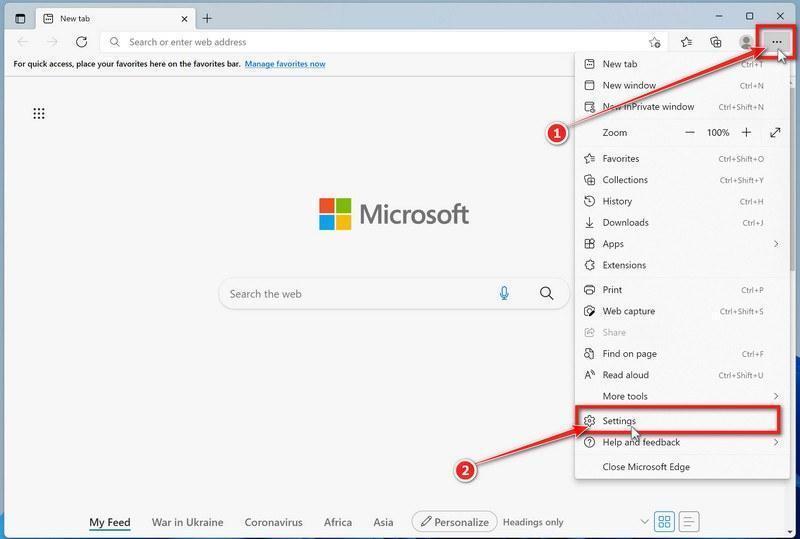
Open the Edge menu and click “Settings”
Open Microsoft Edge. In the top-right corner, click the three-dot (…) icon, then click Settings.
-
Prevent the unwanted settings from returning through Edge Sync
If you are signed in to Microsoft Edge, a bad setting or extension may be stored in your Microsoft account and return after the reset.
Copy the following address, paste it into the Edge address bar, and press Enter:
edge://settings/profiles/syncOn the Sync page, turn off these two options:
- Settings
- Extensions
You can leave Favorites and Passwords turned on.
If Edge says that sync is already off, simply continue to the next step.
Important: Edge Sync settings are separate for each profile. If you use more than one Edge profile, switch to each affected profile and repeat this step.
You do not need to sign out of your Microsoft account or delete the Edge profile.
-
Open “Reset settings”
In the left sidebar, click Reset settings.
You can also open the reset page directly. Copy the following address, paste it into the Edge address bar, and press Enter:
edge://settings/reset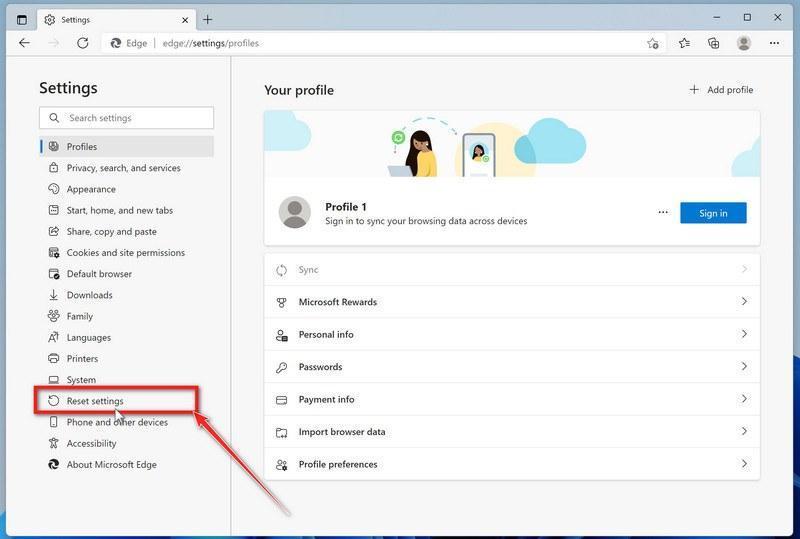
-
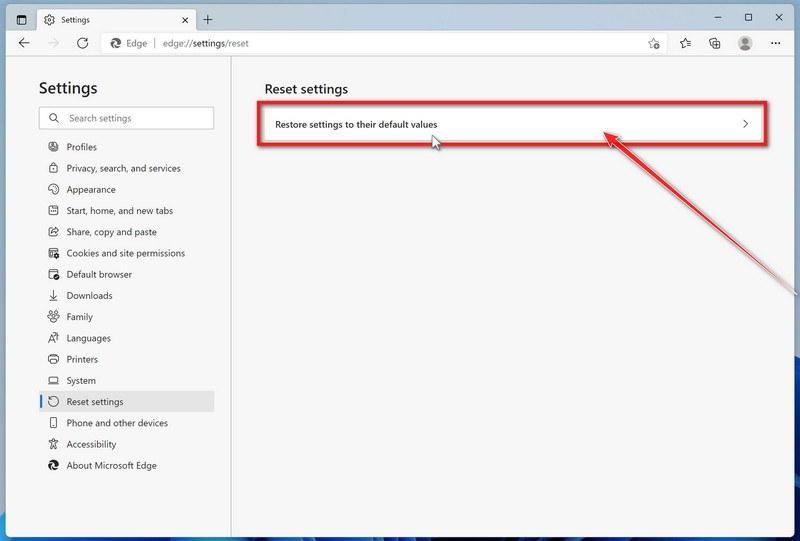
Click “Restore settings to their default values”
Click Restore settings to their default values.
-
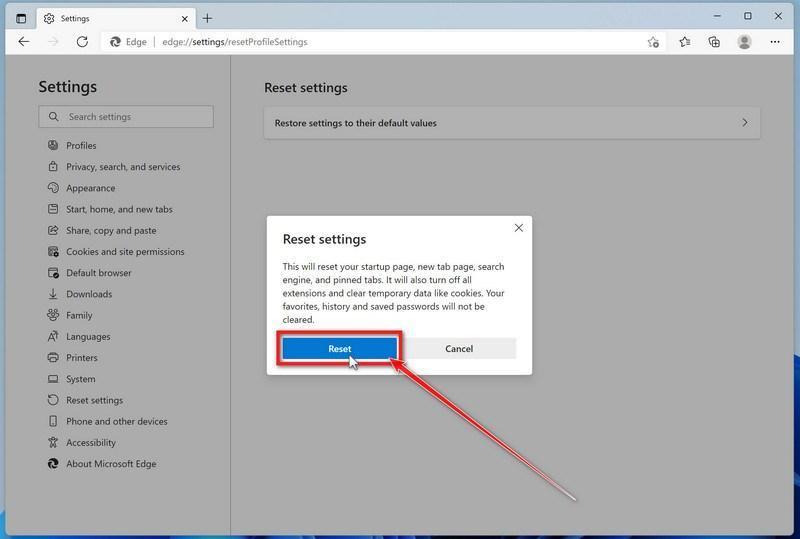
Confirm the reset
In the confirmation dialog, click Reset.
This resets the startup page, new tab page, search engine, and pinned tabs. It also disables all extensions and clears temporary site data, such as cookies.
Don’t worry: your favorites, browsing history, and saved passwords will not be deleted.
-
Check your extensions before turning them back on
Copy the following address, paste it into the Edge address bar, and press Enter:
edge://extensionsRemove any extension you do not recognize or no longer use. Pay particular attention to extensions related to search, coupons, shopping, PDF conversion, browser protection, new tabs, or video downloading.
Do not turn all extensions back on at the same time. Enable only the extensions you recognize and trust.
-
Select a trusted search engine
Copy the following address, paste it into the Edge address bar, and press Enter:
edge://settings/searchEnginesSelect Bing, Google, DuckDuckGo, or another search provider you trust and make it the default.
Remove any unknown search engines, especially providers with strange names or addresses that you did not add yourself.
Restart Edge and perform a search from the address bar. If searches are no longer redirected, you can stop here.
-
If the redirect remains, clean the corrupted search data without deleting the Edge profile
Use this additional step only if Edge continues to redirect searches after the normal reset.
This command cleans the search-engine database from every local Edge profile while keeping your favorites, saved passwords, browsing history, cookies, and profiles.
Before continuing: save anything you are working on because the command will close Microsoft Edge.
- Open the Windows Start menu.
- Type PowerShell.
- Open Windows PowerShell. Administrator access is not required.
- Copy the entire command below.
- Paste it into PowerShell and press Enter.
$stamp = Get-Date -Format "yyyyMMdd-HHmmss"
$root = Join-Path $env:LOCALAPPDATA "Microsoft\Edge\User Data"

Get-Process -Name msedge -ErrorAction SilentlyContinue |
    Stop-Process -Force -ErrorAction SilentlyContinue

Start-Sleep -Seconds 2

if (-not (Test-Path -LiteralPath $root)) {
    Write-Host "The Microsoft Edge profile folder was not found:"
    Write-Host $root
    return
}

$profiles = Get-ChildItem -LiteralPath $root -Directory |
    Where-Object {
        $_.Name -eq "Default" -or
        $_.Name -match "^Profile \d+$"
    }

$movedFiles = 0

foreach ($profile in $profiles) {
    foreach ($name in @(
        "Web Data",
        "Web Data-journal",
        "Web Data-wal",
        "Web Data-shm"
    )) {
        $file = Join-Path $profile.FullName $name

        if (Test-Path -LiteralPath $file) {
            $backup = "$file.search-reset-backup-$stamp"

            try {
                Move-Item -LiteralPath $file -Destination $backup -ErrorAction Stop
                Write-Host "Cleaned: $($profile.Name)\$name"
                $movedFiles++
            }
            catch {
                Write-Warning "Could not clean: $file"
            }
        }
    }
}

Write-Host ""

if ($movedFiles -gt 0) {
    Write-Host "Microsoft Edge search data has been cleaned." -ForegroundColor Green
    Write-Host "You can now reopen Microsoft Edge."
}
else {
    Write-Host "No Edge search database files were found." -ForegroundColor Yellow
}
The command does not permanently delete the original files. It renames them as backup files, and Edge creates a clean search database when it starts again.
Note: this additional cleanup may also reset saved form-fill suggestions, saved addresses, and manually added search engines. It does not delete favorites, passwords, or browsing history.
-
Reopen Edge and test the browser
Open Microsoft Edge again, visit edge://settings/searchEngines, and select your preferred search engine.
Perform several searches from the address bar to confirm that the redirect is gone.
Keep synchronization for Settings and Extensions turned off until you are certain that the computer and extensions are clean. If you enable them again, turn them on one at a time and test Edge after each change.
-
If Edge still redirects your searches
Open edge://policy. If this is your personal computer and Edge displays unknown policies such as ExtensionInstallForcelist or DefaultSearchProvider, the hijacker may be installed outside the browser profile.
In that situation, continue with the next malware-removal steps and run a complete antivirus scan. If the computer belongs to a company or school, contact its IT administrator before changing any policies.
Reset Internet Explorer to default settings
We will now reset your Internet Explorer browser settings to their default. You can reset Internet Explorer settings to return them to the state they were in when Internet Explorer was first installed on your computer.
-
Go to “Internet Options”.
Open Internet Explorer, click on the gear icon in the upper-right part of your browser, then select “Internet Options“.
-
Select the “Advanced” tab, then click “Reset”
In the “Internet Options” dialog box, select the “Advanced” tab, then click on the “Reset” button.
-
Click on “Reset”.
In the “Reset Internet Explorer settings” section, select the “Delete personal settings” checkbox, then click on the “Reset” button.
-
Click on “Close”.
When Internet Explorer has completed its task, click on the “Close” button in the confirmation dialogue box.
Close your browser and then you can open Internet Explorer again.
STEP 4: Use Malwarebytes to remove Trojans and Unwanted Programs
In this next step, we will we will install Malwarebytes to scan and remove any infections, adware, or potentially unwanted programs that may be present on your computer.
Malwarebytes is one of the most popular and trusted anti-malware tools for Windows — and it’s completely free for removing infections. It catches threats that many antivirus programs miss, including adware, browser hijackers, and trojans. Follow the steps below to scan and clean your PC in just a few minutes.
Download Malwarebytes
Click the button below to download the latest version of Malwarebytes for Windows from the official source. The free version is all you need — it will scan your computer and remove adware, browser hijackers, and other malicious software at no cost.
Download MalwarebytesOfficial installer for Windows 11 and 10. Your download starts right away.Want real-time protection? See Malwarebytes Premium Malwarebytes Free for WindowsScans and removes malware at no cost
-
Install Malwarebytes
When the download finishes, open your Downloads folder and double-click the MBSetup file. If Windows shows a User Account Control pop-up, click “Yes” to allow the installation.

Follow the On-Screen Prompts to Install Malwarebytes
The setup wizard will walk you through a few quick screens:
-
Choose where you’re installing the program — “Personal Computer” or “Work Computer” — then click Next.

-
Malwarebytes will now install on your device. This usually takes under a minute.

-
When installation is complete, the “Welcome to Malwarebytes” screen will open automatically.

-
On the final screen, click Open Malwarebytes to launch the program.

-
Enable “Scan for Rootkits”
Before scanning, turn on rootkit detection so Malwarebytes can find even the most hidden threats. Click the Settings gear icon on the left side of the screen.

In the settings menu, find “Scan for rootkits” and click the toggle so it turns blue.

Done? Click “Dashboard” in the left pane to return to the main screen.
Start the Scan
Click the blue Scan button. Malwarebytes will automatically update its virus database and start checking your computer for malware.

-
Wait for the Scan to Finish
The scan checks your entire system for browser hijackers and other malicious programs, so it can take 5 to 20 minutes depending on your computer. Feel free to do something else — just check back occasionally to see the progress.

-
Quarantine the Detected Threats
When the scan is done, you’ll see a list of everything Malwarebytes found — malware, adware, and potentially unwanted programs. Click the “Quarantine” button to remove all of them at once.

Malwarebytes will now remove the malicious files and registry entries and move them safely into quarantine.

-
Restart Your Computer
Some threats can only be fully removed after a reboot. If Malwarebytes asks you to restart, click Yes. Once you’re logged back in, Malwarebytes has finished removing the threats it found.

STEP 5: Use HitmanPro to remove Rootkits and other Malware
In this fifth step, while the computer is in normal back, we will download and run a scan with HitmanPro to remove Trojans, rootkits, and other malicious programs.
HitmanPro is a second-opinion scanner — it’s designed to catch what your main antivirus might have missed. Instead of relying on a single detection engine, it checks the behavior of files in the locations where malware usually hides. Anything suspicious gets sent to the cloud, where it’s analyzed by two of the best antivirus engines available: Bitdefender and Kaspersky.
Good news: scanning is completely free, with no limits. You only need a license when it’s time to remove what was found — and even then, you can activate a free one-time 30-day trial to clean your PC at no cost. (A full license is $24.95 per year for 1 PC.)
-
Download HitmanPro
Click the button below to download HitmanPro. Remember — the scan is free, so you have nothing to lose by checking your PC.
Download HitmanProFree scan. Removing threats needs the free 30-day trial. Opens the official HitmanPro page in a new tab. HitmanProSecond-opinion malware scanner from Sophos
 -
Install HitmanPro
When the download finishes, open your Downloads folder and double-click the file: “hitmanpro.exe” on 32-bit Windows, or “hitmanpro_x64.exe” on 64-bit Windows.
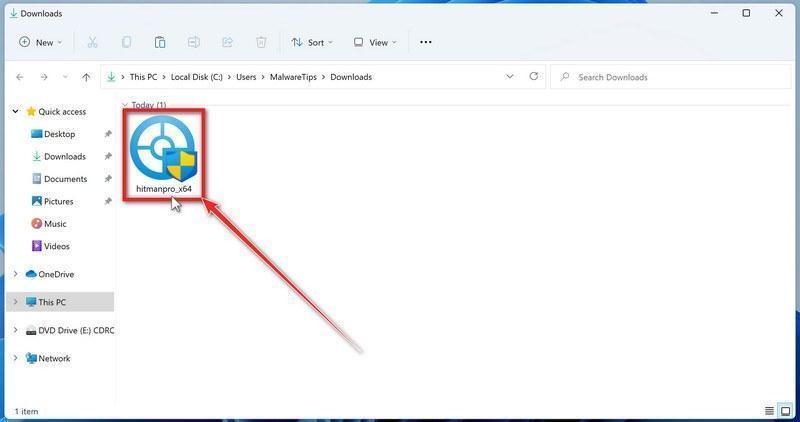
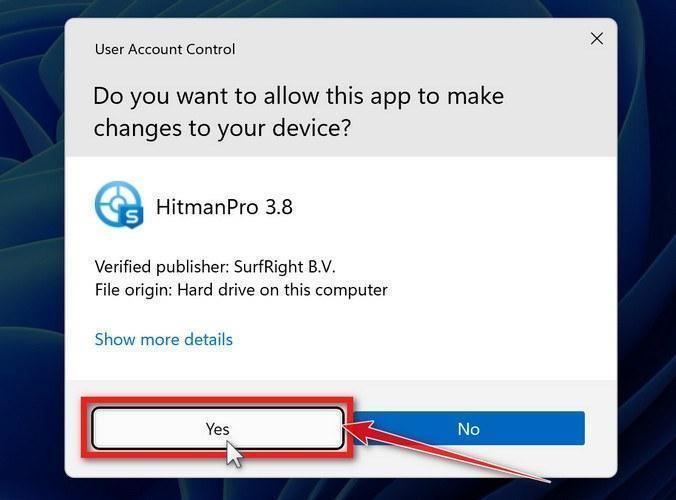
If a User Account Control pop-up asks whether HitmanPro can make changes to your device, click “Yes” to continue.
-
Follow the On-Screen Prompts
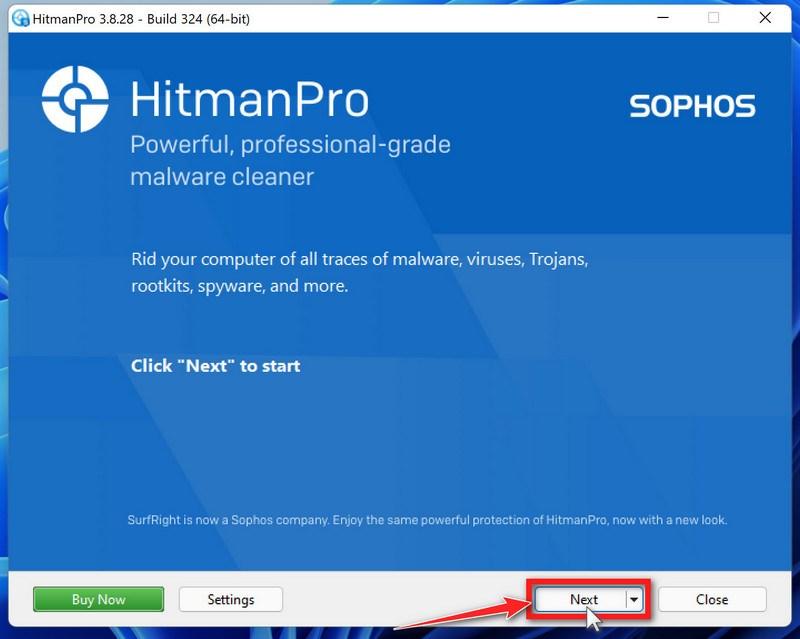
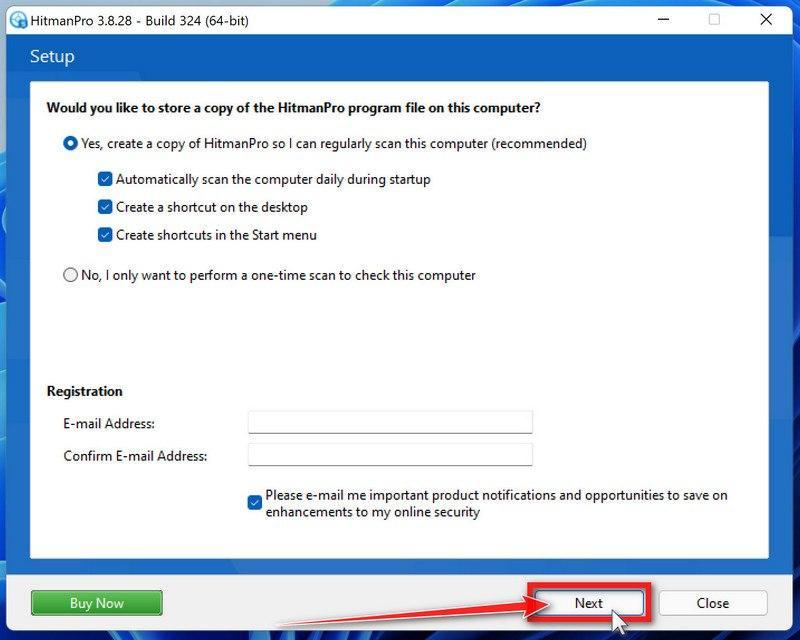
On the HitmanPro start screen, click “Next” to begin the system scan. No lengthy setup required — it goes straight to work.
-
Wait for the Scan to Finish
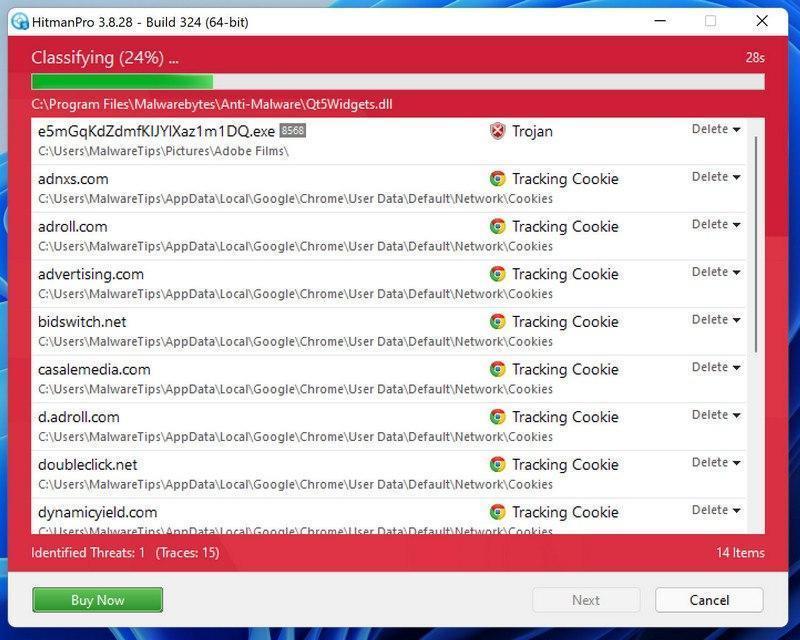
HitmanPro will now check your computer for malicious programs. This usually takes just a few minutes thanks to its cloud-based scanning.
-
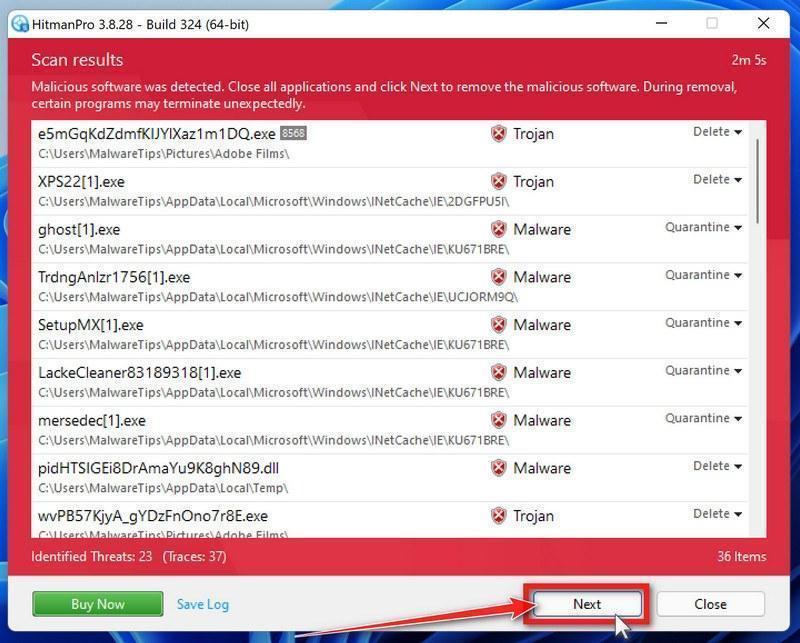
Review the Results and Click “Next”
When the scan is done, HitmanPro will show you everything it found. Click “Next” to remove the detected threats.
-
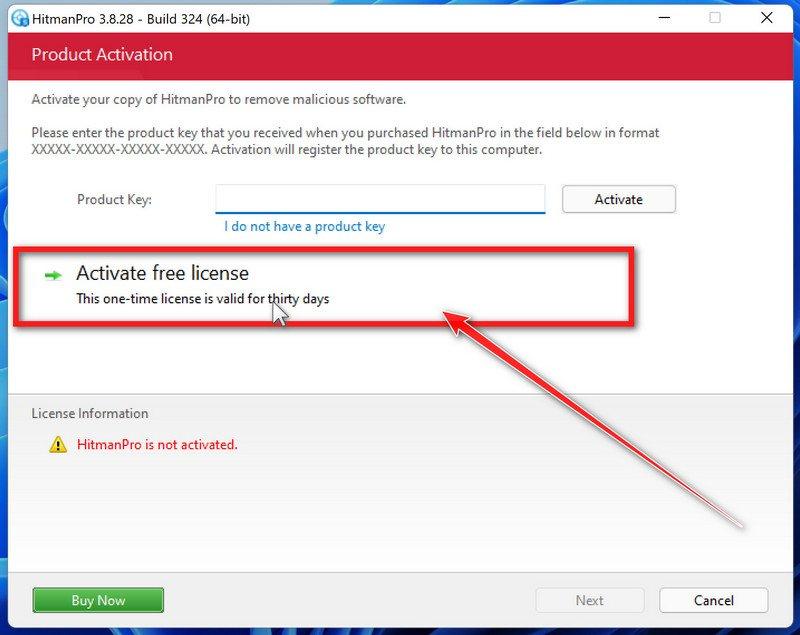
Click “Activate Free License”
To remove the malicious files, click the “Activate free license” button. This starts your free 30-day trial — no payment details needed — and unlocks the full cleanup.
When the removal is complete, HitmanPro will show a summary of everything it cleaned. Click Next, then click Reboot if prompted. If there’s no reboot prompt, just click Close — your PC is clean.
STEP 6: Use AdwCleaner to remove Malicious Browser Policies and Adware
In this next step, we will use AdwCleaner to remove malicious browser policies and unwanted browser extensions from your computer.
AdwCleaner is a free on-demand scanner that specializes in adware, browser hijackers, and unwanted toolbars — the exact threats that mainstream antivirus programs often miss. It also includes tools that repair the damage malware leaves behind, like hijacked browser settings and malicious policies. It’s a quick scan that’s well worth running.
-
Download AdwCleaner
Click the button below to download AdwCleaner — it’s free, portable, and requires no installation.
Download AdwCleanerOpens the official download page in a new tab. Malwarebytes AdwCleanerRemoves adware and unwanted programs at no cost
 -
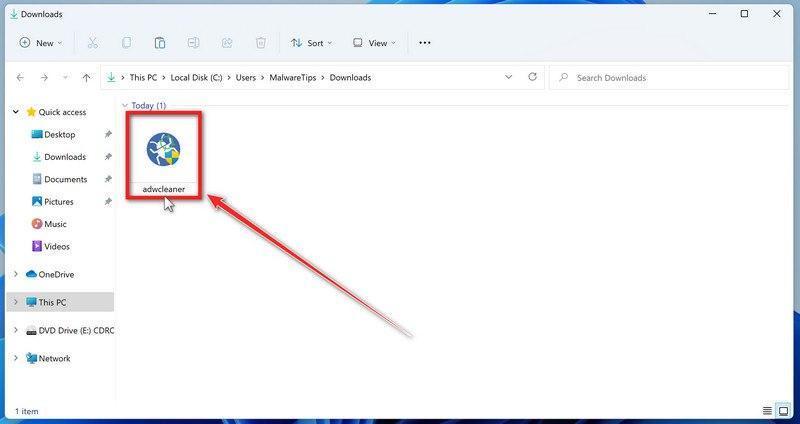
Run AdwCleaner
Open your Downloads folder and double-click the file named “adwcleaner.exe“. There’s no installation — the program starts right away.
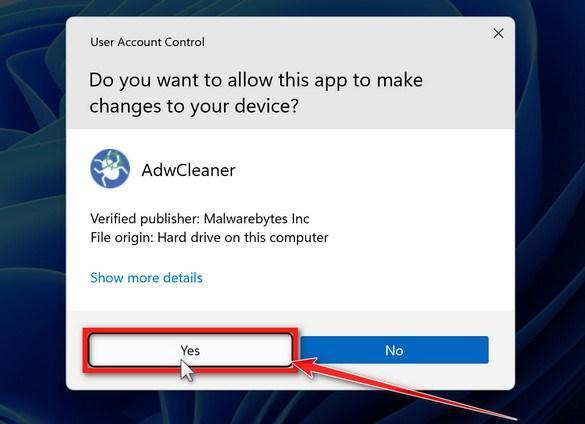
If Windows asks whether you want to allow AdwCleaner to run, click “Yes“. When the license agreement appears, click I agree to continue.
-
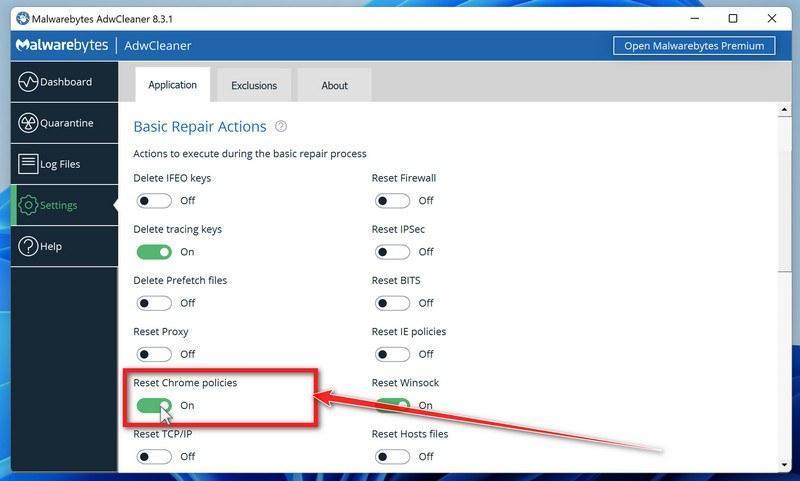
Enable “Reset Chrome policies”
This setting removes malicious browser policies — a trick malware uses to lock your browser settings so you can’t change them back. Click “Settings” on the left side of the window, then turn on “Reset Chrome policies“.
-
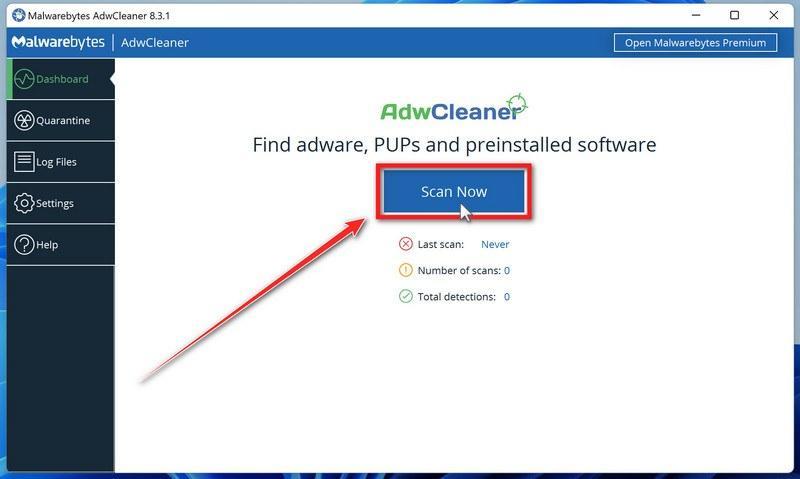
Start the Scan
Click “Dashboard” on the left side of the window, then click the “Scan” button.
-
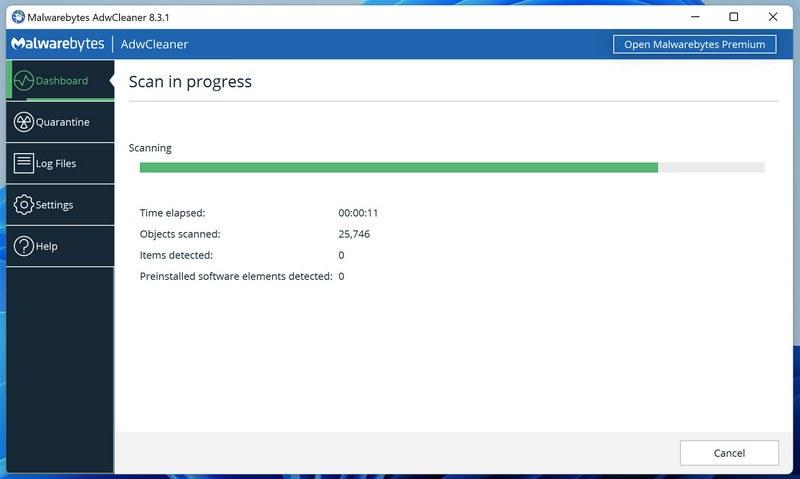
Wait for the Scan to Finish
AdwCleaner will now check your computer for adware and other malware. This usually takes only a few minutes — it’s one of the fastest scanners around.
-
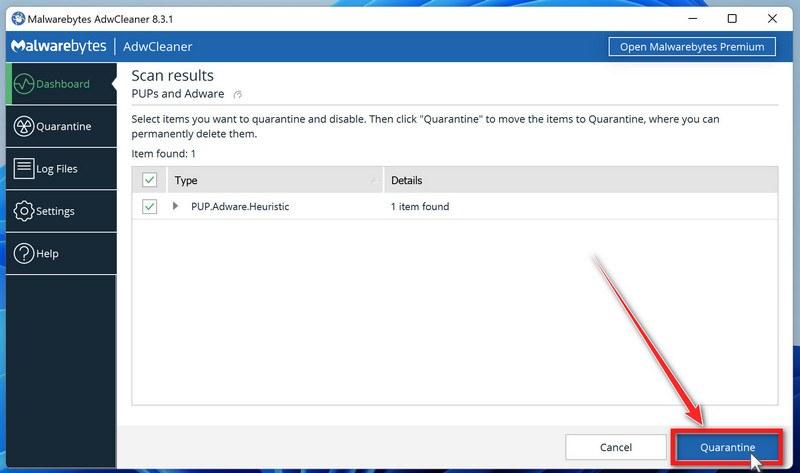
Quarantine the Detected Threats
When the scan finishes, AdwCleaner will list everything it found. Click the “Quarantine” button to remove all the malicious items at once.
-
Click “Continue” to Finish the Cleanup
Save any open work first — AdwCleaner needs to close your open programs before it can clean. When you’re ready, click the “Continue” button.
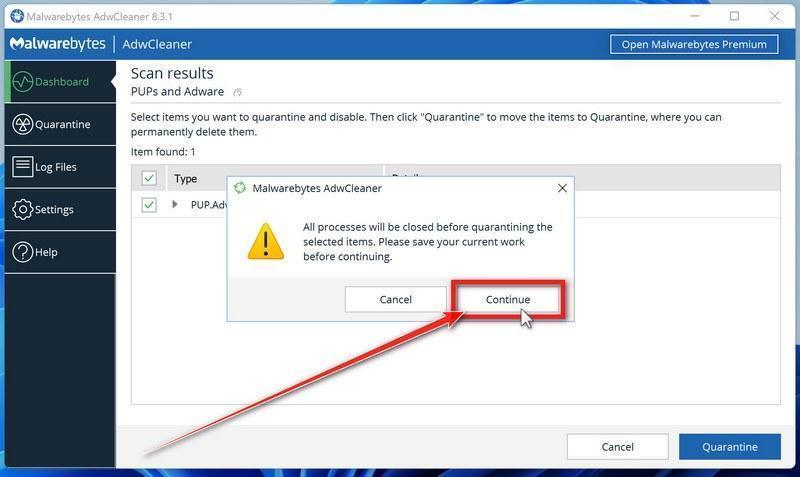
AdwCleaner will now delete all detected malware from your computer. If it asks you to restart your PC, allow it — your computer will be clean when you log back in.
STEP 7: Perform a final check with ESET Online Scanner
This step involves installing and running a scan with ESET Online Scanner to check for any additional malicious programs that may be installed on the computer..
ESET Online Scanner is a free second-opinion scanner that performs a deep, full-system check for viruses, trojans, rootkits, and other malware. We use it as the final step because it’s thorough — if anything slipped past the previous scans, ESET will find it. A clean result here means your computer is malware-free.
-
Download ESET Online Scanner
Click the button below to download ESET Online Scanner.
Download ESET Online ScannerOpens the official download page in a new tab. ESET Online ScannerFree one-time malware scan from ESET
 -
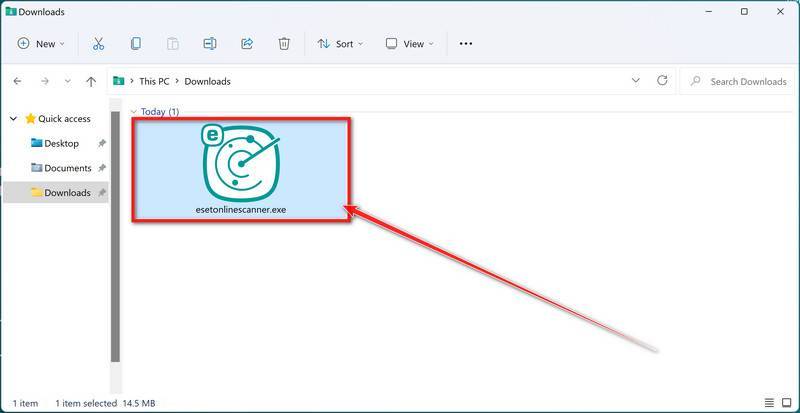
Run the Installer
When the download finishes, open your Downloads folder and double-click “esetonlinescanner.exe“.
-
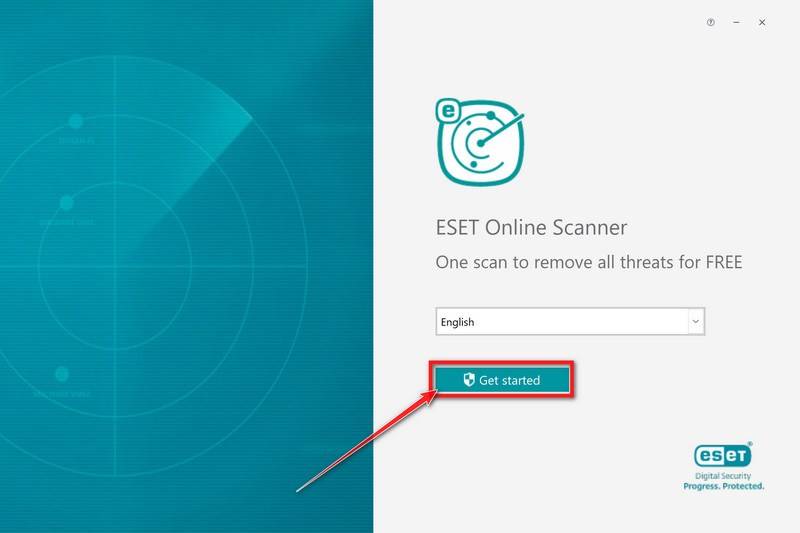
Install ESET Online Scanner
On the start screen, select your language from the drop-down menu and click Get started.
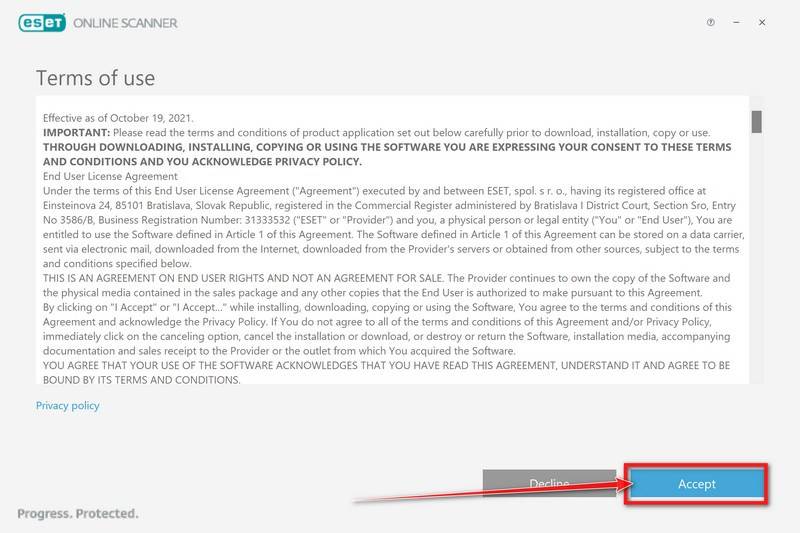
On the Terms of use screen, click Accept.
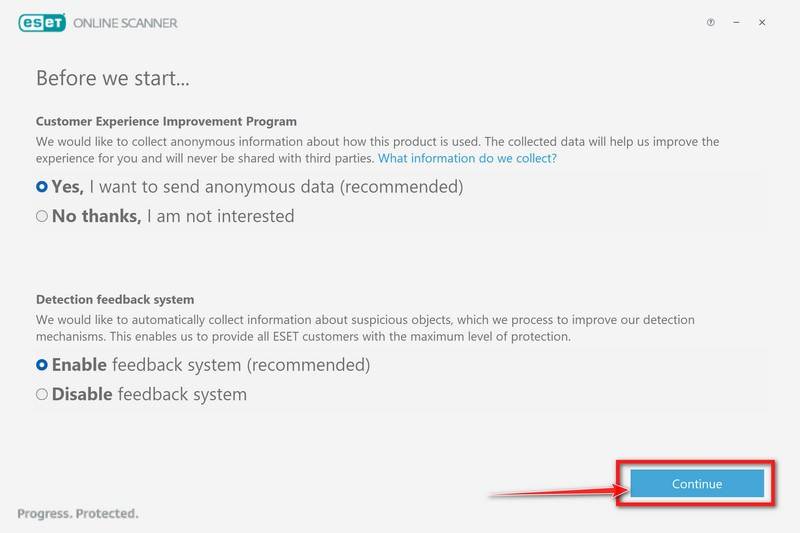
Choose your preferences for the Customer Experience Improvement Program and the Detection feedback system (either choice is fine), then click Continue.
-
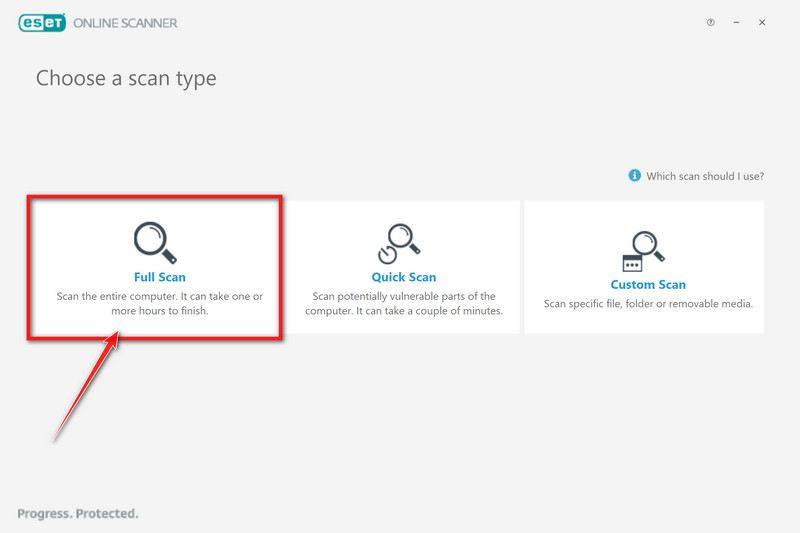
Start a Full Scan
Click Full Scan — this checks your entire computer, not just the common hiding spots.
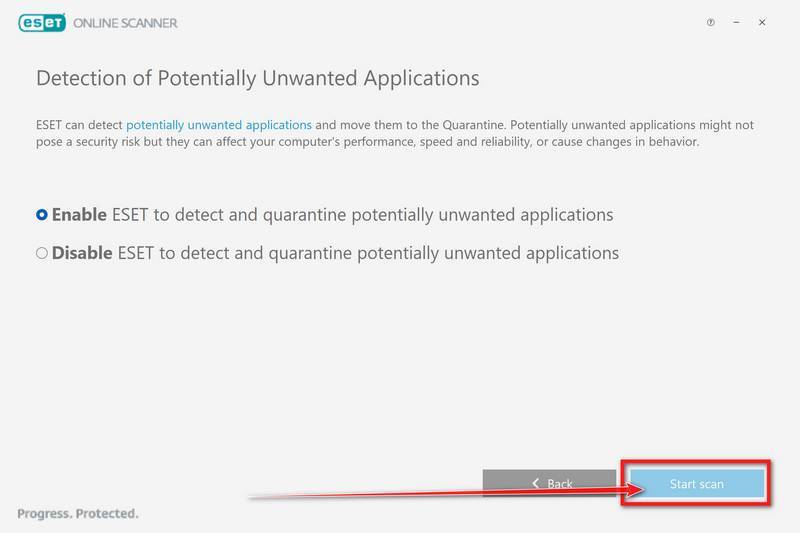
Select Enable for Detection of Potentially Unwanted Applications — this lets ESET catch adware and bundled junk programs, not just viruses. Then click Start scan.
-
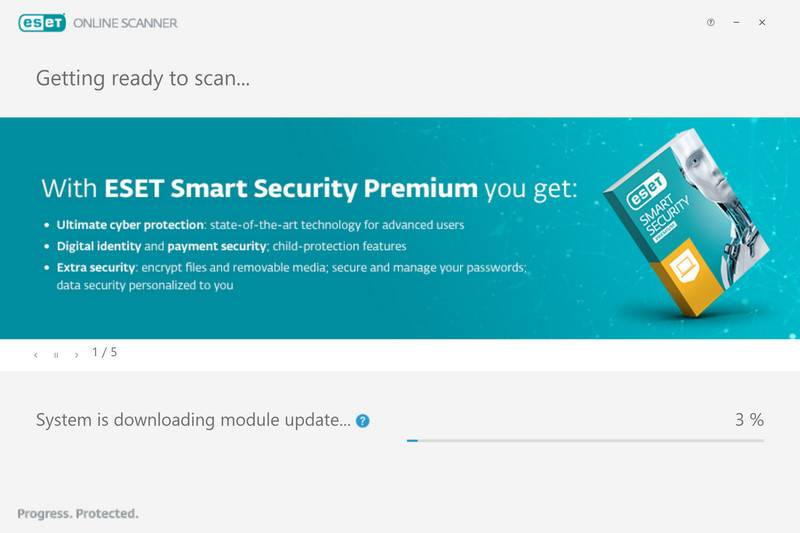
Wait for the Scan to Finish
ESET will now check every file on your computer. Because it’s a full scan, this can take a while — often an hour or more, depending on how much data you have. Leave it running in the background and check on it from time to time.
-
Review the Results
When the scan completes, the Found and resolved detections screen appears. Any threats found were automatically cleaned and quarantined — there’s nothing extra you need to do. Click View detailed results if you want to see exactly what was removed.
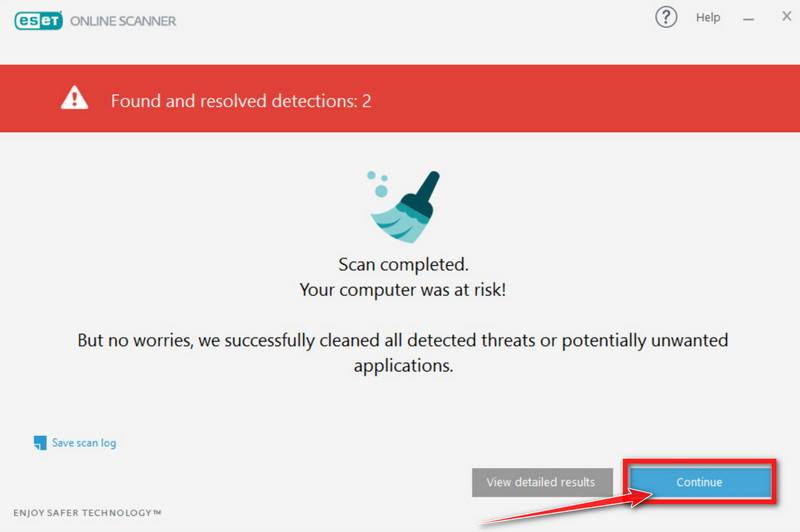
If ESET found nothing — congratulations, your computer has passed the final check and is malware-free.
STEP 8: Run the System File Checker (SFC) tool
In this step, we will use System File Checker (SFC) tool to detect and repair files that may have been corrupted by malware.
The SFC tool scans all protected system files on your computer and replaces any files that are corrupt or damaged with a cached copy that is stored in a compressed folder at %WinDir%\System32\dllcache. By running the SFC tool, you can help ensure that your system is functioning properly and fix any issues.
-
Open Command Prompt as Administrator.
To open the Command Prompt as an administrator in Windows, type “cmd” in the search bar and then right-click on the Command Prompt result and select “Run as administrator” as shown in the image below.
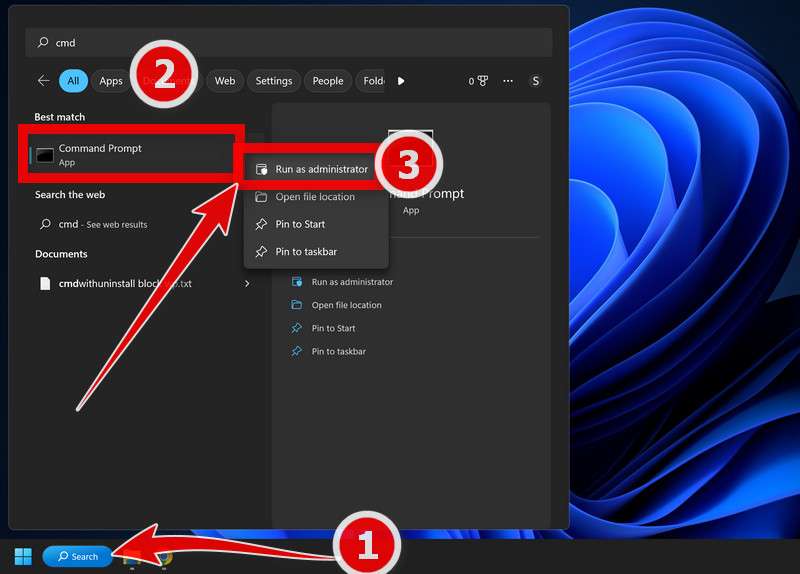
A User Account Control (UAC) prompt will appear asking for permission to allow the program to run. Click “Yes”. -
Type “sfc /scannow”.
You will now be presented with a black screen called the ‘Administrator: Command Prompt’. On this screen, type “sfc /scannow” to scan for and repair any corrupt system files.
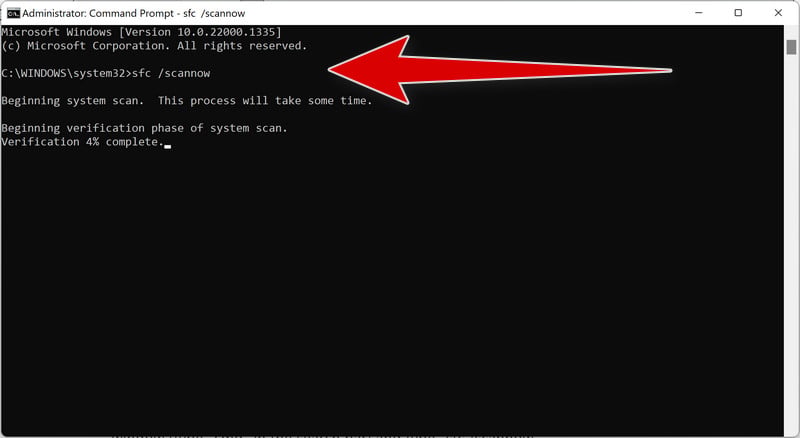
-
Restart your computer.
Restart your computer if sfc /scannow repaired files. System File Checker may or may not prompt you to restart but even if it doesn’t, you should restart anyway.
-
Run again sfc /scannow.
Run again sfc /scannow to check if the files were repaired.
STEP 9: Run the Disk Check tool
As a final step, we will utilize the Disk Check tool, commonly referred to as “chkdsk,” to identify and resolve any issues that were caused by malware.
This tool checks your hard disk for errors and can fix any issues it finds. To use the Disk Check tool, you will need to open the command prompt and enter the “chkdsk” command followed by the drive letter (e.g., “chkdsk C:”). You can also add the “/f” flag to the command to instruct the tool to fix any errors it finds. By running the Disk Check tool, you can help ensure that your hard disk is functioning properly and fix any issues that may be causing high disk usage.”-
Open Command Prompt as Administrator.
To open the Command Prompt as an administrator in Windows, type “cmd” in the search bar and then right-click on the Command Prompt result and select “Run as administrator” as shown in the image below.
A User Account Control (UAC) prompt will appear asking for permission to allow the program to run. Click “Yes”. -
Type “chkdsk /f /r”
You will now be presented with a black screen called the ‘Administrator: Command Prompt’. On this screen, type “chkdsk /f /r” to repair any errors on your hard drive.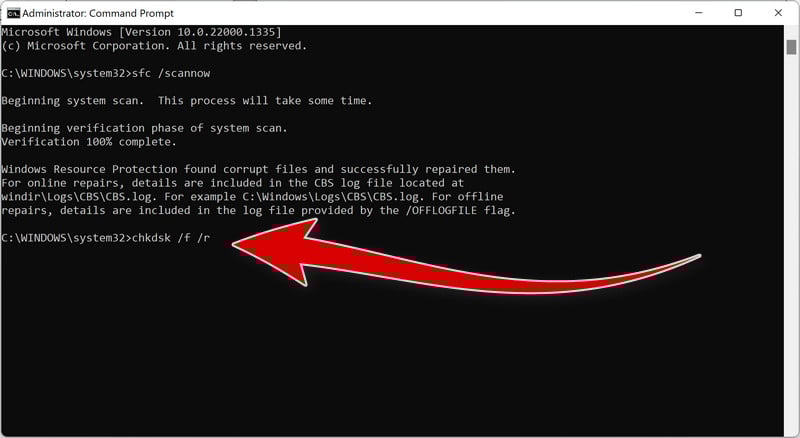
-
Restart your computer
The Disk Check tool may require you to restart your computer in order to complete the scan and repair process. Type “Y” and click on Enter, then restart the computer. A CHKDSK command can take a long time, especially when performed on larger drives. Once it’s done, however, it will present a summary of results including total disk space, byte allocation, and, most importantly, any errors that were found and corrected.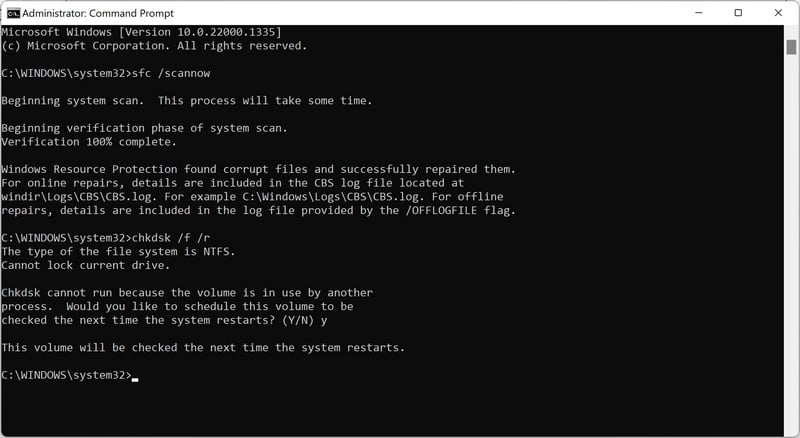
If conhost.exe is legitimate but annoying
If your conhost.exe is in System32 and signed by Microsoft, it is almost certainly legitimate. At that point, the right troubleshooting move is to identify what is launching it:
- Watch what appears at the same time as conhost.exe
- Check recent installs
- Check startup apps and scheduled tasks for command-line tools
- If it always happens with one specific app, reinstall or update that app
Do not try to “remove conhost.exe.” It is a normal Windows component.
Conclusion
conhost.exe (Console Window Host) is usually a legitimate Windows process that helps console programs integrate with the Windows interface. The most reliable way to spot an fake is simple: check the file location. If conhost.exe is not running from C:\Windows\System32\ or it is not properly signed by Microsoft, treat it as suspicious and follow a careful removal flow: offline scan, full scan, persistence cleanup, then deletion.
If you want, paste the file path you see when you click “Open file location” for conhost.exe and I will tell you immediately whether it looks legitimate or not.
FAQ: conhost.exe (Console Window Host)
Is conhost.exe a virus?
Usually, no. conhost.exe is a legitimate Windows process used to host console windows for Command Prompt, PowerShell, Terminal tools, installers, and other background command-line tasks. It becomes suspicious mainly when it runs from the wrong folder or lacks a valid Microsoft signature.
What does conhost.exe do?
It helps Windows display and manage console-based programs, acting as a bridge between classic command-line apps and the Windows desktop interface.
Why do I see conhost.exe in Task Manager if I did not open Command Prompt?
Many programs run command-line helpers silently in the background, especially installers, updaters, driver tools, and maintenance tasks. That can spawn conhost.exe without you actively opening a console window.
Why are there multiple conhost.exe processes?
That is often normal. Windows can create separate conhost.exe instances for different console sessions or different programs that need a console host. Multiple copies are only concerning if they are coming from unusual locations or persist with no clear reason.
What is the real file location of conhost.exe?
A legitimate copy is typically located at:
C:\Windows\System32\conhost.exe
If it is running from AppData, Temp, Downloads, ProgramData, or a random folder, treat it as suspicious.
How can I check if conhost.exe is the real Windows file?
Fast checks:
- Task Manager → right-click conhost.exe → Open file location
- Right-click the file → Properties → Digital Signatures
- Confirm a valid Microsoft signature (and that the path is System32)
Is it safe to end conhost.exe?
Sometimes, but it depends on what it is hosting. Ending it can close a console task that an installer or program is running. If it is legitimate and tied to a normal app, it will usually return when needed. If it is tied to suspicious activity, ending it is not enough, you must remove the startup mechanism.
Why is conhost.exe using high CPU?
conhost.exe is usually just the host. High CPU typically means the program using the console session is doing heavy work or stuck (installer scripts, scans, file processing, etc.). Check what launched it (the “parent” process) and what else is running at the same time.
What are the biggest signs conhost.exe is malware?
- It is not in
C:\Windows\System32\ - No valid Microsoft digital signature
- It keeps reappearing after you end it
- It appears right after installing suspicious software
- The file name is similar but not exact (like conhost32.exe or misspellings)
What should I do if conhost.exe is malware?
A safe removal flow:
- Disconnect from the internet
- Run Microsoft Defender Offline scan
- Run a Full scan after reboot
- Remove persistence (startup apps, scheduled tasks, suspicious services)
- Delete the malicious file from the suspicious folder
- Run:
sfc /scannowDISM /Online /Cleanup-Image /RestoreHealth
Should I delete conhost.exe from System32?
No. If it is in System32 and properly signed, it is a normal Windows component. Deleting or disabling it can cause system issues and break console-based tasks.
