Cybercriminals are constantly looking for new ways to trick people into sending money, giving away personal data, or clicking on malicious links. One of the most disturbing email scams making the rounds today is the so-called “Consider This Message As Your Last Warning” sextortion scam. This threatening email claims hackers have taken over your computer, recorded you through your webcam, and will release humiliating videos unless you pay them in Bitcoin.
The truth is simple: all of these claims are fake. No one hacked your computer, no video exists, and the scammers are only trying to scare you into paying. Yet, the language in the email is crafted to make recipients panic and act quickly, which is why it continues to trick people worldwide.
In this comprehensive guide, we will break down the scam in detail, explain exactly how it works, and show you what steps to take if you’ve received or even fallen victim to this fraud.
Scam Overview
The “Consider This Message As Your Last Warning” email scam belongs to a category of cybercrime known as sextortion scams. These are fraudulent messages where scammers pretend to have compromising information, usually related to adult websites or private webcam recordings, and demand a ransom payment in cryptocurrency.
The email usually comes with alarming subject lines such as:
“FINAL NOTICE: Consider this message as your last warning”
“Your device is hacked, we have your videos”
“Pay or your reputation will be destroyed”
The main purpose of these subject lines is to immediately trigger fear and urgency. By claiming this is your “last warning,” the scammers want you to believe you are running out of time and that your reputation will be ruined unless you act fast.
The Core Claims of the Scam
The scam email you provided follows a typical sextortion pattern. Here are the main false claims made by the attackers:
Your device has been hacked. The scammers say they have installed a Trojan virus on your computer or phone. They claim this malware allows them full access to your device, including your screen, files, microphone, and camera.
They have compromising recordings. The email states that while you visited an adult website, they activated your webcam and recorded a split-screen video: one side showing you watching pornography, the other side showing you engaging in private activity.
They copied your contacts. To add more pressure, they claim to have downloaded your phonebook, email contacts, and social media connections. They say they can easily share the fabricated video with everyone you know.
They have embarrassing audio recordings. The scammers add another layer of intimidation by saying they recorded your conversations and uncovered “interesting” personal information.
You must pay a ransom. Finally, they demand payment in Bitcoin, usually in amounts ranging from $500 to $5,000. In this case, the demand is $5,000. They provide a Bitcoin wallet address and threaten that if payment is not made within a strict time frame (often 48 to 72 hours), they will release the so-called evidence to your entire contact list.
They discourage reporting. The email warns you not to go to the police, share the message with anyone, or try to change your passwords, claiming their system will automatically punish you if you do.
Psychological Manipulation in the Email
The effectiveness of this scam lies in psychological manipulation. Scammers use fear, shame, and urgency to make victims panic. Let’s break down the tactics:
Fear of exposure: The idea that intimate footage could be shared with family, friends, or colleagues is terrifying to many people.
Urgency: By giving you only 50 hours, they try to eliminate rational thinking.
Shame: Associating the scam with pornography preys on people’s private insecurities.
Isolation: By telling you not to contact anyone, they want to keep you from seeking advice that could expose the scam.
Even though no malware is actually installed, many recipients believe the story is true and pay the ransom out of desperation.
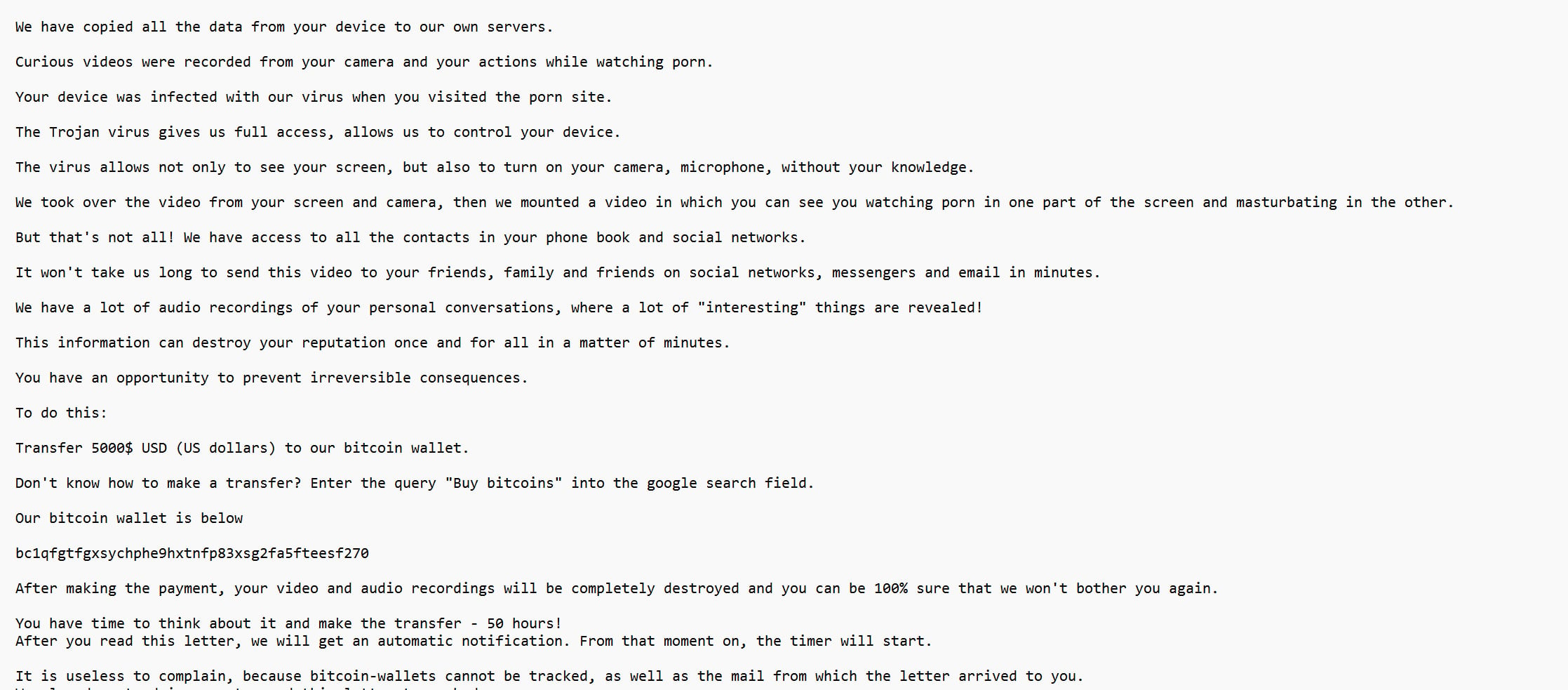
Here is how a “Consider This Message As Your Last Warning” email spam looks:
Subject:FINAL NOTICE
Consider this message as your last warning.
We hacked your system!
We have copied all the data from your device to our own servers.
Curious videos were recorded from your camera and your actions while watching porn.
Your device was infected with our virus when you visited the porn site.
The Trojan virus gives us full access, allows us to control your device.
The virus allows not only to see your screen, but also to turn on your camera, microphone, without your knowledge.
We took over the video from your screen and camera, then we mounted a video in which you can see you watching porn in one part of the screen and masturbating in the other.
But that’s not all! We have access to all the contacts in your phone book and social networks.
It won’t take us long to send this video to your friends, family and friends on social networks, messengers and email in minutes.
We have a lot of audio recordings of your personal conversations, where a lot of “interesting” things are revealed!
This information can destroy your reputation once and for all in a matter of minutes.
You have an opportunity to prevent irreversible consequences.
To do this:
Transfer 5000$ USD (US dollars) to our bitcoin wallet.
Don’t know how to make a transfer? Enter the query “Buy bitcoins” into the google search field.
Our bitcoin wallet is below
bc1qfgtfgxsychphe9hxtnfp83xsg2fa5fteesf270
After making the payment, your video and audio recordings will be completely destroyed and you can be 100% sure that we won’t bother you again.
You have time to think about it and make the transfer – 50 hours! After you read this letter, we will get an automatic notification. From that moment on, the timer will start.
It is useless to complain, because bitcoin-wallets cannot be tracked, as well as the mail from which the letter arrived to you. We also do not advise you to send this letter to anybody.
In this case the system will automatically send a request to the server, and all data will be published in social networks and sent to all your contacts we extracted from your email and we also have a special package for your spous .
You will not be able to solve the problem by changing passwords in social networks, as all the information is already downloaded to the cluster of our servers.
Think about what your reputation means to you and how much the consequences will be if you think its a bluff wait for time to expire . You have 50 hours.
Why This Scam Works
Several factors make the “Consider This Message As Your Last Warning” scam effective:
Most people have visited adult websites at least once, which makes the claim believable.
Scammers often include personal details such as part of your password (taken from old data breaches) to make it seem more real.
Cryptocurrency payments are untraceable, so victims feel there is no way to stop the scammers once they have the video.
The tone of the email is threatening and professional, which makes some recipients assume it is serious.
Global Impact
Sextortion scams like this are widespread globally. Cybersecurity firms and law enforcement agencies regularly issue warnings about these fraudulent emails. Millions of such scam emails are sent every day, and even if only a small percentage of people pay, scammers can make large sums of money.
According to the FBI Internet Crime Complaint Center (IC3), sextortion scams account for millions of dollars in reported losses every year. This makes them one of the fastest-growing categories of online fraud.
Key Takeaway
The “Consider This Message As Your Last Warning” email is 100% fake. The scammers have not hacked your device, they do not have any video, and there is no virus on your computer caused by visiting a porn site. The entire scheme is based on lies designed to make you panic and send money.
How the Scam Works
Now let’s take a closer look at the mechanics of this sextortion email. Understanding exactly how the scam operates will help you recognize it and protect yourself in the future.
Step 1: Mass Email Distribution
Scammers begin by sending out millions of identical emails using automated spam systems. These emails are often sent from hacked accounts, disposable email addresses, or servers located in countries where cybercrime enforcement is weak.
The idea is simple: the more people they reach, the higher the chance that someone will panic and pay.
Step 2: Crafting the Threat
The email is written to sound technical and convincing. It uses terms like “Trojan virus,” “server clusters,” and “automatic notifications” to create the illusion that hackers really have control over your device.
The scammers deliberately include:
A specific dollar amount (in this case $5,000).
A Bitcoin wallet address for payment.
A strict countdown timer (50 hours).
These details add to the realism and push victims to act without questioning.
Step 3: Psychological Exploitation
This is where the scam gets powerful. The hackers rely on psychological triggers:
Shame: Even if someone has never visited adult websites, the accusation alone can make them nervous.
Fear: The thought of private videos being exposed to family, coworkers, or friends is unbearable to most people.
Urgency: By forcing a short deadline, scammers reduce the chance that victims will think rationally or seek advice.
Step 4: Use of Old Data Breaches
In many versions of this scam, scammers include a real password that belongs to the recipient. They don’t actually hack your computer; instead, they use passwords leaked in past data breaches.
For example, if your email and password were exposed in a leak years ago, scammers can use that information to make the threat more convincing. Seeing a password you recognize can make you believe their claims are true.
Step 5: Cryptocurrency Payments
Scammers demand payment in Bitcoin because:
It is difficult to trace.
It is easy to transfer across borders.
Once sent, it cannot be refunded.
They provide a Bitcoin wallet address and instructions like “search Google for how to buy Bitcoin.” This shows the scammers know their victims may not be familiar with cryptocurrency, so they try to make the process simple.
Step 6: Threat of Escalation
To maximize pressure, the email states that if you don’t pay:
The video will be sent to your entire contact list.
The scammers will post it on social media.
They will release damaging audio recordings.
None of this is true, but in the heat of the moment, many victims believe it.
Step 7: Payment and Silence
If a victim pays, the scammers almost always go silent. They may not contact the victim again because they already received the money. However, in some cases, they may send another message demanding more payment, now that they know the person is willing to pay.
Step 8: Continuous Targeting
Even if you ignore the scam, your email address may remain on the scammers’ list. This means you could receive similar emails in the future. Scammers often recycle the same threats with different wording or subject lines.
Important Note: No Real Hack
Despite all the technical jargon, there is no virus, no hack, and no recordings. The scammers are lying entirely. The email is generated in bulk and sent to random addresses. They do not know anything about you personally, and they do not have access to your device.
What To Do If You Have Fallen Victim to This Scam
If you have received the “Consider This Message As Your Last Warning” scam email, the good news is you are not in danger. However, if you have already sent money or revealed personal information, you should take action immediately.
Here are the steps you should follow:
1. Do Not Pay the Ransom
Never send Bitcoin or any other payment to the scammers. Paying them will not solve the problem, because there is no problem in the first place. In fact, paying may mark you as an easy target, leading to more extortion attempts.
2. Ignore and Delete the Email
The safest step is to simply delete the message. Do not reply, do not click any links, and do not open any attachments. The claims are false, so there is no need to engage.
3. Change Your Passwords
If the email included a password you recognize, it means your information was part of a past data breach. Immediately change the passwords for:
Your email account.
Online banking accounts.
Social media accounts.
Any other sensitive platforms.
Make sure to use strong, unique passwords for each account.
4. Enable Two-Factor Authentication (2FA)
Adding 2FA to your accounts provides an extra layer of protection. Even if someone gets your password, they will not be able to log in without the secondary verification step.
5. Report the Scam
You can report the scam to relevant authorities, such as:
The FBI Internet Crime Complaint Center (IC3) if you are in the United States.
Your country’s cybercrime reporting center.
Your email provider (mark the email as phishing or spam).
Reporting helps authorities track scam trends and shut down criminal networks.
6. Run a Security Scan
While this scam does not actually install malware, it’s always a good idea to run a scan using trusted antivirus or anti-malware software. This ensures that your device is safe.
7. Educate Yourself and Others
One of the best defenses against online scams is awareness. Talk to family, friends, or colleagues about sextortion scams so they don’t fall victim either.
8. Monitor Financial Accounts
If you provided any personal or banking information to the scammers, keep a close eye on your accounts. Report suspicious activity to your bank immediately.
9. Use a Password Manager
A password manager helps you generate and store complex, unique passwords for every account. This way, even if one account is compromised, the others remain secure.
10. Stay Calm
Remember, the scammers rely on fear and panic. Take a deep breath, remind yourself that their claims are fake, and handle the situation logically.
Is Your Device Infected? Scan for Malware
If your computer or phone is slow, showing unwanted pop-ups, or acting strangely, malware could be the cause. Running a scan with Malwarebytes Anti-Malware Free is one of the most reliable ways to detect and remove harmful software. The free version can identify and clean common infections such as adware, browser hijackers, trojans, and other unwanted programs.
Malwarebytes works on Windows, Mac, and Android devices. Choose your operating system below and follow the steps to scan your device and remove any malware that might be slowing it down.
Malwarebytes for WindowsMalwarebytes for MacMalwarebytes for Android
Run a Malware Scan with Malwarebytes for Windows
Malwarebytes stands out as one of the leading and widely-used anti-malware solutions for Windows, and for good reason. It effectively eradicates various types of malware that other programs often overlook, all at no cost to you. When it comes to disinfecting an infected device, Malwarebytes has consistently been a free and indispensable tool in the battle against malware. We highly recommend it for maintaining a clean and secure system.
Download Malwarebytes
Download the latest version of Malwarebytes for Windows using the official link below. Malwarebytes will scan your computer and remove adware, browser hijackers, and other malicious software for free.
(The above link will open a new page from where you can download Malwarebytes)
Install Malwarebytes
After the download is complete, locate the MBSetup file, typically found in your Downloads folder. Double-click on the MBSetup file to begin the installation of Malwarebytes on your computer. If a User Account Control pop-up appears, click “Yes” to continue the Malwarebytes installation.
Follow the On-Screen Prompts to Install Malwarebytes
When the Malwarebytes installation begins, the setup wizard will guide you through the process.
You’ll first be prompted to choose the type of computer you’re installing the program on—select either “Personal Computer” or “Work Computer” as appropriate, then click on Next.
Malwarebytes will now begin the installation process on your device.
When the Malwarebytes installation is complete, the program will automatically open to the “Welcome to Malwarebytes” screen.
On the final screen, simply click on the Open Malwarebytes option to start the program.
Enable “Rootkit scanning”.
Malwarebytes Anti-Malware will now start, and you will see the main screen as shown below. To maximize Malwarebytes’ ability to detect malware and unwanted programs, we need to enable rootkit scanning. Click on the “Settings” gear icon located on the left of the screen to access the general settings section.
In the settings menu, enable the “Scan for rootkits” option by clicking the toggle switch until it turns blue.
Now that you have enabled rootkit scanning, click on the “Dashboard” button in the left pane to get back to the main screen.
Perform a Scan with Malwarebytes.
To start a scan, click the Scan button. Malwarebytes will automatically update its antivirus database and begin scanning your computer for malicious programs.
Wait for the Malwarebytes scan to complete.
Malwarebytes will now scan your computer for browser hijackers and other malicious programs. This process can take a few minutes, so we suggest you do something else and periodically check the status of the scan to see when it is finished.
Quarantine detected malware
Once the Malwarebytes scan is complete, it will display a list of detected malware, adware, and potentially unwanted programs. To effectively remove these threats, click the “Quarantine” button.
Malwarebytes will now delete all of the files and registry keys and add them to the program’s quarantine.
Restart your computer.
When removing files, Malwarebytes may require a reboot to fully eliminate some threats. If you see a message indicating that a reboot is needed, please allow it. Once your computer has restarted and you are logged back in, you can continue with the remaining steps.
Once the scan completes, remove all detected threats. Your Windows computer should now be clean and running smoothly again, free of trojans, adware, and other malware.
If your current antivirus allowed this malicious program on your computer, you may want to consider purchasing Malwarebytes Premium to protect against these types of threats in the future. If you are still having problems with your computer after completing these instructions, then please follow one of the steps:
Malwarebytes for Mac is an on-demand scanner that can destroy many types of malware that other software tends to miss without costing you absolutely anything. When it comes to cleaning up an infected device, Malwarebytes has always been free, and we recommend it as an essential tool in the fight against malware.
Download Malwarebytes for Mac.
You can download Malwarebytes for Mac by clicking the link below.
When Malwarebytes has finished downloading, double-click on the setup file to install Malwarebytes on your computer. In most cases, downloaded files are saved to the Downloads folder.
Follow the on-screen prompts to install Malwarebytes.
When the Malwarebytes installation begins, you will see the Malwarebytes for Mac Installer which will guide you through the installation process. Click “Continue“, then keep following the prompts to continue with the installation process.
When your Malwarebytes installation completes, the program opens to the Welcome to Malwarebytes screen. Click the “Get started” button.
Select “Personal Computer” or “Work Computer”.
The Malwarebytes Welcome screen will first ask you what type of computer are you installing this program, click either Personal Computer or Work Computer.
Click on “Scan”.
To scan your computer with Malwarebytes, click on the “Scan” button. Malwarebytes for Mac will automatically update the antivirus database and start scanning your computer for malware.
Wait for the Malwarebytes scan to complete.
Malwarebytes will scan your computer for adware, browser hijackers, and other malicious programs. This process can take a few minutes, so we suggest you do something else and periodically check on the status of the scan to see when it is finished.
Click on “Quarantine”.
When the scan has been completed, you will be presented with a screen showing the malware infections that Malwarebytes has detected. To remove the malware that Malwarebytes has found, click on the “Quarantine” button.
Restart computer.
Malwarebytes will now remove all the malicious files that it has found. To complete the malware removal process, Malwarebytes may ask you to restart your computer.
After scanning, delete any detected threats. Your Mac should now be free from adware, unwanted extensions, and other potentially harmful software.
If your current antivirus allowed a malicious program on your computer, you might want to consider purchasing the full-featured version of Malwarebytes Anti-Malware to protect against these types of threats in the future. If you are still experiencing problems while trying to remove a malicious program from your computer, please ask for help in our Mac Malware Removal Help & Support forum.
Run a Malware Scan with Malwarebytes for Android
Malwarebytes for Android automatically detects and removes dangerous threats like malware and ransomware so you don’t have to worry about your most-used device being compromised. Aggressive detection of adware and potentially unwanted programs keeps your Android phone or tablet running smooth.
Download Malwarebytes for Android.
You can download Malwarebytes for Android by clicking the link below.
In the Google Play Store, tap “Install” to install Malwarebytes for Android on your device.
When the installation process has finished, tap “Open” to begin using Malwarebytes for Android. You can also open Malwarebytes by tapping on its icon in your phone menu or home screen.
Follow the on-screen prompts to complete the setup process
When Malwarebytes will open, you will see the Malwarebytes Setup Wizard which will guide you through a series of permissions and other setup options. This is the first of two screens that explain the difference between the Premium and Free versions. Swipe this screen to continue. Tap on “Got it” to proceed to the next step. Malwarebytes for Android will now ask for a set of permissions that are required to scan your device and protect it from malware. Tap on “Give permission” to continue. Tap on “Allow” to permit Malwarebytes to access the files on your phone.
Update database and run a scan with Malwarebytes for Android
You will now be prompted to update the Malwarebytes database and run a full system scan.
Click on “Update database” to update the Malwarebytes for Android definitions to the latest version, then click on “Run full scan” to perform a system scan.
Wait for the Malwarebytes scan to complete.
Malwarebytes will now start scanning your phone for adware and other malicious apps. This process can take a few minutes, so we suggest you do something else and periodically check on the status of the scan to see when it is finished.
Click on “Remove Selected”.
When the scan has been completed, you will be presented with a screen showing the malware infections that Malwarebytes for Android has detected. To remove the malicious apps that Malwarebytes has found, tap on the “Remove Selected” button.
Restart your phone.
Malwarebytes for Android will now remove all the malicious apps that it has found. To complete the malware removal process, Malwarebytes may ask you to restart your device.
When the scan is finished, remove all detected threats. Your Android phone should now be free of malicious apps, adware, and unwanted browser redirects.
If your current antivirus allowed a malicious app on your phone, you may want to consider purchasing the full-featured version of Malwarebytes to protect against these types of threats in the future. If you are still having problems with your phone after completing these instructions, then please follow one of the steps:
Restore your phone to factory settings by going to Settings > General management > Reset > Factory data reset.
After cleaning your device, it’s important to protect it from future infections and annoying pop-ups. We recommend installing an ad blocker such as AdGuard. AdGuard blocks malicious ads, prevents phishing attempts, and stops dangerous redirects, helping you stay safe while browsing online.
Frequently Asked Questions About the “Consider This Message As Your Last Warning” Email Scam
1. What is the “Consider This Message As Your Last Warning” email scam?
The “Consider This Message As Your Last Warning” email is a sextortion scam. Scammers claim they have hacked your computer, recorded videos of you using your webcam, and copied your contacts. They threaten to release this so-called evidence unless you pay them in Bitcoin. In reality, these claims are fake. The scammers do not have access to your device, and no such video exists. The email is designed to frighten you into paying a ransom.
2. Is the “Consider This Message As Your Last Warning” email real?
No. This email is not real and should be ignored. Cybercriminals often send millions of identical emails to random people. The threats inside are fabricated, and the sender does not actually have any compromising information. The goal is to create fear and urgency so that victims act without thinking.
3. How does the scam work?
This sextortion scam works through psychological manipulation. The process usually follows these steps:
Scammers send mass emails with threatening language.
The email falsely claims your device was hacked through a Trojan virus.
It says compromising videos and personal data were stolen.
You are given a deadline (e.g., 50 hours) to pay a ransom in Bitcoin.
The email warns that your private video will be shared with your family, friends, and coworkers if you do not pay.
The scam relies on fear, shame, and urgency to pressure you into sending money.
4. Did the hackers really access my webcam and microphone?
No. This is a lie. Scammers do not have access to your webcam, microphone, or files. They are only pretending to. The entire story in the email is fabricated to make you panic.
5. Why does the scam email sometimes include my password?
Some versions of this scam include an old password you used in the past. This password was likely leaked in a data breach years ago and sold on the dark web. Scammers use it to make their threat look more convincing. If the password in the email is one you still use, change it immediately.
6. What should I do if I receive this scam email?
If you receive the “Consider This Message As Your Last Warning” email, follow these steps:
Do not pay the ransom. The threats are fake.
Do not reply or click any links.
Delete the email or mark it as spam.
Change your passwords if the email included a password you still use.
Enable two-factor authentication for extra security.
Run an antivirus scan to ensure your device is clean.
7. What if I already paid the scammers?
Unfortunately, if you have already paid, it is unlikely you will get your money back. Bitcoin transactions cannot be reversed. However, you should:
Report the incident to your bank (in case other data is at risk).
File a complaint with the FBI Internet Crime Complaint Center (IC3) if you are in the United States, or with your country’s cybercrime authority.
Save copies of the scam email for evidence.
Do not send more money, even if the scammers contact you again.
8. Can the scammers really send a video to my contacts?
No. They do not have any real video, and they cannot access your contacts. The claim is entirely fake. These threats are written to scare you into believing you have no choice but to pay.
9. How can I protect myself from this scam in the future?
You can reduce your risk of falling for email scams by following these best practices:
Use unique, strong passwords for each online account.
Set up two-factor authentication (2FA).
Regularly update your devices with the latest security patches.
Be cautious with suspicious emails, especially those with threats or urgent demands.
Use a spam filter and mark such emails as phishing.
Educate yourself and family members about sextortion scams.
10. Should I contact the police about this scam?
Yes, it can be helpful to report the scam to law enforcement. While they may not be able to recover your money, reporting helps authorities track cybercriminal activities and issue public warnings. In the U.S., you can report to the FBI IC3. In other countries, report to your local cybercrime division.
11. Is my computer infected with a virus?
In this particular scam, there is no virus and no malware installed on your computer. However, it is always a good idea to run a trusted antivirus or anti-malware scan to make sure your device is secure.
12. Can my reputation really be destroyed if I ignore the email?
No. The threats are empty. The scammers do not have any recordings or personal data. Ignoring the email will not affect your reputation in any way.
13. Why do scammers ask for Bitcoin?
Scammers demand Bitcoin because it is:
Difficult to trace compared to traditional payments.
Global, meaning they can receive payments from victims anywhere.
Irreversible, so once you pay, you cannot get the money back.
This is why paying them only encourages more scams.
14. How common is the “last warning” sextortion scam?
This type of scam is very common and affects people worldwide. Cybersecurity experts report that millions of sextortion emails are sent every day. Even if only a small percentage of recipients pay, scammers can earn large amounts of money.
15. Will ignoring the scam email put me in danger?
No. Ignoring the email is the safest course of action. The scammers rely on fear, but once you understand that their claims are false, you take away their power.
The Bottom Line
The “Consider This Message As Your Last Warning” email is a sextortion scam. It is designed to scare you into paying thousands of dollars in Bitcoin for a threat that does not exist. No one has hacked your computer, no embarrassing video exists, and your personal data has not been stolen.
The most important thing you can do is stay calm, ignore the message, and secure your accounts. Never send payment, and if you have already done so, take steps to protect yourself by changing passwords, enabling two-factor authentication, and reporting the scam to the authorities.
Cybercriminals thrive on fear, but once you understand how these scams work, they lose all their power. By staying informed and cautious, you can protect yourself and others from falling victim to this kind of fraud in the future.
Thomas is an expert at uncovering scams and providing in-depth reporting on cyber threats and online fraud. As an editor, he is dedicated to keeping readers informed on the latest developments in cybersecurity and tech.