At first, it sounds like the perfect holiday hack. A friendly Facebook post, a smiling woman holding a Costco box, and a “secret tip” from a husband who supposedly works in the warehouse. For just around ten dollars in shipping, you are promised a giant Costco Meat Box packed with steaks, roasts, and more.
But the deeper you click into this offer, the stranger it becomes. The website is not really Costco, the survey feels oddly pointless, and somewhere in the tiny print your card is quietly being signed up for something you never asked for.
This guide pulls back the curtain on the Costco Meat Box Giveaway Scam, showing you exactly how the trick works, why so many people fall for it, and what you must do if you already entered your details.
Scam Overview
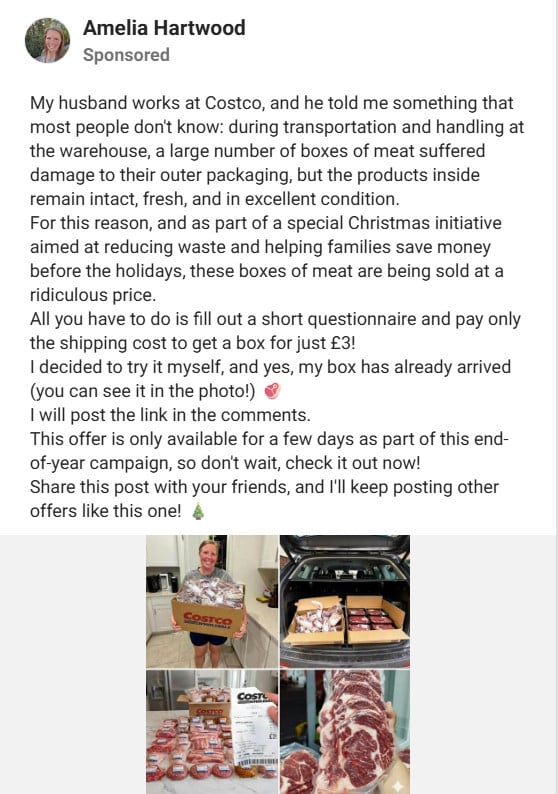
The Costco Meat Box Giveaway Scam is a classic “survey reward” trap that misuses Costco’s name and branding to lure people into paid subscriptions. It typically circulates on Facebook, Instagram, or other social platforms in the form of sponsored posts or shared stories.
The scam almost always starts with a personal style message. A typical post might say: “My husband works at Costco and told me something most people do not know” or “My cousin works at Costco and told me about this secret warehouse offer.” That one line is doing a lot of work. It suggests inside knowledge, humanizes the poster, and builds trust before you notice any details.
From there, the story usually explains that during transportation a lot of boxes of meat had their outer packaging damaged. The meat itself is supposedly perfect, still fresh and safe, but the boxes cannot be sold at full price. So, according to the story, Costco is running a special Christmas initiative to reduce waste and help families save money. These “damaged package” meat boxes are supposedly being sold for almost nothing, sometimes just $9.95 or $10 for shipping.
Attached to the post are photos that look very real at first glance. Someone smiling and holding a Costco box, stacks of meat packets in a trunk, or close ups of steaks. Many of these images are either stolen from real customers or staged specifically for the scam. The pictures are there to bypass your skepticism and make you think, “This person actually received the box. It must be legit.”
The text also uses urgency. It will say the promotion is available only for a few days, that it is part of an “end of year campaign,” or that there are limited boxes per region. There might even be a promise that the poster will “keep sharing offers like this” if people comment or share. This turns the scam into a viral chain as friends share the post with each other.
When you look closer, several red flags appear. The account running the ad is often a brand new profile or a page with very little history. The post may claim to be “sponsored,” but the link in the comments leads to a domain that is not owned by Costco. The wording of the story is reused across many different accounts, with only the name and profile photo changed.
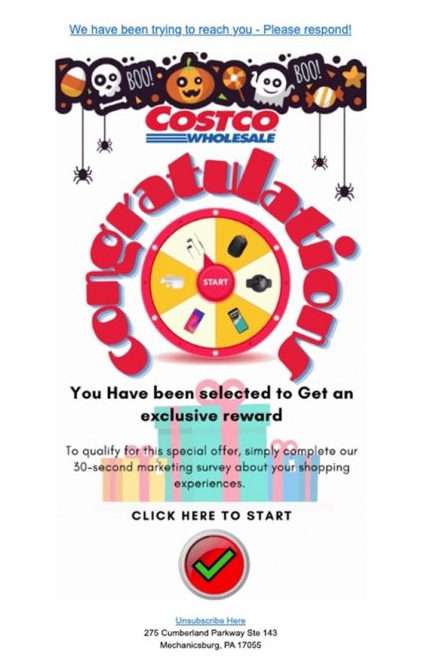
Once you click through, you do not land on Costco’s official site. Instead you are redirected to a series of third party pages that copy Costco’s logo and colors but are clearly separate domains. These pages usually contain a short, meaningless four question survey that asks things like your age range and whether you shop at Costco. The answers do not matter. Everyone “qualifies” as a winner.
After the survey, you are asked to pick one of four boxes on the screen. No matter which one you choose, you “win” the Costco Meat Box. A celebration animation appears. Confetti might fall. A countdown timer appears, warning that you have only a few minutes to claim your prize. All of this is engineered to push you into making a fast decision without thinking too much.
The crucial part of the scam arrives at the payment page. You are told that you only need to pay a small shipping fee, usually around $9.95 or $10, to receive your meat box. The page again uses Costco’s logo and sometimes even mentions “Costco Meat Box” to make the checkout feel official. It asks for your name, address, email, phone number, and full card details.
Buried in the fine print around the payment button is the real trap. The shipping fee is bundled with a “trial membership” for some unrelated service. Common examples include PDF readers, online book clubs, recipe libraries, movie streaming sites, or generic “savings programs.” After a short trial period, usually a few days, your card starts getting billed monthly at much higher amounts, often in the range of $30 to $60 or more.
In other words, there is no official Costco promotion, no charitable waste reduction program, and usually no meat box at all. There is only a network of marketers who earn commissions for pushing as many people as possible into those hidden subscriptions. The Costco branding, emotional storytelling, and cheap price tag are just bait.
The scam thrives because it combines several powerful psychological levers. It leverages a trusted household brand, plays on the fear of missing out during an expensive holiday season, and uses a relatable “my husband works at Costco” angle to feel more genuine than a regular ad. Many people never suspect they are dealing with professional scammers until the bank statements arrive.
This scam has been also investigated by Jordan Liles on his YouTube channel, where he offers a detailed video on the subject. We recommend watching his content for a comprehensive understanding of the scam.
Next, let’s break down exactly how scammers carry out this scam from start to finish.
How The Scam Works
In practice, the Costco Meat Box Giveaway Scam follows a consistent step by step pattern. Each step is designed to lower your guard a little more until you willingly hand over your payment details.
1. The viral post or ad
The funnel begins with a Facebook or Instagram post that looks like it was written by an ordinary person. The text usually includes:
A claim that a friend or relative works at Costco
A story about damaged packaging on meat boxes
A promise of a very cheap meat box if you complete a short questionnaire
A mention that the offer is part of a Christmas or end of year initiative
The post often includes four or more photos of meat, boxes with Costco branding, and someone holding a package on their doorstep. The account name and profile picture appear casual and friendly, giving the impression of a real customer sharing a good deal.
Sometimes the post appears as a “Sponsored” ad in your feed. Other times it is shared by people who were fooled and are now unintentionally helping the scam spread. The link to the offer is usually placed in the comments, not in the main text, making it harder for automated systems to flag it.
2. Redirect to a fake “Costco offer” page
When you tap the link, you are redirected to a site that looks loosely like Costco but is not. The domain might be something like costco-special-reward.xyz or a completely random string of words with Costco slapped in the title.
The landing page reinforces the story from the Facebook post. It talks about warehouse overstock, damaged packaging, and a limited time program to help families buy meat for Christmas at a fraction of the usual cost. There might be a banner reading “Costco Meat Box Reward” and a fake progress bar showing how many boxes are left in your area.
There is no detailed contact information, no clear company name, and no link back to the official Costco site. The page only exists to push you to start the survey.
3. The short, meaningless survey
Next, you are shown a four question survey. Questions often include:
What is your age group
Do you shop at Costco
How often do you visit Costco each month
Are you satisfied with Costco services
The survey feels official enough to convince people they are dealing with a real research campaign. But there is no logic behind it. No matter what answers you choose, the outcome is always the same: you qualify for a reward.
The survey serves several purposes. It keeps you busy for a minute, making you feel like you are earning the offer. It also collects basic demographic information that can be used for future marketing. More importantly, it makes the reward feel justified and not just a random giveaway.
4. The “pick a box” mini game
After the survey results are “processed,” the site tells you that you are eligible for a Costco Meat Box. You are then asked to pick from four boxes or gift icons displayed on the screen.
This mini game is purely theatrical. Regardless of which box you click, you will always “win.” Often the first box appears to be empty or show a sad message, and then on your second or third try you hit the “jackpot.” This pattern is scripted to create a feeling of luck and excitement.
Animations, sound effects, and congratulatory text all signal that you have unlocked an exclusive prize. The site might show fake comments at the bottom from other “winners” praising the deal and confirming how much meat they received. None of this is real.
5. Fake urgency through countdown timers
Once you “win,” a countdown timer appears. It may give you five or ten minutes to claim your meat box before the offer expires. The page may also claim that there are only a few boxes left in your region.
This urgency is a classic pressure tactic. It discourages you from pausing to think, reading the small print, or searching Google to see if others have called it a scam. If you refresh or reopen the page, you will usually see that the timer resets, which proves it is not a real stock counter at all.
6. The payment page and hidden subscription terms
The next step is the checkout form. It usually repeats the Costco logo and says something like “Pay only $9.95 for shipping and receive your Costco Meat Box.”
To proceed, you must enter:
Full name and shipping address
Email address and phone number
Credit or debit card number, expiry date, and CVV
On the surface it looks like a one time payment form. However, somewhere near the button or in a tiny block of gray text there is a disclosure that you are also signing up for a trial of a completely unrelated service. Examples include:
Ebook or book club subscription
PDF reader or document tool
Streaming platform for movies or TV
“VIP savings club” or “rewards program”
The text might state that if you do not cancel within three or seven days, you will be billed a monthly fee. Many people never notice this because the writing is small, the timer is counting down, and the page celebrates your “Costco reward.”
7. After you pay: recurring charges and data harvesting
Once you submit your payment, one of several things can happen. Some victims report receiving nothing at all. Others may receive a small, low value item that has no connection to Costco. In many cases the only thing you get is an email confirming your membership in some obscure digital service.
Within a few days or weeks, recurring charges begin to appear on your card statement. They may show up under company names you do not recognize, often with vague descriptors like “Digital Media,” “Online Reader,” or “Rewards Program.” The amounts are much higher than the original shipping fee, often around $30, $40, or even $60 per month.
Meanwhile, your personal information has likely been added to marketing databases. Scammers can resell your email, phone number, and address to other shady advertisers, which can lead to more unwanted emails, texts, or calls. The cheap meat box may be long forgotten, but the financial consequences continue.
What To Do If You Have Fallen Victim To This Scam
If you already entered your details for a supposed Costco Meat Box, you are not alone. The important thing is to act quickly and methodically.
Stop using the compromised card Contact your bank or card issuer as soon as possible. Explain that you signed up for what you believed was a Costco promotion and later realized it was a scam. Ask them to:
Block further charges from that merchant
Cancel the card and issue a new one if needed
Help you dispute any unauthorized or deceptive charges
The faster you involve your bank, the better your chances of recovering your money and preventing more withdrawals.
Check for confirmation emails and subscriptions Search your inbox for messages received around the time you joined the “offer.” Look for welcome emails or receipts from companies you do not recognize, such as digital media services, PDF tools, book clubs, or streaming platforms. These emails often contain links to your account or cancellation options. Save copies or screenshots of everything, since this evidence will help if you need to file disputes or complaints later.
Cancel any active subscriptions Once you identify the services that are charging you, log in using your email address and cancel the memberships immediately. Follow the official cancellation steps and take screenshots of the confirmation page or email. If you cannot log in or the cancellation process is confusing on purpose, tell your bank that the merchant is making it hard to cancel and that you believe the subscription was created through deception.
Monitor your bank statements closely For at least a few months, check your statements regularly. Look for new or recurring charges that you do not recognize, even if they are small. Scammers sometimes start with minor amounts to test whether a card is still active. If you see anything suspicious, report it to your bank at once. It is better to ask questions early than to discover months of overlooked charges.
Secure your email and online accounts If you reused the same password on the scam site that you also use elsewhere, change your passwords immediately.
Start with your email, bank, and shopping accounts
Enable two factor authentication wherever possible
Use strong, unique passwords for each site
While the main focus of this scam is financial, any site where you enter data could be misused later, so it is wise to lock down your accounts.
Report the scam to Costco and the platform Go to Costco’s official website and use the customer service contact options to report the fake promotion. Include screenshots of the ad, the website, and any emails you received. Then report the post or ad on the platform where you saw it, such as Facebook or Instagram. Choose the option for “scam” or “fraud.” These reports help platforms remove the ads faster and reduce the number of new victims.
File a complaint with consumer protection agencies Depending on where you live, you may be able to file a report with your national consumer protection agency or financial regulator. Providing them with details about the domain, the company names on your statement, and the timeline of events can help ongoing investigations into subscription fraud networks.
Warn friends and family Finally, let others know what happened. If you commented on or shared the original post, go back and add a warning so people see that it is not legitimate. Share your experience with relatives who might be tempted by similar offers, especially older family members who trust big brand names. Your story can stop someone else from falling into the same trap.
Is Your Device Infected? Scan for Malware
If your computer or phone is slow, showing unwanted pop-ups, or acting strangely, malware could be the cause. Running a scan with Malwarebytes Anti-Malware Free is one of the most reliable ways to detect and remove harmful software. The free version can identify and clean common infections such as adware, browser hijackers, trojans, and other unwanted programs.
Malwarebytes works on Windows, Mac, and Android devices. Choose your operating system below and follow the steps to scan your device and remove any malware that might be slowing it down.
Malwarebytes for WindowsMalwarebytes for MacMalwarebytes for Android
Run a Malware Scan with Malwarebytes for Windows
Malwarebytes stands out as one of the leading and widely-used anti-malware solutions for Windows, and for good reason. It effectively eradicates various types of malware that other programs often overlook, all at no cost to you. When it comes to disinfecting an infected device, Malwarebytes has consistently been a free and indispensable tool in the battle against malware. We highly recommend it for maintaining a clean and secure system.
Download Malwarebytes
Download the latest version of Malwarebytes for Windows using the official link below. Malwarebytes will scan your computer and remove adware, browser hijackers, and other malicious software for free.
(The above link will open a new page from where you can download Malwarebytes)
Install Malwarebytes
After the download is complete, locate the MBSetup file, typically found in your Downloads folder. Double-click on the MBSetup file to begin the installation of Malwarebytes on your computer. If a User Account Control pop-up appears, click “Yes” to continue the Malwarebytes installation.
Follow the On-Screen Prompts to Install Malwarebytes
When the Malwarebytes installation begins, the setup wizard will guide you through the process.
You’ll first be prompted to choose the type of computer you’re installing the program on—select either “Personal Computer” or “Work Computer” as appropriate, then click on Next.
Malwarebytes will now begin the installation process on your device.
When the Malwarebytes installation is complete, the program will automatically open to the “Welcome to Malwarebytes” screen.
On the final screen, simply click on the Open Malwarebytes option to start the program.
Enable “Rootkit scanning”.
Malwarebytes Anti-Malware will now start, and you will see the main screen as shown below. To maximize Malwarebytes’ ability to detect malware and unwanted programs, we need to enable rootkit scanning. Click on the “Settings” gear icon located on the left of the screen to access the general settings section.
In the settings menu, enable the “Scan for rootkits” option by clicking the toggle switch until it turns blue.
Now that you have enabled rootkit scanning, click on the “Dashboard” button in the left pane to get back to the main screen.
Perform a Scan with Malwarebytes.
To start a scan, click the Scan button. Malwarebytes will automatically update its antivirus database and begin scanning your computer for malicious programs.
Wait for the Malwarebytes scan to complete.
Malwarebytes will now scan your computer for browser hijackers and other malicious programs. This process can take a few minutes, so we suggest you do something else and periodically check the status of the scan to see when it is finished.
Quarantine detected malware
Once the Malwarebytes scan is complete, it will display a list of detected malware, adware, and potentially unwanted programs. To effectively remove these threats, click the “Quarantine” button.
Malwarebytes will now delete all of the files and registry keys and add them to the program’s quarantine.
Restart your computer.
When removing files, Malwarebytes may require a reboot to fully eliminate some threats. If you see a message indicating that a reboot is needed, please allow it. Once your computer has restarted and you are logged back in, you can continue with the remaining steps.
Once the scan completes, remove all detected threats. Your Windows computer should now be clean and running smoothly again, free of trojans, adware, and other malware.
If your current antivirus allowed this malicious program on your computer, you may want to consider purchasing Malwarebytes Premium to protect against these types of threats in the future. If you are still having problems with your computer after completing these instructions, then please follow one of the steps:
Malwarebytes for Mac is an on-demand scanner that can destroy many types of malware that other software tends to miss without costing you absolutely anything. When it comes to cleaning up an infected device, Malwarebytes has always been free, and we recommend it as an essential tool in the fight against malware.
Download Malwarebytes for Mac.
You can download Malwarebytes for Mac by clicking the link below.
When Malwarebytes has finished downloading, double-click on the setup file to install Malwarebytes on your computer. In most cases, downloaded files are saved to the Downloads folder.
Follow the on-screen prompts to install Malwarebytes.
When the Malwarebytes installation begins, you will see the Malwarebytes for Mac Installer which will guide you through the installation process. Click “Continue“, then keep following the prompts to continue with the installation process.
When your Malwarebytes installation completes, the program opens to the Welcome to Malwarebytes screen. Click the “Get started” button.
Select “Personal Computer” or “Work Computer”.
The Malwarebytes Welcome screen will first ask you what type of computer are you installing this program, click either Personal Computer or Work Computer.
Click on “Scan”.
To scan your computer with Malwarebytes, click on the “Scan” button. Malwarebytes for Mac will automatically update the antivirus database and start scanning your computer for malware.
Wait for the Malwarebytes scan to complete.
Malwarebytes will scan your computer for adware, browser hijackers, and other malicious programs. This process can take a few minutes, so we suggest you do something else and periodically check on the status of the scan to see when it is finished.
Click on “Quarantine”.
When the scan has been completed, you will be presented with a screen showing the malware infections that Malwarebytes has detected. To remove the malware that Malwarebytes has found, click on the “Quarantine” button.
Restart computer.
Malwarebytes will now remove all the malicious files that it has found. To complete the malware removal process, Malwarebytes may ask you to restart your computer.
After scanning, delete any detected threats. Your Mac should now be free from adware, unwanted extensions, and other potentially harmful software.
If your current antivirus allowed a malicious program on your computer, you might want to consider purchasing the full-featured version of Malwarebytes Anti-Malware to protect against these types of threats in the future. If you are still experiencing problems while trying to remove a malicious program from your computer, please ask for help in our Mac Malware Removal Help & Support forum.
Run a Malware Scan with Malwarebytes for Android
Malwarebytes for Android automatically detects and removes dangerous threats like malware and ransomware so you don’t have to worry about your most-used device being compromised. Aggressive detection of adware and potentially unwanted programs keeps your Android phone or tablet running smooth.
Download Malwarebytes for Android.
You can download Malwarebytes for Android by clicking the link below.
In the Google Play Store, tap “Install” to install Malwarebytes for Android on your device.
When the installation process has finished, tap “Open” to begin using Malwarebytes for Android. You can also open Malwarebytes by tapping on its icon in your phone menu or home screen.
Follow the on-screen prompts to complete the setup process
When Malwarebytes will open, you will see the Malwarebytes Setup Wizard which will guide you through a series of permissions and other setup options. This is the first of two screens that explain the difference between the Premium and Free versions. Swipe this screen to continue. Tap on “Got it” to proceed to the next step. Malwarebytes for Android will now ask for a set of permissions that are required to scan your device and protect it from malware. Tap on “Give permission” to continue. Tap on “Allow” to permit Malwarebytes to access the files on your phone.
Update database and run a scan with Malwarebytes for Android
You will now be prompted to update the Malwarebytes database and run a full system scan.
Click on “Update database” to update the Malwarebytes for Android definitions to the latest version, then click on “Run full scan” to perform a system scan.
Wait for the Malwarebytes scan to complete.
Malwarebytes will now start scanning your phone for adware and other malicious apps. This process can take a few minutes, so we suggest you do something else and periodically check on the status of the scan to see when it is finished.
Click on “Remove Selected”.
When the scan has been completed, you will be presented with a screen showing the malware infections that Malwarebytes for Android has detected. To remove the malicious apps that Malwarebytes has found, tap on the “Remove Selected” button.
Restart your phone.
Malwarebytes for Android will now remove all the malicious apps that it has found. To complete the malware removal process, Malwarebytes may ask you to restart your device.
When the scan is finished, remove all detected threats. Your Android phone should now be free of malicious apps, adware, and unwanted browser redirects.
If your current antivirus allowed a malicious app on your phone, you may want to consider purchasing the full-featured version of Malwarebytes to protect against these types of threats in the future. If you are still having problems with your phone after completing these instructions, then please follow one of the steps:
Restore your phone to factory settings by going to Settings > General management > Reset > Factory data reset.
After cleaning your device, it’s important to protect it from future infections and annoying pop-ups. We recommend installing an ad blocker such as AdGuard. AdGuard blocks malicious ads, prevents phishing attempts, and stops dangerous redirects, helping you stay safe while browsing online.
The Bottom Line
The Costco Meat Box Giveaway is not a special warehouse clearance or a holiday initiative from Costco. It is a cleverly dressed subscription scam that uses emotional stories, fake surveys, copied Costco logos, and cheap “shipping only” pricing to capture your card details.
Instead of a bargain box of meat, victims often receive nothing at all, or at best a low value product, while their cards are quietly enrolled in recurring charges for ebook services, PDF readers, book clubs, movie sites, or vague rewards programs.
If an offer for a well known brand appears only in a random Facebook post, lives on a strange domain, and demands your card details after a four question quiz, treat it as a red flag. Verify promotions through official Costco channels, read the fine print before paying anything, and do not let countdown timers pressure you into a decision.
Staying skeptical of “too good to be true” deals is still one of the best defenses you have against scams like the Costco Meat Box giveaway.
FAQ
Is the Costco Meat Box Giveaway real?
No. The offer circulating on Facebook and other platforms is not an official Costco promotion. It is a third party subscription scam that misuses Costco’s name and logo to look believable.
Why do the posts say “my husband works at Costco”?
Scammers use personal sounding stories to build trust quickly. Lines like “my cousin works at Costco” make the post feel like a tip from a friend instead of an ad, which lowers your guard and makes you more likely to click.
Do you actually get a box of meat?
In many cases, victims receive nothing at all. Some report receiving a small, low value item that is not from Costco and worth far less than what they expected. The real goal is to capture your payment details for recurring charges, not to send quality meat.
What am I really paying for when I cover “shipping”?
That small shipping fee usually enrolls you in a trial subscription for an unrelated service, such as a book club, PDF reader, movie site, or rewards program. After the short trial ends, your card is billed every month at a much higher rate unless you cancel in time.
How can I tell if a Costco promotion is legitimate?
Go directly to the official Costco website, app, or verified social media pages. Real promotions will be listed there. Be wary of offers that live on random domains, use personal stories instead of clear branding, or require you to pay shipping after a useless four question survey.
I already filled out the form. Can I get my money back?
You might. Contact your bank or card issuer as soon as possible, explain that you were misled by a fake Costco offer, and ask about chargebacks or disputes. Cancel any related subscriptions and keep screenshots or emails as evidence.
Will reporting the scam actually help?
Yes. Reporting the ad to Facebook or Instagram, informing Costco through their official channels, and filing complaints with consumer protection agencies can all help limit the spread of the scam and protect other shoppers from falling into the same trap.
Thomas is an expert at uncovering scams and providing in-depth reporting on cyber threats and online fraud. As an editor, he is dedicated to keeping readers informed on the latest developments in cybersecurity and tech.