

When it comes to computer software, it’s not uncommon to come across programs or applications that we don’t recognize or understand. One such program that often raises questions is Digital Line Detect. In this article, we will delve into what Digital Line Detect is, its purpose, and whether or not you should consider removing it from your system.
Understanding Digital Line Detect
Digital Line Detect, also known as DLG.exe, is a program developed by BVRP Software. It is commonly bundled with certain modem software, particularly those from Dell and other computer manufacturers. The primary purpose of Digital Line Detect is to detect and configure the modem settings for your computer.
When you install a modem on your computer, Digital Line Detect helps in identifying the modem and establishing the necessary connections. It ensures that your modem is properly recognized by the operating system and allows you to utilize its features effectively.
Should You Remove Digital Line Detect?
Now that we understand what Digital Line Detect does, the question arises: should you remove it from your system? The answer depends on your specific needs and usage patterns.
If you frequently use a modem for internet connectivity or other purposes, it is generally recommended to keep Digital Line Detect installed. Removing it may result in the loss of certain modem functionalities or cause compatibility issues with other software that relies on it.
However, if you no longer use a modem or have switched to a different method of internet connectivity, removing Digital Line Detect may be a viable option. By uninstalling unnecessary programs, you can free up system resources and potentially improve the overall performance of your computer.
How to Remove Digital Line Detect
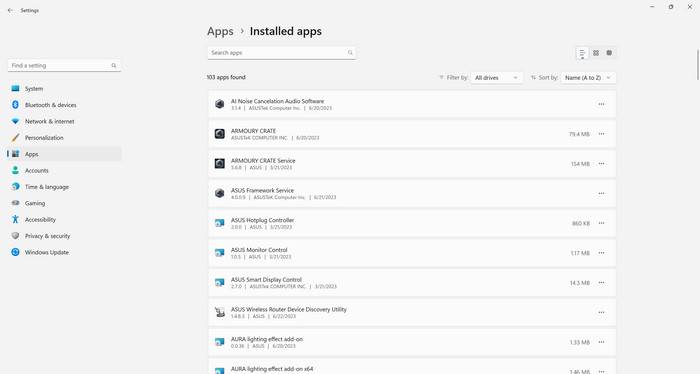
If you have decided to remove Digital Line Detect from your system, there are a few methods you can use. Here are the steps to uninstall Digital Line Detect:
- Open the Control Panel on your computer.
- Select “Programs” or “Programs and Features,” depending on your operating system.
- Locate Digital Line Detect in the list of installed programs.
- Click on Digital Line Detect and select “Uninstall.”
- Follow the on-screen prompts to complete the uninstallation process.
Alternatively, you can use a third-party uninstaller tool like Revo Uninstaller Free to remove Digital Line Detect. These tools often provide more thorough removal, ensuring that all associated files and registry entries are deleted.
The Importance of Regular Software Maintenance
Whether you decide to keep or remove Digital Line Detect, it is essential to emphasize the importance of regular software maintenance. Outdated or unnecessary programs can not only take up valuable system resources but also pose security risks.
Regularly reviewing and uninstalling unused or unwanted software can help optimize your computer’s performance and reduce the potential attack surface for malware or other security threats. It is also recommended to keep your operating system and other software up to date to benefit from the latest security patches and improvements.
Conclusion
Digital Line Detect, or DLG.exe, is a program that assists in configuring modem settings on your computer. Whether you should remove it depends on your usage patterns and needs. If you still use a modem, it is generally recommended to keep Digital Line Detect installed. However, if you no longer use a modem or have switched to a different method of internet connectivity, removing it can free up system resources and potentially improve performance.
Remember to regularly review and uninstall unnecessary software to maintain a clean and optimized system. By doing so, you can ensure that your computer operates smoothly and securely.

Join the discussion
0 commentsShare your experience or ask a question about this article.
Discussion
Start the conversation
Have a question or something useful to share? Add the first comment.