If you’ve received a strange email claiming there’s a “Law Enforcement Emergency Data Request” involving your Discord account — whether it’s from Tinder, Kahoot, or any other major platform — do not panic. It’s a scam.
This sophisticated phishing campaign is designed to exploit your trust in well-known brands and create fear by using words like “law enforcement” and “emergency.” The emails appear to come from real support addresses such as help@gotinder.com or help@kahoot.com and often look like legitimate automated support ticket acknowledgments.
In this comprehensive guide, we will break down the Law Enforcement Data Request Email Scam in detail: how it works, why it’s dangerous, how to recognize it, and what to do if you’ve already interacted with one of these fraudulent messages.
Scam Overview
The Law Enforcement Data Request Email Scam is a highly deceptive phishing campaign that started gaining traction in late 2025. Unlike common phishing attempts that rely on obviously fake domains or poor formatting, this scam uses legitimate-looking email templates, official company domains, and legal-sounding language to catch recipients off guard.
The scam first gained attention when users began receiving emails that appeared to come from Tinder’s official support address (help@gotinder.com) with subject lines such as:
[Request received] Law Enforcement Emergency Data Request For Your Discord Account #######
A few days later, nearly identical emails began surfacing from Kahoot’s official domain (help@kahoot.com) — proving that the campaign was spreading across multiple platforms.
The contents of these emails are carefully designed to mimic real customer support messages. They typically include:
An official-looking support ticket number (e.g., 223412, 50292430).
A confirmation message saying the request is being reviewed by support.
Language encouraging the recipient to reply to the email for more information.
No links in the first email, making it appear safe and trustworthy.
This scam works because it exploits trust. Brands like Tinder and Kahoot are widely recognized. Their real support emails follow predictable patterns, which the scammers have successfully replicated. Many recipients do not initially suspect anything malicious.
Why the Scam Targets Discord
Discord is one of the most popular communication platforms in the world, used by millions for gaming, communities, education, and even business. By mentioning Discord, scammers achieve several goals:
Widespread relevance: Many people have Discord accounts, increasing the chances of alarming the recipient.
Fear trigger: A “law enforcement data request” implies a serious legal issue, prompting recipients to react quickly without thinking critically.
Platform confusion: Since the email appears to come from Tinder or Kahoot — not Discord — users are unsure why they’re receiving it, which heightens anxiety and makes them more likely to reply for clarification.
Exploiting Real Company Domains
What makes this phishing campaign particularly dangerous is the use of legitimate or very convincing email domains. Messages have been reported coming from:
help@gotinder.com
help@kahoot.com
Variants that mimic other legitimate companies’ help desks.
There are two main ways scammers accomplish this:
Email Spoofing: They forge the “From” field to make it look like the message comes from a real domain.
Third-Party System Exploitation: In some cases, attackers may have gained access to automated support platforms (such as Zendesk or similar ticketing systems) through credential theft or API abuse. This allows them to send emails that appear authentic.
This technique bypasses spam filters and security layers, increasing the chances that the phishing email lands directly in the recipient’s inbox.
Connection to the Discord Zendesk Data Breach
In early October 2025, Discord confirmed a third-party data breach involving Zendesk, its customer support platform. This breach exposed:
Email addresses of users who contacted support.
Full names and ticket histories.
Partial billing or account information.
This exposed data is believed to have been used by scammers to send these fraudulent emails. They can target actual Discord users, making their phishing messages more convincing.
Common Characteristics of the Scam Emails
Although the exact wording may vary slightly between campaigns, most of these emails share the same structure:
Subject line: “Law Enforcement Emergency Data Request For Your Discord Account #######”
Sender address: help@gotinder.com or help@kahoot.com
Ticket number: A random number that looks official
Body text:
A confirmation that a request has been received.
Language stating the support team will respond soon.
No suspicious links in the first message.
Optional footer referencing the company’s help center or chatbot.
Because they mimic legitimate support acknowledgment emails, recipients often don’t see any obvious red flags.
Growing Scope of the Scam
Initially, reports came from Tinder-branded phishing emails. Within weeks, users started seeing similar messages branded as coming from Kahoot, and security researchers suspect other companies may follow. This rapid spread indicates an automated and scalable phishing operation — likely leveraging stolen credentials or API keys to send emails through legitimate systems.
This is not a random spam campaign. It’s a coordinated phishing operation that blends brand impersonation, social engineering, and psychological pressure.
How the Scam Works
Understanding how the Law Enforcement Data Request Email Scam unfolds is key to recognizing it early. While variations exist, the scam typically follows a structured pattern designed to lower your guard and gradually extract sensitive information.
Step 1: The Initial Email
The scam begins when the victim receives an official-looking email that appears to come from a trusted brand such as Tinder or Kahoot. The subject line references:
Law Enforcement Emergency Data Request For Your Discord Account #######
The body of the email includes:
A ticket number or request ID.
A message acknowledging receipt of the request.
Information stating the support team will follow up.
No immediate call to action or links.
This is a deliberate tactic. By not including suspicious links or requests in the first message, the scammers avoid triggering common phishing defenses and make recipients feel they’ve received a legitimate support message.
Step 2: Creating Confusion and Fear
The wording of the subject line is critical. “Law Enforcement Emergency Data Request” is meant to trigger panic. Most people associate law enforcement involvement with serious legal issues. Even if they know they’ve done nothing wrong, they feel a need to respond immediately.
Adding “Discord account” creates further confusion because the email is not from Discord but from another company like Tinder or Kahoot. The recipient may think:
“Did someone hack my Discord account?”
“Is Discord in trouble with law enforcement?”
“Why is Tinder or Kahoot contacting me about this?”
This psychological manipulation pushes recipients to reply quickly without verifying the authenticity of the message.
Step 3: The Reply Trap
If the victim replies to the email, the scammers will send a second message. This follow-up may:
Ask the victim to “verify their identity”.
Request login credentials, email addresses, or phone numbers.
Include a link to a fake login page that mimics Discord or another platform.
In some cases, ask for ID scans or screenshots.
This is the critical moment when the scam transitions from passive phishing to active credential harvesting.
These domains look similar to legitimate URLs but are not affiliated with any official company.
Step 4: Credential or Data Theft
Once victims enter their information or share ID documents, the scammers can:
Steal Discord credentials and gain access to their accounts.
Use the same credentials to try logging into other services (email, PayPal, Google, etc.) if password reuse is involved.
Steal personally identifiable information for identity theft or fraud.
Target contacts or servers on Discord.
For scammers, these stolen accounts are valuable assets. They can be sold on dark web marketplaces, used in additional scams, or leveraged for extortion.
Step 5: Secondary Phishing and Extortion
After obtaining credentials, scammers often:
Send phishing DMs from compromised Discord accounts to spread the attack further.
Impersonate the victim to trick friends or colleagues into sharing more information.
Use the account to promote cryptocurrency scams, investment schemes, or malicious software.
Threaten victims with fake “legal consequences” unless they comply with demands.
This secondary phase often causes more damage than the initial compromise.
Step 6: Multi-Platform Exploitation
Many people use the same email address and password for multiple platforms. Once scammers gain access to Discord, they often try the same credentials on other platforms such as Gmail, PayPal, or banking apps.
This can lead to:
Full email account takeover
Financial fraud or unauthorized transactions
Inability to recover compromised accounts
Potential long-term identity theft
Step 7: Continued Email Spoofing Campaigns
Finally, stolen email addresses and contacts may be added to spam and phishing lists, ensuring victims receive more scams in the future. This is why responding to even one message can create a snowball effect.
Email Variants
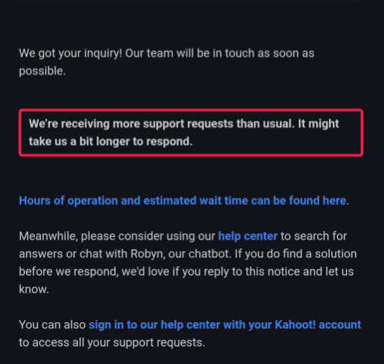
One of the main reasons this phishing campaign is so effective is that the emails look almost identical to legitimate support ticket notifications. They use real company domains, professional formatting, and carefully chosen language to build trust. Below are two real examples of the original scam emails sent to victims, showing exactly how they appear in inboxes.
Example 1: Tinder Variant
From: help@gotinder.com Subject: [Request received] Law Enforcement Emergency Data Request For Your Discord Account 50292430
Hello,

We’ve received your request and our support team will get back to you as soon as possible.
Please note that we are currently receiving more support requests than usual, so it may take longer than expected to respond.

Ticket ID: 50292430
Summary: Law Enforcement Emergency Data Request for Discord Account

If you’d like to add additional information, just reply to this email.
We appreciate your patience.

– Tinder Support
Why it looks convincing:
Real Tinder domain (gotinder.com)
Clean formatting identical to legitimate support emails
No malicious links in the first message
“Law Enforcement” in subject line creates panic
Example 2: Kahoot Variant
From:help@kahoot.com Subject: [Request received] Law Enforcement Emergency Data Request For Your Discord Account 77431109
Hello,

Thank you for contacting Kahoot! Support.

We’ve received your inquiry regarding the Law Enforcement Emergency Data Request associated with your Discord account.
Our team will review your ticket and follow up as soon as possible.

Ticket number: 77431109
Estimated response time: 24–48 hours

Please reply directly to this message if you have any additional information to provide.

Best regards,
Kahoot Support
Why it looks convincing:
Uses legitimate Kahoot support branding
Language resembles official helpdesk auto-replies
References Discord, creating urgency and confusion
No direct phishing links in the first email
What to Do If You Have Fallen Victim to This Scam
If you replied to this type of email, clicked on a phishing link, or entered personal information, immediate action is crucial. The faster you respond, the better your chances of minimizing the damage.
1. Change Your Passwords Immediately
Update your Discord password and any other accounts that may have used the same or similar credentials.
Choose a strong, unique password for each platform.
Avoid reusing passwords across different accounts.
2. Enable Two-Factor Authentication (2FA)
Turn on 2FA for Discord, your email account, and any critical online services.
Prefer authenticator apps (such as Google Authenticator, Authy, or Microsoft Authenticator) over SMS when possible.
2FA will help prevent unauthorized access even if scammers have your password.
3. Check for Unauthorized Logins
Review your Discord login history and remove any unfamiliar devices.
Check your email account’s recent activity for suspicious logins.
If you notice unknown IP addresses or devices, revoke access and change your password again.
4. Report the Scam to the Companies Involved
Forward the email to Tinder’s official support: help@gotinder.com.
Forward the email to Kahoot’s official support: help@kahoot.com.
Submit a report to Discord’s Trust & Safety team through their official website.
Report the phishing message to your email provider (mark as phishing in Gmail or Outlook).
Reporting helps companies investigate the campaign and block future phishing attempts.
5. Scan Your Device for Malware
If you clicked any suspicious links, run a full antivirus or anti-malware scan. Use trusted tools like:
Malwarebytes
Windows Defender
Bitdefender
ESET
Some phishing sites attempt to install tracking scripts or malicious browser extensions.
6. Secure Your Email Account
Your email is the key to all your online accounts. If scammers gain control of it, they can reset passwords and lock you out of multiple platforms.
Update your email password.
Enable 2FA for your email.
Check for suspicious forwarding rules or recovery email changes.
7. Monitor Your Financial Accounts
If you accidentally shared any personal information, monitor your bank accounts, credit card statements, and PayPal transactions for suspicious activity.
Consider freezing your credit if sensitive data was exposed.
Set up alerts for new transactions or changes to your accounts.
8. Watch for Follow-Up Scams
Once scammers have your email, they may target you again with:
Fake security alerts
More law enforcement-themed phishing
Identity theft attempts
Be especially cautious with any future messages that seem urgent or threatening.
9. Educate Yourself and Others
Sharing what you’ve learned with friends, family, or coworkers can help stop the spread of this scam. Many victims are caught off guard because they’ve never seen such a convincing phishing attempt before.
Is Your Device Infected? Scan for Malware
If your computer or phone is slow, showing unwanted pop-ups, or acting strangely, malware could be the cause. Running a scan with Malwarebytes Anti-Malware Free is one of the most reliable ways to detect and remove harmful software. The free version can identify and clean common infections such as adware, browser hijackers, trojans, and other unwanted programs.
Malwarebytes works on Windows, Mac, and Android devices. Choose your operating system below and follow the steps to scan your device and remove any malware that might be slowing it down.
Malwarebytes for WindowsMalwarebytes for MacMalwarebytes for Android
Run a Malware Scan with Malwarebytes for Windows
Malwarebytes stands out as one of the leading and widely-used anti-malware solutions for Windows, and for good reason. It effectively eradicates various types of malware that other programs often overlook, all at no cost to you. When it comes to disinfecting an infected device, Malwarebytes has consistently been a free and indispensable tool in the battle against malware. We highly recommend it for maintaining a clean and secure system.
Download Malwarebytes
Download the latest version of Malwarebytes for Windows using the official link below. Malwarebytes will scan your computer and remove adware, browser hijackers, and other malicious software for free.
(The above link will open a new page from where you can download Malwarebytes)
Install Malwarebytes
After the download is complete, locate the MBSetup file, typically found in your Downloads folder. Double-click on the MBSetup file to begin the installation of Malwarebytes on your computer. If a User Account Control pop-up appears, click “Yes” to continue the Malwarebytes installation.
Follow the On-Screen Prompts to Install Malwarebytes
When the Malwarebytes installation begins, the setup wizard will guide you through the process.
You’ll first be prompted to choose the type of computer you’re installing the program on—select either “Personal Computer” or “Work Computer” as appropriate, then click on Next.
Malwarebytes will now begin the installation process on your device.
When the Malwarebytes installation is complete, the program will automatically open to the “Welcome to Malwarebytes” screen.
On the final screen, simply click on the Open Malwarebytes option to start the program.
Enable “Rootkit scanning”.
Malwarebytes Anti-Malware will now start, and you will see the main screen as shown below. To maximize Malwarebytes’ ability to detect malware and unwanted programs, we need to enable rootkit scanning. Click on the “Settings” gear icon located on the left of the screen to access the general settings section.
In the settings menu, enable the “Scan for rootkits” option by clicking the toggle switch until it turns blue.
Now that you have enabled rootkit scanning, click on the “Dashboard” button in the left pane to get back to the main screen.
Perform a Scan with Malwarebytes.
To start a scan, click the Scan button. Malwarebytes will automatically update its antivirus database and begin scanning your computer for malicious programs.
Wait for the Malwarebytes scan to complete.
Malwarebytes will now scan your computer for browser hijackers and other malicious programs. This process can take a few minutes, so we suggest you do something else and periodically check the status of the scan to see when it is finished.
Quarantine detected malware
Once the Malwarebytes scan is complete, it will display a list of detected malware, adware, and potentially unwanted programs. To effectively remove these threats, click the “Quarantine” button.
Malwarebytes will now delete all of the files and registry keys and add them to the program’s quarantine.
Restart your computer.
When removing files, Malwarebytes may require a reboot to fully eliminate some threats. If you see a message indicating that a reboot is needed, please allow it. Once your computer has restarted and you are logged back in, you can continue with the remaining steps.
Once the scan completes, remove all detected threats. Your Windows computer should now be clean and running smoothly again, free of trojans, adware, and other malware.
If your current antivirus allowed this malicious program on your computer, you may want to consider purchasing Malwarebytes Premium to protect against these types of threats in the future. If you are still having problems with your computer after completing these instructions, then please follow one of the steps:
Malwarebytes for Mac is an on-demand scanner that can destroy many types of malware that other software tends to miss without costing you absolutely anything. When it comes to cleaning up an infected device, Malwarebytes has always been free, and we recommend it as an essential tool in the fight against malware.
Download Malwarebytes for Mac.
You can download Malwarebytes for Mac by clicking the link below.
When Malwarebytes has finished downloading, double-click on the setup file to install Malwarebytes on your computer. In most cases, downloaded files are saved to the Downloads folder.
Follow the on-screen prompts to install Malwarebytes.
When the Malwarebytes installation begins, you will see the Malwarebytes for Mac Installer which will guide you through the installation process. Click “Continue“, then keep following the prompts to continue with the installation process.
When your Malwarebytes installation completes, the program opens to the Welcome to Malwarebytes screen. Click the “Get started” button.
Select “Personal Computer” or “Work Computer”.
The Malwarebytes Welcome screen will first ask you what type of computer are you installing this program, click either Personal Computer or Work Computer.
Click on “Scan”.
To scan your computer with Malwarebytes, click on the “Scan” button. Malwarebytes for Mac will automatically update the antivirus database and start scanning your computer for malware.
Wait for the Malwarebytes scan to complete.
Malwarebytes will scan your computer for adware, browser hijackers, and other malicious programs. This process can take a few minutes, so we suggest you do something else and periodically check on the status of the scan to see when it is finished.
Click on “Quarantine”.
When the scan has been completed, you will be presented with a screen showing the malware infections that Malwarebytes has detected. To remove the malware that Malwarebytes has found, click on the “Quarantine” button.
Restart computer.
Malwarebytes will now remove all the malicious files that it has found. To complete the malware removal process, Malwarebytes may ask you to restart your computer.
After scanning, delete any detected threats. Your Mac should now be free from adware, unwanted extensions, and other potentially harmful software.
If your current antivirus allowed a malicious program on your computer, you might want to consider purchasing the full-featured version of Malwarebytes Anti-Malware to protect against these types of threats in the future. If you are still experiencing problems while trying to remove a malicious program from your computer, please ask for help in our Mac Malware Removal Help & Support forum.
Run a Malware Scan with Malwarebytes for Android
Malwarebytes for Android automatically detects and removes dangerous threats like malware and ransomware so you don’t have to worry about your most-used device being compromised. Aggressive detection of adware and potentially unwanted programs keeps your Android phone or tablet running smooth.
Download Malwarebytes for Android.
You can download Malwarebytes for Android by clicking the link below.
In the Google Play Store, tap “Install” to install Malwarebytes for Android on your device.
When the installation process has finished, tap “Open” to begin using Malwarebytes for Android. You can also open Malwarebytes by tapping on its icon in your phone menu or home screen.
Follow the on-screen prompts to complete the setup process
When Malwarebytes will open, you will see the Malwarebytes Setup Wizard which will guide you through a series of permissions and other setup options. This is the first of two screens that explain the difference between the Premium and Free versions. Swipe this screen to continue. Tap on “Got it” to proceed to the next step. Malwarebytes for Android will now ask for a set of permissions that are required to scan your device and protect it from malware. Tap on “Give permission” to continue. Tap on “Allow” to permit Malwarebytes to access the files on your phone.
Update database and run a scan with Malwarebytes for Android
You will now be prompted to update the Malwarebytes database and run a full system scan.
Click on “Update database” to update the Malwarebytes for Android definitions to the latest version, then click on “Run full scan” to perform a system scan.
Wait for the Malwarebytes scan to complete.
Malwarebytes will now start scanning your phone for adware and other malicious apps. This process can take a few minutes, so we suggest you do something else and periodically check on the status of the scan to see when it is finished.
Click on “Remove Selected”.
When the scan has been completed, you will be presented with a screen showing the malware infections that Malwarebytes for Android has detected. To remove the malicious apps that Malwarebytes has found, tap on the “Remove Selected” button.
Restart your phone.
Malwarebytes for Android will now remove all the malicious apps that it has found. To complete the malware removal process, Malwarebytes may ask you to restart your device.
When the scan is finished, remove all detected threats. Your Android phone should now be free of malicious apps, adware, and unwanted browser redirects.
If your current antivirus allowed a malicious app on your phone, you may want to consider purchasing the full-featured version of Malwarebytes to protect against these types of threats in the future. If you are still having problems with your phone after completing these instructions, then please follow one of the steps:
Restore your phone to factory settings by going to Settings > General management > Reset > Factory data reset.
After cleaning your device, it’s important to protect it from future infections and annoying pop-ups. We recommend installing an ad blocker such as AdGuard. AdGuard blocks malicious ads, prevents phishing attempts, and stops dangerous redirects, helping you stay safe while browsing online.
Frequently Asked Questions
What is the Law Enforcement Data Request Email Scam?
The Law Enforcement Data Request Email Scam is a phishing campaign where scammers impersonate well-known brands such as Tinder, Kahoot, and others to trick users into believing there’s a “law enforcement emergency data request” involving their Discord account. These emails look like legitimate support tickets and use language designed to create panic. Their ultimate goal is to steal sensitive information, including login credentials and personal data.
Why are these emails mentioning Discord but coming from Tinder or Kahoot?
This mismatch is one of the biggest red flags. Tinder and Kahoot have no connection to Discord or law enforcement data requests related to Discord accounts. Scammers use this tactic intentionally to confuse recipients and make the message seem more urgent. By combining two trusted brands, they increase the likelihood that recipients will respond without verifying the legitimacy of the email.
How do scammers make the emails look legitimate?
The scammers use sophisticated methods like email spoofing or exploiting third-party support systems. The emails often come from addresses that appear authentic, such as help@gotinder.com or help@kahoot.com, and mimic real customer support formats. They include fake ticket numbers, support acknowledgments, and language commonly used by legitimate companies. Because of this, many recipients don’t initially suspect it’s a phishing attempt.
What happens if I reply to the email?
If you reply to the email, the scammers will likely send a follow-up message asking for personal information, login details, or even identity verification documents. They may also include phishing links that lead to fake login portals designed to steal your credentials. This is when the real scam begins. Replying to the initial email confirms to the scammers that your address is active and increases the risk of further targeting.
What kind of information are scammers trying to steal?
Scammers may try to steal your Discord credentials, email address and password, personal identification details, or financial information. They can use this data to take over your accounts, conduct identity theft, or sell your information on underground markets. Even something as simple as confirming your email address can make you a target for future scams.
How can I tell if the email is fake?
Look for inconsistencies and illogical combinations, such as an email from Tinder referring to a Discord account. Check the sender’s address carefully. Even if the domain looks real, spoofing can make it appear authentic. Legitimate law enforcement requests never go to end users, so any such email is automatically suspicious. Also, if the email contains a ticket number but no real context or requires you to respond, it’s most likely a scam.
What should I do if I received the email but didn’t respond?
If you haven’t interacted with the email, the best thing to do is mark it as phishing in your email provider and delete it. You may also forward the message to the legitimate company’s support team (Tinder or Kahoot) so they can investigate. It’s wise to change your passwords periodically and enable two-factor authentication as a precaution.
What should I do if I replied or clicked on the link?
Act immediately. Change your Discord and email passwords, and enable two-factor authentication on all critical accounts. Check for unauthorized logins and remove any unfamiliar devices. Run a full security scan on your device to ensure no malware has been installed. If you shared personal information, consider contacting your bank or credit reporting agency to monitor for identity theft.
How does this scam relate to the Discord Zendesk breach?
Security researchers believe this phishing campaign may be linked to a third-party data breach involving Discord’s Zendesk support system in October 2025. That breach exposed user email addresses, ticket history, and partial personal information. Scammers may be using that leaked data to send highly targeted phishing emails, which is why the messages look so convincing.
The Bottom Line
The Law Enforcement Data Request Email Scam is a sophisticated, multi-platform phishing campaign that uses fear and brand impersonation to trick users into sharing their personal information. By referencing law enforcement and popular platforms like Discord, Tinder, and Kahoot, scammers exploit trust and urgency to maximize their chances of success.
Key takeaways:
Real law enforcement requests never go to end users.
Tinder, Kahoot, and other platforms will not contact you about your Discord account.
The first email often looks harmless because it mimics a support ticket acknowledgment.
The danger comes in the follow-up message if you respond.
Quick action — changing passwords, enabling 2FA, and reporting the scam — can prevent further damage.
Phishing campaigns are becoming more sophisticated, but awareness is your best defense. If something doesn’t make sense — like a company contacting you about another platform — trust your instincts and verify before responding.
Stay vigilant, secure your accounts, and spread the word to help others avoid falling into the same trap.
Thomas is an expert at uncovering scams and providing in-depth reporting on cyber threats and online fraud. As an editor, he is dedicated to keeping readers informed on the latest developments in cybersecurity and tech.