

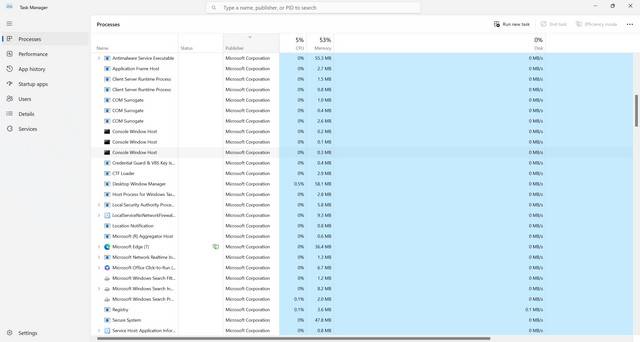
When you open the Task Manager on your Windows computer, you may notice a process called DistributedCOM (DCOM) running in the background. This process, also known as dllhost.exe, is an essential component of the Windows operating system. In this article, we will explore what the DistributedCOM process is, why it is running in Task Manager, and its significance in the overall functioning of your computer.
Understanding DistributedCOM (DCOM)
DistributedCOM is a Microsoft technology that allows software components to communicate and interact with each other over a network. It enables different applications and processes to work together seamlessly, even if they are running on different computers or operating systems.
DCOM is based on the Component Object Model (COM), which is a binary-interface standard for software components in the Windows environment. It provides a set of rules and protocols for inter-process communication, allowing applications to share data and functionality.
Why is DistributedCOM Running in Task Manager?
Seeing the DistributedCOM process running in Task Manager is completely normal and expected. It is a background process that runs automatically when you start your computer. The process is responsible for managing and coordinating communication between different software components and services on your system.
Here are a few reasons why the DistributedCOM process may be running:
- Inter-Process Communication: DCOM facilitates communication between different processes and applications on your computer. It allows them to exchange data, invoke methods, and share resources. The process running in Task Manager ensures that this communication happens smoothly and efficiently.
- Service Activation: DCOM is involved in the activation of services and processes on your computer. When a service or application needs to be started, DCOM handles the activation process and ensures that the necessary components are loaded and initialized correctly.
- Remote Procedure Calls (RPC): DCOM uses Remote Procedure Calls to enable communication between processes running on different computers. It allows applications to call functions or methods on remote systems as if they were local, making distributed computing possible.
- Component Access Permissions: DCOM also manages the security and permissions associated with accessing software components. It ensures that only authorized processes can interact with specific components and prevents unauthorized access or misuse.
Is DistributedCOM a Security Concern?
While the DistributedCOM process itself is not a security threat, it can be exploited by malware or malicious actors to gain unauthorized access to your system. Attackers may attempt to use DCOM vulnerabilities to execute arbitrary code, escalate privileges, or perform other malicious activities.
To protect your computer from potential security risks, it is crucial to keep your operating system and software up to date with the latest security patches. Regularly scanning your system for viruses and malware is also recommended. Malwarebytes Free is a reliable antivirus tool that can help you detect and remove malware.
Troubleshooting DistributedCOM Issues
If you encounter any issues related to the DistributedCOM process, such as high CPU or memory usage, here are a few troubleshooting steps you can try:
- Restart your computer: Sometimes, a simple restart can resolve temporary issues with the DistributedCOM process.
- Check for malware: Run a scan with Malwarebytes Free or any other reputable antivirus software to ensure that your system is not infected.
- Update Windows: Make sure that your operating system is up to date with the latest patches and security updates. Microsoft often releases fixes for known issues related to DCOM.
- Check Event Viewer: The Event Viewer tool in Windows can provide valuable information about any errors or warnings related to DCOM. Look for relevant event logs and try to identify the cause of the problem.
- Disable unnecessary services: If you notice high CPU or memory usage by the DistributedCOM process, you can try disabling unnecessary services or applications that may be causing the issue. However, exercise caution and only disable services that you are familiar with.
Summary
The DistributedCOM process, also known as dllhost.exe, is an integral part of the Windows operating system. It enables inter-process communication, service activation, and remote procedure calls, allowing different software components to work together seamlessly. While the process running in Task Manager is normal, it is essential to keep your system secure by regularly updating your software and scanning for malware. If you encounter any issues related to DistributedCOM, you can troubleshoot them by restarting your computer, checking for malware, updating Windows, checking Event Viewer, or disabling unnecessary services. By understanding the role of DistributedCOM and taking necessary precautions, you can ensure the smooth functioning of your Windows computer.








