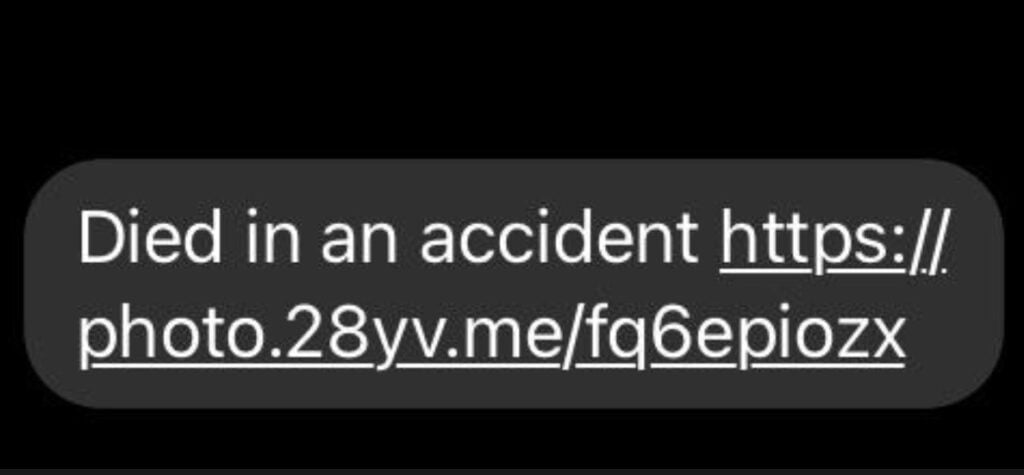
Don’t Get Fooled by the “Fatal Road Accident” Facebook Scam
Written by: Stelian
Published on:
That shocking message about a deadly highway pile-up that took your friend’s life. The traumatic news compelled you to urgently click for details. But instead of closure, you fell prey to a dangerous scam designed to steal your identity.
This is the harsh reality of the insidious “Fatal Road Accident in the Highway Takes Several Lives” Facebook scam. You may have seen the emotionally manipulative posts or messages aiming to compromise your account. Read on to understand this scam completely and protect yourself from becoming a victim.
An Overview of This Devious Scam
The “Fatal Road Accident” scam is a form of phishing spreading on Facebook to steal users’ login information. It starts when scammers impersonate real accounts and send distressing messages to friends and family members.
Crafted to Manipulate Emotions
These messages describe a traumatic event like a deadly highway accident involving multiple casualties. Some examples are:
“Horrible news! Massive 40 car pile-up on the highway, over 12 confirmed dead so far.”
“I can’t believe little Timmy was killed in the terrible interstate accident yesterday. Still processing this loss.”
“Our friend James didn’t make it out of that awful crash alive. I’ll miss him tremendously.”
The messages seem customized with names of the recipient’s friends and family members. This makes the horrific news appear credible and personal to the victim.
Directs to Fake News Pages
Each emotional message also contains a link supposedly leading to news coverage or further details about the accident. Scammers tailor the headlines to provoke urgency and panic:
“Pictures from the devastating 40 car highway pile-up [link]”
“Click for the latest on the investigation into the deadly school bus crash [link]”
“Developing: Rescuers searching for survivors in the horrific 12 car interstate accident [link]”
Victims feel compelled to urgently click these links for information about loved ones potentially involved. But the pages are fake and part of the phishing scheme.
Steals Login Credentials
Instead of news reports, the links lead to convincing replicas of Facebook’s login page. If victims enter their credentials, they go directly to the scammers. Armed with the logins, they infiltrate more accounts to propagate the scam.
This devious tactic lets them rapidly compromise thousands of accounts through friends networks. And victims’ personal data becomes vulnerable to criminal exploitation.
Difficult to Track and Stop
Experts consider this scam highly dangerous due to exploiting human emotions. The shocking fake headlines bypass users’ logical thinking and skepticism. And the scammers hide behind sophisticated fake accounts and technical tricks.
This scam has exploded in prevalence, devastating the lives and reputations of many victims. Awareness of their tactics is key to protecting yourself and your loved ones.
In-Depth Look at How the Scam Unfolds
The criminals behind the “Fatal Road Accident” scam use precise social engineering techniques to manipulate emotions and steal identities. Here is an in-depth analysis of how this devious scam works at each stage:
Stage 1: Compromising a Facebook Account
The first step for scammers is gaining access to a real user’s account to perpetrate the scam. Common methods include:
Sending phishing links via Facebook messages to capture login information.
Creating fake pages offering free giveaways that request login to claim prizes.
Getting users to download malware-infected apps that steal passwords or data.
Once scammers gain control of even one account, they can begin impersonating that user to spread the scam wider.
Stage 2: Crafting Emotional Posts and Messages
After hacking into an account, the scammers start crafting customized posts and direct messages to that user’s network of friends, family members, and followers.
They fabricate shocking headlines about horrific highway accidents, deadly pile-ups, school bus crashes, and other traumatic events. The goal is to provoke a visceral emotion like grief, panic, or urgency.
By mentioning names of the recipient’s friends and loved ones, the messages feel tailored and credible. This gets the shocking news to bypass the person’s logical skepticism.
Stage 3: Directing Users to Fake News Pages
Each emotional message and post contains a link claiming to lead to breaking news or in-depth coverage of the terrible event described.
Scammers optimize these fake headlines to compel immediate clicking without thought:
“Pictures of the devastating aftermath of the fatal 50 car highway pile-up.”
“Click to read heartbreaking interviews from families affected by the tragic school bus crash.”
“Chilling first-hand accounts of survivors from the horrific 15 car highway accident.”
The emotional weight of the headlines paired with the trust of the messages coming from a “friend” short-circuits critical evaluation. Victims click urgently for information.
Stage 4: Rerouting to Sophisticated Phishing Pages
Instead of news reports, the links redirect to flawless impersonations of Facebook’s login page. These phishing sites precisely mimic the visual design, logos, and branding users expect from Facebook.
Most victims won’t detect tiny irregularities proving the site is fake. They see the familiar Facebook interface and enter their credentials without hesitation.
Stage 5: Collecting Users’ Login Details
When victims enter their usernames and passwords into the phishing login forms, this sensitive information is sent directly to the scammers instead of Facebook’s servers.
The victims expect the page to log them into their accounts after entering the details. But they are actually handing the keys to their accounts and identities directly to the criminals.
Stage 6: Spreading to Wider Friend Networks
Now able to impersonate the compromised user, the scammers send more phishing links and shocking messages to friends in that user’s network.
This allows them to rapidly gather more Facebook credentials and take over more accounts as the scam spreads virally through friends of friends.
Stage 7: Stealing Private Data
Finally, the scammers leverage their access to extract all personal information, photos, messages, and data from the compromised accounts.
They may publicly post embarrassing or illegal content using the accounts. Or they can sell the data and identities online to other criminal groups.
This multi-stage process shows the cunning psychological tricks the scammers use to carry out widescale identity theft. But knowing their tactics is key to stopping them in their tracks.
Recognizing Warning Signs of the Scam
Here are some telltale signals that a concerning Facebook message or post may be part of the “Fatal Road Accident” phishing scam:
It comes from a friend you haven’t interacted with in years. Scammers take over dormant accounts.
Names of your family members or friends are mentioned in tragic context. This personalized touch aims to get past your guard.
There are spelling and grammatical mistakes. Many scammers come from non-English speaking regions.
The link goes to an odd domain name instead of a legitimate news site.
The message urges you to click quickly for breaking details about a terrible accident. They use emotions to bypass logic.
Login pages have small differences in fonts, colors, or branding from Facebook’s real site.
Stay vigilant for these signs in posts and messages so you can protect yourself and contain the scam before it reaches more of your friends.
What to Do if You Fell for This Scam
If you suspect your Facebook account was compromised by the “Fatal Road Accident” phishing scam, take these steps immediately:
Change your Facebook password – This secures your account and locks out the scammers. Turn on two-factor authentication for added security against future attacks.
Review your privacy settings – Ensure only friends can view your posts, photos, and personal data, not the general public.
Delete any dubious friends – Remove any accounts you don’t recognize as they could be controlled by scammers.
Inform your legitimate friends – Let them know to beware of suspicious links and messages coming from your account.
Closely monitor your activity – Check your profile consistently for unauthorized content the scammers may post while impersonating you.
Run antivirus scans – Check your devices for any malware or spyware installed by the fake pages. These could capture your data.
Reset other passwords – If you reused your Facebook password anywhere else online, immediately change those as well to block the scammers.
Report to Facebook – Notify Facebook’s security team about the phishing scam to help identify and shut down malicious links being shared.
Taking these steps quickly can help lock down your online identity and prevent worse identity theft risks. But beyond damage control, avoiding falling for similar scams in the future is key.
Is Your Device Infected? Run a Free Malware Scan
Slow performance, constant pop-ups, or strange behavior? These are classic signs of a malware infection. The fastest way to find out is to scan your device with Malwarebytes Anti-Malware Free — one of the most trusted malware removal tools available.
The free version detects and removes the most common threats, including:
Adware — the cause of those annoying pop-ups
Browser hijackers — unwanted redirects and changed homepages
Trojans and spyware — hidden programs stealing your data
Potentially unwanted programs (PUPs) — software you never asked for
👉 Select your device below — Windows, Mac, or Android — then follow the simple steps to download Malwarebytes, scan your system, and remove any threats it finds. The whole process takes about 5 minutes.
Malwarebytes for WindowsMalwarebytes for MacMalwarebytes for Android
Run a Malware Scan with Malwarebytes for Windows
Malwarebytes is one of the most popular and trusted anti-malware tools for Windows — and it’s completely free for removing infections. It catches threats that many antivirus programs miss, including adware, browser hijackers, and trojans. Follow the steps below to scan and clean your PC in just a few minutes.
Download Malwarebytes
Click the button below to download the latest version of Malwarebytes for Windows from the official source. The free version is all you need — it will scan your computer and remove adware, browser hijackers, and other malicious software at no cost.
(The link opens in a new page where your download will start)
Install Malwarebytes
When the download finishes, open your Downloads folder and double-click the MBSetup file. If Windows shows a User Account Control pop-up, click “Yes” to allow the installation.
Follow the On-Screen Prompts to Install Malwarebytes
The setup wizard will walk you through a few quick screens:
Choose where you’re installing the program — “Personal Computer” or “Work Computer” — then click Next.
Malwarebytes will now install on your device. This usually takes under a minute.
When installation is complete, the “Welcome to Malwarebytes” screen will open automatically.
On the final screen, click Open Malwarebytes to launch the program.
Enable “Scan for Rootkits”
Before scanning, turn on rootkit detection so Malwarebytes can find even the most hidden threats. Click the Settings gear icon on the left side of the screen.
In the settings menu, find “Scan for rootkits” and click the toggle so it turns blue.
Done? Click “Dashboard” in the left pane to return to the main screen.
Start the Scan
Click the blue Scan button. Malwarebytes will automatically update its virus database and start checking your computer for malware.
Wait for the Scan to Finish
The scan checks your entire system for browser hijackers and other malicious programs, so it can take several minutes. Feel free to do something else — just check back occasionally to see the progress.
Quarantine the Detected Threats
When the scan is done, you’ll see a list of everything Malwarebytes found — malware, adware, and potentially unwanted programs. Click the “Quarantine” button to remove all of them at once.
Malwarebytes will now remove the malicious files and registry entries and move them safely into quarantine.
Restart Your Computer
Some threats can only be fully removed after a reboot. If Malwarebytes asks you to restart, click Yes. Once you’re logged back in, your PC is clean and you can continue with the next steps in this guide.
When the scan finishes, click Quarantine to remove everything Malwarebytes found. That’s it — your Windows PC is now clean of trojans, adware, and other malware, and should be back to running smoothly.
If your current antivirus allowed this malicious program on your computer, you may want to consider purchasing Malwarebytes Premium to protect against these types of threats in the future. If you are still having problems with your computer after completing these instructions, then please follow one of the steps:
Malwarebytes for Mac is a free on-demand scanner that removes the malware other security software tends to miss — adware, browser hijackers, and unwanted programs included. Cleaning an infected Mac with Malwarebytes has always been completely free, and it’s our go-to recommendation. Follow the steps below to scan and clean your Mac in just a few minutes.
Download Malwarebytes for Mac
Click the button below to download the latest version of Malwarebytes for Mac.
When the download finishes, open your Downloads folder and double-click the setup file to begin the installation.
Follow the On-Screen Prompts to Install Malwarebytes
The Malwarebytes for Mac Installer will guide you through a few quick screens. Click “Continue” and keep following the prompts until the installation completes.
When the installation is complete, Malwarebytes opens to the Welcome to Malwarebytes screen. Click “Get started“.
Select “Personal Computer” or “Work Computer”
Malwarebytes will ask what type of computer you’re installing it on. Click either Personal Computer or Work Computer, whichever applies.
Start the Scan
Click the “Scan” button. Malwarebytes will automatically update its detection database and begin checking your Mac for malware.
Wait for the Scan to Finish
Malwarebytes will scan your Mac for adware, browser hijackers, and other malicious programs. This can take a few minutes, so feel free to do something else — just check back occasionally to see the progress.
Quarantine the Detected Threats
When the scan is done, you’ll see a list of everything Malwarebytes found. Click the “Quarantine” button to remove all the threats at once.
Restart Your Mac
Malwarebytes will now remove all the malicious files it found. Some threats can only be fully removed after a reboot — if Malwarebytes asks you to restart, allow it. Once you’re logged back in, your Mac is clean.
Once the scan is done, remove every threat it detected. Your Mac is now free of adware, rogue browser extensions, and other potentially harmful software.
If your current antivirus allowed a malicious program on your computer, you might want to consider purchasing the full-featured version of Malwarebytes Anti-Malware to protect against these types of threats in the future. If you are still experiencing problems while trying to remove a malicious program from your computer, please ask for help in our Mac Malware Removal Help & Support forum.
Run a Malware Scan with Malwarebytes for Android
Malwarebytes for Android automatically detects and removes dangerous threats like malware and ransomware so you don’t have to worry about your most-used device being compromised. Aggressive detection of adware and potentially unwanted programs keeps your Android phone or tablet running smooth.
Download Malwarebytes for Android.
You can download Malwarebytes for Android by clicking the link below.
In the Google Play Store, tap “Install” to install Malwarebytes for Android on your device.
When the installation process has finished, tap “Open” to begin using Malwarebytes for Android. You can also open Malwarebytes by tapping on its icon in your phone menu or home screen.
Follow the on-screen prompts to complete the setup process
When Malwarebytes will open, you will see the Malwarebytes Setup Wizard which will guide you through a series of permissions and other setup options. This is the first of two screens that explain the difference between the Premium and Free versions. Swipe this screen to continue. Tap on “Got it” to proceed to the next step. Malwarebytes for Android will now ask for a set of permissions that are required to scan your device and protect it from malware. Tap on “Give permission” to continue. Tap on “Allow” to permit Malwarebytes to access the files on your phone.
Update database and run a scan with Malwarebytes for Android
You will now be prompted to update the Malwarebytes database and run a full system scan.
Click on “Update database” to update the Malwarebytes for Android definitions to the latest version, then click on “Run full scan” to perform a system scan.
Wait for the Malwarebytes scan to complete.
Malwarebytes will now start scanning your phone for adware and other malicious apps. This process can take a few minutes, so we suggest you do something else and periodically check on the status of the scan to see when it is finished.
Click on “Remove Selected”.
When the scan has been completed, you will be presented with a screen showing the malware infections that Malwarebytes for Android has detected. To remove the malicious apps that Malwarebytes has found, tap on the “Remove Selected” button.
Restart your phone.
Malwarebytes for Android will now remove all the malicious apps that it has found. To complete the malware removal process, Malwarebytes may ask you to restart your device.
After the scan, tap Remove Selected to delete all detected threats. Your Android phone is now clean — no more malicious apps, adware, or browser redirects.
If your current antivirus allowed a malicious app on your phone, you may want to consider purchasing the full-featured version of Malwarebytes to protect against these types of threats in the future. If you are still having problems with your phone after completing these instructions, then please follow one of the steps:
Restore your phone to factory settings by going to Settings > General management > Reset > Factory data reset.
Now that your device is clean, keep it that way. Most infections start with a malicious ad or a fake download button — so blocking them at the source is your best defense.
We recommend AdGuard, which blocks malicious ads, phishing pages, and dangerous redirects before they can reach you.
Frequently Asked Questions About the “Fatal Road Accident” Facebook Scam
1. What is the “Fatal Road Accident” Facebook scam?
This is a phishing scam where hackers impersonating friends send fake messages about deadly highway crashes. The messages contain links to steal your Facebook login credentials.
2. What are some examples of the fake crash stories used in this scam?
Massive 40 car highway pile-up leaves 12 dead
School bus full of children crashes and catches fire
15 car accident caused by dangerous road conditions
3. What types of links are in the phishing messages?
The links typically promise photos, details, survivor accounts, or breaking updates on the fake deadly crashes mentioned in the messages.
4. Where do the links actually go?
Instead of news reports, the links go to sophisticated fake login pages mimicking the real Facebook site to harvest victims’ usernames and passwords.
5. How can I spot this Facebook scam?
Warning signs include urgent headlines about tragic crashes, odd links, messages from inactive friends, spelling/grammar errors, and slight differences in login pages.
6. What should I do if I entered my password into one of the fake pages?
Immediately change your Facebook password, enable two-factor authentication, check privacy settings, remove suspicious friends, and monitor your account activity.
7. How can I keep my Facebook account safe from this scam?
Be skeptical of shocking messages urging you to click links, even if from friends. Confirm tragic news before clicking. Inspect links carefully. Use unique passwords.
8. How widespread is this phishing scam on Facebook?
Security experts say it has exploded in usage due to exploiting human emotions. Millions of accounts are compromised by these scams annually.
9. How can I report this scam to Facebook?
Go to Facebook’s phishing scam reporting page. Provide details on the suspicious messages, fake pages, and compromised accounts.
10. Who typically perpetrates these Facebook phishing scams?
They often originate overseas, using networks of fake accounts and technical tricks to avoid detection. Different hacking groups leverage phishing kits.
The Bottom Line
The “Fatal Road Accident” scam leverages emotionally charged fake headlines about horrific tragedies to bypass users’ logic and reasoning. Being aware of their manipulation tactics helps us see through the deception and protects our online security.
Think twice before clicking any link involving traumatic news, even if shared by a friend whom you
10 Rules to Avoid Online Scams
Here are 10 practical safety rules to help you avoid malware, online shopping scams, crypto scams, and other online fraud. Each tip includes a quick “if you already got hit” action.
Stop and verify before you click, log in, download, or pay.
Most scams win by creating urgency. Verify using a trusted method: type the website address yourself, use the official app, or call a known number (not the one in the message).
If you already clicked: close the page, do not enter passwords, and run a malware scan.
Keep your operating system, browser, and apps updated.
Updates patch security holes used by malware and malicious ads. Turn on automatic updates where possible.
If you saw a scary “update now” pop-up: close it and update only through your device settings or the official app store.
Use layered protection: antivirus plus an ad blocker.
Antivirus helps block malware. An ad blocker reduces scam redirects, phishing pages, and malvertising.
If your browser is acting weird: remove unknown extensions, reset the browser, then run a full scan.
Install apps, software, and extensions only from official sources.
Avoid cracked software, “keygens,” and random downloads. During installs, choose Custom/Advanced and decline bundled offers you do not recognize.
If you already installed something suspicious: uninstall it, restart, and scan again.
Treat links and attachments as untrusted by default.
Phishing often impersonates delivery services, banks, and popular brands. If it is unexpected, do not open attachments or log in through the message.
If you entered credentials: change the password immediately and enable 2FA.
Shop safely: research the store, then pay with protection.
Be cautious with brand-new stores, “closing sale” stories, and prices that make no sense. Prefer credit cards or PayPal for dispute options. Avoid wire transfers, gift cards, and crypto payments.
If you already paid: contact your card issuer or PayPal quickly to dispute the transaction.
Crypto rule: never pay a “fee” to withdraw or recover money.
Common patterns include fake profits, then “tax,” “gas,” or “verification” fees. Another is a “recovery agent” who demands upfront crypto.
If you already sent crypto: stop paying, save evidence (wallet addresses, TXIDs, chats), and report the scam to the platform used.
Secure your accounts with unique passwords and 2FA (start with email).
Use a password manager and unique passwords for every account. Enable 2FA using an authenticator app when possible.
If you suspect an account takeover: change passwords, sign out of all devices, and review recent logins and recovery settings.
Back up important files and keep one backup offline.
Backups protect you from ransomware and device failure. Keep at least one backup on an external drive that is not always connected.
If you suspect infection: do not connect backup drives until the system is clean.
If you think you are a victim: stop losses, document evidence, and escalate fast.
Move quickly. Speed matters for disputes, account recovery, and limiting damage.
Stop payments and contact: do not send more money or respond to the scammer.
Call your bank or card issuer: block transactions, replace the card if needed, and start a dispute or chargeback.
Secure your email first: change the email password, enable 2FA, and remove unfamiliar recovery options.
Secure other accounts: change passwords, enable 2FA, and log out of all sessions.
Scan your device: remove suspicious apps or extensions, then run a full malware scan.
Save evidence: screenshots, emails, order pages, tracking pages, wallet addresses, TXIDs, and chat logs.
Report it: to the payment provider, marketplace, social platform, exchange, or wallet service involved.
These rules are intentionally simple. Most online losses happen when decisions are rushed. Slow down, verify independently, and use payment methods and account controls that give you recourse.
Stelian leverages over a decade of cybersecurity expertise to lead malware analysis and removal, uncover scams, and educate people. His experience provides insightful analysis and valuable perspective.