

The FBI Anti-Piracy Warning MoneyPak Ransom is a computer virus, which will display a bogus notification, that pretends to be from the Federal Bureau of Investigation and states that your computer has been blocked due to it being involved with the distribution of pornographic material, SPAM and copyrighted content.
The FBI Anti-Piracy Warning virus will lock you out of your computer and applications, so whenever you’ll try to log on into your Windows operating system or Safe Mode with Networking, it will display instead a lock screen asking you to pay $400 in the form of a Green Dot MoneyPak code.
Furthermore, to make its alert seem more authentic, this virus also has the ability to access your installed webcam ,so that the bogus FBI Anti-Piracy Warning will show what is happening in the room.Last, but not lease, this infection will continuously play a fake recording from the FBI with the following message:
FBI Warning. Your computer is blocked for violation of federal law.
If your computer is infected with FBI Anti-Piracy Warning virus,then you are seeing the below notification:
![[Image: FBI Anti-Piracy Warning virus]](https://malwaretips.com/blogs/wp-content/uploads/2012/12/FBI-Anti-Piracy-Warning.jpg "Remove FBI Anti-Piracy Warning virus (MoneyPak Scam) 1")
The FBI Anti-Piracy Warning Ransom will display the following bogus notification:
FBI Anti-Piracy Warning
All activity of this computer has been recorded.
If you use a webcam, videos and pictures were saved for future identifications.Your Computer has been locked!
Illegal downloaded material (MP3’s, Movies or Software) has been located on your computer.Unlock your computer:
To unlock your computer and yo avoid other legal consequences you are obligated to pay a fine of $400. Payment of the fine is done by GreenDot MoneyPak payment voucher. After payment is made your computer will be unlocked and legal actions will not be taken.
Failure to comply with FBI Anti-Piracy warnings could result in criminal charges and possible imprisonment up to 3 years in country jail.
The FBI Anti-Piracy Warning Ransom is a scam and you should ignore any alert that this malicious software might generate and remove this trojan ransomware from your computer.
Under no circumstance should you send any money to this cyber criminals,as this could lead to identity theft,and if you have, you should contact your credit card company and dispute the charge stating that the program is a scam and a computer virus.
FBI Anti-Piracy Warning MoneyPak Ransomware – Virus Removal Guide
This page is a comprehensive guide, which will remove the FBI Anti-Piracy Warning infection from your your computer. Please perform all the steps in the correct order. If you have any questions or doubt at any point STOP and ask for our assistance.
The FBI Anti-Piracy Warning will start automatically when you login to your computer and display its screen locker so that you are unable to access your computer, therefore we will need to remove this infection by using one of the below methods:
OPTION 1: Remove FBI Anti-Piracy Warning lock screen virus with System Restore
OPTION 2: Remove FBI Anti-Piracy Warning virus with with HitmanPro Kickstart
OPTION 3: Remove FBI Anti-Piracy Warning virus with Kaspersky Rescue Disk
OPTION 1: Remove FBI Anti-Piracy Warning lock screen virus with System Restore
System Restore helps you restore your computer’s system files to an earlier point in time. It’s a way to undo system changes to your computer without affecting your personal files, such as e‑mail, documents, or photos.
Because the FBI Anti-Piracy Warning virus will not allow you to start the computer in Windows regular mode, we will need to start System Restore from the Safe Mode with Command Prompt mode.
STEP 1: Restore Windows to a previous state using System Restore
- Reboot your computer into Safe Mode with Command Prompt. To do this, turn your computer off and then back on and immediately when you see anything on the screen, start tapping the F8 key on your keyboard.
![[Image: F8 key]](https://malwaretips.com/blogs/wp-content/uploads/mwt-media/7b/7bfe81c611d48e45998c85234b21a111c419d163368a8828a4042c2c1d3cb431/7ca9c0c8c1c47c23e9c1581974ebb6a803ce5e47d7a875a2822fb33bd1da0e34-410.webp "Windows F8 key")
If you are using Windows 8, the trick is to hold the Shift button and gently tap the F8 key repeatedly, this will sometimes boot you into the new advanced “recovery mode”, where you can choose to see advanced repair options. On the next screen, you will need to click on the Troubleshoot option, then select Advanced Options and select Windows Startup Settings. Click on the Restart button, and you should now be able to see the Advanced Boot Options screen. - Using the arrow keys on your keyboard, select Safe Mode with Command Prompt and press Enter on your keyboard.
![[Image: Starting computer in Safe Mode with Command Prompt]](https://malwaretips.com/blogs/wp-content/uploads/mwt-media/ec/ec5f955ce7e8c53c9aa46e3550b558df79761ebdbcb28c68c6f7d2d4bcabd77b/67f5c065727c743c5c242670ebaa59ea51da5330c43f36d1a5be3b8143616853-600.webp "Advanced Boot Options screen")
- At the command prompt, type rstrui.exe, and then press ENTER.
![[Image: Start System Restore to remove lock screen virus]](https://malwaretips.com/blogs/wp-content/uploads/mwt-media/1f/1f8dc26b8d3fae2a9ab62df19881b6dd3edf568c16ec2c5e6e36a834a5570222/d1d8e993cf1f92994121747fedab53e3f57424bc322e4226aa9f94ed919ae5d1-668.webp "rstrui.exe command in Safe Mode with Command Prompt")
Alternatively, if you are using Windows Vista, 7 and 8, you can type: C:\windows\system32\rstrui.exe , and press Enter. And if you are a Windows XP user, type C:\windows\system32\restore\rstrui.exe, then press Enter. - System Restore should start, and you will display also a list of restore points. Try using a restore point created just before the date and time the FBI Anti-Piracy Warning lock screen virus has infected your computer.
![[Image: Restore settings to remove ransomware]](https://malwaretips.com/blogs/wp-content/uploads/mwt-media/1f/1ff0f376f2db5c08243fb4644df5c95d26b6e404c710209af6218c37238708a3/e1c9e35934b9f6ba83c09ab6dcc6135d124f7f01745fb149e31805b708f6d3aa-570.webp "Restore your computer's system files to an earlier point in time")
- When System Restore has completed its task, start your computer in Windows regular mode, and perform a scan with Malwarebytes Anti-Malware and HitmanPro, as seen in the next step.
STEP 2: Remove FBI Anti-Piracy Warning malicious files with Malwarebytes Anti-Malware Free
Even after using System Restore,
- You can download Malwarebytes Anti-Malware Free from the below link, then double-click on the icon named mbam-setup.exe to install this program.
Download MalwarebytesFree official installer. Your download starts right away. - When the installation begins, keep following the prompts in order to continue with the setup process, then at the last screen click on the Finish button.
![[Image: Malwarebytes Anti-Malware final installation screen]](https://malwaretips.com/blogs/wp-content/uploads/mwt-media/47/471448d4dd5aa1d55ea545effccf0ac9c8ccb5a29622da4e38ac677b5d8c37b5/9f473303c15a00262451cc5a56b904de929157b59e19e3cfb2c03ec88f643390-402.webp "Malwarebytes Anti-Malware installation screen")
- On the Scanner tab, select Perform quick scan, and then click on the Scan button to start searching for the FBI Anti-Piracy Warning malicious files.
![[Image: Malwarebytes Anti-Malware Quick Scan]](https://malwaretips.com/blogs/wp-content/uploads/mwt-media/1e/1eb209597ca2f06e596fd060345ac7e3100355f1ec8fc8ea2d9dec7abbb05ea0/3afba9b0b97b56945ffc33817ac48f7433c799241a22e422966180b76473a906-521.webp "Run a Quick Scan with Malwarebytes Anti-Malware")
- Malwarebytes’ Anti-Malware will now start scanning your computer for FBI Anti-Piracy Warning virus as shown below.
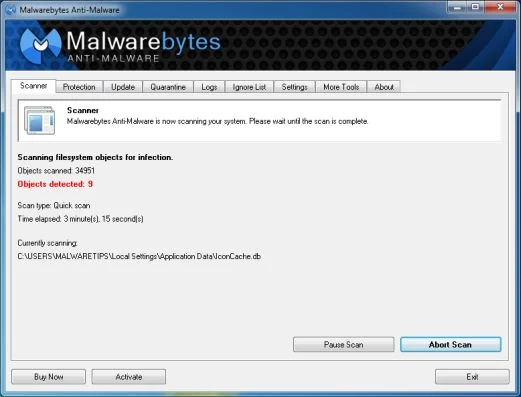
- When the Malwarebytes Anti-Malware scan has finished, click on the Show Results button.
![[Image: Malwarebytes Anti-Malware scan results]](https://malwaretips.com/blogs/wp-content/uploads/mwt-media/84/84c62dd46289424dbc686abc53672cb0810111920c8c0bbd69e973844d0a9ab0/a4c04aa700e641f47afec9965f79ff346740668e5952955ccbe5b4c3658b5897-521.webp "Malwarebytes when the system scan has completed")
- You will now be presented with a screen showing you the computer infections that Malwarebytes Anti-Malware has detected. Make sure that everything is Checked (ticked), then click on the Remove Selected button.
![[Image: Malwarebytes Anti-Malwar removing FBI Anti-Piracy Warning virus]](https://malwaretips.com/blogs/wp-content/uploads/mwt-media/d8/d86b6a8bac0e4ece9fd2d259a83db71487943f6b04b567edb0e9adcc3200f492/4eb94651b0e34cc99689c56dc71cd0a49444498ed05c5803ea55fda1cfee1b1f-521.webp "Malwarebytes Anti-Malwar removing FBI Anti-Piracy Warning virus")
STEP 3: Double-check for the FBI Anti-Piracy Warning virus with HitmanPro
- You can download HitmanPro from the below link:
Download HitmanProOfficial Sophos download. Free scan, free 30-day trial to remove threats. - Double-click on the file named HitmanPro.exe (for 32-bit versions of Windows) or HitmanPro_x64.exe (for 64-bit versions of Windows). When the program starts you will be presented with the start screen as shown below.
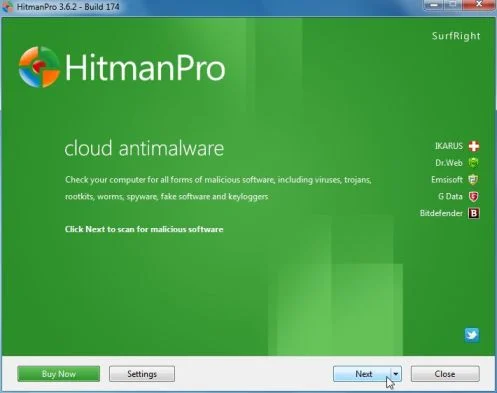
Click on the Next button, to install HitmanPro on your computer.
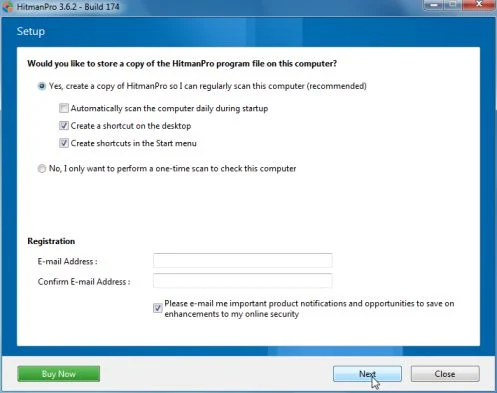
- HitmanPro will now begin to scan your computer for FBI Anti-Piracy Warning malicious files.
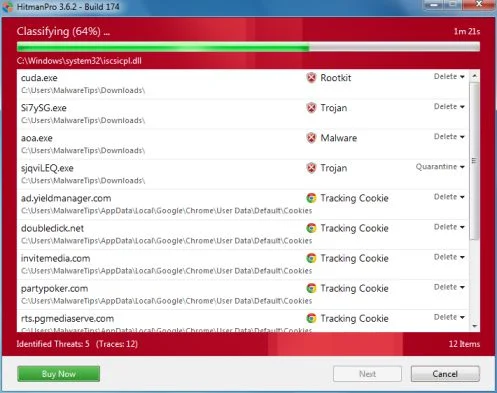
- When it has finished it will display a list of all the malware that the program found as shown in the image below. Click on the Next button, to remove FBI Anti-Piracy Warning virus.
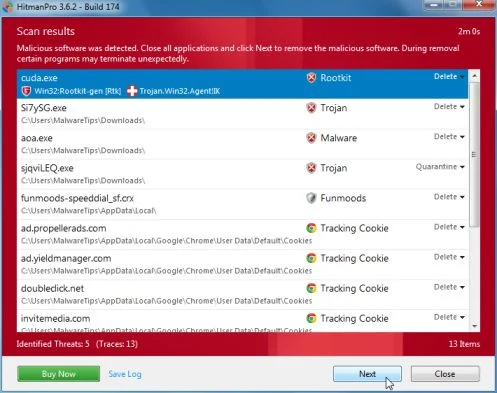
- Click on the Activate free license button to begin the free 30 days trial, and remove all the malicious files from your computer.
![[Image: HitmanPro 30 days activation button]](https://malwaretips.com/blogs/wp-content/uploads/mwt-media/7f/7f063c87fa029d8cd40df3f7faf43765ba1bb9e82c8d5a64c8a49de788018196/2a8400863f3c81fd7d6411e20166dfacdf0bc73e14522edea93a637003240dc1-497.webp "HitmanPro free 30 days trial")
OPTION 2: Remove FBI Anti-Piracy Warning virus with with HitmanPro Kickstart
If you cannot start your computer into Safe Mode with Command Prompt mode, we can use the HitmanPro Kickstart program to bypass FBI Anti-Piracy Warning lock screen.
As the FBI Anti-Piracy Warning ransomware infection locks you out of your computer, you will need to create a bootable USB drive that contains the HitmanPro Kickstart program.
We will then boot your computer using this bootable USB drive and use it to clean the infection so that you are able to access Windows normally again.
You will also need a USB drive, which will have all of its data erased and will then be formatted. Therefore, only use a USB drive that does not contain any important data.
- Using a “clean” (non-infected) computer, please download HitmanPro Kickstart from the below link.
Download HitmanProOfficial Sophos download. Free scan, free 30-day trial to remove threats. - Once HitmanPro has been downloaded, please insert the USB flash drive that you would like to erase and use for the installation of HitmanPro Kickstart. Then double-click on the file named HitmanPro.exe (for 32-bit versions of Windows) or HitmanPro_x64.exe (for 64-bit versions of Windows).
To create a bootable HitmanPro USB drive, please follow the instructions from this video:
- Now, remove the HitmanPro Kickstart USB drive and insert it into the FBI Anti-Piracy Warning infected computer.
- Once you have inserted the HitmanPro Kickstart USB drive, turn off the infected computer and then turn it on. As soon as you power it on, look for text on the screen that tells you how to access the boot menu.
![[Image: Windows Boot Menu screens]](//malwaretips.com/blogs/wp-content/uploads/2013/06/windows-boot-manager.jpg "Windows Boot Menu screens")
The keys that are commonly associated with enabling the boot menu are F10, F11 or F12. - Once you determine the proper key (usually the F11 key) that you need to press to access the Boot Menu, restart your computer again and start immediately tapping that key. Next, please perform a scan with HitmanPro Kickstart as shown in the video below.
- HitmanPro will now reboot your computer and Windows should start normally. Then please Malwarebytes Anti-Malware and HitmanPro, and scan your computer for any left over infections.
![[Image: Windows Boot Menu screens]](http://malwaretips.com/blogs/wp-content/uploads/2013/06/windows-boot-manager.jpg "Windows Boot Menu screens")
OPTION 3: Remove FBI Anti-Piracy Warning virus with Kaspersky Rescue Disk
If any of the above methods did not clean your infected computer, we can use a Kaspersky Rescue Disk Bootable to clean the Windows registry and to perform a system scan to remove the FBI Anti-Piracy Warning virus.
To create a bootable Kaspersky Rescue Disk, we will need the following items:
- A clean (non-infected) computer with Internet access
- A blank DVD or CD
- A computer with a DVD or CD burner
STEP 1: Download and create a bootable Kaspersky Rescue Disk CD
- You can download Kaspersky Rescue Disk utility from link below:
Download Kaspersky Rescue DiskOpens the download page in a new tab. - To create the bootable rescue disk, we will need to use the ImgBurn program. You can download ImgBurn from the below link, then install this program.
Download ImgBurnOpens the download page in a new tab. - Insert your blank DVD or CD in your burner, then start ImgBurn and click on the Write image file to disc button.
- Under Source click on the Browse for file button, then navigate to the location where you previously saved the Kaspersky Rescue Disk utility (kav_rescue_10.iso), then click on the Write button.
![[Image: Bootable Kaspersky Rescue CD]](https://malwaretips.com/blogs/wp-content/uploads/mwt-media/15/15f1f4ac50c7c4b5d5003d9b017245318853d59e27101621c589ba7c177012d4/cbc48ec38f5b713f46172229d07236dea95d7c7ee2dddeca2da1edb2540e9bb3-545.webp "Creating Kaspersky Rescue Disk bootable CD")
That’s it, ImgBurn will now begin writing your bootable Kaspersky Rescue Disk.
STEP 2: Start your computer using the Kaspersky Rescue Disk
- Once you’ve got the Kasperky Rescue Disk in hand, insert it into the infected computer, and turn off and then turn it on again.
- As soon as you power it on, you will see a screen that tells you to press any key to enter the menu, so please tap any key to boot your machine from the Kaspersky Rescue Disk.
![[Image: Starting infected computer from Kaspersky Rescue Disk]](https://malwaretips.com/blogs/wp-content/uploads/mwt-media/b7/b74e4eb1adf86a5eeeaec5192b1eae0362ce12921684602d426dc2a0167ac3dc/d61afe738972b215fef6ddd0fd56bdafb092d9ab1a16d902cb1e0bbada9efe99-650.webp "Starting infected computer from Kaspersky Rescue Disk")
- In the next screen, you will need to chose a language, then you click on Kaspersky Rescue Disk. Graphic Mode and press ENTER, to start the Kaspersky Rescue Disk.
![[Image: Kaspersky Rescue Disk Graphic Mode screen]](https://malwaretips.com/blogs/wp-content/uploads/mwt-media/d2/d2b5ce8e9855ed0ccec481c038ab3c354278ae1d7b4f9bc8e898a54ef08df304/e92c54797352eebde8e13c0354126d655983c2f975e30434381468255df40a98-650.webp "Kaspersky Rescue Disk Graphic Mode screen")
STEP 3: Scan your system with Kaspersky Rescue Disk
- Within a few short seconds you should see the full working environment, with the Kaspersky Rescue Disk screen front and center as shown below.
![[Image: Kaspersky Rescue Disk scanner]](https://malwaretips.com/blogs/wp-content/uploads/mwt-media/ca/ca8ea6050bb72cfb2b88116c3c644be8e3ee43f7c3b589017a544dcc81a8a6e6/087407af0217e26484d69b7d8c5d5859220083f45c7edef44dc36cf48ac80ce0-896.webp "Kaspersky Rescue Disk scanner")
- Switch tabs over to the My Update Center, and then click the Start update button to load the latest anti-virus definitions. Please be patience while this process its completed.
![[Image: Updating Kaspersky Rescue Disk antivirus definitions]](https://malwaretips.com/blogs/wp-content/uploads/mwt-media/82/82b05aa5b81f5d9d25572e3573638090ba12a230e3c0be1d54b92e86c8226635/c74f22b2fd375f37967c4092a1c489197a24c2cdbc4f571ba521736fc2c10e26-824.webp "Updating Kaspersky Rescue Disk antivirus definitions")
- Switch back over to the Objects Scan tab, select the drives you want to scan, and then click the Start Objects Scan button.
![[Image: Kaspersky Rescue Disk scan]](https://malwaretips.com/blogs/wp-content/uploads/mwt-media/d1/d110635f176372a72fbb9ce85d5c891351c001da96152da37a154f3dd2607efc/ea69d5d902b9bcdc3a546a4898a06d57fd8545ba35b5f4f6d3e8a9d8eb5b99d3-748.webp "Kaspersky Rescue Disk scan")
- When Kaspersky Antivirus will detect the FBI Anti-Piracy Warning virus, you’ll be prompted to select an action. When this happens, please select Quarantine or Delete to remove this infection from your computer.
![[Image: Kaspersky Rescue Disk prompt]](//malwaretips.com/blogs/wp-content/uploads/2013/06/Kaspersky-Rescue-Disk-alarm.png "Kaspersky Rescue Disk when detecting malware")
- When the antivirus scan has completed, you can restart back into Windows regular mode, by clicking on the Kaspersky Start button
![[Image: Kaspersky Rescue Disk Restart button]](https://malwaretips.com/blogs/wp-content/uploads/mwt-media/cd/cd717730f5b93c2fa22dddf5e4fea511a91584739d4ca9ed7262b489952e0e44/cab896c6574a4b9ff7d45084a95ab408cd92bb078b3a819bb362ac18d95e389a-34.webp "Kaspersky Rescue Disk Restart button") (lower left corner), and selecting Restart.
(lower left corner), and selecting Restart.
Once your computer will start in Windows regular more, download Malwarebytes Anti-Malware and HitmanPro, and scan your computer for any left over infections.
![[Image: Kaspersky Rescue Disk prompt]](http://malwaretips.com/blogs/wp-content/uploads/2013/06/Kaspersky-Rescue-Disk-alarm.png "Kaspersky Rescue Disk when detecting malware")
Your computer should now be free of the FBI Anti-Piracy Warning infection. If your current anti-virus solution let this infection through, you may want to consider purchasing the PRO version of Malwarebytes Anti-Malware to protect against these types of threats in the future, and perform regular computer scans with HitmanPro.
If you are still experiencing problems while trying to remove FBI Anti-Piracy Warning Moneypak virus from your machine, please start a new thread in our Malware Removal Assistance forum.

Join the discussion
37 commentsShare your experience or ask a question about this article.
Your progress
Did these steps help?
Let us know how the guide worked for you.
Describe what you see and the step you reached. Keep passwords and other private information out.
Discussion
i can’t get into safe mode no matter what, as soon as all the command prompts scroll up, the PC acts like its going to start and then Blue Screens. Help!!! my life is on this thing!!!
In reply to Don
Hello Don,
That blue screen is due to a rootkit infection,did you try to scan with HitmanPro Kickstart?
If it still doesn’t work,you’ll need to create a Kaspersky Rescue CD as seen HERE: http://malwaretips.com/blogs/remove-police-trojan/ , on Method 3.
If everything fails, then you’ll need to create an account on our forums and a member of the staff will help you (with more advanced tools) to remove this nasty virus: http://malwaretips.com/Forum-Malware-Removal-Assistance
Good Luck!
Nothing is working in safe mode…it
Immediatly pops up with this stupid fake fbi crap. Someone please help me!!!
In reply to Dana
Hello Dana,
Did you try to create a HitmanPro Kickstart USB?
The FBI warning pops up in safe mode, safe mode command prompt and safe mode with networking, how do I still get rid of it with this happening?
In reply to Austin
Hello Austin,
Did you try to use HitmanPro KickStart to remove this infection?
Hi, We have ran malware bytes and removed the files that appear and I am currently running a Symantec scan on the machine. The now that we have access to the machine when windows starts up it says
There was a problem starting C:\Users\User name\AppData\Roaming\nflux.dll
The module could not be found
Has anyone seen this before? Can anyone help me find how to get this message to not appear?
Do you recommend I run Hitman still?
Thanks for any help
In reply to John Hes
Hello John,
Can you please run a scan with the following tools:
STEP 1: Run a scan with RogueKiller
RogueKiller Download Link (This link will automatically download RogueKiller on your computer)
STEP 2: Run a scan with ESET Online Scanner:
ESET Online Scanner Download Link (This link will automatically download ESET Online Scanner on your computer.)
Next,run a scan with HitmanPro.
The nflux.dll file is part of this infection, and is basically just a left over stat-up item, the file was removed however the registry key is still there and this is why you are seeing this prompt.To solve this ,you can use Malwarebytes StartupLite or Msconfig,to remove that startup entry.
Stay safe!
Worked like a charm, excellent how to!
I just tried cleaning off a version of the FBI ransomware with Kickstart and it did not work. I have used Kickstart to clean other computers before, but this time it’s not working. I think this latest iteration of ransom ware may be modfying something in the flash drive’s boot sector to prevent Kickstart from booting as it should. It appears to start booting to Windows and then later flashes up the Hitman Pro screen and appears to do a fake scan. It doesn’t find anything. The computer then restarts back to the FBI ransom ware.
In reply to Richard
Hello Richard,
Please try one more time to boot from the HitmanPro USB,pay attention at the booting part and click F11 once your computer starts.
If it still doesn’t work,you’ll need to create a Kaspersky Rescue CD as seen HERE: http://malwaretips.com/blogs/remove-police-trojan/ , on Method 3.
If everything fails, then you’ll need to create an account on our forums and a member of the staff will help you (with more advanced tools) to remove this nasty virus: http://malwaretips.com/Forum-Malware-Removal-Assistance
Good Luck!
I think this did the job, it appears to be gone from my computer. Thanks for sharing your knowledge and expert advice. I really do appreciate your help!!!
worked great, I loved the step by step very clear instructions
Thanks