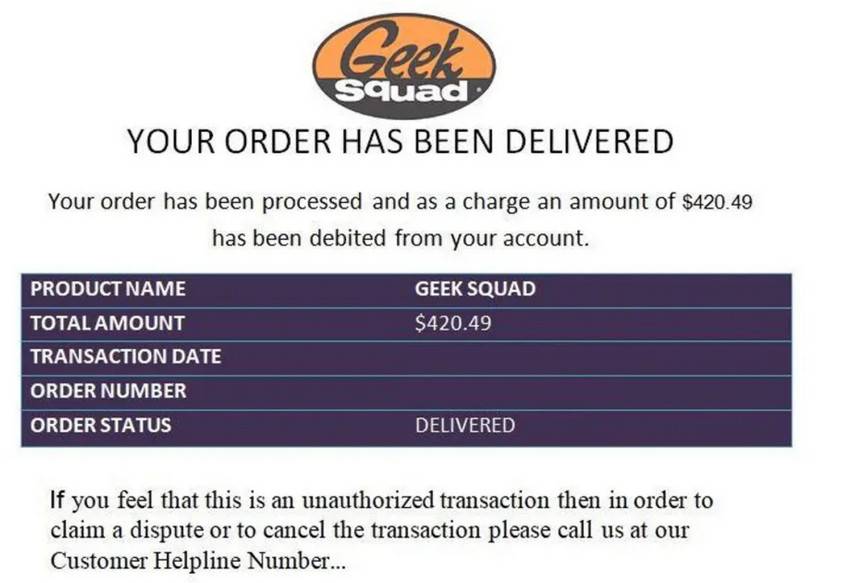
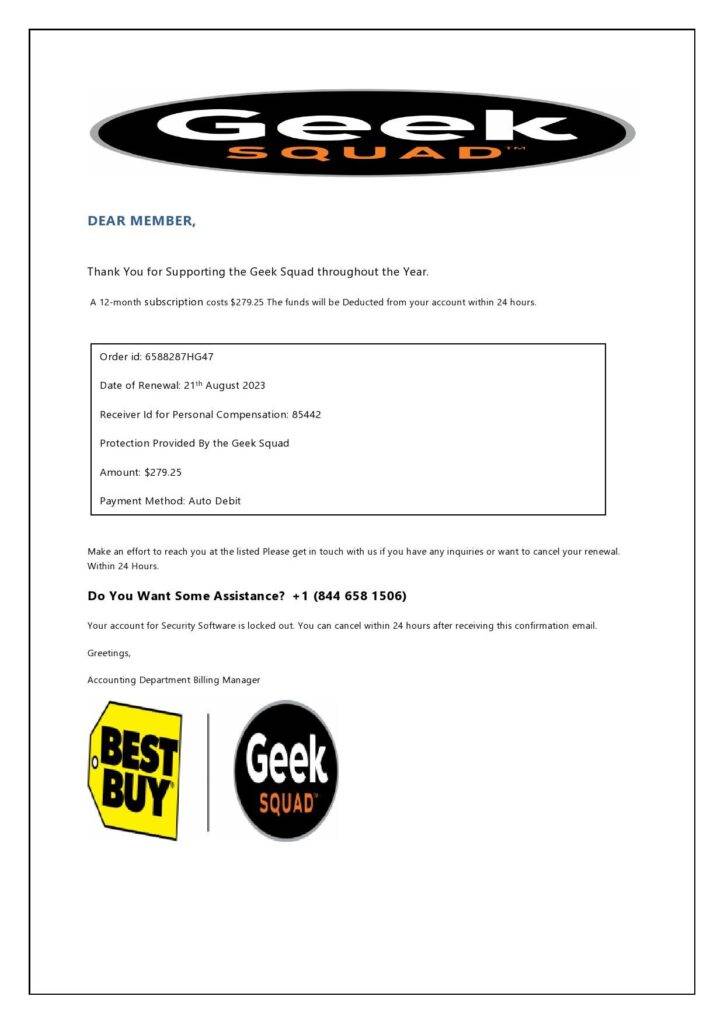
Scammers are getting smarter, and one of the most widespread frauds today is the Geek Squad Protection Renewal Scam. It usually starts with an email that looks urgent, official, and convincing. Before you know it, you may be speaking with a fake support agent who promises to help, but instead steals money, personal details, or access to your devices. This article breaks down exactly how the scam works, why it is so successful, and what to do if you have already been targeted.
Scam Overview
The Geek Squad Protection Renewal Scam has become one of the most common tech support frauds circulating online. It pretends to be an official communication from Geek Squad, which is the real tech support division of Best Buy. Scammers take advantage of this well known brand because many people recognize the name and assume the email is legitimate. They rely on urgency, confusion, and fear to trick victims into acting before thinking.
This scam often starts with a renewal notice that arrives in your inbox, similar to the following example:
Your Geek Squad renewal is coming up soon. To ensure uninterrupted access, an automatic payment of $107.99 will be processed within the next 24 hours for the next One Years period.
Transaction Summary
Renewal- Geek Squad Protection
Email-
Quantity- 2 devices
Duration- One Years
Payment Method- Auto Debit
Amount- $107.99
The renewal is part of your ongoing membership with Geek Squad. You may reach our billing team if you do not wish to continue or would like a refund.
Important Renewal Notice
Please refrain from contacting your bank or card provider regarding this payment. They are not authorized to cancel or dispute renewals for Geek Squad. Any interference in the process may result in report you to the authorities by better business bureau. or additional verification steps.
Kind Regards
The Geek Squad Company
This message looks formal but contains clear red flags. The fraudulent tone is disguised beneath official sounding language that claims you owe money or will soon be charged. Although the scammers reference Geek Squad, the email has nothing to do with the real company. The phone numbers lead directly to fake call centers operated by criminals who want access to victims’ devices and financial accounts.
Many people fall for the scam because the email arrives unexpectedly, includes a real company name, and warns that a payment will be processed soon. Scammers know that the fear of being charged for something you never wanted is powerful. They play on that emotion by placing pressure on victims to call immediately.
They often include a notice telling the recipient not to contact their bank. This is a strategic move. If victims call their bank first, they might discover the email is fake. By instructing people not to dispute the charge, scammers hope to isolate victims and push them directly into their traps.
Once a victim calls the provided number, the scam deepens. The scammers pretend to be Geek Squad agents who are ready to cancel the charge. They may ask for remote access to your computer through software such as Anydesk, TeamViewer, or Quick Assist. They justify this by claiming they need to issue a refund or secure the device. Once connected, they can steal passwords, banking details, or files.
The scammers may also claim your device is infected with malware or that hackers are inside your system. They use these scare tactics to persuade you to follow every instruction they give. Their goal is to gain complete control over your device or convince you to send money through unsafe methods.
Gift card payments are another hallmark of this scam. Scammers often direct victims to buy gift cards from stores and read the codes over the phone. This method is untraceable and irreversible, making it ideal for fraudsters.
The Geek Squad Protection Renewal Scam is constantly evolving, but the foundation remains the same. Scammers impersonate a trusted brand, create a fake renewal alert, apply pressure, and then exploit victims who are trying to avoid unexpected charges. They thrive on confusion, urgency, and fear. Because the scam looks professional, many people who would never fall for obvious fraud still become victims.
This scam is just one example of tech support fraud, a category that the FBI lists as one of the most financially damaging cybercrimes. The losses continue to grow every year because scammers constantly refine their techniques. They target people of all ages and experience levels. Even tech savvy individuals can fall victim because these messages look and sound legitimate.
What makes this particular scam so dangerous is the overlapping layers of manipulation. The fake renewal email acts as the hook. The phone call serves as the trap. The remote access session becomes the point of attack. The scammers maintain a calm, friendly tone while guiding the victim step by step deeper into the scheme. The longer the interaction continues, the more damage can be done.
Understanding how this scam operates is critical, and the next section goes deeper into each stage of the process. The more you know about the mechanics of this fraud, the easier it becomes to recognize and avoid it.
How The Scam Works
Understanding the Geek Squad Protection Renewal Scam step by step will help you identify it instantly and protect yourself before any damage occurs. Although the scammers may adjust small details, the core method remains consistent. Below is a highly detailed breakdown of how the scam unfolds from start to finish, showing the psychological techniques and technical strategies these criminals use to manipulate victims.
Step 1: The Fake Renewal Email Arrives
Everything begins with a fake renewal email that appears to come from Geek Squad. The scammers use official looking formatting, logos, transaction numbers, and wording that resembles an actual customer service message. The email may claim you purchased a renewal plan for your devices or that a charge will be processed in the next 24 hours.
The email you received is a common example. It includes made up transaction IDs, a fake reference number, and a falsely urgent tone. Scammers intentionally send these emails without any prior context so the victim panics and believes a mistake has occurred.
The email always includes one or more phone numbers. These numbers are not connected to Geek Squad or Best Buy. They are routed to call centers operated by scammers in various countries. Once the scammers get you on the phone, they can begin manipulating you directly.
Step 2: The Sense of Urgency Creates Pressure
Scammers design these messages to provoke immediate fear. They insist the charge will go through soon and that only their support team can help. This combination of urgency and helplessness triggers instinctive reactions. Most people want to avoid being charged for something they never ordered. This emotional response is exactly what scammers rely on.
The warning that you should not contact your bank is another psychological tactic. Real companies never tell customers to avoid contacting their bank. Scammers include this message because they want to cut off victims from legitimate sources of help.
Step 3: The Victim Calls the Fake Support Number
Once a victim calls the listed phone number, the scam truly begins. The call is answered by a scammer pretending to be a customer service agent. They will sound professional, polite, and experienced. They may even use fake ID numbers or scripted greetings to seem more credible.
They will ask for details such as your name, email, or transaction number. These details help them personalize the interaction, making the scam feel more authentic.
Step 4: The Scammer Offers to Cancel the Charge
The scammer will claim they can cancel the renewal or issue a refund. This reassures the victim and builds a sense of trust. The scammer makes it seem like they are solving your problem, when in reality, they are setting the stage for deeper manipulation.
They may then say they need to verify your device, check for system issues, or confirm account details before processing the cancellation. This is only a pretext to push the next step.
Step 5: They Ask for Remote Access to Your Device
The next step is one of the most dangerous. The scammer will ask you to install a remote access tool such as Anydesk, TeamViewer, GoToAssist, or Quick Assist. These tools allow the scammer to control your screen and access everything on your device.
The scammer will say they need remote access to process the refund, cancel the renewal, check for errors, or remove supposed malware. These are all lies. Their real goal is full access to your files, passwords, banking apps, email accounts, and browser data.
Once the software is installed, scammers can move freely through your device. They may minimize or hide windows to prevent you from seeing what they are doing. They may open your bank account or email account without your awareness.
Step 6: The Refund Manipulation Trick
One of the most common techniques scammers use is called the refund trick. Here is how it works:
The scammer claims they issued a refund for your Geek Squad payment.
They then pretend that you accidentally received too much money. They will say something like: You were supposed to receive a refund of 107.99, but you accidentally typed 1,079.99.
They pretend this overpayment came from their system and now you must return the extra amount.
To pressure you, they may show a fake bank statement or fake online dashboard. They manipulate your browser to make it look like money was deposited.
None of this is real. There was never a refund, and no mistakes occurred. The scammers rely on confusion and urgency to force you into complying.
Step 7: They Demand Payment Through Gift Cards or Transfers
Once you believe you owe money, the scammer will instruct you to pay through gift cards or wire transfers. These payment methods are untraceable and irreversible. The scammer may demand the following:
Gift cards Apple gift cards Google Play gift cards Walmart gift cards Target gift cards Steam cards
Wire transfers Zelle Cash App Crypto transfers Bank withdrawal and mailing cash
The scammer will keep you on the phone the entire time. They will instruct you not to speak to cashiers, not to tell anyone what is happening, and not to hang up.
This behavior is common in fraud schemes because scammers want to keep victims isolated and under pressure.
Step 8: They Attempt to Steal More Money
Once scammers have made you pay once, they often continue. They may claim more mistakes occurred, or that your account is compromised, or that hackers are inside your computer. They use fear to keep the victim engaged.
The scammer’s ultimate goal is to drain your accounts, steal personal data, or gain enough information to commit identity theft.
Step 9: The Victim Realizes the Truth
Most victims realize they have been scammed only when they talk to their bank, a family member, or someone knowledgeable. By then, scammers may have taken large amounts of money or caused significant damage.
What To Do If You Have Fallen Victim To This Scam
If you have already responded to the email or spoken to the scammers, you need to take immediate action. The damage can be reversed or minimized if you act quickly.
Below are the most important steps to follow.
1. Disconnect the Device from the Internet Immediately
If you allowed remote access, disconnect from the internet right away. Turn off Wi Fi or unplug the Ethernet cable. This stops the scammer from continuing to access your device.
2. Uninstall Remote Access Software
Remove any remote access programs the scammer told you to install. Common examples include:
Anydesk TeamViewer GoToAssist Quick Assist
Search your applications list and uninstall them completely.
3. Change All Passwords
Assume the scammer may have seen or recorded your login information. Change passwords for:
Email Bank accounts Social media Shopping accounts Work accounts Cloud storage
Use strong, unique passwords for each account.
4. Contact Your Bank or Credit Card Provider
Even if the scammers told you not to contact your bank, you must do so. Explain you were targeted by a tech support scam. Your bank can:
Freeze your accounts Reverse fraudulent charges Monitor for suspicious activity Stop ongoing withdrawals
Acting quickly increases the chance of recovering funds.
5. Report the Scam
Report the fraud to the following agencies:
FTC Report site IC3 (FBI Internet Crime Complaint Center) Your local police department Your bank’s fraud department
These reports help track scammers and protect others.
6. Scan Your Computer for Malware
Scammers may have installed malicious files. Run a full system scan using trusted antivirus software. If you are unsure, consult a legitimate technician.
7. Notify Friends and Family
Scammers sometimes use stolen contacts for additional fraud. Inform people close to you so they can avoid related scams.
8. Monitor Your Accounts
Watch your bank accounts, credit reports, and email for unusual activity. Consider placing a fraud alert or credit freeze.
9. Educate Yourself to Prevent Future Scams
Now that you understand how this scam works, you can protect yourself and help others stay safe.
Is Your Device Infected? Scan for Malware
If your computer or phone is slow, showing unwanted pop-ups, or acting strangely, malware could be the cause. Running a scan with Malwarebytes Anti-Malware Free is one of the most reliable ways to detect and remove harmful software. The free version can identify and clean common infections such as adware, browser hijackers, trojans, and other unwanted programs.
Malwarebytes works on Windows, Mac, and Android devices. Choose your operating system below and follow the steps to scan your device and remove any malware that might be slowing it down.
Malwarebytes for WindowsMalwarebytes for MacMalwarebytes for Android
Run a Malware Scan with Malwarebytes for Windows
Malwarebytes stands out as one of the leading and widely-used anti-malware solutions for Windows, and for good reason. It effectively eradicates various types of malware that other programs often overlook, all at no cost to you. When it comes to disinfecting an infected device, Malwarebytes has consistently been a free and indispensable tool in the battle against malware. We highly recommend it for maintaining a clean and secure system.
Download Malwarebytes
Download the latest version of Malwarebytes for Windows using the official link below. Malwarebytes will scan your computer and remove adware, browser hijackers, and other malicious software for free.
(The above link will open a new page from where you can download Malwarebytes)
Install Malwarebytes
After the download is complete, locate the MBSetup file, typically found in your Downloads folder. Double-click on the MBSetup file to begin the installation of Malwarebytes on your computer. If a User Account Control pop-up appears, click “Yes” to continue the Malwarebytes installation.
Follow the On-Screen Prompts to Install Malwarebytes
When the Malwarebytes installation begins, the setup wizard will guide you through the process.
You’ll first be prompted to choose the type of computer you’re installing the program on—select either “Personal Computer” or “Work Computer” as appropriate, then click on Next.
Malwarebytes will now begin the installation process on your device.
When the Malwarebytes installation is complete, the program will automatically open to the “Welcome to Malwarebytes” screen.
On the final screen, simply click on the Open Malwarebytes option to start the program.
Enable “Rootkit scanning”.
Malwarebytes Anti-Malware will now start, and you will see the main screen as shown below. To maximize Malwarebytes’ ability to detect malware and unwanted programs, we need to enable rootkit scanning. Click on the “Settings” gear icon located on the left of the screen to access the general settings section.
In the settings menu, enable the “Scan for rootkits” option by clicking the toggle switch until it turns blue.
Now that you have enabled rootkit scanning, click on the “Dashboard” button in the left pane to get back to the main screen.
Perform a Scan with Malwarebytes.
To start a scan, click the Scan button. Malwarebytes will automatically update its antivirus database and begin scanning your computer for malicious programs.
Wait for the Malwarebytes scan to complete.
Malwarebytes will now scan your computer for browser hijackers and other malicious programs. This process can take a few minutes, so we suggest you do something else and periodically check the status of the scan to see when it is finished.
Quarantine detected malware
Once the Malwarebytes scan is complete, it will display a list of detected malware, adware, and potentially unwanted programs. To effectively remove these threats, click the “Quarantine” button.
Malwarebytes will now delete all of the files and registry keys and add them to the program’s quarantine.
Restart your computer.
When removing files, Malwarebytes may require a reboot to fully eliminate some threats. If you see a message indicating that a reboot is needed, please allow it. Once your computer has restarted and you are logged back in, you can continue with the remaining steps.
Once the scan completes, remove all detected threats. Your Windows computer should now be clean and running smoothly again, free of trojans, adware, and other malware.
If your current antivirus allowed this malicious program on your computer, you may want to consider purchasing Malwarebytes Premium to protect against these types of threats in the future. If you are still having problems with your computer after completing these instructions, then please follow one of the steps:
Malwarebytes for Mac is an on-demand scanner that can destroy many types of malware that other software tends to miss without costing you absolutely anything. When it comes to cleaning up an infected device, Malwarebytes has always been free, and we recommend it as an essential tool in the fight against malware.
Download Malwarebytes for Mac.
You can download Malwarebytes for Mac by clicking the link below.
When Malwarebytes has finished downloading, double-click on the setup file to install Malwarebytes on your computer. In most cases, downloaded files are saved to the Downloads folder.
Follow the on-screen prompts to install Malwarebytes.
When the Malwarebytes installation begins, you will see the Malwarebytes for Mac Installer which will guide you through the installation process. Click “Continue“, then keep following the prompts to continue with the installation process.
When your Malwarebytes installation completes, the program opens to the Welcome to Malwarebytes screen. Click the “Get started” button.
Select “Personal Computer” or “Work Computer”.
The Malwarebytes Welcome screen will first ask you what type of computer are you installing this program, click either Personal Computer or Work Computer.
Click on “Scan”.
To scan your computer with Malwarebytes, click on the “Scan” button. Malwarebytes for Mac will automatically update the antivirus database and start scanning your computer for malware.
Wait for the Malwarebytes scan to complete.
Malwarebytes will scan your computer for adware, browser hijackers, and other malicious programs. This process can take a few minutes, so we suggest you do something else and periodically check on the status of the scan to see when it is finished.
Click on “Quarantine”.
When the scan has been completed, you will be presented with a screen showing the malware infections that Malwarebytes has detected. To remove the malware that Malwarebytes has found, click on the “Quarantine” button.
Restart computer.
Malwarebytes will now remove all the malicious files that it has found. To complete the malware removal process, Malwarebytes may ask you to restart your computer.
After scanning, delete any detected threats. Your Mac should now be free from adware, unwanted extensions, and other potentially harmful software.
If your current antivirus allowed a malicious program on your computer, you might want to consider purchasing the full-featured version of Malwarebytes Anti-Malware to protect against these types of threats in the future. If you are still experiencing problems while trying to remove a malicious program from your computer, please ask for help in our Mac Malware Removal Help & Support forum.
Run a Malware Scan with Malwarebytes for Android
Malwarebytes for Android automatically detects and removes dangerous threats like malware and ransomware so you don’t have to worry about your most-used device being compromised. Aggressive detection of adware and potentially unwanted programs keeps your Android phone or tablet running smooth.
Download Malwarebytes for Android.
You can download Malwarebytes for Android by clicking the link below.
In the Google Play Store, tap “Install” to install Malwarebytes for Android on your device.
When the installation process has finished, tap “Open” to begin using Malwarebytes for Android. You can also open Malwarebytes by tapping on its icon in your phone menu or home screen.
Follow the on-screen prompts to complete the setup process
When Malwarebytes will open, you will see the Malwarebytes Setup Wizard which will guide you through a series of permissions and other setup options. This is the first of two screens that explain the difference between the Premium and Free versions. Swipe this screen to continue. Tap on “Got it” to proceed to the next step. Malwarebytes for Android will now ask for a set of permissions that are required to scan your device and protect it from malware. Tap on “Give permission” to continue. Tap on “Allow” to permit Malwarebytes to access the files on your phone.
Update database and run a scan with Malwarebytes for Android
You will now be prompted to update the Malwarebytes database and run a full system scan.
Click on “Update database” to update the Malwarebytes for Android definitions to the latest version, then click on “Run full scan” to perform a system scan.
Wait for the Malwarebytes scan to complete.
Malwarebytes will now start scanning your phone for adware and other malicious apps. This process can take a few minutes, so we suggest you do something else and periodically check on the status of the scan to see when it is finished.
Click on “Remove Selected”.
When the scan has been completed, you will be presented with a screen showing the malware infections that Malwarebytes for Android has detected. To remove the malicious apps that Malwarebytes has found, tap on the “Remove Selected” button.
Restart your phone.
Malwarebytes for Android will now remove all the malicious apps that it has found. To complete the malware removal process, Malwarebytes may ask you to restart your device.
When the scan is finished, remove all detected threats. Your Android phone should now be free of malicious apps, adware, and unwanted browser redirects.
If your current antivirus allowed a malicious app on your phone, you may want to consider purchasing the full-featured version of Malwarebytes to protect against these types of threats in the future. If you are still having problems with your phone after completing these instructions, then please follow one of the steps:
Restore your phone to factory settings by going to Settings > General management > Reset > Factory data reset.
After cleaning your device, it’s important to protect it from future infections and annoying pop-ups. We recommend installing an ad blocker such as AdGuard. AdGuard blocks malicious ads, prevents phishing attempts, and stops dangerous redirects, helping you stay safe while browsing online.
FAQ: Geek Squad Protection Renewal Scam
What is the Geek Squad Protection Renewal Scam?
The Geek Squad Protection Renewal Scam is a fraudulent scheme where scammers send fake renewal emails pretending to be from Geek Squad. These emails claim you will be charged for a service plan you never purchased. The message includes fake transaction details, renewal dates, and customer support numbers that lead directly to scam call centers. Once you call, scammers pretend to help but instead attempt to steal your money or gain remote access to your device.
How can I tell if a Geek Squad renewal email is fake?
There are several clear warning signs. Fake Geek Squad emails often contain grammatical errors, threatening language, unusual formatting, and urgent claims that a charge will be processed within 24 hours. They also include phone numbers that do not belong to Best Buy or Geek Squad. Another red flag is when the email tells you not to contact your bank. Legitimate companies never discourage customers from verifying payments with financial institutions.
Why do scammers pretend to be Geek Squad?
Scammers choose Geek Squad because it is a widely recognized brand with millions of customers. Many people assume the email is legitimate because they have previously used Geek Squad services or know someone who has. This familiarity makes it easier for scammers to gain trust and manipulate victims into calling their fake support lines.
What happens if I call the number in the fake email?
If you call the phone number, you will be connected to a scammer pretending to be a Geek Squad representative. They will claim they can cancel the charge or issue a refund. During the conversation, they may ask you to install remote access software, provide personal information, or follow steps that allow them to view your banking information. Their primary goal is financial theft, not technical support.
Why do scammers ask for remote access to my computer?
The request for remote access is one of the most dangerous parts of the scam. Scammers use tools such as Anydesk, TeamViewer, or Quick Assist to control your screen. Once connected, they can view sensitive data, install malware, access online banking portals, and manipulate information. Remote access allows them to set up the conditions needed to steal money or commit identity fraud.
What is the refund overpayment trick used in this scam?
The overpayment trick is a manipulation technique. Scammers pretend to refund your payment, then claim you accidentally entered a higher amount, often hundreds of dollars more than intended. They insist you must return the difference. To pressure you, scammers may display fake bank pages or altered browser windows to convince you the extra money was deposited. The victim is then instructed to send the supposed difference through gift cards, wire transfers, or other irreversible methods.
Does Geek Squad ever call customers about renewals?
No. Geek Squad does not call or email customers demanding payment for renewals without prior authorization. They never instruct people to install remote access software, pay through gift cards, or send money through wire transfers. Any unsolicited communication requesting these actions is a scam.
Why do scammers ask for gift cards?
Scammers prefer gift cards because the payments cannot be reversed and offer near total anonymity. Once you read the gift card codes over the phone, the scammers immediately redeem them. Legitimate companies do not accept gift cards as a method of refund or payment for service plans. If someone asks for gift cards for support services, it is a scam.
What should I do if I clicked a link in the fake Geek Squad email?
If you clicked a link, but did not call the scammers or install anything, you should still take precautions. Run a full antivirus scan, update your passwords, and monitor your accounts for suspicious activity. Some scam emails contain malicious links designed to install spyware or collect login information.
What should I do if I gave a scammer remote access?
Disconnect your device from the internet immediately. Uninstall any remote access software they instructed you to download. Run a trusted antivirus or anti-malware program. Reset all passwords, especially banking and email passwords. Contact your bank to report the incident and monitor all accounts for fraudulent activity. It may also be wise to consult a legitimate computer technician to ensure your system is safe.
Can I recover money stolen during this scam?
Recovery depends on how the payment was made. Banks can sometimes reverse transactions if they were fraudulent. However, gift card payments and crypto transfers are almost impossible to recover. Acting quickly increases your chances of getting help. Contact your bank or financial institution as soon as you suspect fraud.
Should I report the Geek Squad Protection Renewal Scam?
Yes. Reporting helps track scammers and may protect other potential victims. You can report the scam to the FTC, IC3 (FBI Internet Crime Complaint Center), your bank’s fraud department, and your local police. Many authorities collect this data to identify patterns in cybercrime.
How can I protect myself from tech support scams?
Never call phone numbers listed in unsolicited emails. Always verify account charges directly through official websites or customer service numbers. Avoid downloading remote access tools unless you initiated the support request. Use strong passwords, enable two factor authentication, and keep your devices updated. Education and caution are your strongest defenses.
Why does the scam email insist I should not contact my bank?
The message discourages you from contacting your bank because scammers know that banks will immediately inform you the email is fake. This instruction is a manipulation tactic designed to isolate victims and reduce the risk of the scam being exposed before scammers obtain money or access.
Is the Better Business Bureau involved in this scam?
No. References to the Better Business Bureau in scam emails are completely fraudulent. Scammers use the BBB name to sound more official and intimidating. The Better Business Bureau does not threaten consumers, does not handle cancellation disputes in this manner, and has no connection to these emails.
Are the phone numbers in the fake email legitimate Geek Squad numbers?
No. Numbers such as +1 808 289 8163 and +1 808 388 8408 are not associated with Geek Squad or Best Buy. They belong to scam call centers. If you search these numbers online, you will find multiple reports linking them to tech support fraud.
Can scammers hack my device even after I hang up?
If you installed remote access software and granted control, scammers may still have access until you remove the software. Once uninstalled, and after changing passwords and scanning for malware, they cannot continue monitoring your device. Taking immediate action is essential to prevent deeper compromise.
The Bottom Line
The Geek Squad Protection Renewal Scam succeeds by combining urgency, fear, and impersonation. Scammers pretend to be trusted support agents, but their only goal is to gain access to your devices and money. Recognizing the warning signs is the best way to avoid becoming a victim. If you have already fallen for the scam, take swift action to protect your accounts, your identity, and your devices. Knowledge and quick response are your best defenses against this fast growing threat.
Thomas is an expert at uncovering scams and providing in-depth reporting on cyber threats and online fraud. As an editor, he is dedicated to keeping readers informed on the latest developments in cybersecurity and tech.