

In recent times, a new scam website called GoodThingsPerDay.space has emerged, luring unsuspecting victims with promises of free gifts, cash prizes and other rewards.
This comprehensive guide will provide an in-depth look at how the GoodThingsPerDay.space scam operates, so you can protect yourself and your loved ones from falling victim.
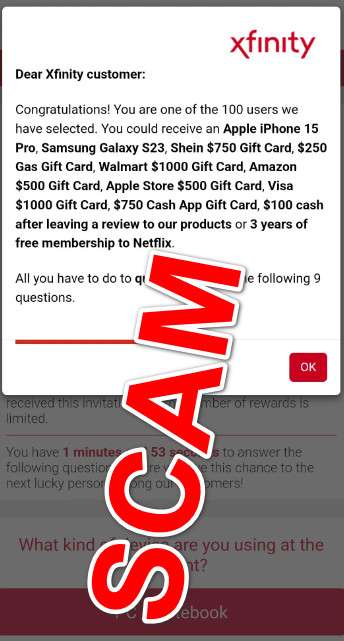
Overview of the GoodThingsPerDay.space Scam
GoodThingsPerDay.space portrays itself as a platform that provides free rewards like gift cards, cash prizes, iPhones, and other lucrative gifts. The website claims users can receive these rewards simply for completing short surveys or leaving reviews.
In reality, the website is entirely fraudulent, engaging in deceptive marketing tactics and subscription scams. The scammers operating GoodThingsPerDay.space lure users in under the false pretenses of free rewards, then bamboozle victims into signing up for unwanted paid subscription services.
This allows the scammers to steal personal and financial information from victims, signing them up for services without consent and racking up unauthorized charges on credit cards.
Here are some of the key characteristics of the GoodThingsPerDay.space scam:
- Fake rewards – The website advertises rewards like gift cards, iPhones, Samsung devices, cash giveaways, free Netflix subscriptions, etc. But users never actually receive any of these promised gifts.
- Malvertising redirection – Scammers buy malicious ads on legitimate websites, redirecting visitors to GoodThingsPerDay.space without consent.
- Brand impersonation – The scam website pretends to be affiliated with brands like Xfinity, Verizon, AT&T, Apple, and others without any actual relationship.
- Subscription scam – After users input personal information, they are signed up for unwanted paid subscriptions, allowing scammers to commit financial fraud.
- Data harvesting – Entering personal and financial data enables scammers to steal identities, compromising sensitive information.
In summary, GoodThingsPerDay.space operates on deception, infringing on privacy rights and defrauding victims for financial gain through unethical techniques.
How the GoodThingsPerDay.space Scam Works
The criminals running the GoodThingsPerDay.space scam have devised an elaborate process to mislead victims and profit from their stolen personal information. Here is a step-by-step walkthrough of how the scam operates:
Step 1 – Malvertising Redirection
The scam begins with malvertising, a tactic that allows scammers to hijack online ads and redirect visitors without consent. Scammers will purchase ad space on legitimate websites, then route users to malicious websites like GoodThingsPerDay.space when clicked.
Often these altered ads are designed to look like official notifications or urgent alerts, tricking people into clicking out of curiosity. Victims are then taken to the scam website, unaware this has occurred.
Step 2 – Brand Impersonation
Once redirected, users land on the fraudulent GoodThingsPerDay.space website. The site is designed to imitate legitimate businesses by using pirated logos and brands without permission.
Some of the most common brands criminally impersonated include Xfinity, Verizon, AT&T, Apple, Samsung, Visa, Netflix, and more. This cultivates a false sense of trust in victims.
Step 3 – Fake Reward Offers
The website then presents congratulatory messages claiming the user has been specially selected to receive lavish rewards. Common phony rewards advertised include:
- Apple iPhone 14 Pro or iPhone 15 Pro
- Samsung Galaxy S23
- $500 Apple gift cards
- $750 Shein gift cards
- $250 gas gift cards
- $500 Amazon gift cards
- $1000 Visa gift cards
- $750 CashApp gift cards
- 3 years of free Netflix subscription
- $100 cash rewards
Of course, these extravagant prizes are completely fictional, crafted to excite and manipulate victims.
Step 4 – Survey Participation Request
After announcing the fake prizes, GoodThingsPerDay.space prompts users to complete a short survey or provide a review before claiming their reward.
This adds to the deception that the giveaways are legitimate. In reality, the surveys and reviews are never assessed or used in any way.
Step 5 – Personal and Financial Information Harvesting
To take the promised survey, users must input a substantial amount of personal and financial information, including:
- Full name
- Home address
- Phone number
- Email address
- Credit card details
- Bank account information
This enables scammers to steal identities and financially defraud victims. All information entered is harvested directly by criminals to exploit.
Step 6 – Unexpected Subscription Sign-Up
Buried in obscure fine print, users are signed up for high-cost monthly subscriptions they never approved. Bogus terms and conditions pages legitimize these fraudulent charges to trick victims.
Common subscriptions secretly imposed include:
- Diet or weight loss programs
- Beauty and skincare services
- Online learning or academic resources
- Password management tools
- VPN services
- Gambling websites
Monthly fees for these unwanted services typically range from $50-$150, racking up immense costs for victims.
Step 7 – Payment for Shipping
Before victims realize the scam, they are prompted to pay a small shipping and handling fee (typically $2-$5) to receive their promised reward.
This is intended to cover the first subscription fee charged to the credit card or bank account provided earlier. In this way, scammers validate the compromised financial information.
Step 8 – Repeated Upsells and Charges
With the credit card verified as active, victims will begin receiving recurring subscription fees ranging up to $150 per month. Scammers will also aggressively push additional upsells for other unwanted services.
Emails and fake notifications from GoodThingsPerDay.space may continue promoting prize claims, surveys, and reviews to mislead victims into providing more information.
This enables scammers to maximize charges with multiple fraudulent subscriptions and rack up exorbitant fees over time.
Warning Signs of the GoodThingsPerDay.space Scam
The cunning minds behind GoodThingsPerDay.space have developed smart techniques to dupe innocent users. But with vigilance, their deceitful tactics can be detectable.
Here are some clear warning signs to recognize you may be dealing with the GoodThingsPerDay.space scam:
- Redirected unexpectedly – If you suddenly find yourself on GoodThingsPerDay.space without meaning to visit, it’s likely you clicked a tainted ad link. Real rewards platforms won’t redirect without consent.
- Too good to be true – The promised rewards like $500 gift cards, iPhones, and cash giveaways are far too generous to be free. This absurdity should raise skepticism.
- Requests personal information – legitimate websites never demand extensive personal and financial information just to receive a prize. Supplying data enables criminal misuse.
- Subscription fees buried in fine print – Dishonestly charging monthly subscription costs without permission is a clear red flag.
- Aggressive upselling – Persistent marketing for other overpriced subscription services indicates deceitful motives.
- No customer service contact info – Authentic businesses always provide customer service information, while scams tend to avoid this.
- Generic, inconsistent branding – Using a haphazard mix of logos and styles copied from real companies signals fraud.
Stay on high alert for these scammarkers when visiting unfamiliar websites promoting free reward offers. Now let’s examine how to respond if you’ve been deceived by GoodThingsPerDay.space.
What to Do if You Have Fallen Victim to the GoodThingsPerDay.space Scam
Despite the scammer’s best efforts, some savvy users may realize they’ve been hoodwinked before the damage becomes too extensive. Here are some wise steps to take if you discover you’ve become a victim of the GoodThingsPerDay.space fraud:
Step 1 – Immediately Cancel Compromised Financial Accounts
If you entered any credit card, bank account, or digital wallet information into forms on GoodThingsPerDay.space, you must act fast. Contact your financial institutions to report unauthorized charges and block any stolen payment methods. Cancel compromised accounts to prevent future identity theft and financial damage.
Step 2 – Call Issuers to Dispute Fraudulent Charges
Next, get ahead of the scam by proactively disputing all subscription fees and other charges with your credit card company, bank, or payment providers like PayPal. Reporting these transactions as fraudulent gives you the strongest case to avoid responsibility for the costs.
Provide information on the GoodThingsPerDay.space scam to validate your disputes. Most financial institutions willquickly reverse the illegitimate charges.
Step 3 – Monitor Accounts Closely
Keep a close watch on all your financial accounts and credit reports for any signs of misuse of your personal information over the next few months. Implement transaction monitoring alerts and free credit report checks to catch issues quickly. The faster you identify problems, the better chance you have for a positive resolution.
Step 4 – Change Passwords on All Accounts
Since your personal data is compromised, hackers may attempt to access your online accounts. Immediately update passwords and enable two-factor authentication everywhere possible. Prioritize high-risk accounts like email, ecommerce, and financial services that grant access to sensitive information.
Step 5 – Beware of Recovery Scams
Fraudsters often strike again when victims are down. Be cautious of any calls or emails purportedly from anti-scam groups, law enforcement figures, or government agencies offering to recover lost money. These “recovery scams” are a ploy to siphon even more funds from struggling victims.
Step 6 – Report the Scam
To protect others, you can file internet crime complaints with the FBI and Federal Trade Commission providing details on your experience. Also alert involved institutions like misused brands and ad networks. And post warnings about GoodThingsPerDay.space on consumer advocacy websites to spread awareness. The more action taken against the scam, the better chance there is of bringing the criminals to justice.
By staying proactive following victimization, you can limit damages, restore security, and avoid repeating missteps in the future.
How to Avoid Falling for the GoodThingsPerDay.space Scam and Similar Schemes
Looking ahead, there are also key preventative steps everyone can take to steer clear of deceitful prize scams and phishing tactics used by websites like GoodThingsPerDay.space:
Be Skeptical of Unexpected Redirections
Always be cautious anytime you suddenly find yourself redirected to an unfamiliar website without proactively clicking a link. Malvertising trips to odd domains you didn’t intend to visit should raise red flags. Abort the connection and close the tab.
Research Unfamiliar Companies Thoroughly
Take time to investigate any company you haven’t engaged with before providing personal information or taking free prize offers. Search for reviews, complaints, contact info, and confirm legitimacy. The more due diligence conducted, the harder it is for scams to succeed.
Avoid Entering Personal Information Unnecessarily
Reputable brands will generally not ask for extensive personal data like credit cards upfront. Oversharing sensitive information online enables fraud. Think twice before inputting anything beyond basic contact details on initial interactions.
Read All Terms and Conditions Closely
Don’t glance over the fine print. Actually take time to read and comprehend the terms presented for any unfamiliar website, especially sections regarding data usage, recurring charges, cancellations, and privacy policies. This protects against deviously hidden lies.
Be Wary of Outlandish Free Prize Claims
It’s smart to be skeptical of any company randomly declaring you the winner of extravagant rewards like thousand-dollar gift cards and iPhones. If it seems too good to be true, it almost always is.
Beware Aggressive Upselling Tactics
High-pressure sales to purchase additional products or services can signal deceit. Politely refuse upsells if they don’t suit your needs, especially from unfamiliar brands.
Monitor Financial Statements Frequently
Make it a habit to review credit card and bank statements at least weekly for unfamiliar charges. Tracking activity vigilantly lets you identify and resolve fraud promptly before major damage.
Use Secure Payment Methods
When making necessary purchases online, rely on credit cards over debit cards and never provide bank account details. The added legal protections and security features of credit cards can limit liability in fraud cases.
Remaining mindful and doing careful research enables users to evade manipulative scam websites like GoodThingsPerDay.space that offer lucrative rewards paired with concealed tricks. Stay informed and stay safe.
Is Your Device Infected? Run a Free Malware Scan
Slow performance, constant pop-ups, or strange behavior? These are classic signs of a malware infection. The fastest way to find out is to scan your device with Malwarebytes Free — one of the most trusted malware removal tools available.
The free version detects and removes the most common threats, including:
- Adware — the cause of those annoying pop-ups
- Browser hijackers — unwanted redirects and changed homepages
- Trojans and spyware — hidden programs stealing your data
- Potentially unwanted programs (PUPs) — software you never asked for
👉 Select your device below — Windows, Mac, or Android — then follow the simple steps to download Malwarebytes, scan your system, and remove any threats it finds. The scan usually takes 5 to 20 minutes.
Run a Malware Scan with Malwarebytes for Windows
Malwarebytes is one of the most popular and trusted anti-malware tools for Windows — and it’s completely free for removing infections. It catches threats that many antivirus programs miss, including adware, browser hijackers, and trojans. Follow the steps below to scan and clean your PC in just a few minutes.
Download Malwarebytes
Click the button below to download the latest version of Malwarebytes for Windows from the official source. The free version is all you need — it will scan your computer and remove adware, browser hijackers, and other malicious software at no cost.
Download MalwarebytesOfficial installer for Windows 11 and 10. Your download starts right away.Want real-time protection? See Malwarebytes Premium Malwarebytes Free for WindowsScans and removes malware at no cost
-
Install Malwarebytes
When the download finishes, open your Downloads folder and double-click the MBSetup file. If Windows shows a User Account Control pop-up, click “Yes” to allow the installation.

Follow the On-Screen Prompts to Install Malwarebytes
The setup wizard will walk you through a few quick screens:
-
Choose where you’re installing the program — “Personal Computer” or “Work Computer” — then click Next.

-
Malwarebytes will now install on your device. This usually takes under a minute.

-
When installation is complete, the “Welcome to Malwarebytes” screen will open automatically.

-
On the final screen, click Open Malwarebytes to launch the program.

-
Enable “Scan for Rootkits”
Before scanning, turn on rootkit detection so Malwarebytes can find even the most hidden threats. Click the Settings gear icon on the left side of the screen.

In the settings menu, find “Scan for rootkits” and click the toggle so it turns blue.

Done? Click “Dashboard” in the left pane to return to the main screen.
Start the Scan
Click the blue Scan button. Malwarebytes will automatically update its virus database and start checking your computer for malware.

-
Wait for the Scan to Finish
The scan checks your entire system for browser hijackers and other malicious programs, so it can take 5 to 20 minutes depending on your computer. Feel free to do something else — just check back occasionally to see the progress.

-
Quarantine the Detected Threats
When the scan is done, you’ll see a list of everything Malwarebytes found — malware, adware, and potentially unwanted programs. Click the “Quarantine” button to remove all of them at once.

Malwarebytes will now remove the malicious files and registry entries and move them safely into quarantine.

-
Restart Your Computer
Some threats can only be fully removed after a reboot. If Malwarebytes asks you to restart, click Yes. Once you’re logged back in, Malwarebytes has finished removing the threats it found.

That’s it — your Windows PC is now clean of trojans, adware, and other malware, and should be back to running smoothly.
If you are still having problems with your computer after completing these instructions, then please follow one of the steps:
- Run a computer scan with ESET Online Scanner
- Ask for help in our Windows Malware Removal Help & Support forum.
Run a Malware Scan with Malwarebytes for Mac
Malwarebytes for Mac is a free on-demand scanner that removes the malware other security software tends to miss — adware, browser hijackers, and unwanted programs included. Cleaning an infected Mac with Malwarebytes has always been completely free, and it’s our go-to recommendation. Follow the steps below to scan and clean your Mac in just a few minutes.
-
Download Malwarebytes for Mac
Click the button below to download the latest version of Malwarebytes for Mac.
Download MalwarebytesOfficial installer for macOS. Your download starts right away.Want real-time protection? See Malwarebytes PremiumMalwarebytes Free for MacScans and removes malware at no cost -
Open the Malwarebytes setup file
When the download finishes, open your Downloads folder and double-click the setup file to begin the installation.

-
Follow the On-Screen Prompts to Install Malwarebytes
The Malwarebytes for Mac Installer will guide you through a few quick screens. Click “Continue” and keep following the prompts until the installation completes.



When the installation is complete, Malwarebytes opens to the Welcome to Malwarebytes screen. Click “Get started“.
-
Select “Personal Computer” or “Work Computer”
Malwarebytes will ask what type of computer you’re installing it on. Click either Personal Computer or Work Computer, whichever applies.

-
Start the Scan
Click the “Scan” button. Malwarebytes will automatically update its detection database and begin checking your Mac for malware.

-
Wait for the Scan to Finish
Malwarebytes will scan your Mac for adware, browser hijackers, and other malicious programs. This can take a few minutes, so feel free to do something else — just check back occasionally to see the progress.

-
Quarantine the Detected Threats
When the scan is done, you’ll see a list of everything Malwarebytes found. Click the “Quarantine” button to remove all the threats at once.

-
Restart Your Mac
Malwarebytes will now remove all the malicious files it found. Some threats can only be fully removed after a reboot — if Malwarebytes asks you to restart, allow it. Once you’re logged back in, your Mac is clean.

That’s it — your Mac is now free of adware, rogue browser extensions, and other potentially harmful software.
If you are still experiencing problems while trying to remove a malicious program from your computer, please ask for help in our Mac Malware Removal Help & Support forum.
Run a Malware Scan with Malwarebytes for Android
Malwarebytes for Android automatically detects and removes dangerous threats like malware and ransomware so you don’t have to worry about your most-used device being compromised. Aggressive detection of adware and potentially unwanted programs keeps your Android phone or tablet running smooth.
-
Download Malwarebytes for Android.
You can download Malwarebytes for Android by clicking the link below.
Get Malwarebytes for AndroidOpens Google Play in a new tab.Want real-time protection? See Malwarebytes Premium for AndroidMalwarebytes for AndroidScans your phone and removes malware at no cost -
Install Malwarebytes for Android on your phone.
In the Google Play Store, tap “Install” to install Malwarebytes for Android on your device.

When the installation process has finished, tap “Open” to begin using Malwarebytes for Android. You can also open Malwarebytes by tapping on its icon in your phone menu or home screen.

-
Follow the on-screen prompts to complete the setup process
When Malwarebytes will open, you will see the Malwarebytes Setup Wizard which will guide you through a series of permissions and other setup options.
This is the first of two screens that explain the difference between the Premium and Free versions. Swipe this screen to continue.
Tap on “Got it” to proceed to the next step.
Malwarebytes for Android will now ask for a set of permissions that are required to scan your device and protect it from malware. Tap on “Give permission” to continue.
Tap on “Allow” to permit Malwarebytes to access the files on your phone.
-
Update database and run a scan with Malwarebytes for Android
You will now be prompted to update the Malwarebytes database and run a full system scan.

Click on “Update database” to update the Malwarebytes for Android definitions to the latest version, then click on “Run full scan” to perform a system scan.

-
Wait for the Malwarebytes scan to complete.
Malwarebytes will now start scanning your phone for adware and other malicious apps. This process can take a few minutes, so we suggest you do something else and periodically check on the status of the scan to see when it is finished.

-
Click on “Remove Selected”.
When the scan has been completed, you will be presented with a screen showing the malware infections that Malwarebytes for Android has detected. To remove the malicious apps that Malwarebytes has found, tap on the “Remove Selected” button.

-
Restart your phone.
Malwarebytes for Android will now remove all the malicious apps that it has found. To complete the malware removal process, Malwarebytes may ask you to restart your device.
That’s it — your Android phone is now clean — no more malicious apps, adware, or browser redirects.
If you are still having problems with your phone after completing these instructions, then please follow one of the steps:
- Restore your phone to factory settings by going to Settings > General management > Reset > Factory data reset.
- Ask for help in our Mobile Malware Removal Help & Support forum.
Stay Protected: Block Ads and Malicious Sites
Now that your device is clean, keep it that way. Most infections start with a malicious ad or a fake download button — so blocking them at the source is your best defense.
We recommend AdGuard, which blocks malicious ads, phishing pages, and dangerous redirects before they can reach you.
👉 Download AdGuard and browse safely
Frequently Asked Questions about the GoodThingsPerDay.space Scam
The fraudulent website GoodThingsPerDay.space ensnares victims under the guise of prize giveaways and free rewards. Here are answers to some frequently asked questions about how their sneaky scam operates.
What exactly is the GoodThingsPerDay.space scam?
GoodThingsPerDay.space is a deceptive website run by scammers who lure in victims by promising free rewards like gift cards, iPhones, cash, and product giveaways. But it’s actually a subscription scam intended to steal personal information and money.
How does the GoodThingsPerDay.space scam work?
The criminals use malvertising to redirect people to their fake website impersonating real brands like Xfinity and AT&T. They tout fake prize claims and request you complete a “survey” by entering personal and financial data, which they steal. Hidden fees then bill you monthly for services you didn’t authorize.
What techniques does GoodThingsPerDay.space use?
- Malvertising redirects
- Brand impersonation
- Fake rewards and prize offers
- Requests for personal information
- Hidden subscription charges
- Aggressive upselling for more unwanted services
What are some of the fake rewards they claim to offer?
Some common fake rewards advertised are $500 gift cards, iPhones, Samsung devices, $1000 Visa cards, $750 CashApp funds, free Netflix, and $100 cash payouts. You will never actually receive these promised prizes.
What personal information do they obtain?
To take their false surveys, you’ll be prompted to input sensitive data including your name, home address, phone number, email, credit card number, bank account details, and more.
What happens when you give them your information?
Supplying any personal or financial information enables the criminals behind GoodThingsPerDay.space to steal identities and commit financial fraud. They will secretly sign you up for costly monthly subscriptions you didn’t approve.
How much do the unwanted subscriptions cost?
Monthly fees charged without your consent typically range from $50-$150. Some common bogus services signed up for include diet programs, skincare products, password managers, educational platforms, and gambling sites.
Are there any legitimate reasons to use GoodThingsPerDay.space?
No, the entire website is a complete scam. There are no real rewards, surveys or prize drawings taking place. The site simply leverages deception to harvest your data and money unethically.
How can you avoid the GoodThingsPerDay.space scam?
Research unfamiliar sites thoroughly, read all terms closely, avoid entering unnecessary personal details online, monitor accounts routinely, and be skeptical of offers too good to be true. Always be cautious when unexpectedly redirected.
What should you do if you are victimized by GoodThingsPerDay.space?
Immediately cancel compromised accounts, dispute fraudulent charges, monitor credit reports for misuse, change passwords everywhere, and report the scam to financial institutions, authorities and consumer groups to prevent further harm.
By staying vigilant and informed, you can protect yourself from predatory scams like GoodThingsPerDay.space. Share this knowledge and be wary of any website promising free rewards in exchange for your personal information.
The Bottom Line
GoodThingsPerDay.space is a prime example of the devious subscription scam websites proliferating today and duping innocent people under false pretenses. These criminals rely on a combination of convincing brand impersonation, fake prize offers, hidden fees, and aggressive upselling tactics to defraud and steal from their victims.
The reality is no free $500 gift cards or iPhones are being given away. Any personal or financial data provided to GoodThingsPerDay.space lands directly in the hands of scammers, enabling identity theft and unauthorized charges. The promised survey opportunities are fictional, only serving to harvest information for criminal exploitation.
If you encounter unexpected redirects to GoodThingsPerDay.space, escape the site immediately before inputting any data. Learn to recognize their underhanded techniques to avoid getting ensnared. Should you accidentally provide information, take swift action informing financial institutions to minimize harm. Remaining vigilant for similar scams in the future will keep you best protected.
Spread awareness about this fraudulent website to help prevent others from falling victim too. The more these unscrupulous scammers are called out, the quicker their deceptive tactics will fail, and consumer rights will prevail. Stay informed and remain skeptical to outsmart these cybercriminals.

Reviews & discussion
0 commentsShare a firsthand experience, or ask a question.
Community reviews
goodthingsperday.space
Moderated reader experiences, not an editorial verdict.
Start the conversation
Have a question or something useful to share? Add the first comment.