


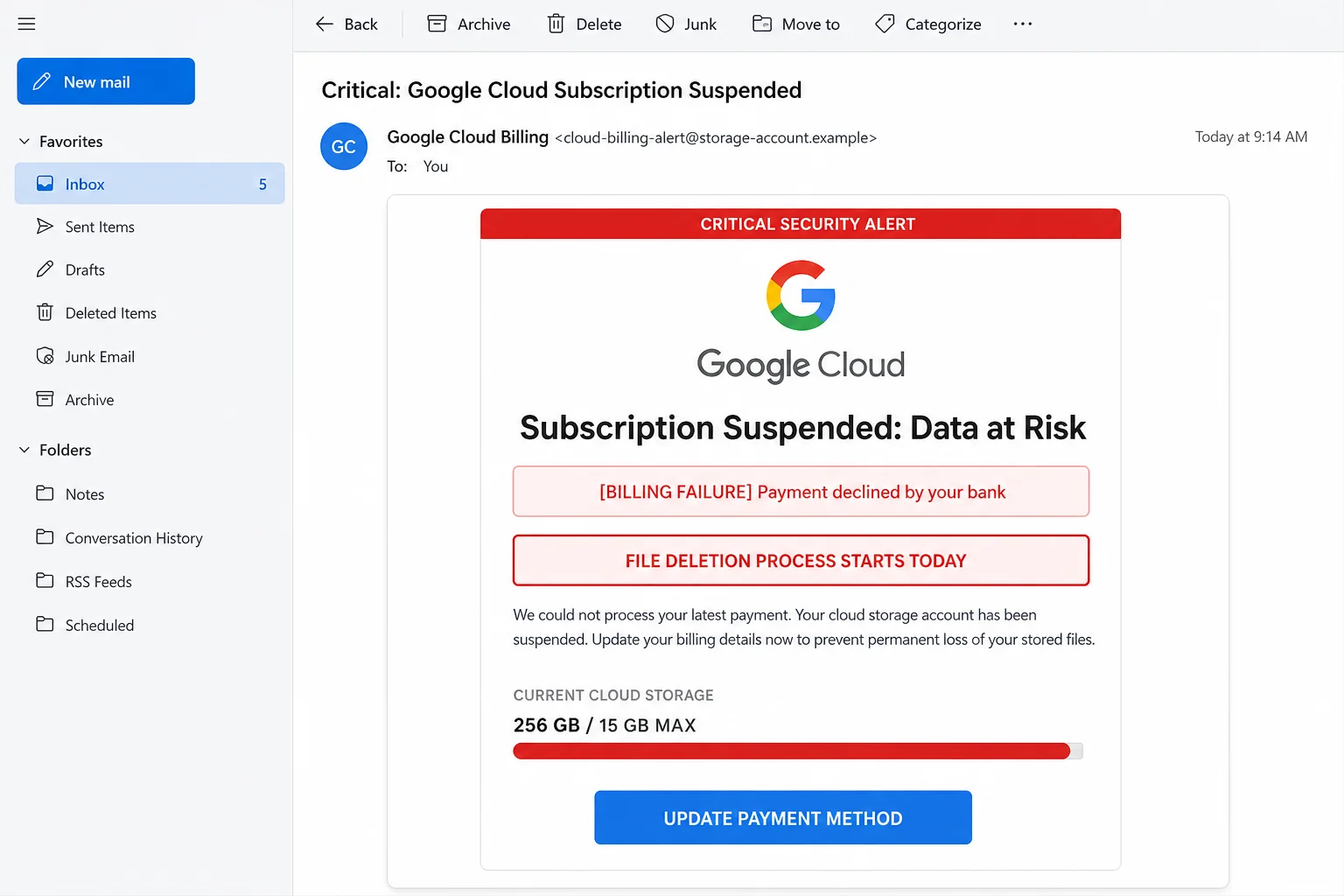
An alarming email says your Google Cloud subscription has been suspended, a bank declined the latest payment, and stored files may be deleted today. A red storage meter and a prominent payment button make the threat look immediate.
Do not update billing through that message. The email is a phishing lure designed to steal a Google password, payment information, and potentially the security code protecting the account.
Overview
The Google Cloud Subscription Suspended email scam impersonates Google and claims an account has entered a dangerous billing state. The message may use headings such as “Critical Security Alert,” “Subscription Suspended: Data at Risk,” and “File Deletion Process Starts Today.”
A notice underneath says the recipient’s bank declined a payment. The email then displays a nearly full storage bar, often with a figure such as “256 GB / 15 GB MAX,” and tells the reader to update a payment method immediately.
The button does not safely open Google Cloud billing. It sends the victim to a fraudulent website that copies a Google login or payment form. Information submitted there can be delivered directly to the scammer.
The operation uses two powerful fears at the same time. A payment failure suggests that the account owner caused the problem, while the threat of permanent file deletion makes any delay feel dangerous.
For many people, a Google account contains years of email, photographs, documents, contacts, saved passwords, YouTube activity, and account-recovery information. The possibility of losing that data can override the normal caution someone would use with an unexpected billing email.
What the fake Google Cloud email says
One circulating version uses the following structure:
Subject: Critical: Google Cloud Subscription Suspended
CRITICAL SECURITY ALERT
Subscription Suspended: Data at Risk
[BILLING FAILURE] Payment declined by your bank
FILE DELETION PROCESS STARTS TODAY
We could not process your latest payment. Your cloud storage account has been suspended. Update your billing details now to prevent permanent loss of your stored files.
Current Cloud Storage: 256 GB / 15 GB MAX
UPDATE PAYMENT METHOD
The visual design can be polished. It may use Google’s multicolor logo, blue buttons, warning icons, a progress bar, and a sender name such as “Google Cloud Billing” or “Google Storage Support.”
The display name is easy to fake. The actual email address and the destination behind the button are more important. A sender using an unrelated domain is not made legitimate by placing “Google” before the address.
The message mixes different Google services
A particularly revealing clue is the use of a 15 GB storage limit inside a message branded as Google Cloud. The familiar 15 GB allowance is associated with consumer Google Account storage shared by services such as Gmail, Google Drive, and Google Photos.
Google Cloud is a separate platform used for projects, APIs, virtual machines, databases, and other developer or business resources. Its billing model is not a simple consumer storage subscription represented by “256 GB / 15 GB MAX.”
Scammers deliberately blend the terms “Google Cloud,” “Google Drive,” “Cloud Storage,” and “Google One” because most recipients recognize the words but do not know the billing differences. The mixture produces a message that sounds technical without being internally consistent.
A genuine Google Cloud billing problem can affect projects and services, so the basic subject is plausible. The safe response is to open the Google Cloud Console independently and examine the billing account there, not to trust the email’s payment button.
Common variations of the email
The subject, storage amount, and threatened consequence change frequently. The following messages can all lead to the same Google account and payment phishing pages:
- “Google Cloud Subscription Suspended”
- “Critical Security Alert: Data at Risk”
- “Payment Declined by Your Bank”
- “Google Cloud Storage Account on Hold”
- “Your Google Drive Files Will Be Deleted Today”
- “Cloud Storage Full: Immediate Action Required”
- “Your Photos Are Scheduled for Permanent Deletion”
- “Google One Renewal Failed”
- “Storage Subscription Expired”
- “Final Notice: Update Your Cloud Billing Method”
- “Your Gmail Storage Has Been Suspended”
- “Account Closure Begins in 24 Hours”
Some versions promise extra storage at a steep discount, while others offer a free extension if the recipient completes a short survey. The final page still requests a Google login, card details, or both.
The same lure may arrive by text message, browser notification, or calendar invitation. A notification can say that cloud data is expiring and include a shortened URL that conceals the destination.
Warning signs in the email
- You do not use Google Cloud. Many recipients have only a regular Google account and have never created a Cloud Billing account.
- The message mixes Google Cloud with a 15 GB consumer limit. This combines separate services to create a believable-looking threat.
- File deletion supposedly begins today. Extreme deadlines are used to prevent independent checking.
- The sender address is unrelated to Google. A convincing display name can hide the real address.
- The button leads away from Google. Hovering over “Update Payment Method” may reveal an unrelated or misspelled domain.
- The email asks for sensitive information. A billing issue should be reviewed from the official Google Cloud Console or Google Account.
- The storage total is designed to frighten. A nearly full red bar and an impossible-looking overage make the threat feel urgent.
- No useful project or billing details are provided. A real Cloud administrator would expect a recognizable billing account, project, or transaction context.
How The Operation Works
1. The campaign reaches a broad list of email addresses
Scammers send the warning to addresses obtained from data leaks, scraped websites, marketing lists, and compromised accounts. The message does not need to target real Google Cloud customers.
Almost everyone recognizes Google, and most recipients have some information stored in Gmail, Drive, or Photos. That broad familiarity makes the file-loss story effective even when the technical wording is inaccurate.
2. The message combines billing failure with data loss
A simple payment notice might be ignored. The scam therefore adds a more frightening consequence: stored files will be permanently deleted unless billing is updated immediately.
The red alert boxes and storage bar are designed to be understood at a glance. The reader sees “payment declined,” “data at risk,” and “starts today” before carefully examining the sender.
3. The button opens a fake Google page
“Update Payment Method” can lead directly to a phishing page or through several tracking and redirect addresses. The final site may use a domain containing words such as google, cloud, storage, support, billing, or security.
A domain is not official merely because it contains a brand name. The registered domain must actually belong to Google. A padlock only indicates an encrypted connection to the current site.
4. The copied sign-in page steals the Google password
The fraudulent page may reproduce Google’s familiar “Sign in” design and ask for an email address followed by a password. It can also prefill the address from a value embedded in the phishing link, making the page feel personalized.
If credentials are submitted, the attacker may attempt to access the real Google account immediately. Control of Gmail can allow password resets for many other services.
5. Two-factor authentication becomes the next target
If an additional security step blocks the login, the fake page may ask for the current SMS code, authenticator code, or approval of a Google prompt.
The request may be described as confirming billing ownership. In reality, the attacker may be waiting for that code to complete a live account takeover. Never approve a Google sign-in you did not initiate independently.
6. The payment form captures card details
Another page asks for the cardholder name, number, expiration date, security code, billing address, and telephone number. The form may say a small payment is needed to keep storage active.
The operator can test the card with a small charge, use it for unauthorized purchases, or sell the complete financial profile. A later transaction may have no visible connection to Google or cloud storage.
7. The victim may be asked for more personal information
Some pages request a date of birth, recovery email, Social Security number, or a photograph of identification. None of this should be supplied through a link in an unexpected billing notice.
The combination of a Google login, email access, card details, address, and telephone number creates a valuable identity package that can support additional fraud.
8. A success page hides the theft
After the forms are completed, the website can display “Payment updated” or “Storage restored.” It may then redirect to a real Google page so the victim sees a familiar address again.
The recipient may assume the warning was resolved and ignore the lack of any genuine billing change. This delay gives the attacker more time to access accounts and use the card.
9. Follow-up scams target the same victim
Once someone submits information, the address and telephone number may be labeled as responsive. The victim can receive more messages impersonating Google Support, a bank fraud department, or an account-recovery specialist.
A caller may claim suspicious activity was discovered and request a security code or remote access to the computer. These follow-up contacts are another stage of the same fraud.
How to check the warning safely
If you manage Google Cloud resources, open a new tab and go directly to the official Google Cloud Billing console. Review Payment Overview, transactions, account status, and affected projects from there.
Google’s billing documentation explains that real payment problems are resolved through the Cloud Billing account and linked Google payments account. It does not require trusting a payment form hosted on an unrelated domain.
If the message appears to concern ordinary Gmail, Drive, Photos, or Google One storage, open the Google Account or Google One application independently and review storage and payment information there.
What To Do If You Clicked the Link
Remain calm and act according to what was submitted. Opening a page is different from giving the site a password, card details, or permission to access the account.
- Close the phishing page. Do not continue to another form, call a number displayed there, download a tool, or approve a sign-in prompt.
- Change the Google password immediately. Go directly to the official Google Account and create a strong, unique password.
- Review recent security activity. Check devices, sessions, locations, security events, recovery information, and connected applications. Remove anything unfamiliar.
- Secure two-step verification. Review authenticator enrollment, backup codes, passkeys, telephone numbers, and trusted devices. Generate new backup codes if the old ones may be exposed.
- Protect Gmail. Inspect forwarding addresses, filters, delegation, blocked addresses, POP or IMAP access, and sent messages. Attackers often create hidden forwarding rules.
- Review Google Cloud billing and projects. If the account manages Cloud resources, check billing accounts, administrators, IAM roles, API keys, service accounts, projects, and recent activity.
- Revoke unfamiliar third-party access. Remove connected applications and OAuth grants that you did not approve or no longer trust.
- Contact the card issuer. If card details were entered, use the trusted number printed on the card or statement. Ask for replacement and monitoring of unauthorized transactions.
- Change reused passwords. Replace the compromised password on every other service, especially email, banking, shopping, social media, and business accounts.
- Notify an administrator when appropriate. If this was a work or school Google account, contact the organization’s security or IT team immediately.
- Scan the device after a download. Run a full scan with reputable security software if the site provided a file, extension, or application.
- Report the message. In Gmail, open the More menu and choose “Report phishing,” following Google’s official reporting instructions. Do not forward the active link to friends or coworkers as a warning.
If you only opened the email
Reading the message without clicking, replying, approving a prompt, or downloading an attachment normally does not give the sender access to a Google account. Report it as phishing and remove it.
If you clicked the link but entered nothing, close the page and check for downloads or browser notification permissions. The immediate account risk is lower, but remain alert for follow-up messages.
If you entered a Google password
Change it immediately from a clean, trusted device and review account activity. Gmail is often the recovery channel for other accounts, so a compromised Google password should be treated as a high-priority incident.
If you approved a sign-in prompt
Open Google Account Security, sign out unfamiliar sessions, and secure the account. An approval prompt can allow access even if the victim never manually typed a one-time code into the page.
If you entered payment information
Contact the issuer immediately rather than waiting for a charge. Explain that the full card details were submitted to a phishing site and ask what replacement and fraud-monitoring steps are required.
The Bottom Line
The Google Cloud Subscription Suspended email uses a fake billing emergency and a threat of immediate file deletion to push recipients onto a fraudulent Google login and payment page.
Do not use the email’s button. Check Google Cloud, Google One, Drive, or account storage by opening the official service independently. If information was submitted, change the Google password, review security activity, and contact the card issuer without delay.

Join the discussion
0 commentsShare your experience or ask a question about this article.
Discussion
Start the conversation
Have a question or something useful to share? Add the first comment.