

Emsisoft Emergency Kit is a free and powerful on-demand scanner that can be used to remove viruses, trojans, spyware, adware, worms, and other malicious programs. If you have malware related issues, you can use this free on-demand scanner to check for malicious programs.
Emsisoft Emergency Kit is designed to work alongside existing security programs without any conflicts. It scans the computer quickly and does not slow down the computer (except for the few minutes it is scanning). Emsisoft Emergency Kit does not need to be installed. It can be run straight from a USB flash drive, a CD/DVD, local or network attached hard drive.
Emsisoft Emergency Kit contains a collection of programs that can be used without a software installation to scan for malware and clean infected computers: Emsisoft Emergency Kit Scanner and Emsisoft Commandline Scanner.
- The Emsisoft Emergency Kit Scanner includes the powerful Emsisoft Scanner complete with the graphical user interface. This can be used to scan your computer for malicious programs.
- Emsisoft Commandline Scanner contains the same functionality as the Emergency Kit Scanner but without a graphical user interface. The command-line tool is made for professional users and is perfect for batch jobs.
How to scan your computer with Emsisoft Emergency Kit (Guide)
Here’s how to download, install and run a computer scan with Emsisoft Emergency Kit:
-
Download Emsisoft Emergency Kit.
You can download Emsisoft Emergency Kit by clicking the link below.
 Emsisoft Emergency KitPortable second-opinion scanner, no install needed
Download Emsisoft Emergency KitOpens the download page in a new tab.
-
Install Emsisoft Emergency Kit.
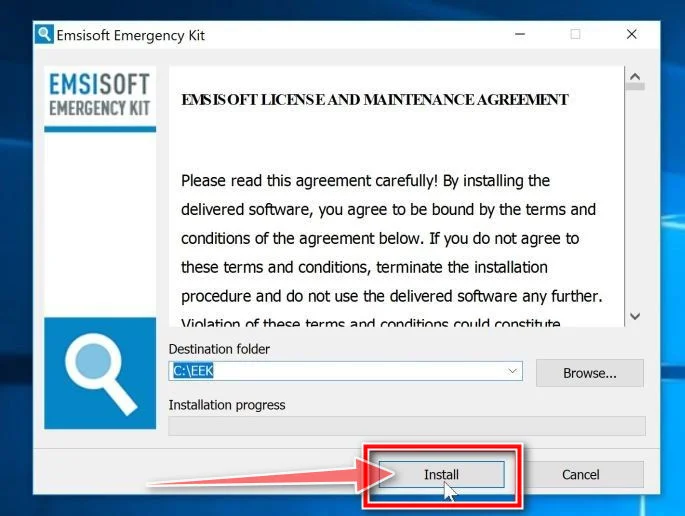
Double-click on the EmsisoftEmergencyKit setup file to start the installation process, then click on the “Install” button.
-
Start Emsisoft Emergency Kit.
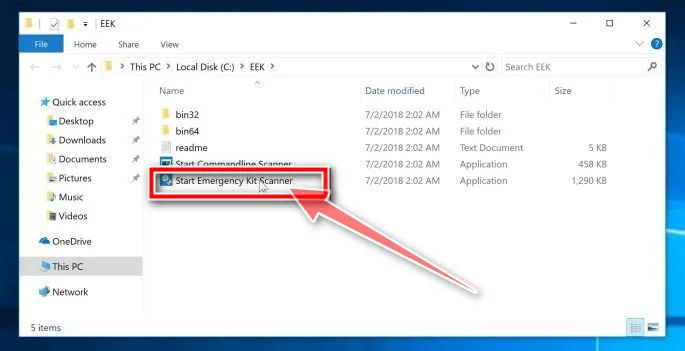
On your desktop the “EEK” folder (C:\EEK) should now be open. To start Emsisoft, click on the “Start Emsisoft Emergency Kit” file to open this program.
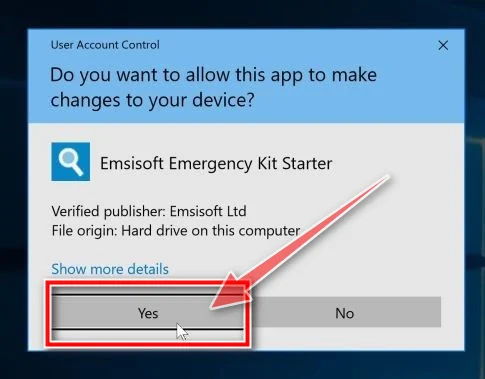
You may be presented with a User Account Control dialog asking you if you want to run this file. If this happens, you should click “Yes” to continue with the installation.
-
Click on “Malware Scan”.
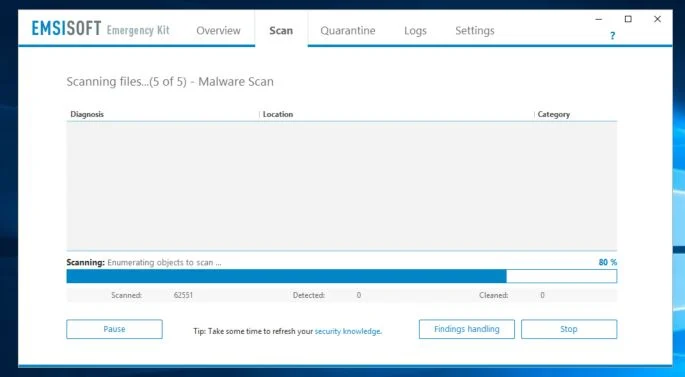
Emsisoft Emergency Kit will start and it will ask you for permission to update itself. Once the update process is complete, click on the “Scan” tab, and perform a “Malware Scan“.
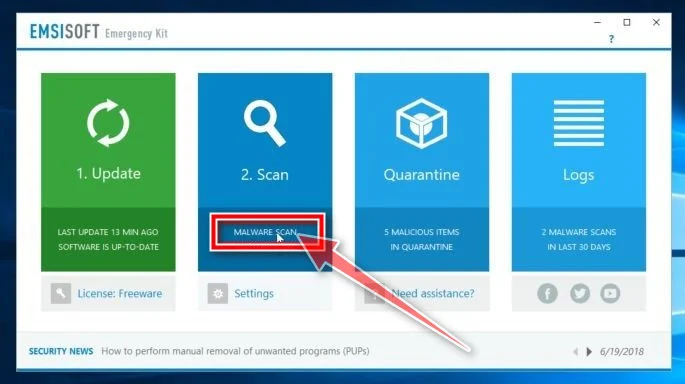
Emsisoft Emergency Kit will now scan your PC for malicious files. This process can take a few minutes.
-
Click on “Quarantine selected”.
When the Emsisoft scan has finished, you will be presented with a screen reporting which malicious files were detected on your computer. To remove the malicious programs, click on the “Quarantine selected“.
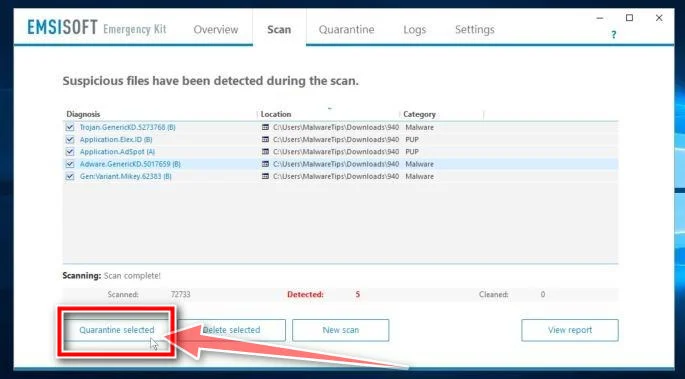
When the malware removal process is complete, Emsisoft Emergency Kit may need to restart your computer. Click on the “Reebot” button to restart your PC.
Your PC should now be free of malware. If you are still experiencing problems while trying to remove malware from your device, please do one of the following:
- Run a computer scan with ESET Online Scanner
- Ask for help in our Malware Removal Assistance for Windows forum.

Join the discussion
2 commentsShare your experience or ask a question about this article.
Your progress
Did these steps help?
Let us know how the guide worked for you.
Describe what you see and the step you reached. Keep passwords and other private information out.
Discussion
Thank you very much. Worked
Thank you!!! This has saved my computer!!