The promise of easily hacking into someone’s Instagram account can sound tempting to curious users, but it’s nothing more than bait for an elaborate scam. Fake “Instagram Password Hacker” websites claim to provide quick access to any account, but in reality, they are designed to trick unsuspecting visitors into sharing personal information, downloading malicious files, or completing fraudulent surveys. These scams are widespread and continue to ensnare people worldwide. This article will take a deep dive into how these scam websites work, what dangers they pose, and what you should do if you have already fallen victim.
Scam Overview
Scam websites like “Instagram Password Hacker” claim to offer tools that can break into Instagram accounts within minutes. They advertise phrases such as “Hack Instagram in 2 minutes!” or “Instant password retrieval.” These claims are designed to spark curiosity, desperation, or malicious intent in users looking to gain unauthorized access to someone else’s account. However, the truth is simple: there is no legitimate way to hack into Instagram accounts through such websites. These are scams designed with a single goal, to exploit visitors.
The Lure of Instant Access
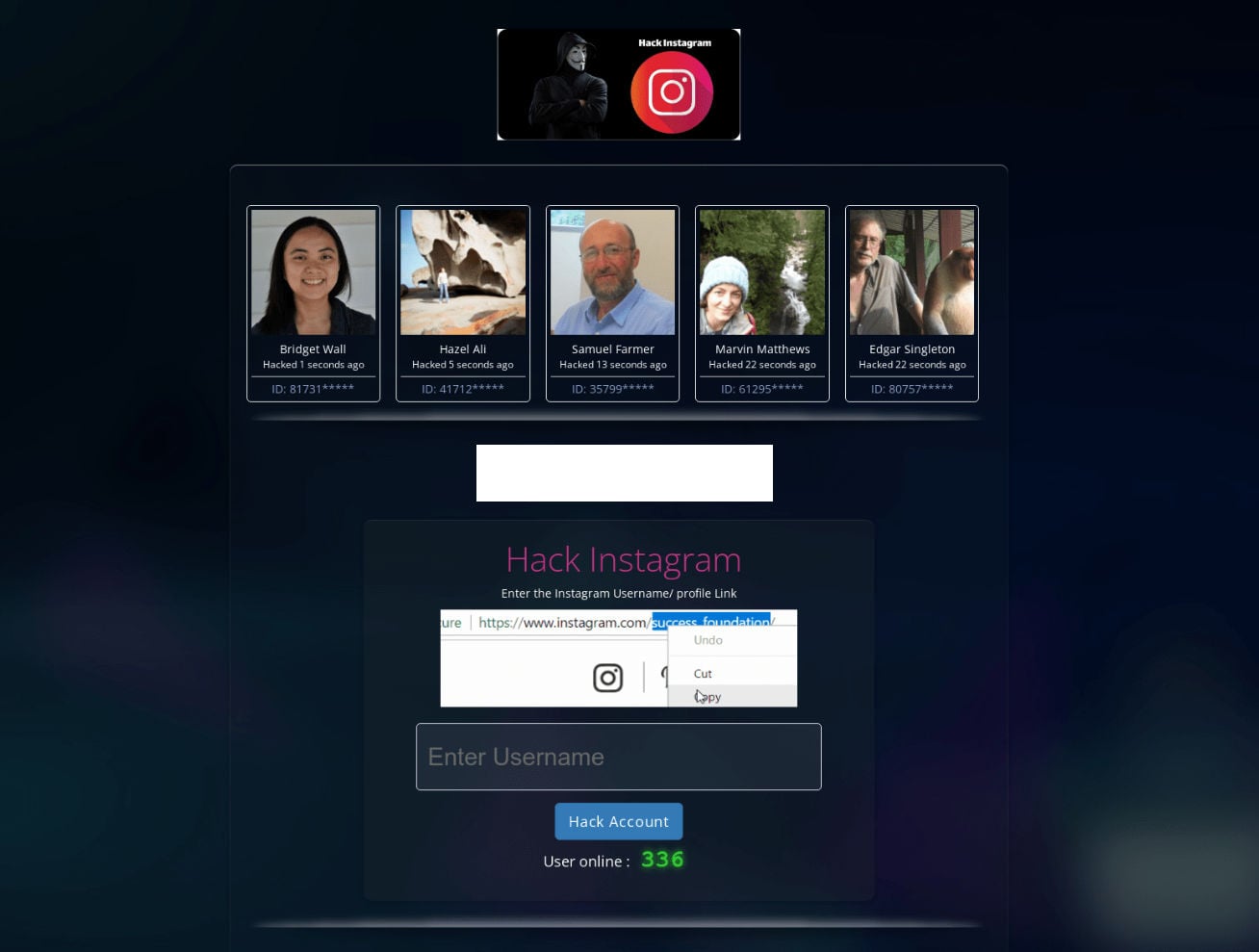
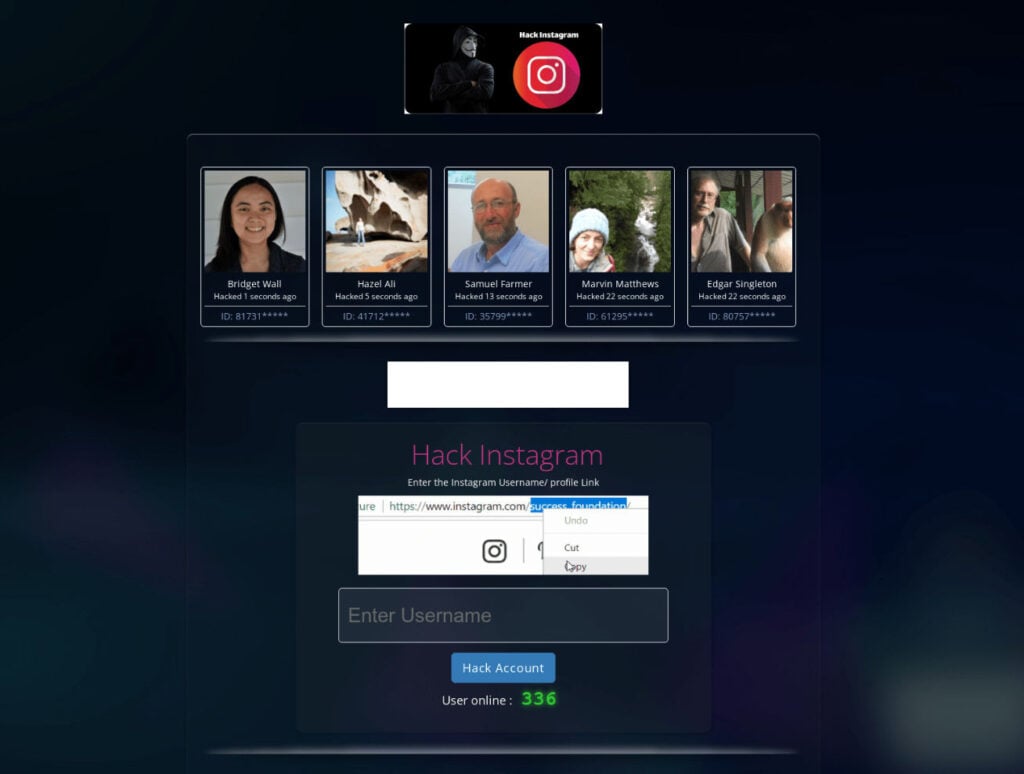
These sites usually start with flashy landing pages. They use bold headlines like “Instagram Password Hacker” or “Hack Any Instagram Account Now.” Screenshots and graphics are displayed to mimic professional hacking tools. To appear more credible, they often include a “Recent Activity” section that pretends to show usernames supposedly hacked by other users, along with their device type (PC, iOS, or Android). This creates an illusion of constant activity and success.
The scam relies on psychological manipulation. By presenting the process as easy and quick, they make people believe they are only a few clicks away from gaining someone else’s Instagram credentials. Unfortunately, this belief is false, and once a user engages, the real scam begins.
False Progress Bars and Fake Processes
After a user enters an Instagram username, the website pretends to initiate a hacking process. A progress bar appears, with labels such as “Connecting to server” or “Extracting password.” The page might even display loading animations or fake command-line text scrolling to give the illusion of real hacking activity. At every stage, the scammer’s goal is to keep the user engaged and convinced that something authentic is happening.
The Human Verification Trap
Eventually, the website halts the fake process and presents a message like “Human Verification Required.” It claims the system needs to verify that the user is not a bot before revealing the password. The user is then redirected to third-party survey pages or prompted to download mobile apps. These are affiliate links, meaning the scammers get paid every time someone completes a survey or downloads an app. In other cases, users may be asked to send SMS messages that sign them up for expensive premium-rate services without their knowledge.
Why These Websites Exist
The motivation behind these scams is money. Each survey completed or app downloaded generates revenue for the scammer through affiliate marketing programs. Additionally, some of these downloads may carry malware that compromises the victim’s device. Malicious software can steal login credentials, track keystrokes, or install unwanted applications that display intrusive ads.
False Legitimacy and Social Proof
To strengthen their credibility, scam websites often include fabricated reviews or fake testimonials. For instance, comments may appear at the bottom of the page with supposed users saying, “This worked perfectly for me, thank you!” These testimonials are manufactured and not from real people. Combined with the fake activity logs, they create an illusion of legitimacy that convinces more users to proceed.
This is just the surface. To truly understand the full scope of this fraud, we need to look at how the scam unfolds step by step.
How the Scam Works
Understanding how the “Instagram Password Hacker” scam operates is essential to avoiding it. Here is a detailed breakdown of the typical steps involved.
Step 1: The Search and Discovery
The journey often begins when someone searches for ways to hack into an Instagram account. Queries like “hack Instagram password online” or “recover Instagram account without email” often lead to scam websites. These sites rely heavily on search engine optimization, paid ads, or social media shares to attract visitors.
Step 2: The Landing Page
Once on the site, users are greeted with professional-looking pages that showcase a supposed hacking tool. They display bold claims and often include the Instagram logo to make the page appear authentic. The interface is deliberately designed to mimic legitimate software tools, with buttons, progress bars, and status updates.
Step 3: Entering a Username
The scam asks users to input an Instagram username they want to hack. This step is crucial for engagement. By asking for this information, the site convinces users that the hacking tool is customized for specific accounts. The moment the username is entered, the scam begins to unfold.
Step 4: Fake Hacking Sequence
After the username is submitted, the site simulates a hacking process. You may see messages like:
“Connecting to server…”
“Bypassing security…”
“Extracting password files…”
These messages are completely fabricated. The site runs pre-programmed scripts to show fake progress bars and animations. Users are led to believe the hacking is real, but no actual Instagram data is accessed.
Step 5: The Verification Stage
Once the fake hacking reaches completion, the site pauses and presents the so-called verification step. This stage often states: “We need to verify that you are a human before showing you the password.”
This is where the scam monetization occurs. The verification typically involves:
Completing surveys: Users are asked to fill out online questionnaires. These are affiliate surveys, and scammers get paid when you complete them.
Downloading apps: Victims may be redirected to app stores to download specific applications. Again, scammers earn money through affiliate marketing deals.
Sending SMS: Some scams request users to send a text message, unknowingly subscribing them to expensive premium-rate SMS services.
Step 6: Endless Loops and No Results
After completing the so-called verification, victims expect to receive the hacked password. However, the site never delivers. Instead, it may redirect the user back to the verification page or prompt them to complete another survey. This loop continues indefinitely, ensuring scammers maximize their profits while the user gets nothing in return.
Step 7: Potential Malware Infection
Some of these sites also push fake downloads labeled as “password files” or “decryption tools.” In reality, these files may contain malware such as keyloggers, trojans, or adware. Once installed, the malware can:
Steal login credentials for email, banking, or social media accounts.
Track browsing habits to deliver intrusive ads.
Slow down the victim’s device or compromise its security.
Step 8: Long-Term Consequences
Victims who interact with these websites may face a variety of issues:
Financial loss from premium SMS subscriptions.
Identity theft if malware steals login information.
Privacy invasion through compromised devices.
Ongoing scams since their data may be sold to other malicious actors.
What To Do If You Have Fallen Victim to This Scam
If you’ve interacted with an “Instagram Password Hacker” scam website, don’t panic. There are immediate steps you can take to protect yourself. Here is a detailed action plan:
Stop Interacting with the Website Close the browser tab immediately. Do not attempt further downloads or surveys.
Remove Suspicious Applications If you downloaded apps during the verification process, uninstall them right away. Check your phone or computer for unfamiliar applications.
Run a Full Antivirus Scan Use a reputable antivirus or anti-malware program to scan your device. Remove any threats detected.
Check for Premium SMS Subscriptions If you sent an SMS, review your phone bill for unusual charges. Contact your mobile carrier to cancel unauthorized subscriptions and request a refund if possible.
Change Your Passwords Update passwords for your email, social media, and banking accounts. Use unique, strong passwords for each account to prevent unauthorized access.
Enable Two-Factor Authentication (2FA) Secure your Instagram and other important accounts with 2FA. This adds a second layer of protection even if your password is compromised.
Clear Browser Cache and Cookies Scam sites often use tracking cookies. Clear your browser cache and cookies to remove these trackers.
Monitor for Identity Theft Keep an eye on your financial accounts, credit reports, and email accounts. Watch for suspicious activity, such as unexpected logins or unfamiliar charges.
Educate Yourself and Others Share your experience with friends and family to prevent them from falling into the same trap. Raising awareness is a key step in fighting these scams.
Report the Scam Website Report the website to Google Safe Browsing, your browser provider, and cybersecurity authorities in your country. Taking action can help others avoid the same scam.
Is Your Device Infected? Scan for Malware
If your computer or phone is slow, showing unwanted pop-ups, or acting strangely, malware could be the cause. Running a scan with Malwarebytes Anti-Malware Free is one of the most reliable ways to detect and remove harmful software. The free version can identify and clean common infections such as adware, browser hijackers, trojans, and other unwanted programs.
Malwarebytes works on Windows, Mac, and Android devices. Choose your operating system below and follow the steps to scan your device and remove any malware that might be slowing it down.
Malwarebytes for WindowsMalwarebytes for MacMalwarebytes for Android
Run a Malware Scan with Malwarebytes for Windows
Malwarebytes stands out as one of the leading and widely-used anti-malware solutions for Windows, and for good reason. It effectively eradicates various types of malware that other programs often overlook, all at no cost to you. When it comes to disinfecting an infected device, Malwarebytes has consistently been a free and indispensable tool in the battle against malware. We highly recommend it for maintaining a clean and secure system.
Download Malwarebytes
Download the latest version of Malwarebytes for Windows using the official link below. Malwarebytes will scan your computer and remove adware, browser hijackers, and other malicious software for free.
(The above link will open a new page from where you can download Malwarebytes)
Install Malwarebytes
After the download is complete, locate the MBSetup file, typically found in your Downloads folder. Double-click on the MBSetup file to begin the installation of Malwarebytes on your computer. If a User Account Control pop-up appears, click “Yes” to continue the Malwarebytes installation.
Follow the On-Screen Prompts to Install Malwarebytes
When the Malwarebytes installation begins, the setup wizard will guide you through the process.
You’ll first be prompted to choose the type of computer you’re installing the program on—select either “Personal Computer” or “Work Computer” as appropriate, then click on Next.
Malwarebytes will now begin the installation process on your device.
When the Malwarebytes installation is complete, the program will automatically open to the “Welcome to Malwarebytes” screen.
On the final screen, simply click on the Open Malwarebytes option to start the program.
Enable “Rootkit scanning”.
Malwarebytes Anti-Malware will now start, and you will see the main screen as shown below. To maximize Malwarebytes’ ability to detect malware and unwanted programs, we need to enable rootkit scanning. Click on the “Settings” gear icon located on the left of the screen to access the general settings section.
In the settings menu, enable the “Scan for rootkits” option by clicking the toggle switch until it turns blue.
Now that you have enabled rootkit scanning, click on the “Dashboard” button in the left pane to get back to the main screen.
Perform a Scan with Malwarebytes.
To start a scan, click the Scan button. Malwarebytes will automatically update its antivirus database and begin scanning your computer for malicious programs.
Wait for the Malwarebytes scan to complete.
Malwarebytes will now scan your computer for browser hijackers and other malicious programs. This process can take a few minutes, so we suggest you do something else and periodically check the status of the scan to see when it is finished.
Quarantine detected malware
Once the Malwarebytes scan is complete, it will display a list of detected malware, adware, and potentially unwanted programs. To effectively remove these threats, click the “Quarantine” button.
Malwarebytes will now delete all of the files and registry keys and add them to the program’s quarantine.
Restart your computer.
When removing files, Malwarebytes may require a reboot to fully eliminate some threats. If you see a message indicating that a reboot is needed, please allow it. Once your computer has restarted and you are logged back in, you can continue with the remaining steps.
Once the scan completes, remove all detected threats. Your Windows computer should now be clean and running smoothly again, free of trojans, adware, and other malware.
If your current antivirus allowed this malicious program on your computer, you may want to consider purchasing Malwarebytes Premium to protect against these types of threats in the future. If you are still having problems with your computer after completing these instructions, then please follow one of the steps:
Malwarebytes for Mac is an on-demand scanner that can destroy many types of malware that other software tends to miss without costing you absolutely anything. When it comes to cleaning up an infected device, Malwarebytes has always been free, and we recommend it as an essential tool in the fight against malware.
Download Malwarebytes for Mac.
You can download Malwarebytes for Mac by clicking the link below.
When Malwarebytes has finished downloading, double-click on the setup file to install Malwarebytes on your computer. In most cases, downloaded files are saved to the Downloads folder.
Follow the on-screen prompts to install Malwarebytes.
When the Malwarebytes installation begins, you will see the Malwarebytes for Mac Installer which will guide you through the installation process. Click “Continue“, then keep following the prompts to continue with the installation process.
When your Malwarebytes installation completes, the program opens to the Welcome to Malwarebytes screen. Click the “Get started” button.
Select “Personal Computer” or “Work Computer”.
The Malwarebytes Welcome screen will first ask you what type of computer are you installing this program, click either Personal Computer or Work Computer.
Click on “Scan”.
To scan your computer with Malwarebytes, click on the “Scan” button. Malwarebytes for Mac will automatically update the antivirus database and start scanning your computer for malware.
Wait for the Malwarebytes scan to complete.
Malwarebytes will scan your computer for adware, browser hijackers, and other malicious programs. This process can take a few minutes, so we suggest you do something else and periodically check on the status of the scan to see when it is finished.
Click on “Quarantine”.
When the scan has been completed, you will be presented with a screen showing the malware infections that Malwarebytes has detected. To remove the malware that Malwarebytes has found, click on the “Quarantine” button.
Restart computer.
Malwarebytes will now remove all the malicious files that it has found. To complete the malware removal process, Malwarebytes may ask you to restart your computer.
After scanning, delete any detected threats. Your Mac should now be free from adware, unwanted extensions, and other potentially harmful software.
If your current antivirus allowed a malicious program on your computer, you might want to consider purchasing the full-featured version of Malwarebytes Anti-Malware to protect against these types of threats in the future. If you are still experiencing problems while trying to remove a malicious program from your computer, please ask for help in our Mac Malware Removal Help & Support forum.
Run a Malware Scan with Malwarebytes for Android
Malwarebytes for Android automatically detects and removes dangerous threats like malware and ransomware so you don’t have to worry about your most-used device being compromised. Aggressive detection of adware and potentially unwanted programs keeps your Android phone or tablet running smooth.
Download Malwarebytes for Android.
You can download Malwarebytes for Android by clicking the link below.
In the Google Play Store, tap “Install” to install Malwarebytes for Android on your device.
When the installation process has finished, tap “Open” to begin using Malwarebytes for Android. You can also open Malwarebytes by tapping on its icon in your phone menu or home screen.
Follow the on-screen prompts to complete the setup process
When Malwarebytes will open, you will see the Malwarebytes Setup Wizard which will guide you through a series of permissions and other setup options. This is the first of two screens that explain the difference between the Premium and Free versions. Swipe this screen to continue. Tap on “Got it” to proceed to the next step. Malwarebytes for Android will now ask for a set of permissions that are required to scan your device and protect it from malware. Tap on “Give permission” to continue. Tap on “Allow” to permit Malwarebytes to access the files on your phone.
Update database and run a scan with Malwarebytes for Android
You will now be prompted to update the Malwarebytes database and run a full system scan.
Click on “Update database” to update the Malwarebytes for Android definitions to the latest version, then click on “Run full scan” to perform a system scan.
Wait for the Malwarebytes scan to complete.
Malwarebytes will now start scanning your phone for adware and other malicious apps. This process can take a few minutes, so we suggest you do something else and periodically check on the status of the scan to see when it is finished.
Click on “Remove Selected”.
When the scan has been completed, you will be presented with a screen showing the malware infections that Malwarebytes for Android has detected. To remove the malicious apps that Malwarebytes has found, tap on the “Remove Selected” button.
Restart your phone.
Malwarebytes for Android will now remove all the malicious apps that it has found. To complete the malware removal process, Malwarebytes may ask you to restart your device.
When the scan is finished, remove all detected threats. Your Android phone should now be free of malicious apps, adware, and unwanted browser redirects.
If your current antivirus allowed a malicious app on your phone, you may want to consider purchasing the full-featured version of Malwarebytes to protect against these types of threats in the future. If you are still having problems with your phone after completing these instructions, then please follow one of the steps:
Restore your phone to factory settings by going to Settings > General management > Reset > Factory data reset.
After cleaning your device, it’s important to protect it from future infections and annoying pop-ups. We recommend installing an ad blocker such as AdGuard. AdGuard blocks malicious ads, prevents phishing attempts, and stops dangerous redirects, helping you stay safe while browsing online.
Frequently Asked Questions (FAQ) About the Instagram Password Hacker Scam
1. What is the Instagram Password Hacker scam?
The Instagram Password Hacker scam refers to fraudulent websites like instagramhackonline[.]com that claim to provide free access to Instagram accounts by “hacking” their passwords. These sites lure users with fake progress bars and messages, but in reality, they never deliver any password. Instead, they trick users into completing surveys, downloading apps, or sending SMS messages that generate revenue for the scammers. Some even spread malware to compromise your device.
2. Is instagramhackonline[.]com legitimate?
No, instagramhackonline[.]com is not legitimate. It is one of many scam websites that pretend to offer Instagram hacking services. These sites are designed purely to exploit users by pushing them into endless verification steps or downloading harmful software. No tool or website can actually hack Instagram accounts, and any claim to do so is a red flag.
3. How do Instagram Password Hacker websites trick people?
These scams follow a predictable pattern:
They ask for an Instagram username.
They display a fake “hacking” sequence with progress bars.
They stop at a “verification required” step.
They push users into completing surveys, downloading apps, or sending SMS messages. At the end of the process, users never receive any Instagram password. Instead, scammers profit from the clicks, downloads, and subscriptions.
4. Can these scams steal my personal data?
Yes, absolutely. Some of these websites request downloads labeled as “password files” or “decryption tools” that contain malware. Once installed, the malware can:
Steal your login credentials.
Record your keystrokes.
Collect browsing history and sensitive data.
Compromise your device security. In addition, completing surveys or submitting phone numbers can lead to spam calls, identity theft, or unauthorized SMS charges.
5. What should I do if I visited instagramhackonline[.]com?
If you interacted with instagramhackonline[.]com or a similar site:
Close the website immediately.
Remove any apps or files you downloaded from the site.
Run a full antivirus scan on your device.
Contact your mobile provider if you sent an SMS or notice premium charges on your bill.
Change your passwords for important accounts, especially email and social media.
Enable two-factor authentication (2FA) to secure your accounts.
6. Can anyone really hack an Instagram account online?
No, it is not possible to hack Instagram accounts using websites like instagramhackonline[.]com. Instagram has strong security measures in place, and no online tool can bypass them. The only way to access an account is by using the official recovery options provided by Instagram, such as email, phone number, or linked Facebook account.
7. Why do these scam websites exist?
These scam websites exist for one reason: profit. Scammers earn money every time a user completes a survey, downloads an app, or subscribes to a premium SMS service. In some cases, they also profit by spreading malware that steals data. They do not care about giving you access to an Instagram account; their goal is to exploit your curiosity and monetize your actions.
8. How can I avoid falling for Instagram hacking scams?
To protect yourself:
Be skeptical of websites claiming to hack Instagram accounts.
Avoid clicking on ads or search results that promise free password recovery.
Rely only on Instagram’s official account recovery process.
Install a trusted antivirus program and keep your device updated.
Educate yourself and others about common online scams.
9. What are the dangers of completing surveys or sending SMS for these scams?
Completing surveys or sending SMS messages can result in:
Subscribing to expensive premium SMS services without consent.
Exposure to phishing attempts through fraudulent forms.
Data harvesting where your personal information is sold to marketers or criminals.
Malware infections from malicious app downloads.
10. What should I do if my device is infected after visiting a scam site?
If you suspect your device has been infected after interacting with instagramhackonline[.]com or similar websites:
Disconnect from the internet to stop further data transmission.
Run a full malware and antivirus scan.
Remove all suspicious apps or files.
Reset your passwords using a clean device.
If problems persist, perform a factory reset or seek help from a cybersecurity professional.
The Bottom Line
Instagram password hacker scam websites are elaborate traps designed to exploit users for money, data, or both. They promise quick access to accounts but deliver nothing but fake progress bars, endless surveys, and potential malware. No legitimate tool or website can hack Instagram passwords, and any service claiming otherwise is a scam. If you have interacted with one of these websites, take immediate steps to secure your accounts, scan your devices, and monitor your financial activity. Staying informed and cautious is the best way to protect yourself online.
Ultimately, the lesson is clear: if something seems too good to be true, it usually is. Protect your digital security by avoiding shortcuts and recognizing the warning signs of scams.
Thomas is an expert at uncovering scams and providing in-depth reporting on cyber threats and online fraud. As an editor, he is dedicated to keeping readers informed on the latest developments in cybersecurity and tech.
Hello Guru, We can’t help with Instagram account recovery here, and please be careful: anyone offering “account recovery” services in comments or DMs is very often part of a scam. Only use Instagram’s official recovery options in the app or Help Center. Stelian





































Good 👍
Thanks for reading. Please be careful with any site that claims it can hack or “recover” accounts. Many are credential theft traps.
Instagram recover account
Hello Guru,
We can’t help with Instagram account recovery here, and please be careful: anyone offering “account recovery” services in comments or DMs is very often part of a scam. Only use Instagram’s official recovery options in the app or Help Center.
Stelian