

The promise of easily hacking into someone’s Instagram account can sound tempting to curious users, but it’s nothing more than bait for an elaborate scam. Fake “Instagram Password Hacker” websites claim to provide quick access to any account, but in reality, they are designed to trick unsuspecting visitors into sharing personal information, downloading malicious files, or completing fraudulent surveys. These scams are widespread and continue to ensnare people worldwide. This article will take a deep dive into how these scam websites work, what dangers they pose, and what you should do if you have already fallen victim.
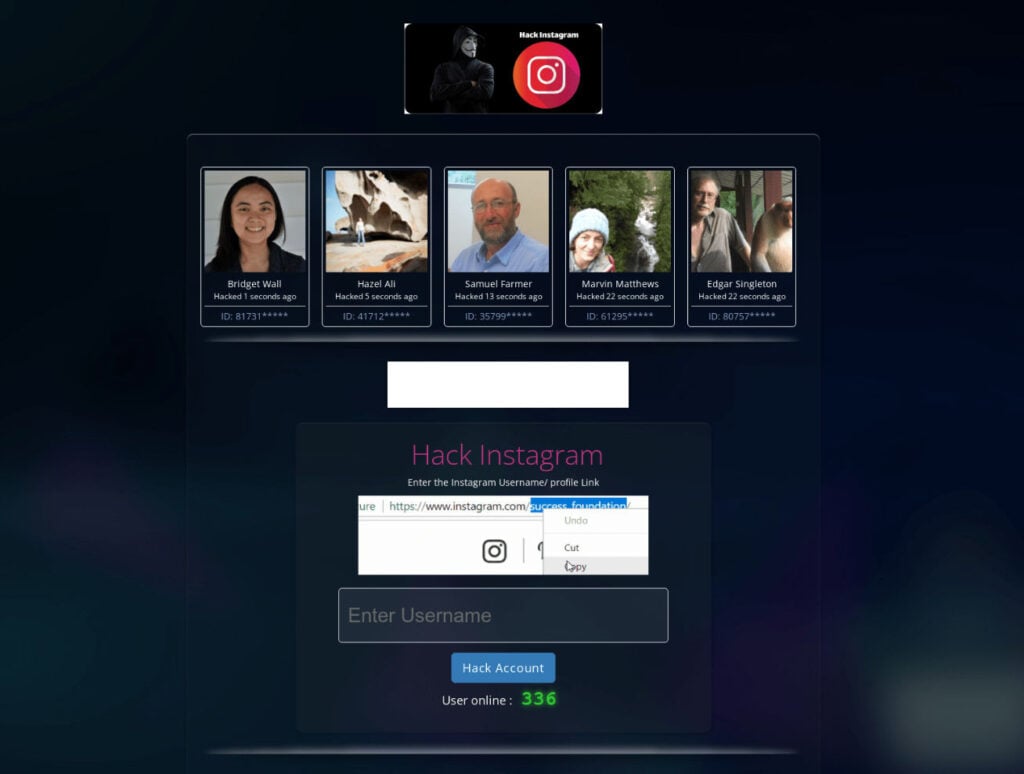
Scam Overview
Scam websites like “Instagram Password Hacker” claim to offer tools that can break into Instagram accounts within minutes. They advertise phrases such as “Hack Instagram in 2 minutes!” or “Instant password retrieval.” These claims are designed to spark curiosity, desperation, or malicious intent in users looking to gain unauthorized access to someone else’s account. However, the truth is simple: there is no legitimate way to hack into Instagram accounts through such websites. These are scams designed with a single goal, to exploit visitors.
The Lure of Instant Access
These sites usually start with flashy landing pages. They use bold headlines like “Instagram Password Hacker” or “Hack Any Instagram Account Now.” Screenshots and graphics are displayed to mimic professional hacking tools. To appear more credible, they often include a “Recent Activity” section that pretends to show usernames supposedly hacked by other users, along with their device type (PC, iOS, or Android). This creates an illusion of constant activity and success.
The scam relies on psychological manipulation. By presenting the process as easy and quick, they make people believe they are only a few clicks away from gaining someone else’s Instagram credentials. Unfortunately, this belief is false, and once a user engages, the real scam begins.
False Progress Bars and Fake Processes
After a user enters an Instagram username, the website pretends to initiate a hacking process. A progress bar appears, with labels such as “Connecting to server” or “Extracting password.” The page might even display loading animations or fake command-line text scrolling to give the illusion of real hacking activity. At every stage, the scammer’s goal is to keep the user engaged and convinced that something authentic is happening.
The Human Verification Trap
Eventually, the website halts the fake process and presents a message like “Human Verification Required.” It claims the system needs to verify that the user is not a bot before revealing the password. The user is then redirected to third-party survey pages or prompted to download mobile apps. These are affiliate links, meaning the scammers get paid every time someone completes a survey or downloads an app. In other cases, users may be asked to send SMS messages that sign them up for expensive premium-rate services without their knowledge.
Why These Websites Exist
The motivation behind these scams is money. Each survey completed or app downloaded generates revenue for the scammer through affiliate marketing programs. Additionally, some of these downloads may carry malware that compromises the victim’s device. Malicious software can steal login credentials, track keystrokes, or install unwanted applications that display intrusive ads.
False Legitimacy and Social Proof
To strengthen their credibility, scam websites often include fabricated reviews or fake testimonials. For instance, comments may appear at the bottom of the page with supposed users saying, “This worked perfectly for me, thank you!” These testimonials are manufactured and not from real people. Combined with the fake activity logs, they create an illusion of legitimacy that convinces more users to proceed.
This is just the surface. To truly understand the full scope of this fraud, we need to look at how the scam unfolds step by step.
How the Scam Works
Understanding how the “Instagram Password Hacker” scam operates is essential to avoiding it. Here is a detailed breakdown of the typical steps involved.
Step 1: The Search and Discovery
The journey often begins when someone searches for ways to hack into an Instagram account. Queries like “hack Instagram password online” or “recover Instagram account without email” often lead to scam websites. These sites rely heavily on search engine optimization, paid ads, or social media shares to attract visitors.
Step 2: The Landing Page
Once on the site, users are greeted with professional-looking pages that showcase a supposed hacking tool. They display bold claims and often include the Instagram logo to make the page appear authentic. The interface is deliberately designed to mimic legitimate software tools, with buttons, progress bars, and status updates.
Step 3: Entering a Username
The scam asks users to input an Instagram username they want to hack. This step is crucial for engagement. By asking for this information, the site convinces users that the hacking tool is customized for specific accounts. The moment the username is entered, the scam begins to unfold.
Step 4: Fake Hacking Sequence
After the username is submitted, the site simulates a hacking process. You may see messages like:
- “Connecting to server…”
- “Bypassing security…”
- “Extracting password files…”
These messages are completely fabricated. The site runs pre-programmed scripts to show fake progress bars and animations. Users are led to believe the hacking is real, but no actual Instagram data is accessed.
Step 5: The Verification Stage
Once the fake hacking reaches completion, the site pauses and presents the so-called verification step. This stage often states:
“We need to verify that you are a human before showing you the password.”
This is where the scam monetization occurs. The verification typically involves:
- Completing surveys: Users are asked to fill out online questionnaires. These are affiliate surveys, and scammers get paid when you complete them.
- Downloading apps: Victims may be redirected to app stores to download specific applications. Again, scammers earn money through affiliate marketing deals.
- Sending SMS: Some scams request users to send a text message, unknowingly subscribing them to expensive premium-rate SMS services.
Step 6: Endless Loops and No Results
After completing the so-called verification, victims expect to receive the hacked password. However, the site never delivers. Instead, it may redirect the user back to the verification page or prompt them to complete another survey. This loop continues indefinitely, ensuring scammers maximize their profits while the user gets nothing in return.
Step 7: Potential Malware Infection
Some of these sites also push fake downloads labeled as “password files” or “decryption tools.” In reality, these files may contain malware such as keyloggers, trojans, or adware. Once installed, the malware can:
- Steal login credentials for email, banking, or social media accounts.
- Track browsing habits to deliver intrusive ads.
- Slow down the victim’s device or compromise its security.
Step 8: Long-Term Consequences
Victims who interact with these websites may face a variety of issues:
- Financial loss from premium SMS subscriptions.
- Identity theft if malware steals login information.
- Privacy invasion through compromised devices.
- Ongoing scams since their data may be sold to other malicious actors.
What To Do If You Have Fallen Victim to This Scam
If you’ve interacted with an “Instagram Password Hacker” scam website, don’t panic. There are immediate steps you can take to protect yourself. Here is a detailed action plan:
- Stop Interacting with the Website
Close the browser tab immediately. Do not attempt further downloads or surveys. - Remove Suspicious Applications
If you downloaded apps during the verification process, uninstall them right away. Check your phone or computer for unfamiliar applications. - Run a Full Antivirus Scan
Use a reputable antivirus or anti-malware program to scan your device. Remove any threats detected. - Check for Premium SMS Subscriptions
If you sent an SMS, review your phone bill for unusual charges. Contact your mobile carrier to cancel unauthorized subscriptions and request a refund if possible. - Change Your Passwords
Update passwords for your email, social media, and banking accounts. Use unique, strong passwords for each account to prevent unauthorized access. - Enable Two-Factor Authentication (2FA)
Secure your Instagram and other important accounts with 2FA. This adds a second layer of protection even if your password is compromised. - Clear Browser Cache and Cookies
Scam sites often use tracking cookies. Clear your browser cache and cookies to remove these trackers. - Monitor for Identity Theft
Keep an eye on your financial accounts, credit reports, and email accounts. Watch for suspicious activity, such as unexpected logins or unfamiliar charges. - Educate Yourself and Others
Share your experience with friends and family to prevent them from falling into the same trap. Raising awareness is a key step in fighting these scams. - Report the Scam Website
Report the website to Google Safe Browsing, your browser provider, and cybersecurity authorities in your country. Taking action can help others avoid the same scam.
Is Your Device Infected? Run a Free Malware Scan
Slow performance, constant pop-ups, or strange behavior? These are classic signs of a malware infection. The fastest way to find out is to scan your device with Malwarebytes Free — one of the most trusted malware removal tools available.
The free version detects and removes the most common threats, including:
- Adware — the cause of those annoying pop-ups
- Browser hijackers — unwanted redirects and changed homepages
- Trojans and spyware — hidden programs stealing your data
- Potentially unwanted programs (PUPs) — software you never asked for
👉 Select your device below — Windows, Mac, or Android — then follow the simple steps to download Malwarebytes, scan your system, and remove any threats it finds. The scan usually takes 5 to 20 minutes.
Run a Malware Scan with Malwarebytes for Windows
Malwarebytes is one of the most popular and trusted anti-malware tools for Windows — and it’s completely free for removing infections. It catches threats that many antivirus programs miss, including adware, browser hijackers, and trojans. Follow the steps below to scan and clean your PC in just a few minutes.
Download Malwarebytes
Click the button below to download the latest version of Malwarebytes for Windows from the official source. The free version is all you need — it will scan your computer and remove adware, browser hijackers, and other malicious software at no cost.
Download MalwarebytesOfficial installer for Windows 11 and 10. Your download starts right away.Want real-time protection? See Malwarebytes Premium Malwarebytes Free for WindowsScans and removes malware at no cost
-
Install Malwarebytes
When the download finishes, open your Downloads folder and double-click the MBSetup file. If Windows shows a User Account Control pop-up, click “Yes” to allow the installation.

Follow the On-Screen Prompts to Install Malwarebytes
The setup wizard will walk you through a few quick screens:
-
Choose where you’re installing the program — “Personal Computer” or “Work Computer” — then click Next.

-
Malwarebytes will now install on your device. This usually takes under a minute.

-
When installation is complete, the “Welcome to Malwarebytes” screen will open automatically.

-
On the final screen, click Open Malwarebytes to launch the program.

-
Enable “Scan for Rootkits”
Before scanning, turn on rootkit detection so Malwarebytes can find even the most hidden threats. Click the Settings gear icon on the left side of the screen.

In the settings menu, find “Scan for rootkits” and click the toggle so it turns blue.

Done? Click “Dashboard” in the left pane to return to the main screen.
Start the Scan
Click the blue Scan button. Malwarebytes will automatically update its virus database and start checking your computer for malware.

-
Wait for the Scan to Finish
The scan checks your entire system for browser hijackers and other malicious programs, so it can take 5 to 20 minutes depending on your computer. Feel free to do something else — just check back occasionally to see the progress.

-
Quarantine the Detected Threats
When the scan is done, you’ll see a list of everything Malwarebytes found — malware, adware, and potentially unwanted programs. Click the “Quarantine” button to remove all of them at once.

Malwarebytes will now remove the malicious files and registry entries and move them safely into quarantine.

-
Restart Your Computer
Some threats can only be fully removed after a reboot. If Malwarebytes asks you to restart, click Yes. Once you’re logged back in, Malwarebytes has finished removing the threats it found.

That’s it — your Windows PC is now clean of trojans, adware, and other malware, and should be back to running smoothly.
If you are still having problems with your computer after completing these instructions, then please follow one of the steps:
- Run a computer scan with ESET Online Scanner
- Ask for help in our Windows Malware Removal Help & Support forum.
Run a Malware Scan with Malwarebytes for Mac
Malwarebytes for Mac is a free on-demand scanner that removes the malware other security software tends to miss — adware, browser hijackers, and unwanted programs included. Cleaning an infected Mac with Malwarebytes has always been completely free, and it’s our go-to recommendation. Follow the steps below to scan and clean your Mac in just a few minutes.
-
Download Malwarebytes for Mac
Click the button below to download the latest version of Malwarebytes for Mac.
Download MalwarebytesOfficial installer for macOS. Your download starts right away.Want real-time protection? See Malwarebytes PremiumMalwarebytes Free for MacScans and removes malware at no cost -
Open the Malwarebytes setup file
When the download finishes, open your Downloads folder and double-click the setup file to begin the installation.

-
Follow the On-Screen Prompts to Install Malwarebytes
The Malwarebytes for Mac Installer will guide you through a few quick screens. Click “Continue” and keep following the prompts until the installation completes.



When the installation is complete, Malwarebytes opens to the Welcome to Malwarebytes screen. Click “Get started“.
-
Select “Personal Computer” or “Work Computer”
Malwarebytes will ask what type of computer you’re installing it on. Click either Personal Computer or Work Computer, whichever applies.

-
Start the Scan
Click the “Scan” button. Malwarebytes will automatically update its detection database and begin checking your Mac for malware.

-
Wait for the Scan to Finish
Malwarebytes will scan your Mac for adware, browser hijackers, and other malicious programs. This can take a few minutes, so feel free to do something else — just check back occasionally to see the progress.

-
Quarantine the Detected Threats
When the scan is done, you’ll see a list of everything Malwarebytes found. Click the “Quarantine” button to remove all the threats at once.

-
Restart Your Mac
Malwarebytes will now remove all the malicious files it found. Some threats can only be fully removed after a reboot — if Malwarebytes asks you to restart, allow it. Once you’re logged back in, your Mac is clean.

That’s it — your Mac is now free of adware, rogue browser extensions, and other potentially harmful software.
If you are still experiencing problems while trying to remove a malicious program from your computer, please ask for help in our Mac Malware Removal Help & Support forum.
Run a Malware Scan with Malwarebytes for Android
Malwarebytes for Android automatically detects and removes dangerous threats like malware and ransomware so you don’t have to worry about your most-used device being compromised. Aggressive detection of adware and potentially unwanted programs keeps your Android phone or tablet running smooth.
-
Download Malwarebytes for Android.
You can download Malwarebytes for Android by clicking the link below.
Get Malwarebytes for AndroidOpens Google Play in a new tab.Want real-time protection? See Malwarebytes Premium for AndroidMalwarebytes for AndroidScans your phone and removes malware at no cost -
Install Malwarebytes for Android on your phone.
In the Google Play Store, tap “Install” to install Malwarebytes for Android on your device.

When the installation process has finished, tap “Open” to begin using Malwarebytes for Android. You can also open Malwarebytes by tapping on its icon in your phone menu or home screen.

-
Follow the on-screen prompts to complete the setup process
When Malwarebytes will open, you will see the Malwarebytes Setup Wizard which will guide you through a series of permissions and other setup options.
This is the first of two screens that explain the difference between the Premium and Free versions. Swipe this screen to continue.
Tap on “Got it” to proceed to the next step.
Malwarebytes for Android will now ask for a set of permissions that are required to scan your device and protect it from malware. Tap on “Give permission” to continue.
Tap on “Allow” to permit Malwarebytes to access the files on your phone.
-
Update database and run a scan with Malwarebytes for Android
You will now be prompted to update the Malwarebytes database and run a full system scan.

Click on “Update database” to update the Malwarebytes for Android definitions to the latest version, then click on “Run full scan” to perform a system scan.

-
Wait for the Malwarebytes scan to complete.
Malwarebytes will now start scanning your phone for adware and other malicious apps. This process can take a few minutes, so we suggest you do something else and periodically check on the status of the scan to see when it is finished.

-
Click on “Remove Selected”.
When the scan has been completed, you will be presented with a screen showing the malware infections that Malwarebytes for Android has detected. To remove the malicious apps that Malwarebytes has found, tap on the “Remove Selected” button.

-
Restart your phone.
Malwarebytes for Android will now remove all the malicious apps that it has found. To complete the malware removal process, Malwarebytes may ask you to restart your device.
That’s it — your Android phone is now clean — no more malicious apps, adware, or browser redirects.
If you are still having problems with your phone after completing these instructions, then please follow one of the steps:
- Restore your phone to factory settings by going to Settings > General management > Reset > Factory data reset.
- Ask for help in our Mobile Malware Removal Help & Support forum.
Stay Protected: Block Ads and Malicious Sites
Now that your device is clean, keep it that way. Most infections start with a malicious ad or a fake download button — so blocking them at the source is your best defense.
We recommend AdGuard, which blocks malicious ads, phishing pages, and dangerous redirects before they can reach you.
👉 Download AdGuard and browse safely
Frequently Asked Questions (FAQ) About the Instagram Password Hacker Scam
1. What is the Instagram Password Hacker scam?
The Instagram Password Hacker scam refers to fraudulent websites like instagramhackonline[.]com that claim to provide free access to Instagram accounts by “hacking” their passwords. These sites lure users with fake progress bars and messages, but in reality, they never deliver any password. Instead, they trick users into completing surveys, downloading apps, or sending SMS messages that generate revenue for the scammers. Some even spread malware to compromise your device.
2. Is instagramhackonline[.]com legitimate?
No, instagramhackonline[.]com is not legitimate. It is one of many scam websites that pretend to offer Instagram hacking services. These sites are designed purely to exploit users by pushing them into endless verification steps or downloading harmful software. No tool or website can actually hack Instagram accounts, and any claim to do so is a red flag.
3. How do Instagram Password Hacker websites trick people?
These scams follow a predictable pattern:
- They ask for an Instagram username.
- They display a fake “hacking” sequence with progress bars.
- They stop at a “verification required” step.
- They push users into completing surveys, downloading apps, or sending SMS messages.
At the end of the process, users never receive any Instagram password. Instead, scammers profit from the clicks, downloads, and subscriptions.
4. Can these scams steal my personal data?
Yes, absolutely. Some of these websites request downloads labeled as “password files” or “decryption tools” that contain malware. Once installed, the malware can:
- Steal your login credentials.
- Record your keystrokes.
- Collect browsing history and sensitive data.
- Compromise your device security.
In addition, completing surveys or submitting phone numbers can lead to spam calls, identity theft, or unauthorized SMS charges.
5. What should I do if I visited instagramhackonline[.]com?
If you interacted with instagramhackonline[.]com or a similar site:
- Close the website immediately.
- Remove any apps or files you downloaded from the site.
- Run a full antivirus scan on your device.
- Contact your mobile provider if you sent an SMS or notice premium charges on your bill.
- Change your passwords for important accounts, especially email and social media.
- Enable two-factor authentication (2FA) to secure your accounts.
6. Can anyone really hack an Instagram account online?
No, it is not possible to hack Instagram accounts using websites like instagramhackonline[.]com. Instagram has strong security measures in place, and no online tool can bypass them. The only way to access an account is by using the official recovery options provided by Instagram, such as email, phone number, or linked Facebook account.
7. Why do these scam websites exist?
These scam websites exist for one reason: profit. Scammers earn money every time a user completes a survey, downloads an app, or subscribes to a premium SMS service. In some cases, they also profit by spreading malware that steals data. They do not care about giving you access to an Instagram account; their goal is to exploit your curiosity and monetize your actions.
8. How can I avoid falling for Instagram hacking scams?
To protect yourself:
- Be skeptical of websites claiming to hack Instagram accounts.
- Avoid clicking on ads or search results that promise free password recovery.
- Rely only on Instagram’s official account recovery process.
- Install a trusted antivirus program and keep your device updated.
- Educate yourself and others about common online scams.
9. What are the dangers of completing surveys or sending SMS for these scams?
Completing surveys or sending SMS messages can result in:
- Subscribing to expensive premium SMS services without consent.
- Exposure to phishing attempts through fraudulent forms.
- Data harvesting where your personal information is sold to marketers or criminals.
- Malware infections from malicious app downloads.
10. What should I do if my device is infected after visiting a scam site?
If you suspect your device has been infected after interacting with instagramhackonline[.]com or similar websites:
- Disconnect from the internet to stop further data transmission.
- Run a full malware and antivirus scan.
- Remove all suspicious apps or files.
- Reset your passwords using a clean device.
- If problems persist, perform a factory reset or seek help from a cybersecurity professional.
The Bottom Line
Instagram password hacker scam websites are elaborate traps designed to exploit users for money, data, or both. They promise quick access to accounts but deliver nothing but fake progress bars, endless surveys, and potential malware. No legitimate tool or website can hack Instagram passwords, and any service claiming otherwise is a scam. If you have interacted with one of these websites, take immediate steps to secure your accounts, scan your devices, and monitor your financial activity. Staying informed and cautious is the best way to protect yourself online.
Ultimately, the lesson is clear: if something seems too good to be true, it usually is. Protect your digital security by avoiding shortcuts and recognizing the warning signs of scams.

Join the discussion
19 commentsShare your experience or ask a question about this article.
Discussion
Password do
Ok bhai
How to collect the password of below given account password keep only email id
In reply to Likithashree
We cannot help obtain or steal someone’s password. Never use password-hacking services or ask for credentials. If this concerns your own account, use the service’s official password-reset and account-recovery process.
hack this accwent
In reply to abdre_x_
My girl friend 😅
In reply to Shiva parvathi Rajavarapu
My also 🤣
In reply to Jone
Worth being blunt about this one: none of those “password hacker” sites work. They exist to collect the login you type in, to install something on your device, or to charge for a fake result – so the account most likely to be compromised is your own. And accessing someone else’s account without permission is a criminal offence in most countries, whoever they are. If you’ve lost access to your own account, use Instagram’s official account recovery instead.
At least can i read someone chats on instagram ? My access their phone and see what they doing also when phone’s screen just off and use their phone see massages ?
In reply to Yshi
No – and I want to answer this directly rather than just refusing, because there are two separate things in your question and both matter.
Reading someone’s Instagram messages without their knowledge, or installing something on their phone to watch what they do, is unauthorised access to their account and device. It is a criminal offence in most countries, whatever the relationship is, and the software sold for it – the “monitoring” apps advertised for partners – is in many places illegal to install on an adult’s phone without consent. People have been prosecuted for it. Beyond the law, it is the behaviour that domestic-abuse services treat as a serious warning sign, and it does not lead anywhere good for either person.
The other half is that none of it works the way it is advertised. The tools promising remote access without touching the phone do not exist; the sites selling them take your money, or your own login, and a fair number install malware on the machine of the person doing the searching.
The exception, and it is a real one: if you are a parent worried about a child, use the official tools – Family Center on Instagram, Google Family Link, Apple Screen Time – openly and with the child’s knowledge. If this is about a partner, then what you actually have is a problem of trust, and reading their messages will not resolve it. Talk to them, or to someone you trust about how things are going.
Instagram passwod
In reply to uzPRO
I am not going to help with that. Getting into someone else’s Instagram account without their permission is unauthorised access – a criminal offence in most countries, prosecuted even between partners and family members – and every site, app or “hacker” claiming to do it is a scam. They take a payment and disappear, or they harvest the login of the person doing the searching, and several install spyware in the process. People who come looking for someone else’s password very often lose their own account.
If it is your own account you have lost access to, that is a different matter and there is a real route: instagram.com/hacked will walk you through recovery, and I am happy to help with that if you tell me what happens when you try.
Good 👍
In reply to pankaj
Thanks for reading. Please be careful with any site that claims it can hack or “recover” accounts. Many are credential theft traps.
In reply to Stelian
My Instagram Account apmondal8 was hacked please recovary my Instagram account
Instagram recover account
In reply to Guru Ji
Hello Guru,
We can’t help with Instagram account recovery here, and please be careful: anyone offering “account recovery” services in comments or DMs is very often part of a scam. Only use Instagram’s official recovery options in the app or Help Center.
Stelian