

You open your inbox and there it is: an Instagram email with the subject line “Reset your password.” It looks official. It uses Instagram branding. It even says the request will be ignored if you do nothing.
If you did not request a password reset, your brain instantly goes to the worst-case scenario: “Am I hacked?”
Here’s the tricky part. Sometimes these emails are real and harmless, triggered by a bug or by someone typing your username. Other times they are carefully crafted phishing emails designed to steal your login. And right now, scammers are taking advantage of the confusion created by a widely reported wave of unsolicited reset emails and separate claims that a large dataset of Instagram user details is circulating online.
This guide will help you tell the difference, understand what’s actually happening, and lock down your account the right way without clicking something you will regret.
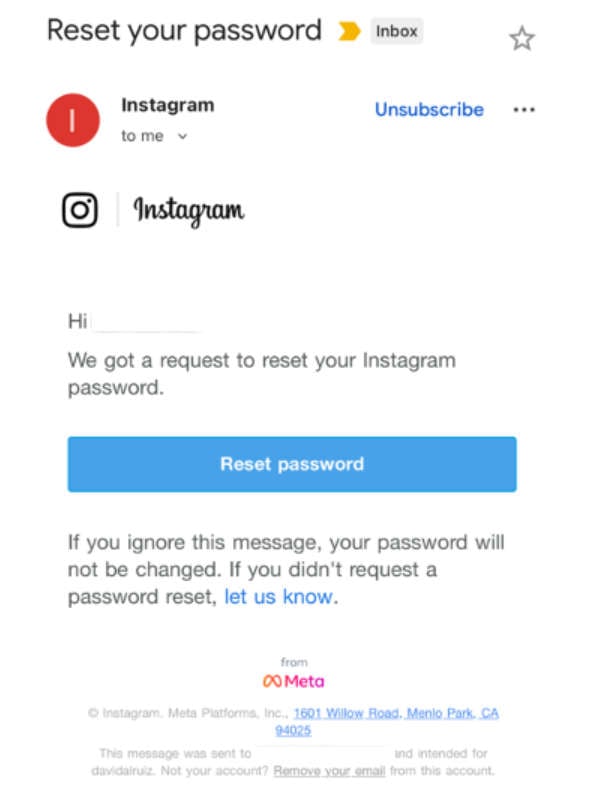
Overview
Why people are suddenly getting “Reset your password” emails
In early January 2026, a lot of Instagram users reported receiving password reset emails they did not request. Multiple outlets reported that Instagram said there was no breach of its systems, and that the emails were triggered because an external party was able to initiate password reset emails for some users due to an issue that Instagram says it has fixed.
That matters because it changes what the email means:
- A password reset email does not automatically mean someone logged into your account.
- It can simply mean someone (or something) attempted the reset flow using your username or email address.
- It can also mean a scammer is trying to scare you into clicking a fake link.
Instagram’s public messaging about this wave was essentially: the issue has been addressed, accounts remain secure, and users can ignore those emails.
The “17 million accounts” data story and why it fuels phishing
Around the same time, cybersecurity reporting and news coverage pointed to claims that a dataset involving roughly 17 million to 17.5 million Instagram user records was being offered or shared on criminal forums. Malwarebytes reported the dataset included things like usernames, email addresses, phone numbers, countries, and partial locations, and emphasized that it did not include passwords.
SecurityWeek also summarized the situation and noted that data-breach notification service Have I Been Pwned warned about a dataset with more than 17 million entries and millions of email addresses, while also stating the scraped data appeared unrelated to the password reset issue and that there was no evidence passwords were compromised.
So how do these two storylines connect in the real world?
Even if Instagram says the reset-email surge was caused by a bug and not a breach, the timing creates a perfect environment for scammers:
- People are primed to panic.
- People expect security emails.
- People are more likely to click quickly “just to be safe.”
Scammers love moments like this because fear lowers your defenses.
Fake or real: the key idea you should remember
A legitimate Instagram password reset email and a fake one can look nearly identical on the surface.
The difference is rarely the logo. It is the path you take.
If you click links inside an unexpected email, you are playing on the attacker’s turf.
If you verify everything inside the Instagram app (or by typing instagram.com yourself), you stay on safe ground.
What a real Instagram reset email usually does, and what it never does
A real password reset email typically:
- Addresses you by your Instagram username (often).
- States a reset was requested.
- Includes a button like “Reset password.”
- Says you can ignore it if you did not request it.
A real password reset email should never:
- Ask you to reply with your password.
- Ask you to “confirm your password” by email.
- Threaten immediate account deletion unless you act in minutes.
- Send you to a strange domain, a shortened link, or a page that looks like Instagram but is not.
Instagram’s own built-in verification: check “Recent emails” in the app
Instagram provides a way to confirm which security emails were actually sent by Instagram.
The Instagram Help Center describes that you can view official Instagram emails sent within the last 14 days from your settings, which helps you identify phishing and spam.
This is one of the simplest ways to settle the “fake or real” question without guessing.
If the email is not listed there, treat it as suspicious.
Why scammers send password reset emails even when they do not have your password
Attackers do not always need your password to cause trouble.
Here are common motives behind unsolicited resets and lookalike reset emails:
- Testing whether an email address is linked to an Instagram account (account enumeration).
- Annoying you into clicking a link.
- Creating a sense of urgency so you type your password into a fake login page.
- Pushing you into “support” chats where they try to steal verification codes.
Sometimes it is simply harassment. Other times it is the first step in a takeover attempt.
The uncomfortable truth: the email might be real, and still be part of an attack
This confuses people, so let’s say it plainly:
- A real Instagram reset email can be triggered by someone else.
- A fake reset email can imitate a real one.
- In both cases, clicking the email link is an unnecessary risk.
If you want to change your password, do it from inside the app.
That way, even if the email was a fake copy, you never touched the trap.
What “no passwords in the leak” really means for you
It is reassuring that the widely discussed dataset described by Malwarebytes did not include passwords.
But it still matters because personal data enables smarter attacks:
- Phishing emails that include your name, username, or phone number feel more believable.
- SMS-based scams become easier if a phone number is exposed.
- Credential stuffing becomes more effective if attackers combine your Instagram email with passwords from other breaches.
So even without passwords, your risk can rise.
That is why strong, unique passwords and two-factor authentication are still non-negotiable.
Two-factor authentication is your safety net
If someone does manage to get your password, two-factor authentication (2FA) can stop them from logging in.
Instagram’s help documentation highlights using an authentication app (recommended) as a method for 2FA, such as Duo Mobile or Google Authenticator.
Enabling 2FA does not just protect you from hacks. It also reduces the panic factor when you see scary emails, because you know a password alone is not enough.
The practical takeaway
Because there are multiple things happening at once (real reset emails being triggered at scale, plus separate reports about user data circulating, plus opportunistic phishing), the safest approach is consistent:
- Do not click unexpected reset links.
- Verify emails inside the Instagram app via “Recent emails.”
- Change your password only inside the app.
- Turn on 2FA with an authenticator app.
This works whether the email was real, fake, or triggered by a glitch.
How The Scam Works
Step 1: Scammers pick a moment when you are already on edge
Scams work best when people are already worried.
News coverage about a wave of unsolicited password reset emails and debate over an alleged large dataset being shared creates exactly that environment.
Attackers know many users will be thinking:
- “Maybe Instagram got breached.”
- “I should act fast.”
- “This email looks official.”
That emotional pressure is the attacker’s advantage.
Step 2: They send a lookalike “Instagram password reset” email
The phishing email usually copies the real format:
- Instagram logo
- “Reset your password” subject line
- A prominent reset button
- Small text saying you can ignore it
They may also add extra urgency, such as:
- “Suspicious login detected”
- “Your account will be locked”
- “Confirm within 10 minutes”
That urgency is often the tell.
Step 3: The link leads you off Instagram, but it is designed to feel identical
When you click the button in a phishing email, one of three things usually happens:
- A fake Instagram login page appears
It looks right. It may even have a padlock icon. But it is hosted on a scam domain. - A “security check” page appears first
It may ask you to confirm your username, then password, then a 2FA code. - A page pretends the link “expired” and asks you to log in again
This trick reduces suspicion because expired reset links are common in real life.
Step 4: They harvest your password and immediately try to log in
Once you type your password, attackers often attempt login right away.
If you do not have 2FA enabled, the takeover can be fast:
- They log in
- They change the email address
- They change the phone number
- They set up their own 2FA, locking you out
If you do have 2FA enabled, the attacker pivots.
Step 5: If you have 2FA, they switch tactics to steal your verification code
If your account is protected by 2FA, scammers may try to get your code in several ways:
- The fake site asks for the 6-digit authenticator code after the password.
- A fake “Instagram Support” chat messages you claiming they need the code to “secure” your account.
- They trigger real login attempts so you get real security notifications, then pressure you to approve them.
This is where many people slip: the code feels temporary, so it feels safe to share.
It is not safe.
A 2FA code is effectively a second password in that moment.
Step 6: They use your Instagram account as a weapon
Once an attacker controls your Instagram, they typically do at least one of the following:
- DM scams to your followers (“I need help,” “vote for me,” “crypto,” “giveaway”).
- Scam story posts with a link sticker.
- Fake “brand deal” outreach to other accounts using your identity.
- Trying the same password on your email or other social accounts.
If you run ads, manage business pages, or have payment methods linked, the risk expands beyond embarrassment into financial harm.
Step 7: They cover their tracks and slow down recovery
Attackers often try to make recovery harder by:
- Changing your contact email and phone number.
- Turning on 2FA under their control.
- Logging you out of all devices.
- Renaming the account or changing the handle to break recognition.
- Deleting notification emails to delay your reaction (if they access your inbox).
This is why email security matters so much. If a scammer controls your email, they can reset many accounts.
The “real email” twist: how attackers exploit legitimate reset emails
Not every attack requires a fake email.
Sometimes attackers rely on legitimate emails being triggered:
- A real Instagram reset email arrives.
- You panic and click it.
- You land on the real reset flow.
- But then you “confirm” things elsewhere, like a fake support chat, or you reuse a weak password.
During the recent wave, Instagram said an external party could trigger these reset emails due to an issue that has since been fixed.
That means attackers could create noise at scale, making users more likely to fall for phishing copies.
Common red flags that strongly suggest a fake reset email
Look for these clues:
- The sender domain is not @mail.instagram.com.
- The “To” field is weird, or shows many recipients.
- The link preview shows a non-Instagram domain.
- The email pressures you with time limits.
- It asks for personal info, codes, or payment details.
- The design is slightly off, especially on mobile, where spacing and fonts can look “almost right.”
Instagram’s Help Center guidance includes that authentic emails from Instagram will only come from @mail.instagram.com.
Even then, do not click. Use the in-app verification.
The safest verification flow (no guessing required)
If you get a reset email you did not request, do this:
- Do not click anything in the email.
- Open Instagram and go to your account security area.
- Check “Recent emails” to see if Instagram logged that message as an official email within the last 14 days.
- If you want to change your password, do it inside the app.
This approach works whether the email was real, fake, or triggered by someone else.
What To Do If You Have Fallen Victim to This Scam
If you clicked a link, entered your password, or shared a code, do not panic. You still have a strong chance of recovering your account if you act quickly and calmly.
Follow this checklist in order.
- Change your Instagram password immediately from inside the app
Do not use the email link.
- Choose a long, unique password you have never used anywhere else.
- Avoid predictable patterns and reused phrases.
If you cannot log in, use Instagram’s official recovery flow in the app (Forgot password) rather than email links.
- Change your email password right away
Your email is the master key.
- If a scammer gets into your inbox, they can reset Instagram again.
- Use a unique password here too.
- Turn on two-factor authentication with an authenticator app
Instagram supports 2FA, and its help guidance highlights authentication apps as a recommended option.
- Use an authenticator app rather than relying only on SMS if you can.
- Save backup codes somewhere safe.
- Check “Recent emails” inside Instagram and treat mismatches seriously
Instagram provides a way to view official emails sent within the last 14 days so you can identify phishing and spam.
- If the suspicious email is not listed, assume it was phishing.
- If it is listed, it may have been a legitimate reset request triggered by someone else, but you should still secure the account.
- Review login activity and active sessions
Look for:
- Devices you do not recognize
- Locations that do not match your travel
- Times you were asleep
Log out of unfamiliar sessions.
- Confirm your contact details were not changed
Check:
- Email address
- Phone number
- Linked Accounts Center details (if applicable)
If anything changed, revert it immediately.
- Warn your followers if scammers messaged them
A short story post or DM can prevent others from getting hurt.
What to say:
- You were hacked or phished
- Do not click recent links from your account
- Ignore any requests for money, codes, or “votes”
- Check your DMs for damage and remove suspicious links
If the attacker sent scam links, delete them where possible, and consider messaging close contacts directly. - Report the incident to Instagram through the app
Use in-app reporting and account recovery options. Avoid “support” accounts that DM you first. - Scan your devices if you downloaded anything
Most password reset scams are pure phishing, but if you downloaded an “Instagram security tool” or a file, run a reputable security scan. - Watch for follow-up scams
After a phishing attempt, victims often get targeted again.
Common follow-ups include:
- “Recovery services” claiming they can get your account back for a fee
- Fake lawyers or “Meta agents”
- More reset emails to wear you down
Do not pay strangers to “recover” your account.
- If money was involved, act fast with your financial institution
If you entered payment details, paid a “verification fee,” or noticed unauthorized charges:
- Contact your bank or card issuer immediately.
- Freeze or replace the card if advised.
- Document what happened with screenshots and timestamps.
Even small charges can be a test before bigger fraud.
Is Your Device Infected? Run a Free Malware Scan
Slow performance, constant pop-ups, or strange behavior? These are classic signs of a malware infection. The fastest way to find out is to scan your device with Malwarebytes Free — one of the most trusted malware removal tools available.
The free version detects and removes the most common threats, including:
- Adware — the cause of those annoying pop-ups
- Browser hijackers — unwanted redirects and changed homepages
- Trojans and spyware — hidden programs stealing your data
- Potentially unwanted programs (PUPs) — software you never asked for
👉 Select your device below — Windows, Mac, or Android — then follow the simple steps to download Malwarebytes, scan your system, and remove any threats it finds. The scan usually takes 5 to 20 minutes.
Run a Malware Scan with Malwarebytes for Windows
Malwarebytes is one of the most popular and trusted anti-malware tools for Windows — and it’s completely free for removing infections. It catches threats that many antivirus programs miss, including adware, browser hijackers, and trojans. Follow the steps below to scan and clean your PC in just a few minutes.
Download Malwarebytes
Click the button below to download the latest version of Malwarebytes for Windows from the official source. The free version is all you need — it will scan your computer and remove adware, browser hijackers, and other malicious software at no cost.
Download MalwarebytesOfficial installer for Windows 11 and 10. Your download starts right away.Want real-time protection? See Malwarebytes Premium Malwarebytes Free for WindowsScans and removes malware at no cost
-
Install Malwarebytes
When the download finishes, open your Downloads folder and double-click the MBSetup file. If Windows shows a User Account Control pop-up, click “Yes” to allow the installation.

Follow the On-Screen Prompts to Install Malwarebytes
The setup wizard will walk you through a few quick screens:
-
Choose where you’re installing the program — “Personal Computer” or “Work Computer” — then click Next.

-
Malwarebytes will now install on your device. This usually takes under a minute.

-
When installation is complete, the “Welcome to Malwarebytes” screen will open automatically.

-
On the final screen, click Open Malwarebytes to launch the program.

-
Enable “Scan for Rootkits”
Before scanning, turn on rootkit detection so Malwarebytes can find even the most hidden threats. Click the Settings gear icon on the left side of the screen.

In the settings menu, find “Scan for rootkits” and click the toggle so it turns blue.

Done? Click “Dashboard” in the left pane to return to the main screen.
Start the Scan
Click the blue Scan button. Malwarebytes will automatically update its virus database and start checking your computer for malware.

-
Wait for the Scan to Finish
The scan checks your entire system for browser hijackers and other malicious programs, so it can take 5 to 20 minutes depending on your computer. Feel free to do something else — just check back occasionally to see the progress.

-
Quarantine the Detected Threats
When the scan is done, you’ll see a list of everything Malwarebytes found — malware, adware, and potentially unwanted programs. Click the “Quarantine” button to remove all of them at once.

Malwarebytes will now remove the malicious files and registry entries and move them safely into quarantine.

-
Restart Your Computer
Some threats can only be fully removed after a reboot. If Malwarebytes asks you to restart, click Yes. Once you’re logged back in, Malwarebytes has finished removing the threats it found.

That’s it — your Windows PC is now clean of trojans, adware, and other malware, and should be back to running smoothly.
If you are still having problems with your computer after completing these instructions, then please follow one of the steps:
- Run a computer scan with ESET Online Scanner
- Ask for help in our Windows Malware Removal Help & Support forum.
Run a Malware Scan with Malwarebytes for Mac
Malwarebytes for Mac is a free on-demand scanner that removes the malware other security software tends to miss — adware, browser hijackers, and unwanted programs included. Cleaning an infected Mac with Malwarebytes has always been completely free, and it’s our go-to recommendation. Follow the steps below to scan and clean your Mac in just a few minutes.
-
Download Malwarebytes for Mac
Click the button below to download the latest version of Malwarebytes for Mac.
Download MalwarebytesOfficial installer for macOS. Your download starts right away.Want real-time protection? See Malwarebytes PremiumMalwarebytes Free for MacScans and removes malware at no cost -
Open the Malwarebytes setup file
When the download finishes, open your Downloads folder and double-click the setup file to begin the installation.

-
Follow the On-Screen Prompts to Install Malwarebytes
The Malwarebytes for Mac Installer will guide you through a few quick screens. Click “Continue” and keep following the prompts until the installation completes.



When the installation is complete, Malwarebytes opens to the Welcome to Malwarebytes screen. Click “Get started“.
-
Select “Personal Computer” or “Work Computer”
Malwarebytes will ask what type of computer you’re installing it on. Click either Personal Computer or Work Computer, whichever applies.

-
Start the Scan
Click the “Scan” button. Malwarebytes will automatically update its detection database and begin checking your Mac for malware.

-
Wait for the Scan to Finish
Malwarebytes will scan your Mac for adware, browser hijackers, and other malicious programs. This can take a few minutes, so feel free to do something else — just check back occasionally to see the progress.

-
Quarantine the Detected Threats
When the scan is done, you’ll see a list of everything Malwarebytes found. Click the “Quarantine” button to remove all the threats at once.

-
Restart Your Mac
Malwarebytes will now remove all the malicious files it found. Some threats can only be fully removed after a reboot — if Malwarebytes asks you to restart, allow it. Once you’re logged back in, your Mac is clean.

That’s it — your Mac is now free of adware, rogue browser extensions, and other potentially harmful software.
If you are still experiencing problems while trying to remove a malicious program from your computer, please ask for help in our Mac Malware Removal Help & Support forum.
Run a Malware Scan with Malwarebytes for Android
Malwarebytes for Android automatically detects and removes dangerous threats like malware and ransomware so you don’t have to worry about your most-used device being compromised. Aggressive detection of adware and potentially unwanted programs keeps your Android phone or tablet running smooth.
-
Download Malwarebytes for Android.
You can download Malwarebytes for Android by clicking the link below.
Get Malwarebytes for AndroidOpens Google Play in a new tab.Want real-time protection? See Malwarebytes Premium for AndroidMalwarebytes for AndroidScans your phone and removes malware at no cost -
Install Malwarebytes for Android on your phone.
In the Google Play Store, tap “Install” to install Malwarebytes for Android on your device.

When the installation process has finished, tap “Open” to begin using Malwarebytes for Android. You can also open Malwarebytes by tapping on its icon in your phone menu or home screen.

-
Follow the on-screen prompts to complete the setup process
When Malwarebytes will open, you will see the Malwarebytes Setup Wizard which will guide you through a series of permissions and other setup options.
This is the first of two screens that explain the difference between the Premium and Free versions. Swipe this screen to continue.
Tap on “Got it” to proceed to the next step.
Malwarebytes for Android will now ask for a set of permissions that are required to scan your device and protect it from malware. Tap on “Give permission” to continue.
Tap on “Allow” to permit Malwarebytes to access the files on your phone.
-
Update database and run a scan with Malwarebytes for Android
You will now be prompted to update the Malwarebytes database and run a full system scan.

Click on “Update database” to update the Malwarebytes for Android definitions to the latest version, then click on “Run full scan” to perform a system scan.

-
Wait for the Malwarebytes scan to complete.
Malwarebytes will now start scanning your phone for adware and other malicious apps. This process can take a few minutes, so we suggest you do something else and periodically check on the status of the scan to see when it is finished.

-
Click on “Remove Selected”.
When the scan has been completed, you will be presented with a screen showing the malware infections that Malwarebytes for Android has detected. To remove the malicious apps that Malwarebytes has found, tap on the “Remove Selected” button.

-
Restart your phone.
Malwarebytes for Android will now remove all the malicious apps that it has found. To complete the malware removal process, Malwarebytes may ask you to restart your device.
That’s it — your Android phone is now clean — no more malicious apps, adware, or browser redirects.
If you are still having problems with your phone after completing these instructions, then please follow one of the steps:
- Restore your phone to factory settings by going to Settings > General management > Reset > Factory data reset.
- Ask for help in our Mobile Malware Removal Help & Support forum.
Stay Protected: Block Ads and Malicious Sites
Now that your device is clean, keep it that way. Most infections start with a malicious ad or a fake download button — so blocking them at the source is your best defense.
We recommend AdGuard, which blocks malicious ads, phishing pages, and dangerous redirects before they can reach you.
👉 Download AdGuard and browse safely
The Bottom Line
An unexpected Instagram password reset email can be real, fake, or real but triggered by someone else. During the recent surge, Instagram said an external party was able to trigger password reset emails for some users due to an issue that was fixed, while separate reporting discussed a dataset of Instagram user details circulating online without passwords.
The safest response is simple and consistent:
- Do not click reset links in unexpected emails.
- Verify security emails inside Instagram using the “Recent emails” feature, which shows official emails from the last 14 days.
- Change your password inside the app.
- Enable 2FA, preferably with an authenticator app.
If you treat every surprise reset email as a moment to tighten your security, not as a button to click, you turn a scammer’s favorite trick into a non-event.
FAQ
Is an Instagram “Reset your password” email always a scam?
No. It can be a legitimate Instagram email triggered by someone trying to reset your password, a glitch, or automated activity. The danger is clicking links inside unexpected emails. The safest move is to open the Instagram app and check your security settings there.
How can I quickly tell if the email is real or fake?
Do not click the button. Instead, open Instagram and check the “Recent emails” section (Settings and activity, then Accounts Center, then Password and security, then Recent emails). If the message is not listed there, treat it as phishing.
I did not request a password reset. Does that mean someone has my password?
Not necessarily. A reset email only means someone initiated the reset flow using your username or email. It does not confirm they successfully logged in.
What should I do if I keep receiving password reset emails?
If it happens repeatedly:
- Change your password in the Instagram app to a long, unique one
- Enable two-factor authentication (2FA)
- Review login activity and log out of unknown devices
- Check your email account security too (change email password, enable 2FA there as well)
Is it safe to ignore a password reset email I did not request?
Usually yes, especially if you have 2FA enabled and your password is strong. Still, it is smart to review your login activity and confirm the email is legitimate via “Recent emails.”
What are the biggest red flags that the email is a phishing attempt?
Common red flags include:
- The sender address is not from an official Instagram mail domain
- The link goes to a non-Instagram domain or a shortened URL
- The email threatens urgent action like “account locked in 10 minutes”
- It asks you to reply with information, confirm details, or provide a 2FA code
- The page you land on looks “almost” like Instagram but feels off
If I clicked the link but did not enter my password, am I safe?
Often yes, but do not assume. Close the page and then:
- Change your Instagram password in the app (optional but recommended if you are unsure)
- Run a security scan if anything was downloaded
- Check login activity for unknown sessions
If I entered my password on a page from that email, what should I do first?
Act immediately:
- Change your Instagram password in the app
- Change your email password (important)
- Enable 2FA on Instagram and your email
- Log out of unknown devices and review recent activity
Can scammers steal my account even if I have 2FA enabled?
2FA makes account takeovers much harder, but scammers may try to trick you into giving them the 2FA code. Never share a code with anyone, even if they claim to be Instagram support.
Should I reset my password through the email button if the email looks official?
No. Even if it looks official, the safest habit is to reset your password directly in the Instagram app or by typing instagram.com yourself. That removes the risk of being sent to a lookalike page.
How do I secure my Instagram account the “right way” after a scare like this?
Best practices:
- Use a unique password you do not reuse anywhere else
- Turn on 2FA using an authenticator app
- Review “Where you’re logged in” and remove unfamiliar sessions
- Keep your recovery email and phone number updated
- Be cautious with DMs and “verification” messages
Why do hackers send reset emails instead of trying to log in directly?
Because it creates panic and increases click-through. It also helps attackers test which emails or usernames are active, and it can be the first step in a broader phishing attempt.
What if the email says “If you didn’t request this, let us know”?
Do not click that link either. Use in-app security tools and report suspicious activity from within Instagram’s settings.
Can this affect my Facebook or WhatsApp if accounts are linked?
Yes, linked accounts can increase the impact if someone gains access. Make sure your Meta Accounts Center security is strong, and enable 2FA on linked services too.
How can I prevent this from happening again?
You cannot fully stop others from attempting resets, but you can make it harmless:
- Strong unique password
- 2FA enabled
- Email account secured with 2FA
- Avoid clicking unexpected security links
- Regularly check login activity and security notifications








