

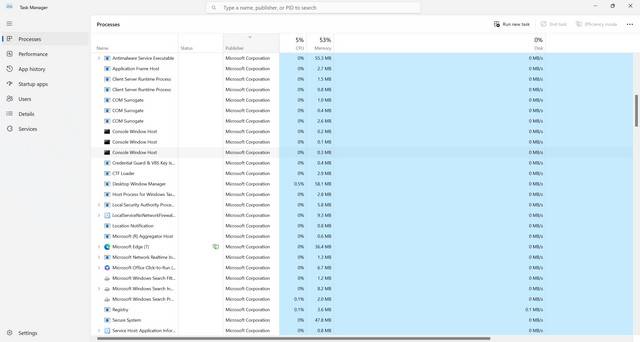
When you open the Task Manager on your Windows computer, you may come across a process called “Intel(R) Smart Connect Technology Agent” running in the background. This may raise questions about its purpose and whether it is necessary for your system’s performance. In this article, we will delve into the details of this process, its functions, and why it is running in Task Manager.
Understanding Intel(R) Smart Connect Technology
Intel(R) Smart Connect Technology is a feature found in certain Intel processors and motherboards. Its primary purpose is to keep your system connected to the internet even when it is in a low-power state or in sleep mode. This technology allows your computer to periodically wake up from sleep mode to update email, social media feeds, and other selected applications.
The Intel(R) Smart Connect Technology Agent process, also known as ISCTAgent.exe, is responsible for managing and executing these updates. It runs in the background to ensure that your system stays connected and up to date, even when you are not actively using it.
Why is the Intel(R) Smart Connect Technology Agent Running?
The Intel(R) Smart Connect Technology Agent runs automatically on systems that have the Intel(R) Smart Connect Technology feature enabled. It is designed to enhance user experience by keeping important applications updated and ready for use, even after extended periods of inactivity.
By running in the background, the Intel(R) Smart Connect Technology Agent ensures that your email, social media, and other selected applications are regularly updated with the latest information. This way, when you wake up your computer from sleep mode or low-power state, you can quickly access the most recent data without any delays.
It is worth noting that the Intel(R) Smart Connect Technology Agent process consumes minimal system resources and should not significantly impact your computer’s performance. However, if you notice any unusual behavior or excessive resource usage, it is recommended to scan your system for viruses or malware using a reliable security software like Malwarebytes Free.
Configuring Intel(R) Smart Connect Technology
If you want to customize the behavior of Intel(R) Smart Connect Technology or disable it altogether, you can do so through the BIOS settings of your computer. The exact steps may vary depending on your motherboard manufacturer and BIOS version, but the general process is as follows:
- Restart your computer and enter the BIOS setup by pressing a specific key (e.g., F2, Del, Esc) during the boot process. The key to access the BIOS setup is usually displayed on the screen.
- Navigate to the “Advanced” or “Advanced Settings” section of the BIOS.
- Look for an option related to Intel(R) Smart Connect Technology. It may be labeled differently depending on your motherboard manufacturer.
- Enable or disable the Intel(R) Smart Connect Technology feature according to your preference.
- Save the changes and exit the BIOS setup. Your computer will restart with the new configuration.
Keep in mind that disabling Intel(R) Smart Connect Technology may prevent your selected applications from receiving updates while your computer is in sleep mode or low-power state. If you rely on these updates for timely information, it is recommended to leave the feature enabled.
Conclusion
The Intel(R) Smart Connect Technology Agent process running in Task Manager is a crucial component of Intel(R) Smart Connect Technology. It ensures that your selected applications, such as email and social media, stay updated even when your computer is in sleep mode or low-power state.
While the process runs in the background, it consumes minimal system resources and should not negatively impact your computer’s performance. However, if you experience any unusual behavior or excessive resource usage, it is advisable to scan your system for viruses or malware using a reliable security software like Malwarebytes Free.
If you wish to customize the behavior of Intel(R) Smart Connect Technology or disable it, you can do so through the BIOS settings of your computer. However, disabling the feature may prevent your selected applications from receiving updates while your computer is in sleep mode or low-power state.
Understanding the purpose and functionality of the Intel(R) Smart Connect Technology Agent process can help you make informed decisions about its configuration and ensure that your computer stays connected and up to date, even during periods of inactivity.








