

iON Internet Security is a computer virus (Rogue.WinWebSec), which pretends to be a legitimate security program and claims that malware has been detected on your computer.
If you try to remove these infections, iON Internet Security will state that you need to buy its “full version” before being able to do so.
iON Internet Security targets users browsing Internet websites, and rely on social engineering to deliver its payload.
On infected or hacked websites users are prompted by a pop-up window that has been carefully crafted to resemble a legitimate security warning. These pop-up windows typically alert a user of a computer infection, and then prompt the user to download and install iON Internet Security to resolve the apparent issue.
Some of the infections may have come from users downloading an infected codec file when they were trying to watch a video online, or users who receive a spam email and open an infected email attachment.
Once installed, iON Internet Security will display fake security alerts that are designed to think that your data is at risk or that your computer is severely infected.These messages include:
Warning! Your computer is at risk of data loss due to malware.
Warning! Your computer is infected! Highly possible that you may lose all the data. Your personal data can get to third parties and all your files can be removed during the day and you can have other problems.
Warning! 10 malware found. Highly possible that you may lose all the data. These malware programs cause:
All your files can be removed during day
Your personal data can get to the third parties
System crash
Loss of Internet connection
And other problems
If your computer is infected with iON Internet Security virus, then you are seeing the following screens:
![[Image: iON Internet Security from cloud virus]](https://malwaretips.com/blogs/wp-content/uploads/mwt-media/dd/ddee164e1f21c8b33eb41cce84948b98d6431cfd6a41452e8a08f3ae54df6189/6c64b7e66b91b925862475104ce38796f2d7c65cc2559d8635140bb9c77fe2e8-806.webp "iON Internet Security virus")
iON Internet Security is a scam, and you should ignore any alerts that this malicious software might generate.
Under no circumstance should you buy this rogue security software as this could lead to identity theft,and if you have, you should contact your bank and dispute the charge stating that the program is a scam and a computer virus.
iON Internet Security – Virus Removal Guide
STEP 1: Remove iON Internet Security malicious files with Malwarebytes Anti-Malware
Malwarebytes Chameleon technologies will allow us to install and run a Malwarebytes Anti-Malware scan without being blocked by iON Internet Security.
- Right click on your browser icon, and select Run As or Run as Administrator. This should allow your browser to open so that we can then download Malwarebytes Chameleon.
![[Image: Starting web browse on infected computer]](https://malwaretips.com/blogs/wp-content/uploads/mwt-media/3f/3fcf153009c8e2a684d7a682fde59438d0b02a4a7623b0da69a0f29ffea07346/b2f96171a191577dc2def9529d146d37baf5a55f022fa1ea3ad5ee05d9f1d02f-264.webp "Right click on your Web Browser icon and click on Run As Administrator")
- Download Malwarebytes Chameleon from the below link, and extract it to a folder in a convenient location.
Download Malwarebytes ChameleonOpens the download page in a new tab.
![[Image: Extract Malwarebytes Chameleon utility]](https://malwaretips.com/blogs/wp-content/uploads/mwt-media/b2/b265e12a96e5ac88c372b34158e04f937bacfee747f63c719f50a4771b7048e8/9809c2be34df15eae377a9982d27eae3d60d2cc1b556e7f1f9fa6be62f380051-374.webp "Extract Malwarebytes Chameleon utility")
- Make certain that your infected computer is connected to the internet and then open the Malwarebytes Chameleon folder, and double-click on the svchost.exe file.
![[Image: Double click on svchost.exe]](https://malwaretips.com/blogs/wp-content/uploads/mwt-media/d6/d67768b1c785b16a82c92c81bcce063bb5b8ad9c8f1e7edb48a80040f7e803a3/b05e0bf111c8d18f1c641cfb91f746b45de4454ba605ef516ccfa0ed7cdc5c99-662.webp "Double click on svchost.exe")
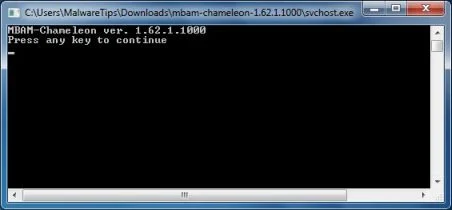
IF Malwarebytes Anti-Malware will not start, double-click on the other renamed files until you find one will work, which will be indicated by a black DOS/command prompt window. - Follow the onscreen instructions to press a key to continue and Chameleon will proceed to download and install Malwarebytes Anti-Malware for you.
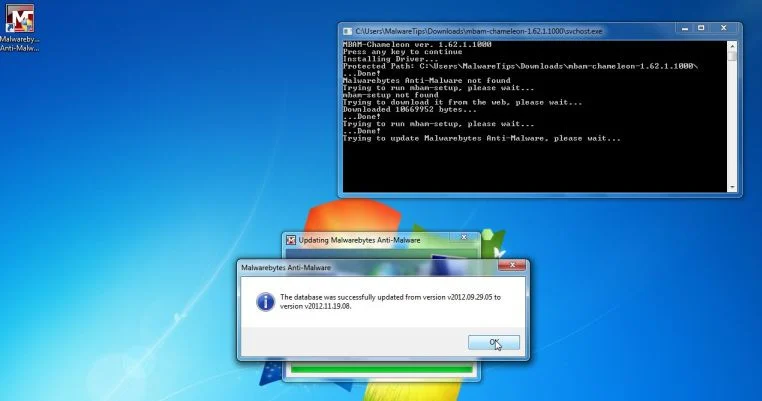
- Once it has done this, it will update Malwarebytes Anti-Malware, and you’ll need to click OK when it says that the database was updated successfully.
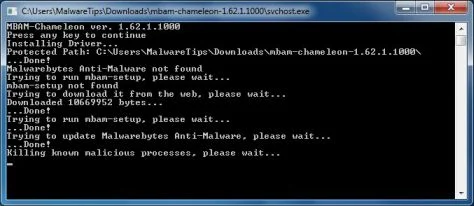
- Malwarebytes Anti-Malware will now attempt to kill all the malicious process associated with iON Internet Security.Please keep in mind that this process can take up to 10 minutes, so please be patient.
- Next, Malwarebytes Anti-Malware will automatically open and perform a Quick scan for iON Internet Security malicious files as shown below.
![[Image: Malwarebytes Anti-Malware scanning for iON Internet Security]](https://malwaretips.com/blogs/wp-content/uploads/mwt-media/f6/f6ecfba43df64204df40586070483f260cb91fa07d5cc90cb4c3a588d159ff30/5b6b2687853201a40d29fe27e142cc66b0852745bbad3900a21030a10399cb4c-521.webp "Malwarebytes Anti-Malware scanning for iON Internet Security")
- Upon completion of the scan, click on Show Result
![[Image: Malwarebytes Anti-Malware scan results]](https://malwaretips.com/blogs/wp-content/uploads/mwt-media/84/84c62dd46289424dbc686abc53672cb0810111920c8c0bbd69e973844d0a9ab0/a4c04aa700e641f47afec9965f79ff346740668e5952955ccbe5b4c3658b5897-521.webp "Malwarebytes when the system scan has completed")
- You will now be presented with a screen showing you the malware infections that Malwarebytes Anti-Malware has detected.
Make sure that everything is Checked (ticked),then click on the Remove Selected button.
![[Image:Malwarebytes removing virus]](https://malwaretips.com/blogs/wp-content/uploads/mwt-media/d8/d86b6a8bac0e4ece9fd2d259a83db71487943f6b04b567edb0e9adcc3200f492/4eb94651b0e34cc99689c56dc71cd0a49444498ed05c5803ea55fda1cfee1b1f-521.webp "Click on Remove Selected to get rid of iON Internet Security")
- After your computer restarts, open Malwarebytes Anti-Malware and perform a Full System scan to verify that there are no remaining threats
STEP 2: Remove iON Internet Security rootkit with HitmanPro
In some cases,iON Internet Security will also install a rootkit on victims computer.To remove this rootkit we will use HitmanPro.
- Download HitmanPro from the below link,then double-click on it to start this program.
Download HitmanProOfficial Sophos download. Free scan, free 30-day trial to remove threats.
IF you are experiencing problems while trying to start HitmanPro, you can use the Force Breach mode.To start HitmanPro in Force Breach mode, hold down the left CTRL key when you start HitmanPro and all non-essential processes are terminated, including the malware process. (How to start HitmanPro in Force Breach mode – Video) - HitmanPro will start and you’ll need to follow the prompts (by clicking on the Next button) to start a system scan with this program.
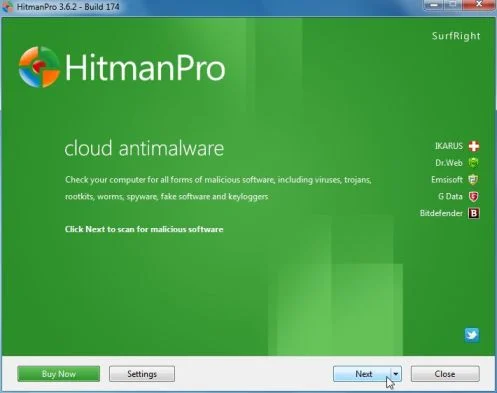
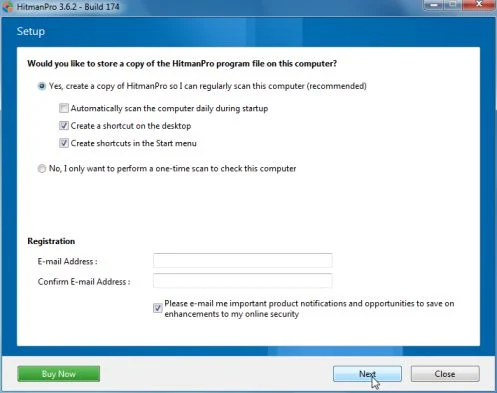
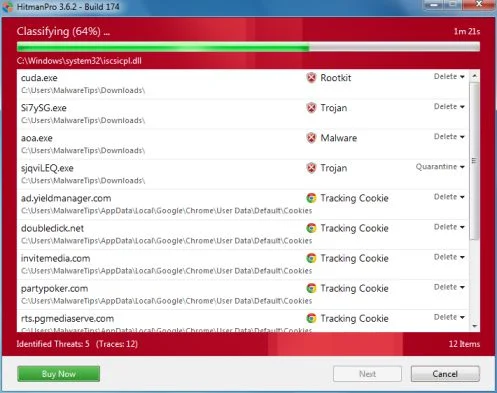
- HitmanPro will start scanning your computer for iON Internet Security malicious files as seen in the image below.
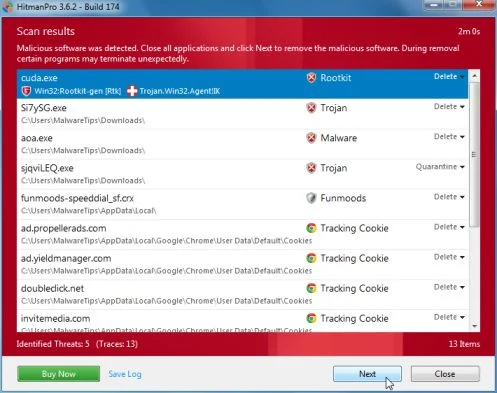
- Once the scan is complete,you’ll see a screen which will display all the infected files that this utility has detected, and you’ll need to click on Next to remove this malicious files.
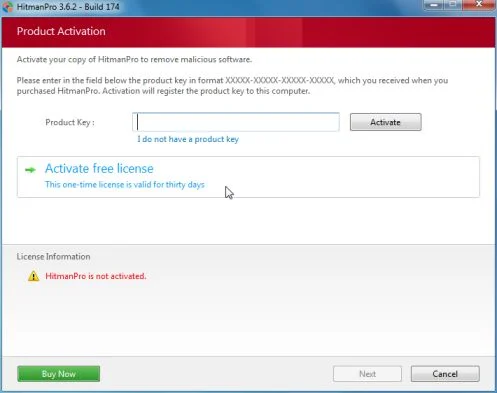
- Click Activate free license to start the free 30 days trial and remove all the malicious files from your computer.

Join the discussion
0 commentsShare your experience or ask a question about this article.
Your progress
Did these steps help?
Let us know how the guide worked for you.
Describe what you see and the step you reached. Keep passwords and other private information out.
Discussion
Start the conversation
Have a question or something useful to share? Add the first comment.