


Imagine free Robux showing up in your account after you type in a single username. Melodious-figolla-db551d.netlify.app promises exactly that, and every Roblox player wants it.
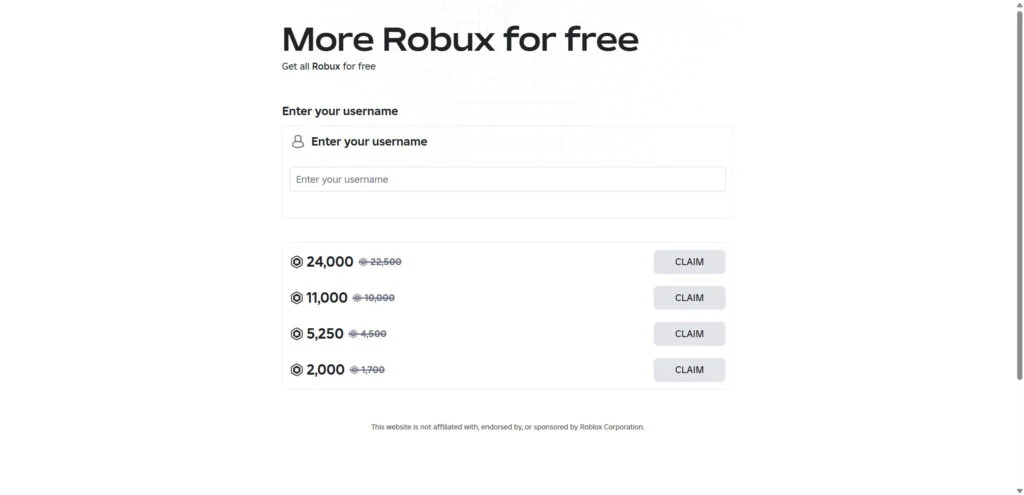
Visually, the page passes for a tool built to hand out Robux. The real story starts when you press the button, and it ends far from your Roblox balance.
Overview
Melodious-figolla-db551d.netlify.app’s pitch, in plain terms
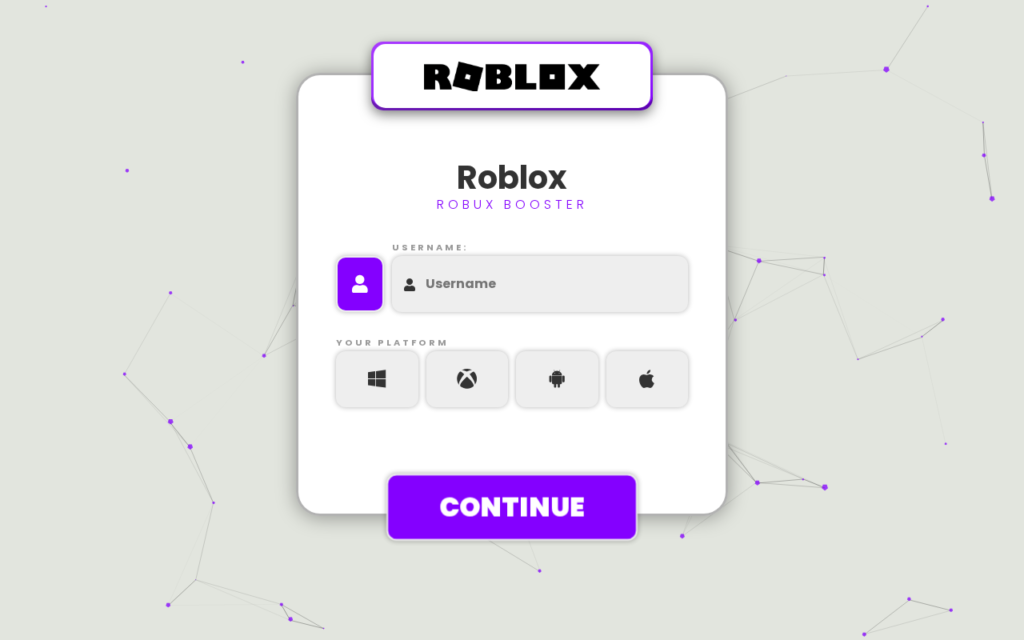
The site bills itself as a free Robux generator. On Melodious-figolla-db551d.netlify.app, you type in your Roblox username, select how much you want, often thousands, and click to “send” it.
The button usually triggers a little show. A progress bar fills, a console prints fake server messages, and a list claims other players just got paid. It can’t add Robux.
No connection to the real Roblox
There’s no partnership here. Roblox doesn’t run or approve sites like Melodious-figolla-db551d.netlify.app, and it tells players to stay away from them.
Your username isn’t a key to your balance. Only Roblox can add Robux to an account, so no outside website can deposit currency into yours.
The truth about the “free” Robux
Where you’d expect Robux, the page demands a “human verification.” That’s the content locker: a wall of apps, surveys and sign-ups whose real job is paying the site’s operator.
Here’s why that should matter to you:
- There is no point where enough offers unlock the Robux. It never arrives.
- The operator gets a commission for each offer you complete, and that money usually comes from a cost-per-action (CPA) ad network.
- Certain offers ask you to type in your email, phone number or other personal details.
- Some push subscriptions or app installs that can end up costing real money.
- Later on, some sites ask you to hand over your Roblox password or a login code.
Melodious-figolla-db551d.netlify.app is a scam that promises free Robux. Don’t give it your username or complete its “verification” offers, and never share your password or a login code with it.
What We Found on Melodious-figolla-db551d.netlify.app
Here’s what we noticed when we looked at Melodious-figolla-db551d.netlify.app:
- The page’s title reads "FREE ROBUX".
- Melodious-figolla-db551d.netlify.app runs on a free Netlify address, where anyone can put up a page in minutes.
How the Melodious-figolla-db551d.netlify.app Scam Works
Behind the different names, free Robux sites share a few ready-made kits. That keeps the script almost identical from domain to domain. Here’s how it plays out.
Step 1: A free Robux link shows up uninvited
YouTube comments, TikTok videos, Discord servers and messages inside Roblox are where links to pages like Melodious-figolla-db551d.netlify.app get shared. Few players find them by searching.
“Claim 10,000 free Robux.” “Working generator.” “No password needed.” The pitch doesn’t say much more than that, and fake comments below swear it worked for them.
Many of these sites are built on free services such as Blogger (blogspot.com) or Netlify (netlify.app). There’s nothing to pay, and when one gets reported, a replacement is easy.
Step 2: A box appears for your Roblox username
Here’s the first request, and it seems harmless: a username, an amount, often a big one like 10,000 or 22,500 Robux, and a click on “Generate” or “Continue.”
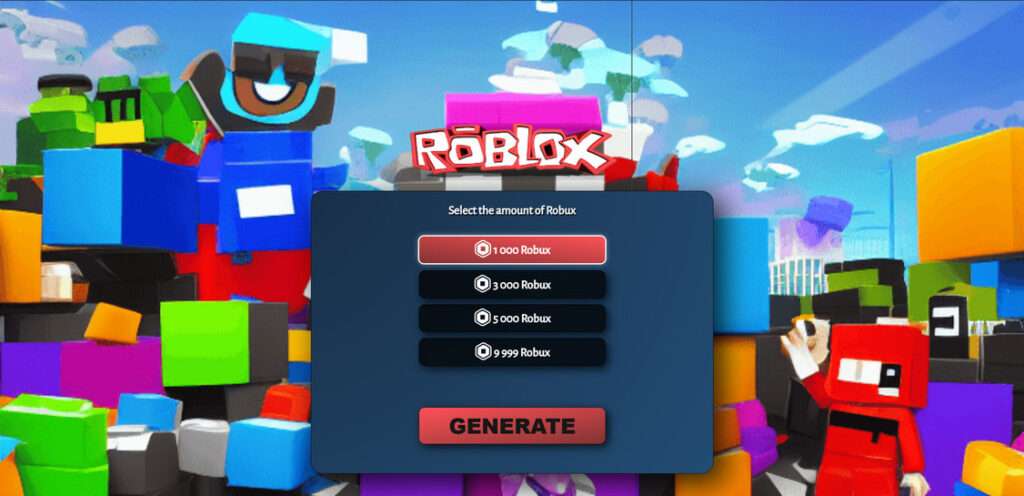
The username request gives the offer a personal touch, making it seem like the Robux are already coming. Some pages even show your avatar to sell the illusion.
Knowing your username doesn’t let a website send you a single Robux. The site only wants it so you keep chasing a delivery that will never happen.
Step 3: A fake generator starts its show
Here comes the performance. Lines like “Connecting to Roblox servers” and “Injecting Robux into account” appear in a console as a progress bar fills up.
Behind the screen, there’s only a script playing the same animation for each visitor. Your Robux balance is never touched, and no Robux are injected anywhere.
Just before the finish line, the show freezes and a message says the transfer is “almost complete.” The site uses that pause to set up the real ask.
Step 4: A “human verification” prompt freezes the transfer
“Prove you’re not a bot,” the site says, and it gives you a way: complete one or two offers. A box opens showing apps, games, surveys and sign-ups.
That list lives inside a content locker. CPA networks supply these ad tools, and they pay the operator every time someone completes an offer. They never lead to Robux.
Step 5: Your completed offers make money for someone else
The operator earns from everything the locker asks of you. An app install, survey answer or trial sign-up can pay a commission. Multiply that by thousands of visitors.
Some tasks are merely tedious, and that’s the good news. Others want a phone number that starts a paid text subscription, or push apps sourced outside the official app stores.
Children are the main crowd these pages attract, and that raises the risk. A young player may agree to charges or terms without understanding them.
Step 6: You never receive the Robux
When the offers are finished, the page reports a “failed” verification, adds another task, or reloads. Your Roblox balance doesn’t go up at all.
The operator was paid for your time and data before that screen ever appeared.
Should a later screen ask you to “finish the transfer” with your password or a login code, treat it as a grab for your account.
Red Flags of Free Robux Sites Like Melodious-figolla-db551d.netlify.app
These warning signs appear on almost every free Robux site, and any one of them is enough reason to close the page.
Free Robux on offer
Outside websites aren’t how Roblox gives away Robux. That’s why any site offering free Robux is running a scam, whatever it calls its tool.
Enter your username, it says, to “send” currency
Here’s the catch: no website can drop Robux into your account by name. Roblox does that. The username request is stage dressing, nothing more.
A generator screen with a progress bar and console
The screen looks busy, but the loading bars, “connecting to server” logs and “injection” messages are animations. Real Robux purchases go through roblox.com or the official app, minus the theater.
When “human verification” comes with offers to complete
Proving you’re not a bot should take seconds, like a CAPTCHA, and never involves installing apps or doing surveys. A verification that pays someone else is a content locker.
Too many happy winners and comments
Every player shown “receiving” Robux, and every glowing comment, is either scripted or posted by a fake account. That’s why the same “winners” reappear: the list belongs to the script.
Odd web addresses on free hosting
The URL itself tips you off. A blogspot.com or netlify.app free-hosting address, a random string of letters, or a name made from “rbx,” “free” and “robux” signals a throwaway page.
Why Free Robux Generators Can’t Work
A generator can feel plausible because the idea sounds technical. Look closer, though, and there’s nothing for any outside site to create or hack.
Robux are kept on Roblox’s own servers. Adding them is Roblox’s job alone, and it happens after a purchase, a Premium membership or a sale on the platform.
Any offer of free Robux, memberships or valuable items is a scam, according to Roblox’s help pages. The people behind it are aiming for your account.
Even with a way into Roblox, a site would have no reason to give currency away for free. The only real giveaway on these pages is ads.
Same Kit, Different Domains
Melodious-figolla-db551d.netlify.app has plenty of near-identical cousins among free Robux pages. MalwareTips keeps finding new ones, and most are assembled from a handful of ready-made templates.
Look at the content-locker accounts and they differ, yet the page design is the same. That suggests the templates are sold or shared rather than run by one person.
That explains why a takedown rarely finishes the job. The names change, the script doesn’t, and new copies often arrive within days.
Here’s what the copies have in common when you line them up:
- A headline built around “free Robux” or a “Robux generator”
- A field for your username and a way to pick an amount
- A progress console that isn’t real
- Offers crammed into a so-called “human verification” box
- Comments or live feeds saying people just got paid
If you see this pattern, you already have your answer. The address can say anything; the scam is the same.
The Real Risks for Your Account, Device and Data
Nothing arrives, and most visitors are simply out their time. Bigger risks come from what the offers, and any later pop-ups or messages, ask for. Watch these areas:
- Your Roblox account. Some versions ask for a “login code,” a 2-step verification code or your password. If someone gets those, they can lock you out and empty your inventory.
- Your device. Be wary when an offer sends you away from Google Play or the App Store to grab an app file. Those files can carry adware or worse.
- Your phone bill. A premium text subscription can start once you enter a phone number in some offers, and the weekly charges keep coming until you cancel.
- Your personal details. Marketing lists and spam campaigns are where your name, email, age and address end up once surveys and sign-ups collect them.
- Your browser. Clicking Allow when some offer pages ask about notifications fills your screen with fake alerts and still more “free Robux” ads.
No matter what a site promises, asking for your Roblox password outside the official login page marks it as an account thief. Roblox says it never does that.
How to Get Robux the Safe Way
No site can hand you free Robux. If you want more, stick to these safe routes that keep your account out of danger:
- Make your Robux purchases on roblox.com itself or in the official Roblox app.
- Redeem a gift card on Roblox’s own redemption page, as long as you bought it from a real store.
- Sign up for Roblox Premium and receive the Robux it includes every month.
- Build items, passes or experiences, then earn Robux by selling them on Roblox itself.
If Roblox is really running a promotion, you’ll find it on Roblox’s official website or social accounts. You won’t need to hand your username to a stranger’s site.
A Note for Parents
Free Robux sites have a clear audience in mind: children. Young players are more likely to trust a flashy page and less likely to check the terms of an offer.
Nothing you install will help as much as a short conversation. Let your child know free Robux offers are always fake, and only a parent gets their Roblox password.
- Enable 2-step verification on your kid’s Roblox account.
- Turn to Roblox’s parental controls to cap spending and keep an eye on account activity.
- Contact your mobile carrier and request a block on premium text subscriptions for your child’s phone.
- Make a deal that any unexpected login request or charge comes to you first.
Your child already used a site like Melodious-figolla-db551d.netlify.app? Keep it calm and don’t punish the mistake. Do the steps below together, starting with the password.
What to Do If You Have Fallen Victim to This Scam
Shared your username or other details on Melodious-figolla-db551d.netlify.app, or completed its offers? These steps limit the damage. Begin with the ones that keep your account safe.
- Start with your Roblox account. Anyone who typed their password anywhere on the site should change it on roblox.com right away and sign out of all other sessions.
- Enable 2-step verification. If your password leaks again, the code sent to you becomes a second barrier, and nobody can sign in without it.
- Change any reused passwords. Used the same Roblox password for your email or other accounts? Change those as well, and do your email first.
- Delete apps the offers had you install. Uninstall each one, then follow the steps below to scan your device with Malwarebytes Free.
- End subscriptions from the offers. Go through app store subscriptions and your phone bill. For each charge the offers started, cancel it in the store settings or with your carrier.
- Block pushy notifications. Sites you don’t recognize shouldn’t send you notifications. Remove their permission in your browser settings, and AdGuard can block many ads that lead to these pages.
- Tell the platforms. Roblox’s Report Abuse tools cover the message or experience that pointed you to the site. Report the video, comment or post on its own platform too.
- Say no to “recovery” help. A promise to bring back lost items or Robux for a fee or your password is just another scam.
Need your account back? Request recovery with Roblox’s official support form, and gather the username, email and any purchase receipts beforehand.
Is Your Device Infected? Run a Free Malware Scan
Slow performance, constant pop-ups, or strange behavior? These are classic signs of a malware infection. A quick way to check is to scan your device with Malwarebytes Free, one of the most trusted malware removal tools available. If you only visited a scam page and didn’t download or install anything, this scan is optional.
The free version detects and removes the most common threats, including:
- Adware — the cause of those annoying pop-ups
- Browser hijackers — unwanted redirects and changed homepages
- Trojans and spyware — hidden programs stealing your data
- Potentially unwanted programs (PUPs) — software you never asked for
👉 Select your device below — Windows, Mac, or Android — then follow the simple steps to download Malwarebytes, scan your system, and remove any threats it finds. The scan usually takes 5 to 20 minutes.
Run a Malware Scan with Malwarebytes for Windows
Malwarebytes is one of the most popular and trusted anti-malware tools for Windows — and it’s completely free for removing infections. It catches threats that many antivirus programs miss, including adware, browser hijackers, and trojans. Follow the steps below to scan your PC and remove what Malwarebytes finds.
Download Malwarebytes
Click the button below to download the latest version of Malwarebytes for Windows from the official source. The free version is all you need — it will scan your computer and remove adware, browser hijackers, and other malicious software at no cost.
Download MalwarebytesOfficial installer for Windows 11 and 10. Your download starts right away.Want real-time protection? See Malwarebytes Premium Malwarebytes Free for WindowsScans and removes malware at no cost
-
Install Malwarebytes
When the download finishes, open your Downloads folder and double-click the MBSetup file. If Windows shows a User Account Control pop-up, click “Yes” to allow the installation.
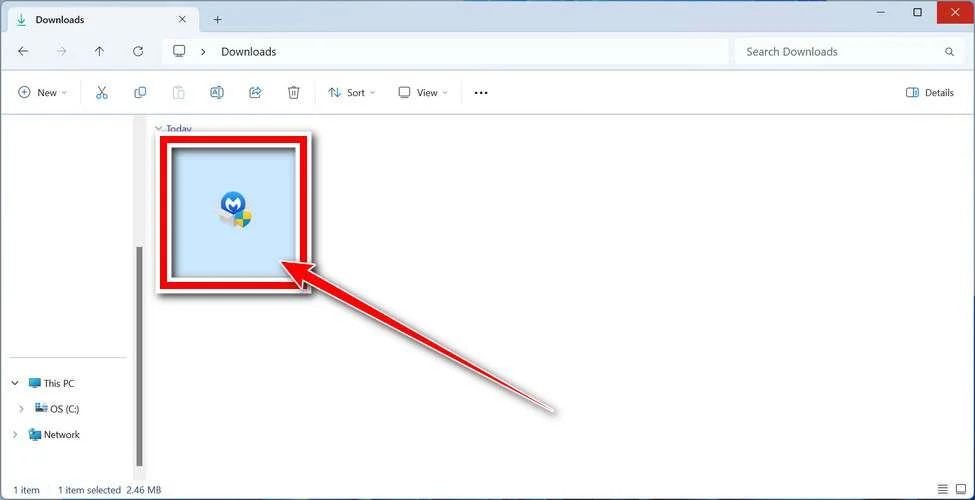
Follow the On-Screen Prompts to Install Malwarebytes
The setup wizard will walk you through a few quick screens:
-
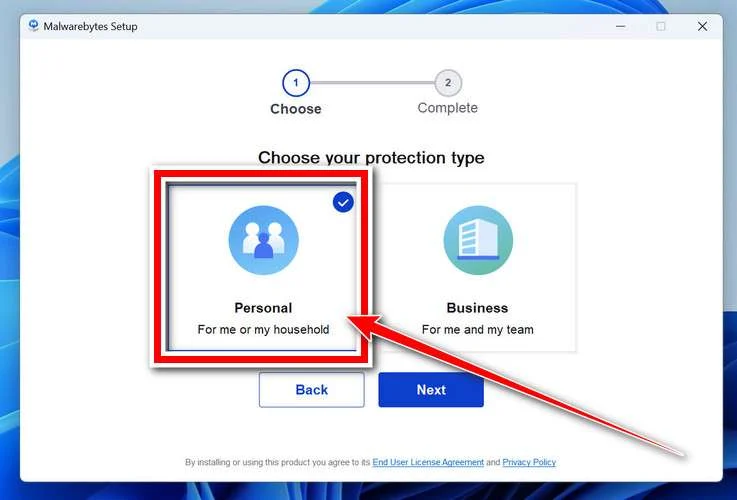
Choose where you’re installing the program — “Personal Computer” or “Work Computer” — then click Next.
-
Malwarebytes will now install on your device. This usually takes under a minute.

-
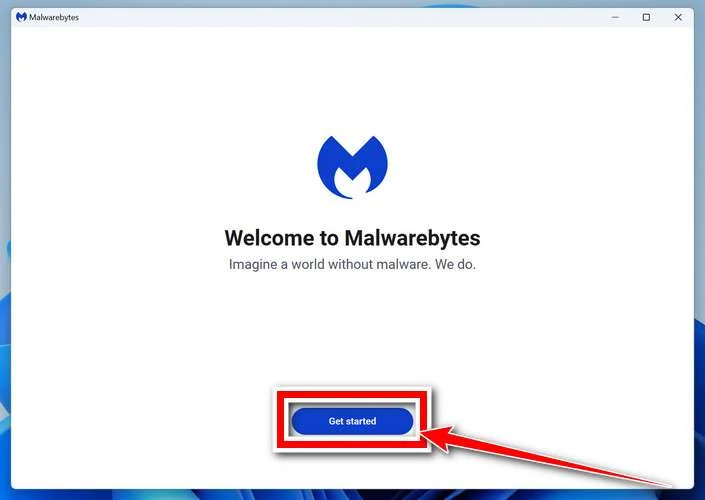
When installation is complete, the “Welcome to Malwarebytes” screen will open automatically.
-
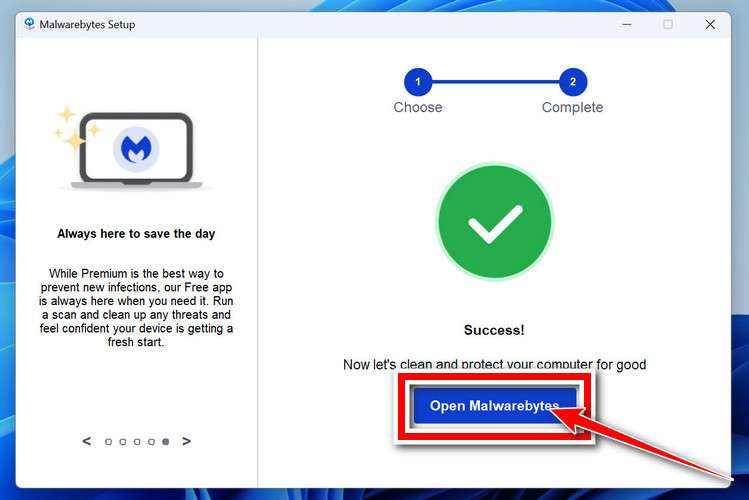
On the final screen, click Open Malwarebytes to launch the program.
-
Optional: Check for rootkits with a Custom Scan
You don’t need to change any settings for a normal scan. The standard Threat Scan in the next step is enough for most problems, so you can go straight to it.
If you also want to check for rootkits, use a Custom Scan. In current versions of Malwarebytes, rootkit scanning is only available there:
- On the Scanner tile, click the three-dot menu and select Advanced Scan.
- Choose Custom Scan. In its options, check Scan for rootkits.
- Select your system drive (usually C:\) as the location to scan, then start the scan. It takes longer than a Threat Scan.
- When it finishes, review and quarantine the results as described in the steps below.
Rootkit scanning isn’t available on Windows devices with ARM processors.
Start the Scan
Click the blue Scan button. Malwarebytes will automatically update its virus database and start checking your computer for malware.

-
Wait for the Scan to Finish
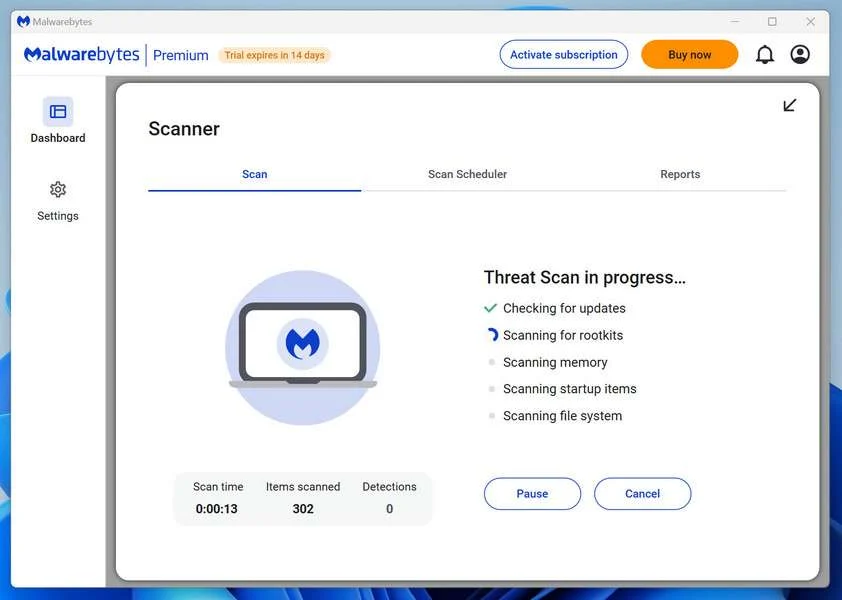
The scan checks your entire system for browser hijackers and other malicious programs, so it can take 5 to 20 minutes depending on your computer. Feel free to do something else — just check back occasionally to see the progress.
-
Quarantine the Detected Threats
When the scan is done, you’ll see a list of everything Malwarebytes found — malware, adware, and potentially unwanted programs. Click the “Quarantine” button to remove all of them at once.
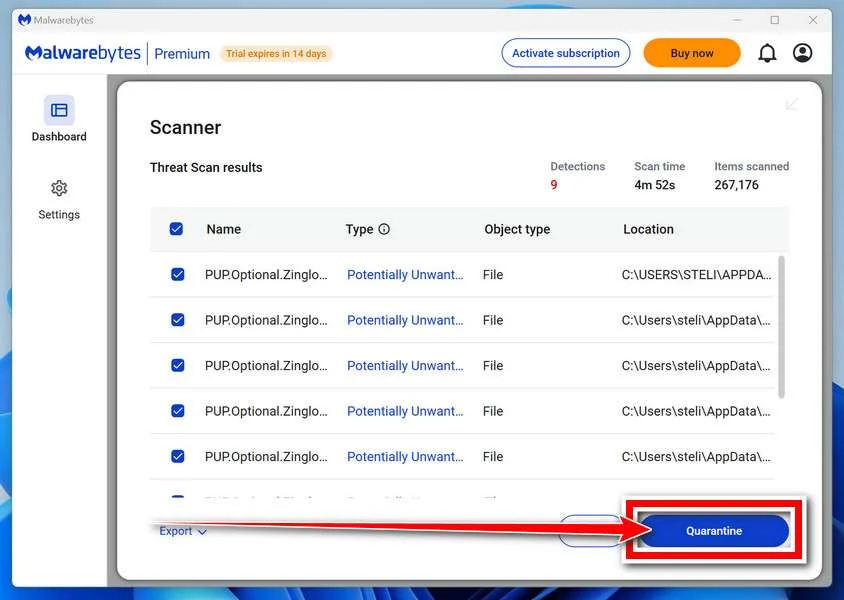
Malwarebytes will now remove the malicious files and registry entries and move them safely into quarantine.
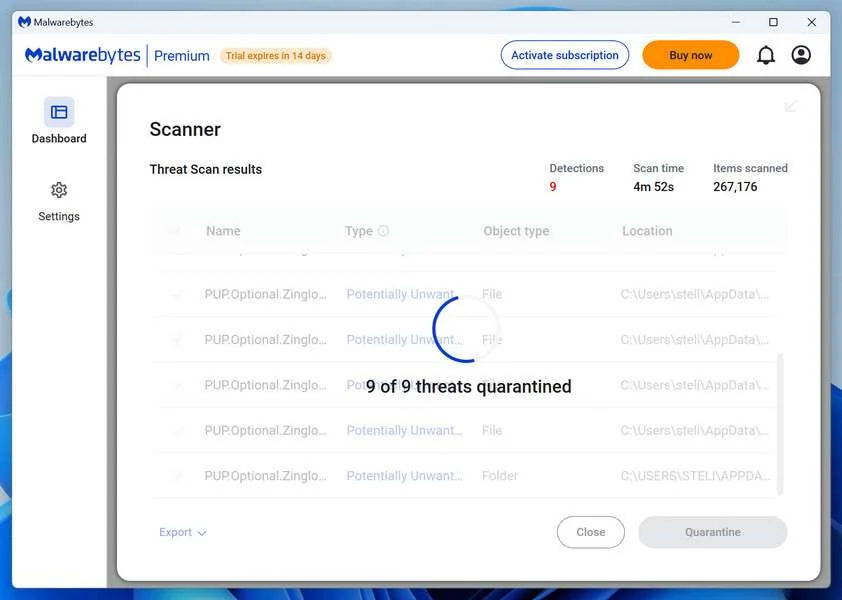
-
Restart Your Computer
Some threats can only be fully removed after a reboot. If Malwarebytes asks you to restart, click Yes. Once you’re logged back in, Malwarebytes has finished removing the threats it found.
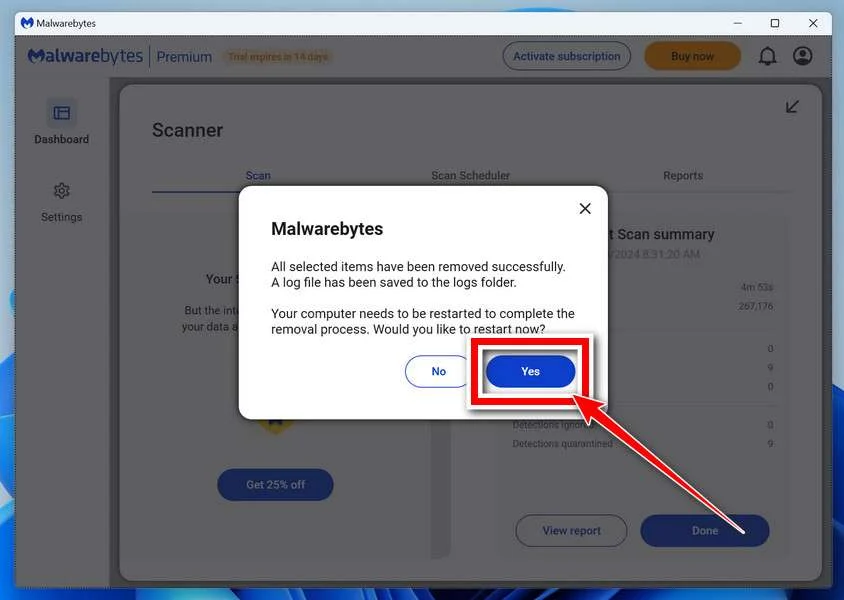
When the scan is done, check whether the problems you noticed have stopped. If they continue, see the options below.
If you are still having problems with your computer after completing these instructions, then please follow one of the steps:
- Run a computer scan with ESET Online Scanner
- Ask for help in our Windows Malware Removal Help & Support forum.
Run a Malware Scan with Malwarebytes for Mac
Malwarebytes for Mac is a free on-demand scanner that removes the malware other security software tends to miss — adware, browser hijackers, and unwanted programs included. Cleaning an infected Mac with Malwarebytes has always been completely free, and it’s our go-to recommendation. Follow the steps below to scan your Mac and remove what Malwarebytes finds.
-
Download Malwarebytes for Mac
Click the button below to download the latest version of Malwarebytes for Mac.
Download MalwarebytesOfficial installer for macOS. Your download starts right away.Want real-time protection? See Malwarebytes PremiumMalwarebytes Free for MacScans and removes malware at no cost -
Open the Malwarebytes setup file
When the download finishes, open your Downloads folder and double-click the setup file to begin the installation.
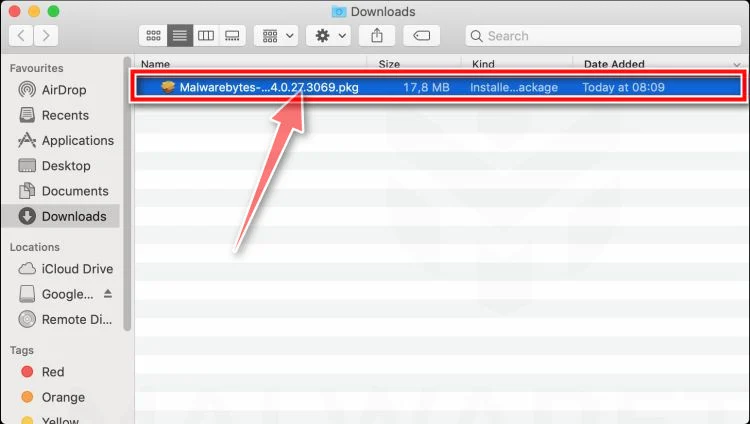
-
Follow the On-Screen Prompts to Install Malwarebytes
The Malwarebytes for Mac Installer will guide you through a few quick screens. Click “Continue” and keep following the prompts until the installation completes.
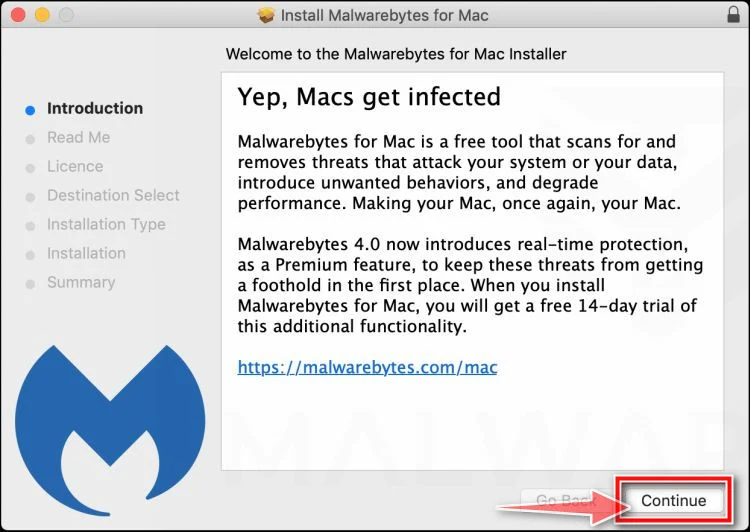
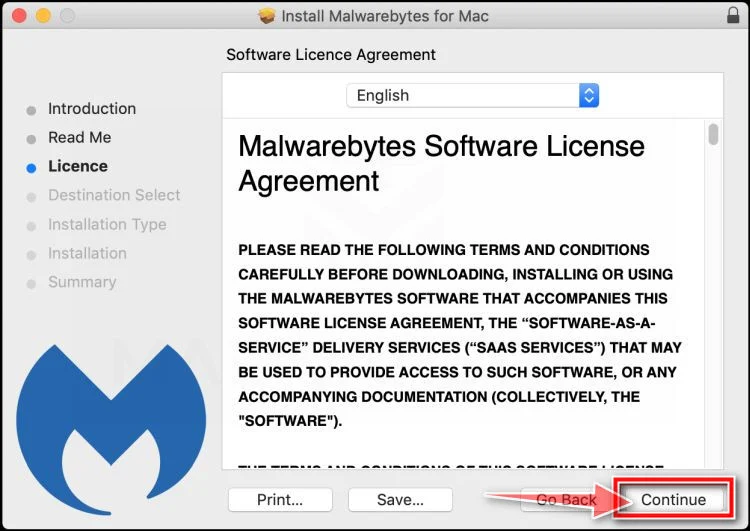
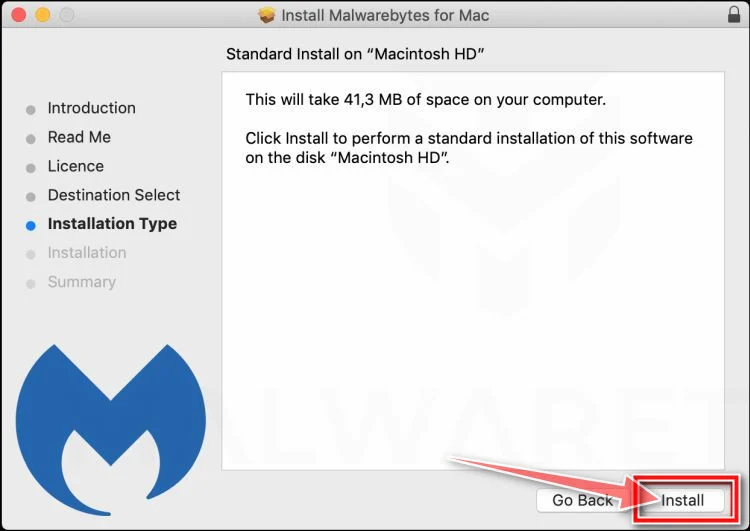
When the installation is complete, Malwarebytes opens to the Welcome to Malwarebytes screen. Click “Get started“.
Malwarebytes needs Full Disk Access to check your whole Mac. When it asks, open System Settings > Privacy & Security > Full Disk Access, turn on Malwarebytes (it may be listed as Malwarebytes Protection), and confirm with your password or Touch ID. Then return to Malwarebytes. On macOS Monterey and earlier, this setting is in System Preferences > Security & Privacy > Privacy.
-
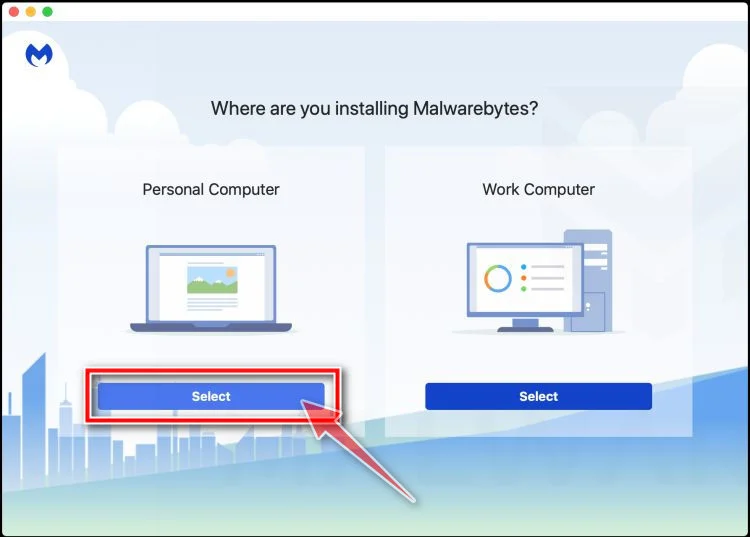
Select “Personal Computer” or “Work Computer”
Malwarebytes will ask what type of computer you’re installing it on. Click either Personal Computer or Work Computer, whichever applies.
-
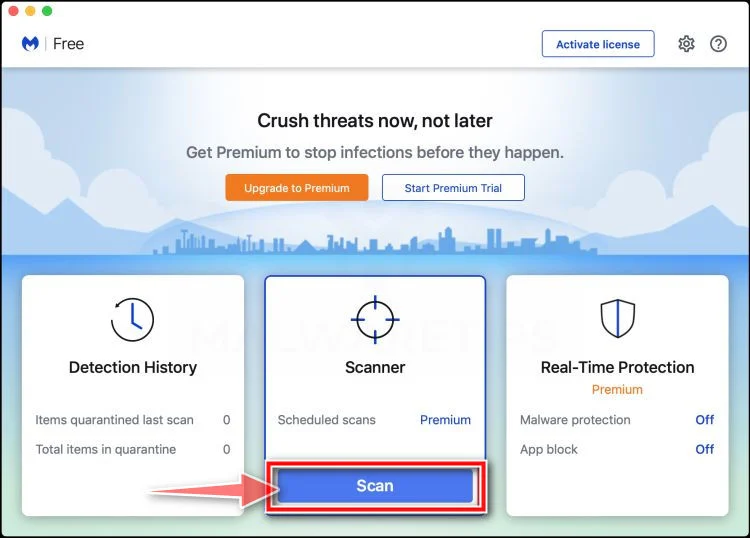
Start the Scan
Click the “Scan” button. Malwarebytes will automatically update its detection database and begin checking your Mac for malware.
-
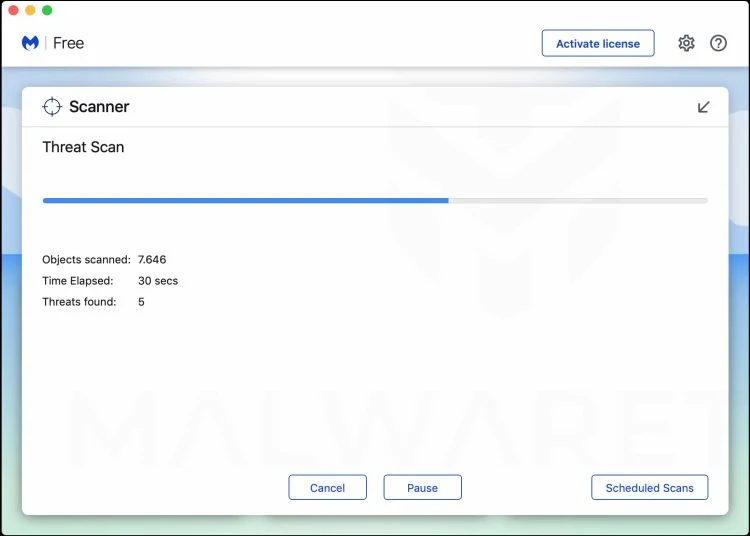
Wait for the Scan to Finish
Malwarebytes will scan your Mac for adware, browser hijackers, and other malicious programs. This can take a few minutes, so feel free to do something else — just check back occasionally to see the progress.
-
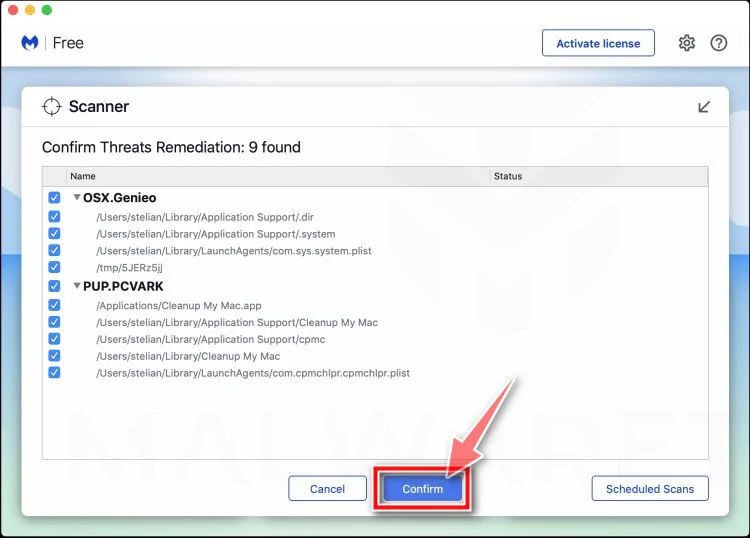
Quarantine the Detected Threats
When the scan is done, you’ll see a list of everything Malwarebytes found. Click the “Quarantine” button to remove all the threats at once.
-
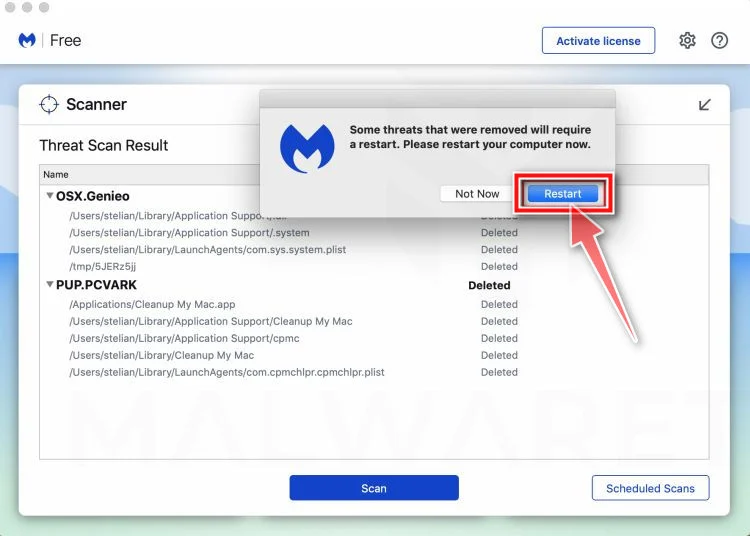
Restart Your Mac
Malwarebytes will now remove all the malicious files it found. Some threats can only be fully removed after a reboot — if Malwarebytes asks you to restart, allow it. Once you’re logged back in, check whether the problems you noticed have stopped. If they come back, save the scan report and ask for help in our forum.
If the problems you noticed continue after the scan, see the options below.
If you are still experiencing problems while trying to remove a malicious program from your computer, please ask for help in our Mac Malware Removal Help & Support forum.
Run a Malware Scan with Malwarebytes for Android
Malwarebytes for Android scans your phone or tablet for malware, adware, and potentially unwanted apps. The free version scans only when you start a scan. Real-time protection, which checks apps automatically, is part of the paid Premium version.
-
Download Malwarebytes for Android.
You can download Malwarebytes for Android by clicking the link below.
Get Malwarebytes for AndroidOpens Google Play in a new tab.Want real-time protection? See Malwarebytes Premium for AndroidMalwarebytes for AndroidScans your phone and removes malware at no cost -
Install Malwarebytes for Android on your phone.
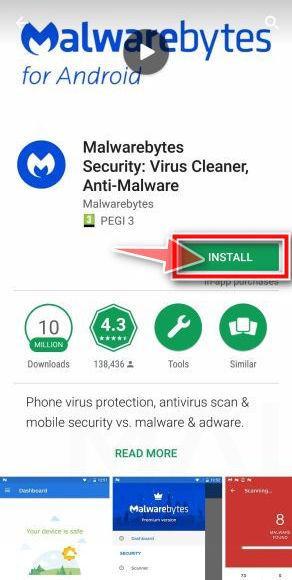
In the Google Play Store, tap “Install” to install Malwarebytes for Android on your device.
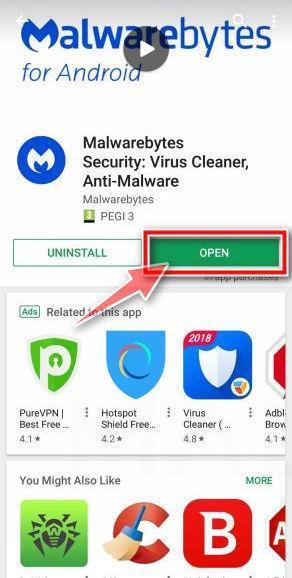
When the installation process has finished, tap “Open” to begin using Malwarebytes for Android. You can also open Malwarebytes by tapping on its icon in your phone menu or home screen.
-
Follow the on-screen prompts to complete the setup process
When Malwarebytes opens, it walks you through a short setup. Tap Get started and follow the prompts. If you see an offer for a trial or a paid plan, read it before you accept. You can skip it and keep using the free scanner.
Malwarebytes will ask for permission to access the files on your phone so it can scan them. Tap Allow, or turn on the permission in the Android screen that opens, then return to Malwarebytes.
-
Run a scan with Malwarebytes for Android
On the main screen, tap Scan now. In some versions, you open the menu, tap Scanner, and then tap Run a scan.
-
Wait for the Malwarebytes scan to complete.
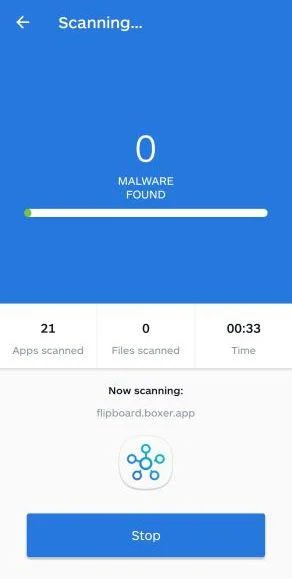
Malwarebytes will now start scanning your phone for adware and other malicious apps. This process can take a few minutes, so we suggest you do something else and periodically check on the status of the scan to see when it is finished.
-
Remove the detected apps.
When the scan has been completed, you will see a list of the threats that Malwarebytes for Android has detected. Next to each detected item, tap the menu icon (three dots), then choose to uninstall the app or delete the file. Android then asks you to confirm. Tap OK or Uninstall to remove the app.
-
Restart your phone.
When the detected apps are removed, restart your phone if Malwarebytes asks you to. Then check whether the problems you noticed have stopped.
If the problems you noticed continue after the scan, see the options below.
If you are still having problems with your phone after completing these instructions, then please follow one of the steps:
- Ask for help in our Mobile Malware Removal Help & Support forum.
- Only as a last resort, reset your phone to factory settings. Read the warning below first.
- Back up your photos, videos, files, and messages, for example to your Google account or a computer.
- Make sure you know your Google account email and password. The phone asks for them after the reset. If you changed the password recently, Google recommends waiting 24 hours before you reset.
- On a Samsung phone, also make sure you know your Samsung account password.
- If you use an authenticator app for two-step verification, move your accounts to another device or save your backup codes first.
Stay Protected: Block Ads and Malicious Sites
No scan can prove a device is completely clean, so it helps to block threats before they reach you. Most infections start with a malicious ad or a fake download button — so blocking them at the source is your best defense.
We recommend AdGuard, which blocks malicious ads, phishing pages, and dangerous redirects before they can reach you.
👉 Download AdGuard and browse safely
Frequently Asked Questions
Is Melodious-figolla-db551d.netlify.app a real Robux generator?
No. Melodious-figolla-db551d.netlify.app is a free Robux scam. It plays an animation and calls it a generator, then its “verification” step sends you through offers that pay the operator.
Can a website add Robux to my account with only my username?
No. Only Roblox can put Robux into an account. Your username lets a website know who you are, but it gives that site no way to send currency.
Why does Melodious-figolla-db551d.netlify.app make me complete offers?
The operator earns from every offer you complete. App installs, surveys and sign-ups each bring in a commission through an ad network, and that’s the entire business.
Can I get banned for using a Robux generator?
A fake generator page has no power over your account. Cheat tools break Roblox’s rules, can get an account banned, and can’t create Robux at all.
I entered my username on Melodious-figolla-db551d.netlify.app. Is my account in danger?
Your username by itself can’t unlock anything. If you also handed over your password or a login code, the account is at risk, and you should change your password.
Is there any legitimate way to get free Robux?
No generator or website is a source of free Robux. Creating on Roblox earns Robux without cost. Otherwise, your options are buying Robux, a gift card or Premium.
The Bottom Line
Melodious-figolla-db551d.netlify.app is a free Robux scam. That generator is a performance, that “human verification” is an ad wall, and no Robux will ever show up in your account.
Skip it completely. Keep your username off the page, leave its offers alone, and only ever type your Roblox password on roblox.com or in the official app.
Already entered your details? Change your Roblox password, turn on 2-step verification, cancel any subscriptions started by the offers, and report the link wherever you saw it.

Join the discussion
0 commentsShare your experience or ask a question about this article.
Community experiences
Did this happen to you?
Your experience could help someone recognize the same scam. Submit a private report for our team to review.
I experienced this tooReports are reviewed before publication. Sharing publicly is always your choice.
Discussion
Start the conversation
Have a question or something useful to share? Add the first comment.