“I’ve Sent This Message From Your Microsoft Account” Scam Explained
Written by: Stelian
Published on:
A chilling email appears in your inbox, sent seemingly from your own account. It claims you’ve been hacked, with compromising videos captured and set to be broadcast instantly. Unless you pay $1,220 in bitcoin within 48 hours.
Heart racing, panic sets in. But don’t let fear win. This “I’ve Sent This Message From Your Microsoft Account” scam is sweeping the nation, preying on innocent victims. Equip yourself with knowledge and the power shifts entirely into your hands.
This comprehensive guide will uncover exactly how this extortion scam works, arming you with tips to protect yourself and fight back. Read on to demystify the threats and learn why your best move is simply hitting delete.
Overview of the “I’ve Sent This Message From Your Microsoft Account” Scam
The “I’ve Sent This Message From Your Microsoft Account” scam typically starts with an alarming email landing in your inbox, sent apparently from your own Microsoft Account.
The message claims the sender has installed powerful spyware called Pegasus on all your devices – laptop, phone, and tablet. This malware allegedly allows them to monitor your activity through the camera, record messages, log emails, and more.
Supposedly, they’ve been recording you for months through this surveillance. The email states they’ve captured deeply concerning and compromising videos of you watching pornography or engaging in other private activities.
Threatening to immediately send these embarrassing videos to all your contacts on WhatsApp, Telegram, Skype and via email, the sender demands a payment of $1,220 in bitcoin within 48 hours to avoid this.
The message is signed off with a warning not to contact authorities or the videos will be published right away. Instead, urgent payment is demanded to quickly delete the files and remove all traces of the malware.
This understandably causes panic in most recipients. The idea that a stranger has potentially embarrassing or damaging videos capable of ruining your reputation is terrifying.
Visions of the footage being sent to your family, friends, professional contacts and coworkers creates immense stress. Out of fear, some victims pay the ransom right away, which only further encourages these criminal schemes.
However, it’s critical to take a step back and realize this is ultimately a hollow extortion threat designed solely to squeeze money out of victims. Here are key facts to know about this scam email:
The sender is spoofed – Although cleverly disguised, the email is not really from your Microsoft Account. Scammers use spoofing tools to fake the “From” address.
No spyware installed – Claims of Pegasus malware being installed are bogus. In reality, this expensive software is usually reserved for high-profile targets.
No videos exist – Odds are close to zero that real compromising videos were recorded. Scammers are bluffing.
Mass targeting – This scam email is sprayed out en masse to thousands of addresses at once. Most recipients get an identical message.
Untraceable payment – Demands for payment via bitcoin allow scammers to remain anonymous and further scam targets.
Fear tactics used – Aggressive warnings are designed purely to incite fear so you pay without thinking clearly.
This is essentially a numbers game for scammers. Sending out mass emails costs them next to nothing. If even 1-2% of recipients pay the ransom out of fear, they profit handsomely.
For example, a scammer sending 50,000 emails and tricking just 500 people into paying $1,220 would pocket $610,000. Hence why this tactic remains appealing to unscrupulous fraudsters despite being illegal.
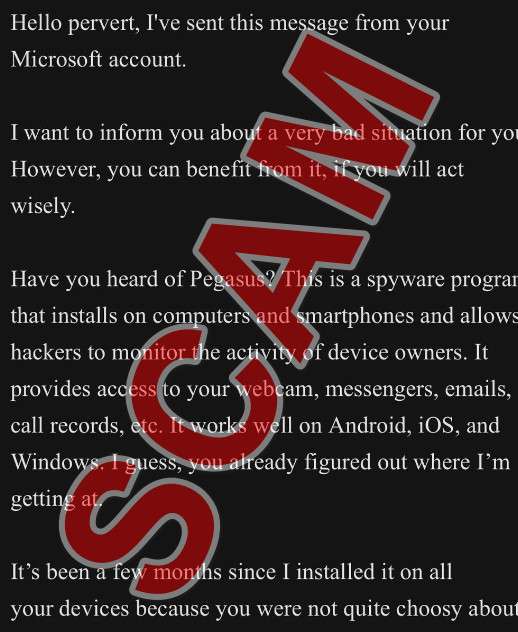
To maximize intimidation and social engineering, the email often reads something like this:
Hello pervert, I’ve sent this message from your Microsoft account. I want to inform you about a very bad situation for you. However, you can benefit from it, if you will act wisely. Have you heard of Pegasus? This is a spyware program that installs on computers and smartphones and allows hackers to monitor the activity of device owners. It provides access to your webcam, messengers, emails, call records, etc. It works well on Android, iOS, and Windows. I guess, you already figured out where I’m getting at. It’s been a few months since I installed it on all your devices because you were not quite choosy about what links to click on the internet. During this period, I’ve learned about all aspects of your private life, but one is of special significance to me. I’ve recorded many videos of you jerking off to highly controversial porn videos. Given that the “questionable” genre is almost always the same, I can conclude that you have sick perversion. I doubt you’d want your friends, family and co-workers to know about it. However, I can do it in a few clicks. Every number in your contact book will suddenly receive these videos – on WhatsApp, on Telegram, on Skype, on email – everywhere. It is going to be a tsunami that will sweep away everything in its path, and first of all, your former life. Don’t think of yourself as an innocent victim. No one knows where your perversion might lead in the future, so consider this a kind of deserved punishment to stop you. Better late than never. I’m some kind of God who sees everything. However, don’t panic. As we know, God is merciful and forgiving, and so do I. But my mercy is not free.
Transfer $1220 USD to my bitcoin wallet: 1JVMTup4zuS1JMGXAYYRgvyr2PUmNnY6g2
Once I receive confirmation of the transaction, I will permanently delete all videos compromising you, uninstall Pegasus from all of your devices, and disappear from your life. You can be sure – my benefit is only money. Otherwise, I wouldn’t be writing to you, but destroy your life without a word in a second.
I’ll be notified when you open my email, and from that moment you have exactly 48 hours to send the money. If cryptocurrencies are unchartered waters for you, don’t worry, it’s very simple. Just google “crypto exchange” and then it will be no harder than buying some useless stuff on Amazon.
I strongly warn you against the following: ) Do not reply to this email. I sent it from a temp email so I am untraceable. ) Do not contact the police. I have access to all your devices, and as soon as I find out you ran to the cops, videos will be published. ) Don’t try to reset or destroy your devices. As I mentioned above: I’m monitoring all your activity, so you either agree to my terms or the videos are published.
Also, don’t forget that cryptocurrencies are anonymous, so it’s impossible to identify me using the provided address. Good luck, my perverted friend. I hope this is the last time we hear from each other.
And some friendly advice: from now on, don’t be so careless about your online security.”
Of course, this email is completely fabricated and the threats within are fake. Scammers are masters of malicious psychological manipulation, preying on victims’ fears. However, shining a light on their tactics is key to overcoming the anxiety they deliberately sow.
Now that we’ve seen an example of what this deceptive message looks like, next we’ll go step-by-step to uncover exactly how these fraudsters execute this insidious extortion scam.
How the “I’ve Sent This Message From Your Microsoft Account” Scam Works
Let’s break down precisely how scammers execute this extortion scam step-by-step:
1. Obtain Email Address
Scammers first need a list of emails to target. Email addresses are often leaked in data breaches, harvested from websites via web scraping, purchased from shady brokers, or simply generated through dictionary attacks. A 2018 Data Breach Investigation Report found email addresses are compromised in 32% of breaches, making them abundantly available to scammers.
2. Spoof Emails
With email addresses in hand, scammers use email spoofing services to disguise their identity. By altering the email’s header information, they can masquerade the message as being sent from the recipient’s own Microsoft account.
Email spoofing convinces recipients the sender has hacked their Microsoft, setting the stage for extortion. In reality, scammers merely manipulated message routing to fake the sender address.
3. Send Malicious Emails En Masse
Now the scamming begins. Using botnets and spoofed addresses, scammers blast out huge volumes of threatening emails quickly and cheaply.
These emails include:
Fake claims of compromising video footage
Demands for an urgent bitcoin payment
Dire warnings against going to authorities
By automating this process, a single scammer can reach tens of thousands of victims rapidly.
4. Wait for Victims to Pay
Finally, scammers monitor the bitcoin wallet addresses referenced in their emails, waiting to see if any recipients take the bait and pay up.
Since each email costs virtually nothing to send, even a low response rate of 1-2% can be profitable. And if a recipient pays once, scammers may return posing as a different blackmailer, demanding additional payments.
What To Do If You Receive This Email Scam
If this menacing email appears in your inbox, stay calm. You hold the power, not the scammers. Follow these steps to protect yourself:
Do not pay – Wiring money only emboldens scammers to target more people. No actual risky videos of you exist.
Do not reply – Replying confirms your email is active. Instead, block the sender and delete the message.
Run security scans – Run scans to detect malware just in case. But odds are low your devices are compromised.
Change passwords – Changing important passwords never hurts. Use unique, complex passwords for each account.
Set up two-factor authentication – Enable two-factor authentication on sensitive accounts for extra security.
Warn contacts – Let loved ones know of this scam in case they are also targeted. Awareness stops scammers.
Report the email – Forward the scam email to your email provider’s abuse team (e.g. Microsoft or Google) to aid crackdowns. Also report to the FTC.
The most critical step is maintaining perspective. The threats are baseless, meant only to terrify you into fast payment. Resist fear and your power grows.
What To Do If You Already Paid The Scammers
Don’t panic if you were deceived into already paying the ransom. Many kind-hearted people fall for these tactics out of embarrassment. You have options:
Contact the FBI – File an FBI complaint online about the blackmail at https://www.ic3.gov. They prosecute cyber extortion scams.
Inform your bank – If you paid by debit/credit card or bank transfer, report the fraud to your bank immediately. They may be able to halt the transaction.
Keep records – Save all emails, messages, and payment confirmation numbers/details as evidence for authorities.
Block contacts – Prevent future harassment by blocking all associated email addresses and usernames. Delete unread messages.
Deactivate affected accounts – If scammers have email or banking account access, lock down accounts. Change all associated passwords and security question answers.
Care for yourself – Seek emotional support from loved ones, therapists, or support groups. You are the victim of a crime – do not feel ashamed.
Scammers bank on your silence. The more you report, the better chance law enforcement has to hold them accountable and prevent further harm.
Is Your Device Infected? Run a Free Malware Scan
Slow performance, constant pop-ups, or strange behavior? These are classic signs of a malware infection. The fastest way to find out is to scan your device with Malwarebytes Anti-Malware Free — one of the most trusted malware removal tools available.
The free version detects and removes the most common threats, including:
Adware — the cause of those annoying pop-ups
Browser hijackers — unwanted redirects and changed homepages
Trojans and spyware — hidden programs stealing your data
Potentially unwanted programs (PUPs) — software you never asked for
👉 Select your device below — Windows, Mac, or Android — then follow the simple steps to download Malwarebytes, scan your system, and remove any threats it finds. The whole process takes about 5 minutes.
Malwarebytes for WindowsMalwarebytes for MacMalwarebytes for Android
Run a Malware Scan with Malwarebytes for Windows
Malwarebytes is one of the most popular and trusted anti-malware tools for Windows — and it’s completely free for removing infections. It catches threats that many antivirus programs miss, including adware, browser hijackers, and trojans. Follow the steps below to scan and clean your PC in just a few minutes.
Download Malwarebytes
Click the button below to download the latest version of Malwarebytes for Windows from the official source. The free version is all you need — it will scan your computer and remove adware, browser hijackers, and other malicious software at no cost.
(The link opens in a new page where your download will start)
Install Malwarebytes
When the download finishes, open your Downloads folder and double-click the MBSetup file. If Windows shows a User Account Control pop-up, click “Yes” to allow the installation.
Follow the On-Screen Prompts to Install Malwarebytes
The setup wizard will walk you through a few quick screens:
Choose where you’re installing the program — “Personal Computer” or “Work Computer” — then click Next.
Malwarebytes will now install on your device. This usually takes under a minute.
When installation is complete, the “Welcome to Malwarebytes” screen will open automatically.
On the final screen, click Open Malwarebytes to launch the program.
Enable “Scan for Rootkits”
Before scanning, turn on rootkit detection so Malwarebytes can find even the most hidden threats. Click the Settings gear icon on the left side of the screen.
In the settings menu, find “Scan for rootkits” and click the toggle so it turns blue.
Done? Click “Dashboard” in the left pane to return to the main screen.
Start the Scan
Click the blue Scan button. Malwarebytes will automatically update its virus database and start checking your computer for malware.
Wait for the Scan to Finish
The scan checks your entire system for browser hijackers and other malicious programs, so it can take several minutes. Feel free to do something else — just check back occasionally to see the progress.
Quarantine the Detected Threats
When the scan is done, you’ll see a list of everything Malwarebytes found — malware, adware, and potentially unwanted programs. Click the “Quarantine” button to remove all of them at once.
Malwarebytes will now remove the malicious files and registry entries and move them safely into quarantine.
Restart Your Computer
Some threats can only be fully removed after a reboot. If Malwarebytes asks you to restart, click Yes. Once you’re logged back in, your PC is clean and you can continue with the next steps in this guide.
When the scan finishes, click Quarantine to remove everything Malwarebytes found. That’s it — your Windows PC is now clean of trojans, adware, and other malware, and should be back to running smoothly.
If your current antivirus allowed this malicious program on your computer, you may want to consider purchasing Malwarebytes Premium to protect against these types of threats in the future. If you are still having problems with your computer after completing these instructions, then please follow one of the steps:
Malwarebytes for Mac is a free on-demand scanner that removes the malware other security software tends to miss — adware, browser hijackers, and unwanted programs included. Cleaning an infected Mac with Malwarebytes has always been completely free, and it’s our go-to recommendation. Follow the steps below to scan and clean your Mac in just a few minutes.
Download Malwarebytes for Mac
Click the button below to download the latest version of Malwarebytes for Mac.
When the download finishes, open your Downloads folder and double-click the setup file to begin the installation.
Follow the On-Screen Prompts to Install Malwarebytes
The Malwarebytes for Mac Installer will guide you through a few quick screens. Click “Continue” and keep following the prompts until the installation completes.
When the installation is complete, Malwarebytes opens to the Welcome to Malwarebytes screen. Click “Get started“.
Select “Personal Computer” or “Work Computer”
Malwarebytes will ask what type of computer you’re installing it on. Click either Personal Computer or Work Computer, whichever applies.
Start the Scan
Click the “Scan” button. Malwarebytes will automatically update its detection database and begin checking your Mac for malware.
Wait for the Scan to Finish
Malwarebytes will scan your Mac for adware, browser hijackers, and other malicious programs. This can take a few minutes, so feel free to do something else — just check back occasionally to see the progress.
Quarantine the Detected Threats
When the scan is done, you’ll see a list of everything Malwarebytes found. Click the “Quarantine” button to remove all the threats at once.
Restart Your Mac
Malwarebytes will now remove all the malicious files it found. Some threats can only be fully removed after a reboot — if Malwarebytes asks you to restart, allow it. Once you’re logged back in, your Mac is clean.
Once the scan is done, remove every threat it detected. Your Mac is now free of adware, rogue browser extensions, and other potentially harmful software.
If your current antivirus allowed a malicious program on your computer, you might want to consider purchasing the full-featured version of Malwarebytes Anti-Malware to protect against these types of threats in the future. If you are still experiencing problems while trying to remove a malicious program from your computer, please ask for help in our Mac Malware Removal Help & Support forum.
Run a Malware Scan with Malwarebytes for Android
Malwarebytes for Android automatically detects and removes dangerous threats like malware and ransomware so you don’t have to worry about your most-used device being compromised. Aggressive detection of adware and potentially unwanted programs keeps your Android phone or tablet running smooth.
Download Malwarebytes for Android.
You can download Malwarebytes for Android by clicking the link below.
In the Google Play Store, tap “Install” to install Malwarebytes for Android on your device.
When the installation process has finished, tap “Open” to begin using Malwarebytes for Android. You can also open Malwarebytes by tapping on its icon in your phone menu or home screen.
Follow the on-screen prompts to complete the setup process
When Malwarebytes will open, you will see the Malwarebytes Setup Wizard which will guide you through a series of permissions and other setup options. This is the first of two screens that explain the difference between the Premium and Free versions. Swipe this screen to continue. Tap on “Got it” to proceed to the next step. Malwarebytes for Android will now ask for a set of permissions that are required to scan your device and protect it from malware. Tap on “Give permission” to continue. Tap on “Allow” to permit Malwarebytes to access the files on your phone.
Update database and run a scan with Malwarebytes for Android
You will now be prompted to update the Malwarebytes database and run a full system scan.
Click on “Update database” to update the Malwarebytes for Android definitions to the latest version, then click on “Run full scan” to perform a system scan.
Wait for the Malwarebytes scan to complete.
Malwarebytes will now start scanning your phone for adware and other malicious apps. This process can take a few minutes, so we suggest you do something else and periodically check on the status of the scan to see when it is finished.
Click on “Remove Selected”.
When the scan has been completed, you will be presented with a screen showing the malware infections that Malwarebytes for Android has detected. To remove the malicious apps that Malwarebytes has found, tap on the “Remove Selected” button.
Restart your phone.
Malwarebytes for Android will now remove all the malicious apps that it has found. To complete the malware removal process, Malwarebytes may ask you to restart your device.
After the scan, tap Remove Selected to delete all detected threats. Your Android phone is now clean — no more malicious apps, adware, or browser redirects.
If your current antivirus allowed a malicious app on your phone, you may want to consider purchasing the full-featured version of Malwarebytes to protect against these types of threats in the future. If you are still having problems with your phone after completing these instructions, then please follow one of the steps:
Restore your phone to factory settings by going to Settings > General management > Reset > Factory data reset.
Now that your device is clean, keep it that way. Most infections start with a malicious ad or a fake download button — so blocking them at the source is your best defense.
We recommend AdGuard, which blocks malicious ads, phishing pages, and dangerous redirects before they can reach you.
Frequently Asked Questions About the Microsoft Email Extortion Scam
1. How does the Microsoft email scam work?
The scammer spoofs an email to make it look like it’s from your own Microsoft account. The message claims malware was installed on your devices to record inappropriate videos of you, and demands a bitcoin payment to avoid releasing the footage. This is all a bluff designed to scare victims into paying. No real videos exist.
2. What is email spoofing?
Email spoofing is when a sender falsifies the email header to disguise the origin of the message. Scammers use spoofing to impersonate trusted senders like Microsoft, banks, or social media. Always check the actual email address rather than just the display name.
3. What is the Pegasus malware mentioned in the email?
Pegasus is powerful spyware developed by the NSO Group. It’s extremely expensive and typically used only to target high-profile victims. Odds are very low that Pegasus malware was actually installed on your devices.
4. How do scammers get your email address?
Scammers harvest email addresses from data breaches, public databases, social media, shady online marketplace, and other sources. They may also use dictionary attacks to generate random addresses.
5. Why do scammers ask for payment in bitcoin?
Bitcoin allows largely anonymous payments, making it very difficult to trace. Scammers prefer bitcoin over traditional payments to avoid being identified and caught.
6. Is it actually possible for scammers to record me through my webcam?
While hacking webcams is technically possible, it’s highly unlikely in this scam. These are mass-produced extortion attempts with no actual footage. The video claims are a bluff.
7. What happens if I pay the scammers?
Nothing good. Once they receive money, scammers will likely disappear and still have your email to target you again. Paying only enables further extortion attempts.
8. What should I do if I get the Microsoft email scam?
Do not reply or pay anything. Report the scam email to Apple, Google, Microsoft or your email provider. Block the sender, delete the message, and update account passwords as a precaution.
9. What if I already paid the scammers?
Contact your bank and local authorities immediately if you paid any amount. File an FBI complaint at www.ic3.gov. Gather all details and evidence about the transaction to aid investigation.
10. How can I protect myself from email scams?
Use unique passwords, enable two-factor authentication, check sender addresses, avoid clicking unknown links/attachments, keep software updated, and be wary of any requests for sensitive data or payments.
The Bottom Line
Being blackmailed with fake videos is a profoundly stressful and isolating experience. But knowledge of this scam’s mechanics exposes the hollowness of its threats. Simply deleting the message cuts off their power entirely.
If paid, contact authorities to prosecute the criminals. And above all, take care of yourself emotionally. Support groups like Victims of Internet Scams can help heal the shame these scammers exploit.
Use this experience as motivation to implement stringent online security going forward. But do not let fear overwhelm you – the scammers’ bark is much worse than their bite. With wisdom and diligence, we can eventually declaw these fraudsters for good.
10 Rules to Avoid Online Scams
Here are 10 practical safety rules to help you avoid malware, online shopping scams, crypto scams, and other online fraud. Each tip includes a quick “if you already got hit” action.
Stop and verify before you click, log in, download, or pay.
Most scams win by creating urgency. Verify using a trusted method: type the website address yourself, use the official app, or call a known number (not the one in the message).
If you already clicked: close the page, do not enter passwords, and run a malware scan.
Keep your operating system, browser, and apps updated.
Updates patch security holes used by malware and malicious ads. Turn on automatic updates where possible.
If you saw a scary “update now” pop-up: close it and update only through your device settings or the official app store.
Use layered protection: antivirus plus an ad blocker.
Antivirus helps block malware. An ad blocker reduces scam redirects, phishing pages, and malvertising.
If your browser is acting weird: remove unknown extensions, reset the browser, then run a full scan.
Install apps, software, and extensions only from official sources.
Avoid cracked software, “keygens,” and random downloads. During installs, choose Custom/Advanced and decline bundled offers you do not recognize.
If you already installed something suspicious: uninstall it, restart, and scan again.
Treat links and attachments as untrusted by default.
Phishing often impersonates delivery services, banks, and popular brands. If it is unexpected, do not open attachments or log in through the message.
If you entered credentials: change the password immediately and enable 2FA.
Shop safely: research the store, then pay with protection.
Be cautious with brand-new stores, “closing sale” stories, and prices that make no sense. Prefer credit cards or PayPal for dispute options. Avoid wire transfers, gift cards, and crypto payments.
If you already paid: contact your card issuer or PayPal quickly to dispute the transaction.
Crypto rule: never pay a “fee” to withdraw or recover money.
Common patterns include fake profits, then “tax,” “gas,” or “verification” fees. Another is a “recovery agent” who demands upfront crypto.
If you already sent crypto: stop paying, save evidence (wallet addresses, TXIDs, chats), and report the scam to the platform used.
Secure your accounts with unique passwords and 2FA (start with email).
Use a password manager and unique passwords for every account. Enable 2FA using an authenticator app when possible.
If you suspect an account takeover: change passwords, sign out of all devices, and review recent logins and recovery settings.
Back up important files and keep one backup offline.
Backups protect you from ransomware and device failure. Keep at least one backup on an external drive that is not always connected.
If you suspect infection: do not connect backup drives until the system is clean.
If you think you are a victim: stop losses, document evidence, and escalate fast.
Move quickly. Speed matters for disputes, account recovery, and limiting damage.
Stop payments and contact: do not send more money or respond to the scammer.
Call your bank or card issuer: block transactions, replace the card if needed, and start a dispute or chargeback.
Secure your email first: change the email password, enable 2FA, and remove unfamiliar recovery options.
Secure other accounts: change passwords, enable 2FA, and log out of all sessions.
Scan your device: remove suspicious apps or extensions, then run a full malware scan.
Save evidence: screenshots, emails, order pages, tracking pages, wallet addresses, TXIDs, and chat logs.
Report it: to the payment provider, marketplace, social platform, exchange, or wallet service involved.
These rules are intentionally simple. Most online losses happen when decisions are rushed. Slow down, verify independently, and use payment methods and account controls that give you recourse.
Stelian leverages over a decade of cybersecurity expertise to lead malware analysis and removal, uncover scams, and educate people. His experience provides insightful analysis and valuable perspective.