


Availability: Kaspersky updates are restricted for U.S. users. If you are in the United States or cannot obtain current databases, use the Windows removal guide linked below or ask the MalwareTips removal team for a suitable offline recovery method. Do not download an old rescue image from an unofficial mirror.
Removal Instructions for stubborn malware
What you’ll need to perform this removal guide :- A computer with Internet access.
- 1 blank DVD or USB drive
- 1 DVD/CD Burner
- Software which can create a bootable CD – http://www.imgburn.com/index.php?act=download
- A copy of the latest Kaspersky Rescue Disc from here – https://www.kaspersky.com/downloads/free-rescue-disk/
- About 1 -2 hours depending on how much data you have on C:
STEP 1: Create a bootable Kaspersky Rescue Disk USB or DVD
USB method: use an empty USB drive and a clean Windows computer. Writing the image erases the selected USB drive, so copy off any files you need and disconnect other removable drives before starting.
Download the current rescue image and Rufus.
Get krd.iso from the Kaspersky download page below. Get Rufus from rufus.ie and open it. Avoid copies offered by download ads.
Select the correct USB drive and image.
In Rufus, check Device carefully. Click Select and open krd.iso. Use MBR, BIOS or UEFI, and FAT32, as specified in Kaspersky’s USB instructions.
Write the USB.
Click Start, choose Write in ISO image mode (Recommended), and confirm only after checking the drive again. If Rufus requests the Grub files, allow the download. Wait until writing finishes before removing the USB.
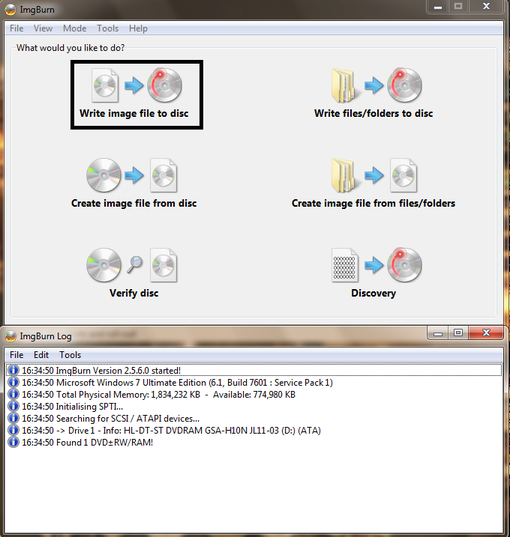
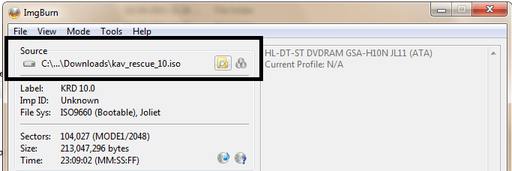
DVD alternative: if you have a DVD writer, use the disc-writing steps below instead. A CD may not fit the current image. The ImgBurn screenshots illustrate writing an ISO to a disc; choose your newly downloaded krd.iso, not the old filename pictured.
- Download the Kaspersky Rescue Disk ISOimage from below.

- Download ImgBurn, a software that will help us create this bootable disk.
- You can now insert your blank DVD/CD in your burner.
- Install ImgBurn by following the prompts and then start this program.
- Click on the Write image file to disc button.
- Under ‘Source’ click on the Browse for file button, then browse to the location where you previously saved the Kaspersky Rescue Disk ISO file.(krd.iso)
- Click on the big Write button.

- The disc creation process will now start and it will take around 5-10 minutes to complete.
STEP 2:Configure the computer to boot from CD-ROM
- Open your computer’s one-time Boot Menu using the key shown at startup or specified by its manufacturer. The key varies by model; do not assume Delete or F2 is correct for every PC.
- Select the USB drive or DVD containing the rescue image. Prefer the one-time boot choice so you do not have to change the permanent boot order. Leave Secure Boot and disk-encryption settings unchanged.
- Insert your Kaspersky Rescue Disk and restart your computer.
STEP 3:Boot your computer from Kaspersky Rescue Disk
- Wait for the rescue boot menu. If prompted, press a key to continue from the USB or DVD; otherwise proceed to the language selection.
- In the start up wizard window that will open, select your language using the cursor moving keys. Press the ENTER key on the keyboard.
- On the next screen, select Kaspersky Rescue Disk. Graphic Mode then press ENTER.
- Read the agreements shown by the current startup wizard and use its acceptance controls if you agree. The old instruction to press the C key does not apply to every release.
- Once the actions described above have been performed, the Kaspersky operating system will start.
STEP 4:Scan your system with Kaspersky Rescue Disk
- The rescue environment opens Kaspersky Rescue Tool. If it reports outdated databases, click Update now and allow the update to finish. Use a network connection that works in the rescue environment.
- Restart the scanning application if prompted after the update. Open About to check the database release date. If updates cannot be obtained, do not treat an old database as a current check.
- In Kaspersky Rescue Tool, review the scan scope and click Start scan. If the Windows drive is BitLocker-encrypted, unlock it using your password or recovery key when requested; do not format it.
- Review each detected object and the proposed action before applying it. Prefer disinfection when available for an infected system file. Do not blindly delete Windows files; save the report and get help with detections you cannot assess.
- After processing the detections, review the results and note any unresolved items. Save the scan report so you can provide the exact names and actions if Windows still will not start.
- When done you can close the Kaspersky Rescue Disk window and use the Start Menu to Restart the computer.

Join the discussion
0 commentsShare your experience or ask a question about this article.
Your progress
Did these steps help?
Let us know how the guide worked for you.
Describe what you see and the step you reached. Keep passwords and other private information out.
Discussion
Start the conversation
Have a question or something useful to share? Add the first comment.