

Live Security Platinum is a malicious program also known as rogue security software, which will display fake security alerts in an attempt to scare you into buying this fake security product.
In addition, Live Security Platinum has also hijacked your PC,blocking your from running files,so now when your trying to open and executable file (file ending with .exe), this program will instead display this fake alerts:
Warning!

Application cannot be executed. The file rdpclip.exe is infected. Please active your antivirus software.
Security Monitor: WARNING!

Attention! System detected a potential hazard (TrojanSPM/LX) on your computer that may infect executable files. Your private information and PC safety is at risk.

To get rid of unwanted spyware and keep your computer safe you need to update your current security software.

Click Yes to download official intrusion detection system (IDS software).
Live Security Platinum Warning Spyware.IEMonster activity detected. This is spyware that attempts to steal passwords from Internet Explorer, Mozilla FireFox, Outlook and other programs. Click here to remove it immediately with Live Security Platinum
Live Security Platinum Firewall Alert Live Security Platinum Firewall has blocked a program from accessing the Internet. Internet Explorer Internet Browser is infected with SVCHOST.Stealth.Key-logger. This worm is trying to send your credit card details using Internet Explorer Internet Browser to connect to remove host
Live Security Platinum will also cause malicious browser redirects and system slowdowns so it needs to be removed from your computer as soon as possible.
This is are a few images of Live Security Platinum:
![[Image: Live Security Platinum virus]](https://malwaretips.com/blogs/wp-content/uploads/mwt-media/78/783c1b732d113f836bde9af8615f4a67abc3eb2fb84e105be7ae0c5b9a01c993/0f02a9185e04eb2b7d5a52f701fd75bda1efbf8aac6649f081b4d02f12d33095-750.webp "Live Security Platinum")
![[Image: Live Security Platinum Alert]](https://malwaretips.com/blogs/wp-content/uploads/mwt-media/28/28e04da1c8356809c0e9f41a188271e431d5f42ed0dbf33c93be3fe766950757/7cbde32bc1c176bc662475bc3cf375284463c015efcb453ae3da24c085f4d51c-490.webp "Live Security Platinum fake alert")
![[Image: Live Security Platinum Warning]](https://malwaretips.com/blogs/wp-content/uploads/mwt-media/f7/f7cadfc53c851f2cece0312a2a494e10a5fab7d1efcd86947b9f52a4b41ff20e/21ac989757e0d33135d0c674ea46dd36fc2e453bc77d25b0eeb362dc28ea3a77-497.webp "Live Security Platinum fake warning")
Registration codes for Live Security Platinum
As an optional step,you can use the following license key to register Live Security Platinum and stop the fake alerts.
AA39754E-715219CE
Please keep in mind that entering the above registration code will NOT remove Live Security Platinum from your computer , instead it will just stop the fake alerts so that you’ll be able to complete our removal guide more easily.
Live Security Platinum Removal Guide
STEP 1 : Start your computer in Safe Mode with Networking
- Remove all floppy disks, CDs, and DVDs from your computer, and then restart your computer.
- Press and hold the F8 key as your computer restarts.Please keep in mind that you need to press the F8 key before the Windows start-up logo appears.
Note: With some computers, if you press and hold a key as the computer is booting you will get a stuck key message. If this occurs, instead of pressing and holding the “F8 key”, tap the “F8 key” continuously until you get the Advanced Boot Options screen. - On the Advanced Boot Options screen, use the arrow keys to highlight Safe Mode with Networking , and then press ENTER.
![[Image: Safemode.jpg]](//malwaretips.com/images/removalguide/safemode.jpg "Safe Mode with Networking screen")
![[Image: Safemode.jpg]](http://malwaretips.com/images/removalguide/safemode.jpg "Safe Mode with Networking screen")
STEP 2: Remove Live Security Platinum malicious proxy server
Live Security Platinum may add a proxy server which prevents the user from accessing the internet,follow the below instructions to remove the proxy.
- Start the Internet Explorer browser and if you are using Internet Explorer 9 ,click on the gear icon
![[Image: IE gear icon]](//malwaretips.com/images/removalguide/icongear.jpg "Gear Icon") (Tools for Internet Explorer 8 users) ,then select Internet Options.
(Tools for Internet Explorer 8 users) ,then select Internet Options.
![[Image: Internet-options-IE.png]](//malwaretips.com/images/removalguide/ie1.png "Internet Options in IE")
- Go to the tab Connections.At the bottom, click on LAN settings.
![[Image: Remove-proxy-server2.png]](//malwaretips.com/images/removalguide/ie2.png "Connections tab in Internet Explorer")
- Uncheck the option Use a proxy server for your LAN. This should remove the malicious proxy server and allow you to use the internet again.
![[Image: Remove-proxy-server3.png]](//malwaretips.com/images/removalguide/ie3.png "Uncheck the option Use a proxy server for your LAN")
![[Image: IE gear icon]](http://malwaretips.com/images/removalguide/icongear.jpg "Gear Icon") (Tools for Internet Explorer 8 users) ,then select Internet Options.
(Tools for Internet Explorer 8 users) ,then select Internet Options.![[Image: Internet-options-IE.png]](http://malwaretips.com/images/removalguide/ie1.png "Internet Options in IE")
![[Image: Remove-proxy-server2.png]](http://malwaretips.com/images/removalguide/ie2.png "Connections tab in Internet Explorer")
![[Image: Remove-proxy-server3.png]](http://malwaretips.com/images/removalguide/ie3.png "Uncheck the option Use a proxy server for your LAN")
If you are a Firefox users, go to Firefox(upper left corner) → Options → Advanced tab → Network → Settings → Select No Proxy
STEP 3: Repair your Windows Registry from Live Security Platinum malicious changes.
Smart Fortress 2012 has changed your Windows registry settings so that when you try to run a executable file (ending with .exe ) , it will instead launch the infection rather than the desired program.
- Download the registryfix.reg file to fix the malicious registry changes from Live Security Platinum.
Download RegistryFix.regOpens the download page in a new tab. - Double-click on registryfix.reg file to run it. Click “Yes” for Registry Editor prompt window,then click OK.
![[Image: fix registry]](https://malwaretips.com/blogs/wp-content/uploads/mwt-media/eb/ebb442be105de3ba699098a7eabfd9a0d16dc8095665c269a2522c8688db35b2/26385b223113f019b2e1203ccb53c22dd9afebee09d707d7218c37072ce252ce-429.webp "Remove Live Security Platinum (Uninstall Guide) 1")
STEP 4: Run RKill to terminate known malware processes associated with Live Security Platinum.
RKill is a program that will attempt to terminate all malicious processes associated with Live Security Platinum,so that we will be able to perform the next step without being interrupted by this malicious software.
Because this utility will only stop Live Security Platinum running process, and does not delete any files, after running it you should not reboot your computer as any malware processes that are configured to start automatically will just be started again.
- While your computer is in Safe Mode with Networking ,please download the latest official version of RKill.Please note that we will use a renamed version of RKILL so that Live Security Platinum won’t block this utility from running.
Download RKillYour download starts right away. - Double-click on the iExplore.exe icon in order to automatically attempt to stop any processes associated with Live Security Platinum.
![[Image: run-rkill-1.png]](//malwaretips.com/images/removalguide/rkill1.png "RKILL ICON")
- RKill will now start working in the background, please be patient while the program looks for various malware programs and tries to terminate them.
![[Image: run-rkill-2.png]](//malwaretips.com/images/removalguide/rkill2.png "RKILL Command prompt")
IF you are having problems starting or running RKill, you can download any other renamed versions of RKill from here. - When Rkill has completed its task, it will generate a log. You can then proceed with the rest of the guide.
![[Image: Live Security Platinum rkill3.jpg]](//malwaretips.com/images/removalguide/rkill3.png "RKILL LOG")
![[Image: run-rkill-1.png]](http://malwaretips.com/images/removalguide/rkill1.png "RKILL ICON")
![[Image: run-rkill-2.png]](http://malwaretips.com/images/removalguide/rkill2.png "RKILL Command prompt")
![[Image: Live Security Platinum rkill3.jpg]](http://malwaretips.com/images/removalguide/rkill3.png "RKILL LOG")
WARNING: Do not reboot your computer after running RKill as the malware process will start again , preventing you from properly performing the next step.
STEP 5: Remove Live Security Platinum malicious files with Malwarebytes Anti-Malware FREE
- Download the latest official version of Malwarebytes Anti-Malware FREE.
Download MalwarebytesFree official installer. Your download starts right away. - Start the Malwarebytes’ Anti-Malware installation process by double clicking on mbam-setup file.
![[Image: Malwarebytes Installer]](//malwaretips.com/images/removalguide/malwarebytes-setup.png "Malwarebytes Anti-Malware Installer")
- When the installation begins, keep following the prompts in order to continue with the setup process. Do not make any changes to default settings and when the program has finished installing, make sure you leave both the Update Malwarebytes’ Anti-Malware and Launch Malwarebytes’ Anti-Malware checked. Then click on the Finish button. If Malwarebytes’ prompts you to reboot, please do not do so.
![[Image: Finishing Malwarebytes installation]](//malwaretips.com/images/removalguide/update-malwarebytes.png "Malwarebytes last setup screen")
- Malwarebytes Anti-Malware will now start and you’ll be prompted to start a trial period , please select ‘Decline‘ as we just want to use the on-demand scanner.
![[Image: Decline Malwarebytes trial]](//malwaretips.com/images/removalguide/mbam3.PNG "Decline trial period in Malwarebytes Anti-Malware")
- On the Scanner tab,select Perform full scan and then click on the Scanbutton to start scanning your computer.
![[Image: Starting a full system sca]](//malwaretips.com/images/removalguide/start-scan-malwarebytes.png "Perform a Full System Scan with Malwarebytes Anti-Malware")
- Malwarebytes’ Anti-Malware will now start scanning your computer for Live Security Platinum malicious files as shown below.
![[Image: Malwarebytes scanning for malicious files]](//malwaretips.com/images/removalguide/scan-malwarebytes.png "Malwarebytes Anti-Malware scanning for Live Security Platinum")
- When the scan is finished a message box will appear, click OK to continue.
![[Image: Malwarebytes scan results]](//malwaretips.com/images/removalguide/results-malwarebytes.png "Malwarebytes when the system scan has finished")
- You will now be presented with a screen showing you the malware infections that Malwarebytes’ Anti-Malware has detected.Please note that the infections found may be different than what is shown in the image.Make sure that everything is Checked (ticked) and click on the Remove Selectedbutton.
![[Image: Infections found by Malwarebytes]](//malwaretips.com/images/removalguide/detection-malwarebytes.png "Removing the infections found by Malwarebytes")
- Malwarebytes’ Anti-Malware will now start removing the malicious files.After completing this task it will display a message stating that it needs to reboot,please allow this request and then let your PC boot in Normal mode.
![[Image: Malwarebytes Installer]](http://malwaretips.com/images/removalguide/malwarebytes-setup.png "Malwarebytes Anti-Malware Installer")
![[Image: Finishing Malwarebytes installation]](http://malwaretips.com/images/removalguide/update-malwarebytes.png "Malwarebytes last setup screen")
![[Image: Decline Malwarebytes trial]](http://malwaretips.com/images/removalguide/mbam3.PNG "Decline trial period in Malwarebytes Anti-Malware")
![[Image: Starting a full system sca]](http://malwaretips.com/images/removalguide/start-scan-malwarebytes.png "Perform a Full System Scan with Malwarebytes Anti-Malware")
![[Image: Malwarebytes scanning for malicious files]](http://malwaretips.com/images/removalguide/scan-malwarebytes.png "Malwarebytes Anti-Malware scanning for Live Security Platinum")
![[Image: Malwarebytes scan results]](http://malwaretips.com/images/removalguide/results-malwarebytes.png "Malwarebytes when the system scan has finished")
![[Image: Infections found by Malwarebytes]](http://malwaretips.com/images/removalguide/detection-malwarebytes.png "Removing the infections found by Malwarebytes")
STEP 6: Double check your system for any left over infections with HitmanPro
- This step can be performed in Normal Mode ,so please download the latest official version of HitmanPro.
Download HitmanProOfficial Sophos download. Free scan, free 30-day trial to remove threats. - Double click on the previously downloaded fileto start the HitmanPro installation.
![[Image: hitmanpro-icon.png]](//malwaretips.com/images/removalguide/hpro1.png "HitmanPro Installer")
IF you are experiencing problems while trying to starting HitmanPro, you can use the “Force Breach” mode.To start this program in Force Breach mode, hold down the left CTRL-key when you start HitmanPro and all non-essential processes are terminated, including the malware process. (How to start HitmanPro in Force Breach mode – Video) - Click on Next to install HitmanPro on your system.
![[Image: installing-hitmanpro.png]](//malwaretips.com/images/removalguide/hpro2.png "HitmanPro installation process")
- The setup screen is displayed, from which you can decide whether you wish to install HitmanPro on your machine or just perform a one-time scan, select a option then click on Next to start a system scan.
![[Image: hitmanpro-setup-options.png]](//malwaretips.com/images/removalguide/hpro3.png "HitmanPro setup options")
- HitmanPro will start scanning your system for malicious files. Depending on the size of your hard drive, and the performance of your computer, this step will take several minutes.
![[Image: hitmanpro-scanning.png]](//malwaretips.com/images/removalguide/hpro4.png "HitmanPro scanning for Live Security Platinum")
- Once the scan is complete,a screen displaying all the malicious files that the program found will be shown as seen in the image below.After reviewing each malicious object click Next.
![[Image: hitmanpro-scan-results.png]](//malwaretips.com/images/removalguide/hpro5.png "HitmanPro Live Security Platinum scan results")
- Click Activate free license to start the free 30 days trial and remove the malicious files.
![[Image: hitmanpro-activation.png]](//malwaretips.com/images/removalguide/hpro6.png "Activate HitmanPro free license to remove detected infections")
- HitmanPro will now start removing the infected objects, and in some instances, may suggest a reboot in order to completely remove the malware from your system. In this scenario, always confirm the reboot action to be on the safe side.
![[Image: hitmanpro-icon.png]](http://malwaretips.com/images/removalguide/hpro1.png "HitmanPro Installer")
![[Image: installing-hitmanpro.png]](http://malwaretips.com/images/removalguide/hpro2.png "HitmanPro installation process")
![[Image: hitmanpro-setup-options.png]](http://malwaretips.com/images/removalguide/hpro3.png "HitmanPro setup options")
![[Image: hitmanpro-scanning.png]](http://malwaretips.com/images/removalguide/hpro4.png "HitmanPro scanning for Live Security Platinum")
![[Image: hitmanpro-scan-results.png]](http://malwaretips.com/images/removalguide/hpro5.png "HitmanPro Live Security Platinum scan results")
![[Image: hitmanpro-activation.png]](http://malwaretips.com/images/removalguide/hpro6.png "Activate HitmanPro free license to remove detected infections")
STEP 7: Remove any left over malicious registry keys and files
Live Security Platinum has sadded some malicious registry keys to your Windows installation , to remove this malicious changes we need to run a scan with RogueKiller
- Please download the latest official version of RogueKiller.
Download RogueKillerOpens the download page in a new tab. - Double click on RogueKiller.exe to start this utility and then wait for the Prescan to complete.This should take only a few seconds and then you can click the Start button to perform a system scan.
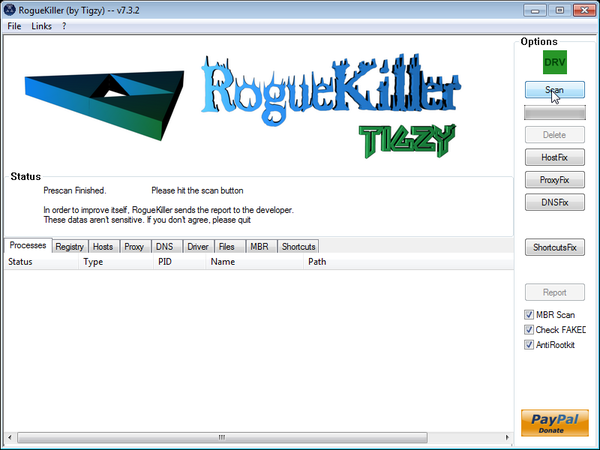
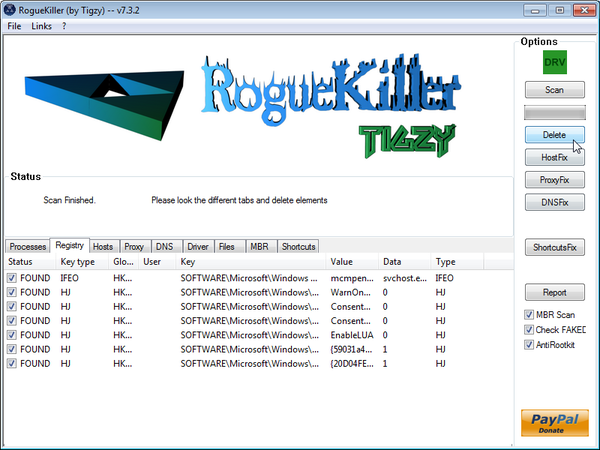
- After the scan has completed, press the Delete button to remove any malicious registry keys.
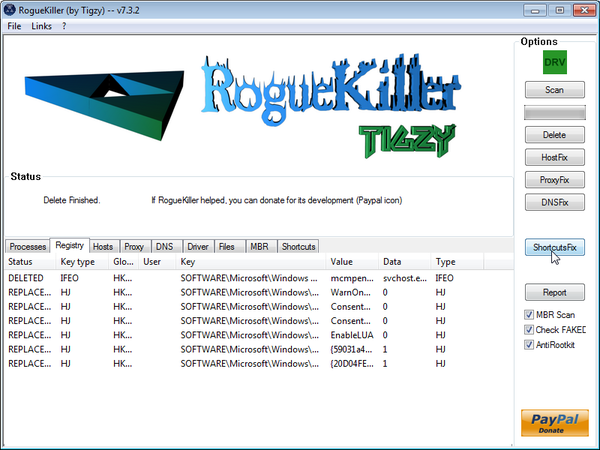
- Next we will need to restore your shortcuts, so click on the ShortcutsFix button and allow the program to run.

Join the discussion
538 commentsShare your experience or ask a question about this article.
Your progress
Did these steps help?
Let us know how the guide worked for you.
Describe what you see and the step you reached. Keep passwords and other private information out.
Discussion
I often see posts where the issue didn’t work out thru no fault of the person doing the helping on somebody’s PC problem. The person getting the help is totally disrespectful. Being thankful for someone trying to help is expected when they didn’t cause the problem to begin with. They are taking their own time to try and help. It’s totally the fault of the person with the problem. If you would do diligence on the daily maintenance end of your own computer, keep it updated, install the necessary essential security software like spyware, malware, registry cleaner, and keep your device drivers up to date, and keep it backed up daily which only takes a minute or two, you could eliminate the majority of your computer problems. Downloading all the freeware out there to save a buck is just the beginning of your problems.
Hello,
You’ve got a pretty nasty infection on this machine. It’s a ZeroAccess rootkit which has corrupted your Windows Defender settings.
To remove this infection, please follow the instructions from this guide: http://malwaretips.com/blogs/file-contained-a-virus-and-was-deleted-removal/
Stay safe!
Good day Stelian!
I am one of those infected this malware and I followed the above instruction of yours last 5 months ago.
I am now infected with another malware yesterday, the name is “windows xp 2011 unregistered version”.
I would like to know if you have encountered this treats and made a post how to get rid off it.
I searched in the web yet I am not satisfied about their instruction.
Your posts were perfectly clear and easy to follow step by step.
Hope you can help me. Thanks a lot.
In reply to aixirt
i mean threats
In reply to aixirt
Hello aixirt,
You can follow this guide: http://malwaretips.com/blogs/win-7-internet-security-2011-virus/
Stay safe!
Oh thank you great malware remover god. I am naming all my grandchildren after you!!!! Even if they are girls!!!
Thanks a lot!
Thankyou – this blog was great – followed every step and now have my computer back – AWESOME
Thank you SteliaN!
YOU ROCK!You should get a medal!
phenomenal! thanks a lot.
tnx might
In reply to zebra
** tnx mate :)
You are a great man!Thank you.
Thanks!
Greetings from Mexico,
Thx a lot for your help !!
You Rock Stelian, See ya !!
Hey Stellion. I got the Live Security Platinum Virus on my compter again, but this time I was able to follow your guide. I got pretty far in it (and I think Malwarebytes deleted it), but I got stuck at the HitmanPro part. It scanned my computer and found 25 malicious files, but it won’t remove them for me. There was no “Acitvate Free License”; the only option is to buy the product. I tried running it again, and this time noticed that on the bottom there’s a warning sign and next to it, it says “Trial license expired. Removal of viruses and other malicious software is disabled. Buy Now”. Seeing as I prefer not to buy the product, I was wondering how you suggest I proceed? Should I do Step 7 with Rogue Killer, or do I first need to complete the HitmanPro step? And how can I get rid of those 25 malicious files?
Please instruct me on what to do next.
Thanks
In reply to Magnus
Hello Magnus,
We can manually remove this files however let’s see if we can get rid of some of them using the below software:
1.Run a scan with Kaspersky Virus Removal Tool
Click here to download the Kaspersky Virus Removal Tool.
2.Run a scan with Eset Online Scanner.
ESET Online Scanner Download Link (This link will automatically download ESET Online Scanner on your computer.)
NEXT,please re-run a scan with HitmanPro and post the log or a screenshot here and I’ll give you instructions on how to remove the left over files.
Good luck!
In reply to Stelian Pilici
Ok. I ran Kaspersky and it was supposed to take about 4 and a half hours, but about 3 hours in, it found a virus, Trojan? that it said it had to deal with immediately. This was a separate pop up window, and the scanner was still scanning in the background. At first I was going to wait till the scanner finished, but it had about another hour and a half to go. So to take care of the pop up window, it said to either ‘disinfect the files’ or some other option which was something like “No, not now…”. Seeing as this looked important, and it said after it fixed the files it would reboot, I didn’t know how the scan would react to this. If it finished before the original scan finished, then it would reboot and my 3+ hours of scanning would be in vain! I wasn’t going to wait around for another hour and a half, so I clicked “Yes, Disinfect my computer…” and it opened another window that started scanning on top of the other scanner. I was prompted to do this partly because I think the new virus (something like “seomncxrv.exe” with a red umbrella logo in ProcessExplorer, and when I googled the exact file name, google came up blank (not a single page)!!! Perhaps I should have got the hint,) was already causing me problems. Anyway, in middle of the second scan, the first scan just stopped, and I had to fool around with the program to find out what it found. It found a bunch of bad files and I clicked “Neutralize them”, and tried to get Kaspersky to fix the problems. It went back to the ‘Disinfect’ scan and I think I closed the other scan in frustration. But I don’t remember exactly what happened next, but basically, I think the virus tried to do something and something happened and the next thing I know windows explorer stopped working so that everything on my desktop disappeared, the taskbar, everything, and the only thing left was the Disinfect Scan. It said it had about 15 minutes left, so I let it run. What else could I do? After it finished, it rebooted the computer. Thank goodness, because I had no access to anything. Once it restarted (everything went back to normal), Kaspersky was deleting some stuff, and then it opened to the regular page, asking me to install the program. At this point I didn’t know what to do, but it looked like it successfully deleted the new virus, Trojan, so I decided to continue with your advice. I closed Kaspersky and downloaded and scanned with ESET scanner, and it found 27 bad files. I think it took care of them. After that I scanned with HitmanPro, and this time it found 13 problematic items. As the removal of these is disabled on my HitmanPro, what should I do now? Do you still want a log of the Tracking Cookies and ZeroAccesses? Or seeing as this whole process didn’t go as planned, perhaps there is another path that I should be taking? Where do we go from here?
Thanks for all your help.
In reply to Magnus
Hello Magnus,
The Kaspersky desinfection process is really slow and not well designed…however it works…..Now can you please run a Combofix scan and post the log here so that I can take a look at what’s going on your machine:
Download ComboFix from one of the following locations:
COMBOFIX DOWNLOAD LINK #1 (This link will automatically download Combofix on your computer)
COMBOFIX DOWNLOAD LINK #2 (This link will automatically download Combofix on your computer)
VERY IMPORTANT !!! Save as Combo-Fix.exe during the download.ComboFix must be renamed before you download to your Desktop
Notes:
Thank yoU!!!
omg…thank you soooooo much. I spent nearly 1 day trying to remove (several boot cd’s etc.) that frigging malware until I found your post. THANK YOU!
Still one question: Should I reinstall my OS to be 100% sure that this malware is gone?
In reply to David
Hello,
HitmanPro and Malwarebytes should have removed this rogue antivirus,however for your peace of mind I would suggest that you perform a scan with the following utilities:
1.Run a scan with Kaspersky Virus Removal Tool
Click here to download the Kaspersky Virus Removal Tool.
2.Run a scan with Eset Online Scanner.
ESET Online Scanner Download Link (This link will automatically download ESET Online Scanner on your computer.)
Thank you so much! This all worked great right up to the last step. Windows will not allow me to download Roguekiller. I am not given an option like do you want to download anyway….it just will not let me, saying it is unsafe. Is there another option/program?
In reply to Cristy Hartig
Hello Cristy,
You can ignore that alert…Internet Explorer has displayed that alert because this file isn’t commonly downloaded …
Also:
1.Run a scan with Kaspersky Virus Removal Tool
Click here to download the Kaspersky Virus Removal Tool.
2.Run a scan with Eset Online Scanner.
ESET Online Scanner Download Link (This link will automatically download ESET Online Scanner on your computer.)
can i do this step on safe mode ? im using windows xp
– i already done the STEP 5: Remove Live Security Platinum malicious files with Malwarebytes Anti-Malware FREE coz i had the software before this sh*t virus infected
In reply to Rooney roy
Yes,run a scan with Malwarebytes and then go ahead with the HitmanPro scan… keep me up-to-date with what’s going on!:)
Hi Stelian,
Great job!!! Thanks for your post. I still need some help. Hope you can answer. I got my office’s computer infected with the Live Security Platinum one week ago and tried to remove it with my usual desinfection tool, Kaspersky Antivirus 2011. I scanned my pc with this application, which detected the virus and seemed to delete it. But whenever I restarted my computer, I still got messages from Platinum still working and downslowing my system. Then I scanned my PC with Kaspersky Virus Removal Tool and this detected a lot of infections and got rid of them. At that moment I thought my computer was already clean, but after the following restart, Kaspersky Antivirus 2011 collapsed. It stopped working. and did not started any more. I was advised to reinstall it. However, that has turned to be impossible, as during the setup process, I always get a black screen and the computer switches off all of a sudden. This continues to happen: whenever I try to install Kaspersky Antivirus 2011, my computer switches off and never get the chance to finish setup. Yesterday, I installed Kaspersky Internet Security 2013, but during the process I got a message reporting that my computer may be infected and wassuggested to download Kaspersky Virus Removal Tool. I downloaded this tool again and scanned my computer, but on this occasion it didn’t find any virus. Every time I install Kaspersky Internet Security 2013 (complete installation is possible) I get this message reporting possible infection. And every time I try to install Kaspersky Antivirus 2011, I get a black screen and my PC goes down. Could you please help me with any suggestion? Thanks a lot.
Best regards from Seville, Spain
In reply to Eloy
Hello Eloy,
Can you please run a scan with Combofix and ESET online scanner and post the logs here so that I can get an idea on what’s going on :
STEP 1 : Run a scan with Combofix
Download ComboFix from one of the following locations:
COMBOFIX DOWNLOAD LINK #1 (This link will automatically download Combofix on your computer)
COMBOFIX DOWNLOAD LINK #2 (This link will automatically download Combofix on your computer)
VERY IMPORTANT !!! Save as Combo-Fix.exe during the download.ComboFix must be renamed before you download to your Desktop
Notes:
STEP 2: Run a scan with ESET Online Scanner:
ESET Online Scanner Download Link (This link will automatically download ESET Online Scanner on your computer.)
Waiting for your reply to tell me if your machine is ok and the logs from this utilit
In reply to Stelian Pilici
Hi Stelian,
Thanks a lot for your answer and your attention. I followed your instructions closely and ran ComboFix and ESSET Online Scanner. The report created by ComboFix is to be found at the end of my this post. As for ESSET Online Scanner, it didn’t find any threat. However, as I described in my previous post, I’m still unable to install Kaspersky Internet Security 2011. In the middle of the process, I get an unexpected black screen and a sudden reboot. When I try to install Kaspersky Internet Security 2013, I still get a report stating that my PC could be infected and am recommended to scan my system with Kaspersky Virus Removal Tool. Something new happens now: Kaspersky Virus Removal Tool cannot be run now as I also get a black screen and a reboot when I try to install it. I hope you can help me with this. Many thanks in advance.
Best regards,
Eloy
Seville
Spain
COMBOFIX REPORT *****************************************
In reply to Eloy
Hello Eloy,
Your Combofix log shows that you’ve still got some infection on this machine.Can you please start a thread in our Malware Removal Assistance forum as we need to remove this viruses.
Hi i had this problem and my friend recomended to install malwarebytes and it removed the malware, so then i uninstall malwarebytes but on the next day the malware still showed up. Again i had to install the malwarebyted and it removed the malware i also used comboflix. Still on the lower right when i click customize it shows something like 9d62tmp. live security premium. Please help me to completely remove it
Thanx
In reply to jiwan
Hello jiwan,
Can you perform a scan with the following utilities:
1.Run a scan with Kaspersky Virus Removal Tool
Click here to download the Kaspersky Virus Removal Tool.
2.Run a scan with Eset Online Scanner.
ESET Online Scanner Download Link (This link will automatically download ESET Online Scanner on your computer.)
VERY IMPORTANT!: NEXT,please delete Combofix from your desktop and download a fresh copy of this utility.After you have disabled your antivirus,run a scan with Combofix and post the log here.