

Live Security Platinum is a malicious program also known as rogue security software, which will display fake security alerts in an attempt to scare you into buying this fake security product.
In addition, Live Security Platinum has also hijacked your PC,blocking your from running files,so now when your trying to open and executable file (file ending with .exe), this program will instead display this fake alerts:
Warning!

Application cannot be executed. The file rdpclip.exe is infected. Please active your antivirus software.
Security Monitor: WARNING!

Attention! System detected a potential hazard (TrojanSPM/LX) on your computer that may infect executable files. Your private information and PC safety is at risk.

To get rid of unwanted spyware and keep your computer safe you need to update your current security software.

Click Yes to download official intrusion detection system (IDS software).
Live Security Platinum Warning Spyware.IEMonster activity detected. This is spyware that attempts to steal passwords from Internet Explorer, Mozilla FireFox, Outlook and other programs. Click here to remove it immediately with Live Security Platinum
Live Security Platinum Firewall Alert Live Security Platinum Firewall has blocked a program from accessing the Internet. Internet Explorer Internet Browser is infected with SVCHOST.Stealth.Key-logger. This worm is trying to send your credit card details using Internet Explorer Internet Browser to connect to remove host
Live Security Platinum will also cause malicious browser redirects and system slowdowns so it needs to be removed from your computer as soon as possible.
This is are a few images of Live Security Platinum:
![[Image: Live Security Platinum virus]](https://malwaretips.com/blogs/wp-content/uploads/mwt-media/78/783c1b732d113f836bde9af8615f4a67abc3eb2fb84e105be7ae0c5b9a01c993/0f02a9185e04eb2b7d5a52f701fd75bda1efbf8aac6649f081b4d02f12d33095-750.webp "Live Security Platinum")
![[Image: Live Security Platinum Alert]](https://malwaretips.com/blogs/wp-content/uploads/mwt-media/28/28e04da1c8356809c0e9f41a188271e431d5f42ed0dbf33c93be3fe766950757/7cbde32bc1c176bc662475bc3cf375284463c015efcb453ae3da24c085f4d51c-490.webp "Live Security Platinum fake alert")
![[Image: Live Security Platinum Warning]](https://malwaretips.com/blogs/wp-content/uploads/mwt-media/f7/f7cadfc53c851f2cece0312a2a494e10a5fab7d1efcd86947b9f52a4b41ff20e/21ac989757e0d33135d0c674ea46dd36fc2e453bc77d25b0eeb362dc28ea3a77-497.webp "Live Security Platinum fake warning")
Registration codes for Live Security Platinum
As an optional step,you can use the following license key to register Live Security Platinum and stop the fake alerts.
AA39754E-715219CE
Please keep in mind that entering the above registration code will NOT remove Live Security Platinum from your computer , instead it will just stop the fake alerts so that you’ll be able to complete our removal guide more easily.
Live Security Platinum Removal Guide
STEP 1 : Start your computer in Safe Mode with Networking
- Remove all floppy disks, CDs, and DVDs from your computer, and then restart your computer.
- Press and hold the F8 key as your computer restarts.Please keep in mind that you need to press the F8 key before the Windows start-up logo appears.
Note: With some computers, if you press and hold a key as the computer is booting you will get a stuck key message. If this occurs, instead of pressing and holding the “F8 key”, tap the “F8 key” continuously until you get the Advanced Boot Options screen. - On the Advanced Boot Options screen, use the arrow keys to highlight Safe Mode with Networking , and then press ENTER.
![[Image: Safemode.jpg]](//malwaretips.com/images/removalguide/safemode.jpg "Safe Mode with Networking screen")
![[Image: Safemode.jpg]](http://malwaretips.com/images/removalguide/safemode.jpg "Safe Mode with Networking screen")
STEP 2: Remove Live Security Platinum malicious proxy server
Live Security Platinum may add a proxy server which prevents the user from accessing the internet,follow the below instructions to remove the proxy.
- Start the Internet Explorer browser and if you are using Internet Explorer 9 ,click on the gear icon
![[Image: IE gear icon]](//malwaretips.com/images/removalguide/icongear.jpg "Gear Icon") (Tools for Internet Explorer 8 users) ,then select Internet Options.
(Tools for Internet Explorer 8 users) ,then select Internet Options.
![[Image: Internet-options-IE.png]](//malwaretips.com/images/removalguide/ie1.png "Internet Options in IE")
- Go to the tab Connections.At the bottom, click on LAN settings.
![[Image: Remove-proxy-server2.png]](//malwaretips.com/images/removalguide/ie2.png "Connections tab in Internet Explorer")
- Uncheck the option Use a proxy server for your LAN. This should remove the malicious proxy server and allow you to use the internet again.
![[Image: Remove-proxy-server3.png]](//malwaretips.com/images/removalguide/ie3.png "Uncheck the option Use a proxy server for your LAN")
![[Image: IE gear icon]](http://malwaretips.com/images/removalguide/icongear.jpg "Gear Icon") (Tools for Internet Explorer 8 users) ,then select Internet Options.
(Tools for Internet Explorer 8 users) ,then select Internet Options.![[Image: Internet-options-IE.png]](http://malwaretips.com/images/removalguide/ie1.png "Internet Options in IE")
![[Image: Remove-proxy-server2.png]](http://malwaretips.com/images/removalguide/ie2.png "Connections tab in Internet Explorer")
![[Image: Remove-proxy-server3.png]](http://malwaretips.com/images/removalguide/ie3.png "Uncheck the option Use a proxy server for your LAN")
If you are a Firefox users, go to Firefox(upper left corner) → Options → Advanced tab → Network → Settings → Select No Proxy
STEP 3: Repair your Windows Registry from Live Security Platinum malicious changes.
Smart Fortress 2012 has changed your Windows registry settings so that when you try to run a executable file (ending with .exe ) , it will instead launch the infection rather than the desired program.
- Download the registryfix.reg file to fix the malicious registry changes from Live Security Platinum.
Download RegistryFix.regOpens the download page in a new tab. - Double-click on registryfix.reg file to run it. Click “Yes” for Registry Editor prompt window,then click OK.
![[Image: fix registry]](https://malwaretips.com/blogs/wp-content/uploads/mwt-media/eb/ebb442be105de3ba699098a7eabfd9a0d16dc8095665c269a2522c8688db35b2/26385b223113f019b2e1203ccb53c22dd9afebee09d707d7218c37072ce252ce-429.webp "Remove Live Security Platinum (Uninstall Guide) 1")
STEP 4: Run RKill to terminate known malware processes associated with Live Security Platinum.
RKill is a program that will attempt to terminate all malicious processes associated with Live Security Platinum,so that we will be able to perform the next step without being interrupted by this malicious software.
Because this utility will only stop Live Security Platinum running process, and does not delete any files, after running it you should not reboot your computer as any malware processes that are configured to start automatically will just be started again.
- While your computer is in Safe Mode with Networking ,please download the latest official version of RKill.Please note that we will use a renamed version of RKILL so that Live Security Platinum won’t block this utility from running.
Download RKillYour download starts right away. - Double-click on the iExplore.exe icon in order to automatically attempt to stop any processes associated with Live Security Platinum.
![[Image: run-rkill-1.png]](//malwaretips.com/images/removalguide/rkill1.png "RKILL ICON")
- RKill will now start working in the background, please be patient while the program looks for various malware programs and tries to terminate them.
![[Image: run-rkill-2.png]](//malwaretips.com/images/removalguide/rkill2.png "RKILL Command prompt")
IF you are having problems starting or running RKill, you can download any other renamed versions of RKill from here. - When Rkill has completed its task, it will generate a log. You can then proceed with the rest of the guide.
![[Image: Live Security Platinum rkill3.jpg]](//malwaretips.com/images/removalguide/rkill3.png "RKILL LOG")
![[Image: run-rkill-1.png]](http://malwaretips.com/images/removalguide/rkill1.png "RKILL ICON")
![[Image: run-rkill-2.png]](http://malwaretips.com/images/removalguide/rkill2.png "RKILL Command prompt")
![[Image: Live Security Platinum rkill3.jpg]](http://malwaretips.com/images/removalguide/rkill3.png "RKILL LOG")
WARNING: Do not reboot your computer after running RKill as the malware process will start again , preventing you from properly performing the next step.
STEP 5: Remove Live Security Platinum malicious files with Malwarebytes Anti-Malware FREE
- Download the latest official version of Malwarebytes Anti-Malware FREE.
Download MalwarebytesFree official installer. Your download starts right away. - Start the Malwarebytes’ Anti-Malware installation process by double clicking on mbam-setup file.
![[Image: Malwarebytes Installer]](//malwaretips.com/images/removalguide/malwarebytes-setup.png "Malwarebytes Anti-Malware Installer")
- When the installation begins, keep following the prompts in order to continue with the setup process. Do not make any changes to default settings and when the program has finished installing, make sure you leave both the Update Malwarebytes’ Anti-Malware and Launch Malwarebytes’ Anti-Malware checked. Then click on the Finish button. If Malwarebytes’ prompts you to reboot, please do not do so.
![[Image: Finishing Malwarebytes installation]](//malwaretips.com/images/removalguide/update-malwarebytes.png "Malwarebytes last setup screen")
- Malwarebytes Anti-Malware will now start and you’ll be prompted to start a trial period , please select ‘Decline‘ as we just want to use the on-demand scanner.
![[Image: Decline Malwarebytes trial]](//malwaretips.com/images/removalguide/mbam3.PNG "Decline trial period in Malwarebytes Anti-Malware")
- On the Scanner tab,select Perform full scan and then click on the Scanbutton to start scanning your computer.
![[Image: Starting a full system sca]](//malwaretips.com/images/removalguide/start-scan-malwarebytes.png "Perform a Full System Scan with Malwarebytes Anti-Malware")
- Malwarebytes’ Anti-Malware will now start scanning your computer for Live Security Platinum malicious files as shown below.
![[Image: Malwarebytes scanning for malicious files]](//malwaretips.com/images/removalguide/scan-malwarebytes.png "Malwarebytes Anti-Malware scanning for Live Security Platinum")
- When the scan is finished a message box will appear, click OK to continue.
![[Image: Malwarebytes scan results]](//malwaretips.com/images/removalguide/results-malwarebytes.png "Malwarebytes when the system scan has finished")
- You will now be presented with a screen showing you the malware infections that Malwarebytes’ Anti-Malware has detected.Please note that the infections found may be different than what is shown in the image.Make sure that everything is Checked (ticked) and click on the Remove Selectedbutton.
![[Image: Infections found by Malwarebytes]](//malwaretips.com/images/removalguide/detection-malwarebytes.png "Removing the infections found by Malwarebytes")
- Malwarebytes’ Anti-Malware will now start removing the malicious files.After completing this task it will display a message stating that it needs to reboot,please allow this request and then let your PC boot in Normal mode.
![[Image: Malwarebytes Installer]](http://malwaretips.com/images/removalguide/malwarebytes-setup.png "Malwarebytes Anti-Malware Installer")
![[Image: Finishing Malwarebytes installation]](http://malwaretips.com/images/removalguide/update-malwarebytes.png "Malwarebytes last setup screen")
![[Image: Decline Malwarebytes trial]](http://malwaretips.com/images/removalguide/mbam3.PNG "Decline trial period in Malwarebytes Anti-Malware")
![[Image: Starting a full system sca]](http://malwaretips.com/images/removalguide/start-scan-malwarebytes.png "Perform a Full System Scan with Malwarebytes Anti-Malware")
![[Image: Malwarebytes scanning for malicious files]](http://malwaretips.com/images/removalguide/scan-malwarebytes.png "Malwarebytes Anti-Malware scanning for Live Security Platinum")
![[Image: Malwarebytes scan results]](http://malwaretips.com/images/removalguide/results-malwarebytes.png "Malwarebytes when the system scan has finished")
![[Image: Infections found by Malwarebytes]](http://malwaretips.com/images/removalguide/detection-malwarebytes.png "Removing the infections found by Malwarebytes")
STEP 6: Double check your system for any left over infections with HitmanPro
- This step can be performed in Normal Mode ,so please download the latest official version of HitmanPro.
Download HitmanProOfficial Sophos download. Free scan, free 30-day trial to remove threats. - Double click on the previously downloaded fileto start the HitmanPro installation.
![[Image: hitmanpro-icon.png]](//malwaretips.com/images/removalguide/hpro1.png "HitmanPro Installer")
IF you are experiencing problems while trying to starting HitmanPro, you can use the “Force Breach” mode.To start this program in Force Breach mode, hold down the left CTRL-key when you start HitmanPro and all non-essential processes are terminated, including the malware process. (How to start HitmanPro in Force Breach mode – Video) - Click on Next to install HitmanPro on your system.
![[Image: installing-hitmanpro.png]](//malwaretips.com/images/removalguide/hpro2.png "HitmanPro installation process")
- The setup screen is displayed, from which you can decide whether you wish to install HitmanPro on your machine or just perform a one-time scan, select a option then click on Next to start a system scan.
![[Image: hitmanpro-setup-options.png]](//malwaretips.com/images/removalguide/hpro3.png "HitmanPro setup options")
- HitmanPro will start scanning your system for malicious files. Depending on the size of your hard drive, and the performance of your computer, this step will take several minutes.
![[Image: hitmanpro-scanning.png]](//malwaretips.com/images/removalguide/hpro4.png "HitmanPro scanning for Live Security Platinum")
- Once the scan is complete,a screen displaying all the malicious files that the program found will be shown as seen in the image below.After reviewing each malicious object click Next.
![[Image: hitmanpro-scan-results.png]](//malwaretips.com/images/removalguide/hpro5.png "HitmanPro Live Security Platinum scan results")
- Click Activate free license to start the free 30 days trial and remove the malicious files.
![[Image: hitmanpro-activation.png]](//malwaretips.com/images/removalguide/hpro6.png "Activate HitmanPro free license to remove detected infections")
- HitmanPro will now start removing the infected objects, and in some instances, may suggest a reboot in order to completely remove the malware from your system. In this scenario, always confirm the reboot action to be on the safe side.
![[Image: hitmanpro-icon.png]](http://malwaretips.com/images/removalguide/hpro1.png "HitmanPro Installer")
![[Image: installing-hitmanpro.png]](http://malwaretips.com/images/removalguide/hpro2.png "HitmanPro installation process")
![[Image: hitmanpro-setup-options.png]](http://malwaretips.com/images/removalguide/hpro3.png "HitmanPro setup options")
![[Image: hitmanpro-scanning.png]](http://malwaretips.com/images/removalguide/hpro4.png "HitmanPro scanning for Live Security Platinum")
![[Image: hitmanpro-scan-results.png]](http://malwaretips.com/images/removalguide/hpro5.png "HitmanPro Live Security Platinum scan results")
![[Image: hitmanpro-activation.png]](http://malwaretips.com/images/removalguide/hpro6.png "Activate HitmanPro free license to remove detected infections")
STEP 7: Remove any left over malicious registry keys and files
Live Security Platinum has sadded some malicious registry keys to your Windows installation , to remove this malicious changes we need to run a scan with RogueKiller
- Please download the latest official version of RogueKiller.
Download RogueKillerOpens the download page in a new tab. - Double click on RogueKiller.exe to start this utility and then wait for the Prescan to complete.This should take only a few seconds and then you can click the Start button to perform a system scan.
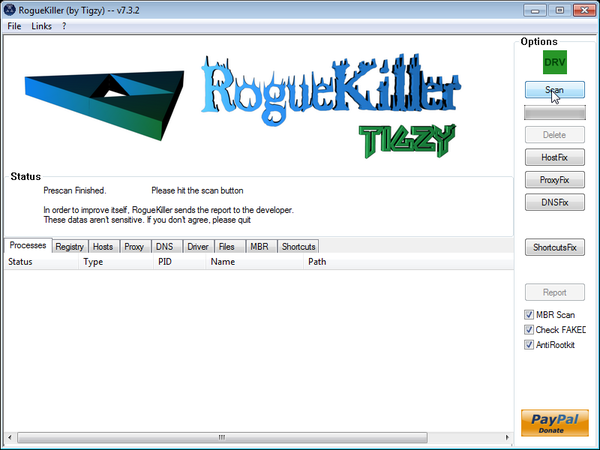
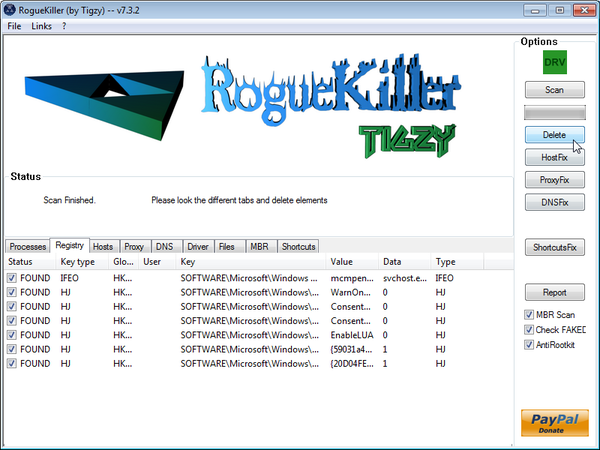
- After the scan has completed, press the Delete button to remove any malicious registry keys.
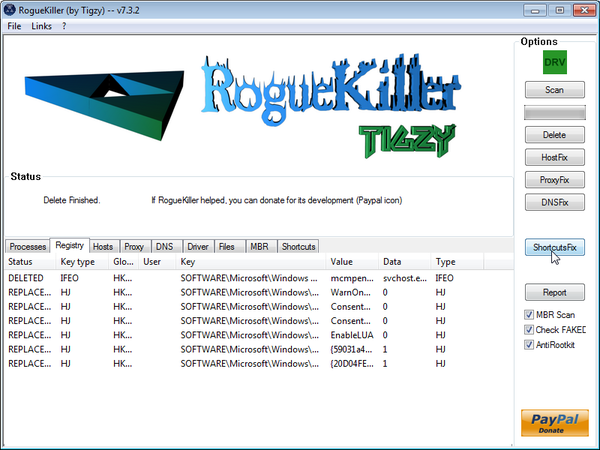
- Next we will need to restore your shortcuts, so click on the ShortcutsFix button and allow the program to run.

Join the discussion
538 commentsShare your experience or ask a question about this article.
Your progress
Did these steps help?
Let us know how the guide worked for you.
Describe what you see and the step you reached. Keep passwords and other private information out.
Discussion
Please ignor my problem with the Malware, I tried again and noticed the download was being blocked. I gave the ok and I’m running a scan now.
Hey Buddy,
Amazing step by step process on how to delete the virus.It’s 03.32 AM, i wanted to say a very big thank you to you before i go to bed. It took be a a few hours but i finally got rid of it by following your steps.
Thanks Again,
Agnel
I’m having trouble with the fix and hope you can help. I downloaded the Registryfix and double clickked on the desktop icon, but I don’t know if it did anything or not, I got no messages saying it had done anything.
I downloaded Rkill and ran it, but the log says it found nothing.
I clicked on the malware link, which took me to a site called Malware bytes. I clicked on the download which took me to another site called TechSpot. I clicked on the download button there and nothing happened.
I have McAfee Total Protection and I don’t understand how this Live Security thing got through. I thought McAfee was supposed to be one of the best.
In reply to Charlie
Hello,
Please run a scan with Malwarebytes Anti-Malware in Chameleon Mode in Norman mode:
2.Please perform a scan with HitmanPro as seen on the guide.
3.Run a scan with ESET Online Scanner:
ESET Online Scanner Download Link (This link will automatically download ESET Online Scanner on your computer.)
Excellent, this worked perfectly. This is the most thorough, exact and free malware removing solution I ever found on the internet. Thank you, it is very appreciated. You are not only competent but generous.
Hi. I have the Live Security Platinum virus on my computer (Dell XPS Vista Ultimate). I have read your guide and most of the comments, but I don’t think I’ve seen an answer to my troubles. Please forgive me if you’ve already addressed my problems. I got up to Step 5. Malware did not prompt me for a trial period, but went straight to the Scanner Tab and the full scan. I clicked it, but it starts, and after 1 second working, the window disappears from my desktop!? The Malware process is gone! (I tried this twice and the same thing happened again.) I tried other things you recomended, although I don’t know if I was following them right, or if I needed to do other stuff first, for example I tried the Force Breach HitMan Pro. That actually seemed to work properly, and found a bunch of threats, but there was the reboot option, which I clicked, but the program just shut off. Perhaps I’m a bit impatient, but as nothing was happening, I clicked start, restart, and my computer restarted. When it did, though, there was a weird black screen that said HitMan Pro something something. I pressed enter (not knowing what else to do), and I think it started normally. When I logged on and searched for Live Security Platinum, it’s still there.
Any help with what I should do would be greatly appreciated. From reading the comments, you seem to really know your stuff and have helped many people (I hope to be one of them!). It seemed that they just needed to get the combo of programs in the right order. Please advise as to what to do; I will check back tomorrow.
In reply to Magnus
Hello,
Can you please run a scan with Combofix:
STEP 1 : Run a scan with Combofix
Download ComboFix from one of the following locations:
COMBOFIX DOWNLOAD LINK #1 (This link will automatically download Combofix on your computer)
COMBOFIX DOWNLOAD LINK #2 (This link will automatically download Combofix on your computer)
VERY IMPORTANT !!! Save as Combo-Fix.exe during the download. ComboFix must be renamed before you download to your Desktop
———————————————————–
———————————————————–
———————————————————–
Notes:
STEP 2: Run a scan with ESET Online Scanner:
ESET Online Scanner Download Link (This link will automatically download ESET Online Scanner on your computer.)
In reply to Stelian Pilici
Thanks a million! ComboFix worked; I believe it deleted the Live Security Platinum virus, and the ESET Online Scanner didn’t find any problems.
I just want to know, should I turn my firewalls back on? Also, should I do any more scans? I believe ComboFix deleted the Live Security Platinum virus, but should I scan for anything else? If yes, what should I do? Please advise. Should I follow any steps of your guide? And what about Malwarebytes Anti-Malware? Should I still have that on my computer or can I delete it? It didn’t work like it was supposed to, which is why I needed your other fix, but it did stop some malware attacks when I went online to follow some of your instructions (the first time around, before I asked you directly what to do), although I think that was the Live Security Platinum working, so now that it’s gone, can I delete Malwarebytes? Should I scan with it? Also, can I delete iExplorer, HitmanPro, esetsmartinstaller, Malwarebytes Anti-Malware, registryfix, and Combo-Fix?
And another thing. Before I asked you directly what to do, I was trying things that you mentioned to other people. I downloaded Kaspersky, but should I do anything with it? I don’t want to do things that are unnecessary, so can I just delete it?
Your advice is gold, and the user friendly, easy to follow instructions are awesome! I am a little knowledgeable in computers, but even so, the exacting, clear, instructions that you give are really, really helpful. It makes the whole process that much harder when the solution to one’s problem is in a hard to follow guide. You know there’s an answer, but you just can’t decipher how to fix the problem, even though the solution is staring you in the face. The struggle becomes even more frustrating! Your guides and instructions are a breath of fresh air. It’s nice to know someone cares and is willing to give of his time to help people. And all for free!!!
THANK YOU Stelion!!!!!
i was also infected, thanks for the help!
I cannot access the internet on my infected PC. Check the Proxy. Still not able to connect. Help!
In reply to James
Sorry, little more information, I am running Win XP SP3. I used the code given and have tried in safe mode and normal. Still unable to access internet.
In reply to James
What firewall are you using?
In reply to Stelian Pilici
I am using McAfee firewall. After repeated attempts I was able to restore internet in normal mode only. Here is what I’ve done:
Malware Chameleon, went through all steps none seemed to work. All showed green.
Windows Registry fix – operated as described
Rkill – operated as described
Malwarebytes anti-malware – took a long time but seemed to work
Hitman Pro – operated as described
Eset – again took a long time, but seemed to work.
McAfee full virus scan.
It seems to be clean, but now on boot up the internet take 3 minutes to load. Is there any thing else I should try because I did all this in normal mode?
Hello,
I have gone through the instructions and my computer seems to be working fine other then a Spler.dll error at start up. Iam running Win 7 64 bit. How can I make this error go away?
In reply to John
Hello John,
To solve this ,you can using Malwarebytes StartupLite or Msconfig,to remove that startup entry.
In reply to Stelian Pilici
Dad managed to infected my PC protected with Mcafee with nasty Live Security Platinum virus. 24Hrs later it’s removed thanks to Stelian’s instructions. Dont be daunted – I am not a techy and I managed to do it with the instructions.
THANK YOU Stelian for this. God bless you and the family
Be patient and read the threads to avoid frustration. If your anti virus is Mcafee, check and ensure your Firewall can be turned on and off in settings. If you cannot manually adjust your firewall, use the Combofix app. All explained.
My download route in summary is RKill, then Malwarebytes, HitmanPro and Combo-fix after I could not turn on my Mcafee firewall. I would recommend using IE in the safe mode though your default browser might be another. Mine is Firefox but I found IE more user friendly. As advised dont kill any of the processes and I uninstalled my Mcafee instead of disabling. Combo-fix does give an incorrect message after uninstalling (Just double check to be sure).
Thanks once again for saving my money.
I am not getting the “Safe Mode with Networking” when I press F8. When booting up, my computer only displays options for F2 and F10. I have an old Dell. Please help.
In reply to Peter
Hello Peter,
Lets work in Normal Mode:
Please run a scan with Malwarebytes Anti-Malware in Chameleon Mode in Norman mode:
2.Please perform a scan with HitmanPro as seen on the guide.
3.Run a scan with ESET Online Scanner:
ESET Online Scanner Download Link (This link will automatically download ESET Online Scanner on your computer.)
In reply to Stelian Pilici
Hello, I have downloaded Malwarebytes Chameleon and tried to run it with the help file. The first one opened up a DOS screen and down loaded the file. When installing, I get Access Denied for a lot of files including rules.ref, config.conf, build.conf, custom.conf etc… I pressed rety and it does’t work. So I went ahead and installed it by pressing ignores for these files, I get “Failed to run MAM-Killer.exe”, “Failed to run Malwarebytes Anti-Malware” and ” Failed to disable protection driver”. Please help…
In reply to Peter
While in NORMAL MODE,download HitmanPro and then start this program in ForceBreach Mode
1.Here are the direct download links for HitmanPro,
– http://dl.surfright.nl/HitmanPro36.exe (For 32bit)
– http://dl.surfright.nl/HitmanPro36_x64.exe (For 64bit)
2.Hold down the left CTRL-key when you start HitmanPro and all non-essential processes are terminated, including this rogue malicious process
Here is a video that explains with graphic details how to do this : http://www.youtube.com/watch?v=m6eRWTv2STk
3. Let HitmanPro scan and remove the detected infections.
Next,run a scan with Malwarebytes and ESET Online scanner.
Wow I didn’t believe I was going to be able to do it!!!! But your detailed instructions made it work like a breeze. I know nothing about computers and I was about to call a computer specialist…But I carefully read your steps and chose to try…
Just a couple of questions: Should I keep Malwarebytes and Hitman both in my computer? Are they compatible? They cannot work as an antivirus, as far as I know… Or am I wrong? So a combination of antivirus plus Hitman plus Malwarebytes…would it be ok?
In reply to Mercedes
HitmanPro and Malwrebytes are only on-demand scanners (basically they are just cleaning tools which won’t protect your system).You can uninstall them or let them on your system and regularly perform system scan to check if everything is ok. :)
Good Luck!
Viva La Barca! Thank you so much for the fix! Up an running again.
Thanks a lot for that. Really useful.
I was so sceptical of this process at first and thought i should just take it in to the shop and pay for them to do it. I am not good on computers and have never tried to fix any virus myself! but your incredibly detailed and directional guide made it easy for me to do and now my computer is clear! Thanks so much for the guide, it really helped me out and i will suggest this website to other with computer problems.
Okay, so I followed all your steps and it seems to have cleared my computer of everything but a desktop.ini virus and a win64 virus. I have run all over the internet trying to figure out how to fix those and nothing seems to have helped. Do you have any added advice? Any ideas of what I can do?
Not sure if I can post pictures, but if I can here is a picture of the scan results:
http://tinypic.com/r/15rlfkz/6
In reply to Amanda A
Hello Amanda,
You most likely have a ZeroAccess rootkit infection on your computer.
Can you please run a scan with Combofix:
STEP 1 : Run a scan with Combofix
Download ComboFix from one of the following locations:
COMBOFIX DOWNLOAD LINK #1 (This link will automatically download Combofix on your computer)
COMBOFIX DOWNLOAD LINK #2 (This link will automatically download Combofix on your computer)
VERY IMPORTANT !!! Save as Combo-Fix.exe during the download. ComboFix must be renamed before you download to your Desktop
———————————————————–
———————————————————–
———————————————————–
Notes:
STEP 2: Run a scan with ESET Online Scanner:
ESET Online Scanner Download Link (This link will automatically download ESET Online Scanner on your computer.)
In reply to Stelian Pilici
Okay! All that seems to have helped, and my antivirus software Vipre isn’t picking anything up, however Hitman Pro keeps coming up with this:
http://tinypic.com/r/9rr50n/6
Is there any concern? Hitman doesn’t seem to be able to remove the Ini virus.
In reply to Amanda A
Did you run Combofix as I’ve ask you to do??
Thanks for you help.
Thanks alot! The procedure worked perfectly for me.
Very helpful and easy to follow. Needed to update malware database prior to scan to complete removal. You should consider adding button for people to make small donation to maintain your solution.
I have went through all the steps and have control over my computer again. However I cannot get my mcafee’s firewall to activate and when I run a mcafee’s scan it is coming up with 2 trojans that it says it cannot delete. I am now running Kaspersky that I saw in one of your replies but figured I would go ahead and post in the meantime in case you knew of a solution to my Mcafee’s issue.
In reply to Lissa
Hello,
Please uninstall McAfee then run a scan with Combofix :
Can you please run a scan with Combofix:
Download ComboFix from one of these locations:
Save as Combo-Fix.exe during the download. ComboFix must be renamed before you download to your Desktop
Link 1
Link 2
* IMPORTANT !!! Save ComboFix to your Desktop
See HERE for help
**Please note: (This applies to Windows XP systems only) If the Microsoft Windows Recovery Console is already installed, ComboFix will continue it’s malware removal procedures.
Once the Microsoft Windows Recovery Console is installed using ComboFix, you should see the following message:
Click on Yes, to continue scanning for malware.
When finished, ComboFix will produce a log.
Note:
1. Do not mouseclick combofix’s window while it’s running. That may cause it to stall!
2. Remember to re-enable your anti-virus and anti-spyware before reconnecting to the Internet.
After this step has been completed , you can reinstall McAfee.
Then report back if your issue is fixed or not!
Thank you very much!!!! your step by step guide worked and now my laptop is ok. Thanks thanks thanks!!!!!
In reply to giancarlo
Thank you for this guide, it was great.
After I have completed everything I still get a .dll error. It is asking for spler.dll. What can I do to stop this error?
Thanks,
Hi Stelian,
I have tried to follow the process. However, right after being in the safe mode, my keyboard was locked and I’m not able to write anything….I’ve checked many things (unplug, plug the cable,…..made sure everything is unchecked in the configuration,….used another keyboard…). Do you have any suggestions on how I can fix this problem to be able to continue and remove the Live Security Platinum.
Many thanks for your help!
In reply to Grace
Hello Grace,
Please run a scan with Malwarebytes Anti-Malware in Chameleon Mode in Norman mode:
2.Next,please perform a scan with HitmanPro as seen on the guide.