


You search for a small Mac utility and open a page that looks like the right download. Then it asks you to do something you didn’t expect.
The extra instructions are worth more attention than the download button.
Overview
The browser is often where the decision happens
Bitdefender’s 2026 Mac threat report describes fake warnings, deceptive downloads and browser pages that try to get people to run software themselves.
The important moment is often before a file runs. A page may be asking you to install an extra tool, accept a permission, or execute an unfamiliar instruction.
That isn’t the same as detecting a flaw in macOS. A fully updated computer can still receive a deceptive message that asks its owner to take an unsafe action.
The useful question is whether the action belongs to the task you started. Opening a webpage should not require you to run commands supplied by that page.
The report’s figures aren’t the chance your Mac is infected
In the report’s three-category breakdown, after excluding web and document detections, trojans accounted for 45.2%, adware 34.4%, and potentially unwanted applications 20.4%.
Those are shares of detections in the stated categories, not the percentage of Mac owners with malware. They don’t tell you what happened to a particular device.
They do help explain why an unwanted bundle deserves attention even when it doesn’t look like an outright password stealer.
An app can be unwanted because it changes settings, collects more data than expected, or installs extras that you never meant to accept.
Verify three things before you open a download
- Find the actual developer or known app store listing independently of the page that made the offer.
- Match the app name, publisher and purpose to what you intended to install.
- Stop if a random site asks you to run instructions, bypass a warning or grant access unrelated to the app’s job.
The original search can get you to the right app eventually. It doesn’t have to end with the first installer a page puts in front of you.
What Different Warning Screens Are Trying to Tell You
A browser alert isn’t a diagnosis from macOS
A web page can draw a window that looks like a system alert. It can say your Mac has a virus without scanning anything.
A browser notification may also show a site’s message when you’re not looking at the page. Its position on your screen doesn’t verify the underlying claim.
Don’t call a telephone number the alert provides. Close the page or notification and use the real browser or device settings if you need to investigate.
If a specific site keeps sending alerts, check its notification permission in the browser you use. Removing the site’s permission addresses the notifications, not an unrelated installed app.
If you cannot tell where the alert originated, record its wording and check whether the browser names a sender. Don’t open the alert to collect more information.
A Mac warning is a reason to stop, not a hurdle to clear
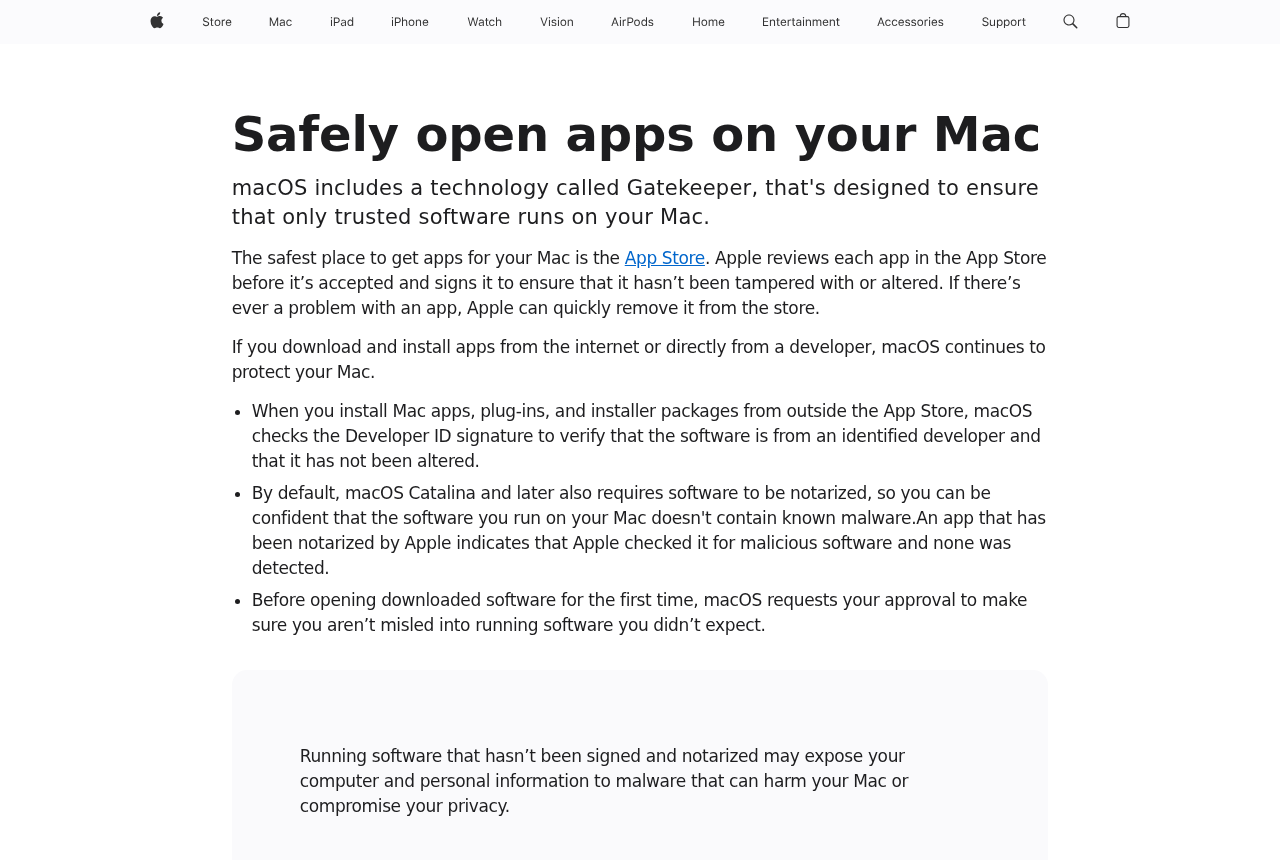
Apple explains how Gatekeeper checks downloaded apps, including developer identity, notarization where applicable and signs of alteration.
The meaning depends on the message. A first-open confirmation for software you deliberately obtained isn’t the same as a warning that the developer can’t be verified.
If the system says an app will damage your computer, don’t override it. Obtain an alternative or contact the developer through a trusted route.
If the warning concerns unidentified software, first check whether you got the file from the publisher at all. Don’t start by looking up how to suppress the message.
Notarization is useful evidence about the software Apple checked. It isn’t a guarantee that an application is appropriate for your purpose or needs every permission it requests.
A supposed human check shouldn’t run software
A fake verification page can claim that a special step is needed to finish loading a document or video. It may ask you to run text outside the browser.
Stop there. A human-verification prompt on a webpage doesn’t need you to run operating-system instructions.
This is often called ClickFix. The name isn’t a particular Mac infection; it describes how a person is persuaded to take the risky step.
You don’t need to inspect or decode what the page copied to decide what to do. Close it, and find the real service through an independent route.
If you already ran the instruction, tell support you ran it rather than saying only that you visited the website. That changes how the device should be checked.
A Safer Way to Get the Software You Wanted
Check the publisher before the file
If the app is in the App Store, compare its publisher and features there. A similar icon can belong to something entirely different.
If you need an installer from the web, find the actual developer’s site. Use a known bookmark, official product documentation, or a support route you already verified.
Keep updates inside the app or come back to a verified release page. Don’t install a “security update” offered by an unrelated website.
If the file name is generic, read the page that supplied it and check the listed publisher. A name like Setup or Update doesn’t identify an app.
Don’t confuse the first result with the vendor. Ads and download directory pages can appear next to the actual source.
Read installer choices one at a time
An installer can contain optional software or request permission that doesn’t make sense for the app you chose.
Decline extras you didn’t ask for. If the installer won’t continue without something unrelated, cancel and look for an official alternative.
Distinguish the purpose of a permission from the name of the app. A screen capture utility may need a relevant permission; a simple wallpaper tool deserves a closer look.
A prompt appearing during installation doesn’t make it necessary. Check the developer’s explanation, and leave the permission off if you don’t understand why it is needed.
For a work Mac, let IT determine which apps and permissions are approved. Don’t get around company restrictions to install a utility a webpage suggested.
Recheck the actual software, not just the icon you remember
Look at where the app came from whenever something changes unexpectedly after installation. Write down the file and the approximate time before cleaning up.
If a new browser extension appeared, check whether it belongs to the app you wanted. A separate extension has its own access and settings.
If an app claims it found a problem, verify that through a tool you chose independently. Don’t buy a second app solely because the first asks you to.
A successful install tells you that the software ran. It doesn’t tell you that the advertising, default settings and permissions deserve trust.
Know What You Agreed To Before You Try to Undo It
Seeing a window, saving a file and running it are not equivalent
A browser can display a warning without installing software. A downloaded file normally gives you a different question: whether you opened it or something launched it.
If you can’t remember, check your own timeline before deleting everything. Write down the browser, file name, and any prompts you recall.
Note whether the visible prompt came from the page or macOS. People often remember the wording better than the name of the app that displayed it.
If the window disappeared and you didn’t run anything, don’t reproduce the event just to get a better screenshot. Preserve the details you already have.
A password prompt isn’t proof the request came from your app
Some legitimate system changes ask for a Mac password. The fact that an authorization dialog appeared doesn’t mean the action is one you wanted.
If you agreed to an installer prompt, tell support which software you were using and what the prompt asked for. Don’t tell them the password itself.
If the password was for a website or online account rather than the Mac, the recovery step belongs with that account. Keep device access and account access separate.
Decide which accounts deserve attention first
Start with the accounts you used around the time suspicious software ran, especially email and other accounts that can reset your sign-ins.
Review active sessions and recovery options on the real service. Resetting a password and ending an existing session are not always the same thing.
If the Mac belongs to an employer, tell its support team before removing files or reinstalling. They may need the device’s current state to understand the incident.
A home device still deserves a separate decision about backups. If you later restore files, don’t deliberately restore the installer that began the problem.
When the request came by phone rather than a download link
A support caller can ask you to install a remote assistance app. A real product might be misused, so finding it in an app store isn’t enough.
If you didn’t initiate the support session, don’t continue it. Contact the company’s real support service using details you found independently.
If you already allowed the connection, tell your support team which tool you used and what happened. Mention any account or payment activity separately.
Don’t let a second caller claim they need another session to reverse the first. Use a channel you already trust to check what changed.
Read the threat report without mistaking it for an individual scan
The report describes a window from August 2025 through July 2026. Its detection counts help explain common routes, not whether your Mac saw one.
A category can rise because its share of the measured group changed. That isn’t the same as proving a particular app or download infected more households.
Use the research to change a habit you can control. When a site offers an unexpected shortcut, find the original task again through a known source.
You don’t need to stop using every app outside the App Store. You do need a way to identify the publisher before relying on instructions from an installer.
What to Do If You Opened a Suspicious Download Page
- If you only saw the page, leave it. Don’t follow its instructions or call a number it shows. Check browser permissions if it continues sending notifications.
- If you downloaded a file but didn’t open it, don’t run it. Record where it came from if you need to report it. Find a clean copy independently.
- If you opened an unfamiliar app or ran a command, stop sensitive activity. On a work device, notify IT promptly and follow its containment instructions.
- Use another trusted device for account protection. If you’re worried about stolen credentials, open the real account, review sessions and change passwords where needed.
- Get the Mac checked if software actually ran. Use official Apple support, your IT team or a trusted security tool such as Malwarebytes from its official source.
- Describe the permissions you accepted. Note whether you provided a Mac password, allowed access, or installed anything. Do not send the actual password with the report.
- Check payment or support exposure separately. If you paid a support caller or gave them remote control, tell your bank or support team about that separate event.
If you ran something and the Mac is still showing signs of trouble, avoid using it for email, banking or password changes until it has been assessed.
A clean scan is useful information, but it can’t reverse a payment or tell you that every browser session remained private. Check the affected accounts separately.
If you need help, keep the message or download name for the person assessing the Mac. Don’t forward an executable file to friends so they can try it.
Avoid assuming you need to erase the computer because a browser page flashed a warning. The action you took matters more than the animation.
Frequently Asked Questions
Does a pop-up know whether my Mac is infected?
A web page can display that claim without a diagnosis. Don’t rely on it. Use the real system, browser settings or a trusted security provider to check the situation.
Is every Mac app outside the App Store dangerous?
No. Many legitimate developers distribute apps directly. Use the actual publisher and pay attention to the checks and warnings your Mac displays.
Should a verification page ask me to run operating-system instructions?
No. Close the page if a human check asks you to run commands. Look up the real website or help documentation independently.
Does a downloaded file always mean the Mac is infected?
No. A file that saved without being opened is different from an app or instruction that ran. Tell support what you actually did.
Can notarization tell me whether I should allow every permission?
No. The app’s checks and its need for a specific permission are different questions. Verify whether the permission fits the task and leave unnecessary access off.
Should I change passwords on the Mac if I ran a suspicious instruction?
Use another trusted device when possible. Review sign-ins and secure accounts that might have been exposed while the Mac is checked.
The Bottom Line
Get Mac software from a source you found independently. Leave a page that asks you to turn off safeguards or run unexpected instructions to reach a download.
If you already ran something suspicious, stop sensitive work on that Mac and get it checked. Secure relevant accounts from a device you trust.

Join the discussion
0 commentsShare your experience or ask a question about this article.
Discussion
Start the conversation
Have a question or something useful to share? Add the first comment.