It starts with a message you were never expecting. A frozen ETH transfer. A large amount waiting to be “retrieved.” A warning that something went wrong in your MetaMask wallet and only you can fix it.
The details look precise enough to be real. The email sounds urgent enough to demand attention. And the promise of unlocked crypto is tempting enough to make anyone pause.
But behind this polished alert is a problem far bigger than a failed transaction.
Keep reading, because what follows is one of the most convincing crypto scams circulating today, and knowing how it works might be the only thing that keeps your wallet safe.
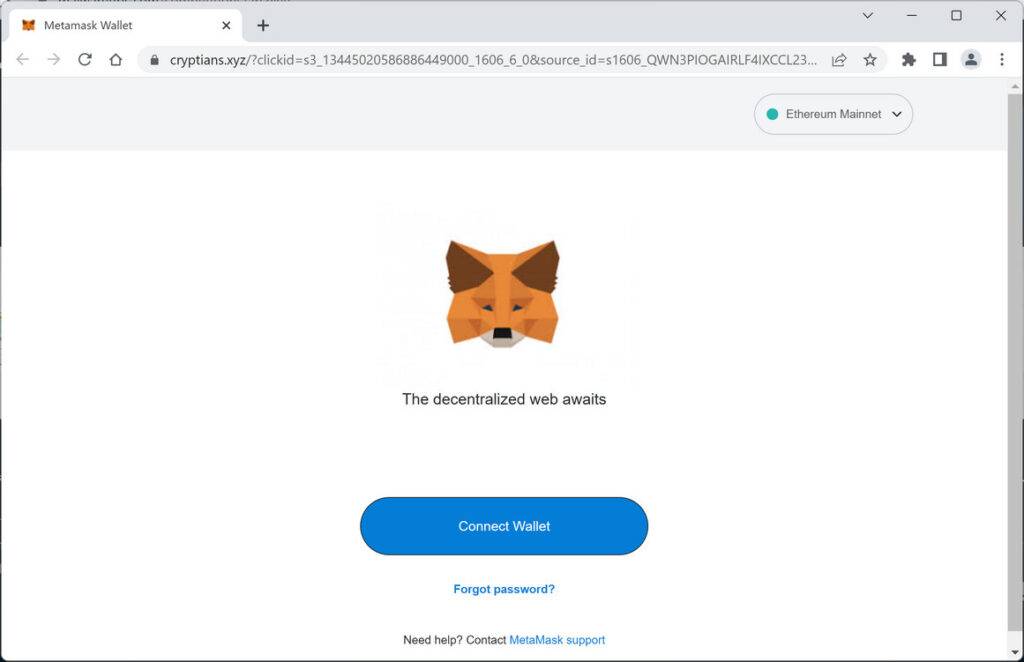
Image: Fake MetaMask site
Scam Overview
The MetaMask “Incoming Transaction Failure” scam typically arrives as an email that pretends to be an official notification from MetaMask or from a related Ethereum service.
The central claim is always the same: a large ETH transfer to your wallet has been frozen and is pending your action. You are told that you can retrieve those funds if you click a special button or link.
At first glance, the email looks convincing. It uses technical terms like:
“Frozen ETH transfer”
“Transfer Cancellation/Refund”
“Chain Type: Ethereum (ERC20)”
“Transaction Hash” plus a long hexadecimal value
“Block #” plus a realistic block number
IP address, device type, and location
The scammers know that the more technical and detailed the message looks, the more believable it becomes. Many people see a specific amount like 6.36010082 ETH and assume that nobody would go to that much trouble for a fake email.
In reality, those details are exactly what make the scam dangerous.
What This Email Usually Looks Like
Most versions of the MetaMask “Incoming Transaction Failure” scam follow a very similar structure.
They typically include:
A greeting such as “Hello Trader”
A claim that an ETH transfer to your wallet has been frozen
A reason, such as “sender requested Transfer Cancellation/Refund due to wrong wallet address input”
A warning that MetaMask is holding the frozen assets for a limited time, for example 170 days
A suggestion that if you are not the intended receiver, you should still keep the funds safe once you retrieve them
A summary of transaction details:
Deposit Amount: 6.36010082 ETH
Chain Type: Ethereum (ERC20)
Deposit Address: a wallet address that looks like yours or a generic address
Transaction Hash: a realistic looking hash
Block number and status “Pending”
Time, device type, IP address, and location
A prominent call to action such as “Retrieve ETH”
A note that the “failure” is due to a mis-verification of the receiver wallet address and that you can retrieve the funds into any existing wallet
On top of that, the sender information is dressed up to look legitimate. You might see something like:
Display name: “MetaMask.io”
Email address: something like info@jospo.de or a random domain that is absolutely not an official MetaMask or ConsenSys address
To most users, especially those who are not deeply technical, this looks plausible enough to cause panic or curiosity.
Quick Reference: Scam Details At A Glance
You can think of this scam in a quick fact sheet:
Name: MetaMask Incoming Transaction Failure Scam
Type: Phishing / Crypto Scam
Method: Fake email claiming a failed or frozen ETH transaction with a link or button to retrieve funds
Claimed Issue: Frozen ETH transfer pending due to sender’s cancellation request
Amount Mentioned: Often 6.36010082 ETH or another large, specific amount
Call To Action: Click “Retrieve ETH” to unlock or recover funds
Malicious Links: Direct to phishing pages, such as a fake MetaMask login or wallet recovery page
Goal: Steal your MetaMask credentials, private keys, or seed phrase
Some variants even include links like hxxps://eonzeus.com//MetaMask/MetaMask.html that then redirect to another domain, such as lyonshub.com, where the fake MetaMask interface is hosted.
Scammers regularly change domains to avoid blacklists, but the layout and wording often stay similar.
Why This Scam Works So Well
This scam plays on several powerful psychological triggers.
Greed plus guilt The email suggests that you may be receiving funds by mistake, but it also encourages you to “keep this funds safe when you retrieve into your wallet.” It frames you as the responsible party, while quietly tempting you with the idea of unexpected ETH landing in your wallet.
Urgency and fear of loss The mention of a limited holding period, such as “170 days,” implies that something important is happening behind the scenes and that you must act before the window closes. People are naturally afraid of missing out on money or being involved in an unresolved transaction.
Authority and authenticity signals The scammers use:
Technical jargon (hashes, blocks, ERC20)
Specific timestamps
Device details like “iPhone 16 Pro”
IP addresses and geographic locations These details are designed to mimic the kind of logging a real crypto service might keep.
Familiar brand name: MetaMask MetaMask is a widely used wallet. Even if you do not use it often, you probably know the name and logo. Seeing that brand in your inbox lowers your guard and makes the email feel official.
Confusion around how crypto transactions work Many users do not fully understand that once an Ethereum transaction is confirmed on chain, it cannot simply be “cancelled” and re-sent. Scammers exploit that gap in knowledge by inventing a process that sounds plausible but does not exist in the way they describe.
The Real Goal Of The Scam
The aim is simple: get you to click the “Retrieve ETH” button and then trick you into handing over the keys to your wallet.
The fake MetaMask page you land on is typically designed to look nearly identical to the real thing. It may:
Ask you to enter your MetaMask seed phrase to “synchronize” or “unlock” your wallet
Prompt you to connect your wallet and approve a suspicious smart contract
Ask for your private key or password
Encourage you to reinstall, restore, or verify your wallet
Once the scammers have your recovery phrase or get you to sign a malicious contract, they can drain your wallet of any assets stored there. This may include:
ETH
ERC-20 tokens
NFTs
Stablecoins
Any other tokens associated with that address
The email is only the first step. The real damage happens on the phishing site and with whatever you type or sign after you click the link.
How The Scam Works
Now let us walk through the MetaMask “Incoming Transaction Failure” scam step by step so you can see exactly what happens at each stage.
Understanding this flow makes it much easier to spot and block future attempts.
Step 1: The Fake MetaMask Email Lands In Your Inbox
The scam begins with a phishing email that pretends to originate from MetaMask, ConsenSys, or some Ethereum-related service.
In many cases:
The display name looks like “MetaMask.io”
The sending address is a random domain, for example info@jospo.de
The subject line refers to a failed incoming transaction, review hold, or retrieval request
The goal at this stage is to bypass spam filters and look legitimate enough that you open the email.
You might receive it at the address you use for exchanges or crypto newsletters, which increases the chance that you take it seriously.
Step 2: The Email Tries To Convince You A Large ETH Transfer Is Frozen
Once opened, the body of the email drops the main hook.
It claims that:
A MetaMask user tried to send you 6.36010082 ETH
The sender realized they typed the wrong wallet address
They requested a transfer cancellation or refund
As a result, MetaMask put the transaction on hold and classified it as “frozen”
You may see language along the lines of:
“The frozen ETH transfer from a MetaMask user to your wallet is open for retrieve.”
“Your ETH transfer was held for review because sender filed for Transfer Cancellation/Refund.”
“If intended receiver was not you, please keep this funds safe when you retrieve into your wallet.”
By mixing concern, urgency, and a promise of free funds, the scammers pull your emotions in several directions at once.
Step 3: The Email Uses Detailed Technical Data To Seem Authentic
To strengthen the illusion of authenticity, the message loads you with technical looking details.
These often include:
Deposit Amount: 6.36010082 ETH
Chain Type: Ethereum (ERC20)
Deposit Address: a wallet address in the 0x… format
Transaction Hash: a long string starting with 0x, for example 0x966f3e76a75aacf6...
Block number: a realistic numeric value
Status: “Pending”
Time: formatted with date and time in UTC
Device: something like “iPhone 16 Pro”
IP Address: for example 194.146.213.16
Location: such as “Zürich, Switzerland”
Some of these values may be partially real or completely fabricated. Scammers often paste in random hashes and block numbers to make the email look more legitimate, counting on the fact that most users will not double check them on a block explorer.
These details create a sense of precision and seriousness that makes people think: “Nobody would fake all of this for a scam, right?”
Unfortunately, they would.
Step 4: The “Retrieve ETH” Button Promises An Easy Fix
The heart of the scam is the call to action.
Near the bottom of the email, you see a prominent button or link, often labeled “Retrieve ETH” or something similar.
The text around it usually says that:
You can retrieve the pending assets into any existing crypto wallet
You should keep the funds safe if you are not the intended receiver
The system will release the frozen ETH into your wallet once you confirm
This gives you a very simple story in your mind:
Someone mis-typed your address.
The funds are stuck.
MetaMask is letting you fix it.
All you need to do is click the button and follow the instructions.
If you click, the scam moves to the next stage.
Step 5: The Link Redirects To A Phishing Site
Clicking the “Retrieve ETH” button does not send you to the real MetaMask site.
Instead, you are redirected through one or more malicious domains. For example:
hxxps://eonzeus.com//MetaMask/MetaMask.html
Which then redirects to another phishing host such as lyonshub.com
The use of multiple redirects helps scammers:
Rotate domains quickly
Evade blacklists and security tools
Hide their real infrastructure from quick inspections
The final page usually mimics the MetaMask interface or a MetaMask support portal with surprising accuracy. Logos, colors, fonts, and layouts are copied to reduce suspicion.
Step 6: The Fake MetaMask Page Asks You To “Unlock” Or “Restore” Your Wallet
Once you arrive on the phishing site, you are prompted to take an action that gives scammers direct access to your wallet.
Common tricks include:
Asking for your seed phrase to “restore” your MetaMask wallet
Requesting your private key for “manual verification”
Telling you to paste your 12 or 24 word recovery phrase to “synchronize” or “unlock” your account so they can release the frozen funds
Linking a “Connect Wallet” button that asks you to sign unusual approvals
Legitimate MetaMask support will never ask you for your seed phrase or private key, and MetaMask does not need your recovery phrase to confirm a transaction or release funds.
If you type your seed phrase into the phishing form, the scammers can immediately import your wallet into their own MetaMask or another compatible wallet application.
If you sign malicious contract approvals, they can gain permission to move your tokens or drain liquidity from DeFi protocols you interact with.
Step 7: Scammers Drain Your Wallet
After you reveal your seed phrase or sign their malicious requests, the attackers can:
Transfer all your ETH to their own addresses
Move your ERC-20 tokens, such as stablecoins or governance tokens
Transfer or list your NFTs for sale
Empty any other assets associated with your compromised addresses
This often happens very quickly. You may see outgoing transactions within minutes, especially if the scammers have automated scripts listening for new seed phrases or approvals.
By the time you realize what happened, the funds are usually irreversibly gone.
Step 8: They Abandon The Domain And Move On
Once enough victims have been drained or the phishing domain starts appearing on blacklists, the scammers simply move to new domains and start the cycle again.
They reuse the same email template, just swap:
The sending address
The phishing link
Sometimes the exact deposit amount
This is why you might see similar emails over months, always with slightly different domains but the same basic script.
Similar Email Variants You May Encounter
Scammers rarely rely on a single version of the MetaMask “Incoming Transaction Failure” email. They constantly release new variants to bypass filters and confuse users. While the details may change, the core message stays the same: a large ETH transfer is “frozen,” “pending,” or “available for retrieval,” and you must act quickly to claim it.
Here are the most common versions:
Variant 1: Frozen ETH Transfer With Retrieval Button
This is the most widespread version. It claims a transfer worth a specific amount (often 6.36010082 ETH) is frozen because the sender requested a cancellation. It includes technical data such as a transaction hash, block number, IP address, device info, and a “Retrieve ETH” button that leads to a phishing site.
Variant 2: Incoming Transaction Failure Due To Wrong Wallet Address
This variant focuses on the idea that the sender mistyped your address. The email states that MetaMask froze the funds while investigating, and you must “claim” the assets to prove ownership. It typically includes a warning that assets will be held for a limited period.
Variant 3: Pending Refund or Reversal Notification
Instead of claiming the funds are stuck, this version says MetaMask is processing a refund request from another user and needs you to “review” or “approve” the reversal. The link leads to a fake approval page designed to collect wallet data.
Variant 4: Security Alert About Blocked ETH Transaction
This one pretends to be a security warning. It claims MetaMask detected suspicious activity from a foreign device and froze an incoming transaction for your protection. You are told to “verify” your wallet to unlock it.
Variant 5: Multi Wallet Claim Variant
Some versions expand beyond MetaMask and claim the frozen funds can be retrieved into “any existing crypto wallet,” including Binance, Coinbase Wallet, or Trust Wallet. The link always leads to a MetaMask themed phishing page regardless of the claim.
Variant 6: SMS or Messaging App Version
In some cases, scammers send shorter versions via SMS, WhatsApp, or Telegram with lines like:
“Pending ETH transfer to your wallet. Verify now.”
“MetaMask alert. Transaction failure detected. Resolve now.” These messages use shortened URLs to hide phishing links.
Variant 7: Domain Spoofing Variant
Some emails use lookalike domains such as:
metamask-support.io
meta-maskhelp.com
metamask-verification.net The pages look professional enough to mislead users into entering their seed phrase.
All these variants share one goal: trick you into visiting a fake MetaMask site so scammers can steal your wallet credentials.
How To Spot This Scam Quickly
Even though the MetaMask “Incoming Transaction Failure” scam looks polished, several red flags expose it immediately. Knowing these signs can help you avoid phishing attempts not only today but in the future.
Check the Sender’s Email Address
MetaMask never sends transactional alerts by email. Scammers often use random or unrelated domains such as:
info@jospo.de
support@meta-maskalerts.com
system@metamaskwalletverify.net If the domain is not from an official MetaMask or ConsenSys site, it is fake.
Look for Unexpected Transaction Claims
Any message claiming you received ETH, especially a large amount, should be treated with suspicion. Crypto transfers do not require your approval to be completed, and they are not frozen because someone typed the wrong address.
Examine the Technical Details
Scammers fill the email with technical looking data to appear legitimate. These include transaction hashes, block numbers, device types, or IP addresses. Real alerts from MetaMask do not look like this, and MetaMask does not freeze or hold transactions for “review” or “verification.”
Beware of Any “Retrieve,” “Unlock,” or “Verify” Buttons
If an email asks you to click a button to access your wallet, recover funds, or confirm ownership, it is a phishing attempt. Legitimate wallet providers do not ask users to perform such actions through email.
Never Enter Your Seed Phrase on Any Linked Website
This is the biggest red flag of all. MetaMask will never ask for your seed phrase online. The only legitimate place to enter your recovery phrase is inside the MetaMask extension or app when restoring access to your own wallet.
Inspect the URL Carefully
Phishing sites often use:
Misspellings of MetaMask
Hyphenated lookalike domains
Random domain names with a MetaMask folder attached If you see URLs like:
eonzeus.com/MetaMask
lyonshub.com/MetaMask You are not on the real MetaMask site.
Look for Urgency or Scare Tactics
Scams often pressure you with:
Limited time to claim funds
Pending cancellations or reversals
Frozen assets waiting for your action Real crypto platforms do not use urgent language to force you into clicking.
Verify Directly in MetaMask
Open your MetaMask extension or wallet app manually. If a transaction truly existed, you would see it there. The absence of such activity confirms the email is fake.
Use a Blockchain Explorer
If you want to check the details, enter your wallet address manually into Etherscan, not through any link in the email. If no such transaction is associated with your address, the email is a scam.
Always Trust Your Instincts
If the email feels unusual, surprising, or too good to be true, delete it. Scammers rely on you acting fast. Slowing down is your best defense.
What To Do If You Have Fallen Victim To This Scam
If you clicked the “Retrieve ETH” button, visited the phishing site, or entered any sensitive data, do not panic.
You are not alone, and there are practical steps you can take right now to limit the damage and protect yourself going forward.
Below is a calm, step by step response plan.
1. Stay Calm And Assess Exactly What You Did
First, take a deep breath and replay what happened.
Ask yourself:
Did I only open the email and read it?
Did I click the link but close the page right away?
Did I enter my seed phrase or private key?
Did I sign any transactions or approvals with my wallet?
Your level of exposure determines how urgent and severe the risk is.
If you only read the email and did nothing else, you are likely safe.
If you clicked the link, there is some risk from potential browser exploits or trackers.
If you entered your seed phrase or private key, your wallet is fully compromised.
If you connected your wallet and signed approvals, your assets may already be at risk.
Write down any details you remember, including timestamps, domains, and what you typed or clicked.
2. Immediately Move Remaining Funds To A New Wallet If Your Seed Phrase Was Exposed
If you entered your MetaMask recovery phrase or private key on the phishing site, consider that wallet permanently compromised.
Do not reuse it.
Instead:
Create a brand new wallet using:
A new MetaMask installation on a secure device, or
A reputable hardware wallet like Ledger or Trezor.
Safely back up the new seed phrase offline.
Transfer all remaining assets from the old, compromised wallet to the new one:
ETH
ERC-20 tokens
NFTs
Act quickly, especially if you still see any funds in the old wallet. Scammers may not have drained everything yet or may be waiting to see more incoming deposits.
3. Revoke Dangerous Token Approvals
If you connected your wallet to the phishing site and approved anything, you should revoke those approvals as soon as possible.
You can use reputable tools such as:
Etherscan Token Approval Checker
revoke.cash
Your wallet’s built in permissions management, if available
Steps usually look like this:
Connect your wallet to a known, legitimate approval checker site.
Review all token approvals, especially any granted around the time of the phishing incident.
Revoke any suspicious or unknown contracts.
This does not fix a seed phrase compromise, but it can limit the damage if the scam relied mostly on malicious approvals rather than seed phrase theft.
4. Scan Your Devices For Malware
It is a good idea to check your devices for malware or unwanted browser extensions that could have been installed or leveraged during the attack.
You can:
Run a full system scan with reputable security software.
Review installed browser extensions and remove anything you do not recognize.
Update your operating system and browser to the latest versions.
Avoid installing random crypto related extensions unless they are widely known and verified.
If you suspect your device might be compromised at a deeper level, consider setting up your new wallet on a separate, clean device.
5. Change Passwords And Enable Two Factor Authentication
Even though MetaMask itself is protected by your seed phrase, your email account and exchange accounts may have also been targeted.
To strengthen your security:
Change the password for the email account that received the phishing message.
Change passwords for any crypto exchanges or services you use, such as Binance, Coinbase, or Kraken.
Enable strong two factor authentication (2FA) using an authenticator app wherever possible.
Never reuse the same password across multiple important services.
6. Check The Blockchain For Suspicious Transactions
Use a blockchain explorer such as Etherscan to review recent activity on your wallet.
Look for:
Outgoing transfers of ETH or tokens you did not initiate.
Approvals for new contracts you do not recognize.
Interactions with suspicious addresses around the time you clicked the phishing link.
Even if your funds are already gone, documenting this information is useful for reporting and may help others.
You can copy transaction hashes, addresses, and timestamps for your notes.
7. Contact MetaMask Support Through Official Channels
If you have been scammed, it is important to report it to MetaMask so they can:
Warn other users
Improve scam filters and alerts
Possibly flag known phishing domains and addresses
Make sure you use only official support links from:
The MetaMask website
The official browser extension
Verified social accounts or help documentation
Never share your seed phrase or private keys with support. They will not ask for it.
Describe what happened, include:
The phishing email text or screenshots
The phishing site URL
Any transactions or addresses involved
8. Report The Scam To Relevant Authorities
Depending on your country, you may be able to file a report with:
Local cybercrime units or national police
Consumer protection agencies
Internet crime complaint portals
You can also report the phishing domain and email to:
The domain registrar or hosting provider
Email providers or spam reporting services
Anti phishing organizations where applicable
While it is unlikely that your funds can be recovered, these reports help authorities track large scale operations and may prevent future attacks.
9. Warn Others In The Crypto Community
Scammers thrive when victims feel embarrassed and stay silent.
You can turn your experience into a protective shield for others by:
Posting anonymized details on crypto forums or social media
Sharing warnings in relevant Discord groups or Telegram channels
Letting friends or colleagues who invest in crypto know about this scam pattern
The more people are aware of fake “Incoming Transaction Failure” emails, the harder it becomes for scammers to succeed.
10. Use The Experience To Strengthen Your Security Habits
Finally, treat this as a tough but valuable lesson in crypto security.
Going forward, commit to a few key rules:
Never click wallet related links in emails or SMS.
Always visit MetaMask and other wallets only by typing the address manually or using trusted bookmarks.
Never enter your seed phrase into any website. Only use it inside your own wallet app or hardware device when you are restoring the wallet.
For large holdings, use a hardware wallet and keep your seed phrase offline and secure.
This mindset shift, while painful in the moment, can protect you from far more damaging attacks in the future.
Is Your Device Infected? Scan for Malware
If your computer or phone is slow, showing unwanted pop-ups, or acting strangely, malware could be the cause. Running a scan with Malwarebytes Anti-Malware Free is one of the most reliable ways to detect and remove harmful software. The free version can identify and clean common infections such as adware, browser hijackers, trojans, and other unwanted programs.
Malwarebytes works on Windows, Mac, and Android devices. Choose your operating system below and follow the steps to scan your device and remove any malware that might be slowing it down.
Malwarebytes for WindowsMalwarebytes for MacMalwarebytes for Android
Run a Malware Scan with Malwarebytes for Windows
Malwarebytes stands out as one of the leading and widely-used anti-malware solutions for Windows, and for good reason. It effectively eradicates various types of malware that other programs often overlook, all at no cost to you. When it comes to disinfecting an infected device, Malwarebytes has consistently been a free and indispensable tool in the battle against malware. We highly recommend it for maintaining a clean and secure system.
Download Malwarebytes
Download the latest version of Malwarebytes for Windows using the official link below. Malwarebytes will scan your computer and remove adware, browser hijackers, and other malicious software for free.
(The above link will open a new page from where you can download Malwarebytes)
Install Malwarebytes
After the download is complete, locate the MBSetup file, typically found in your Downloads folder. Double-click on the MBSetup file to begin the installation of Malwarebytes on your computer. If a User Account Control pop-up appears, click “Yes” to continue the Malwarebytes installation.
Follow the On-Screen Prompts to Install Malwarebytes
When the Malwarebytes installation begins, the setup wizard will guide you through the process.
You’ll first be prompted to choose the type of computer you’re installing the program on—select either “Personal Computer” or “Work Computer” as appropriate, then click on Next.
Malwarebytes will now begin the installation process on your device.
When the Malwarebytes installation is complete, the program will automatically open to the “Welcome to Malwarebytes” screen.
On the final screen, simply click on the Open Malwarebytes option to start the program.
Enable “Rootkit scanning”.
Malwarebytes Anti-Malware will now start, and you will see the main screen as shown below. To maximize Malwarebytes’ ability to detect malware and unwanted programs, we need to enable rootkit scanning. Click on the “Settings” gear icon located on the left of the screen to access the general settings section.
In the settings menu, enable the “Scan for rootkits” option by clicking the toggle switch until it turns blue.
Now that you have enabled rootkit scanning, click on the “Dashboard” button in the left pane to get back to the main screen.
Perform a Scan with Malwarebytes.
To start a scan, click the Scan button. Malwarebytes will automatically update its antivirus database and begin scanning your computer for malicious programs.
Wait for the Malwarebytes scan to complete.
Malwarebytes will now scan your computer for browser hijackers and other malicious programs. This process can take a few minutes, so we suggest you do something else and periodically check the status of the scan to see when it is finished.
Quarantine detected malware
Once the Malwarebytes scan is complete, it will display a list of detected malware, adware, and potentially unwanted programs. To effectively remove these threats, click the “Quarantine” button.
Malwarebytes will now delete all of the files and registry keys and add them to the program’s quarantine.
Restart your computer.
When removing files, Malwarebytes may require a reboot to fully eliminate some threats. If you see a message indicating that a reboot is needed, please allow it. Once your computer has restarted and you are logged back in, you can continue with the remaining steps.
Once the scan completes, remove all detected threats. Your Windows computer should now be clean and running smoothly again, free of trojans, adware, and other malware.
If your current antivirus allowed this malicious program on your computer, you may want to consider purchasing Malwarebytes Premium to protect against these types of threats in the future. If you are still having problems with your computer after completing these instructions, then please follow one of the steps:
Malwarebytes for Mac is an on-demand scanner that can destroy many types of malware that other software tends to miss without costing you absolutely anything. When it comes to cleaning up an infected device, Malwarebytes has always been free, and we recommend it as an essential tool in the fight against malware.
Download Malwarebytes for Mac.
You can download Malwarebytes for Mac by clicking the link below.
When Malwarebytes has finished downloading, double-click on the setup file to install Malwarebytes on your computer. In most cases, downloaded files are saved to the Downloads folder.
Follow the on-screen prompts to install Malwarebytes.
When the Malwarebytes installation begins, you will see the Malwarebytes for Mac Installer which will guide you through the installation process. Click “Continue“, then keep following the prompts to continue with the installation process.
When your Malwarebytes installation completes, the program opens to the Welcome to Malwarebytes screen. Click the “Get started” button.
Select “Personal Computer” or “Work Computer”.
The Malwarebytes Welcome screen will first ask you what type of computer are you installing this program, click either Personal Computer or Work Computer.
Click on “Scan”.
To scan your computer with Malwarebytes, click on the “Scan” button. Malwarebytes for Mac will automatically update the antivirus database and start scanning your computer for malware.
Wait for the Malwarebytes scan to complete.
Malwarebytes will scan your computer for adware, browser hijackers, and other malicious programs. This process can take a few minutes, so we suggest you do something else and periodically check on the status of the scan to see when it is finished.
Click on “Quarantine”.
When the scan has been completed, you will be presented with a screen showing the malware infections that Malwarebytes has detected. To remove the malware that Malwarebytes has found, click on the “Quarantine” button.
Restart computer.
Malwarebytes will now remove all the malicious files that it has found. To complete the malware removal process, Malwarebytes may ask you to restart your computer.
After scanning, delete any detected threats. Your Mac should now be free from adware, unwanted extensions, and other potentially harmful software.
If your current antivirus allowed a malicious program on your computer, you might want to consider purchasing the full-featured version of Malwarebytes Anti-Malware to protect against these types of threats in the future. If you are still experiencing problems while trying to remove a malicious program from your computer, please ask for help in our Mac Malware Removal Help & Support forum.
Run a Malware Scan with Malwarebytes for Android
Malwarebytes for Android automatically detects and removes dangerous threats like malware and ransomware so you don’t have to worry about your most-used device being compromised. Aggressive detection of adware and potentially unwanted programs keeps your Android phone or tablet running smooth.
Download Malwarebytes for Android.
You can download Malwarebytes for Android by clicking the link below.
In the Google Play Store, tap “Install” to install Malwarebytes for Android on your device.
When the installation process has finished, tap “Open” to begin using Malwarebytes for Android. You can also open Malwarebytes by tapping on its icon in your phone menu or home screen.
Follow the on-screen prompts to complete the setup process
When Malwarebytes will open, you will see the Malwarebytes Setup Wizard which will guide you through a series of permissions and other setup options. This is the first of two screens that explain the difference between the Premium and Free versions. Swipe this screen to continue. Tap on “Got it” to proceed to the next step. Malwarebytes for Android will now ask for a set of permissions that are required to scan your device and protect it from malware. Tap on “Give permission” to continue. Tap on “Allow” to permit Malwarebytes to access the files on your phone.
Update database and run a scan with Malwarebytes for Android
You will now be prompted to update the Malwarebytes database and run a full system scan.
Click on “Update database” to update the Malwarebytes for Android definitions to the latest version, then click on “Run full scan” to perform a system scan.
Wait for the Malwarebytes scan to complete.
Malwarebytes will now start scanning your phone for adware and other malicious apps. This process can take a few minutes, so we suggest you do something else and periodically check on the status of the scan to see when it is finished.
Click on “Remove Selected”.
When the scan has been completed, you will be presented with a screen showing the malware infections that Malwarebytes for Android has detected. To remove the malicious apps that Malwarebytes has found, tap on the “Remove Selected” button.
Restart your phone.
Malwarebytes for Android will now remove all the malicious apps that it has found. To complete the malware removal process, Malwarebytes may ask you to restart your device.
When the scan is finished, remove all detected threats. Your Android phone should now be free of malicious apps, adware, and unwanted browser redirects.
If your current antivirus allowed a malicious app on your phone, you may want to consider purchasing the full-featured version of Malwarebytes to protect against these types of threats in the future. If you are still having problems with your phone after completing these instructions, then please follow one of the steps:
Restore your phone to factory settings by going to Settings > General management > Reset > Factory data reset.
After cleaning your device, it’s important to protect it from future infections and annoying pop-ups. We recommend installing an ad blocker such as AdGuard. AdGuard blocks malicious ads, prevents phishing attempts, and stops dangerous redirects, helping you stay safe while browsing online.
The Bottom Line
The MetaMask “Incoming Transaction Failure” scam is a sophisticated phishing scheme that tries to turn fake frozen ETH into real stolen crypto.
By sending realistic emails that talk about 6.36010082 ETH stuck in your wallet, citing transaction hashes, block numbers, IP addresses, and devices, scammers hope you will click “Retrieve ETH” without thinking twice.
Behind that button, however, is not MetaMask or any real wallet support system. It is a carefully cloned phishing site whose only purpose is to capture your seed phrase, private keys, or dangerous approvals so your wallet can be drained.
The good news is that you can stay safe by following a few simple principles:
Treat unexpected crypto emails with extreme skepticism.
Never click on wallet links in your inbox.
Never enter your recovery phrase on websites.
Always verify transaction details directly in MetaMask or through blockchain explorers you visit manually.
If you already interacted with a scam like this, act quickly to move funds to a new wallet, revoke approvals, secure your devices, and report the incident.
Crypto can offer incredible opportunities, but it also attracts sophisticated scammers. The more you understand how these attacks work, the harder it is for anyone to turn your curiosity or fear into stolen tokens.
FAQ
What is the MetaMask “Incoming Transaction Failure” scam?
It is a phishing scheme that pretends to notify you about a frozen ETH transfer stuck in your MetaMask wallet. The email includes realistic transaction details and a button to “Retrieve ETH,” which leads to a fake MetaMask site designed to steal your seed phrase or wallet access.
Does MetaMask ever email users about failed or frozen transactions?
No. MetaMask does not send emails about incoming transfers, failed transactions, frozen funds, or retrieval requests. Any message claiming this is a scam.
Are the transaction hash and block number in the email real?
Scammers often use random or fabricated data. Even if a hash appears valid, the email itself is still fake. Always check transactions directly on Etherscan by entering your real wallet address.
What happens if I click the “Retrieve ETH” button?
You are redirected to a phishing page that looks like MetaMask. It may ask for your seed phrase, private key, or wallet approval. Entering any sensitive data gives scammers full control of your wallet.
Can I recover my funds if I entered my seed phrase?
In most cases, no. Crypto transactions cannot be reversed, and scammers usually drain the wallet quickly. Your best defense is to immediately move any remaining assets to a brand new wallet with a new seed phrase.
How can I verify real MetaMask information?
Always visit MetaMask only by typing the URL manually or using the official browser extension. Never trust links in emails or messages.
What should I do if I received the scam email but did not click anything?
You are safe. Delete the email, block the sender, and report it as phishing. No harm occurs unless you click the link or enter sensitive information.
How can I avoid scams like this in the future?
Never enter your seed phrase on websites. Never click wallet related links in emails. Always confirm activity directly inside your MetaMask extension or through trusted blockchain explorers.
Thomas is an expert at uncovering scams and providing in-depth reporting on cyber threats and online fraud. As an editor, he is dedicated to keeping readers informed on the latest developments in cybersecurity and tech.