

It starts with a message you were never expecting. A frozen ETH transfer. A large amount waiting to be “retrieved.” A warning that something went wrong in your MetaMask wallet and only you can fix it.
The details look precise enough to be real. The email sounds urgent enough to demand attention. And the promise of unlocked crypto is tempting enough to make anyone pause.
But behind this polished alert is a problem far bigger than a failed transaction.
Keep reading, because what follows is one of the most convincing crypto scams circulating today, and knowing how it works might be the only thing that keeps your wallet safe.
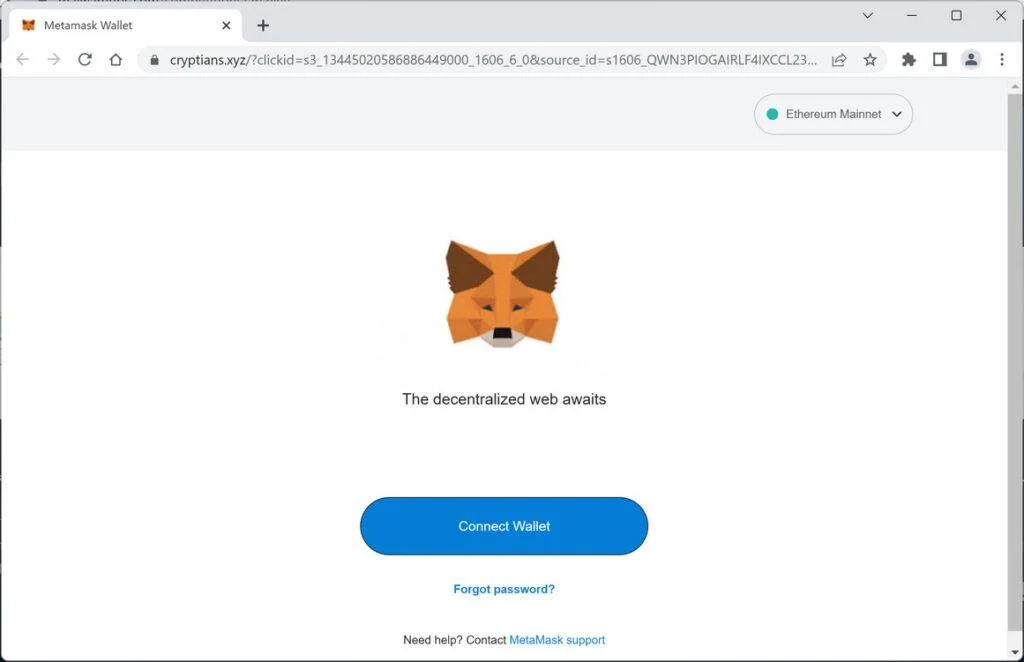
Scam Overview
The MetaMask “Incoming Transaction Failure” scam typically arrives as an email that pretends to be an official notification from MetaMask or from a related Ethereum service.
The central claim is always the same: a large ETH transfer to your wallet has been frozen and is pending your action. You are told that you can retrieve those funds if you click a special button or link.
At first glance, the email looks convincing. It uses technical terms like:
- “Frozen ETH transfer”
- “Transfer Cancellation/Refund”
- “Chain Type: Ethereum (ERC20)”
- “Transaction Hash” plus a long hexadecimal value
- “Block #” plus a realistic block number
- IP address, device type, and location
The scammers know that the more technical and detailed the message looks, the more believable it becomes. Many people see a specific amount like 6.36010082 ETH and assume that nobody would go to that much trouble for a fake email.
In reality, those details are exactly what make the scam dangerous.
What This Email Usually Looks Like
Most versions of the MetaMask “Incoming Transaction Failure” scam follow a very similar structure.
They typically include:
- A greeting such as “Hello Trader”
- A claim that an ETH transfer to your wallet has been frozen
- A reason, such as “sender requested Transfer Cancellation/Refund due to wrong wallet address input”
- A warning that MetaMask is holding the frozen assets for a limited time, for example 170 days
- A suggestion that if you are not the intended receiver, you should still keep the funds safe once you retrieve them
- A summary of transaction details:
- Deposit Amount: 6.36010082 ETH
- Chain Type: Ethereum (ERC20)
- Deposit Address: a wallet address that looks like yours or a generic address
- Transaction Hash: a realistic looking hash
- Block number and status “Pending”
- Time, device type, IP address, and location
- A prominent call to action such as “Retrieve ETH”
- A note that the “failure” is due to a mis-verification of the receiver wallet address and that you can retrieve the funds into any existing wallet
On top of that, the sender information is dressed up to look legitimate. You might see something like:
- Display name: “MetaMask.io”
- Email address: something like
info@jospo.deor a random domain that is absolutely not an official MetaMask or ConsenSys address
To most users, especially those who are not deeply technical, this looks plausible enough to cause panic or curiosity.
Quick Reference: Scam Details At A Glance
You can think of this scam in a quick fact sheet:
- Name: MetaMask Incoming Transaction Failure Scam
- Type: Phishing / Crypto Scam
- Method: Fake email claiming a failed or frozen ETH transaction with a link or button to retrieve funds
- Claimed Issue: Frozen ETH transfer pending due to sender’s cancellation request
- Amount Mentioned: Often 6.36010082 ETH or another large, specific amount
- Call To Action: Click “Retrieve ETH” to unlock or recover funds
- Malicious Links: Direct to phishing pages, such as a fake MetaMask login or wallet recovery page
- Goal: Steal your MetaMask credentials, private keys, or seed phrase
Some variants even include links like hxxps://eonzeus.com//MetaMask/MetaMask.html that then redirect to another domain, such as lyonshub.com, where the fake MetaMask interface is hosted.
Scammers regularly change domains to avoid blacklists, but the layout and wording often stay similar.
Why This Scam Works So Well
This scam plays on several powerful psychological triggers.
- Greed plus guilt
The email suggests that you may be receiving funds by mistake, but it also encourages you to “keep this funds safe when you retrieve into your wallet.”
It frames you as the responsible party, while quietly tempting you with the idea of unexpected ETH landing in your wallet. - Urgency and fear of loss
The mention of a limited holding period, such as “170 days,” implies that something important is happening behind the scenes and that you must act before the window closes.
People are naturally afraid of missing out on money or being involved in an unresolved transaction. - Authority and authenticity signals
The scammers use:- Technical jargon (hashes, blocks, ERC20)
- Specific timestamps
- Device details like “iPhone 16 Pro”
- IP addresses and geographic locations
These details are designed to mimic the kind of logging a real crypto service might keep.
- Familiar brand name: MetaMask
MetaMask is a widely used wallet. Even if you do not use it often, you probably know the name and logo.
Seeing that brand in your inbox lowers your guard and makes the email feel official. - Confusion around how crypto transactions work
Many users do not fully understand that once an Ethereum transaction is confirmed on chain, it cannot simply be “cancelled” and re-sent.
Scammers exploit that gap in knowledge by inventing a process that sounds plausible but does not exist in the way they describe.
The Real Goal Of The Scam
The aim is simple: get you to click the “Retrieve ETH” button and then trick you into handing over the keys to your wallet.
The fake MetaMask page you land on is typically designed to look nearly identical to the real thing. It may:
- Ask you to enter your MetaMask seed phrase to “synchronize” or “unlock” your wallet
- Prompt you to connect your wallet and approve a suspicious smart contract
- Ask for your private key or password
- Encourage you to reinstall, restore, or verify your wallet
Once the scammers have your recovery phrase or get you to sign a malicious contract, they can drain your wallet of any assets stored there. This may include:
- ETH
- ERC-20 tokens
- NFTs
- Stablecoins
- Any other tokens associated with that address
The email is only the first step. The real damage happens on the phishing site and with whatever you type or sign after you click the link.
How The Scam Works
Now let us walk through the MetaMask “Incoming Transaction Failure” scam step by step so you can see exactly what happens at each stage.
Understanding this flow makes it much easier to spot and block future attempts.
Step 1: The Fake MetaMask Email Lands In Your Inbox
The scam begins with a phishing email that pretends to originate from MetaMask, ConsenSys, or some Ethereum-related service.
In many cases:
- The display name looks like “MetaMask.io”
- The sending address is a random domain, for example
info@jospo.de - The subject line refers to a failed incoming transaction, review hold, or retrieval request
The goal at this stage is to bypass spam filters and look legitimate enough that you open the email.
You might receive it at the address you use for exchanges or crypto newsletters, which increases the chance that you take it seriously.
Step 2: The Email Tries To Convince You A Large ETH Transfer Is Frozen
Once opened, the body of the email drops the main hook.
It claims that:
- A MetaMask user tried to send you 6.36010082 ETH
- The sender realized they typed the wrong wallet address
- They requested a transfer cancellation or refund
- As a result, MetaMask put the transaction on hold and classified it as “frozen”
You may see language along the lines of:
- “The frozen ETH transfer from a MetaMask user to your wallet is open for retrieve.”
- “Your ETH transfer was held for review because sender filed for Transfer Cancellation/Refund.”
- “If intended receiver was not you, please keep this funds safe when you retrieve into your wallet.”
By mixing concern, urgency, and a promise of free funds, the scammers pull your emotions in several directions at once.
Step 3: The Email Uses Detailed Technical Data To Seem Authentic
To strengthen the illusion of authenticity, the message loads you with technical looking details.
These often include:
- Deposit Amount: 6.36010082 ETH
- Chain Type: Ethereum (ERC20)
- Deposit Address: a wallet address in the 0x… format
- Transaction Hash: a long string starting with 0x, for example
0x966f3e76a75aacf6... - Block number: a realistic numeric value
- Status: “Pending”
- Time: formatted with date and time in UTC
- Device: something like “iPhone 16 Pro”
- IP Address: for example
194.146.213.16 - Location: such as “Zürich, Switzerland”
Some of these values may be partially real or completely fabricated. Scammers often paste in random hashes and block numbers to make the email look more legitimate, counting on the fact that most users will not double check them on a block explorer.
These details create a sense of precision and seriousness that makes people think: “Nobody would fake all of this for a scam, right?”
Unfortunately, they would.
Step 4: The “Retrieve ETH” Button Promises An Easy Fix
The heart of the scam is the call to action.
Near the bottom of the email, you see a prominent button or link, often labeled “Retrieve ETH” or something similar.
The text around it usually says that:
- You can retrieve the pending assets into any existing crypto wallet
- You should keep the funds safe if you are not the intended receiver
- The system will release the frozen ETH into your wallet once you confirm
This gives you a very simple story in your mind:
- Someone mis-typed your address.
- The funds are stuck.
- MetaMask is letting you fix it.
- All you need to do is click the button and follow the instructions.
If you click, the scam moves to the next stage.
Step 5: The Link Redirects To A Phishing Site
Clicking the “Retrieve ETH” button does not send you to the real MetaMask site.
Instead, you are redirected through one or more malicious domains. For example:
hxxps://eonzeus.com//MetaMask/MetaMask.html- Which then redirects to another phishing host such as
lyonshub.com
The use of multiple redirects helps scammers:
- Rotate domains quickly
- Evade blacklists and security tools
- Hide their real infrastructure from quick inspections
The final page usually mimics the MetaMask interface or a MetaMask support portal with surprising accuracy. Logos, colors, fonts, and layouts are copied to reduce suspicion.
Step 6: The Fake MetaMask Page Asks You To “Unlock” Or “Restore” Your Wallet
Once you arrive on the phishing site, you are prompted to take an action that gives scammers direct access to your wallet.
Common tricks include:
- Asking for your seed phrase to “restore” your MetaMask wallet
- Requesting your private key for “manual verification”
- Telling you to paste your 12 or 24 word recovery phrase to “synchronize” or “unlock” your account so they can release the frozen funds
- Linking a “Connect Wallet” button that asks you to sign unusual approvals
Legitimate MetaMask support will never ask you for your seed phrase or private key, and MetaMask does not need your recovery phrase to confirm a transaction or release funds.
If you type your seed phrase into the phishing form, the scammers can immediately import your wallet into their own MetaMask or another compatible wallet application.
If you sign malicious contract approvals, they can gain permission to move your tokens or drain liquidity from DeFi protocols you interact with.
Step 7: Scammers Drain Your Wallet
After you reveal your seed phrase or sign their malicious requests, the attackers can:
- Transfer all your ETH to their own addresses
- Move your ERC-20 tokens, such as stablecoins or governance tokens
- Transfer or list your NFTs for sale
- Empty any other assets associated with your compromised addresses
This often happens very quickly. You may see outgoing transactions within minutes, especially if the scammers have automated scripts listening for new seed phrases or approvals.
By the time you realize what happened, the funds are usually irreversibly gone.
Step 8: They Abandon The Domain And Move On
Once enough victims have been drained or the phishing domain starts appearing on blacklists, the scammers simply move to new domains and start the cycle again.
They reuse the same email template, just swap:
- The sending address
- The phishing link
- Sometimes the exact deposit amount
This is why you might see similar emails over months, always with slightly different domains but the same basic script.
Similar Email Variants You May Encounter
Scammers rarely rely on a single version of the MetaMask “Incoming Transaction Failure” email. They constantly release new variants to bypass filters and confuse users. While the details may change, the core message stays the same: a large ETH transfer is “frozen,” “pending,” or “available for retrieval,” and you must act quickly to claim it.
Here are the most common versions:
Variant 1: Frozen ETH Transfer With Retrieval Button
This is the most widespread version. It claims a transfer worth a specific amount (often 6.36010082 ETH) is frozen because the sender requested a cancellation. It includes technical data such as a transaction hash, block number, IP address, device info, and a “Retrieve ETH” button that leads to a phishing site.
Variant 2: Incoming Transaction Failure Due To Wrong Wallet Address
This variant focuses on the idea that the sender mistyped your address. The email states that MetaMask froze the funds while investigating, and you must “claim” the assets to prove ownership. It typically includes a warning that assets will be held for a limited period.
Variant 3: Pending Refund or Reversal Notification
Instead of claiming the funds are stuck, this version says MetaMask is processing a refund request from another user and needs you to “review” or “approve” the reversal. The link leads to a fake approval page designed to collect wallet data.
Variant 4: Security Alert About Blocked ETH Transaction
This one pretends to be a security warning. It claims MetaMask detected suspicious activity from a foreign device and froze an incoming transaction for your protection. You are told to “verify” your wallet to unlock it.
Variant 5: Multi Wallet Claim Variant
Some versions expand beyond MetaMask and claim the frozen funds can be retrieved into “any existing crypto wallet,” including Binance, Coinbase Wallet, or Trust Wallet. The link always leads to a MetaMask themed phishing page regardless of the claim.
Variant 6: SMS or Messaging App Version
In some cases, scammers send shorter versions via SMS, WhatsApp, or Telegram with lines like:
- “Pending ETH transfer to your wallet. Verify now.”
- “MetaMask alert. Transaction failure detected. Resolve now.”
These messages use shortened URLs to hide phishing links.
Variant 7: Domain Spoofing Variant
Some emails use lookalike domains such as:
- metamask-support.io
- meta-maskhelp.com
- metamask-verification.net
The pages look professional enough to mislead users into entering their seed phrase.
All these variants share one goal: trick you into visiting a fake MetaMask site so scammers can steal your wallet credentials.
How To Spot This Scam Quickly
Even though the MetaMask “Incoming Transaction Failure” scam looks polished, several red flags expose it immediately. Knowing these signs can help you avoid phishing attempts not only today but in the future.
Check the Sender’s Email Address
MetaMask never sends transactional alerts by email.
Scammers often use random or unrelated domains such as:
- info@jospo.de
- support@meta-maskalerts.com
- system@metamaskwalletverify.net
If the domain is not from an official MetaMask or ConsenSys site, it is fake.
Look for Unexpected Transaction Claims
Any message claiming you received ETH, especially a large amount, should be treated with suspicion.
Crypto transfers do not require your approval to be completed, and they are not frozen because someone typed the wrong address.
Examine the Technical Details
Scammers fill the email with technical looking data to appear legitimate.
These include transaction hashes, block numbers, device types, or IP addresses.
Real alerts from MetaMask do not look like this, and MetaMask does not freeze or hold transactions for “review” or “verification.”
Beware of Any “Retrieve,” “Unlock,” or “Verify” Buttons
If an email asks you to click a button to access your wallet, recover funds, or confirm ownership, it is a phishing attempt.
Legitimate wallet providers do not ask users to perform such actions through email.
Never Enter Your Seed Phrase on Any Linked Website
This is the biggest red flag of all.
MetaMask will never ask for your seed phrase online.
The only legitimate place to enter your recovery phrase is inside the MetaMask extension or app when restoring access to your own wallet.
Inspect the URL Carefully
Phishing sites often use:
- Misspellings of MetaMask
- Hyphenated lookalike domains
- Random domain names with a MetaMask folder attached
If you see URLs like: - eonzeus.com/MetaMask
- lyonshub.com/MetaMask
You are not on the real MetaMask site.
Look for Urgency or Scare Tactics
Scams often pressure you with:
- Limited time to claim funds
- Pending cancellations or reversals
- Frozen assets waiting for your action
Real crypto platforms do not use urgent language to force you into clicking.
Verify Directly in MetaMask
Open your MetaMask extension or wallet app manually.
If a transaction truly existed, you would see it there.
The absence of such activity confirms the email is fake.
Use a Blockchain Explorer
If you want to check the details, enter your wallet address manually into Etherscan, not through any link in the email.
If no such transaction is associated with your address, the email is a scam.
Always Trust Your Instincts
If the email feels unusual, surprising, or too good to be true, delete it.
Scammers rely on you acting fast. Slowing down is your best defense.
What To Do If You Have Fallen Victim To This Scam
If you clicked the “Retrieve ETH” button, visited the phishing site, or entered any sensitive data, do not panic.
You are not alone, and there are practical steps you can take right now to limit the damage and protect yourself going forward.
Below is a calm, step by step response plan.
1. Stay Calm And Assess Exactly What You Did
First, take a deep breath and replay what happened.
Ask yourself:
- Did I only open the email and read it?
- Did I click the link but close the page right away?
- Did I enter my seed phrase or private key?
- Did I sign any transactions or approvals with my wallet?
Your level of exposure determines how urgent and severe the risk is.
- If you only read the email and did nothing else, you are likely safe.
- If you clicked the link, there is some risk from potential browser exploits or trackers.
- If you entered your seed phrase or private key, your wallet is fully compromised.
- If you connected your wallet and signed approvals, your assets may already be at risk.
Write down any details you remember, including timestamps, domains, and what you typed or clicked.
2. Immediately Move Remaining Funds To A New Wallet If Your Seed Phrase Was Exposed
If you entered your MetaMask recovery phrase or private key on the phishing site, consider that wallet permanently compromised.
Do not reuse it.
Instead:
- Create a brand new wallet using:
- A new MetaMask installation on a secure device, or
- A reputable hardware wallet like Ledger or Trezor.
- Safely back up the new seed phrase offline.
- Transfer all remaining assets from the old, compromised wallet to the new one:
- ETH
- ERC-20 tokens
- NFTs
Act quickly, especially if you still see any funds in the old wallet. Scammers may not have drained everything yet or may be waiting to see more incoming deposits.
3. Revoke Dangerous Token Approvals
If you connected your wallet to the phishing site and approved anything, you should revoke those approvals as soon as possible.
You can use reputable tools such as:
- Etherscan Token Approval Checker
- revoke.cash
- Your wallet’s built in permissions management, if available
Steps usually look like this:
- Connect your wallet to a known, legitimate approval checker site.
- Review all token approvals, especially any granted around the time of the phishing incident.
- Revoke any suspicious or unknown contracts.
This does not fix a seed phrase compromise, but it can limit the damage if the scam relied mostly on malicious approvals rather than seed phrase theft.
4. Scan Your Devices For Malware
It is a good idea to check your devices for malware or unwanted browser extensions that could have been installed or leveraged during the attack.
You can:
- Run a full system scan with reputable security software.
- Review installed browser extensions and remove anything you do not recognize.
- Update your operating system and browser to the latest versions.
- Avoid installing random crypto related extensions unless they are widely known and verified.
If you suspect your device might be compromised at a deeper level, consider setting up your new wallet on a separate, clean device.
5. Change Passwords And Enable Two Factor Authentication
Even though MetaMask itself is protected by your seed phrase, your email account and exchange accounts may have also been targeted.
To strengthen your security:
- Change the password for the email account that received the phishing message.
- Change passwords for any crypto exchanges or services you use, such as Binance, Coinbase, or Kraken.
- Enable strong two factor authentication (2FA) using an authenticator app wherever possible.
Never reuse the same password across multiple important services.
6. Check The Blockchain For Suspicious Transactions
Use a blockchain explorer such as Etherscan to review recent activity on your wallet.
Look for:
- Outgoing transfers of ETH or tokens you did not initiate.
- Approvals for new contracts you do not recognize.
- Interactions with suspicious addresses around the time you clicked the phishing link.
Even if your funds are already gone, documenting this information is useful for reporting and may help others.
You can copy transaction hashes, addresses, and timestamps for your notes.
7. Contact MetaMask Support Through Official Channels
If you have been scammed, it is important to report it to MetaMask so they can:
- Warn other users
- Improve scam filters and alerts
- Possibly flag known phishing domains and addresses
Make sure you use only official support links from:
- The MetaMask website
- The official browser extension
- Verified social accounts or help documentation
Never share your seed phrase or private keys with support. They will not ask for it.
Describe what happened, include:
- The phishing email text or screenshots
- The phishing site URL
- Any transactions or addresses involved
8. Report The Scam To Relevant Authorities
Depending on your country, you may be able to file a report with:
- Local cybercrime units or national police
- Consumer protection agencies
- Internet crime complaint portals
You can also report the phishing domain and email to:
- The domain registrar or hosting provider
- Email providers or spam reporting services
- Anti phishing organizations where applicable
While it is unlikely that your funds can be recovered, these reports help authorities track large scale operations and may prevent future attacks.
9. Warn Others In The Crypto Community
Scammers thrive when victims feel embarrassed and stay silent.
You can turn your experience into a protective shield for others by:
- Posting anonymized details on crypto forums or social media
- Sharing warnings in relevant Discord groups or Telegram channels
- Letting friends or colleagues who invest in crypto know about this scam pattern
The more people are aware of fake “Incoming Transaction Failure” emails, the harder it becomes for scammers to succeed.
10. Use The Experience To Strengthen Your Security Habits
Finally, treat this as a tough but valuable lesson in crypto security.
Going forward, commit to a few key rules:
- Never click wallet related links in emails or SMS.
- Always visit MetaMask and other wallets only by typing the address manually or using trusted bookmarks.
- Never enter your seed phrase into any website. Only use it inside your own wallet app or hardware device when you are restoring the wallet.
- For large holdings, use a hardware wallet and keep your seed phrase offline and secure.
This mindset shift, while painful in the moment, can protect you from far more damaging attacks in the future.
Is Your Device Infected? Run a Free Malware Scan
Slow performance, constant pop-ups, or strange behavior? These are classic signs of a malware infection. The fastest way to find out is to scan your device with Malwarebytes Free — one of the most trusted malware removal tools available.
The free version detects and removes the most common threats, including:
- Adware — the cause of those annoying pop-ups
- Browser hijackers — unwanted redirects and changed homepages
- Trojans and spyware — hidden programs stealing your data
- Potentially unwanted programs (PUPs) — software you never asked for
👉 Select your device below — Windows, Mac, or Android — then follow the simple steps to download Malwarebytes, scan your system, and remove any threats it finds. The scan usually takes 5 to 20 minutes.
Run a Malware Scan with Malwarebytes for Windows
Malwarebytes is one of the most popular and trusted anti-malware tools for Windows — and it’s completely free for removing infections. It catches threats that many antivirus programs miss, including adware, browser hijackers, and trojans. Follow the steps below to scan and clean your PC in just a few minutes.
Download Malwarebytes
Click the button below to download the latest version of Malwarebytes for Windows from the official source. The free version is all you need — it will scan your computer and remove adware, browser hijackers, and other malicious software at no cost.
Download MalwarebytesOfficial installer for Windows 11 and 10. Your download starts right away.Want real-time protection? See Malwarebytes Premium Malwarebytes Free for WindowsScans and removes malware at no cost
-
Install Malwarebytes
When the download finishes, open your Downloads folder and double-click the MBSetup file. If Windows shows a User Account Control pop-up, click “Yes” to allow the installation.

Follow the On-Screen Prompts to Install Malwarebytes
The setup wizard will walk you through a few quick screens:
-
Choose where you’re installing the program — “Personal Computer” or “Work Computer” — then click Next.

-
Malwarebytes will now install on your device. This usually takes under a minute.

-
When installation is complete, the “Welcome to Malwarebytes” screen will open automatically.

-
On the final screen, click Open Malwarebytes to launch the program.

-
Enable “Scan for Rootkits”
Before scanning, turn on rootkit detection so Malwarebytes can find even the most hidden threats. Click the Settings gear icon on the left side of the screen.

In the settings menu, find “Scan for rootkits” and click the toggle so it turns blue.

Done? Click “Dashboard” in the left pane to return to the main screen.
Start the Scan
Click the blue Scan button. Malwarebytes will automatically update its virus database and start checking your computer for malware.

-
Wait for the Scan to Finish
The scan checks your entire system for browser hijackers and other malicious programs, so it can take 5 to 20 minutes depending on your computer. Feel free to do something else — just check back occasionally to see the progress.

-
Quarantine the Detected Threats
When the scan is done, you’ll see a list of everything Malwarebytes found — malware, adware, and potentially unwanted programs. Click the “Quarantine” button to remove all of them at once.

Malwarebytes will now remove the malicious files and registry entries and move them safely into quarantine.

-
Restart Your Computer
Some threats can only be fully removed after a reboot. If Malwarebytes asks you to restart, click Yes. Once you’re logged back in, Malwarebytes has finished removing the threats it found.

That’s it — your Windows PC is now clean of trojans, adware, and other malware, and should be back to running smoothly.
If you are still having problems with your computer after completing these instructions, then please follow one of the steps:
- Run a computer scan with ESET Online Scanner
- Ask for help in our Windows Malware Removal Help & Support forum.
Run a Malware Scan with Malwarebytes for Mac
Malwarebytes for Mac is a free on-demand scanner that removes the malware other security software tends to miss — adware, browser hijackers, and unwanted programs included. Cleaning an infected Mac with Malwarebytes has always been completely free, and it’s our go-to recommendation. Follow the steps below to scan and clean your Mac in just a few minutes.
-
Download Malwarebytes for Mac
Click the button below to download the latest version of Malwarebytes for Mac.
Download MalwarebytesOfficial installer for macOS. Your download starts right away.Want real-time protection? See Malwarebytes PremiumMalwarebytes Free for MacScans and removes malware at no cost -
Open the Malwarebytes setup file
When the download finishes, open your Downloads folder and double-click the setup file to begin the installation.

-
Follow the On-Screen Prompts to Install Malwarebytes
The Malwarebytes for Mac Installer will guide you through a few quick screens. Click “Continue” and keep following the prompts until the installation completes.



When the installation is complete, Malwarebytes opens to the Welcome to Malwarebytes screen. Click “Get started“.
-
Select “Personal Computer” or “Work Computer”
Malwarebytes will ask what type of computer you’re installing it on. Click either Personal Computer or Work Computer, whichever applies.

-
Start the Scan
Click the “Scan” button. Malwarebytes will automatically update its detection database and begin checking your Mac for malware.

-
Wait for the Scan to Finish
Malwarebytes will scan your Mac for adware, browser hijackers, and other malicious programs. This can take a few minutes, so feel free to do something else — just check back occasionally to see the progress.

-
Quarantine the Detected Threats
When the scan is done, you’ll see a list of everything Malwarebytes found. Click the “Quarantine” button to remove all the threats at once.

-
Restart Your Mac
Malwarebytes will now remove all the malicious files it found. Some threats can only be fully removed after a reboot — if Malwarebytes asks you to restart, allow it. Once you’re logged back in, your Mac is clean.

That’s it — your Mac is now free of adware, rogue browser extensions, and other potentially harmful software.
If you are still experiencing problems while trying to remove a malicious program from your computer, please ask for help in our Mac Malware Removal Help & Support forum.
Run a Malware Scan with Malwarebytes for Android
Malwarebytes for Android automatically detects and removes dangerous threats like malware and ransomware so you don’t have to worry about your most-used device being compromised. Aggressive detection of adware and potentially unwanted programs keeps your Android phone or tablet running smooth.
-
Download Malwarebytes for Android.
You can download Malwarebytes for Android by clicking the link below.
Get Malwarebytes for AndroidOpens Google Play in a new tab.Want real-time protection? See Malwarebytes Premium for AndroidMalwarebytes for AndroidScans your phone and removes malware at no cost -
Install Malwarebytes for Android on your phone.
In the Google Play Store, tap “Install” to install Malwarebytes for Android on your device.

When the installation process has finished, tap “Open” to begin using Malwarebytes for Android. You can also open Malwarebytes by tapping on its icon in your phone menu or home screen.

-
Follow the on-screen prompts to complete the setup process
When Malwarebytes will open, you will see the Malwarebytes Setup Wizard which will guide you through a series of permissions and other setup options.
This is the first of two screens that explain the difference between the Premium and Free versions. Swipe this screen to continue.
Tap on “Got it” to proceed to the next step.
Malwarebytes for Android will now ask for a set of permissions that are required to scan your device and protect it from malware. Tap on “Give permission” to continue.
Tap on “Allow” to permit Malwarebytes to access the files on your phone.
-
Update database and run a scan with Malwarebytes for Android
You will now be prompted to update the Malwarebytes database and run a full system scan.

Click on “Update database” to update the Malwarebytes for Android definitions to the latest version, then click on “Run full scan” to perform a system scan.

-
Wait for the Malwarebytes scan to complete.
Malwarebytes will now start scanning your phone for adware and other malicious apps. This process can take a few minutes, so we suggest you do something else and periodically check on the status of the scan to see when it is finished.

-
Click on “Remove Selected”.
When the scan has been completed, you will be presented with a screen showing the malware infections that Malwarebytes for Android has detected. To remove the malicious apps that Malwarebytes has found, tap on the “Remove Selected” button.

-
Restart your phone.
Malwarebytes for Android will now remove all the malicious apps that it has found. To complete the malware removal process, Malwarebytes may ask you to restart your device.
That’s it — your Android phone is now clean — no more malicious apps, adware, or browser redirects.
If you are still having problems with your phone after completing these instructions, then please follow one of the steps:
- Restore your phone to factory settings by going to Settings > General management > Reset > Factory data reset.
- Ask for help in our Mobile Malware Removal Help & Support forum.
Stay Protected: Block Ads and Malicious Sites
Now that your device is clean, keep it that way. Most infections start with a malicious ad or a fake download button — so blocking them at the source is your best defense.
We recommend AdGuard, which blocks malicious ads, phishing pages, and dangerous redirects before they can reach you.
👉 Download AdGuard and browse safely
The Bottom Line
The MetaMask “Incoming Transaction Failure” scam is a sophisticated phishing scheme that tries to turn fake frozen ETH into real stolen crypto.
By sending realistic emails that talk about 6.36010082 ETH stuck in your wallet, citing transaction hashes, block numbers, IP addresses, and devices, scammers hope you will click “Retrieve ETH” without thinking twice.
Behind that button, however, is not MetaMask or any real wallet support system. It is a carefully cloned phishing site whose only purpose is to capture your seed phrase, private keys, or dangerous approvals so your wallet can be drained.
The good news is that you can stay safe by following a few simple principles:
- Treat unexpected crypto emails with extreme skepticism.
- Never click on wallet links in your inbox.
- Never enter your recovery phrase on websites.
- Always verify transaction details directly in MetaMask or through blockchain explorers you visit manually.
If you already interacted with a scam like this, act quickly to move funds to a new wallet, revoke approvals, secure your devices, and report the incident.
Crypto can offer incredible opportunities, but it also attracts sophisticated scammers. The more you understand how these attacks work, the harder it is for anyone to turn your curiosity or fear into stolen tokens.
FAQ
What is the MetaMask “Incoming Transaction Failure” scam?
It is a phishing scheme that pretends to notify you about a frozen ETH transfer stuck in your MetaMask wallet. The email includes realistic transaction details and a button to “Retrieve ETH,” which leads to a fake MetaMask site designed to steal your seed phrase or wallet access.
Does MetaMask ever email users about failed or frozen transactions?
No. MetaMask does not send emails about incoming transfers, failed transactions, frozen funds, or retrieval requests. Any message claiming this is a scam.
Are the transaction hash and block number in the email real?
Scammers often use random or fabricated data. Even if a hash appears valid, the email itself is still fake. Always check transactions directly on Etherscan by entering your real wallet address.
What happens if I click the “Retrieve ETH” button?
You are redirected to a phishing page that looks like MetaMask. It may ask for your seed phrase, private key, or wallet approval. Entering any sensitive data gives scammers full control of your wallet.
Can I recover my funds if I entered my seed phrase?
In most cases, no. Crypto transactions cannot be reversed, and scammers usually drain the wallet quickly. Your best defense is to immediately move any remaining assets to a brand new wallet with a new seed phrase.
How can I verify real MetaMask information?
Always visit MetaMask only by typing the URL manually or using the official browser extension. Never trust links in emails or messages.
What should I do if I received the scam email but did not click anything?
You are safe. Delete the email, block the sender, and report it as phishing. No harm occurs unless you click the link or enter sensitive information.
How can I avoid scams like this in the future?
Never enter your seed phrase on websites. Never click wallet related links in emails. Always confirm activity directly inside your MetaMask extension or through trusted blockchain explorers.

Join the discussion
0 commentsShare your experience or ask a question about this article.
Discussion
Start the conversation
Have a question or something useful to share? Add the first comment.