

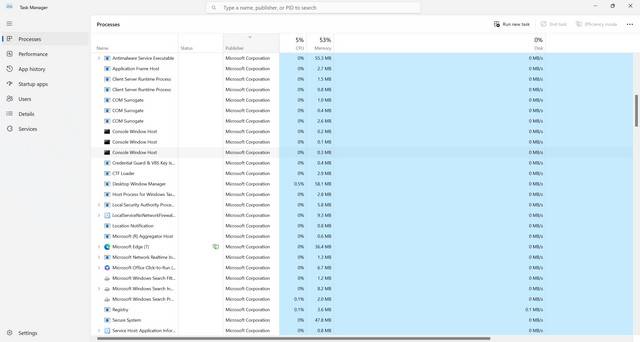
When you open the Task Manager on your Windows computer, you may notice a process called “Microsoft Compatibility Telemetry” running in the background. This process might raise some questions and concerns for users who are unfamiliar with it. In this article, we will explore what the Microsoft Compatibility Telemetry process is, why it is running in Task Manager, and its significance in the Windows operating system.
Understanding Microsoft Compatibility Telemetry
Microsoft Compatibility Telemetry is a Windows service that collects and sends data to Microsoft to help improve the compatibility and performance of the operating system. It gathers information about the hardware and software configuration of your computer, as well as how you use various applications and features.
The data collected by Microsoft Compatibility Telemetry is used by Microsoft engineers to identify and fix compatibility issues, optimize system performance, and enhance the overall user experience. This telemetry data plays a crucial role in the development and improvement of future Windows updates and features.
Why Is Microsoft Compatibility Telemetry Running?
Microsoft Compatibility Telemetry runs in the background to continuously collect and send telemetry data to Microsoft. This data helps Microsoft identify and address compatibility issues, improve system stability, and enhance the performance of Windows.
By analyzing the telemetry data, Microsoft can gain insights into how users interact with their devices, which applications are commonly used, and what hardware configurations are prevalent. This information allows Microsoft to make informed decisions about future updates, prioritize bug fixes, and optimize the operating system for a wide range of hardware and software configurations.
It is important to note that Microsoft Compatibility Telemetry respects user privacy and only collects data that is necessary for improving the Windows experience. The collected data is anonymized and does not contain any personally identifiable information.
How Does Microsoft Compatibility Telemetry Work?
Microsoft Compatibility Telemetry operates by collecting various types of data from your computer. This includes information about your hardware configuration, device drivers, installed software, and system settings. It also tracks how you use different applications and features, such as the frequency of app launches, usage duration, and any errors encountered.
The telemetry data is then encrypted and sent to Microsoft servers for analysis. Microsoft engineers use advanced analytics tools to process the data and gain insights into the performance and compatibility of Windows across different devices and configurations.
It is worth mentioning that Microsoft Compatibility Telemetry is designed to be efficient and minimize its impact on system resources. The process runs with low priority, ensuring that it does not interfere with the performance of other applications or tasks running on your computer.
Controlling Microsoft Compatibility Telemetry
If you are concerned about the Microsoft Compatibility Telemetry process running on your computer, Windows provides options to control its behavior.
To manage the telemetry settings, follow these steps:
- Open the Start menu and go to “Settings”.
- Select “Privacy”.
- In the left sidebar, click on “Diagnostics & feedback”.
- Under the “Diagnostic data” section, you can choose from different levels of data collection. The options include:
- Basic: This level collects minimal data and focuses on essential diagnostic information.
- Enhanced: This level collects additional data to help Microsoft improve the Windows experience.
- Full: This level collects the most comprehensive data, including detailed system and app telemetry.
By default, Windows is set to the “Full” level, but you can choose a lower level if you prefer to limit the amount of data collected and sent to Microsoft.
It is important to note that disabling Microsoft Compatibility Telemetry entirely is not recommended, as it may prevent you from receiving important updates and improvements for your Windows operating system.
Addressing Privacy Concerns
Privacy is a valid concern for many users when it comes to data collection. However, Microsoft takes privacy seriously and has implemented measures to protect user data.
The telemetry data collected by Microsoft Compatibility Telemetry is anonymized, meaning it does not contain any personally identifiable information. This ensures that your privacy is protected, and the data cannot be traced back to you as an individual.
If you still have concerns about privacy, it is recommended to use reliable security software to scan your computer for any potential threats. Malwarebytes Free is a trusted antivirus and anti-malware tool that can help detect and remove any malicious software that may compromise your privacy.
Conclusion
The Microsoft Compatibility Telemetry process running in Task Manager is an essential component of the Windows operating system. It collects and sends telemetry data to Microsoft, helping them improve compatibility, performance, and user experience. By analyzing this data, Microsoft can make informed decisions about future updates and enhancements.
While some users may have concerns about privacy, it is important to understand that Microsoft respects user privacy and collects only necessary data. The collected data is anonymized and cannot be traced back to individual users.
If you have any concerns about the Microsoft Compatibility Telemetry process, you can adjust the telemetry settings in Windows to limit the amount of data collected. However, disabling it entirely is not recommended, as it may hinder the overall performance and security of your Windows operating system.
By understanding the purpose and significance of the Microsoft Compatibility Telemetry process, users can make informed decisions about their privacy settings and contribute to the ongoing improvement of the Windows operating system.








